If your Android emojis feel stale, weird-looking, too tiny, too plain, or just not you, good news: you do have options. The slightly less magical news is that Android does not usually give you one big shiny button labeled “Replace Every Emoji on Earth.” Instead, changing emojis on an Android phone or tablet usually means doing one of three practical things: switching keyboards, updating your software, or using custom emoji tools.
That may sound less dramatic than a total emoji makeover, but it is actually better. Why? Because these are the methods that work on real devices, without turning your phone into an experimental science fair project. So whether you want fresher smileys, more emoji choices, better search, or a more personal style, here are the three easiest ways to change emojis on Android.
Can You Really Change Emojis on Android?
Yes, but it helps to define what “change” means. On Android, emojis can change in a few different ways. You can switch to a different keyboard app that gives you a different emoji experience. You can update Android and your keyboard app to get newer emoji support. Or you can create custom sticker-style emojis, avatar emojis, or photo-based reactions.
What most people cannot do easily is swap the entire system-wide emoji font everywhere with one built-in setting. That is why the best guide is not “here is a fantasy trick,” but “here are the three easy methods that actually improve your emoji life.”
Way 1: Switch to a Different Keyboard App
If you want the fastest visible change, start with your keyboard. This is the easiest and most practical method because the keyboard is where you actually browse, search, and insert emojis. A new keyboard can give you better emoji search, faster access rows, themed layouts, stickers, GIF tools, and more expressive suggestions.
Why This Works
Different Android keyboards handle emojis differently. Some make emoji easier to find. Some add prediction tools. Some include custom stickers or avatar systems. Some feel cleaner and faster. In plain English: changing your keyboard changes your emoji experience immediately, even if your phone itself stays the same.
Option 1: Try Gboard
Gboard is a popular choice because it is simple, polished, and packed with emoji-friendly features. You can change its theme, turn on helpful emoji controls, and use extras like Emoji Kitchen.
- Open Settings on your Android phone or tablet.
- Go to the keyboard or language/input section. On many devices, that is under System or General management.
- Select On-screen keyboard or Virtual keyboard.
- Choose Gboard if it is installed, or download it first from the Play Store.
- Open Gboard settings and adjust options like Theme, emoji switch key, or emoji-related preferences.
If your goal is speed, Gboard is hard to beat. Its emoji tools are easy to reach, its search is strong, and the interface generally feels modern instead of “mystery drawer from 2017.”
Option 2: Use Samsung Keyboard
If you have a Samsung phone or tablet, Samsung Keyboard may already be your default. It gives you built-in emoji access, language switching, and compatibility with Samsung’s own customization features. For some people, sticking with the native keyboard simply feels more natural than installing another app.
- Open Settings.
- Tap General management.
- Tap Keyboard list and default.
- Tap Default keyboard.
- Select Samsung Keyboard.
Samsung Keyboard is a good fit if you want a familiar layout and easy access to Samsung-specific features without juggling extra apps.
Option 3: Try Microsoft SwiftKey
SwiftKey is a solid alternative if you like predictive typing and quick emoji access. It includes an emoji panel and settings for a dedicated emoji key and emoji predictions, which can make your keyboard feel smarter and more expressive.
- Install Microsoft SwiftKey from the Play Store.
- Set it as your default keyboard in Android settings.
- Open the SwiftKey app.
- Tap Emoji.
- Turn on the Dedicated emoji key and Emoji predictions if you want quicker access.
One small but important reality check: SwiftKey itself does not offer a magical style switch that changes every emoji design inside the keyboard. Still, it can absolutely improve how you access and use emojis day to day.
Who Should Choose This Method?
Choose a new keyboard if you want the easiest improvement with the least effort. It is the best option for people who want better emoji search, easier insertion, more sticker tools, or a fresh typing experience without messing with deeper phone settings.
Way 2: Update Android and Your Keyboard App
If your emojis look old, if some symbols are missing, or if your friend sends a shiny new emoji that shows up on your device as a sad little box, updating your software is the next move. Emoji support changes over time, and newer Android or app versions can bring newer emoji support, improved rendering, or better compatibility.
How to Update Android
- Open Settings.
- Tap About phone or About tablet to check your current Android version.
- Then go to System.
- Tap Software update or System update.
- Follow the prompts if an update is available.
The exact wording can vary by brand, because Android makers love nothing more than renaming the same menu five different ways. But the general path is similar on most devices.
How to Update Gboard or Another Keyboard
- Open the Google Play Store.
- Tap your profile picture.
- Go to Manage apps & device.
- Check for pending updates.
- Update Gboard, SwiftKey, or any keyboard app you use.
Updating the keyboard matters because some emoji features arrive through the app itself, not just through Android. In other words, your phone and your keyboard are both part of the emoji story.
What This Method Changes
This method is best if your issue is not style but age. Maybe you want newer emojis, better compatibility, or fewer missing symbols. A software update can help your device support modern emoji sets more reliably. It can also fix bugs, improve search, and make emoji tools work more smoothly.
This is also the best method if your current emoji experience feels broken rather than boring. If the emoji button is missing, the keyboard is glitchy, or new emoji are not showing correctly, updating first is the digital version of drinking water and getting eight hours of sleep. Not glamorous, but often correct.
Way 3: Use Custom Emoji Tools
If your real goal is not “I want the default smiley to look slightly different,” but “I want cooler, funnier, or more personal emoji,” custom emoji tools are where Android gets interesting. This is the category for people who want emoji mashups, selfie avatars, sticker-style reactions, or photo-based creations.
Use Emoji Kitchen in Gboard
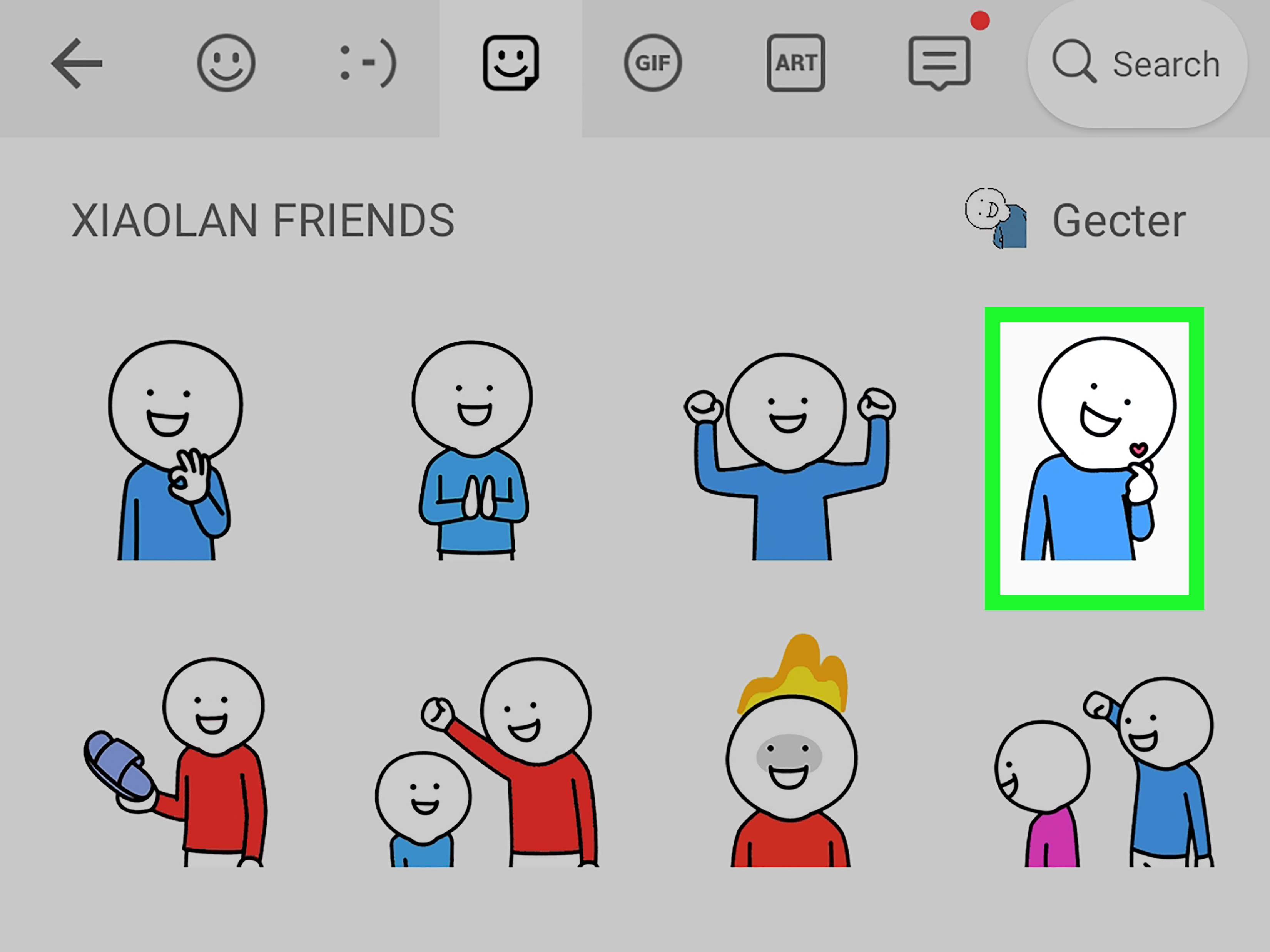
Emoji Kitchen lets you combine emojis into new sticker-style creations. Think of it as emoji remix culture. A heart-eyes face plus a ghost? Maybe chaos. A cat plus sunglasses? Immediate main-character energy.
- Open an app where you can type with Gboard.
- Tap the emoji icon.
- Select one emoji, then try another compatible emoji.
- Look for mashup suggestions above the keyboard.
- Tap the custom result to send it.
This option is especially fun because it feels creative instead of technical. The catch is that these are usually sent as stickers, not as official new Unicode emoji characters.
Use Google Messages Photomoji
Google Messages includes Photomoji, which lets you turn a photo into a reaction-style graphic. If you want something more personal than a regular emoji, this is a fun middle ground between an emoji and a meme. Basically, your camera roll gets drafted into emotional service.
- Open Google Messages.
- Open a conversation.
- Tap and hold a message.
- Tap Create.
- Select a photo from your gallery.
- Choose the subject you want if needed.
- Send the Photomoji.
This is a great choice for people who want expressive replies without installing a separate creative app.
Use Samsung AR Emoji
Samsung users get another playful option: AR Emoji. You can create an animated version of yourself, edit it, and turn it into stickers or shareable visuals. It is not the same as changing every default emoji on your phone, but it is absolutely a way to make your emoji life feel more personal.
- Open the Camera app.
- Go to More.
- Open AR Zone.
- Choose AR Emoji Camera or AR Emoji Studio.
- Follow the prompts to create and save your emoji.
If you like avatar-style expression, this is one of the better built-in tools on Android.
Use Bitmoji or Similar Apps
Bitmoji is still a popular pick if you want a recognizable custom character that works across messaging and social apps. It is less about replacing standard emojis and more about adding a personalized cartoon version of yourself to the conversation.
- Install Bitmoji.
- Create your avatar.
- Enable the Bitmoji keyboard or its sharing integration.
- Insert Bitmoji into supported apps and conversations.
This method works well for people who want expressive visuals and do not mind that they are using sticker-style content rather than standard emoji characters.
What Usually Does Not Work So Well
When people search for how to change emojis on Android, they often hope for “make my whole phone use iPhone emojis instantly.” That dream tends to run into reality pretty fast. Many apps that promise dramatic emoji swaps only affect one app, add sticker packs instead of true emoji, or require extra permissions and messy setup steps.
That does not mean every third-party tool is bad. It just means you should prefer trusted keyboard apps and built-in features over random shortcut promises. If a method sounds like it was invented at 2:00 a.m. in a forum thread titled “bro trust me,” maybe skip it.
Troubleshooting Tips
The Emoji Button Is Missing
Check your keyboard settings. On some devices, you may need to turn on the emoji switch key or enable a fast-access emoji row. If the setting is enabled but the button still does not appear, restart the device.
The New Keyboard Does Not Stay Selected
Go back to Default keyboard in your Android settings and reselect your preferred keyboard. Some devices also require you to enable the keyboard before setting it as default.
New Emojis Still Do Not Show Up Properly
Update both Android and the app you are using. Keep in mind that emoji display can also depend on the specific app, not just the keyboard.
Custom Emoji Look Different Than Expected
That is normal. Tools like Emoji Kitchen, Photomoji, AR Emoji, and Bitmoji often create stickers, reactions, or avatars rather than standard Unicode emoji. They are fun, but they play by slightly different rules.
Which Method Is Best?
If you want the quickest improvement, switch keyboards. If you want newer or more compatible emojis, update Android and your keyboard app. If you want personality, use custom emoji tools.
For most people, the best order is simple: start with a keyboard change, then update everything, then add custom tools if you want extra flair. That gets you the biggest payoff with the least amount of effort. It is the emoji equivalent of cleaning your room, opening the windows, and then buying a plant.
Experiences: What Changing Emojis on Android Feels Like in Real Life
In real-world use, changing emojis on Android is usually less about one dramatic transformation and more about a series of small upgrades that make your daily typing feel better. A lot of people start this process because they think their emojis look outdated, but what they are often really noticing is a clunky keyboard, poor emoji search, or a missing shortcut that makes typing feel slower than it should.
A common experience is switching from the default keyboard to Gboard and immediately feeling like the phone got smarter. The emoji button is easier to reach, search works better, and the suggestions feel faster. You do not necessarily sit there admiring one specific smiley face like it belongs in a museum. Instead, you notice that sending the right reaction takes two taps instead of ten, and that small convenience adds up all day long.
Samsung users often have a different experience. Some prefer staying with Samsung Keyboard because it matches the rest of the device and plays nicely with built-in Samsung tools. Others try Gboard for a cleaner layout and discover they like the extra flexibility. The funny part is that people often think they are “changing emojis,” when what they really end up loving is the overall typing flow. Better emoji access often comes bundled with a better keyboard experience, and that becomes the real win.
Software updates are another interesting piece of the puzzle. They are rarely exciting in the moment. Nobody throws a parade because their phone downloaded a system patch while charging overnight. But later, when newer emoji start appearing correctly or the keyboard stops glitching, the improvement feels quietly satisfying. It is the kind of fix that earns no applause and still deserves it.
Then there is the custom emoji crowd, and honestly, they may be having the most fun. Emoji Kitchen is popular because it feels playful without being complicated. You tap a couple of emojis, something ridiculous appears, and suddenly your message is ten times funnier. Photomoji creates a different kind of experience: more personal, more visual, and slightly more chaotic in the best way. Using a real photo as a reaction can make a simple text conversation feel much more alive.
AR Emoji and Bitmoji take things even further. These tools appeal to people who want a digital version of themselves inside the conversation. Some users love that because it feels expressive and personal. Others try it once, laugh for five minutes, send three stickers, and move on with their lives. Both outcomes are perfectly valid. The point is that Android gives you room to choose the level of weirdness that fits your personality.
The overall experience, for most users, is this: changing emojis on Android is absolutely possible, but the best results come from using the right method for the result you actually want. If you want convenience, change keyboards. If you want newer support, update the device. If you want personality, use creative tools. Once you stop chasing a mythical one-tap master switch and focus on what really matters, the process becomes easy, useful, and surprisingly fun.
Conclusion
If you want to change emojis on an Android phone or tablet, the smartest move is to stop looking for a single secret button and start using the three methods that work. Switch to a keyboard that gives you a better emoji experience. Update Android and your keyboard app so newer emoji work properly. And if you want something more personal, dive into tools like Emoji Kitchen, Photomoji, AR Emoji, or Bitmoji.
That combination gives you more control, more variety, and way less frustration. In short: your emojis can absolutely level up on Android. You just need the right route, not a magic wand.