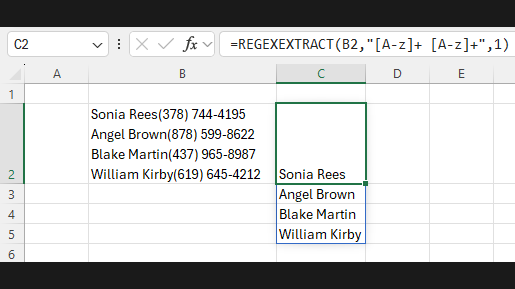
For years, Excel users lived with a slightly ridiculous reality: one of the world’s most powerful data tools could crunch financial models, build dashboards, and make your laptop fan sound like it was preparing for takeoff, yet it still couldn’t natively do regular expressions. If you wanted real pattern matching, you usually had to improvise with nested formulas, Power Query, VBA, add-ins, or the timeless strategy known as “stare angrily at the spreadsheet and hope.”
That long wait is finally over. Regular expressions have come to Microsoft Excel, and for anyone who works with messy text, inconsistent IDs, imported reports, customer data, logs, emails, product codes, or anything touched by human typing, this is a big deal. Not a tiny “nice feature.” A genuinely useful upgrade.
Excel now has native regex functions that let you test text against patterns, extract matching text, and replace matching text without building a small formula monster out of LEFT, RIGHT, MID, FIND, SEARCH, SUBSTITUTE, and personal regret. In other words, Excel finally learned a language power users have wanted for ages.
Why This Is Such a Big Moment for Excel Users
Regular expressions, usually shortened to regex, are a way to search for text patterns instead of just fixed text. That means you are not only looking for the word “invoice,” for example. You can look for a structure such as three letters followed by four digits, or a phone number with optional spaces and dashes, or an email address buried inside a larger block of text.
That may sound technical, but the business value is wildly practical. Modern spreadsheets are full of ugly data: exports from web forms, CRM records, order IDs, tracking numbers, product titles, URLs, addresses, usernames, and survey responses that were clearly typed by people who have never met consistency. Regex gives Excel a more intelligent way to clean, validate, and transform that information.
Before native regex arrived, Excel users often had to build fragile workarounds. One formula would pull the first few characters. Another would locate a dash. Another would remove spaces. Another would fail spectacularly because one row had an extra slash. Regex changes that workflow. Instead of describing text by position, you can describe it by pattern. That is a huge shift.
What Excel Actually Added
Microsoft’s regex rollout in Excel centers on three native functions:
1. REGEXTEST
This function checks whether a cell contains text that matches a regex pattern. It returns TRUE or FALSE, which makes it perfect for validation rules, helper columns, conditional formatting logic, and cleanup workflows.
Example:
=REGEXTEST(A2,"^[A-Z]{3}-[0-9]{4}$")
This checks whether the value in A2 looks like something such as ABC-1234.
2. REGEXEXTRACT
This function pulls matching text from a cell. It is useful when the desired information is hidden inside larger text strings.
Example:
=REGEXEXTRACT(A2,"[A-Za-z0-9._%+-]+@[A-Za-z0-9.-]+\.[A-Za-z]{2,}")
If a cell contains a sentence with an email address inside it, this formula can extract just the email address.
3. REGEXREPLACE
This function replaces matching text with something else. It is a dream for normalization, masking, cleanup, and reformatting.
Example:
=REGEXREPLACE(A2,"[^0-9]","")
This strips out every non-numeric character, which is handy when cleaning phone numbers, ZIP codes, or IDs imported from messy systems.
Excel also added regex support to lookup logic in preview form, which matters more than it might seem. Once regex can help with matching in functions like XLOOKUP or XMATCH, Excel moves closer to being a serious text-analysis environment instead of “the place where commas go to suffer.”
Why Native Regex Beats Old Excel Workarounds
The biggest advantage is clarity. A good regex formula often says exactly what you mean. If you need “exactly five digits,” you can express that. If you need “starts with two letters, then a hyphen, then six numbers,” you can express that too. You no longer have to assemble logic from multiple helper columns and hope nobody inserts an extra space.
The second advantage is speed of setup. Spreadsheet users spend a shocking amount of time cleaning text. Regex lets you create one pattern and apply it down a column. Suddenly the workbook feels less like manual labor and more like automation.
The third advantage is flexibility. Regex handles variability much better than old-school text formulas. If one phone number is written as (555) 123-4567, another as 555-123-4567, and another as 5551234567, regex can recognize them as the same general structure.
Real-World Use Cases That Make Excel Regex Worth Learning
Cleaning Contact Data
Suppose you export a lead list and the phone numbers are all over the place. Some use parentheses, some use spaces, some use dots, and one brave soul typed “call me maybe.” Regex can strip formatting, identify invalid entries, and standardize the rest.
Extracting Product Codes
Retail, manufacturing, and inventory teams often work with mixed descriptions such as Blue Widget SKU: BW-1049 Rev 2. Regex can pull out the SKU pattern without caring what extra words are nearby.
Validating User Input
If your worksheet depends on codes, employee IDs, account numbers, or order references following a specific format, REGEXTEST can instantly flag bad values before they pollute your reports.
Pulling Emails, Domains, or URLs
Marketing and operations teams often inherit columns of comments, inquiry text, or exported notes. Regex can extract email addresses, website domains, or tagged references from cells that otherwise look like pure chaos.
Standardizing Dates or Identifiers
Imported data often contains inconsistent separators. A regex replace can convert one style into another much faster than a manual cleanup marathon fueled by coffee and resentment.
Examples That Show the Power of Excel Regex
Let’s say column A contains these values:
Order: AB-10452 shippedContact us at [email protected]Phone 555.123.4567USAUnited States
Here is what regex can do:
Extract an order code:
=REGEXEXTRACT(A2,"[A-Z]{2}-[0-9]{5}")
Extract an email address:
=REGEXEXTRACT(A3,"[A-Za-z0-9._%+-]+@[A-Za-z0-9.-]+\.[A-Za-z]{2,}")
Keep only digits from a phone number:
=REGEXREPLACE(A4,"[^0-9]","")
Check whether a value is a valid structured code:
=REGEXTEST(A2,"^[A-Z]{2}-[0-9]{5}$")
Use regex in a lookup scenario:
=XLOOKUP("USA|United States",B2:B20,C2:C20,"Not found",3)
That last one is especially fun because it hints at where Excel is heading. Lookups are no longer limited to exact match, wildcard match, or approximate match. Pattern-based matching opens the door to smarter search behavior inside everyday workbooks.
What Users Should Know Before Going Full Spreadsheet Wizard
Regex is powerful, but it is not magic fairy dust sprinkled over ugly data. A few realities matter.
Availability May Still Depend on Your Version
Excel feature rollouts are famously uneven. Personal Microsoft 365 users, enterprise users, Mac users, web users, and people on different update channels do not always get the same features at the same time. So if your coworker has regex and you do not, that does not necessarily mean Excel hates you personally. It may just hate your update channel.
Regex Has a Learning Curve
The syntax is compact, which is another way of saying it can look like keyboard confetti at first glance. Symbols such as ^, $, [], (), +, *, and \d mean specific things. Once you learn the basics, it gets much easier. But nobody reads a medium-complexity regex for the first time and whispers, “Ah yes, poetry.”
Readable Patterns Still Matter
Just because you can write a terrifying one-cell pattern that handles twelve edge cases does not mean you should. In business spreadsheets, maintainability matters. A slightly simpler regex that your team can understand is often better than a brilliant one nobody dares touch.
Not Every Problem Needs Regex
If you just need the first three characters, use LEFT. If you just need to split a value by commas, modern text functions may be enough. Regex shines when the pattern is flexible, inconsistent, or too complicated for normal text functions.
Why This Changes the Way People Will Build Excel Workbooks
The arrival of regular expressions in Excel is not just about three new formulas. It changes what users expect from the product. Excel becomes better at handling semi-structured data, which is exactly the kind of data most teams face every day. Reports pulled from SaaS platforms, pasted website exports, ticket logs, survey text, CRM notes, and customer messages all become easier to tame.
It also reduces the distance between Excel and more technical tools. Analysts who know regex from SQL, Python, JavaScript, or command-line work can now bring that skill directly into spreadsheets. Meanwhile, non-programmers get access to pattern matching without having to open VBA or learn a separate data-cleaning platform.
That matters because Excel sits at the center of real business operations. It is where many teams audit, verify, summarize, reconcile, and clean data before anything important happens. Giving regex to Excel is like handing a multitool to someone who was previously trying to do repairs with a butter knife.
Experience From the Real World: What This Feels Like in Practice
The most interesting thing about regex in Excel is not the syntax. It is the emotional shift it creates for people who spend their days fixing messy spreadsheets. If you have ever opened a workbook full of inconsistent part numbers, strange spacing, mystery symbols, broken email fields, and data pasted from three different systems, you know the feeling. You do not start with analysis. You start with cleanup. Always cleanup. Excel’s new regex functions directly attack that pain.
In practice, the experience feels like moving from a bag of small hand tools to one precise instrument. Before regex, a lot of text work in Excel involved stacking formula after formula. One column removed spaces. Another found the dash. Another checked length. Another tried to see whether the result was “close enough.” The workbook grew wider, uglier, and more fragile with each attempt. One weird row could break the whole thing. Regex compresses much of that effort into a more intentional pattern.
There is also a confidence boost that comes from validation. Imagine a payroll sheet with employee IDs that should follow one format, or an operations report with shipment codes that must match a precise structure. With REGEXTEST, you can create a clean TRUE-or-FALSE check and immediately see what is wrong. That is not just convenient. It changes how quickly teams can trust their data.
Another experience people notice is how much easier extraction becomes. A spreadsheet might contain customer notes such as “Please contact [email protected] before Friday” or “Tracking ref: ZX-883419.” In the past, pulling just the useful part often meant a small formula war. With REGEXEXTRACT, the job becomes much more direct. You describe the pattern, and Excel does the hunting. It feels less like spreadsheet gymnastics and more like actual data work.
There is, of course, a small reality check. The first time many users see regex symbols, they react as if Excel has suddenly started speaking in riddles. That is normal. Regex looks strange until it clicks. Then one day you write a pattern that fixes hundreds or thousands of messy rows in seconds, and you develop a level of spreadsheet smugness that should probably be regulated.
What makes this feature especially satisfying is that it closes an old gap. Excel has long been powerful enough to model budgets, forecast sales, build dashboards, and even connect to advanced analytics tools. Yet it often stumbled on text patterns that developers solved years ago elsewhere. Now that native regex has arrived, Excel feels more complete. Not perfect, because spreadsheets will always find new ways to surprise us, but definitely more complete.
For analysts, operations teams, marketers, finance staff, educators, and anyone else who lives inside spreadsheets, regex in Excel is not just another shiny feature announcement. It is one of those upgrades that quietly removes friction from everyday work. And when a tool removes friction from repetitive, frustrating tasks, people do not just notice it. They remember it.
Final Thoughts
Regular expressions finally coming to Microsoft Excel is one of those updates that feels both overdue and genuinely exciting. Overdue, because spreadsheet users have wanted native pattern matching for years. Exciting, because now that it is here, it solves real problems immediately.
If your work involves cleaning imported data, validating structured text, extracting useful details from messy cells, or replacing complex text patterns at scale, Excel regex functions are worth learning. They make workbooks smarter, leaner, and far less dependent on desperate helper-column engineering.
Excel will still be Excel. People will still merge cells in places they absolutely should not. Someone will still email a workbook named Final_v2_RealFinal_UseThisOne.xlsx. But with regex now in the toolkit, at least text cleanup just got a lot less painful.