Using your Amazon Pay balance sounds wonderfully futuristic, like you should be shopping from a moon base while a robot hands you paper towels. In real life, though, it is much simpler: you add money to your Amazon account through a gift card or balance reload, then use that stored balance during checkout on eligible Amazon.com purchases.
If you have ever stared at your cart, your coffee getting cold, wondering whether Amazon will use your balance automatically or ignore it like a text from your gym, this guide is for you. Below, you will learn exactly how to pay using Amazon Pay balance, how partial payments work, what to do when the balance does not cover the full order, and how to avoid the most common checkout mistakes.
Quick heads-up: In the United States, many shoppers casually say “Amazon Pay balance” when they really mean the Amazon gift card balance saved in their Amazon account. That is the version this article covers.
What Is Amazon Pay Balance, Exactly?
Think of it as store credit living inside your Amazon account. You can build that balance in a few ways: by redeeming an Amazon gift card, receiving a digital gift card, or reloading your balance with a debit or credit card. Once the money is in your account, Amazon can apply it to eligible purchases at checkout.
This setup is handy for shoppers who want tighter control over spending. Instead of charging every purchase directly to a card, you can use your stored balance first and treat it like a mini shopping budget. It is also helpful when you receive gift cards during the holidays, birthdays, office events, or those mysterious “thanks for helping me move a couch” moments.
One important detail: your Amazon account balance is not the same thing as using the separate Amazon Pay button on a third-party website. On Amazon.com, your balance can help pay for eligible orders. On outside sites that accept Amazon Pay, you generally use the payment cards stored in your Amazon account instead.
How to Pay Using Amazon Pay Balance: 9 Steps
Step 1: Sign in to the Correct Amazon Account
First things first: log in to the Amazon account that actually holds the balance. This sounds obvious until you realize many people have more than one account floating around, usually because one was created years ago with an old email address and the other was created during a late-night Prime shopping spiral.
If the balance is missing, double-check that you are in the right account before assuming your funds vanished into the retail void.
Step 2: Check Your Current Balance
Go to your account and open the gift card or balance section. There, you can usually see your available balance and recent activity. This step matters because it tells you whether you can cover the whole order or only part of it.
Knowing your exact amount helps you shop more strategically. For example, if you have $27.43 in balance, that is a strong clue that maybe today is not the day to buy a $399 espresso machine unless you want your backup card joining the party.
Step 3: Add Money if Needed
If your balance is too low, you have two main options: redeem an Amazon gift card or reload your balance directly. Redeeming is perfect when someone gave you a gift card. Reloading is better when you want to add money from your own card and use Amazon more like a prepaid shopping account.
This can be especially useful for budgeting. Some shoppers reload a set amount each month for household basics, pet food, books, or pantry items. It creates a clear limit, which is much more civilized than pretending your shopping cart is “research.”
Step 4: Add Eligible Items to Your Cart
Now shop as usual. Add the items you want, then head to your cart. Most everyday products sold through Amazon will work just fine, but remember that balance funds apply to eligible purchases. If something seems off, the issue may be the item type, seller setup, or another checkout restriction.
If you are buying a mix of products, it is smart to review the cart before checkout so you are not surprised when one item behaves differently from the rest.
Step 5: Proceed to Checkout
Click the checkout button and move into the payment stage. At this point, Amazon typically recognizes the balance already attached to your account. If you redeemed a gift card earlier, the money should be sitting there, ready to help shrink your total.
This is where many shoppers overcomplicate things. You usually do not need to “transfer” the balance manually every time. Once the funds are in your account, Amazon is generally ready to use them on eligible orders.
Step 6: Make Sure the Balance Option Is Turned On
Look for the setting or checkbox that says something like Use your gift card or promotional balance. If it is selected, Amazon will apply those funds to the order. If it is not selected, your stored balance may sit there patiently while your card gets charged instead.
This step is crucial because Amazon also lets you keep your balance for later. That is helpful when you want to save funds for a future order, but not so helpful when you accidentally leave the box unchecked and then wonder why your balance still looks untouched.
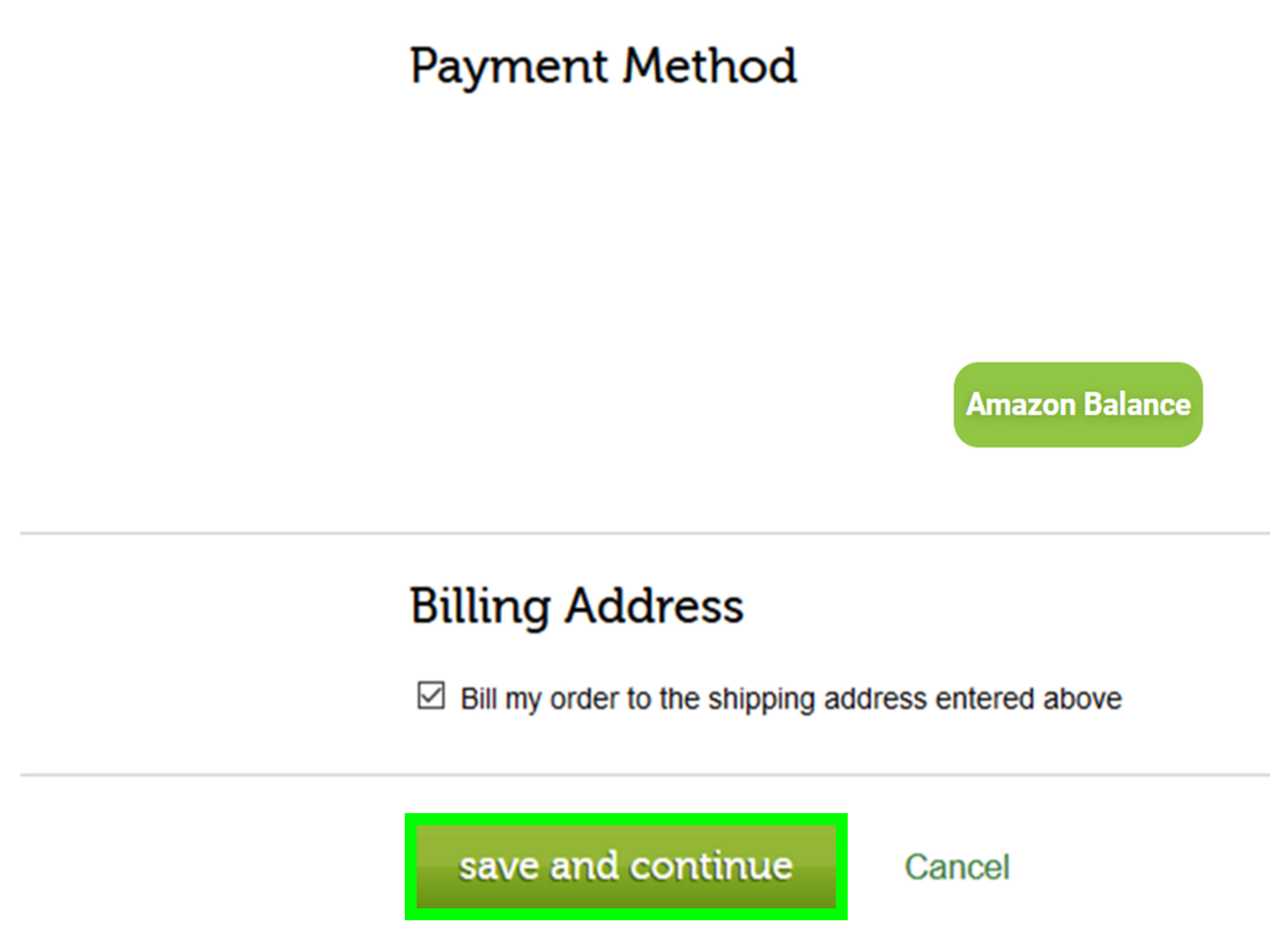
Step 7: Choose a Backup Payment Method
If your order total is higher than your available balance, Amazon will usually use your balance first and then charge the remaining amount to another payment method. That means you should make sure a valid credit or debit card is available in your account.
Example time: let us say your cart total is $62.00 and your Amazon balance is $40.00. Amazon can apply the $40.00 first, then charge the remaining $22.00 to your saved card. That split-payment setup is one of the most useful features for shoppers trying to use every last dollar of a gift card balance without wasting it.
Step 8: Review the Final Order Total Carefully
Before you place the order, pause for one glamorous adult moment and review the payment summary. Make sure the balance is being applied as expected. Check shipping, taxes, discounts, and the amount that will hit your backup card, if any.
This tiny review can save you from the classic “Wait, why was my card charged the full amount?” panic. In many cases, the answer is either that the balance box was not selected or the item was not eligible in the way you expected.
Step 9: Place the Order and Verify the Deduction
Finish checkout, place the order, and then verify that the balance was deducted correctly. You can usually see this in the order confirmation, payment breakdown, or gift card activity area in your account.
If everything looks right, congratulations: you have successfully paid using Amazon Pay balance. You may now celebrate by pretending you are financially disciplined, at least until the “Customers also bought” section starts whispering again.
Why Your Amazon Balance Might Not Apply
If your balance is not working, do not panic and do not immediately assume Jeff Bezos personally blocked your blender purchase. Usually, one of these issues is causing the problem:
- You are logged in to the wrong Amazon account.
- The balance option is not selected at checkout.
- Your order includes items that are not eligible for balance use.
- Your balance is lower than expected because part of it was used on a prior order.
- You are trying to use Amazon.com gift card funds through the separate Amazon Pay checkout on another website.
That last point trips people up all the time. On Amazon.com, your stored balance works like account credit. On a third-party site with an Amazon Pay button, the transaction usually pulls from your saved payment cards instead of your Amazon gift card balance.
Smart Tips for Using Amazon Balance Like a Pro
Use reloads for budgeting
If you tend to overspend on Amazon because “it was only one click” somehow becomes twelve items and a set of drawer dividers, reloading a fixed amount can help. Add a monthly balance and treat it like your Amazon allowance.
Keep a backup card active
Even if you want to use balance first, keep a valid card on file. It makes partial payments easier and prevents last-minute checkout issues when your order total creeps higher than expected.
Check your payment summary before clicking buy
This is the simplest habit and probably the most useful. A quick glance can confirm whether the balance is being used, whether a discount applied, and whether your remaining amount looks correct.
Save your balance for bigger purchases when it makes sense
You do not have to use it immediately. If you are eyeing a larger purchase later, you can leave the balance untouched and pay with another method today. Amazon gives you the option to do that during checkout on many orders.
Watch out for scams
Amazon gift cards are for Amazon-related eligible purchases, not for paying random strangers, fake customer service agents, or suspicious “urgent” invoices. If someone asks you to solve a problem with gift cards, that is not a quirky payment preference. That is a flashing neon warning sign.
Common Mistakes to Avoid
Mistake #1: Assuming balance and Amazon Pay are always the same thing.
They are related, but not interchangeable in every situation. Your Amazon account stores payment methods for Amazon Pay, but your Amazon.com gift card balance is mainly for eligible Amazon.com purchases and related uses.
Mistake #2: Forgetting that a remaining amount can hit your card.
If your balance covers only part of the order, Amazon can charge the rest to your backup method. That is helpful, but only if you were expecting it.
Mistake #3: Not checking the activity log.
If something looks off, your balance history can often explain what happened. It is the receipt trail your future self will thank you for.
Mistake #4: Treating gift card funds like cash everywhere online.
They are flexible within Amazon’s ecosystem, but they are not a universal online wallet you can use at every store on the internet.
Real-World Experiences Using Amazon Pay Balance
In day-to-day shopping, using Amazon Pay balance tends to feel less dramatic than people expect. That is actually the beauty of it. Once the balance is loaded and attached to your account, the process usually fades into the background. You shop, check out, and the stored funds quietly do their job. For many people, the first real “aha” moment comes when they notice that they no longer need to enter payment details for small purchases they already budgeted for.
A common experience is using balance for boring but necessary items. Think paper towels, vitamins, phone chargers, dog treats, laundry detergent, or replacement light bulbs. These are not exactly thrilling purchases, but they are perfect for balance spending because they let you use gift card money on things you were going to buy anyway. That makes the balance feel practical instead of random.
Another frequent scenario happens after birthdays or holidays. A shopper receives two or three Amazon gift cards, redeems them all, and suddenly has a decent pool of money sitting in the account. Instead of blowing it all on one flashy gadget they may not really need, they use the balance over time. A cookbook one week, a memory card the next, and a few household basics later on. That slower approach often feels smarter and more satisfying.
Then there is the partial-payment experience, which is where Amazon balance becomes surprisingly useful. Maybe you have $18 left in your account and want to place a $42 order. Instead of letting that $18 gather dust, Amazon applies it first, and your backup card covers the remaining amount. It is simple, efficient, and far less annoying than trying to use the last few dollars on a separate tiny order you do not really want.
Some shoppers also use balance as a self-imposed spending limit. They reload a set amount each month and decide that once it is gone, that is it. No extra “just one more thing” purchases. This can work well for students, families on a budget, or anyone trying to stop Amazon from becoming a hobby disguised as convenience.
Of course, not every experience is perfectly smooth. One of the most common annoyances is thinking the balance will apply automatically, only to realize the payment summary is charging a saved card instead. Usually the fix is simple: go back, make sure the balance option is selected, and review the order total one more time. Mildly irritating? Yes. Catastrophic? Not usually.
People also get tripped up when they assume their Amazon balance works anywhere they see Amazon branding. It does not. If you are checking out on a third-party site with Amazon Pay, your stored cards may work there, but your Amazon.com gift card balance typically does not. That distinction feels small until it ruins your checkout plan.
Overall, the real-world experience is best described as convenient, flexible, and pleasantly low-maintenance. Once you understand how the balance is stored, when it applies, and how the backup card handles the remainder, the whole system becomes pretty painless. Not glamorous, perhaps, but wonderfully effectivelike a good toaster or a friend who actually shows up on moving day.
Final Thoughts
Learning how to pay using Amazon Pay balance is really about understanding one simple idea: your Amazon account can hold stored funds, and those funds can reduce or fully cover eligible Amazon.com purchases. Once you know where to check the balance, how to redeem or reload it, and how Amazon handles the remaining amount, checkout becomes much easier.
The biggest takeaway is this: always verify the payment summary before placing your order. That one habit helps you confirm whether your balance is being used, whether a backup card will be charged, and whether your cart total still makes sense after shipping, tax, and discounts. In other words, it keeps your “great deal” from becoming a “why did I spend that much?” moment.