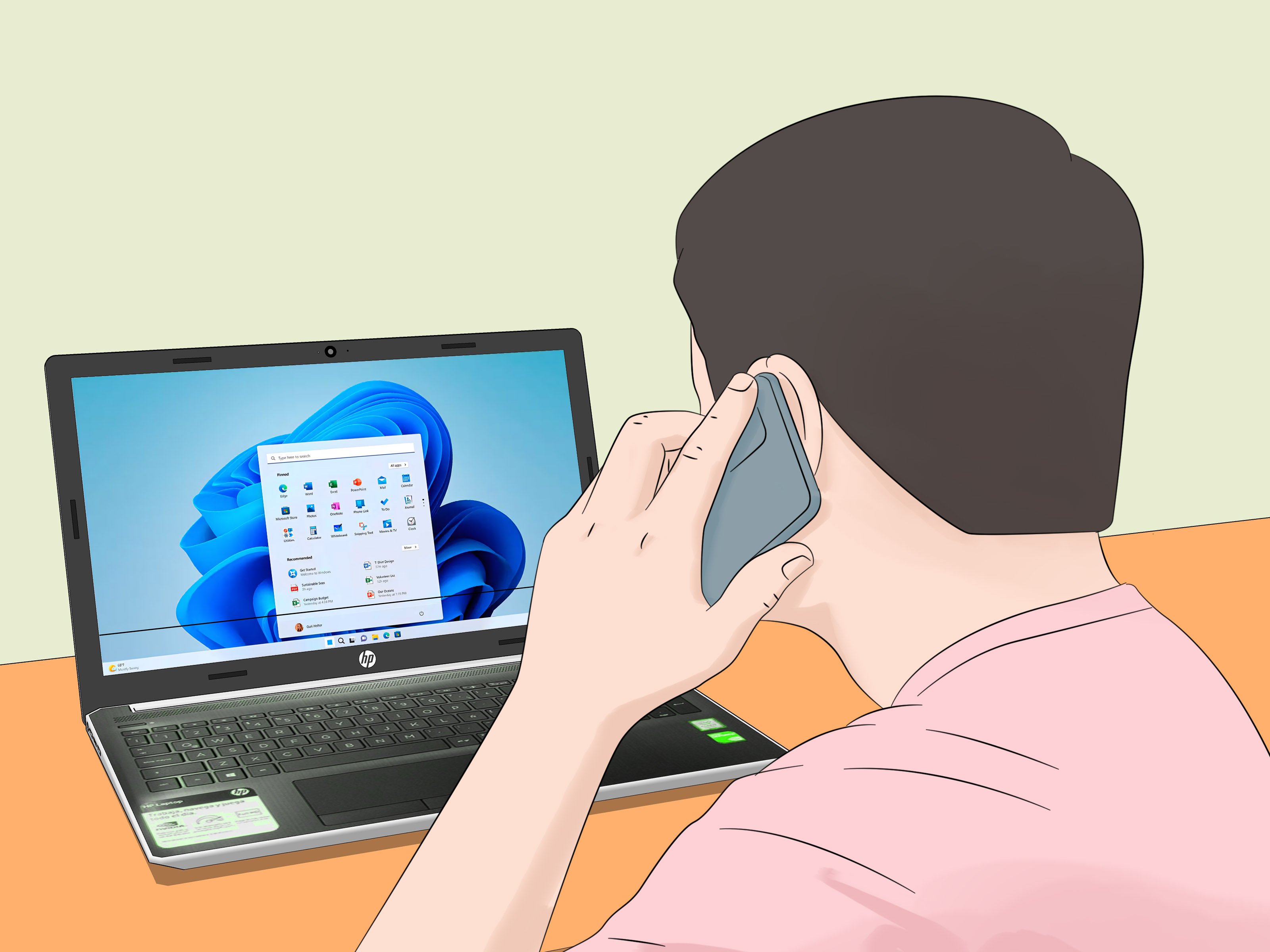
Black lines on an HP laptop screen are never a welcome surprise. One minute you are opening a spreadsheet, watching a video, or pretending to be productive with 17 browser tabs open. The next minute, a mysterious black line appears across the display like your laptop decided to draw modern art without asking permission.
The good news: not every black line means your HP laptop screen is doomed. Sometimes the problem is caused by a display driver, refresh rate setting, Windows update, loose external connection, or temporary graphics glitch. The less cheerful news: if the line appears before Windows loads, shows up in HP diagnostics, or changes when you move the laptop lid, the issue may be physicalsuch as a damaged LCD panel, loose display cable, or graphics hardware problem.
This guide walks you through easy, practical ways to troubleshoot black lines on an HP laptop screen. We will start with quick fixes, move into software and driver checks, then explain when it is time to consider repair. No panic. No screwdriver heroics unless you really know what you are doing. And absolutely no smacking the laptop like it is a 1997 television.
What Causes Black Lines on an HP Laptop Screen?
Black lines can appear vertically, horizontally, at the edge of the screen, across the center, or in random clusters. The direction of the line does not always reveal the exact cause, but it gives clues.
Common causes include:
- Temporary graphics glitch: Windows or the graphics driver may briefly fail to draw the screen correctly.
- Outdated or corrupted display driver: Intel, AMD, or NVIDIA graphics drivers can cause flickering, artifacts, or lines when they malfunction.
- Incorrect display settings: Resolution, scaling, or refresh rate settings can sometimes create display distortion.
- Windows update conflict: A recent update may install a driver that does not work well with your HP model.
- Loose or damaged display cable: The internal cable connecting the screen to the motherboard may become loose, especially if the line changes when you move the lid.
- Damaged LCD panel: Pressure, drops, hinge stress, or aging can damage the screen itself.
- GPU or motherboard issue: If the same black lines appear on an external monitor, the graphics chip or motherboard may be involved.
The key is to find out whether the problem is software-related or hardware-related. That one answer determines whether you can fix it from Windows or need professional repair.
Start With the Fastest Fix: Restart the Graphics Driver
Before diving into settings, drivers, and diagnostics, try the easiest Windows graphics reset:
- Press Windows + Ctrl + Shift + B.
- Your screen may flicker or go black for a second.
- You may hear a small beep.
- Check whether the black line disappears.
This shortcut resets the graphics driver without restarting the whole laptop. It is safe, quick, and surprisingly helpful for temporary display glitches. Think of it as telling your graphics driver, “Please stop being dramatic.”
If the line disappears and does not come back, the issue may have been a temporary software hiccup. If it returns, continue with the next steps.
Restart Your HP Laptop Completely
A normal restart clears temporary processes and reloads display services. Do not just close the lid. That often puts the laptop to sleep, which is not the same thing.
- Save your work.
- Click Start.
- Select Power.
- Choose Restart.
After the laptop restarts, look carefully at the screen. If the black line appears immediately on the HP logo screen before Windows loads, that points more strongly toward a hardware issue. If it appears only after Windows loads, software or driver settings are more likely.
Check If the Line Appears in BIOS or HP Diagnostics
This is one of the most useful tests because it bypasses Windows. If the line appears outside Windows, the operating system is probably not the main villain.
How to check:
- Shut down the HP laptop.
- Press the power button.
- Immediately tap Esc repeatedly until the Startup Menu appears.
- Press F2 to open HP PC Hardware Diagnostics, if available.
- Run a display or video test from the diagnostics menu.
If the black line appears during the diagnostic test, the problem is likely related to the display panel, internal cable, or graphics hardware. If the diagnostic screen looks clean, Windows settings or drivers may be the cause.
Connect Your HP Laptop to an External Monitor
The external monitor test is the classic “where is the trouble hiding?” move. You will need an HDMI, USB-C, DisplayPort, or adapter connection depending on your HP model.
How to test it:
- Connect your HP laptop to an external monitor or TV.
- Turn on the external screen.
- Press Windows + P.
- Choose Duplicate or Second screen only.
- Compare the laptop display and external display.
What the result means:
- Line appears only on the HP laptop screen: The built-in screen, display cable, or hinge area may be the problem.
- Line appears on both screens: The graphics driver, GPU, Windows display settings, or motherboard may be involved.
- External monitor works perfectly: Back up your files and prepare for possible screen or cable repair.
This test is simple, but it saves a lot of guessing. It also helps you avoid replacing the wrong part, which is good because laptop parts do not accept apologies or refunds as easily as we would like.
Update Your Display Driver
A corrupted, outdated, or mismatched graphics driver can cause black lines, flickering, freezing, or strange visual artifacts. HP laptops may use Intel integrated graphics, AMD Radeon graphics, NVIDIA graphics, or a combination of integrated and dedicated graphics.
Update through Device Manager:
- Right-click Start.
- Select Device Manager.
- Expand Display adapters.
- Right-click your graphics adapter.
- Select Update driver.
- Choose Search automatically for drivers.
- Restart your HP laptop.
You can also check HP Support Assistant or the official HP driver page for your exact laptop model. This is often better than grabbing a random driver from the internet because HP-certified drivers are matched to specific hardware configurations.
Roll Back the Display Driver After a Bad Update
If the black line appeared right after a Windows update or graphics driver update, rolling back the driver may help.
- Right-click Start.
- Open Device Manager.
- Expand Display adapters.
- Right-click the graphics adapter.
- Select Properties.
- Open the Driver tab.
- Click Roll Back Driver, if available.
- Restart the laptop.
If the Roll Back Driver button is gray, Windows does not have a previous driver stored. In that case, try updating from HP Support Assistant, Intel Driver & Support Assistant, AMD Software, or NVIDIA’s driver tool, depending on your hardware.
Uninstall and Reinstall the Graphics Driver
If updating does not work, reinstalling the driver can clear corrupted driver files.
- Open Device Manager.
- Expand Display adapters.
- Right-click your graphics adapter.
- Select Uninstall device.
- If offered, select the option to remove the driver package.
- Restart the laptop.
Windows will usually reinstall a basic display driver after restart. Then you can install the correct driver from HP, Intel, AMD, or NVIDIA. If your HP laptop has switchable graphics, install drivers in the order recommended by HP whenever possible.
Boot Into Safe Mode
Safe Mode loads Windows with minimal drivers and services. If the black line disappears in Safe Mode, a driver, startup app, or display-related software may be causing the problem.
How to enter Safe Mode:
- Press Windows + I to open Settings.
- Go to System > Recovery.
- Under Advanced startup, choose Restart now.
- Select Troubleshoot > Advanced options > Startup Settings.
- Click Restart.
- Press F5 for Safe Mode with Networking.
Once in Safe Mode, check the screen. If it looks normal, focus on drivers, recent apps, graphics utilities, or Windows updates. If the line remains, hardware becomes more likely.
Adjust Resolution and Refresh Rate
Incorrect display settings can sometimes create odd visual behavior, especially after using an external monitor, projector, docking station, or gaming display.
Check screen resolution:
- Right-click the desktop.
- Select Display settings.
- Find Display resolution.
- Choose the option marked Recommended.
Check refresh rate:
- Go to Settings > System > Display.
- Select Advanced display.
- Choose the built-in display.
- Select a standard refresh rate, such as 60 Hz, unless your HP model supports higher rates.
If you recently enabled dynamic refresh rate, variable refresh rate, HDR, or custom scaling, temporarily turn those features off and test again. Fancy display features are great until they start behaving like a raccoon in a keyboard factory.
Check for Pressure Damage or Lid Movement Problems
Physical symptoms matter. Gently open and close the laptop lid while watching the line. Do not twist the screen or press the panel.
Look for these clues:
- The line changes when you move the lid.
- The line appears near the hinge side.
- The line disappears at one specific screen angle.
- The screen flickers when the laptop is moved.
- The display has cracks, dark blobs, or ink-like patches.
If movement changes the line, the internal display cable may be loose, worn, or pinched near the hinge. If the line is fixed and never changes, the LCD panel itself may be damaged. Either way, opening a thin HP laptop is not a beginner-friendly project. If your laptop is under warranty, do not open it. Check warranty status or contact HP support first.
Run HP Hardware Diagnostics
HP laptops often include built-in diagnostics that can test hardware components. Use them before assuming the screen must be replaced.
- Turn off the laptop.
- Turn it on and repeatedly tap Esc.
- Press F2 for HP PC Hardware Diagnostics.
- Run available display, video, and system tests.
- Write down any failure ID or error code.
If HP diagnostics reports a hardware failure, save the failure ID. HP support or a repair technician can use it to identify the problem faster.
Update BIOS Carefully
A BIOS update can sometimes improve hardware compatibility, display behavior, power management, and system stability. However, BIOS updates should be done carefully. Do not update BIOS during a storm, on low battery, or while your cat is walking across the keyboard with the confidence of a tiny IT manager.
Basic BIOS update safety tips:
- Use HP Support Assistant or HP’s official support page.
- Confirm your exact HP laptop model.
- Keep the charger connected.
- Do not interrupt the update.
- Back up important files first.
If your black line appeared after a BIOS or firmware update, do not keep experimenting blindly. Check HP support information for your exact model and consider professional help.
When the Screen Panel May Need Replacement
Software fixes will not repair a physically damaged LCD panel. You may need screen repair or replacement if:
- The black line appears in BIOS and HP diagnostics.
- The line is visible before Windows starts.
- The external monitor works perfectly.
- The line does not change after driver updates.
- There are cracks, dark spots, pressure marks, or color bleeding.
- The issue started after a drop, backpack pressure, or hinge damage.
For newer HP laptops, especially slim Pavilion, Envy, Spectre, EliteBook, ProBook, Victus, and OMEN models, screen replacement can involve delicate bezels, adhesive, tiny connectors, and fragile cables. If you are not experienced, let a professional handle it. One wrong move can turn a simple display repair into a “why is there an extra screw?” adventure.
What Not to Do
Some “fixes” online can make the problem worse. Avoid these:
- Do not press hard on the screen.
- Do not hit or shake the laptop.
- Do not use random driver websites.
- Do not open the laptop if it is under warranty.
- Do not update BIOS with low battery.
- Do not ignore spreading lines, flickering, or dark patches.
A black line may stay small for months, or it may grow. Back up your files early, especially if you suspect hardware failure.
Quick Troubleshooting Checklist
- Press Windows + Ctrl + Shift + B to reset the graphics driver.
- Restart the HP laptop.
- Check whether the line appears before Windows loads.
- Connect an external monitor.
- Update or roll back the display driver.
- Boot into Safe Mode.
- Set resolution and refresh rate to recommended values.
- Run HP PC Hardware Diagnostics.
- Check HP Support Assistant for updates.
- Contact HP or a repair technician if hardware symptoms remain.
Real-World Experience: What Usually Works and What Usually Does Not
In real use, black lines on an HP laptop screen tend to fall into two broad stories. The first story is the happy one: the line appears after a Windows update, a graphics driver change, a game crash, or connecting to an external display. In this case, the screen itself is often fine. Resetting the graphics driver, restarting, rolling back the driver, or installing the correct HP-certified graphics driver can make the line disappear. This is the laptop equivalent of giving the system a strong cup of coffee and a polite reminder to behave.
The second story is more physical. A user opens the laptop and sees one black vertical line that never moves. It appears on the HP logo screen, in BIOS, in diagnostics, and in Windows. An external monitor looks perfect. That pattern usually points to the built-in display panel or the internal display cable. If the line changes when the lid moves, the cable or hinge area becomes suspicious. If the line stays exactly the same all the time, the panel itself may be damaged.
One common example is an HP laptop carried in a crowded backpack. The owner never drops it, so they assume the screen cannot be damaged. But pressure from books, chargers, or a water bottle can stress the LCD panel. The result may be a thin black line, a cluster of dead pixels, or a dark patch that grows over time. Screens are tough enough for normal use, but they are not fans of being squeezed like a sandwich in a gym bag.
Another common example happens after using a docking station or external monitor. The laptop may return to a strange scaling, refresh rate, or display mode. The user sees lines, flickering, or distortion only after unplugging the dock. In that case, checking display resolution, refresh rate, and graphics drivers is worth doing before assuming the screen is broken.
From a practical repair perspective, the external monitor test is the most useful dividing line. If the external screen shows the same black lines, focus on drivers, GPU behavior, and system software. If the external screen is clean while the HP laptop screen has the line, the built-in display path is the suspect. That path includes the LCD panel, display cable, connector, and sometimes the hinge area.
It is also wise to check warranty status before attempting any hardware repair. Many HP laptops are compact and tightly assembled. Removing the bezel or display assembly without the right tools can crack plastic clips, damage adhesive, or tear the display cable. For a laptop still under warranty, opening it yourself may create more trouble than the original black line. Let HP support or an authorized technician inspect it.
The best approach is calm and methodical: test outside Windows, test with an external monitor, update or roll back the driver, check display settings, run HP diagnostics, and then decide whether repair is needed. Guessing is expensive. Testing is cheaper. And unlike guessing, testing does not require you to stare at your laptop and whisper, “Why are you like this?”
Conclusion
Black lines on an HP laptop screen can be caused by something as simple as a graphics driver glitch or as serious as a damaged LCD panel. Start with quick software fixes: reset the graphics driver, restart the laptop, update or roll back the display driver, check Safe Mode, and adjust resolution or refresh rate. Then use stronger diagnostic steps: check BIOS, run HP PC Hardware Diagnostics, and connect an external monitor.
If the line appears only on the built-in screen while an external monitor looks normal, the display panel or internal cable may need repair. If the line appears everywhere, investigate graphics drivers, Windows updates, GPU issues, or motherboard problems. The smartest repair is the one based on evidencenot vibes, panic, or a screwdriver found in a kitchen drawer.