If your Discord status is still a plain little sentence like “busy” or “brb,” it may be time for a glow-up. A single emoji can make your status friendlier, funnier, or way more dramatic. A coffee cup says you are half-awake. A game controller says you are probably not answering messages quickly. A skull emoji says… well, the group chat got weird again.
The good news is that adding emojis to a Discord status is easy on both desktop and mobile. You do not need a secret menu, a hacker hoodie, or a 47-minute tutorial with suspenseful background music. You just need to open your profile controls, create or edit a custom status, choose an emoji, and save it.
In this guide, you will learn exactly how to put emojis in your Discord status in 13 simple steps, plus how to make your status look better, avoid common mistakes, and use custom server emojis when available. By the end, your Discord profile status can finally match your energy instead of looking like an accidental placeholder.
Why Emojis Make a Discord Status Better
A custom Discord status is tiny, but it does a lot of work. It tells friends whether you are studying, gaming, away from your keyboard, socially available, or emotionally attached to iced coffee. Adding an emoji makes that message faster to read and more fun to notice.
That matters because Discord moves quickly. People glance at profiles, not essays. A smart emoji can communicate tone in a split second. It can soften a serious message, add personality to a short status, and help your profile feel more alive. In other words, emojis are the seasoning. Your text is the pasta. Both can survive alone, but together they are a lot less depressing.
Simple Ways to Put Emojis in Your Discord Status: 13 Steps
-
Open Discord and log into your account
Start with the Discord desktop app, the browser version, or the mobile app. Make sure you are signed into the account where you want the new status to appear. This sounds obvious, but it is amazing how many people confidently customize the wrong account and then wonder why nothing changed. Technology is humbling like that.
-
Go to your profile controls on desktop or browser
If you are on desktop or browser, look to the lower-left corner of Discord and click your profile icon. This opens the menu where your online status and custom status settings live. Think of it as the tiny control center for your digital vibe.
-
Select the option to add a custom status
In the profile menu, choose the option that lets you create a custom status. If you already have one, click the current status to edit it instead. This is where the magic happens, or at least where the mildly satisfying profile upgrade happens.
-
Type the message you want people to see
Enter a short message that fits your mood, activity, or schedule. Good examples include “Finishing homework,” “Grinding ranked,” “Do not disturb unless pizza,” or “Back in 30.” Keep it simple and readable. Your status is not the place to publish a memoir.
-
Click the emoji icon in the custom status box
Next to the status text field, click the emoji icon. This opens Discord’s emoji picker so you can add a built-in emoji to your custom status. This is the easiest and most direct way to put an emoji in your Discord status without overthinking it.
-
Choose an emoji that matches your message
Pick an emoji that actually says something. A laptop emoji works for study mode. A moon emoji fits late-night energy. A fire emoji can make almost anything look more intense, including tasks that are not intense at all. Try to match the emoji to your text instead of choosing one just because it sparkles.
-
Use a custom server emoji if your account supports it
If you have access to custom server emojis and your account supports using them in status, this is where things get more personal. A server-specific emoji can make your custom Discord status feel more original, especially if you want to reference an inside joke, a favorite community, or a shared reaction image your friends instantly recognize.
-
Set your online status if you want extra context
While you are editing your custom status, you can also choose your online presence, such as Online, Idle, Do Not Disturb, or Invisible. This is useful because the emoji and text tell people what you are up to, while the presence setting tells them whether they should expect a fast reply or absolute silence.
-
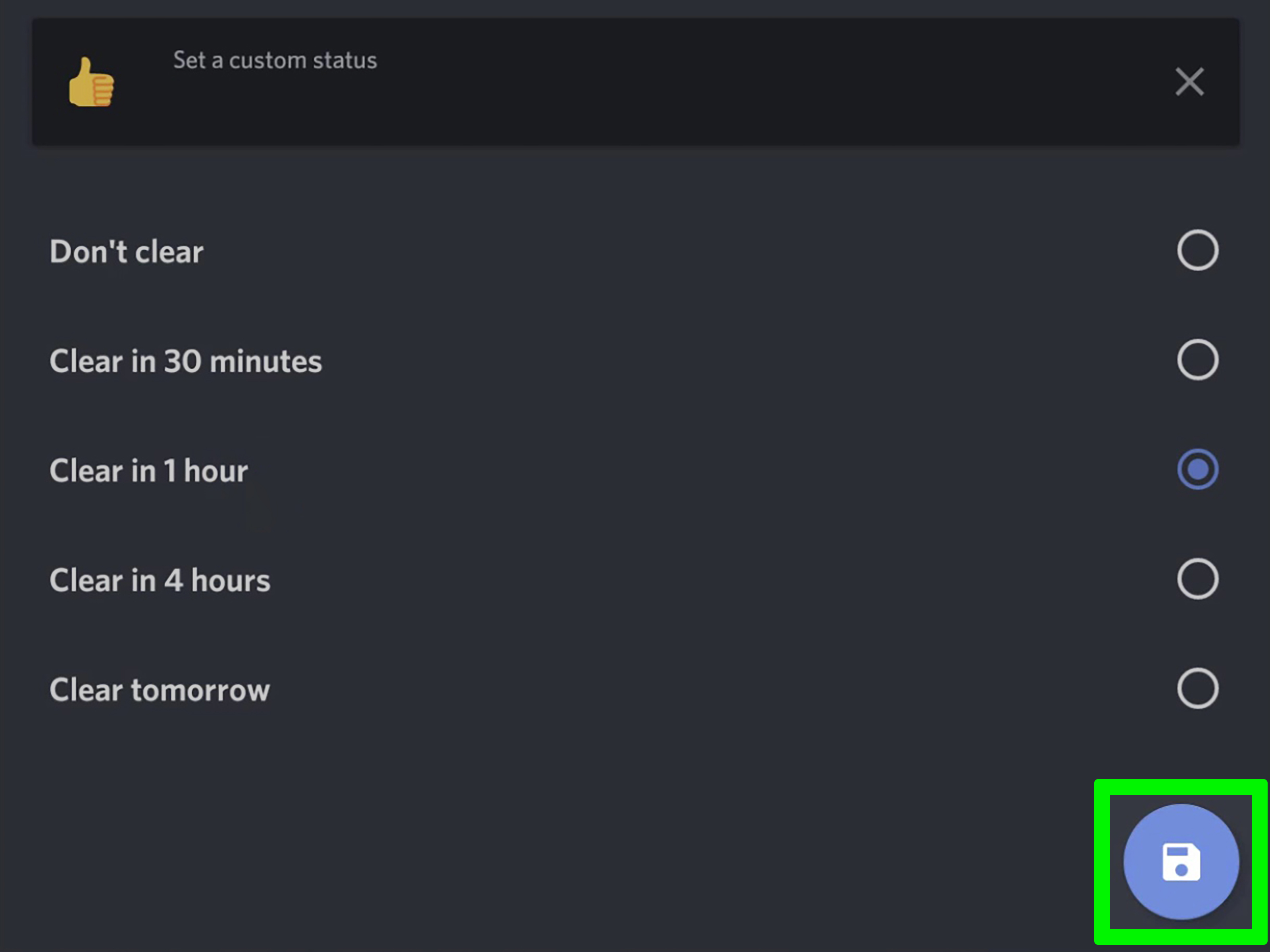
Choose how long the status should stay up
Use the “Clear After” option to decide when Discord should remove the status automatically. This is one of the most useful features because it keeps your profile from saying “at lunch” three days after you already ate, slept, and moved on with your life. You can set a short duration or keep it longer depending on your needs.
-
Click Save on desktop or browser
Once your text, emoji, and duration look right, click Save. Your custom status should appear right away. This is the satisfying moment where your profile finally stops looking generic and starts looking like it belongs to an actual human being with opinions, moods, and possibly caffeine.
-
Use the mobile shortcut if you are on a phone
On the Discord mobile app, press and hold your profile icon in the lower-right corner, or tap your profile and then choose the option to add a status. Mobile is slightly different from desktop, but the process is still quick. Discord did not make you climb a mountain here, just a small hill.
-
Tap “Set a custom status” and add your emoji
In the mobile editor, type your status text, tap the emoji option, and choose the emoji you want. Then pick the status duration. If you are someone who changes your mood every six minutes, mobile makes it dangerously easy to keep tweaking your status like a digital outfit.
-
Save it, then edit or clear it whenever you want
Tap Save on mobile, and your emoji status will go live. Later, if you want to update it, return to your profile controls and edit the current status. If you are done with it, clear it. This is helpful when your joke has expired, your plans changed, or your “studying” status has become legally inaccurate.
Tips for Making Your Emoji Status Look Better
Keep the message short
A clean status is easier to read than a crowded one. A short phrase plus one relevant emoji usually looks better than a long sentence trying to do stand-up comedy, emotional processing, and calendar management all at once.
Match tone and emoji
If your message says “In class,” a clown emoji sends mixed signals. That might be intentional. If so, congratulations on your chaos. If not, aim for consistency. The best Discord status ideas feel effortless because the emoji supports the text instead of fighting it.
Use custom emojis carefully
Custom server emojis can make your status more unique, but not everyone will instantly understand a hyper-specific inside joke. If you want broad readability, use a standard emoji. If you want personality and your circle understands it, custom emojis are great.
Let the timer save you from stale statuses
The most underrated feature in Discord custom status settings is the automatic clear timer. It keeps your profile current without forcing you to remember to update it later. Future you will appreciate that very much.
Common Mistakes to Avoid
Using an emoji with no clear purpose
Yes, emojis are fun. No, that does not mean you should choose one at random like a game show contestant. Pick one that adds meaning or personality. Even a silly status works better when it looks intentional.
Leaving old statuses up for too long
A status that says “be back soon” for twelve hours is the online version of leaving holiday decorations up in July. It happens. It is not the end of the world. But Discord gives you tools to avoid it, so use them.
Forgetting mobile and desktop are slightly different
If the steps do not look identical across devices, that is normal. Discord’s desktop and mobile layouts are similar in purpose, but the buttons appear in slightly different places. The feature is the same even when the route is not.
Examples of Good Discord Emoji Statuses
Need ideas? Here are a few status examples that are simple, clear, and easy to copy with your own twist:
- ☕ Running on coffee and hope
- 🎮 In game, reply later
- 📚 Study mode activated
- 🌙 Up too late again
- 🍕 Brb, emergency snack run
- 🧠 Pretending to be productive
- 🚫 Do not disturb unless urgent
- 🎧 Music on, world off
The best part is that you do not need a complicated formula. A useful Discord status is usually just a mood, an activity, or a joke with one emoji that makes it instantly readable.
Experiences Related to Using Emojis in a Discord Status
Once people start using emojis in their Discord status, they usually notice something funny: even tiny profile changes affect how others interact with them. A plain text status feels functional, but an emoji status feels social. It gives your profile just enough personality to invite a reaction without demanding attention. That is why so many users keep changing theirs every few days. It becomes part communication tool, part mood board, part tiny public diary.
For example, students often use emoji statuses to quietly signal what kind of day they are having. A book emoji or pencil emoji tells friends they are working. A sleepy face or moon emoji says they are online, but not exactly thriving. It helps set expectations without requiring a full explanation. Instead of sending five separate messages saying “I am busy right now,” the status handles it for them.
Gamers tend to use emoji statuses differently. Their statuses often work like mini billboards for the current vibe: controller emoji, fire emoji, trophy emoji, or even a custom server emoji that only their group understands. It becomes a shorthand for community. In some friend groups, a single weird emoji can mean “I am queueing,” “I am on voice,” or “I am absolutely losing my mind in this boss fight.” Outsiders see nonsense. Friends see poetry.
There is also the humor factor. Discord is one of those platforms where people love tiny bits of self-expression. A dramatic emoji status can get more attention than a long profile bio because it is immediate. Someone may not click through your full profile, but they will notice a skull emoji next to “doing math” and laugh because, honestly, fair. That is part of why custom statuses feel so sticky. They are small enough to be low effort, but visible enough to be rewarding.
Another common experience is learning that less usually looks better. People often start with a long custom status, then shorten it over time. One or two clear words plus an emoji often feels cleaner and smarter than a full sentence. “Studying 📚” lands faster than “I am currently attempting to do my schoolwork and would appreciate some space.” Same message. Way less drama. Better visual impact.
Many users also discover that the timer matters more than they expected. Setting a status to clear automatically saves you from becoming the person whose profile still says “at lunch” long after sunset. That small feature makes emoji statuses feel practical, not just decorative. It lets you be expressive without turning your profile into a museum of outdated moods.
In the end, the experience of using emojis in your Discord status is not really about the emoji itself. It is about making your profile feel current, readable, and human. Whether you use a simple coffee cup, a moon, a controller, or a ridiculous custom server icon, you are giving people a fast snapshot of your world. And on a busy platform like Discord, that little snapshot can say a lot.
Final Thoughts
If you want a quick way to personalize your profile, adding emojis to your Discord status is one of the easiest upgrades you can make. It takes less than a minute, works on desktop and mobile, and helps your custom status look more expressive, more readable, and a lot less boring.
Use one emoji that matches your message, keep your status short, and set a clear timer so it does not age like forgotten leftovers. Whether you are studying, gaming, hiding, or simply vibing with a coffee emoji and a dream, a better Discord status starts with a few taps and one tiny picture doing surprisingly heavy lifting.