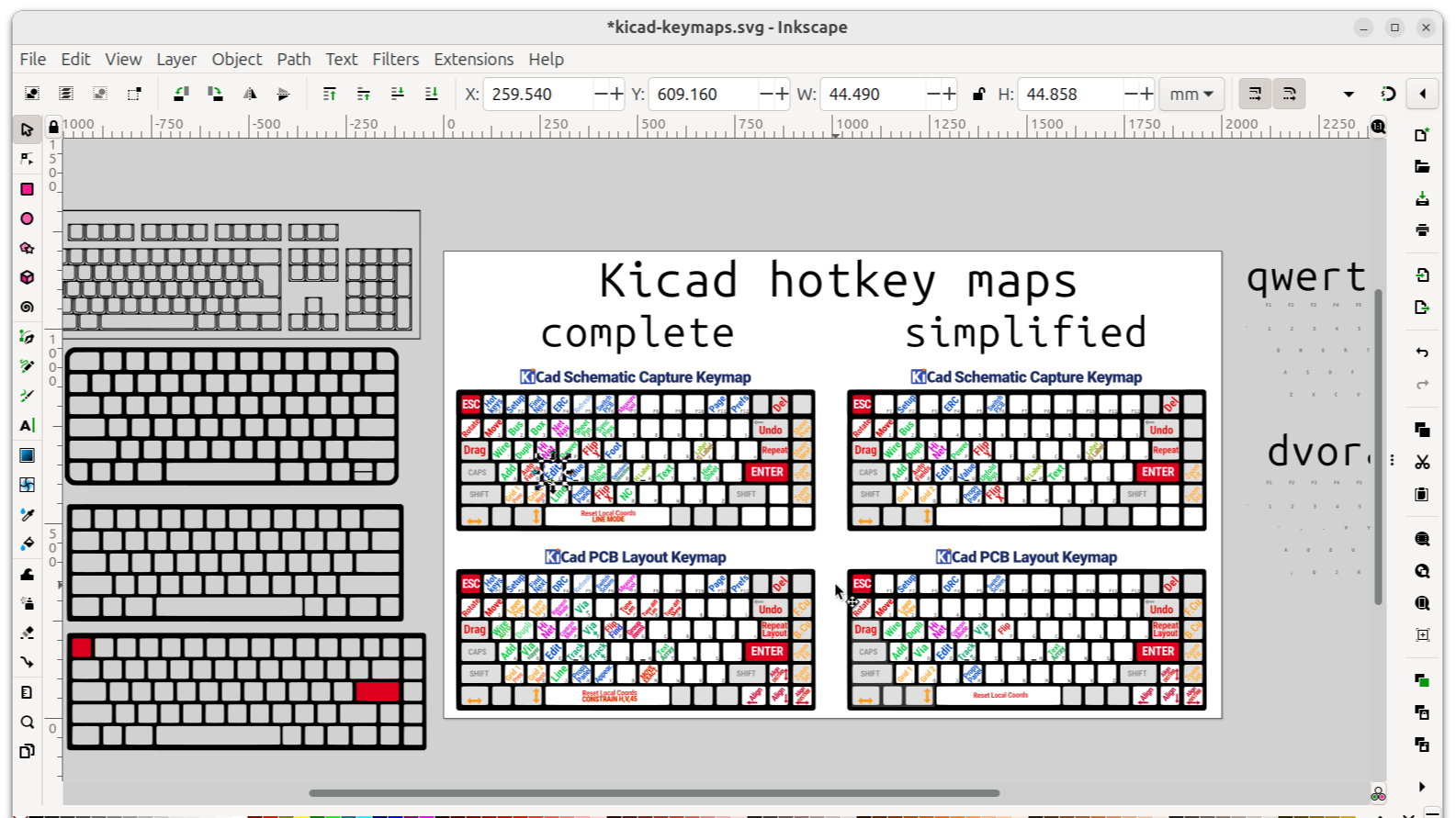
KiCad is already a wonderfully capable open-source PCB design suite, but using it only with toolbar clicks is a little like driving a sports car in first gear while wearing oven mitts. It works. It is technically transportation. But there is a faster, cleaner, much less wrist-cramping way to get around.
The secret is not memorizing every KiCad shortcut key like you are preparing for an electronics-themed spelling bee. The real productivity gain comes from learning the shortcut keys that match your actual design flow: schematic capture, component placement, routing, layer switching, inspection, and cleanup. A thoughtful KiCad keymap turns PCB design from a click-hunt into muscle memory.
This guide walks through the most useful KiCad shortcut keys, how to think about customizing them, and how to build a workflow that keeps one hand on the mouse, one hand near the keyboard, and your brain focused on the circuit instead of the toolbar. Whether you are building your first blinking LED board or a dense four-layer design with differential pairs, these shortcuts can save hundreds of tiny interruptions per project.
Why KiCad Shortcut Keys Matter More Than You Think
PCB design is not one big action. It is thousands of tiny actions repeated until a schematic becomes a manufacturable board. Add a symbol. Rotate it. Wire it. Label a net. Move a component. Drag a trace. Switch layers. Place a via. Run DRC. Adjust. Repeat until either the board is finished or your coffee files a resignation letter.
Every time you leave the canvas to find a toolbar icon, you pay a small attention tax. That tax adds up. Keyboard shortcuts reduce that friction because they let you trigger commands without visually searching for them. The biggest productivity improvement is not just speed; it is continuity. You stay in the design, not in the interface.
KiCad makes this especially valuable because its schematic editor and PCB editor are separate but connected environments. A good shortcut strategy helps you move smoothly between electrical intent and physical layout. Better still, KiCad lets you view, edit, import, and export hotkeys, so you are not stuck with a one-size-fits-all setup.
Start With the Built-In Hotkey List
Before customizing anything, open KiCad’s hotkey list. In current KiCad versions, Ctrl + F1 displays the current hotkey list, and you can also use Help > List Hotkeys. On macOS, remember that KiCad typically maps Ctrl to Cmd and Alt to Option.
The important phrase here is “current hotkey list.” Your installed version, operating system, keyboard layout, and personal customizations can affect what you see. That is why any serious KiCad productivity article should give you a strategy, not just a stone tablet from Mount Shortcut.
Essential navigation shortcuts
- F1: Zoom in
- F2: Zoom out
- F4: Center on cursor
- Ctrl + Home: Zoom to all objects
- Space: Reset local coordinates
- Esc: Cancel the current tool or clear selection
- Ctrl + U: Switch units
These are not glamorous, but they are the foundation. Resetting local coordinates with Space is especially useful when placing mounting holes, measuring offsets, checking clearances, or aligning features. It is the KiCad equivalent of saying, “Let’s measure from here,” without pulling out a digital ruler and a tiny ceremonial hat.
Schematic Editor Shortcuts That Save Time Immediately
The schematic editor is where design intent becomes visible. Your goal here is speed with clarity. A messy schematic is a future debugging trap wearing a fake mustache. Shortcut keys help you place, rotate, connect, and label parts without breaking your thinking rhythm.
Core schematic shortcuts
- A: Place symbols
- W: Draw wires
- B: Draw buses
- L: Place net labels
- Ctrl + L: Place global labels
- H: Place hierarchical labels
- P: Place power symbols
- Q: Place no-connect flags
- J: Place junctions
- T: Draw text
- R: Rotate counterclockwise
- Shift + R: Rotate clockwise
- X: Mirror horizontally
- Y: Mirror vertically
- E: Open properties
- M: Move
- G: Drag while maintaining connections
- Ins: Repeat last item
If you learn only five schematic shortcuts first, make them A, W, L, P, and R. These cover the basic rhythm of schematic capture: add the part, wire the pins, name the net, add power, rotate as needed. That tiny cluster can make the schematic editor feel dramatically faster.
Move versus drag: the tiny difference that prevents big sadness
KiCad’s M and G shortcuts deserve special attention. M moves an object. G drags it while preserving connected wires or tracks when appropriate. In a schematic, that difference can determine whether your connections stay tidy or quietly disconnect like a teenager leaving a family group chat.
Use M when you want to reposition something independently. Use G when you want the connected context to come along. Once this becomes automatic, cleanup becomes easier and accidental broken connections become less common.
PCB Editor Shortcuts for Faster Layout and Routing
The PCB editor is where shortcut keys become especially powerful. Routing is repetitive, spatial, and full of micro-decisions. The less you interrupt the route, the better your board usually becomes.
Essential PCB layout shortcuts
- A: Place footprints
- M: Move selected items
- Ctrl + M: Move items individually
- X: Route single track
- 6: Route differential pair
- 7: Tune length of a single track
- 8: Tune length of a differential pair
- 9: Tune skew of a differential pair
- V: Place through via while routing
- Ctrl + V: Place microvia
- <: Select layer and place through via
- PgUp: Switch to front copper layer
- PgDn: Switch to back copper layer
- +: Switch to next layer
- –: Switch to previous layer
- /: Switch track posture
- Backspace: Undo last route segment
- F: Attempt to finish current route
- Shift + F: Attempt to finish selected routes
- U: Select or expand connection
- Q: Open custom track and via size dialog
The hero shortcut here is X. In the PCB editor, it starts routing a single track. Pair it with V for vias, PgUp and PgDn for copper layers, and Backspace to undo the previous segment. Suddenly you are routing instead of negotiating with menus.
Layer switching without losing your mind
Layer switching is one of the most frequent actions in PCB layout. If you are designing a two-layer board, PgUp and PgDn are your best friends. On denser boards, + and – let you move through enabled layers, while V places a via and switches within the active routing layer pair.
This matters because routing flow is fragile. When you are threading a signal between pads, clearances, keepouts, and a ground pour that seems personally offended by your existence, you do not want to pause and hunt for layer controls. The shortcut should be under your fingers before the board gets complicated.
Use Shortcut Philosophy, Not Shortcut Hoarding
Memorizing every shortcut can feel productive, but it often becomes keyboard cosplay. A better method is to customize and learn shortcuts by frequency and context. The best keymap is not the one with the most commands. It is the one that keeps your common actions close, consistent, and easy to remember.
One-hand operation
A practical KiCad keymap should let your non-mouse hand handle the most frequent commands. If your right hand is on the mouse, your left hand should reach common schematic and layout actions without touring the entire keyboard like it is backpacking across Europe.
This is why single-letter shortcuts are so valuable. A, W, L, P, R, M, G, X, and V are easy to reach and easy to remember. They map naturally to actions you perform constantly.
Proximity follows frequency
Put the most common actions closest to your resting hand position. If you route hundreds of tracks, routing, via placement, posture switching, and layer switching should be effortless. If you spend most of your day cleaning schematics, prioritize labels, power symbols, properties, rotation, drag, and repeat-last-item.
Same purpose, same place
Where possible, keep similar commands on similar keys across KiCad tools. If M means move in both schematic and PCB workflows, your brain does not need to reload a new control scheme every time you switch editors. Consistency is boring in the best possible way.
Customize KiCad Hotkeys Like a Grown-Up Engineer
KiCad lets you change hotkeys through Preferences > Preferences > Hotkeys. You can assign shortcuts to commands that do not have defaults, revise shortcuts that conflict with your habits, and import a hotkey profile from a saved user.hotkeys file.
Do not customize everything on day one. That is how you create a keyboard layout that looks powerful but feels like operating a submarine in a thunderstorm. Instead, design for the bottlenecks you actually experience.
A sane customization process
- Use KiCad’s defaults for one complete small project.
- Write down the commands you used repeatedly but reached through menus.
- Assign those commands to comfortable keys.
- Keep similar actions grouped together.
- Export your hotkey profile after it feels stable.
This approach avoids over-optimization. Shortcut keys should reduce thinking, not add a second design project on top of your actual design project.
A Practical KiCad Shortcut Workflow
Here is a simple way to use shortcuts during a real project.
During schematic capture
Start with A to place symbols. Use R and Shift + R to orient them. Use W for wires and L for net labels. Add power symbols with P and no-connect flags with Q. When a component must shift but stay connected, use G. When it needs to move freely, use M. Use E to edit properties and Ins when repeating the last placed item.
During PCB placement
After assigning footprints and updating the PCB from the schematic with F8, start placement with M. Use the ratsnest as your guide, but keep mechanical constraints in mind. The Space key is excellent for measuring relative positions, especially around connectors, mounting holes, and board edges.
During routing
Use X to route. Use V to drop a via and continue on the paired layer. Use PgUp and PgDn for front and back copper. Use / to change track posture and Backspace when your previous segment took a scenic route through Regret County. For differential pairs and length-sensitive signals, learn 6, 7, 8, and 9 early.
Common Shortcut Mistakes to Avoid
Using the right shortcut in the wrong editor
KiCad shortcuts are context-sensitive. The same key can mean different things in the schematic editor and PCB editor. For example, X is commonly associated with horizontal mirroring in the schematic editor and track routing in the PCB editor. Make sure the correct editor has focus before confidently pressing keys like you are playing a PCB rhythm game.
Ignoring custom conflicts
If you assign a shortcut and KiCad warns you about a conflict, take it seriously. Conflicting shortcuts are productivity potholes. They may not hurt today, but they will appear at 1:17 a.m. when you are routing a board due tomorrow.
Changing shortcuts too often
Productivity comes from muscle memory. If you change your keymap every week, your hands will never trust you again. Make small changes, test them on real projects, then export your configuration.
Field Notes: Real-World Experience With KiCad Shortcut Productivity
The first time I tried to become “fast” in KiCad, I did it wrong. I printed a giant shortcut list, highlighted half of it, and convinced myself I would become a PCB wizard by Thursday. What actually happened was less magical. I spent more time checking the cheat sheet than drawing the schematic. My productivity improved only when I stopped trying to learn every shortcut and focused on the actions I repeated every five minutes.
For schematic work, the breakthrough was learning the rhythm: A for symbol, R to rotate, W to wire, L to label, P for power, G to drag without destroying connections. Once those were automatic, the schematic editor became calmer. I was no longer clicking around like I had misplaced a tiny digital screwdriver. I could think about the circuit: where decoupling caps belonged, whether labels were clear, whether a hierarchical sheet made sense, and whether future me would understand the design without muttering.
In PCB layout, the biggest gain came from routing shortcuts. X, V, Backspace, PgUp, and PgDn changed the feel of the editor. Routing stopped being a sequence of toolbar trips and became a continuous physical action. It felt closer to drawing. When a route went wrong, Backspace let me step back without panic. When a trace needed to dive to the bottom layer, V handled the via and kept the flow moving.
I also learned that shortcuts are not a substitute for good setup. If design rules, net classes, track widths, and via sizes are sloppy, fast routing simply creates mistakes faster. The best workflow is boring in a beautiful way: define rules first, update the PCB from the schematic, place footprints carefully, route with shortcuts, then run DRC. Shortcuts are the accelerator, not the steering wheel, brakes, seatbelt, or common sense.
Another practical lesson: do not underestimate Space. Resetting local coordinates seems humble, almost too simple to celebrate, but it is incredibly useful for mechanical alignment. I use it when placing mounting holes, checking connector offsets, and verifying board edge spacing. It turns KiCad’s status bar into a quick measurement tool, which is exactly the kind of small convenience that saves time without fanfare.
Finally, I recommend building a personal cheat sheet, but keep it small. Put only the shortcuts you actually use during the current project. Tape it near your monitor or keep it open on a second screen. After a week, remove the ones you know and add two or three new ones. This turns shortcut learning into a practical habit instead of a heroic but doomed memorization campaign. Your wrists will be happier, your layouts will be cleaner, and your mouse may finally stop looking at you with disappointment.
Conclusion
Improving KiCad productivity is not about becoming a keyboard monk who refuses to touch the toolbar. It is about choosing the shortcut keys that remove repeated friction from your actual PCB design workflow. Start with navigation, schematic capture, movement, routing, vias, layer switching, and inspection. Then customize carefully based on the commands you use most.
The best KiCad shortcut setup is considered, consistent, and personal. Keep frequent actions close to hand. Keep similar commands grouped. Keep your mouse hand on the mouse. Most importantly, keep designing. A good keymap will not make your circuit correct, but it will give you more attention to spend on the decisions that do.
Note: Shortcut defaults can vary by KiCad version, operating system, keyboard layout, and user customization. Before publishing or training a team, verify your final shortcut list inside KiCad with Ctrl + F1 or Help > List Hotkeys.