Setting up a Windows 10 laptop should feel exciting, not like opening a mystery box with a charger inside. Whether you just bought a refurbished laptop, inherited a family machine, reset an older PC, or need Windows 10 for work, school, or familiar software, the first hour matters. A careful setup can make your laptop faster, safer, cleaner, and much less likely to greet you tomorrow with 42 updates and the emotional energy of a wet sock.
This step-by-step guide walks you through the smartest way to set up a Windows 10 laptop from the first power button press to backups, privacy settings, updates, security, apps, battery care, and real-world setup tips. Because Windows 10 reached official end of support on October 14, 2025, security deserves extra attention. You can still use Windows 10, but you should treat updates, backups, and upgrade planning as part of the setupnot as “future you” problems. Future you already has enough laundry.
Before You Turn On the Laptop
Gather the basics first
Before pressing the power button, collect your charger, Wi-Fi password, Microsoft account login, phone for two-factor authentication, and any important product keys or work/school login details. If the laptop is used or refurbished, plug it in and let it charge for a while before setup. A laptop dying halfway through updates is not a dramatic plot twist anyone needs.
If the device came from a previous owner, make sure it was properly reset. Ideally, it should open to the Windows setup screen, not someone else’s desktop full of old tax folders and oddly named screenshots. For a used laptop, inspect the keyboard, ports, webcam, touchpad, hinges, screen, and charger. A clean software setup cannot fix a charging port that only works when the cable is bent at a suspicious angle.
Step 1: Start Windows 10 Setup
Choose region, language, and keyboard layout
When the Windows 10 setup screen appears, select your country or region, preferred language, and keyboard layout. For most U.S. users, this means United States, English, and US keyboard. If you type in more than one language, you can add another keyboard layout later under Settings > Time & Language > Language.
Connect to Wi-Fi carefully
Next, connect to a trusted Wi-Fi network. Use your home network, school network, or another secure connection. Avoid setting up a new laptop on public Wi-Fi at a coffee shop unless you absolutely must. Public Wi-Fi is convenient, but so is leaving your front door open because you “only stepped out for a second.”
Once connected, Windows may check for setup updates. Let it do that. Early updates can improve hardware detection, security, and compatibility before you even reach the desktop.
Step 2: Sign In With the Right Account
Microsoft account vs. local account
Windows 10 can be used with a Microsoft account or a local account. A Microsoft account connects your laptop to services such as OneDrive, Microsoft Store, device recovery options, synced settings, and account-based security features. A local account stays on the laptop and does not sync as much across devices.
For most everyday users, a Microsoft account is easier because it helps with app downloads, password recovery, device tracking, and cloud backup. For privacy-focused users or offline-only machines, a local account may be enough. However, if you plan to use Windows 10 Extended Security Updates or Microsoft cloud backup features, a Microsoft account may be required or strongly recommended depending on the option you choose.
Create a strong PIN
Windows will usually ask you to create a PIN. A PIN is not the same as your Microsoft account password; it is tied to the device. Choose something stronger than 1234, your birthday, or the number you use for every school locker, bank card, and streaming profile. Longer is better. If your laptop supports Windows Hello face recognition or fingerprint sign-in, set it up after Windows finishes installing updates.
Step 3: Review Privacy Settings
Windows 10 setup includes several privacy choices, such as location, diagnostics, tailored experiences, advertising ID, speech recognition, and activity history. Do not just click “Accept” like you are agreeing to cookies while half-asleep. Read each option and decide what you actually need.
For a school or work laptop, location and diagnostics settings may be managed by an organization. For a personal laptop, many users prefer to limit ad personalization, reduce optional diagnostics, and keep location off unless they use maps, weather, or device-finding features. You can change these later under Settings > Privacy.
Step 4: Run Windows Update Immediately
Install security updates and drivers
After you reach the desktop, your first mission is not downloading games, changing wallpaper, or arguing with the taskbar. It is updates. Go to Start > Settings > Update & Security > Windows Update, then select Check for updates. Install everything available, restart when prompted, and repeat until Windows says you are up to date.
This can take time, especially on a laptop that has been sitting in a warehouse, closet, or “I’ll fix it someday” drawer. Windows Update may also install hardware drivers for Wi-Fi, graphics, sound, Bluetooth, trackpad, and chipset components. If your laptop is from Dell, HP, Lenovo, ASUS, Acer, or another major brand, also check the manufacturer’s support app or website for BIOS, firmware, and driver updates.
Use manufacturer tools wisely
Dell SupportAssist, Lenovo Vantage, HP Support Assistant, MyASUS, and similar tools can help detect missing drivers and hardware updates. Keep the official support utility if it is useful, but avoid installing random “driver booster” programs from pop-up ads. Those tools often create more problems than they solve. Drivers should come from Windows Update or the laptop manufacturer whenever possible.
Step 5: Check Windows Activation
Next, confirm that Windows is activated. Go to Settings > Update & Security > Activation. Most modern laptops activate automatically using a digital license tied to the hardware. If activation fails, connect to the internet, restart, and check again. If the laptop was refurbished, contact the seller before buying a random cheap license key from a suspicious marketplace with the energy of a back-alley magic trick.
Activation matters because it verifies that your copy of Windows is genuine and properly licensed. It also prevents annoying activation messages and possible personalization limits.
Step 6: Set Up Windows Security
Open Windows Security
Windows 10 includes built-in security through Windows Security and Microsoft Defender Antivirus. Open Start, type Windows Security, and review each section: Virus & threat protection, Account protection, Firewall & network protection, App & browser control, Device security, and Protection history.
Make sure real-time protection is turned on. If you install a reputable third-party antivirus, Windows Defender may step back automatically. That is normal. What you do not want is two antivirus programs wrestling each other in the background like raccoons in a trash can.
Turn on ransomware protection if appropriate
Windows Security includes controlled folder access, a feature designed to help protect important folders from unauthorized changes by suspicious apps. It can be useful, especially for laptops with important documents, photos, or school files. However, it may occasionally block legitimate apps, so enable it thoughtfully and review blocked-app notifications if something stops working.
Keep the firewall enabled
Windows Firewall should stay on for private and public networks. If an app asks for firewall access, pause before clicking Allow. A video call app may need network access. A random “free wallpaper sparkle enhancer” probably does not need to communicate with the outside world like it is reporting to mission control.
Step 7: Encrypt the Laptop
Laptops are portable, which is a polite way of saying they are easier to lose. Encryption helps protect your files if the device is stolen or misplaced. On some Windows 10 laptops, Device encryption may be available under Settings > Update & Security > Device encryption. On Windows 10 Pro, Education, or Enterprise, you may have BitLocker Drive Encryption.
If encryption is available, turn it on and save your recovery key somewhere safe. A recovery key is not a decorative number. It is what you may need if Windows asks for proof that you are allowed to unlock the drive after certain hardware, firmware, or security changes. Store it in your Microsoft account, print it, or save it in a secure password manager. Do not save it only on the same laptop. That is like locking your house key inside your house and calling it a strategy.
Step 8: Remove Bloatware and Keep Useful Apps
Uninstall what you do not need
Many Windows laptops arrive with trial software, promotional apps, games, duplicate utilities, and “helpful” programs that mostly help themselves to your startup time. Go to Settings > Apps > Apps & features and uninstall apps you recognize and do not need.
Be careful with manufacturer utilities, audio drivers, touchpad software, graphics tools, and system components. When in doubt, search the app name before removing it. A good rule: delete obvious trials and promos, keep hardware support tools until you know what they do.
Update Microsoft Store apps
Open the Microsoft Store, go to the library or downloads section, and update installed apps. Built-in apps such as Photos, Calculator, Notepad, Windows Terminal, Xbox components, and media extensions may receive updates through the Store rather than Windows Update.
Step 9: Install Essential Software
Install only the apps you actually use. A practical Windows 10 laptop setup usually includes a browser, office suite, PDF reader, cloud storage, password manager, video meeting app, media player, printer software if needed, and school or work tools.
Download software from official websites or the Microsoft Store. Avoid fake download buttons, software bundles, and “free premium cracked” versions. Besides being illegal and risky, they often bring malware along for the ride. That is not a discount; that is a raccoon in a trench coat selling you problems.
Good first-day app choices may include Microsoft Edge, Google Chrome, Mozilla Firefox, Microsoft 365, LibreOffice, Adobe Acrobat Reader, Zoom, Microsoft Teams, VLC, 7-Zip, and a trusted password manager. Choose based on your needs, not because someone on the internet has a 47-app “must install” list.
Step 10: Set Up Backup Before You Need It
Use cloud backup for important folders
Backups are boring until they become the most important thing in your life. Set up OneDrive, Google Drive, Dropbox, or another trusted service for important files. Windows Backup and OneDrive can help save desktop files, documents, pictures, settings, and some app preferences, depending on your configuration.
For students, writers, freelancers, families, and small business users, cloud backup is especially useful because it protects against accidental deletion, laptop theft, and drive failure. It also makes moving to a new PC much easier.
Create an external backup
Cloud backup is great, but an external backup is still smart. Use an external drive for a second copy of important files. Store it somewhere safe and unplug it when not in use. This helps protect against ransomware, accidental overwrites, and cloud sync mistakes.
You can also create a restore point before major changes. Search for Create a restore point, open System Properties, turn on protection for the system drive, and create a restore point. It is not a replacement for file backup, but it can help roll back system changes if a driver or app causes trouble.
Step 11: Personalize Display, Sound, and Power Settings
Adjust display scaling
Go to Settings > System > Display. Set brightness, night light, resolution, and scaling. If text looks tiny, increase scaling to 125% or 150%. If everything looks blurry, make sure the display is using its recommended resolution.
Improve battery life
Open Settings > System > Power & sleep. Adjust screen timeout, sleep timing, and battery saver settings. A balanced setup works well for most users: quick screen-off on battery, longer timing when plugged in, and battery saver enabled at a reasonable percentage.
Also review startup apps under Settings > Apps > Startup or Task Manager > Startup. Disable apps that do not need to launch immediately. Your laptop does not need seven apps sprinting at startup like the opening scene of an action movie.
Step 12: Configure Browser and Online Safety
Choose your default browser under Settings > Apps > Default apps. Sign in only if you want bookmarks, passwords, history, and extensions to sync. Review browser privacy settings, turn on automatic updates, and install only trusted extensions.
Use strong, unique passwords for important accounts, especially email, banking, school, work, and cloud storage. Enable two-factor authentication wherever possible. A password manager is one of the easiest upgrades you can make because it helps you avoid using the same password everywhere. Reused passwords are convenient until one leaked account becomes a skeleton key for everything else.
Step 13: Connect Printers, Bluetooth, and External Devices
For printers, go to Settings > Devices > Printers & scanners and select Add a printer or scanner. For Bluetooth headphones, mice, keyboards, and speakers, open Settings > Devices > Bluetooth & other devices. Keep device firmware updated when the manufacturer provides a reliable app.
When plugging in USB drives, scan them with security software if they came from another computer. This is especially important for shared school, office, or print-shop drives. USB devices are useful, but unknown ones should not be treated like friendly puppies.
Step 14: Make Windows 10 Easier to Use
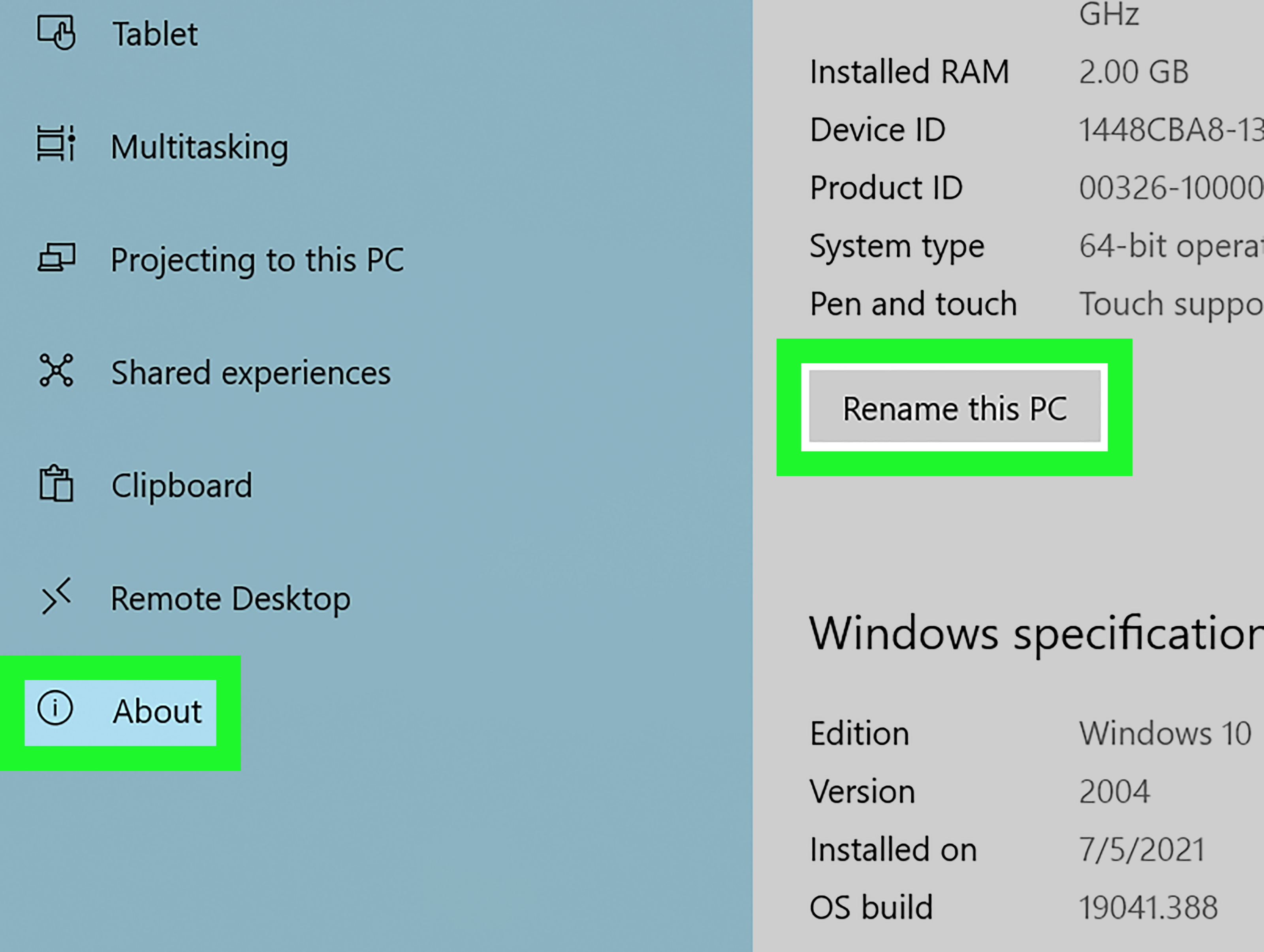
Pin your most-used apps to the taskbar. Organize the Start menu. Rename the laptop under Settings > System > About so it is easy to identify on a network. Set default apps for email, maps, music, photos, video, and web browsing.
Explore accessibility settings under Settings > Ease of Access. You can adjust text size, cursor thickness, color filters, captions, keyboard behavior, magnifier, narrator, and visual effects. A comfortable laptop is not just a faster laptop; it is one that does not make your eyes stage a protest after 20 minutes.
Step 15: Plan for Windows 10 End of Support
Here is the part many guides used to skip: Windows 10 has reached end of support. That means regular feature and security updates are no longer delivered the same way for standard unsupported systems. If your laptop can upgrade to Windows 11, check compatibility and consider upgrading. If it cannot, look into Microsoft’s Extended Security Updates option, especially if you will keep using the laptop online.
If you use Windows 10 only for offline tasks, old software, or a specific device, reduce risk by limiting unnecessary internet use, keeping browsers and apps updated where possible, using strong account security, and maintaining backups. If the laptop is for school, business, banking, or storing personal information, do not ignore the support timeline. Security is not just a nerdy checkbox; it is the digital version of locking your door.
Common Windows 10 Setup Mistakes to Avoid
Skipping updates
Skipping updates is the classic first mistake. A new or reset laptop may be months behind. Install updates before loading it with apps and files.
Using one weak password everywhere
Do not reuse the same password across email, cloud storage, shopping, school, and banking. If one account is compromised, the rest become easier targets.
Ignoring backup
If a file matters, keep more than one copy. One copy on one laptop is not a backup; it is a wish.
Installing too much software
A clean laptop feels fast partly because it is not overloaded. Install what you need, then add more later. Your startup folder should not look like a crowded airport.
Real-World Experience: What Actually Makes Setup Smoother
After setting up many Windows laptops, one lesson stands out: the best setup is not the fanciest one. It is the one that prevents annoying problems before they happen. Most people want to jump straight into using the laptop, and that is understandable. New computer energy is real. You want to open the lid, admire the clean desktop, maybe change the wallpaper to something dramatic, and declare yourself productive. But the first day is when a laptop quietly decides whether it will become a reliable tool or a chaos generator with a keyboard.
The most useful habit is to do setup in phases. First, get Windows stable: connect to power, update Windows, restart, update again, and check drivers. This sounds repetitive because it is. It is also effective. Many people install apps first, then wonder why audio, Wi-Fi, display brightness, or the touchpad behaves strangely. Updates and drivers should come before personalization because they form the foundation. You do not decorate a house before checking whether the floor exists.
The second practical lesson is to create a “clean baseline.” Once Windows is updated, security is active, important apps are installed, and backups are configured, pause. Create a restore point. Write down what you installed. Save recovery keys. Confirm that your files are syncing. This tiny maintenance moment can save hours later. If something breaks after installing a printer driver, VPN client, game launcher, or mysterious utility from 2014, you have a known good point to return to.
Another experience-based tip: do not underestimate comfort settings. Display scaling, keyboard repeat speed, touchpad sensitivity, night light, and power settings sound small, but they shape daily use. A laptop that is technically configured but physically annoying will make every task feel harder. Adjust brightness so your eyes are not fighting a tiny sun. Turn off startup apps that slow boot time. Set sleep behavior so the laptop does not stay awake in your backpack and transform into a heated sandwich.
Backups are where experience gets serious. People usually care about backup only after losing a school project, client document, family photo folder, or tax file. Set it up while everything is calm. Use cloud backup for active files and an external drive for important archives. Test that you can actually open backed-up files. A backup you never test is like a parachute you bought from a garage sale: comforting in theory, questionable in the moment.
Finally, setup is not a one-time ritual. A good Windows 10 laptop routine includes checking updates, reviewing startup apps, cleaning storage, confirming backups, and watching for battery health changes. Once a month, spend ten minutes on maintenance. That small habit keeps the laptop from becoming slow, cluttered, and emotionally dramatic. A well-set-up Windows 10 laptop may not make coffee, finish homework, or stop browser tabs from multiplying like rabbits, but it will give you a secure, organized, dependable workspaceand that is already a win.
Conclusion
Setting up a Windows 10 laptop the right way is about more than clicking through setup screens. It means choosing the right account, reviewing privacy options, installing updates, checking activation, securing the device, removing unnecessary apps, setting up backups, personalizing comfort settings, and planning for Windows 10’s post-support reality. Do it carefully once, and your laptop will reward you with fewer errors, better performance, stronger security, and less “why is this happening to me?” energy.
If you remember only five things, remember these: update first, use strong account protection, enable backup, encrypt the device if available, and make a plan for Windows 10 security now that official support has ended. That is the difference between a laptop that merely turns on and a laptop that is actually ready for real life.
SEO Tags
Note: This guide is intended for personal Windows 10 laptop setup in 2026. Because Windows 10 has reached end of support, users should prioritize security updates, backups, encryption, and an upgrade or Extended Security Updates plan when continuing to use Windows 10 online.