Your iPhone is not just a pocket-sized rectangle for doomscrolling, food photos, and pretending you are “almost there” when you have not left the house. It is also a surprisingly serious privacy guard. One of its most important safety features is the tracking notification, a warning that may appear when your iPhone detects possible location tracking or when an app asks permission to track your activity across other apps and websites.
The tricky part is that “tracking notification on iPhone” can mean two different things. First, there are physical tracking alerts, such as “AirTag Found Moving With You” or “Unknown Item Detected,” which warn you that an AirTag, AirPods, Find My accessory, or compatible Bluetooth tracker may be traveling with you. Second, there are app tracking notifications, better known as App Tracking Transparency prompts, where an app asks whether it can track your activity for advertising or data-sharing purposes.
Both matter. One protects your physical location. The other protects your digital behavior. Together, they form a privacy seatbelt for modern iPhone users. You may not think about it every day, but when you need it, you really need it.
What Is a Tracking Notification on iPhone?
A tracking notification on iPhone is an alert that tells you something may be monitoring your movement, your device activity, or your data across apps. The most urgent type is an unwanted tracking alert. This happens when your iPhone detects that an unknown tracking device appears to be moving with you over time.
For example, if someone slips an AirTag into your backpack, your iPhone may eventually notify you that an unknown item has been detected traveling with you. Apple designed these alerts because Bluetooth trackers are extremely useful for finding lost keys, luggage, wallets, and bagsbut the same technology can be misused by stalkers, thieves, or controlling partners. Technology, like a blender, depends heavily on who is using it and whether they have read the instructions.
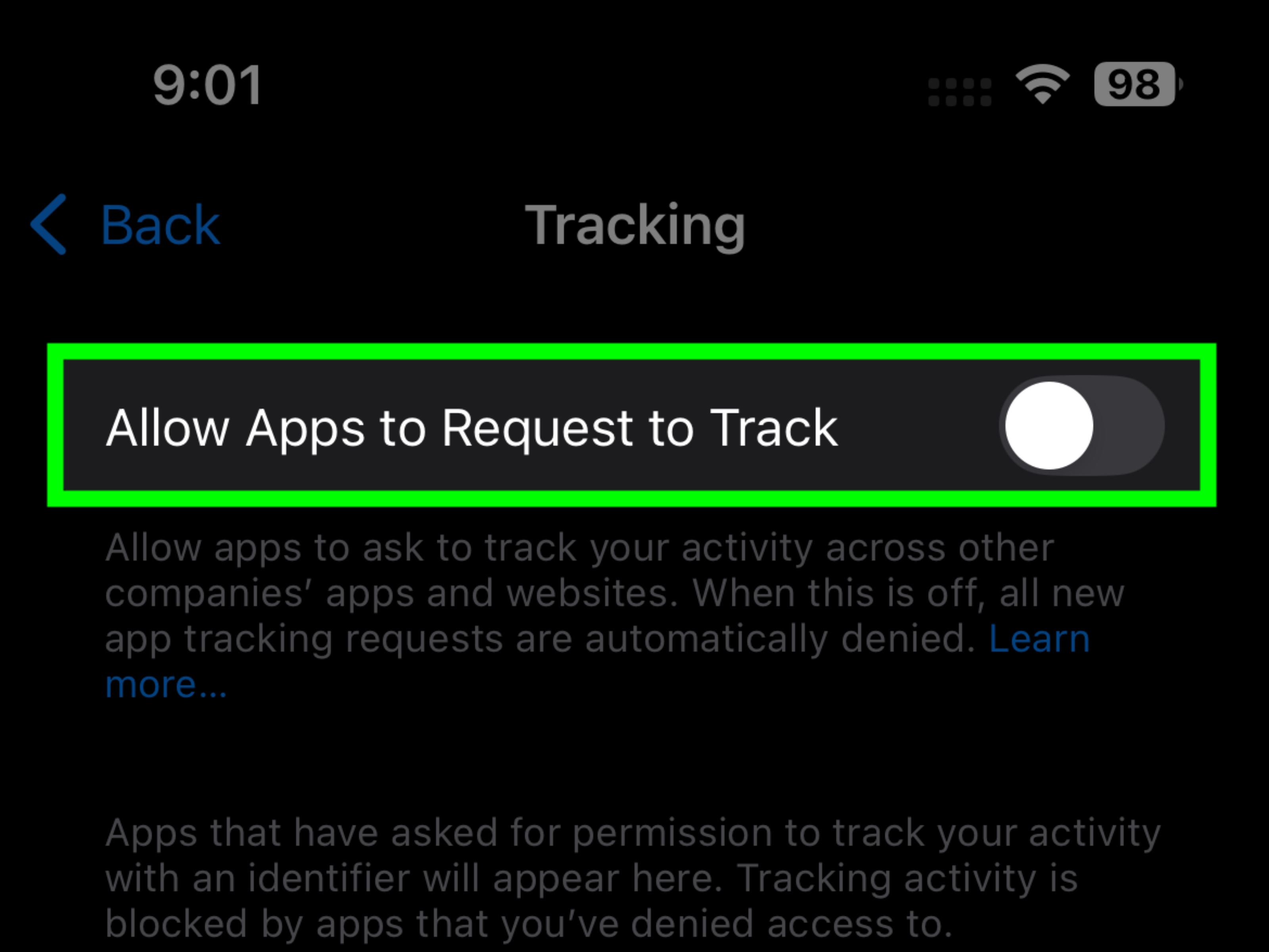
The other common type of iPhone tracking notification is the app tracking prompt. This appears when an app wants permission to track your activity across apps and websites owned by other companies. It is usually connected to advertising, analytics, or data brokerage. When you see “Ask App Not to Track,” your iPhone is giving you a chance to say, “No thanks, I already have enough companies guessing my personality from my snack choices.”
The Two Main Types of iPhone Tracking Alerts
1. Physical Tracker Notifications
Physical tracker notifications are connected to devices such as AirTags, AirPods, Find My network accessories, and other compatible Bluetooth location trackers. These trackers broadcast Bluetooth signals. Nearby devices in a compatible network can detect those signals and help report the tracker’s location to its owner.
That system is brilliant when your suitcase decides to take a solo vacation to Denver. It is less charming when a tracker is hidden in your car, coat, purse, stroller, gym bag, or luggage without your consent. That is why iPhones can display alerts such as “AirTag Found Moving With You,” “Unknown Accessory Detected,” or “[Item] Found Moving With You.”
2. App Tracking Transparency Notifications
App tracking notifications are different. They do not mean a physical device is following you. Instead, they mean an app wants permission to track your activity across other companies’ apps and websites. This can include using advertising identifiers, combining your data with third-party data, or sharing certain information with data brokers.
When an app asks to track you, you usually get two choices: “Allow” or “Ask App Not to Track.” Choosing the second option does not delete the app, break your phone, or launch a tiny privacy parade. It simply tells the app not to track your activity across third-party apps and websites for certain purposes.
Why Your iPhone Sends Unwanted Tracking Alerts
Your iPhone sends unwanted tracking alerts when it detects that an unknown item appears to be traveling with you and is separated from its owner. The system is designed to reduce the risk of secret tracking. It does not mean every alert is dangerous, but it does mean you should pay attention.
There are harmless reasons this can happen. Maybe you borrowed a friend’s keys with an AirTag attached. Maybe your spouse’s luggage is in the car. Maybe your roommate’s AirPods fell into your tote bag because your tote bag has become a black hole with handles. In these cases, the alert may simply be your iPhone being cautious.
But there are also serious possibilities. A tracker may have been placed in your vehicle, bag, coat, or personal belongings without permission. This is especially concerning if you have recently ended a relationship, are dealing with harassment, have a protective order, work in a public-facing job, or notice repeated alerts in places tied to your daily routine.
What To Do If You Get an AirTag or Unknown Item Alert
The first rule is simple: do not ignore the alert. The second rule is also simple: do not panic so hard that you start emptying your backpack in the middle of a grocery store like you are auditioning for a crime drama.
Tap the Notification
Start by tapping the alert. Your iPhone may open the Find My app and show you more details, including a map of where the unknown item was detected with you. This map can help you understand whether the tracker has been moving with you from one place to another or was only nearby briefly.
Use Find My to Learn More
Open the Find My app, go to the Items section, and look for unknown items detected with you. Depending on the device and situation, you may be able to play a sound to help locate it. If you have a compatible iPhone and the tracker supports precision finding, you may also get directional guidance.
Search Safely
Check common hiding places: bags, coat pockets, glove compartments, under car seats, wheel wells, luggage linings, stroller pockets, bike bags, and any item you recently received from someone else. If you feel unsafe, avoid searching alone. Go to a public place, contact someone you trust, or speak with local law enforcement.
Identify the Tracker
If you find an AirTag or compatible tracker, you may be able to hold the top of your iPhone near it to view information such as a serial number or device identifier. If the item was marked lost, you may also see a message from its owner. That does not automatically mean the situation is harmless, but it can provide useful context.
Document Before Disabling
If you suspect malicious tracking, take screenshots of the notification, map, item details, serial number, and any location history shown. Photograph where the tracker was found. This documentation may matter if you decide to make a police report or need evidence for a safety plan.
Disable the Device
For an AirTag, disabling usually means removing the battery. Press down on the stainless-steel battery cover, rotate it counterclockwise, and remove the battery. Other trackers may have different disable instructions. Your iPhone may provide device-specific guidance after you tap the alert.
How To Make Sure Tracking Notifications Are Turned On
For iPhone tracking notifications to work well, your settings matter. Think of them as the lights on your porch: they cannot help much if they are turned off.
First, keep your iPhone updated. Newer iOS versions include improved unwanted tracking detection, including broader support for compatible Bluetooth trackers beyond Apple’s own AirTag ecosystem.
Next, check these settings:
- Go to Settings > Privacy & Security > Location Services and make sure Location Services is on.
- Go to Settings > Privacy & Security > Location Services > System Services and check that important location-related services are enabled.
- Turn on Bluetooth, because Bluetooth signals are how nearby trackers are detected.
- Open the Find My app and review tracking notification settings.
- Make sure notifications for Find My are allowed under Settings > Notifications.
If you disable Bluetooth, Location Services, or Find My notifications, you may reduce your iPhone’s ability to warn you about unknown trackers. Privacy settings are powerful, but turning everything off can sometimes remove safety features along with data-sharing features.
What “Ask App Not to Track” Really Means
Now let’s switch from physical tracking to digital tracking. When an app asks to track your activity, it usually wants permission to connect your behavior in that app with activity in other apps, websites, or data sources. This is often used for targeted advertising, ad measurement, or user profiling.
If you tap “Ask App Not to Track,” the app is supposed to respect that choice and avoid tracking you across other companies’ properties. You can also turn off tracking requests entirely by going to Settings > Privacy & Security > Tracking and disabling permission requests.
However, this does not mean the app collects no data at all. Apps may still collect data needed to provide their service, prevent fraud, maintain security, or understand performance. For example, a weather app may still need your approximate location if you allow it. A shopping app may still remember what is in your cart. Sadly, privacy controls cannot stop you from buying novelty mugs at midnight. That part is between you and your budget.
Common iPhone Tracking Notification Examples
“AirTag Found Moving With You”
This means an AirTag that is not registered to your Apple Account appears to be traveling with you. It may be in something you borrowed, or it may have been placed near you without your knowledge.
“Unknown Item Detected”
This alert can refer to a Find My accessory or compatible Bluetooth tracker that your iPhone cannot immediately identify as yours. Open Find My and review the item details.
“AirPods Detected Near You”
This can happen if someone else’s AirPods are traveling with you. AirPods can trigger alerts because they also work with Apple’s Find My network.
“Allow App to Track Your Activity?”
This is an App Tracking Transparency prompt. It is about digital activity tracking, not a hidden physical tracker.
When a Tracking Alert May Be a False Alarm
Not every alert means you are being stalked. You may receive a notification when traveling with friends, sharing a car, borrowing luggage, riding in a vehicle that contains someone else’s tracker, or staying close to another person’s belongings for an extended period.
Still, “probably harmless” is not the same as “ignore it completely.” Review the alert. Look at the map. Consider your context. If the item appeared only during a carpool with a friend who uses AirTags, the explanation may be simple. If the alert follows you from work to home to the gym, take it more seriously.
Safety Tips If You Suspect You Are Being Tracked
If the alert feels suspicious, avoid going directly home, especially if you believe someone may be trying to learn where you live. Go to a safe public location, police station, trusted workplace, or well-lit area with other people nearby.
Do not destroy the tracker if you may need evidence. Document it first. If you know or suspect who placed it, avoid confronting that person alone. In stalking or domestic abuse situations, confrontation can increase danger. Contact a trusted friend, local advocacy organization, attorney, or law enforcement depending on your situation.
You should also review your broader iPhone safety settings. Use Safety Check on iPhone to see who has access to your location, photos, messages, calendars, and shared information. Change your Apple Account password if you suspect someone else has access. Turn on two-factor authentication. Review devices signed in to your account. Remove unfamiliar devices. Privacy is not one switch; it is more like cleaning the garageannoying, but satisfying once you do it.
How Tracking Notifications Help Travelers
Travelers often use AirTags and similar trackers for luggage, backpacks, camera bags, and passports. That is a legitimate and practical use. If an airline misplaces your bag, a tracker can help you see whether your suitcase is still at the departure airport, sitting in a baggage room, or enjoying a mysterious side quest in another state.
But travel also creates more false alerts. You may sit near other people’s luggage on a train, bus, or plane. You may share a rental car with someone whose bag contains an AirTag. Your iPhone may warn you because it cannot know whether the tracker is attached to your suitcase, your friend’s suitcase, or the suitcase of a stranger who packed six pairs of shoes for a weekend trip.
The best travel habit is to label your own trackers clearly, share tracker access with trusted travel companions when appropriate, and take alerts seriously without immediately assuming the worst. A calm check is better than airport panic gymnastics.
How Parents and Families Should Think About Tracking
Families sometimes use AirTags or Find My devices to keep track of backpacks, bikes, keys, or luggage. That can be helpful, but it is important to understand the ethical line. Tracking belongings is not the same as secretly tracking people.
If you place a tracker in a child’s backpack, tell the child in an age-appropriate way and make sure other caregivers know. If you place one in a shared car, tell the people who use the car. Hidden tracking can damage trust, and in some situations, it may raise legal concerns.
For family location sharing, Apple’s built-in Find My location sharing is usually more transparent than hiding a tracker in someone’s belongings. Consent matters. Even in families. Especially in families.
Privacy Limits: What iPhone Tracking Notifications Cannot Do
Tracking notifications are helpful, but they are not magic. They may not detect every tracker immediately. Some alerts depend on movement patterns, time, Bluetooth availability, device compatibility, and whether the tracker follows industry standards.
Also, a tracking notification does not tell you the motive behind the tracker. It cannot know whether a device is lost, borrowed, forgotten, or planted. Your iPhone can provide clues, but you still need judgment and context.
For app tracking, tapping “Ask App Not to Track” does not make you invisible online. Websites, apps, advertisers, and data brokers may still use other methods, such as account logins, IP addresses, cookies, device information, or first-party data. App Tracking Transparency is a strong privacy control, but it is one layer, not a cloak from a wizard with a privacy degree.
Practical Experience: What It Feels Like to Receive an iPhone Tracking Alert
In real life, a tracking notification on iPhone rarely arrives at a convenient moment. It does not politely wait until you are sitting at a desk with tea, emotional stability, and a fully charged battery. It may appear while you are leaving a restaurant, unloading groceries, waiting at an airport gate, or driving home after a long day.
The first reaction is usually confusion. Many people see “AirTag Found Moving With You” and think, “Is this mine? Is this dangerous? Did my phone just accuse my backpack of suspicious behavior?” That confusion is normal because most of us do not think about Bluetooth tracking devices until one appears in a notification.
A practical first step is to pause and reconstruct your day. Did you borrow someone’s keys? Did a friend put a bag in your car? Did you share a rideshare, taxi, rental car, or office space? Did you recently buy a used car or receive a package? Context can separate a harmless alert from a concerning one.
One common experience is the borrowed-item alert. For example, someone borrows a friend’s suitcase for a weekend trip. The suitcase has an AirTag inside. After a few hours, the iPhone warns that an item is moving with them. Technically, the phone is correct. Socially, it is just a suitcase being clingy. The solution is to confirm with the owner and, if possible, have them share the item or remove the tracker before the next trip.
Another common experience happens in cars. A person receives repeated alerts after commuting or parking near home. That deserves more caution. Cars have many hiding spots, and trackers can be placed under seats, inside compartments, in trunks, behind license plates, or near wheel wells. In this scenario, it is wise to search in daylight, involve someone trusted, and document everything before disabling the device.
Travelers often report mixed feelings about tracker alerts. On one hand, AirTags are excellent for luggage peace of mind. On the other hand, airports, hotels, shuttle buses, and rideshares are full of other people’s tracked bags. The iPhone may warn you about a tracker that is not targeting you at all. The key is movement history. If the tracker appears near you briefly, it may be coincidence. If it follows your route across multiple locations, take it seriously.
App tracking prompts feel less dramatic but happen more often. You install a shopping, weather, game, or social app, and suddenly it asks to track your activity. Most users tap quickly just to make the pop-up go away. A better habit is to slow down. Ask yourself: does this app truly need to track me across other companies’ apps and websites? For most apps, the answer is no. You can usually choose “Ask App Not to Track” and continue using the app normally.
The biggest lesson from real-world use is that iPhone tracking notifications are not there to scare you. They are there to give you information at a moment when information matters. Treat them like a smoke alarm with better typography: sometimes it is burnt toast, sometimes it is serious, but checking is always smarter than pretending you did not hear it.
Conclusion
Tracking notifications on iPhone are one of the most important privacy and safety features Apple offers. They help you spot possible unwanted physical tracking from AirTags, AirPods, Find My accessories, and compatible Bluetooth trackers. They also help you control whether apps can track your activity across other companies’ apps and websites.
The smartest approach is simple: keep your iPhone updated, leave essential safety settings enabled, understand the difference between physical tracker alerts and app tracking prompts, and respond calmly when an alert appears. Most alerts have an explanation. Some require action. Your job is not to panicit is to investigate, document, and protect your safety.
In a world where a coin-sized tracker can help find lost luggage or create real privacy risks, knowledge is your best defense. Your iPhone can warn you, but you still make the final call. And yes, your phone may occasionally be dramatic. But when it comes to tracking, a little drama is better than being left in the dark.
SEO Tags
Note: This article is written for general educational and web publishing purposes. If a tracking alert suggests immediate danger, contact local law enforcement or a trusted safety organization.