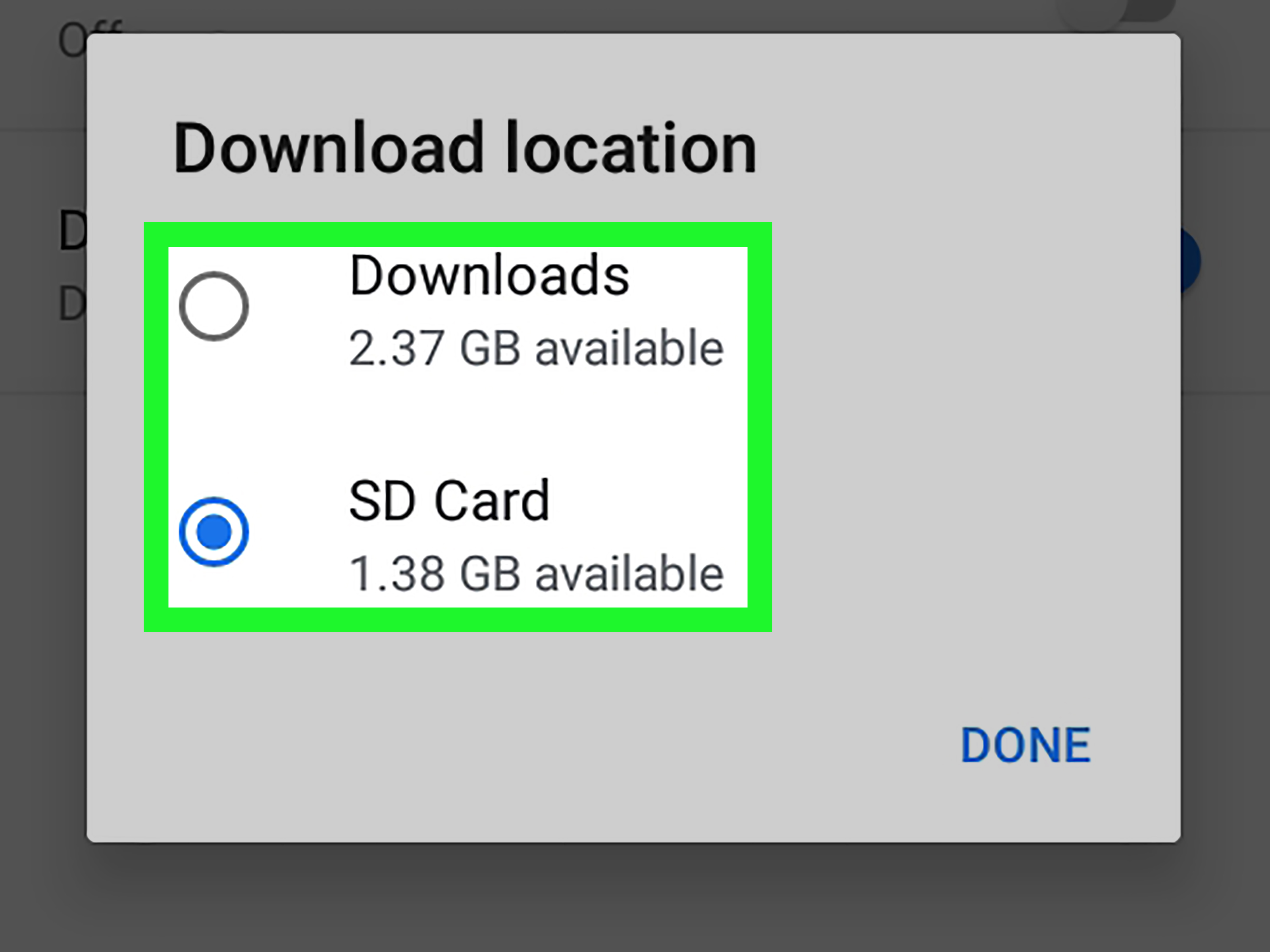
Downloads are like digital socks: you know you had them two minutes ago, and now they have mysteriously vanished into another dimension. Fortunately, Google Chrome gives you several ways to control where files go when you download PDFs, images, installers, spreadsheets, school documents, work files, memes your friend insisted were “important,” and everything in between.
In this guide, you will learn how to change the download location in Chrome, how to make Chrome ask where to save each file, how to find missing downloads, and how to keep your Downloads folder from turning into a chaotic junk drawer with Wi-Fi. The steps below work for Chrome on Windows, Mac, Linux, and Chromebook, although the folder names and file picker windows may look slightly different depending on your device.
Why Change the Download Location in Chrome?
By default, Chrome usually saves downloaded files to your system’s Downloads folder. On Windows, that is commonly something like C:\Users\YourName\Downloads. On Mac, it is the Downloads folder in Finder. On a Chromebook, files often land in the local Downloads folder unless you choose another location.
That setup is fine until it is not. Maybe your Downloads folder has become a swamp of old receipts, mystery ZIP files, and screenshots with names like “final-final-actually-final.png.” Maybe you want school files in one folder, work files in another, and photos somewhere they will not get buried under software installers. Or maybe your computer drive is getting full, and you want downloads to go straight to an external drive or cloud-synced folder.
Changing Chrome’s download folder makes your digital life cleaner. It saves time, reduces clutter, and helps you avoid the classic “I downloaded it, but where did it go?” panic dance.
How to Change the Download Location in Chrome: 13 Steps
Step 1: Open Google Chrome
Start by opening Chrome on your computer. These instructions are designed for the desktop version of Chrome, including Windows, macOS, Linux, and ChromeOS. If you are using Chrome on a phone or tablet, download behavior is more limited and usually depends on your device’s file manager.
Step 2: Click the Three-Dot Menu
Look at the top-right corner of the Chrome window. You will see the three-dot menu, also called the “More” menu. It is Chrome’s tiny control tower for settings, history, downloads, extensions, and other browser tools.
Step 3: Select Settings
From the drop-down menu, click Settings. Chrome will open the settings page in a new tab. This is where you can adjust privacy, appearance, search engine preferences, startup behavior, downloads, and more.
Step 4: Click Downloads in the Left Menu
In the Settings page, look at the left sidebar and click Downloads. If your browser window is narrow, you may need to expand the menu first. You can also type chrome://settings/downloads into the address bar and press Enter to jump directly to the Downloads settings page.
Step 5: Find the Location Section
Under Downloads, you will see a section labeled Location. This shows the folder where Chrome currently saves your downloaded files. If you have never changed it before, it is probably your default Downloads folder.
Step 6: Click Change
Next to the current download location, click the Change button. Chrome will open your computer’s folder selection window. This is where you choose the new home for your future downloads.
Step 7: Choose a New Folder
Pick the folder where you want Chrome to save downloaded files. You might choose your Desktop for quick access, a folder named “Chrome Downloads,” a project folder, a school folder, an external drive, or a cloud-synced folder such as Google Drive, OneDrive, Dropbox, or iCloud Drive.
Here is a smart example: create a folder called Browser Downloads inside Documents. That way, your downloads stay easy to find without covering your desktop like confetti after a parade.
Step 8: Confirm Your Folder Choice
After selecting the folder, confirm your choice by clicking the button your operating system shows. Depending on your device, it may say Select Folder, Choose, Open, or something similar. Chrome will update the download location immediately.
Step 9: Test the New Download Location
Download a small test file, such as an image or PDF you trust. Then open the folder you selected and confirm that the file appears there. This step is not glamorous, but it is useful. Think of it as checking that your mailbox is attached before asking everyone to send packages.
Step 10: Turn On “Ask Where to Save Each File” If Needed
If you do not want every file to go to the same folder, turn on Ask where to save each file before downloading. With this option enabled, Chrome asks you to choose a folder every time you download something.
This is especially helpful if you handle different types of files every day. For example, you can save invoices to a finance folder, class materials to a school folder, images to a design folder, and random internet treasures to a “Sort Later” folder. Yes, “Sort Later” can become dangerous. Use responsibly.
Step 11: Check Chrome Downloads With Ctrl + J or Command Shortcuts
To view your download history, press Ctrl + J on Windows, Linux, or Chromebook. On Mac, open Chrome’s Downloads page from the menu or use the Chrome download shortcut available on your version. You can also click the three-dot menu and choose Downloads.
The Downloads page shows recent files and may include options such as opening the file or showing it in its folder. This is the fastest way to locate a file when your brain says, “I downloaded it,” but your eyes say, “No you did not.”
Step 12: Manage Automatic Download Permissions
Some websites may try to download multiple files automatically. Chrome lets you control this behavior. Go to Settings, click Privacy and security, choose Site settings, open Additional permissions, and select Automatic downloads.
From there, you can decide whether sites are allowed to download multiple files automatically. For safety and sanity, it is usually better to be cautious. A website that suddenly wants to download twelve files without asking is either very helpful or very suspicious. Unfortunately, suspicious wears a very convincing hat online.
Step 13: Keep the Folder Organized
Once Chrome is saving files where you want them, keep that folder organized. Create subfolders such as PDFs, Images, Receipts, School, Work, and Installers. Delete files you no longer need. Move important documents to permanent storage.
Changing the download location is the first step. Keeping the folder tidy is the part where your future self sends you a thank-you card.
Best Download Folder Ideas for Chrome
Use a Dedicated Chrome Downloads Folder
A folder named Chrome Downloads is simple and clear. It separates browser downloads from other documents and makes cleanup easier. This is a good option for most users because it does not require a complicated system.
Use Project-Based Folders
If you download files for different projects, send downloads directly to the project folder. For example, a student might use folders named Biology Notes, History Research, and College Applications. A freelancer might use Client A, Client B, and Invoices.
Use a Cloud-Synced Folder
Saving downloads to a cloud-synced folder can be useful when you work across multiple devices. For example, downloading a PDF to a Google Drive or OneDrive folder may make it available on another computer. Just remember that large files can use storage space quickly, and syncing may take time depending on your internet connection.
Use an External Drive for Large Files
If you download videos, design files, software installers, or large archives, an external drive can help protect your main computer storage. Before choosing an external drive as your Chrome download location, make sure it stays connected. If the drive is unplugged, Chrome may not save files where you expect.
How to Find Downloads After Changing the Location
If you changed the download folder and now cannot find a file, do not panic. The file is probably not lost; it is just being dramatic. Start by opening Chrome and pressing Ctrl + J on Windows, Linux, or Chromebook. You can also open the three-dot menu and click Downloads.
Look for the file in the list. If Chrome shows an option like Show in folder, click it. Your computer should open the folder where the file was saved. If the file is not listed, search your computer by file name. On Windows, use File Explorer search. On Mac, use Finder or Spotlight. On Chromebook, open the Files app and check Downloads, My files, Google Drive, or the folder you selected.
Another common issue is saving to a folder that syncs with a cloud service. In that case, the file may be uploading, syncing, or waiting for an internet connection. Give it a moment, then check the folder again.
Chrome Download Location on Windows, Mac, and Chromebook
Windows
On Windows, Chrome commonly saves files to the Downloads folder inside your user profile. If your Windows username is Alex, the default path may look like C:\Users\Alex\Downloads. After changing Chrome’s location, future downloads go to the folder you selected.
Mac
On Mac, the default folder is usually Downloads in Finder. If Chrome asks for permission to access certain folders, macOS privacy settings may be involved. When saving files to protected locations, make sure Chrome has the needed access.
Chromebook
On a Chromebook, the Downloads folder is local storage. That means files saved there are stored on the device. For important files, consider moving them to Google Drive or another safe folder, especially if the Chromebook is shared, managed by a school, or low on storage.
Should You Make Chrome Ask Where to Save Every File?
The “Ask where to save each file before downloading” option is excellent for organized people and mildly annoying for everyone else. If you regularly download files for different purposes, turn it on. You will have more control and fewer misplaced documents.
However, if you download lots of small files and want speed, leaving it off may be better. Chrome will save files automatically to your chosen folder, and you can sort them later. The best choice depends on your workflow. If your download habits are neat, automatic saving is convenient. If your download habits resemble a raccoon sorting shiny objects, use the ask-before-saving option.
Troubleshooting: Chrome Download Location Not Working
The Folder Was Moved or Deleted
If the folder you selected no longer exists, Chrome may fail to save files correctly or may return to another available location. Create the folder again or choose a new download location in Chrome settings.
The External Drive Is Disconnected
If you set an external drive as the download destination, make sure the drive is plugged in before downloading. Otherwise, Chrome may not be able to access the folder.
The Folder Needs Permission
Some folders require special permission. On work, school, or managed devices, administrators may control where downloads can be saved. If you cannot change the folder, your organization may have set a Chrome policy.
Chrome Blocks a File
Sometimes the problem is not the folder at all. Chrome may block suspicious or dangerous files through Safe Browsing protections. If Chrome warns you about a file, take the warning seriously. Only download files from websites you trust, and avoid opening unknown installers, scripts, or compressed files from random sources.
Security Tips for Chrome Downloads
Changing the download location is helpful, but safe downloading matters too. A tidy folder full of unsafe files is still a problem; it is just a well-organized problem wearing a nice jacket.
Download software only from official websites or trusted app stores. Be careful with email attachments, pop-up download buttons, and websites that pretend to be update pages. If a site says your computer is infected and demands that you download a “cleaner,” close the tab. Real security tools do not usually introduce themselves with flashing panic banners.
Keep Chrome updated, use Safe Browsing, and scan suspicious files with trusted security software when needed. Also, avoid saving sensitive documents in a folder that other people can easily access, especially on shared computers.
Experience Notes: What Actually Works Best in Real Life
After helping many users clean up their Chrome downloads, one pattern appears again and again: the problem is rarely that Chrome is confusing. The real problem is that people use one folder for everything. Receipts, homework, tax forms, design assets, software installers, vacation photos, PDFs, random screenshots, and a file named “document(47).pdf” all end up in the same place. That folder becomes less of a folder and more of a digital basement.
The best setup is usually simple. Create one main folder called Downloads Inbox or Chrome Downloads. Then, once or twice a week, sort the files into permanent folders. This works better than creating twenty complicated categories on day one. A system that looks perfect but takes too much effort will collapse faster than a cheap lawn chair.
For students, the “Ask where to save each file” setting is often worth turning on. School files arrive from learning portals, email, shared drives, and random class websites. Saving each file directly into the correct class folder prevents chaos before it starts. A folder structure like School > Math, School > English, and School > Science can save a lot of time when assignments are due and your printer decides to develop a personality.
For office work, cloud-synced folders are convenient, but they require discipline. Saving every download directly to a shared team folder can accidentally clutter spaces other people use. A better method is to download files to a private working folder first, review them, rename them clearly, and then move only the final files to the shared location. Nobody wants a shared folder full of “new_report_final2_REALFINAL.xlsx.”
For creative work, such as photo editing, video editing, or web design, changing Chrome’s download location can prevent lost assets. Create project folders before downloading fonts, stock images, templates, and reference files. Then point Chrome to the active project folder while you work. When the project is done, switch Chrome back to your regular download folder. This keeps project materials together and reduces the chance of accidentally deleting something important during cleanup.
One underrated habit is renaming files immediately after downloading them. Many websites provide file names that are technically accurate but humanly useless. A file named invoice_8392047.pdf may make sense to a database, but not to you three months later. Rename it to something like 2026-05-phone-bill.pdf. Future you will be delighted. Future you may even forgive present you for that desktop wallpaper choice.
Another practical tip: do not use the Desktop as your permanent download folder unless you enjoy visual stress. The Desktop is great for temporary files you need today. It is terrible as a long-term storage system. Once it fills up, it becomes the computer version of a messy kitchen counter. Everything is technically visible, but somehow nothing can be found.
Finally, review your Chrome download folder monthly. Delete duplicate files, remove old installers, move important documents, and empty the trash when you are sure you no longer need the files. This habit keeps your device faster, your storage cleaner, and your brain slightly less annoyed every time you download something.
Conclusion
Learning how to change the download location in Chrome is a small adjustment with a surprisingly big payoff. Instead of letting files disappear into the default Downloads folder, you can choose exactly where they go. You can set one clean default folder, ask Chrome to confirm every download location, save files to cloud storage, or organize downloads by project.
The key is to build a system that matches how you actually work. If you want speed, choose one reliable folder. If you want precision, make Chrome ask every time. If you want fewer “where did that file go?” moments, check your Downloads page, name files clearly, and clean up regularly. Chrome can handle the saving part. The organization part is where you become the hero of your own file system.