Changing names is one of those life updates that sounds simple until you realize half your old classmates, former coworkers, and distant cousins still know you by the name you used years ago. Facebook understands this little social puzzle. That is why it allows you to add another name to your profile, including a maiden name, birth name, nickname, married name, or professional name.
The good news: you do not have to fully change your Facebook profile name just to help people recognize you. You can add your maiden name as an “Other Name,” and depending on your settings, Facebook can show it near the top of your profile. Think of it as a friendly name tag for people who remember you from before your last name got a plot twist.
In this guide, you will learn how to add your maiden name to Facebook using two easy methods: through Accounts Center and through your profile’s About section. You will also learn when to use each option, what to do if the setting is missing, how privacy works, and how to avoid common mistakes that make Facebook grumble like an old printer.
What Does Adding a Maiden Name to Facebook Mean?
Adding your maiden name to Facebook means placing a secondary name on your personal profile without necessarily replacing your current main name. For example, if your current Facebook name is “Emily Carter” and your maiden name is “Emily Parker,” you can add “Parker” as a maiden name so people searching for “Emily Parker” may still recognize you.
This is different from changing your main Facebook name. A main name change replaces the first, middle, or last name displayed as your primary profile identity. Adding a maiden name simply gives your profile another searchable and recognizable name. It is ideal if you recently got married, divorced, remarried, returned to a former name, or simply want old friends to find you more easily.
Before You Start: A Few Important Facebook Name Rules
Before you add a maiden name, it helps to understand Facebook’s general naming standards. Facebook wants people to use the name they go by in everyday life. That does not mean every name has to look like it came directly from a government form, but it does mean Facebook may reject names with unusual symbols, random punctuation, repeated characters, offensive words, or titles pretending to be part of a legal name.
For a maiden name, the safest approach is simple: enter the name clearly and naturally. Do not add decorations such as “~*Parker*~” or “Parker Forever Queen.” Funny? Maybe. Approved? Possibly not. Save the sparkle for your cover photo.
Method 1: Add Your Maiden Name Through Accounts Center
The most reliable way to add a maiden name on Facebook is through Accounts Center. This is where Meta manages profile information for Facebook and, in some cases, connected Instagram accounts. The exact wording may vary slightly depending on your device, app version, and region, but the basic path is similar.
Steps on the Facebook Mobile App
- Open the Facebook app on your iPhone or Android device.
- Tap the Menu icon.
- Tap Settings & privacy, then choose Settings.
- Tap Accounts Center.
- Select Profiles, then choose your Facebook profile.
- Tap Name.
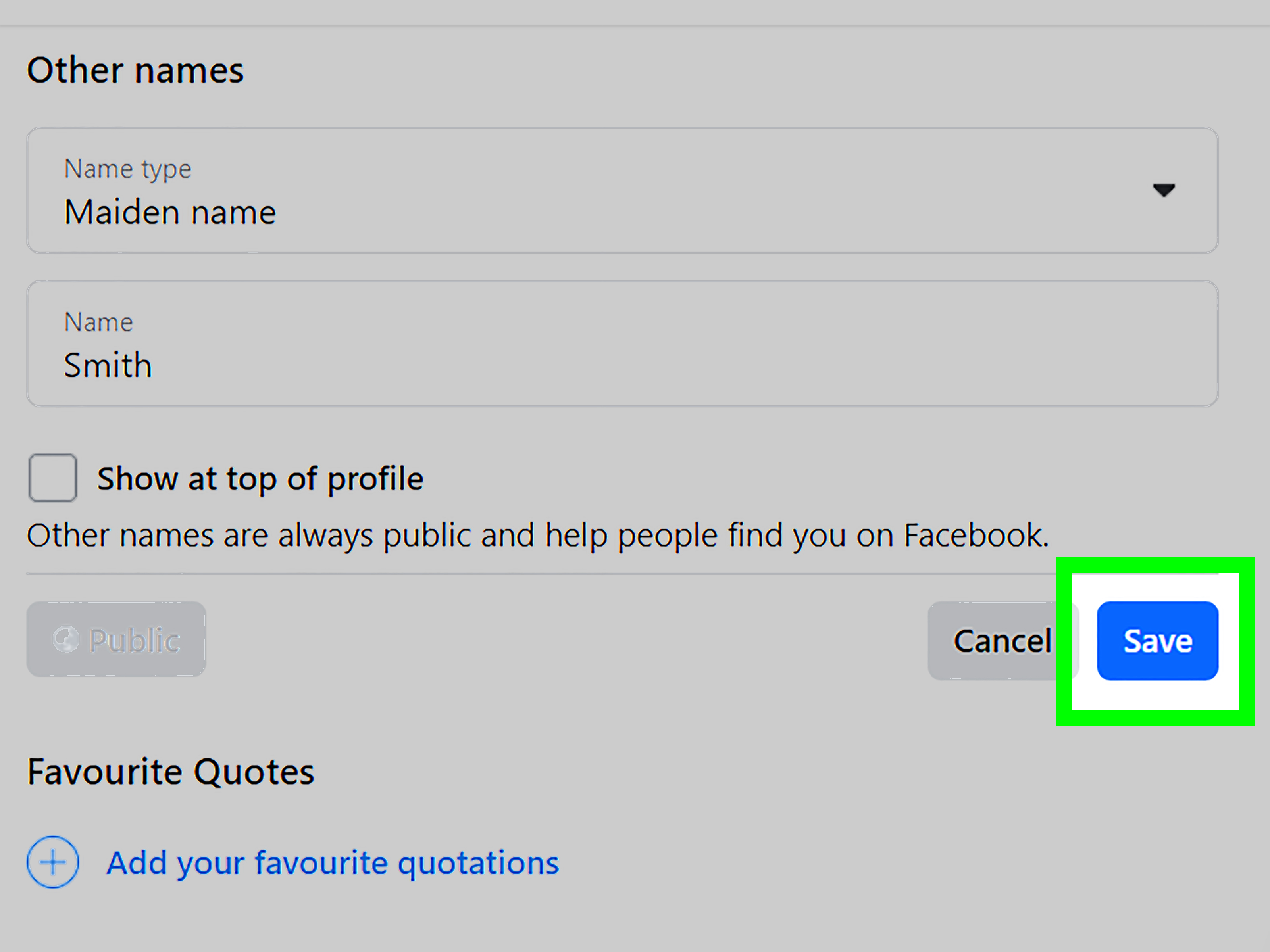
- Choose Manage other names.
- Select the name type, such as Maiden Name.
- Enter your maiden name.
- Choose whether you want it shown at the top of your profile, if that option appears.
- Tap Save.
That is it. Your maiden name should now be attached to your Facebook profile as another name. If you chose to show it at the top of your profile, people may see it near your main name. If not, it may still appear in your profile details depending on your settings.
Steps on Desktop
- Go to Facebook in your web browser and log in.
- Click your profile picture or account menu in the upper-right corner.
- Select Settings & privacy, then click Settings.
- Open Accounts Center.
- Click Profiles and choose your Facebook account.
- Select Name.
- Choose Manage other names.
- Select Maiden Name or the closest matching option.
- Type your maiden name and save your changes.
This method is especially useful if Facebook has moved settings around on your profile page. Accounts Center is the “control room,” so even if the furniture changes in the app, this is usually where the important switches live.
Method 2: Add Your Maiden Name From Your Profile About Section
Some Facebook users can still add another name directly from their profile page. This method is often faster because you start from your public profile instead of digging through settings. However, Facebook’s layout changes often, so not every account will see the same buttons in the same place.
Steps From Your Facebook Profile
- Open Facebook and go to your profile.
- Click or tap About.
- Look for Details About You or a similar profile information section.
- Choose Add other name or Add a nickname, birth name, or other name.
- Open the name type dropdown and select Maiden Name.
- Enter your maiden name.
- Check the option to show it at the top of your profile if you want it visible near your main name.
- Save your update.
This route is perfect if your main goal is profile visibility. For example, if your current name is “Rachel Morgan” but people from college remember you as “Rachel Simmons,” adding “Simmons” as a maiden name can make your profile much easier to identify.
Which Method Should You Use?
Use Method 1 through Accounts Center if you want the most current and dependable route. It is also better if you are using the mobile app and cannot find the old About section options.
Use Method 2 through your profile if the option is visible and you want a quick edit from your public-facing profile page. This method feels more natural for many users because you are editing the same area where the name will appear.
Both methods are designed to achieve the same result: adding your maiden name as another name on Facebook. The best method is simply the one your current Facebook layout actually shows you. Facebook menus sometimes move around like socks in a dryer, so do not panic if your screen looks slightly different.
Should You Add a Maiden Name or Change Your Main Facebook Name?
This depends on what you want people to see first. If your legal or everyday name has changed and you want your profile to fully reflect that, you may decide to change your main Facebook name. However, changing your main name is a bigger step than adding an additional name.
Facebook may limit how often you can change your main profile name. In many cases, after changing your name, you may not be able to change it again for 60 days. That is why adding a maiden name is usually the better option if your current main name is already correct.
Choose “Add Maiden Name” If:
- You want old friends to recognize you.
- You want to keep your married name as your main Facebook name.
- You do not want to trigger a full name change review.
- You want your profile to be searchable by both names.
- You prefer a quick, low-risk profile update.
Choose “Change Main Name” If:
- Your everyday name has officially changed.
- Your current Facebook name is outdated or incorrect.
- You no longer want your old last name shown as the primary name.
- You are comfortable waiting if Facebook applies a temporary name-change limit.
Can People Search for You by Your Maiden Name?
In many cases, yes. Adding another name can help people identify or find you on Facebook, especially if they know your former last name. This is one of the biggest reasons people add a maiden name in the first place.
For example, imagine someone searches for “Jessica Bennett” because that was your name in high school. Your current profile says “Jessica Reed,” so they might scroll right past you. But if your profile also includes “Jessica Bennett” as a maiden name, you become much easier to recognize. Congratulations, you have just saved someone from sending a friend request to the wrong Jessica. A small but noble public service.
How to Control Whether Your Maiden Name Shows on Your Profile
When adding another name, Facebook may show an option such as Show at top of profile. If you enable it, your maiden name can appear near your main profile name. If you leave it unchecked, the name may be stored in your profile details but not displayed as prominently.
If you are privacy-conscious, think carefully before making your maiden name highly visible. A maiden name can be useful for reconnecting with old friends, but it is also personal information. Some people use former names in security questions, old records, or identity verification systems. While that does not mean you should never display it, it does mean you should be intentional.
Smart Privacy Tips
- Only show your maiden name publicly if you are comfortable with strangers seeing it.
- Review your profile visibility after saving the change.
- Use Facebook’s “View As” feature if available to see how your profile appears to others.
- Avoid adding extra personal details such as birth year, school year, or location in the same name field.
- Check your search and privacy settings regularly, especially after major Facebook updates.
What If You Do Not See “Maiden Name” as an Option?
If the exact “Maiden Name” option is missing, do not assume you did something wrong. Facebook menus can vary by device, country, app version, and account setup. Try updating the Facebook app first. If that does not help, use the desktop version in a web browser.
You can also look for similar options such as Former Name, Birth Name, or Other Name. Choose the option that most accurately describes what you are adding. If Facebook gives you a general “Other Name” field, you can still enter the name clearly and avoid unnecessary symbols or explanations.
Common Problems and Quick Fixes
Problem 1: The Name Does Not Save
Check your internet connection, update the app, and make sure the name follows Facebook’s naming standards. Avoid punctuation, emojis, decorative characters, or extra phrases.
Problem 2: The Name Saves but Does Not Appear
Go back to Manage other names and check whether the option to show the name at the top of your profile is turned on. Also refresh your profile or check from another device.
Problem 3: You Added the Wrong Name Type
Return to the same menu, edit the other name, and choose the correct name type if available. If you accidentally added your maiden name as a nickname, you can usually remove it and add it again properly.
Problem 4: Facebook Asks for Review
If Facebook flags a name, follow the on-screen instructions. Use a real, recognizable name and avoid anything that looks like a slogan, business title, or joke account.
Best Examples of How a Maiden Name Appears
Here are a few simple examples of how people use maiden names on Facebook:
- Current name: Amanda Collins
Maiden name: Amanda Brooks - Current name: Laura Bennett
Maiden name: Laura Hughes - Current name: Michelle Anderson
Former name: Michelle Parker
The cleanest format is usually just the former last name or full former name, depending on what Facebook asks you to enter. Keep it simple. Facebook is not the place to write “formerly known as, during the legendary era of 2007.” Tempting, yes. Necessary, no.
Extra Experience: What It Is Really Like to Add a Maiden Name on Facebook
In real life, adding a maiden name to Facebook is usually less about technology and more about being findable. Many people change their last name after marriage and suddenly notice that old friends cannot recognize them online. A classmate may remember your face but not your new last name. A former coworker may search the name printed on an old business card. A cousin may try to tag you in family photos and accidentally choose someone who looks nothing like you except for owning the same first name. The internet is magical, but it is not always bright.
One common experience is that people delay adding a maiden name because they think it means changing their entire Facebook identity. It does not. Adding a maiden name as another name is more like adding context. Your main profile name can remain exactly as it is, while your old name quietly helps people connect the dots. This is especially helpful for people who have built different social circles at different stages of life: school friends know one name, work contacts know another, and family members may use both depending on how dramatic the reunion is.
Another practical experience is that visibility matters. Some users add a maiden name but forget to select the option that shows it near the top of the profile. Then they wonder why nobody can see it. If your goal is recognition, make sure it appears where people will actually notice it. If your goal is searchability without prominent display, keeping it less visible may be better. There is no single correct choice; it depends on your comfort level.
Privacy is also worth thinking about. A maiden name can be personal information, and some people prefer not to display it publicly. This is especially true if they use their former name in financial records, old email accounts, school documents, or account recovery questions. A good rule is to ask yourself, “Would I be comfortable with a stranger seeing this?” If the answer is no, keep the name off the top of your profile or review your audience settings carefully.
For many users, the best part of adding a maiden name is the small wave of reconnections that follows. Someone from high school finds you. An old neighbor sends a message. A family friend finally realizes you are not missing from Facebook; you simply changed surnames and became harder to locate than a TV remote under a couch cushion. That is the real value of the feature: it helps your profile tell a fuller story without forcing you to rewrite your present identity.
Conclusion
Learning how to add your maiden name to Facebook is simple once you know where to look. The easiest method is through Accounts Center, where you can manage your Facebook profile name and other names. The second method is through your profile’s About section, which may still appear for many users and offers a quick way to add a maiden name, former name, birth name, or nickname.
The key is to add your maiden name as an additional name instead of changing your main Facebook name unless you truly want a full profile name update. This helps old friends find you, keeps your current name intact, and avoids unnecessary confusion. Just remember to review visibility settings, keep the name clean and realistic, and think about privacy before displaying personal information publicly.
In short, your Facebook profile can reflect both where you are now and where people remember you from. That is useful, human, and surprisingly rare for a settings menu.