Roblox is much more entertaining when you have someone to share the chaos with. One minute you are building a peaceful virtual café; the next, your friend has driven a delivery truck through the front window. Friendship!
Adding friends on Roblox is straightforward on a PC, but the process becomes less obvious on Xbox and PlayStation. Console players can see and play with friends, yet some Roblox friend-management features still require a computer or mobile device. This guide explains how to add friends on Roblox on PC and console, accept requests, join the same experience, fix common problems, and keep younger players safer.
What You Need Before Adding a Friend
Before opening menus and pressing every button that looks remotely social, collect the other player’s exact Roblox username. A username is the unique account name used to identify a player. A display name is the more visible name shown above an avatar, and multiple users may have the same one.
For example, a player might use the display name “DragonMaster” while their actual username is “DragonMaster84729.” Searching only for the display name may produce a small army of unrelated dragons. Ask your friend to provide the exact username shown on their profile.
Roblox Friends, Connections, and Console Friends
Roblox has been updating some of its social terminology. Depending on the account, device, region, or interface version, you may see labels such as Friends, Connections, Add Friend, or Add Connection. These terms generally refer to the same basic two-way relationship: one player sends a request, and the other accepts it.
A Roblox friend is also different from an Xbox network friend or PlayStation Network friend. Adding someone through your console does not always add their Roblox account automatically. For reliable cross-platform play, connect through Roblox itself and treat the console friendship as a separate bonus layer.
How to Add Friends on Roblox on PC
You can use either the Roblox website or the Roblox desktop app. The website is often the easiest option because the search bar, profile pages, and friend requests are clearly accessible.
Method 1: Search for a Roblox Username
- Open Roblox in a web browser and sign in to your account.
- Select the search bar near the top of the page.
- Enter your friend’s exact Roblox username.
- Choose the option to search for that name in People.
- Review the results and select the correct player.
- Confirm the username, avatar, mutual friends, or other recognizable profile details.
- Select Add Friend or Add Connection.
- Wait for the other person to accept the request.
Once the request has been sent, the button may change to Pending. Repeatedly clicking it will not make the request travel faster. Roblox friendship is powerful, but it has not yet defeated network latency or human forgetfulness.
Roblox’s official instructions recommend locating the user through the People search category, opening the person’s profile, and selecting the available friend or connection button.
Method 2: Open a Direct Profile
When your friend has already shared their Roblox profile with you, open the profile while signed in and select the add button. This method avoids display-name confusion and is especially useful when a username contains numbers, underscores, or creative spelling that was apparently designed during a keyboard earthquake.
Double-Check the Profile Before Sending
Look at the full username rather than trusting the avatar alone. Roblox avatars can be changed, copied, or dressed in similar items. If you know the person outside Roblox, confirm the account through another trusted communication method before adding it.
How to Accept Roblox Friend Requests on PC
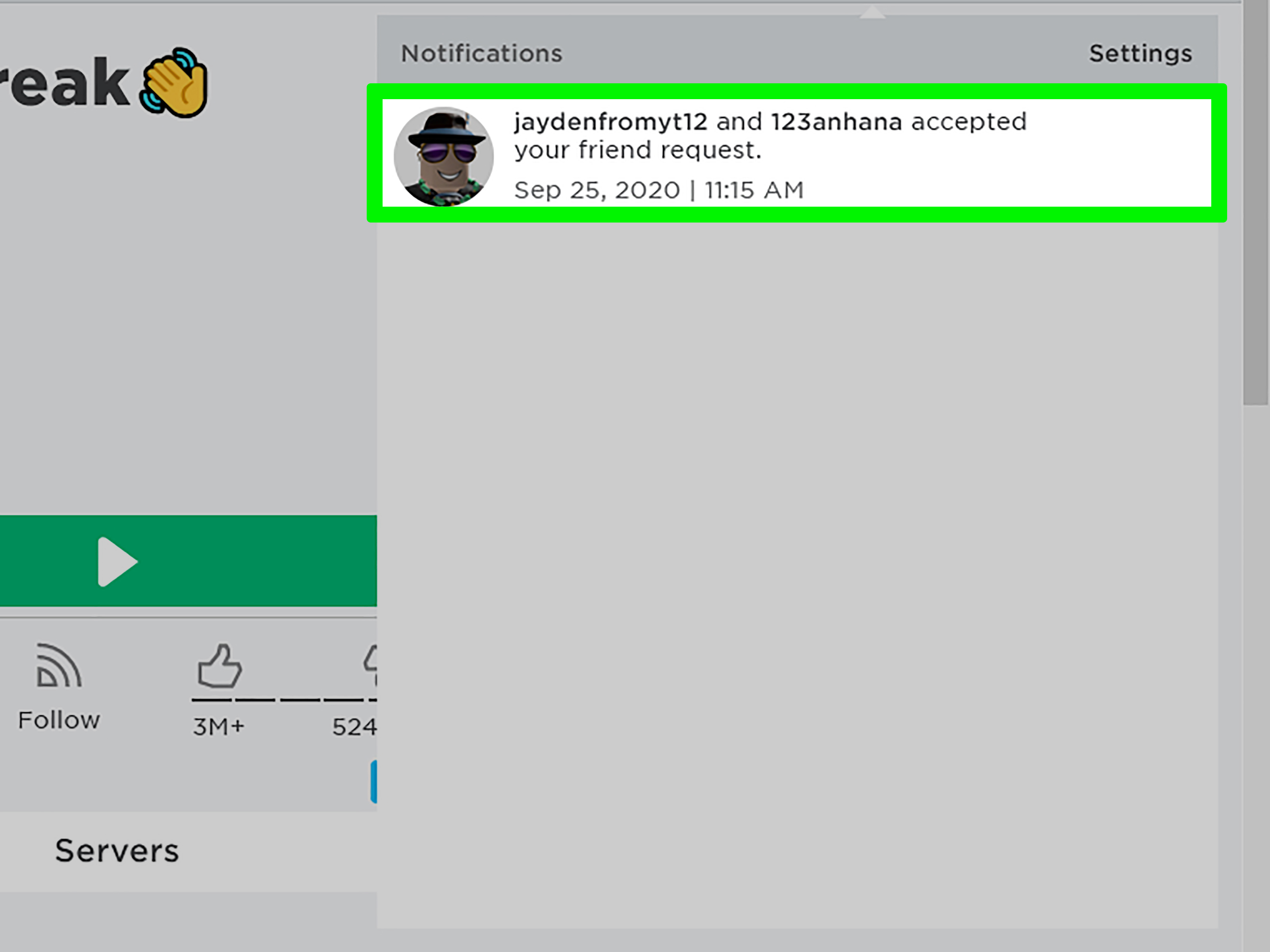
A friendship is not active until the receiving player accepts the request. To review incoming requests on a computer:
- Sign in to Roblox using the correct account.
- Open the Friends or Connections area from the navigation menu.
- Find the section for incoming requests. It may appear as Requests, within notifications, or near the top of the social page.
- Review the username and profile carefully.
- Select Accept to add the player or Decline to remove the request.
If you cannot see a request that your friend claims to have sent, refresh the page and verify that both people are checking the correct accounts. It is surprisingly common for players to maintain multiple accounts and accidentally send a request to an avatar they abandoned three haircuts ago.
How to Add Someone From a Roblox Experience
You may meet someone while playing and decide to add them without leaving the experience. The available options depend on the experience and the current Roblox interface, but the standard procedure is generally:
- Open the Roblox in-experience menu.
- Select the People tab or player list.
- Locate the player’s username.
- Select the player to open the available social options.
- Choose Add Friend or Add Connection.
If no add option appears, open the person’s full Roblox profile after the session and send the request from there. You should also avoid adding a stranger simply because they gave you a rare item, opened a door, or refrained from launching you into virtual space for five consecutive minutes.
How to Add Friends on Roblox on Xbox
The Xbox version of Roblox supports playing with friends, but managing the complete Roblox friends list is more limited than it is on PC or mobile. Roblox states that console users can receive requests, view online Xbox friends, and create parties, while viewing or accepting all Roblox requests may require signing in on another supported platform.
Recommended Method: Add the Roblox Account on PC or Mobile
- Open Roblox on a computer, phone, or tablet.
- Sign in with the same Roblox account connected to your Xbox.
- Search for your friend’s exact Roblox username.
- Open the correct profile.
- Select Add Friend or Add Connection.
- Ask the other player to accept the request.
- Restart or refresh Roblox on the Xbox if the updated friend list does not appear immediately.
This is the most dependable way to add a cross-platform friend who plays on PC, mobile, PlayStation, or another Xbox.
Add the Person Through the Xbox Network
When both people use Xbox, you can also add the other player’s Xbox gamertag through the console’s People or social menu. After becoming Xbox friends, online players may appear in the Xbox friends area, making party creation and game coordination easier.
Remember that an Xbox gamertag and a Roblox username may be completely different. Adding “SpacePanda42” on Xbox does not guarantee that the Roblox account named “SpacePanda42” belongs to the same person. Confirm both names before sending requests.
Check Xbox Privacy and Cross-Network Settings
If a child account cannot join another platform, the Xbox family organizer may need to allow multiplayer, communication, and cross-network play. Xbox privacy settings can control whether a player is allowed to interact with people outside the Xbox network.
How to Add Friends on Roblox on PlayStation
Roblox on PlayStation follows a pattern similar to Xbox. Players can see online PlayStation friends and create console parties, but Roblox recommends using PC or mobile when you need to view the full friends list or accept and reject Roblox requests.
Recommended Method: Send the Roblox Request Elsewhere
- Open Roblox on a computer or mobile device.
- Sign in to the Roblox account linked to your PlayStation profile.
- Search for the exact Roblox username of the person you want to add.
- Open the player’s profile.
- Select Add Friend or Add Connection.
- Have the other player accept the request.
- Return to Roblox on PlayStation and check the social or friends area.
Add a PlayStation Network Friend
If both players use PlayStation, you can add the other person’s PlayStation online ID separately:
- Press the PlayStation button to open the control center.
- Open Game Base.
- Go to the Friends tab.
- Select the option to search for players.
- Enter the person’s PlayStation online ID.
- Open the correct profile and select Add Friend.
These steps create a PlayStation Network friendship, not necessarily a Roblox friendship. Adding both accounts provides the smoothest setup for console parties and Roblox cross-platform sessions.
Enable Cross-Platform Play
Roblox includes a Cross-Platform Play setting on PlayStation. When it is enabled, players can join compatible users on PC, mobile devices, Xbox, and other supported platforms. Disabling it limits matchmaking and social play to PlayStation users.
How to Play Together After Becoming Friends
Adding a friend is only the first half of the mission. The next step is getting both avatars into the same experience without one person accidentally joining a different server full of strangers wearing identical banana costumes.
Join Through the Friend’s Profile
- Open your friend’s Roblox profile.
- Check whether the person is currently playing.
- Select Join Experience when the button is available.
- Allow Roblox to launch the experience and place you in the friend’s session.
The join button appears only when the player is inside a joinable experience and their privacy settings permit you to follow them. A full or restricted server may also prevent entry.
Use a Roblox Party
Eligible users can create a Roblox Party, add friends, and launch an experience together. From the Party area, select Start Party, choose the friends you want to include, and start the group. Party features and communication access may vary according to age checks, regional rules, account settings, and device support.
Use a Private Server
Some Roblox experiences allow private servers. The server owner can invite selected friends, providing a quieter place to play without random visitors. Private servers may be free or may require Robux, depending on the experience creator’s settings.
Why You Cannot Find or Add Someone on Roblox
You Searched for a Display Name
Display names are not unique. Search for the exact username and select the People category. Ask the player to spell it character by character when necessary.
The Request Is Already Pending
If you previously sent a request, the profile may display Pending instead of another add button. The recipient must accept it before you become friends.
You Are Already Friends
The Add Friend option may disappear when the account is already connected to yours. Check your Friends or Connections list before assuming Roblox has hidden the button for dramatic effect.
You Signed In to the Wrong Account
Players who use separate accounts on PC and console may send a request from one account and look for it on another. Compare the username shown in account settings on every device.
Console Friends and Roblox Friends Are Being Confused
An Xbox or PlayStation friendship does not automatically guarantee a Roblox connection. Add the exact Roblox account through the Roblox website or mobile app.
Cross-Platform Play Is Disabled
Check PlayStation’s Roblox cross-platform option and the Xbox account’s cross-network permissions. Child accounts may require a family organizer to approve changes.
The Player’s Join Settings Are Restricted
A friend can prevent other users from following them into experiences. They may need to adjust privacy or visibility settings before a Join Experience button appears.
The Server Is Full
Even perfect friendship cannot squeeze a twenty-first player into a twenty-player server. Wait for a space, choose another server, create a private server, or have both people join a less crowded session.
The App Has Not Refreshed
Sign out and back in, restart Roblox, or reopen the social page. Also install available Roblox and console system updates when menus or friend information are not loading correctly.
Roblox Friendship Safety Tips
Friend requests create easier access to a player’s activity and social features, so they should not be accepted automatically. Younger users should add people they know in real life or people approved by a parent or caregiver.
- Verify usernames through a trusted method before adding anyone.
- Do not share passwords, recovery codes, verification codes, or login cookies.
- Ignore promises of free Robux, rare items, or account upgrades.
- Do not reveal a real name, address, school, phone number, or daily schedule.
- Block and report accounts that threaten, pressure, scam, or harass.
- Review the Friends or Connections list regularly.
- Use linked parental controls for younger players.
Linked parents can review a child’s connections and block or report specific users from the parental controls area. Communication, content access, spending, and screen-time settings can also be managed through supported parent tools.
Frequently Asked Questions
Can PC and console players add each other on Roblox?
Yes. Roblox supports cross-platform play across compatible computers, mobile devices, Xbox systems, and PlayStation systems. The easiest method is to search for the exact Roblox username on PC or mobile, send the request, and then play from the preferred device.
Can I accept Roblox friend requests directly on Xbox?
Some social information is available on Xbox, but Roblox’s official guidance says that viewing the full list and accepting or rejecting requests may require logging in on PC or mobile.
Can I accept Roblox friend requests directly on PlayStation?
PlayStation players can see online PlayStation friends, but complete Roblox request management may require the Roblox website or mobile app.
Why does Roblox say “Add Connection” instead of “Add Friend”?
Roblox has introduced updated social terminology. In many interfaces, a connection serves the same basic purpose as a traditional Roblox friend: both players approve the relationship and can more easily find and play with each other.
Do both players need the same console?
No. Cross-platform Roblox friends can play together as long as the selected experience supports their devices, cross-platform play is allowed, and the server is accessible.
Does a friend request expire?
A standard request may remain pending until it is accepted, declined, canceled, or otherwise removed. If the request seems missing, canceling and resending it after verifying the username may help.
Why is there no Join button on my friend’s profile?
The friend may be offline, playing a restricted experience, using a full server, or preventing others from joining through privacy settings.
Real-World Experiences and Practical Lessons
The most common mistake when adding friends on Roblox is not a complicated technical failure. It is searching for the wrong name. During actual setup sessions, players frequently send a display name such as “Alex,” “Shadow,” or “BrookhavenKing” and assume it uniquely identifies their account. It does not. Searching for these names can return dozens of nearly identical avatars. Asking for the exact username immediately saves more time than changing privacy settings, reinstalling the app, or staring suspiciously at the Wi-Fi router.
Another recurring problem appears when one player uses a console and the other uses a computer. The console user adds the PC player’s Xbox gamertag or PlayStation online ID, then expects that account to appear automatically inside Roblox. When it does not, both players assume cross-platform support is broken. The reliable solution is to separate the two systems mentally: first add the Roblox username through Roblox, and then add the console profile when console parties or voice chat are useful.
Using a phone as a companion device is often the easiest console strategy. A player can remain signed in on Xbox or PlayStation while opening the same Roblox account on a phone. The phone handles username searches, profile checks, and requests, while the console handles the actual game. This approach may feel like using a second remote to operate the first remote, but it avoids wrestling with limited console menus.
Privacy settings are another frequent source of confusion, especially with family-managed accounts. A child may successfully add a friend but still be unable to join, communicate, or participate in cross-network play. In these cases, the friend request is not necessarily the problem. The Roblox account, Xbox family settings, PlayStation parental controls, and in-experience permissions can each impose separate restrictions. Checking them one at a time is more effective than changing everything simultaneously and hoping the digital stars align.
It also helps to choose a simple meeting plan before launching Roblox. Decide which person will join first, name the experience clearly, and agree on who will follow whom. When players independently search for a popular experience and press Play at the same time, Roblox may place them in different public servers. Joining directly through a friend’s profile, using a Party, or selecting a private server reduces the chance of separation.
Finally, refresh delays are real. A newly accepted connection may not appear instantly on every device. Closing and reopening the social menu, restarting the Roblox app, or signing out and back in usually resolves the mismatch. Reinstalling Roblox should be a later troubleshooting step, not the opening move. Most friendship problems are caused by usernames, account confusion, permissions, or server conditions rather than damaged game files.
The practical formula is simple: verify the exact Roblox username, send and accept the request on PC or mobile, confirm that both players are using the intended accounts, enable cross-platform permissions, and join through a profile or Party. Follow that order and you are far more likely to spend the evening playing Roblox instead of conducting unpaid technical support for two blocky avatars.
Conclusion
Adding friends on Roblox is easiest on a PC: search for the exact username in People, open the correct profile, and select Add Friend or Add Connection. Xbox and PlayStation users can play with friends and use console social features, but complete Roblox friend-request management may still require a computer or mobile device.
Once both players are connected, use the Join Experience button, a Roblox Party, or a private server to enter the same session. When something fails, check usernames, account links, pending requests, cross-platform permissions, privacy settings, and server capacity before blaming the controller. The controller has enough problems already.