Copying files in Linux sounds easy until the terminal blinks at you like it knows your password and your lunch order. The good news? You do not need to become a wizard with a gray beard and a keyboard covered in mysterious stickers. In most everyday situations, there are two simple ways to copy files in Linux: using the graphical file manager or using the cp command in the terminal.
This guide explains both methods in plain American English, with examples you can actually use. Whether you are copying photos to a USB drive, backing up a config file before editing it, moving project files into a new folder, or trying not to break your Linux system five minutes after installing it, these two approaches will cover the basics beautifully.
The main keyword here is simple: copy files in Linux. But along the way, you will also learn related essentials like Linux cp command, copy directories in Linux, Linux file manager, recursive copy, and terminal file copy. No keyword stuffing, no robotic chanting, no “Linux copy files Linux copy files Linux copy files” nonsense. We are civilized.
Why Copying Files in Linux Matters
Linux gives you a lot of freedom. That freedom is wonderful, but it also means you should understand basic file operations. Copying files is one of the first skills every Linux user should learn because it appears everywhere: backups, software configuration, development projects, server management, file organization, and troubleshooting.
For example, before editing a configuration file, experienced users often make a copy:
That one tiny backup can save you from a long evening of regret, internet searching, and muttering “I definitely knew what I was doing” while your system disagrees.
Linux supports several file-copying tools, including cp, rsync, scp, desktop file managers, and backup utilities. But for beginners and everyday users, the two simplest methods are:
- Copy files with the graphical file manager.
- Copy files with the
cpcommand in the terminal.
Let’s walk through both.
Method 1: Copy Files in Linux Using the File Manager
The easiest way to copy files in Linux is through the desktop file manager. If you have used Windows File Explorer or macOS Finder, this will feel familiar. Most Linux desktop environments include a file manager such as GNOME Files, KDE Dolphin, Nemo, Thunar, or Caja. The name may change, but the basic idea stays the same: click, copy, paste, done.
How to Copy a File with the Mouse
To copy a file using the graphical interface:
- Open your file manager.
- Go to the folder that contains the file you want to copy.
- Right-click the file and choose Copy.
- Go to the destination folder.
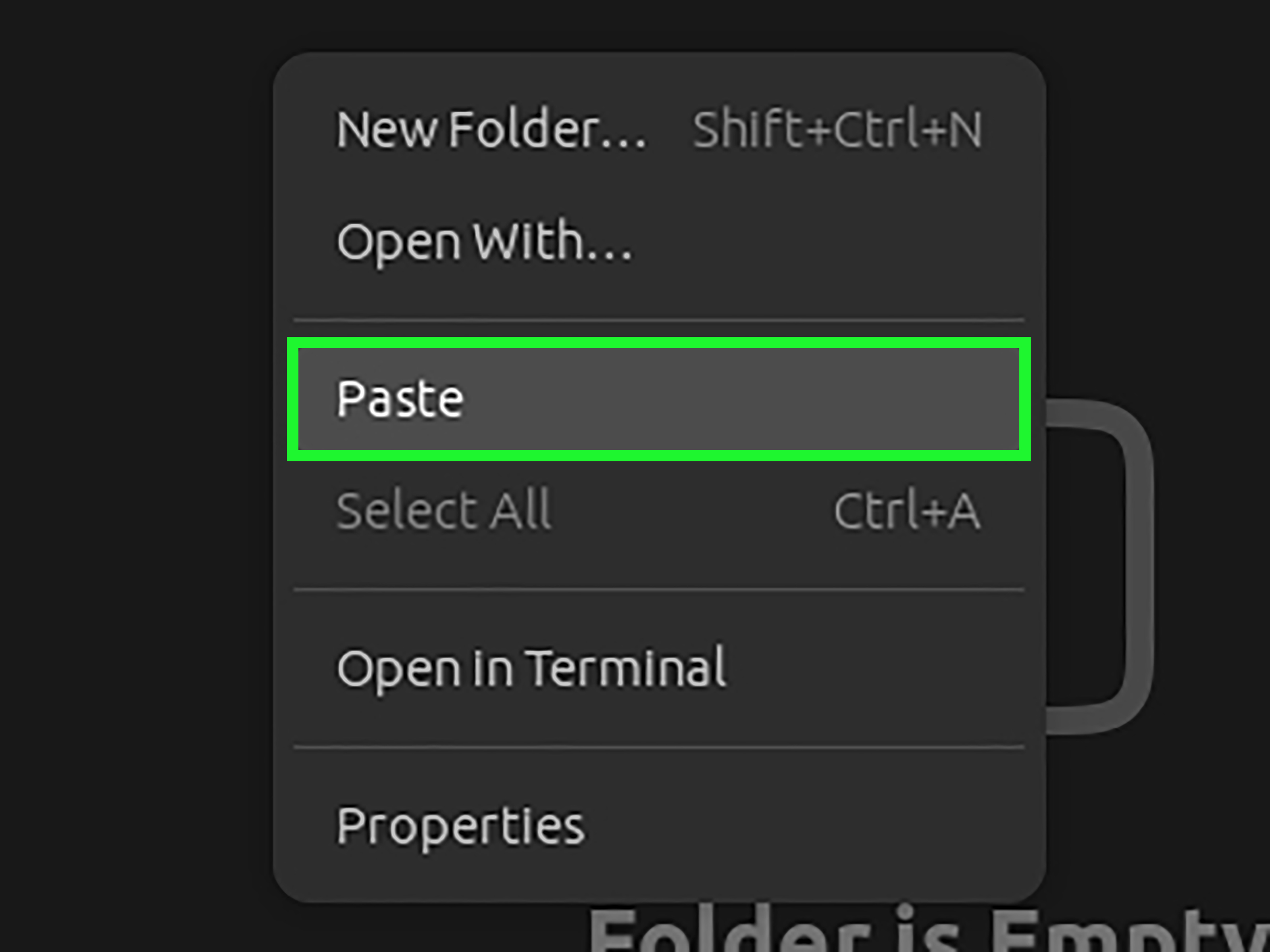
- Right-click inside the folder and choose Paste.
That is it. Linux will create a copy of the file in the new location while leaving the original file where it was. This method works well for documents, images, videos, downloads, school files, work folders, and other everyday items.
Use Keyboard Shortcuts for Faster Copying
If you prefer keyboard shortcuts, Linux desktop file managers usually support the familiar copy-and-paste flow:
Ctrl + Cto copyCtrl + Vto paste
For example, select a file named report.pdf, press Ctrl + C, open your Documents folder, and press Ctrl + V. Congratulations: you just copied a file without touching the terminal. Somewhere, a command-line purist sighed dramatically.
Copying Multiple Files at Once
You can also copy several files at the same time. Hold Ctrl and click each file you want to select. Then right-click one of the selected files and choose Copy. Go to the destination folder and paste them.
For a range of files, click the first file, hold Shift, and click the last file. This selects everything between them. It is very useful when copying a batch of photos, PDFs, text files, or project assets.
Copying Folders with the File Manager
Copying folders works almost the same way as copying files. Right-click the folder, choose Copy, go to the new location, and choose Paste. The file manager copies the folder and its contents, including files and subfolders.
This is one reason the graphical method is beginner-friendly. You do not need to remember command options like -r or -a. The desktop handles recursive copying for you behind the scenes, like a quiet assistant who does not ask for applause.
When the File Manager Is the Best Choice
The file manager is best when you want a visual, low-risk way to copy files. It is especially useful when:
- You are new to Linux.
- You are copying files to or from a USB drive.
- You want to preview folders before copying.
- You are organizing personal files like photos, videos, and documents.
- You do not need automation or advanced options.
For many desktop users, this is the most comfortable way to copy files in Linux. It is simple, clear, and forgiving. You can see where things are going before you paste them, which is helpful when your folder structure looks like a digital junk drawer.
Method 2: Copy Files in Linux Using the cp Command
The second simple way to copy files in Linux is with the cp command. The name cp stands for “copy,” because Linux commands like to keep things short. Very short. Suspiciously short.
The basic syntax is:
The source is the file you want to copy. The destination is where you want the copy to go.
Copy One File in the Same Folder
Suppose you have a file named notes.txt and want to make a copy called notes-backup.txt. Run:
This creates a new file named notes-backup.txt in the same directory. The original notes.txt stays untouched.
Copy a File to Another Directory
To copy notes.txt into your Documents folder, use:
The tilde symbol ~ means your home directory. So ~/Documents/ points to the Documents folder inside your home directory.
You can also copy a file and rename it at the same time:
This copies notes.txt into Documents and names the copy linux-notes.txt.
Copy Multiple Files to a Directory
To copy several files into one folder, list the files first and put the destination directory last:
This copies all three files into the Documents directory. The destination must be a directory when copying multiple files.
Copy Files with Wildcards
Wildcards make copying faster. For example, to copy all .jpg files from the current folder to the Pictures directory, run:
The asterisk * matches multiple characters. So *.jpg means “everything that ends in .jpg.” This is great for images, logs, text files, and other groups of files with the same extension.
Copy a Directory in Linux
By default, cp copies files, not entire directories. To copy a folder and everything inside it, use the recursive option:
The -r option tells Linux to copy recursively, meaning it goes through the directory, copies its files, enters subdirectories, copies their files, and keeps going until everything is copied.
You may also see -R used instead of -r:
For ordinary directory copies, both are commonly used. When writing scripts or handling complex file trees, many users prefer documented, predictable options and test carefully before copying important data.
Use cp -i to Avoid Accidental Overwrites
One thing beginners should know: if the destination file already exists, cp may overwrite it. That is useful when intentional and deeply annoying when accidental.
To make Linux ask before overwriting, use -i:
If a file with the same name already exists in the destination, Linux prompts you before replacing it. Think of -i as the friend who says, “Are you sure?” before you send a risky text or overwrite your homework.
Use cp -v to See What Is Happening
The -v option means verbose. It prints each file as it is copied:
For directories:
This is helpful when copying many files because it shows progress in a simple text form. It also gives you confidence that the command is doing something instead of silently plotting in the corner.
Use cp -p to Preserve File Details
The -p option preserves important file attributes such as timestamps and permissions when possible:
This is useful when file metadata matters. For example, if you are keeping backups or copying files for a project where modification times are important, preserving timestamps can help you avoid confusion later.
Use cp -a for Archive-Style Copies
The archive option -a is commonly used for copying directories while preserving as much structure and metadata as possible:
This is handy for backups, project folders, and configuration directories. It copies recursively and tries to preserve symbolic links, permissions, timestamps, and other file attributes. In short, -a is like telling Linux, “Please copy this folder carefully, not like a raccoon carrying groceries.”
File Manager vs. cp Command: Which One Should You Use?
Both methods are useful. The best choice depends on your situation.
Use the File Manager When You Want Simplicity
The file manager is ideal for visual copying. It is comfortable, familiar, and beginner-friendly. If you are moving personal documents, dragging photos to a USB drive, or organizing folders, the graphical approach is often the fastest.
Use the cp Command When You Want Speed and Control
The cp command is better when you want precision, repeatability, or remote-friendly workflows. It is especially useful for developers, system administrators, students learning Linux, and anyone working in a terminal session.
With cp, you can copy files quickly, combine options, use wildcards, preserve metadata, and include commands in scripts. Once you get comfortable, copying files from the terminal feels less intimidating and more like having a tiny forklift for your filesystem.
Common Mistakes When Copying Files in Linux
Forgetting the Destination
A basic cp command needs a source and a destination. This will not work:
Linux needs to know where the copy should go. Use something like:
Forgetting -r When Copying Folders
If you try to copy a directory without -r, Linux may complain that the source is a directory. Use:
Overwriting Files by Accident
If you copy a file into a folder that already has a file with the same name, you may replace the old file. To reduce risk, use:
When working with important files, it is better to be asked one extra question than to create one extra disaster.
Confusing Copy and Move
Copying leaves the original file in place. Moving removes it from the original location and places it somewhere else. In the terminal, cp copies files, while mv moves or renames them. They are related, but not the same. Do not invite chaos to the party.
Practical Examples for Everyday Linux Users
Example 1: Back Up a Config File
Before editing a configuration file, make a backup:
If your edit goes badly, you still have the original version.
Example 2: Copy Downloads to Documents
This copies example.pdf from Downloads to Documents.
Example 3: Copy a Whole Project Folder
This creates a careful copy of the project folder, preserving useful details.
Example 4: Copy All Text Files
This copies all text files from the current directory into a folder named Text-Files.
Example 5: Copy with Confirmation and Verbose Output
This asks before overwriting and shows what is copied.
Helpful Safety Tips Before Copying Files
Copying files is usually safe, but a few habits can prevent headaches.
- Use
pwdto confirm your current directory before running terminal commands. - Use
lsto check file names before copying. - Wrap file names with spaces in quotes, like
"school report.txt". - Use
cp -iwhen copying over important folders. - Do not use administrator privileges unless you understand why they are needed.
- After copying to a USB drive, safely eject it before unplugging.
That last point matters. Linux may cache write operations, meaning a file copy can appear finished before every byte is physically written to the drive. Safely ejecting helps prevent corrupted files, which is good because nobody enjoys opening a vacation photo and discovering it has become abstract art.
Experience Notes: What Copying Files in Linux Teaches You Over Time
After using Linux for a while, copying files becomes more than a basic task. It becomes a small lesson in how Linux thinks. The first thing you notice is that Linux is very literal. If you give it a clear command, it does exactly what you asked. If you give it a vague or careless command, it still does exactly what you asked, which may not be what you wanted. This is where careful habits begin.
One practical experience many users share is learning to slow down before pressing Enter. In a graphical file manager, you can usually see your source and destination. In the terminal, you build that path with text. That means small details matter. A missing slash, a wrong folder name, or an unexpected space in a filename can change the result. At first, this feels picky. Later, it feels powerful because you realize the terminal is not difficult; it is precise.
Another useful lesson is the value of backups. Many Linux users develop the habit of copying configuration files before editing them. That habit may seem boring until the day it saves you. A command like cp config.yml config.yml.bak takes one second, but it can prevent a messy recovery process. The backup file becomes a tiny safety net. It is not glamorous, but neither is falling off the trapeze.
You also learn that the file manager and terminal are not enemies. Some beginners think “real Linux users” must do everything in the terminal. That is not true. Skilled users choose the right tool. If you are copying a handful of photos, the file manager is perfect. If you are copying a project folder, preserving timestamps, or working over SSH, the terminal may be better. The smart approach is not “terminal always” or “GUI always.” The smart approach is “use what fits the job.”
Over time, options like -i, -v, -r, and -a start to feel natural. You may begin with simple commands like cp file.txt backup.txt. Later, you might use cp -av project/ backup/ because you want a visible, careful copy. The growth is gradual. Nobody wakes up magically fluent in Linux commands, except maybe the kind of person who reads manual pages for fun and owns more mechanical keyboards than shoes.
One real-world habit worth building is checking the destination after copying. Use the file manager to look inside the folder, or run ls in the terminal. When copying important work, verify before deleting, editing, or unplugging anything. This is especially important with removable drives and large folders. A copy operation is not truly finished in your mind until you have confirmed the files are where you expect them to be.
Another experience-based tip is to be careful with similar folder names. Directories like project, project-old, project-final, and project-final-real-final can become comedy and tragedy at the same time. Use clear names such as project-backup-2026-05 or website-copy-before-update. Good names make copying safer and future-you less annoyed.
Linux copying also teaches respect for permissions. Sometimes you cannot copy a file because your user account does not have access. That does not always mean something is broken. It may mean the file belongs to another user or to the system. Instead of immediately forcing the issue, pause and ask why the permission exists. Linux security is not being rude; it is guarding the snack cabinet.
Finally, copying files in Linux builds confidence. Once you know how to copy one file, copy several files, copy folders, preserve attributes, and avoid overwrites, you understand a core part of the operating system. It is a small skill, but it opens the door to bigger tasks like backups, scripting, server management, and development workflows. Start with the file manager. Learn cp. Practice on harmless test folders. Soon, copying files in Linux will feel less like a mystery and more like second nature.
Conclusion
There are many ways to copy files in Linux, but the two simplest are the graphical file manager and the cp command. The file manager is best for visual, beginner-friendly copying. The terminal is best for speed, control, automation, and precision.
For everyday use, remember these basics: right-click and paste when you want simplicity; use cp source destination when you want command-line control. Add -r for directories, -i for overwrite confirmation, -v for visible progress, -p for preserving file details, and -a for careful archive-style copies.
Once you understand these two simple ways to copy files in Linux, you can handle most file-copying tasks with confidence. And confidence, in Linux, is half the battle. The other half is remembering where you saved the file.
Note: This article was written from real Linux documentation and widely used Linux file-management practices, rewritten in original language for web publishing.