The Windows 10 taskbar is like the front desk of your computer. It holds your Start button, pinned apps, search box, system tray, clock, Wi-Fi controls, volume icon, notifications, and all the tiny buttons you forget you rely on until they suddenly stop working. When the taskbar freezes, disappears, refuses to show icons, ignores clicks, or turns into a lifeless strip at the bottom of the screen, even a simple job can feel like trying to drive a car with the steering wheel locked.
The good news: most Windows 10 taskbar problems are fixable without reinstalling Windows or whispering dramatic goodbye speeches to your laptop. The better news: you do not need to be a professional technician to try the safest repairs. In many cases, the issue is caused by a stuck Windows Explorer process, corrupted system files, a bad update, display glitches, or a user profile problem. Translation: your taskbar is probably not “dead.” It is more likely taking a very unprofessional nap.
This guide breaks the repair process into three simple methods. Start with the first one, test the taskbar, and move to the next only if needed. The goal is to fix the Windows 10 taskbar with the least drama possible.
Why the Windows 10 Taskbar Stops Working
Before fixing the problem, it helps to understand what might be going wrong. The taskbar is closely connected to Windows Explorer, the same core process that controls File Explorer, the desktop, icons, and several shell features. When Explorer freezes or crashes, the taskbar may freeze with it. That is why restarting Windows Explorer often works so well.
Other common causes include incomplete Windows updates, corrupted system files, damaged app packages, display driver issues, overloaded startup programs, broken search indexing, third-party customization tools, or a Windows user profile that has become unstable. Sometimes the taskbar itself is fine, but the Start menu, search panel, notification area, or pinned app icons are affected.
Here are the most common symptoms:
- The Start button does not respond.
- Taskbar icons are missing, blank, or frozen.
- The search box will not open or type properly.
- The taskbar disappears and does not come back.
- Right-clicking taskbar icons does nothing.
- The clock, volume, Wi-Fi, or battery icons stop responding.
- The taskbar appears, but pinned apps will not launch.
- Windows Explorer keeps restarting or flashing.
Now, let us fix it without turning your desk into a crime scene of coffee cups and stress snacks.
Way 1: Restart Windows Explorer
If your Windows 10 taskbar is frozen, missing, or unresponsive, restarting Windows Explorer should be your first move. It is fast, safe, and often solves the problem in under a minute. Think of it as giving the Windows desktop a polite but firm reset.
How to Restart Windows Explorer from Task Manager
- Press Ctrl + Shift + Esc to open Task Manager.
- If you see a small window, click More details.
- Go to the Processes tab.
- Scroll down and find Windows Explorer.
- Right-click Windows Explorer and choose Restart.
Your screen may flash, desktop icons may disappear for a second, and the taskbar may vanish briefly. Do not panic. That is normal. Windows is reloading the desktop shell. After a few seconds, the taskbar should return and respond normally.
If Windows Explorer Is Not Listed
Sometimes Explorer is so stuck that it does not appear where you expect it. In that case, you can manually launch it.
- Open Task Manager with Ctrl + Shift + Esc.
- Click File.
- Select Run new task.
- Type explorer.exe.
- Click OK.
This reloads the desktop, File Explorer, and taskbar. If your taskbar disappeared after a crash, this step can bring it back like a magician pulling a rabbit out of a very tired operating system.
When This Method Works Best
Restarting Windows Explorer is most useful when the taskbar suddenly freezes, icons stop reacting, the Start button will not open, or the system tray refuses to respond. It is also helpful after closing a full-screen app, disconnecting a monitor, or waking a computer from sleep.
However, if the taskbar freezes again after every restart, there may be a deeper issue. That is when you should move to the next method.
Way 2: Check Settings, Updates, and Display Issues
If restarting Explorer fixes the taskbar only temporarilyor does not fix it at allthe next step is to check Windows settings and updates. The taskbar can act strange because of auto-hide settings, tablet mode, display scaling, corrupted update files, or outdated drivers.
Check Taskbar Settings
Sometimes the taskbar is not broken; it is simply hiding. Windows 10 includes settings that can automatically hide the taskbar in desktop mode or tablet mode. This is useful when working on a small screen, but it can also make people believe the taskbar has vanished into another dimension.
- Press Windows + I to open Settings.
- Go to Personalization.
- Select Taskbar.
- Turn off Automatically hide the taskbar in desktop mode.
- If you use tablet mode, also check Automatically hide the taskbar in tablet mode.
If the taskbar appears after changing these options, congratulations. The fix was not technical wizardryit was Windows playing hide-and-seek without asking permission.
Turn Off Tablet Mode
Tablet mode can change how the taskbar behaves. On laptops and desktops, it may make the interface feel odd, especially if Windows mistakenly thinks your device should behave like a tablet.
- Press Windows + A to open Action Center.
- Look for Tablet mode.
- If it is turned on, click it to turn it off.
You can also go to Settings > System > Tablet and adjust how Windows behaves when you sign in.
Check Display Scaling and Multiple Monitors
If your taskbar is cut off, missing on one monitor, or appearing in the wrong place, display settings may be the cause. This is especially common after connecting an external monitor, changing resolution, docking a laptop, or updating graphics drivers.
- Right-click the desktop and choose Display settings.
- Check that the correct monitor is set as your main display.
- Review Scale and layout.
- Try recommended scaling and resolution settings.
- Disconnect and reconnect external monitors if needed.
If the taskbar comes back after changing resolution or scaling, the issue was likely visual rather than structural. In plain English: the taskbar was there, but Windows was being dramatic about where to draw it.
Install Windows Updates
Windows updates can fix bugs that affect the Start menu, search, taskbar icons, notifications, and Explorer behavior. They can also cause problems when interrupted, which is why finishing updates matters.
- Press Windows + I.
- Go to Update & Security.
- Select Windows Update.
- Click Check for updates.
- Install available updates and restart your computer.
Since Windows 10 reached end of support on October 14, 2025, regular feature and security updates are no longer available for standard unsupported systems. If you are still using Windows 10, consider Microsoft’s Extended Security Updates program where eligible, or plan an upgrade path to Windows 11 if your hardware supports it. A taskbar fix is useful, but an unsupported operating system is like locking your front door while leaving the roof open.
Update Display Drivers
Display drivers can affect the taskbar, desktop rendering, icon behavior, and screen refresh. If the taskbar flickers, disappears after sleep, or behaves badly after connecting a monitor, update your graphics driver.
- Right-click the Start button and select Device Manager.
- Expand Display adapters.
- Right-click your graphics device.
- Select Update driver.
- Choose Search automatically for drivers.
You can also download drivers from your PC manufacturer or graphics card maker. This is often better for laptops because manufacturers may customize drivers for power management, brightness controls, and external displays.
Way 3: Repair System Files and Re-register Windows Apps
If the taskbar is still broken, the problem may involve damaged Windows files or app packages. This is where built-in repair tools come in. Do not worry: you are not hacking the Pentagon. You are using official Windows utilities designed to repair missing or corrupted system components.
Run System File Checker
System File Checker, often called SFC, scans protected Windows system files and attempts to repair damaged or missing files. It is one of the most reliable built-in tools for Windows 10 troubleshooting.
- Press Ctrl + Shift + Esc to open Task Manager.
- Click File and choose Run new task.
- Type cmd.
- Check Create this task with administrative privileges.
- Click OK.
- Type the command below and press Enter:
Let the scan finish. It may take several minutes. If Windows reports that it found and repaired corrupted files, restart your computer and test the taskbar again.
Run DISM Before or After SFC
If SFC cannot repair everything, use DISM. Deployment Image Servicing and Management checks the Windows image that SFC depends on. In simple terms, DISM repairs the repair source, then SFC can do a better job.
Open Command Prompt as administrator and run:
After DISM finishes, run SFC again:
Then restart the PC. This method is especially helpful when the taskbar problem appears after a failed update, sudden shutdown, malware cleanup, disk error, or system crash.
Re-register Built-in Windows Apps
The Windows 10 Start menu, search interface, notification center, and taskbar features rely partly on built-in app packages. If those packages become damaged, the taskbar may stop responding. Re-registering them can help.
Open PowerShell as administrator:
- Press Ctrl + Shift + Esc.
- Click File.
- Select Run new task.
- Type powershell.
- Check Create this task with administrative privileges.
- Click OK.
Then run this command:
You may see some red text while the command runs. Do not instantly panic. Some packages may already be active or unavailable, and Windows can complain loudly even when the process still helps. When it finishes, restart your computer and test the taskbar.
Create a New User Profile if Needed
If the taskbar works in a new Windows account but not in your current one, your user profile may be damaged. This does not mean your files are gone. It means the settings and profile data tied to your account may be causing the issue.
- Open Settings.
- Go to Accounts.
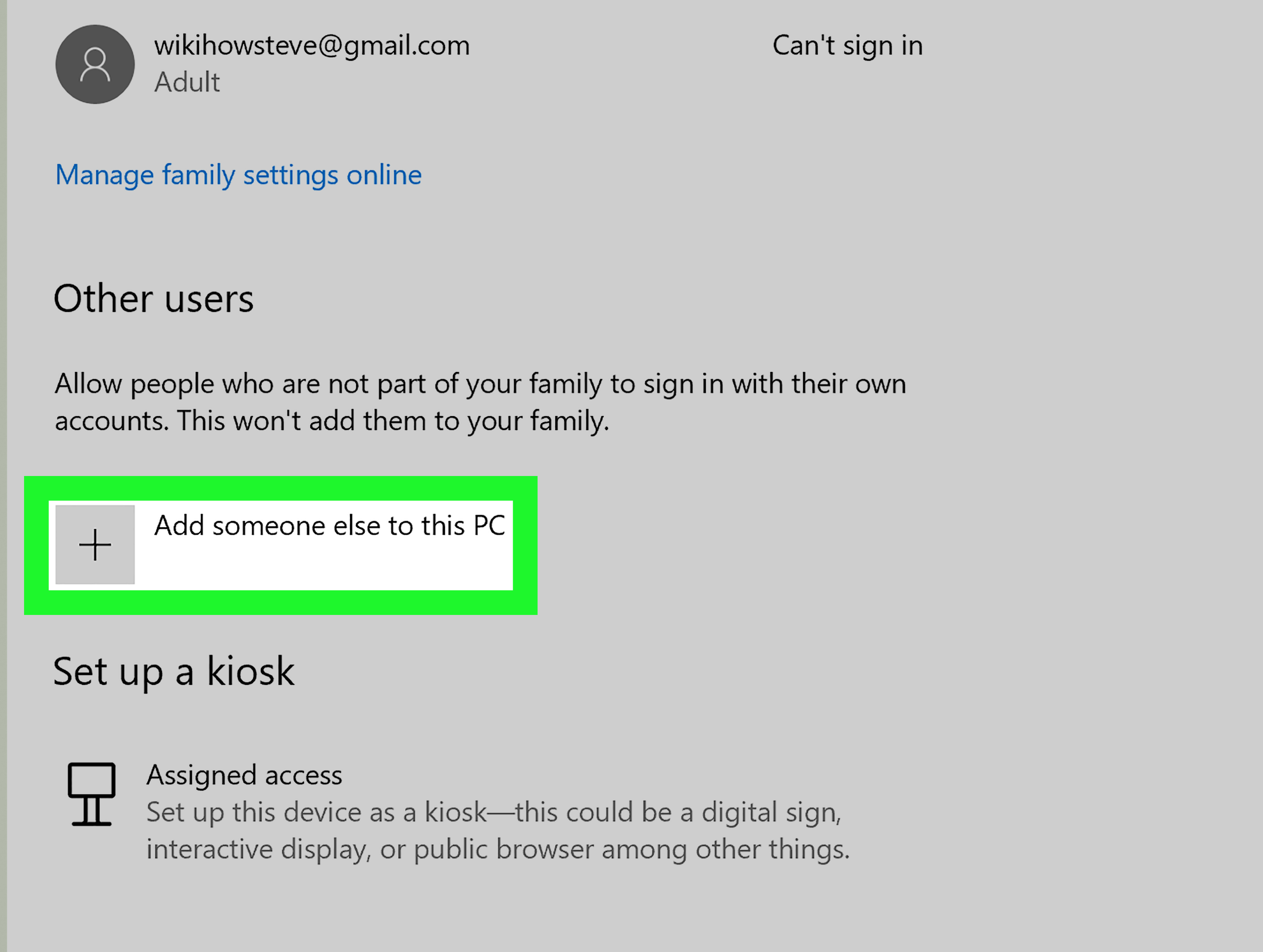
- Select Family & other users.
- Choose Add someone else to this PC.
- Create a local or Microsoft account.
- Sign in to the new account and test the taskbar.
If the new account works properly, move your documents, pictures, downloads, and other personal files carefully. Do not copy hidden system profile folders blindly, because that may bring the problem along like an unwanted souvenir.
Extra Troubleshooting Tips for a Stubborn Windows 10 Taskbar
Restart the Computer Properly
A full restart can clear stuck processes and reload services. Use Restart instead of shutting down and powering back on, because Windows 10 Fast Startup can preserve parts of the previous session. If the taskbar is frozen and you cannot access the Start menu, press Ctrl + Alt + Delete, select the power icon, and choose Restart.
Disable Recently Installed Taskbar Customization Tools
Apps that modify the Start menu, icons, taskbar layout, transparency, system tray, or window behavior can cause conflicts. If the taskbar broke after installing a customization utility, uninstall or disable it and restart your PC.
Try Safe Mode
Safe Mode loads Windows with minimal drivers and startup programs. If the taskbar works there, a third-party app, service, or driver may be interfering.
- Open Settings.
- Go to Update & Security.
- Select Recovery.
- Under Advanced startup, click Restart now.
- Choose Troubleshoot > Advanced options > Startup Settings > Restart.
- Press the number for Safe Mode.
Use System Restore
If the taskbar broke after a driver update, software installation, or system change, System Restore may return Windows to a working state. Search for Create a restore point, open System Restore, and choose a restore point from before the issue started. Always back up important files first.
Common Mistakes to Avoid
When the taskbar breaks, it is tempting to try every fix on the internet in one frantic troubleshooting tornado. Resist that urge. Use one method, restart, and test. If you run ten commands at once, you may fix the problem but never know what workedor worse, create a new problem wearing a fake mustache.
Avoid deleting random Windows folders, downloading unknown “repair tools,” editing the registry without a backup, or disabling essential services you do not recognize. Many shady repair apps promise to fix the Windows 10 taskbar but may bundle ads, unnecessary cleaners, or malware. Built-in Windows tools are safer for most users.
Which Fix Should You Try First?
If the taskbar suddenly froze during normal use, restart Windows Explorer first. If the taskbar disappears, check auto-hide, tablet mode, display settings, and monitor configuration. If icons are broken, search will not open, or the Start menu is dead after updates, run Windows Update, SFC, DISM, and the PowerShell re-registration command. If only one account has the problem, test with a new user profile.
Here is the short version:
- Frozen taskbar: Restart Windows Explorer.
- Missing taskbar: Check auto-hide, tablet mode, and display settings.
- Broken Start menu or search: Run SFC, DISM, and re-register Windows apps.
- Problem after update: Finish updates, restart, and repair system files.
- Problem only in one account: Create a new user profile.
Real-World Experience: What Usually Works When the Windows 10 Taskbar Misbehaves
After dealing with many Windows 10 taskbar problems, one lesson becomes obvious: the simplest fix is often the winner. The number of times a frozen taskbar has been repaired by restarting Windows Explorer is almost comical. A user may describe the issue as if the entire operating system has collapsedStart menu dead, search box frozen, clock unresponsive, Wi-Fi icon ignoring clicksand then Explorer restarts in five seconds and everything comes back. It feels too easy, like fixing a flat tire by asking it nicely. But because the taskbar depends so heavily on Explorer, the method makes sense.
Another common experience is that taskbar issues appear after the computer wakes from sleep or after connecting a second monitor. In those cases, the taskbar may not be truly broken. It may be stuck off-screen, assigned to the wrong display, hidden by scaling problems, or confused by a graphics driver. People often spend an hour running commands when all they needed was to unplug the monitor, restart, reconnect it, and set the correct main display. Windows is powerful, but sometimes it behaves like it forgot which room it walked into.
Updates are another big character in this story. Many taskbar problems show up after an interrupted update, a forced shutdown, or a restart that happened at the worst possible moment. If Windows was replacing system files and the process did not finish cleanly, the Start menu, taskbar, search panel, or notification center may become unstable. That is when SFC and DISM are worth using. These tools are not glamorous, and they do not come with exciting progress animations, but they often repair the quiet damage that causes annoying interface bugs.
One practical tip is to keep notes while troubleshooting. Write down what you tried and what changed. For example: “Restarted Explorer; taskbar worked for five minutes, then froze again.” That tiny note tells you the taskbar can load, but something later is causing it to hang. Maybe a startup app, driver, shell extension, or background process is the real villain. Without notes, troubleshooting turns into a foggy memory game where every fix blends together.
It also helps to separate taskbar problems from app problems. If only one pinned icon will not open, the taskbar may not be the issue. The shortcut could be broken, the app may be uninstalled, or the program may be crashing. Unpinning and repinning the app can solve that. But if the Start button, search, system tray, and multiple icons all fail together, the issue is more likely Explorer, Windows shell components, or system file corruption.
The most frustrating cases usually involve damaged user profiles. Everything looks broken in one account, but the taskbar works perfectly in a fresh account. This can feel unfair, especially when the user insists they “didn’t touch anything.” And they may be right. Profiles can become unstable after years of updates, app installs, sync errors, and settings changes. Creating a new profile is not the first fix to try, but it is a valuable test when other methods fail.
Finally, there is the bigger picture: Windows 10 is now past its normal support lifecycle. If you depend on the computer for work, school, banking, or business, fixing the taskbar should not be the only goal. Keep backups, review security options, and consider whether the device should move to Windows 11, enroll in available extended updates, or be replaced when practical. A working taskbar is nice. A secure, stable computer is better. Ideally, you get bothand fewer surprise troubleshooting adventures before coffee.
Conclusion
A broken Windows 10 taskbar can make your PC feel unusable, but the fix is often straightforward. Start by restarting Windows Explorer, then check taskbar settings, display options, Windows updates, and drivers. If the problem continues, use SFC, DISM, and PowerShell to repair system files and re-register built-in Windows components. For stubborn cases, test Safe Mode or create a new user profile.
The smartest approach is simple: begin with the least invasive fix and work upward. Do not jump straight to resetting Windows unless you have backed up your files and tried safer options first. Your taskbar may be small, but it controls a huge part of your daily workflow. Treat it well, troubleshoot patiently, and it should get back to doing its jobquietly, reliably, and without acting like a digital diva.
Note: Before running advanced repairs, save your work, back up important files, and restart your PC after each major step so you can clearly see which fix worked.