Be honest: when was the last time you actually turned your computer off instead of just closing the lid or hitting Sleep?
If your PC or laptop has started acting like it just woke up on the wrong side of the motherboard, knowing how long it’s been on
(its uptime) can explain a lot.
In this guide, you’ll learn three practical ways to find out how long your computer has been on across Windows, macOS,
and Linux. We’ll walk through easy visual tools, powerful command-line tricks, and a few more advanced monitoring options, so you
can choose whatever fits your comfort level.
Why Knowing Your Computer’s Uptime Matters
Uptime is simply the amount of time your system has been running since the last full reboot. It sounds nerdy, but it’s
surprisingly useful:
- Performance troubleshooting: Long uptimes can lead to sluggish performance, memory leaks, or weird glitches.
- Update tracking: Many system and security updates only fully apply after a reboot. If your computer’s been up for weeks, you may be missing important patches.
- Server and workhorse PCs: If you’re running game servers, development tools, or heavy apps, uptime can tell you how reliable that machine really is.
- Energy usage awareness: If you discover your PC has been on for 14 days straight, that’s a hint your power bill might appreciate more sleep mode.
Let’s break down three clear methods to check how long your computer has been on, starting with the simplest.
Way 1: Use Built-In System Tools (No Commands Required)
If you’d rather not touch the command line, don’t worry. Windows, macOS, and Linux all offer friendly graphical tools that show
system uptime or last boot time.
Windows: Check Uptime with Task Manager
On Windows 10 and Windows 11, Task Manager is the fastest way to see how long your computer has been running:
- Right-click the taskbar and select Task Manager (or press Ctrl + Shift + Esc).
- Click the Performance tab.
- Select CPU on the left side.
- Look for Up time near the bottom of the CPU panel.
You’ll see something like: “Up time: 3:15:42:19”, which usually means 3 days, 15 hours, 42 minutes, 19 seconds.
That’s how long your system has been continuously on (including sleep in many cases).
This method is:
- Beginner-friendly: No commands, just a few clicks.
- Quick: Great when you just want a fast check.
- Good for monitoring: Easy to re-open and glance at during the day.
Just remember: on some systems, features like Fast Startup can make the uptime look longer than a “full” reboot would suggest,
because the OS may be partially hibernating instead of doing a cold start.
macOS: System Information & “Time Since Boot”
On a Mac, you have a couple of user-friendly ways to see how long the machine has been on:
- Click the Apple logo in the top-left corner and select About This Mac.
- Click System Report… to open the detailed System Information window.
- In the sidebar, choose Software.
- Look for the line labeled Time since boot.
That value tells you how long it’s been since your Mac last started up. It’s basically your uptime, expressed in days, hours, and minutes.
Linux: Desktop System Monitor Tools
On many Linux desktop environments (like GNOME or KDE), you’ll find a system monitor that shows uptime:
- Open the System Monitor or Resources tool from your app menu.
- Look for a section labeled System, CPU, or Uptime.
The exact name and location vary by distro, but most mainstream Linux desktops make uptime accessible without touching the terminal.
Way 2: Use Command-Line Tools for Precise Uptime
If you’re comfortable typing commands (or at least copying and pasting them like a pro), the command line gives you very precise
uptime information and sometimes more detail than the graphical tools.
Windows: Command Prompt and PowerShell
On Windows, the command line doesn’t show uptime directly in hours and minutes, but it does show the last System Boot Time,
which you can use to figure out how long the computer has been on.
Option 1: Using Command Prompt
- Open the Start menu, type cmd, and open Command Prompt.
- Type the following command and press Enter:
This displays the exact date and time when Windows last booted. Subtract that from the current time, and you have your uptime.
Option 2: Using PowerShell
PowerShell can make uptime a bit more readable. Open PowerShell and run:
PowerShell will output a time span (for example, 3.08:15:42, meaning 3 days, 8 hours, 15 minutes, 42 seconds). That’s your
uptime in a more “human-friendly” format.
These methods are especially helpful if you’re managing multiple PCs or servers and want a scriptable way to track uptime.
macOS & Linux: Using the uptime Command
On both macOS and Linux, a single command tells you how long the system has been running.
- Open Terminal (on macOS: Applications > Utilities > Terminal; on Linux: your usual Terminal app).
- Type:
You’ll see output similar to:
The part that matters for this topic is “up 3 days, 4:15”, which shows how long the system has been running.
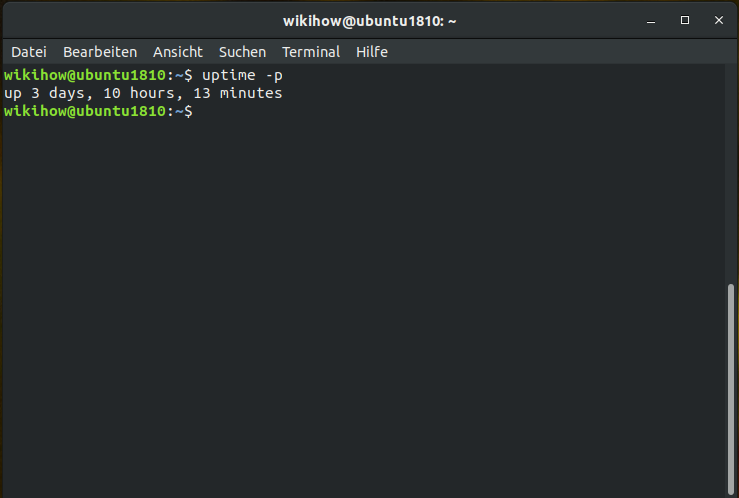
On Linux, you can make it even prettier:
This usually prints something like: up 3 days, 4 hours, 15 minutes no extra info, just the uptime itself.
Other useful commands related to uptime on Linux include:
who -b: shows the last system boot time.cat /proc/uptime: shows uptime in seconds (handy for scripts).
Way 3: Use Logs and Monitoring Tools for Long-Term Insights
If you’re running a critical workstation or server, you might want more than “how long has it been on right now?”
You may want a historical view: how often does it reboot, crash, or shut down?
Hardware & SMART-Based Tools
Some tools can give you an estimate of how long your drives have been powered on over their lifetime. These are based on
SMART (Self-Monitoring, Analysis, and Reporting Technology) data from your SSD or HDD.
- Utilities like disk health tools can show “power-on hours”, which represent how long the drive has been powered up.
- While this doesn’t show your current session’s uptime, it’s a good way to understand lifetime usage patterns.
System and Event Logs
Another way to understand uptime patterns is to look at shutdown and startup events:
- Windows: Event Viewer logs system start and shutdown events under Windows Logs > System.
- macOS: Console and system logs record reboot and crash events.
- Linux: Commands like
last rebootshow historical reboot times.
This isn’t the quickest way to see “how long has my computer been on right now,” but it’s great if you’re diagnosing random restarts,
crashes, or power issues.
Third-Party Monitoring Tools
If you’re managing several computers, monitoring tools can:
- Track uptime and downtime automatically.
- Alert you if a computer or server goes offline.
- Provide charts showing uptime over weeks or months.
For most home users, built-in tools are enough. But for IT admins or power users, these monitoring solutions can be a lifesaver.
Common Gotchas When Reading Uptime
Before you proudly announce, “My PC has been up for 27 days straight!”, keep a few things in mind:
-
Fast Startup on Windows: This feature can make uptime appear longer because Windows partially hibernates the system
instead of doing a full shutdown. Disabling Fast Startup will make uptime readings more accurate for troubleshooting. - Sleep vs. Reboot: Sleep and hibernation usually do not reset uptime. Only a full restart or shutdown does.
- Crashes and power loss: If your system crashes or loses power, uptime resets, even if you didn’t choose to reboot.
- Virtual machines: Uptime inside a virtual machine is separate from the host’s uptime, so don’t mix those up.
When in doubt, use more than one method (for example, Task Manager plus a command-line check) to confirm what you’re seeing.
Real-World Example: When Uptime Tells a Story
Imagine your Windows laptop is suddenly slow, fans blasting, apps freezing. You open Task Manager, glance at the CPU tab, and see:
“Up time: 18 days, 3:07:42”.
That’s your sign: this thing hasn’t had a proper break in weeks.
Now you know:
- It’s time for a full reboot so updates can finish installing.
- Memory leaks or buggy apps may calm down after a restart.
- Your future self might want to check uptime more regularly.
Uptime doesn’t fix problems by itself, but it gives important context for what your system has been through.
Extra: Practical Experiences with Tracking Computer Uptime
Once you start checking how long your computer has been on, it becomes a strangely addictive habit. You open Task Manager or Terminal
“just to check” and suddenly you’re analyzing patterns like a mini system administrator.
One common experience: people discover their computer has been “on” for way longer than they expected. Maybe you thought you were
shutting it down every night, but the uptime says otherwise. That usually means you’ve been using Sleep, Hibernate, or closing the
lid on a laptop without actually powering it off.
Over time, you may start to notice a relationship between uptime and performance:
- Short uptimes (a few hours): Everything feels snappy. Apps open quickly, and the system responds smoothly.
- Medium uptimes (a few days): Still fine for most people, though heavy users might start to see minor slowdowns.
- Very long uptimes (weeks or more): Little issues creep in: apps hang, browser tabs multiply, and memory usage grows.
If you use your computer for work, especially with demanding apps (video editing, virtual machines, or large spreadsheets),
checking uptime can become part of your regular troubleshooting checklist. When something feels off, you can quickly ask:
“How long has this system been running?” and decide whether a reboot is the simplest first step.
Uptime is also useful for:
- Remote work setups: If you connect to an office PC over VPN or remote desktop, knowing its uptime helps you understand whether it’s stable or overdue for maintenance.
- Home lab experiments: If you run a small server at home (for media, backups, or games), uptime is a badge of honor. A long, stable uptime suggests your hardware and configuration are solid.
- Energy use and noise: If your desktop runs 24/7 and your uptime regularly shows weeks at a time, you might decide to shut down more often to save power and give the fans a break.
Another practical lesson from tracking uptime is understanding how system updates behave. Many operating systems schedule updates
but wait for a restart to complete them. If your uptime is very long and you haven’t rebooted in a while, you might be stuck in
“update limbo” the system keeps reminding you to reboot, and some fixes don’t fully apply. Checking uptime and rebooting on your
own schedule can prevent those surprise “We’re installing updates, don’t turn off your PC” messages at the worst possible time.
Over months of paying attention to uptime, you can build simple habits:
- Reboot once every few days if you’re a heavy user.
- Check uptime before important meetings or presentations, so your machine is fresh and less likely to misbehave.
- Use uptime as one more data point alongside CPU, memory, and disk usage when diagnosing slowdowns.
None of this requires advanced tools. Just three basic methods system tools, command-line checks, and occasional monitoring
can help you understand your computer’s behavior much better. Over time, you’ll develop a feel for when a long uptime is fine
(like on a stable Linux server) and when it’s a warning sign (like a Windows laptop that hasn’t restarted in weeks).
In short, tracking how long your computer has been on is a small habit that can lead to smoother performance, fewer surprises,
and a healthier system overall.
Conclusion
Knowing how to find out how long your computer has been on isn’t just a geeky party trick it’s a practical tool for keeping your
system fast, stable, and secure. Whether you prefer clicking around in Task Manager or firing off a quick uptime
command in Terminal, you now have three clear ways to check your computer’s uptime:
- Built-in system tools (Task Manager, System Information, System Monitor) for quick, visual checks.
- Command-line methods for precise, scriptable uptime on Windows, macOS, and Linux.
- Logs and monitoring tools for deeper insights into long-term stability and behavior.
Combine these methods with a simple habit of rebooting periodically, and your computer will thank you with smoother performance,
fewer glitches, and fewer “Why is this so slow today?” moments.
SEO Summary
meta_title: 3 Ways to Check How Long Your Computer’s Been On
meta_description: Learn three easy ways to check computer uptime on Windows, Mac, and Linux so you can fix slowdowns and keep your system healthy.
sapo: Want to know how long your computer has really been running? Whether you use Windows, macOS, or Linux, you can quickly check system uptime with a few clicks or simple commands. This guide walks you through three practical methods built-in tools, command-line shortcuts, and monitoring options and explains why uptime matters for performance, updates, and stability. By the end, you’ll know exactly how long your computer has been on and what that says about its health.
keywords: check computer uptime, how long your computer has been on, system uptime Windows, Mac uptime, Linux uptime, PC boot time, monitor computer usage