You plug a perfectly tidy flash drive into a Windows computer, copy a few files, and discover an uninvited guest sitting in the root directory: System Volume Information. You did not create it, you cannot open it normally, and pressing Delete may produce an “Access is denied” message with all the warmth of a locked bank vault.
The good news is that the folder is usually legitimate, not malware. Windows creates it to store volume-related metadata, including information used by indexing and other system services. On a USB flash drive, it is often tiny, but it can be annoying when the drive is used in a car stereo, television, printer, CNC machine, digital photo frame, or another device that displays every folder it finds.
This guide explains three practical ways to remove the System Volume Information folder from a flash drive: a standard Command Prompt deletion, an ownership-and-permissions method for stubborn NTFS drives, and a complete reformat. You will also learn why the folder returns and how to reduce the chance of Windows recreating it.
What Is the System Volume Information Folder?
System Volume Information is a protected directory that Windows may create in the root of a storage volume. Depending on the drive, Windows version, and enabled services, the folder can contain volume identifiers, indexing data, tracking information, or data associated with backup and recovery features.
Windows treats the directory as a system-managed location. It is commonly assigned both the Hidden and System attributes, which is why it does not appear under normal File Explorer settings. Windows also provides system-level functions that check for or create this directory on a volume when needed.
Why Does It Appear on a USB Flash Drive?
When Windows recognizes a removable drive, services such as Windows Search may examine the volume and associate it with internal metadata. A commonly reported file inside the folder is IndexerVolumeGuid, which gives the volume a unique identifier. Another possible file is WPSettings.dat.
The folder may appear immediately after the drive is connected, after File Explorer opens it, or after Windows indexes content. Microsoft documents a removable-drive indexing policy that controls whether locations on removable drives can be added to libraries and indexed.
Is the Folder Dangerous?
Normally, no. The name alone is not evidence of an infection. In fact, deleting the legitimate folder does not disinfect a compromised flash drive because malware can hide elsewhere or imitate familiar Windows names.
If the drive unexpectedly contains shortcuts, unknown executable files, autorun scripts, or folders that reappear after every deletion, scan the entire device with a trusted security tool. A normal System Volume Information folder is usually quiet, hidden, and far less dramatic than actual USB malware.
Is It Safe to Delete from a Flash Drive?
It is generally reasonable to remove the folder from an ordinary removable flash drive when you do not need its Windows-generated metadata. However, do not apply these instructions to the C: drive or another internal Windows system volume. Deleting protected information from an active system disk can interfere with restore, backup, indexing, or other operating-system functions.
Also understand that removal may be temporary. Windows can recreate the folder the next time the drive is connected. Think of it less like permanently evicting a tenant and more like removing a lawn chair that Windows may cheerfully put back tomorrow.
Before You Delete Anything
A few precautions can prevent a small cleanup job from becoming a memorable data-recovery adventure.
- Back up important files. Copy valuable documents, photos, installers, and project files to another storage device.
- Confirm the drive letter. In the examples below, the flash drive is
E:. Replace it with the letter shown on your computer. - Close programs using the drive. Media players, backup utilities, antivirus scanners, and File Explorer preview panes can hold files open.
- Use an administrator terminal. Protected attributes and permissions may prevent deletion from a standard command window.
- Never guess the drive letter. Running a destructive command against the wrong volume is an extremely efficient way to ruin an afternoon.
How to Verify the Correct Drive
- Open File Explorer.
- Select This PC.
- Locate the flash drive by its name and capacity.
- Write down the displayed drive letter, such as
E:,F:, orG:.
You can also inspect all files, including hidden and system items, with this command:
The /a option allows the directory listing to include items that would normally remain hidden.
Way 1: Remove the Folder with Command Prompt
This is the best starting method for most FAT32 or exFAT flash drives. It clears restrictive file attributes and then removes the folder and its contents.
Step 1: Open Command Prompt as Administrator
- attributes and then removes the folder and its contents.
Step 1: Open Command Prompt as Administrator</hOpen the Start menu.
- Type cmd.
- Right-click Command Prompt.
- Select Run as administrator.
- Approve the User Account Control prompt.
Step 2: Remove Hidden, System, and Read-Only Attributes
Replace E: with the correct letter for your USB drive, then run:
The switches perform the following jobs:
-hclears the Hidden attribute.-sclears the System attribute.-rclears the Read-only attribute./sprocesses matching items in subdirectories./dapplies the operation to directories as well as files.
Microsoft documents attr-in command for displaying, setting, and clearing attributes assigned to files and directories. citeturn497790view2
Step 3: Delete the Directory
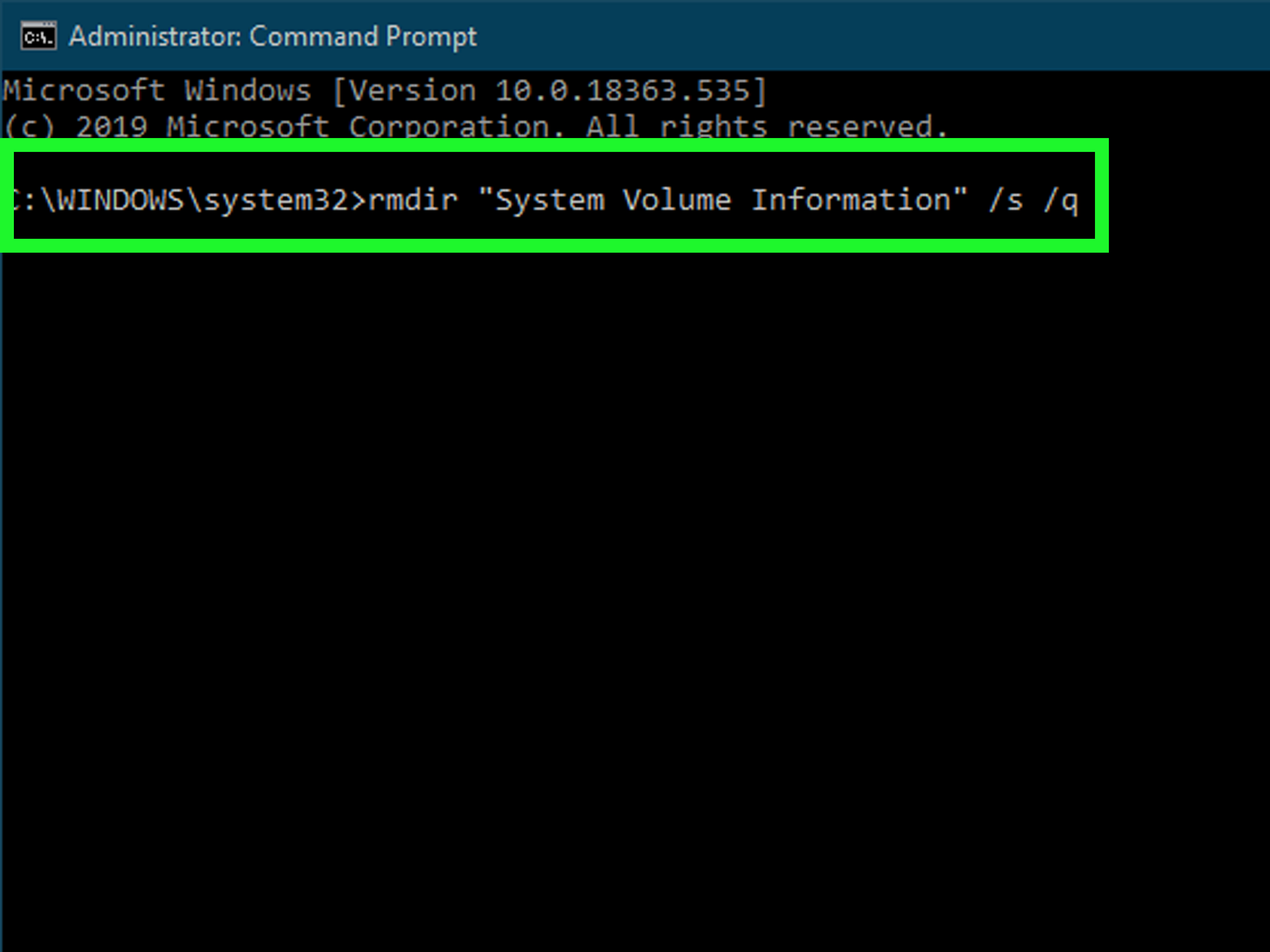
Run the following command:
Here, rd means remove directory, /s removes the directory tree, and /q suppresses confirmation prompts.
Step 4: Confirm That It Is Gone
If the folder is no longer listed, the deletion worked. If it returns seconds later, a Windows service is probably recreating it. Skip ahead to the prevention section after reviewing the remaining methods.
When This Method Works Best
Use this approach when the drive is healthy, the folder is small, and the error is related primarily to hidden or system attributes. It is fast, does not erase your personal files, and does not change ownership across the entire flash drive.
Way 2: Take Ownership and Fix Permissions Before Deleting
If the first method returns Access is denied, the flash drive may be formatted as NTFS and the directory may have an access control list that does not grant your account permission to remove it.
FAT32 and exFAT do not use NTFS-style ownership and permissions, so this method is mainly useful for an NTFS-formatted USB drive.
Step 1: Check the File System
- Open File Explorer.
- Right-click the flash drive.
- Select Properties.
- Look for the value beside File system.
If it says NTFS, continue. If it says FAT32 or exFAT, permission commands may not solve the problem; try Method 1 again after closing programs that may be accessing the drive.
Step 2: Take Ownership
Open Command Prompt as administrator and run:
This attempts to assign ownership recursively. The /d y option supplies a default Yes response when the command encounters an item it cannot list normally.
Step 3: Grant Your Account Full Control
The icacls utility displays or modifies discretionary access control lists. The F permission means Full Control, /t processes child objects, and /c continues even if an individual item proe>icacls instead of the older, deprecated cacls command. citeturn497790view3turn512077search10
Step 4: Clear Attributes and Delete
Alternative: Change Ownership Through File Explorer
Users who prefer a graphical interface can try the following on an NTFS drive:
- Enable the display of protected operating-system files in File Explorer options.
- Right-click System Volume Information and select Properties.
- Open the Security tab.
- Select Advanced.
- Change the owner to your account.
- Grant your account Full Control.
- Apply the changes, close the dialog boxes, and delete the folder.
The graphical method can be slower because Windows may prompt repeatedly while permissions are applied. The command-line version is usually cleaner and less likely to turn the process into a clicking marathon.
Do Not Take Ownership of the Entire System Drive
Changing permissions broadly on Windows system folders can break applications and operating-system services. Keep the command path limited to the System Volume Information folder on the removable drive. Verify the drive letter twice before pressing Enter.
Way 3: Back Up and Reformat the Flash Drive
Formatting is the most complete removal method because it replaces the volume’s file-system structures, including its root directory. It is also the most destructive method because it erases every file on the selected drive.
Use this option when the folder is corrupted, permission repairs fail, the flash drive contains other unwanted system files, or you want a clean file system for a television, car stereo, game console, camera, or embedded device.
Step 1: Back Up the Drive
Copy every file you want to keep to your computer or another trusted storage device. Open a few copied files to verify that the backup is readable. A folder that merely exists is not always a backup; a backup should also work.
Step 2: Format Through File Explorer
- Open This PC.
- Right-click the correct flash drive.
- Select Format.
- Choose a file system.
- Leave Allocation unit size at Default unless your device manufacturer specifies otherwise.
- Enter an optional volume label.
- Select Quick Format for a healthy drive.
- Click Start and approve the warning.
Which File System Should You Choose?
- exFAT: A practical choice for modern computers and larger files. It avoids FAT32’s 4 GB per-file limit.
- FAT32: Often preferred by older car stereos, televisions, cameras, and embedded devices, but individual files cannot exceed 4 GB.
- NTFS: Useful for Windows-focused storage that requires permissions, compression, or other NTFS features, but it may have limited compatibility with non-Windows equipment.
Optional Command-Line Format
To quick-format drive E: as exFAT and label it USB, use:
Microsoft’s format command supports file systems including FAT32, NTFS, and exFAT. Athe existing file table and root directory without performing a complete sector-by-sector scan. citeturn497790view4
Important Limitation
Formatting removes the existing System Volume Information folder, but it does not guarantee the folder will stay away. Windows can create a new copy after the freshly formatted drive is reconnected. To reduce recurrence, configure removable-drive indexing before reconnecting the drive.
How to Reduce the Chance of the Folder Returning
Deleting the folder handles the symptom. Adjusting removable-drive indexing addresses one of the common causes.
Option A: Use Group Policy
This method is intended for Windows editions that include the Local Group Policy Editor.
- Press Windows + R.
- Type
gpedit.mscand press Enter. - Go to Computer Configuration.
- Open Administrative Templates.
- Open Windows Components.
- Select Search.
- Open Do not allow locations on removable drives to be added to libraries.
- Select Enabled.
- Click Apply and then OK.
- Restart Windows.
The wording is slightly backward at first glance: enabling the “Do not allow” policy blocks removable locations from being added to libra from being indexed. Microsoft maps this setting to DisableRemovableDriveIndexing. citeturn497790view0
Option B: Apply the Equivalent Registry Policy
Open Command Prompt or Windows Terminal as administrator and run:
Restart Windows after adding the policy. To reverse the change later, run:
Why the Folder May Still Reappear
Blocking indexing reduces one common trigger, but Windows has other services that may store volume metadata. Consequently, no simple deletion command can promise that the folder will never return on every Windows configuration.
For a flash drive used exclusively in a car, television, or appliance, perform the deletion immediately before ejecting it and avoid reconnecting it to Windows unnecessarily. If the destination device ignores hidden folders, leaving the directory alone may be the lowest-maintenance solution.
Troubleshooting Common Errors
“Access Is Denied”
Confirm that the terminal is running as administrator. If the flash drive uses NTFS, apply the takeown and icacls commands from Method 2. Also close File Explorer windows and applications that may be scanning the drive.
“The Directory Is Not Empty”
Use rd /s /q rather than a basic rd command. The /s option removes contained files and subfolders.
“The Process Cannot Access the File”
A program or Windows service has an open handle to the directory. Close media players, backup software, synchronization tools, antivirus scans, and File Explorer preview panes. Restarting Windows and deleting the folder before opening the drive in multiple applications may also help.
The Folder Reappears Immediately
Configure the removable-drive indexing policy, restart the computer, reconnect the flash drive, and repeat Method 1. If it still returns, another system component is creating it. At that point, decide whether the harmless folder is worth further system-wide changes.
The Folder Uses a Large Amount of Space
A tiny metadata folder is normal; a surprisingly large one deserves investigation. First verify that File Explorer is reporting actual allocated space rather than misleading totals caused by inaccessible items. Scan the drive for malware, check the file system for errors, and back up important data.
You can run the following command, replacing E: with the correct drive:
If the drive repeatedly develops errors, disconnects unexpectedly, becomes read-only, or corrupts files, replace it.s files, replace it. Flash memory eventually wears out, and no command can negotiate with failing silicon.
The Drive Is Write-Protected
Check for a physical lock switch on the flash drive or SD-card adapter. If no switch exists, verify that the device is not failing and that Windows has not mounted it as read-only. A read-only device cannot delete the folder or complete a format.
Frequently Asked Questions
Can I Delete System Volume Information Through File Explorer?
Sometimes, but File Explorer commonly blocks access because of system attributes or NTFS permissions. Command Prompt is more reliable because it lets you clear attributes and remove the directory tree explicitly.
Will Deleting It Damage My Personal Files?
Deleting only the System Volume Information folder should not remove unrelated documents, photos, music, or videos. The risk comes from entering the wrong drive letter or path, which is why verification and backup are essential.
Does the Folder Mean My USB Drive Has a Virus?
No. Windows commonly creates the legitimate folder itself. Scan the drive when other suspicious behavior appears, such as unknown programs, shortcut replacements, hidden personal folders, autorun files, or repeated corruption.
Why Can My Car Stereo See the Folder?
Some media systems do not honor Windows hidden and system attributes. They simply display every directory in the file system, including folders that File Explorer normally conceals.
Should I Use a Blank File to Block the Folder Name?
Some users delete the directory and create a file named System Volume Information so Windows cannot create a directory with the same name. This workaround may function in limited situations, but it is not a clean or officially supported solution. Windows services may report errors, rename the item, or behave differently after an update. The removable-drive indexing policy is a more maintainable approach.
Should I Disable Windows Search Completely?
Usually not. Disabling the entire Windows Search service can reduce search convenience throughout the computer and may affect applications that rely on indexing. Blocking removable-drive indexing is a narrower change with fewer side effects.
Real-World Experiences and Lessons from Removing the Folder
Experience 1: The Car Stereo That Listed Everything
One of the most common reasons for removing System Volume Information has nothing to do with storage capacity. A flash drive may contain carefully organized folders such as Rock, Jazz, Podcasts, and Audiobooks, yet a car stereo places System Volume Information at the top of the menu. The folder may contain nothing playable, but the stereo still makes the driver scroll past it every time.
In this situation, the basic Command Prompt method is usually enough. Clear the attributes, remove the folder, eject the drive, and insert it directly into the vehicle. The important lesson is timing: reconnecting the drive to Windows before using it in the car may allow Windows to create the folder again. Cleaning the drive should therefore be the final step, not the opening act.
Experience 2: The Folder That Would Not Accept “No”
Another familiar scenario involves an NTFS flash drive that refuses deletion even from an administrator account. The user clears hidden attributes, tries File Explorer, restarts the computer, and begins wondering whether the folder owns the flash drive rather than the other way around.
The underlying issue is often permission-based. NTFS can preserve ownership and access rules from another Windows installation or another user account. Running takeown followed by icacls solves the problem more directly than repeatedly clicking the Delete key. The practical lesson is to identify the file system early. Permission repair makes sense on NTFS, while it is largely irrelevant on FAT32 or exFAT.
Experience 3: Formatting WorkedUntil Windows Saw the Drive Again
Formatting feels final. The progress bar finishes, the drive appears empty, and the unwanted folder is gone. Then the USB drive is unplugged, reconnected, and System Volume Information returns like a sequel nobody requested.
This experience demonstrates that formatting removes the current folder but does not change Windows behavior. If the operating system is configured to index removable locations, it may recreate metadata on the clean volume. The better sequence is to back up the drive, configure removable-drive indexing, restart Windows, format the drive, copy the required files back, and safely eject it. Formatting alone treats the existing directory; policy configuration reduces recurrence.
Experience 4: The Wrong Drive Letter Scare
Command-line deletion is efficient precisely because it does not ask many questions. That efficiency becomes dangerous when a user assumes the USB drive is still E:, even though Windows assigned it F: after another storage device was connected.
The safest habit is to check File Explorer immediately before running commands and confirm the volume name and capacity. Typing dir E:\ /a before deleting anything provides another opportunity to catch a mistake. A ten-second verification can prevent hours of recovery work. In storage maintenance, caution is not cowardice; it is simply cheaper.
Experience 5: Learning When to Leave It Alone
Not every System Volume Information folder needs a battle plan. On many drives it occupies negligible space, remains hidden, and causes no compatibility problem. Deleting it repeatedly can consume more time than the folder consumes storage.
The best approach depends on the device’s purpose. A USB stick used in a car stereo may benefit from a clean root directory. A backup drive used only with Windows may function better when system metadata is left alone. A failing drive that repeatedly corrupts the folder needs replacement, not increasingly creative deletion commands.
The broad lesson is to solve the actual problem. Remove the folder when it interferes with another device, consumes abnormal space, or reflects unwanted indexing behavior. Otherwise, letting Windows keep its tiny administrative closet may be the most practical answer.
Conclusion
The easiest way to remove the System Volume Information folder from a flash drive is to clear its hidden and system attributes and delete it from an elevated Command Prompt. If an NTFS drive returns an access-denied error, take ownership and grant your account Full Control before deleting the directory. When the file system is damaged or a completely clean volume is required, back up the files and reformat the drive.
Remember that deletion and prevention are different jobs. Windows may recreate the directory after the flash drive is reconnected. Blocking removable-drive indexing through Group Policy or the corresponding registry setting can reduce that behavior, although other Windows services may still generate volume metadata.
After completing the cleanup, eject the flash drive properly rather thag a write operation. Microsoft recommends using the Safely Remove Hardware feature to reduce the risk of data loss. citeturn497790view5
Note: These procedures are intended for removable flash drives. Do not use the deletion commands on the Windows system drive, and always verify the drive letter and maintain a current backup before changing permissions, deleting protected folders, or formatting storage.