Creating a PST file in Outlook may sound like something only an IT wizard does while sipping coffee from a mug labeled “I fixed it,” but the process is actually simple. A PST file, short for Personal Storage Table, is an Outlook Data File that stores email messages, folders, attachments, contacts, calendar items, and other mailbox data locally on your computer. In plain English, it is a neat little suitcase for your Outlook information.
Whether you want to archive old emails, organize mail by project, create a local backup, or move Outlook data to another computer, knowing how to create a PST file in Outlook is a practical skill. It can save you from mailbox clutter, reduce digital panic, and make your inbox feel less like a garage where every email since 2014 is still “important.”
This guide explains how to create a PST file in Outlook in 8 steps, what to do after the file is created, how PST differs from OST, and the best practices that keep your data safe. The instructions focus mainly on classic Outlook for Windows, because it remains the most complete environment for creating and managing PST files.
What Is a PST File in Outlook?
A PST file is a local Outlook Data File used to store mailbox content on your computer. You can use it to save old messages, create archive folders, move emails out of your main mailbox, or export Outlook data for backup. When you open a PST in Outlook, it appears in the folder pane like another mailbox, usually with folders such as Inbox, Sent Items, Deleted Items, or custom folders you create yourself.
Think of a PST file as a filing cabinet. Your regular mailbox is the desk where new papers keep landing. The PST is the cabinet where you put the papers you still need but do not want blocking your keyboard, your coffee, and possibly your will to live.
PST vs OST: What Is the Difference?
Outlook commonly uses two types of data files: PST and OST. A PST file is usually created for local storage, archiving, export, and backup. An OST file, or Offline Storage Table, is used by Outlook when you work with accounts such as Microsoft 365, Exchange, Outlook.com, or IMAP. The OST file is a local synchronized copy of mailbox data stored on the mail server.
The difference matters because you typically create a PST file when you want a portable local archive. You do not normally create an OST manually. Outlook creates and manages OST files automatically. If an OST gets damaged, Outlook can often rebuild it by syncing from the server. A PST, however, is your local file, so backing it up matters.
When Should You Create a PST File?
You may want to create a PST file in Outlook when your mailbox is getting crowded, when you need to organize messages by client or project, or when you want to save important emails outside your active mailbox. PST files are also useful before changing computers, leaving a job, reorganizing a mailbox, or keeping a personal archive of older messages.
For example, a small business owner might create a PST named Invoices-2026.pst to store billing conversations. A student might create College-Applications.pst for admission emails. A project manager might create one PST per major client because “everything in one Inbox” is not a system; it is a cry for help with a search bar.
Before You Start: A Few Important Notes
Use classic Outlook for Windows if you need full PST creation and export options. New Outlook for Windows has improved PST support, but its features may differ from classic Outlook, especially for contacts and calendar items stored in PST files. If you do not see the same menu options, switch to classic Outlook or use the installed desktop version of Outlook.
Also, choose a safe local location for your PST file. A common default location is the Outlook Files folder inside Documents. Avoid keeping an active PST file on a network drive or inside a cloud-synced folder such as OneDrive while Outlook is using it, because constant syncing or network interruptions can increase the risk of performance problems or file corruption.
How to Create a PST File in Outlook: 8 Steps
Step 1: Open Classic Outlook on Your Windows Computer
Start by opening the classic Outlook desktop app. This is important because the web version of Outlook does not create PST files in the same way. If you are using Microsoft 365, Outlook 2024, Outlook 2021, Outlook 2019, or Outlook 2016, the steps are usually very similar.
Make sure Outlook has fully loaded your mailbox before continuing. If Outlook is still syncing thousands of emails, give it a moment. Nothing good happens when software is rushed, except maybe a new error message with the emotional warmth of a parking ticket.
Step 2: Go to the Home Tab
Once Outlook is open, look at the ribbon at the top of the window and select the Home tab. This is where Outlook keeps common actions such as creating new messages, meetings, tasks, and additional items.
If your ribbon is collapsed, expand it first. You may need to click the small arrow or ribbon display option near the top right of the Outlook window.
Step 3: Click New Items
On the Home tab, click New Items. This menu gives you access to more than just email. It includes appointments, meetings, contacts, tasks, and other Outlook items.
The PST option is not always sitting in the open like a friendly “Create Archive Here” button. Outlook tucks it away under a secondary menu, because apparently every useful feature must play hide-and-seek at least once.
Step 4: Choose More Items
In the New Items menu, hover over or select More Items. This opens another menu with additional options. Look for Outlook Data File.
This is the option you need when you want to create a new blank PST file and attach it to Outlook. It is different from exporting an existing mailbox to a PST, which we will cover later in this guide.
Step 5: Select Outlook Data File
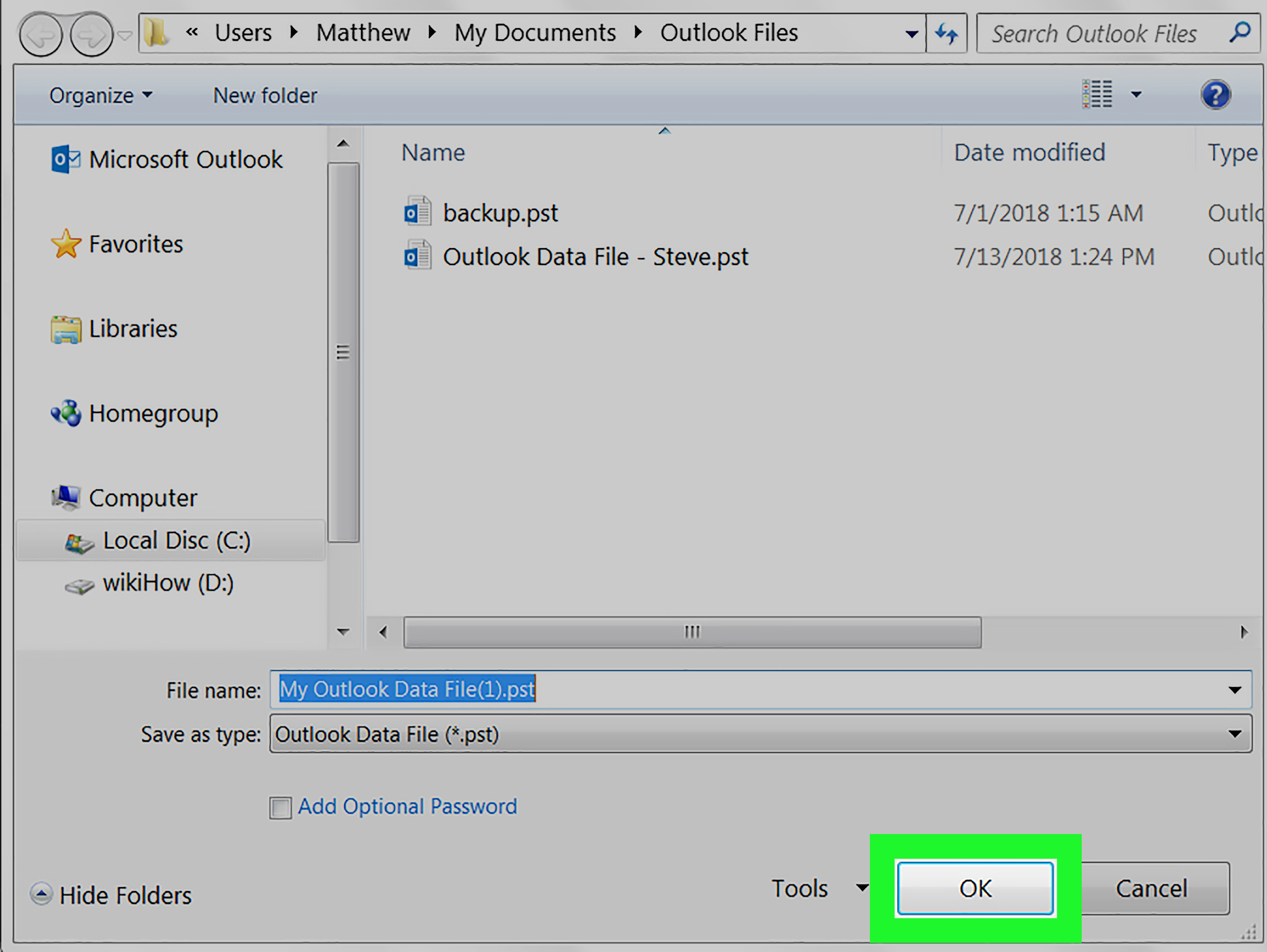
Click Outlook Data File. Outlook will open a file creation window where you can choose the location and file name for the new PST.
At this point, you are not moving emails yet. You are creating the container. Think of it as buying the storage box before you start sorting the attic. The attic, in this case, is your Inbox, and yes, it has receipts from five years ago.
Step 6: Name the PST File Clearly
Give the PST file a clear, useful name. Avoid vague names like backup.pst, newfile.pst, or stuff.pst. Those names feel harmless today, but six months from now they will stare back at you like a riddle written by your past self.
Better file names include:
- Client-Projects-2026.pst
- Archived-Email-2025.pst
- Invoices-and-Receipts.pst
- HR-Documents-Archive.pst
- Personal-Outlook-Backup-May-2026.pst
A good file name should tell you what the PST contains and when it was created. Dates are especially helpful when you manage several archives.
Step 7: Choose a Safe Local Save Location
Select a local folder where you want to save the PST file. The default Outlook Files folder inside Documents is usually fine for many users. You can also create a dedicated folder such as C:\Outlook Archives if you prefer a cleaner setup.
Do not save an active PST file directly to a shared network folder, external drive that you frequently disconnect, or cloud sync folder that may try to upload the file while Outlook is using it. PST files can be large and are constantly accessed when open in Outlook. Keeping them local helps Outlook read and write data more reliably.
Step 8: Click OK and Confirm the PST Appears in Outlook
After naming the file and choosing the location, click OK. Outlook creates the PST and adds it to the folder pane on the left side of the screen. You should now see the new data file listed below your regular mailbox accounts.
If the PST does not appear immediately, look for it in the folder pane, scroll down, or restart Outlook. Once visible, you can right-click the PST name, create folders inside it, and move or copy emails into those folders.
How to Add Folders Inside Your New PST File
After creating the PST, you should organize it before moving emails. Right-click the PST name in the folder pane and select New Folder. Create folders based on how you plan to use the archive.
For example, a sales team might create folders for Leads, Proposals, Contracts, and Closed Deals. A personal user might create folders for Taxes, Travel, Receipts, Family, and Home Projects. The more logical your folder structure is today, the less future-you will mutter at the screen tomorrow.
How to Move Emails Into a PST File
To move emails into your new PST file, select one or more messages from your mailbox and drag them into a folder inside the PST. You can also right-click selected messages, choose Move, and select the target folder.
If you want to keep a copy in your mailbox while also placing a copy in the PST, use copy instead of move. This is useful for important records that you want stored in more than one place. Just remember that copying everything “just in case” can create a second clutter pile wearing a fake mustache.
Alternative Method: Export Existing Outlook Data to a PST File
The 8-step method above creates a blank PST file. But sometimes you want to create a PST that already contains mailbox data. In that case, use Outlook’s export feature.
In classic Outlook, go to File, choose Open & Export, and select Import/Export. Choose Export to a file, then select Outlook Data File (.pst). Pick the account or folder you want to export, select Include subfolders if needed, choose a save location, and click Finish.
This method is best for creating a backup of existing emails, contacts, calendar items, and folders. It is especially useful before moving to a new computer or making major mailbox changes.
Should You Password-Protect a PST File?
Outlook may allow you to set a password when creating or exporting a PST file. A password can prevent casual opening of the file, but it should not be treated as strong modern encryption. If the PST contains sensitive business, legal, financial, or personal information, store it in a secure location and follow your organization’s data protection rules.
For everyday users, a password can still be helpful, especially if the PST is stored on a shared family computer. Just do not forget the password. Outlook will not magically guess it later, no matter how politely you stare at the screen.
How to Open an Existing PST File in Outlook
If you already have a PST file and want to view it in Outlook, open classic Outlook and go to File, then Open & Export, and choose Open Outlook Data File. Browse to the PST file, select it, and click Open.
The file should appear in the folder pane. You can browse folders, search messages, and move items between the PST and your mailbox if your account and permissions allow it.
How to Remove a PST File from Outlook Without Deleting It
If you no longer need to see a PST file in Outlook, you can close it without deleting the actual file from your computer. Right-click the PST name in Outlook’s folder pane and choose Close. This removes it from the Outlook view but leaves the PST file saved in its folder.
Before deleting any PST file from your computer, confirm that you have another copy or that you truly do not need the data. Deleting a PST without checking its contents is the email version of throwing away a mystery box labeled “Important Maybe.”
Best Practices for Managing PST Files
Keep PST Files Organized
Use descriptive names and clear folder structures. A PST file should make email easier to find, not create a digital junk drawer.
Back Up PST Files Regularly
Because PST files are stored locally, they can be lost if your computer fails. Copy important PST files to a secure backup location when Outlook is closed.
Avoid Oversized PST Files
Large PST files can become slower to search, copy, and back up. Instead of creating one massive archive, consider using yearly or project-based PST files.
Do Not Keep Active PST Files on Network Drives
Outlook works best when PST files are stored on a local fixed drive. Network interruptions, file locking, and sync conflicts can cause trouble.
Use the Inbox Repair Tool When Needed
If Outlook cannot open a PST or reports data file errors, Microsoft provides the Inbox Repair Tool, also known as ScanPST.exe. It can scan and repair certain PST and OST file problems. Always back up the file before attempting repairs.
Common Problems When Creating a PST File
The Outlook Data File Option Is Missing
You may be using new Outlook, Outlook on the web, or a restricted work account. Try switching to classic Outlook or ask your administrator whether PST creation is disabled by policy.
The PST File Does Not Appear in the Folder Pane
Restart Outlook and check the folder pane again. You can also open it manually through File > Open & Export > Open Outlook Data File.
Outlook Says the File Is in Use
Close Outlook completely and make sure no other process is using the PST. If it is stored in a syncing folder, pause syncing or move the PST to a local folder while Outlook is closed.
The PST File Is Too Large
Move fewer items, split archives by year, or delete unnecessary large attachments. Searching for large messages and moving them into smaller archive files can help keep Outlook responsive.
Practical Experiences and Real-World Tips for Creating PST Files in Outlook
After working with Outlook archives, one lesson becomes obvious: a PST file is only as useful as the system behind it. Creating the file is easy. Keeping it understandable is where people either succeed beautifully or create a folder maze that looks like it was designed during a thunderstorm.
A practical approach is to decide the purpose of the PST before creating it. Do not create a PST simply because your mailbox feels crowded. Instead, ask what problem you are solving. Are you archiving old emails? Separating client records? Backing up a mailbox before switching computers? Saving invoices for tax season? Each purpose deserves a different structure.
For example, if you are archiving by year, create files like Archive-2024.pst, Archive-2025.pst, and Archive-2026.pst. This makes future searching easier. If you are organizing by client, create a folder inside one PST for each client rather than making dozens of separate PST files. Too many PST files can become just as annoying as one giant PST file. Balance is the secret sauce.
Another useful habit is to create folders before moving emails. Many people create a PST and immediately drag thousands of messages into it. Technically, this works. Emotionally, it produces a new mountain of email in a new location. Instead, create categories first: Contracts, Receipts, Reports, Conversations, Attachments, or Completed Projects. Then move messages in smaller batches.
It is also wise to test your PST after creating it. Move a few sample emails into the file, close Outlook, reopen Outlook, and confirm the messages are still there. This small check can prevent big headaches. If you are exporting a mailbox to a PST, open the exported file afterward and confirm that key folders are present. Do not wait until your old computer is wiped to discover that the folder you needed was not included.
When backing up PST files, always close Outlook first. This is one of those boring rules that saves exciting disasters. Outlook may be actively writing to the PST while it is open. Copying the file during that process can result in an incomplete or unreliable backup. Close Outlook, wait a moment, then copy the PST to your backup drive or secure storage location.
For business users, PST files should be handled carefully. Company email may be subject to retention policies, compliance rules, or legal requirements. Before exporting work mail to a PST, check your organization’s policy. Just because Outlook lets you create the file does not always mean company policy allows it. The software gives you the button; your compliance team gives you the raised eyebrow.
For personal users, the biggest risk is forgetting where the PST is saved. After creating a PST, write down the file location or keep it in a dedicated folder. A clear location such as Documents\Outlook Files or C:\Outlook Archives is easier to manage than a random desktop folder named “New Folder (7).”
Finally, remember that PST files are not a replacement for a complete backup strategy. They are useful Outlook archives, but they should be backed up like any important file. If the data matters, keep more than one copy. Your inbox may be digital, but the pain of losing it is extremely real.
Conclusion
Creating a PST file in Outlook is a simple but powerful way to organize, archive, and protect your email data. In classic Outlook, you can create a blank PST through Home > New Items > More Items > Outlook Data File, then name it, save it locally, and start moving messages into it. If you need a full mailbox backup, use the export wizard instead.
The key is not just creating the PST file; it is managing it wisely. Use clear names, store files locally, back them up when Outlook is closed, avoid giant archive files, and check exported data before relying on it. Do that, and your Outlook archive will be less “mystery basement” and more “well-labeled storage room with excellent lighting.”
Note: This article is written for publishable web content and synthesizes current practical guidance for classic Outlook, Outlook Data Files, PST export, archive usage, data-file repair, and safe storage practices. No source-link placeholders or citation artifacts are included in the HTML.