Editorial note: This guide is based on current Apple troubleshooting guidance and widely used iPhone support best practices. Menu names may vary slightly depending on your iOS version, but the fixes below follow the same basic path.
Few iPhone problems feel more dramatic than opening Messages and seeing the dreaded “iMessage is Signed Out” error. One minute you are sending blue bubbles like a modern communication wizard; the next, your iPhone acts like it forgot who you are. Suddenly, messages may fail, turn green, or refuse to activate altogether.
The good news? This issue is usually fixable without a trip to the Apple Store, a dramatic factory reset, or tossing your iPhone into a drawer while whispering, “You betrayed me.” In most cases, the iMessage signed out error happens because of a temporary Apple ID issue, poor internet connection, incorrect Messages settings, outdated iOS software, SIM/eSIM activation problems, or a small system glitch.
Below are eight easy ways to fix the iMessage is signed out error on iPhone, starting with the simplest solutions and moving toward deeper troubleshooting. Follow them in order for the best results.
Why Does iMessage Say Signed Out?
Before fixing the problem, it helps to know what your iPhone is trying to tell you. iMessage relies on several pieces working together: your Apple Account, internet connection, Messages settings, phone number or email address, SIM/eSIM, date and time settings, and Apple’s own servers.
When one of those pieces gets out of sync, your iPhone may show messages such as “iMessage is Signed Out,” “Waiting for Activation,” “Activation Unsuccessful,” or “An error occurred during activation.” It may also send messages as SMS instead of iMessage, which is why your bubbles suddenly turn green. Green bubbles are not evil, of coursebut when you expected blue, they can feel suspiciously like a tiny betrayal.
Common causes include a weak Wi-Fi or cellular connection, Apple service outages, incorrect Send & Receive settings, a recently changed Apple Account password, a new iPhone setup, a carrier switch, an inactive phone line, outdated iOS software, or network settings that need refreshing.
1. Check Your Internet Connection First
iMessage needs the internet to work. Unlike regular SMS, which uses your carrier’s text messaging network, iMessage sends messages through Apple’s servers using Wi-Fi or cellular data. If your connection is unstable, iMessage may fail to sign in or activate.
How to check your connection
Open Safari and visit any website. If the page does not load, your iPhone may not be connected properly. Try switching from Wi-Fi to cellular data, or from cellular data to Wi-Fi. You can also turn Airplane Mode on for about 10 seconds and then turn it off again to refresh your connection.
To check Wi-Fi, go to Settings > Wi-Fi and make sure you are connected to a reliable network. For cellular data, go to Settings > Cellular and confirm that Cellular Data is turned on. If you recently traveled, changed carriers, or activated a new eSIM, your phone line may need a moment to reconnect properly.
A simple connection refresh often fixes the iMessage signed out error because it gives your iPhone a clean path back to Apple’s servers. Think of it as asking your iPhone to stop wandering through the digital fog and use the front door.
2. Check Apple System Status
Sometimes the problem is not your iPhone at all. Apple services can occasionally experience outages or temporary disruptions. If iMessage is down on Apple’s side, changing every setting on your phone will not help much. It is like trying to fix your toaster during a neighborhood power outage.
What to do
Search for Apple System Status in your browser and check whether iMessage is listed as available. If there is a service issue, the best fix is patience. Wait until Apple resolves the outage, then try sending an iMessage again.
This step is especially useful if the error appears suddenly and many other people seem to be having the same issue. If iMessage was working perfectly ten minutes ago and then collapsed without warning, Apple’s servers may deserve at least a little side-eye.
3. Turn iMessage Off and Back On
This is one of the most effective fixes for the iMessage is signed out error. Turning iMessage off and back on forces your iPhone to reconnect the Messages app with your Apple Account, phone number, and email address.
Steps to refresh iMessage
Go to Settings > Apps > Messages, then turn off iMessage. Wait about 30 seconds. Then turn iMessage back on.
On some iPhones or iOS versions, the path may appear as Settings > Messages. If you see “Waiting for Activation,” give it some time. Activation can take a while, especially after changing phone numbers, switching carriers, setting up a new iPhone, or adding an eSIM.
After turning iMessage back on, open Messages and try sending a message to another iPhone user. If the bubble turns blue, congratulationsyour iPhone has remembered its social obligations.
4. Restart Your iPhone
Restarting sounds basic, but it fixes an impressive number of iPhone problems. A restart clears temporary glitches, refreshes background processes, and helps your device reconnect to Apple services.
How to restart most newer iPhones
Press and hold the side button and either volume button until the power-off slider appears. Drag the slider, wait for your iPhone to turn off, then press and hold the side button again until the Apple logo appears.
For older iPhones with a Home button, press and hold the side or top button until the power-off slider appears. Turn the iPhone off, wait about 30 seconds, and turn it back on.
After restarting, go back to Settings > Apps > Messages and make sure iMessage is turned on. If the iMessage signed out error disappears, your iPhone probably just needed a digital nap.
5. Sign Out and Sign Back Into Your Apple Account
If iMessage still says signed out, your Apple Account session may need to be refreshed. This can happen after changing your Apple Account password, restoring from backup, updating iOS, or setting up a new device.
How to sign back into iMessage
Go to Settings > Apps > Messages > Send & Receive. Look for your Apple Account at the bottom of the screen. If you are signed out, tap Use your Apple Account for iMessage and sign in.
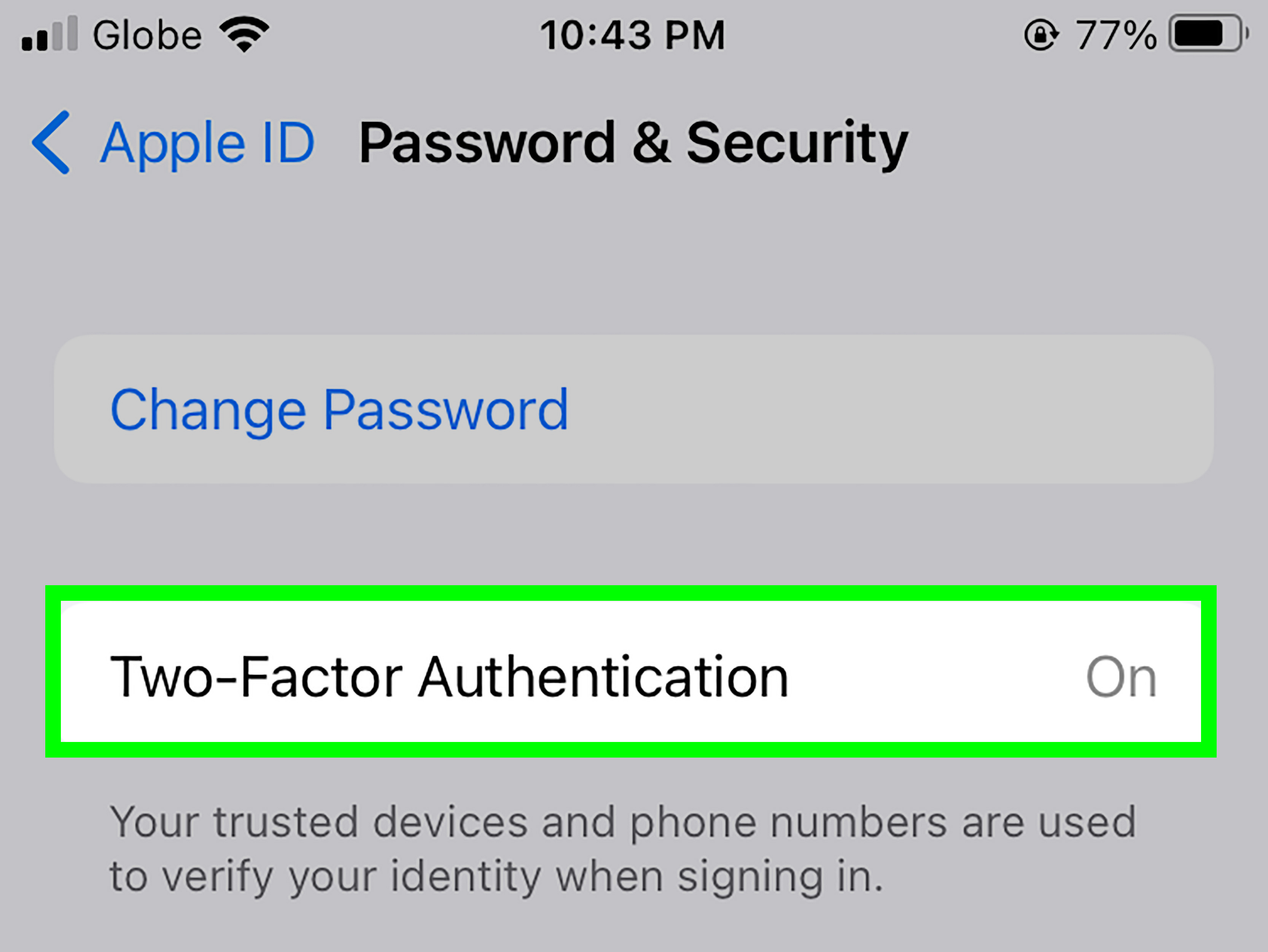
If you are already signed in but iMessage still does not work, tap your Apple Account, choose Sign Out, restart your iPhone, and then sign in again. Make sure you know your Apple Account password before signing out. If two-factor authentication is enabled, you may also need a verification code from a trusted device or phone number.
This step is especially helpful when iMessage works on one Apple device but not another. For example, your Mac may send iMessages perfectly while your iPhone acts like it has never heard of Apple. Signing out and back in can reconnect the missing link.
6. Check Send & Receive Settings
Your iPhone lets you send and receive iMessages using your phone number, Apple Account email address, or both. If the wrong option is selectedor your phone number is missingiMessage may fail, show the signed out error, or send messages from your email instead of your number.
How to check Send & Receive
Go to Settings > Apps > Messages > Send & Receive. Under You Can Receive iMessages To and Reply From, make sure your phone number and preferred email address are selected. Under Start New Conversations From, choose the phone number or email address you want people to see.
If your phone number does not appear, check that your SIM or eSIM is active. Go to Settings > Cellular and make sure the correct line is turned on. If you use dual SIM, confirm that the phone number you want to use with iMessage is selected and active.
This fix is important after moving to a new iPhone, switching carriers, transferring an eSIM, or porting a phone number. During number transfers, iMessage can get a little confused. It is not being difficult on purposeit just needs the right number pointed in the right direction.
7. Update iOS and Carrier Settings
Outdated software can cause sign-in issues, activation problems, and message delivery errors. Apple regularly releases iOS updates that include bug fixes, security improvements, and compatibility updates for services such as Messages.
How to update iOS
Go to Settings > General > Software Update. If an update is available, download and install it. Make sure your iPhone has enough battery or is connected to power before updating.
You should also check for carrier settings updates. Go to Settings > General > About. If a carrier update is available, your iPhone may show a prompt. Install it if offered. Carrier settings help your iPhone communicate correctly with your mobile network, which can affect SMS, MMS, cellular data, and phone-number-based iMessage activation.
This step is particularly useful if the iMessage signed out error started after changing carriers, activating a new phone line, or installing a major iOS update. Software and carrier settings are like the stage crew behind your iPhone’s performance. When they are outdated, the show gets weird.
8. Reset Network Settings
If nothing else works, resetting network settings can help. This does not erase your photos, apps, messages, or personal files. However, it does remove saved Wi-Fi passwords, VPN settings, and some cellular/network preferences. You will need to reconnect to Wi-Fi afterward.
How to reset network settings
Go to Settings > General > Transfer or Reset iPhone > Reset > Reset Network Settings. Enter your passcode if asked, then confirm.
After your iPhone restarts, reconnect to Wi-Fi, return to Settings > Apps > Messages, and turn iMessage on. Then check Send & Receive again to make sure your phone number and Apple Account email are selected.
Resetting network settings is a strong troubleshooting step because it clears old connection data that may be blocking iMessage activation. It is not the first thing you should try, but it is often effective when the usual quick fixes fail.
Bonus Checks If iMessage Still Says Signed Out
Check Date and Time Settings
Incorrect date and time settings can interfere with Apple services. Go to Settings > General > Date & Time and turn on Set Automatically. If the time zone is wrong, fix it manually or make sure Location Services are enabled.
Confirm SMS Is Working
iMessage activation may rely on your phone number and carrier support. If you cannot send or receive regular SMS messages either, contact your carrier. Your plan, SIM, eSIM, or number transfer may need attention.
Wait Up to 24 Hours After Activation Changes
If you recently changed your number, switched carriers, transferred an eSIM, or restored your iPhone, iMessage may take time to activate. Avoid changing settings repeatedly every two minutes. That can sometimes slow the process. Give your iPhone time to finish the handshake with Apple’s servers.
Contact Apple Support
If the error continues after trying all eight fixes, contact Apple Support. There may be an Apple Account issue, device-specific problem, or activation error that requires deeper help.
Real-World Experience: What Usually Works Best
In real-life troubleshooting, the iMessage signed out error often looks scarier than it is. Most people do not need advanced repairs. They need a clean connection, the right Apple Account, and the correct phone number selected in Messages. The challenge is that the error message does not always explain which part is broken. It simply says iMessage is signed out, then leaves you standing there like a detective in a tiny Apple-themed mystery novel.
One common scenario happens after someone gets a new iPhone. The phone restores beautifully from backup, apps appear, photos return, and everything seems fineuntil Messages starts sending from an email address or refuses to activate the phone number. In that case, the best fix is usually to check Send & Receive, make sure the correct phone number is selected, toggle iMessage off and on, then restart the iPhone. If an eSIM was added after setup, toggling iMessage can help the phone reconnect the new line to Apple’s messaging service.
Another common situation appears after changing an Apple Account password. The iPhone may still look signed in, but iMessage quietly needs fresh authentication. Signing out of iMessage and signing back in usually solves it. This is why it is smart to keep access to your trusted phone number or another Apple device nearby. Two-factor authentication protects your account, but it also means you need a verification code when signing in again.
Carrier switches can also create temporary chaos. When a phone number is being ported, iMessage may not immediately know which network owns the number. During this window, people may see activation errors, green bubbles, or missing phone-number options. The most practical approach is to confirm the phone line is active under Cellular settings, install any carrier update, restart the iPhone, and wait. If regular SMS does not work, the carrier should be contacted before blaming iMessage.
From a user-experience point of view, the easiest path is to avoid jumping straight to drastic fixes. Do not erase your iPhone just because iMessage is having a bad afternoon. Start with internet connection, Apple System Status, iMessage toggle, restart, and Send & Receive. These fixes are quick, safe, and usually enough. Reset network settings should come later because it removes saved Wi-Fi passwords and other network preferences.
It also helps to test carefully after each step. Send a message to someone you know uses an iPhone. Check whether the bubble is blue. Then ask them to reply. If messages work but only from your email address, go back to Send & Receive and choose your phone number under Start New Conversations From. If the number is missing, check your SIM/eSIM and cellular line status.
The biggest lesson is patience. iMessage activation is not always instant, especially after account, carrier, or device changes. If you keep switching settings repeatedly, your iPhone may spend more time reacting to your changes than completing activation. Give each fix a fair chance before moving on.
In short, the iMessage signed out error is annoying, but it is rarely permanent. Most of the time, your iPhone has not forgotten you forever. It just needs a little guidance, a stable connection, and maybe a restartbecause even expensive phones occasionally need the classic “turn it off and on again” treatment.
Conclusion
The iMessage is signed out error on iPhone can interrupt conversations, create green-bubble confusion, and make your phone feel less magical than usual. Fortunately, the fix is usually simple. Start by checking your internet connection and Apple System Status. Then refresh iMessage, restart your iPhone, sign back into your Apple Account, verify Send & Receive settings, update iOS, and reset network settings if needed.
The key is to troubleshoot in order. Begin with safe, easy steps before trying bigger changes. In many cases, iMessage returns to normal within minutes. If activation is still pending after a carrier switch, eSIM transfer, or Apple Account change, give it time and contact Apple Support or your carrier if the issue continues.
Blue bubbles may be small, but when they disappear, people notice. With these eight fixes, you can bring iMessage back without panic, guesswork, or sacrificing your iPhone to the tech gods.