Windows 10 has a charming habit of collecting apps the way junk drawers collect mystery batteries. Some are useful. Some are harmless. Some just sit there like they pay rent but definitely do not. If you are trying to clean up your PC, free up a little storage, or stop staring at apps you never asked for, learning how to uninstall or remove Windows 10 Store apps is a smart move.
The good news is that Windows 10 gives you several ways to remove Microsoft Store apps. The easy methods work for everyday apps. The more advanced methods help when an app refuses to leave like an awkward party guest. In this guide, you will learn the safest ways to uninstall Store apps, when to use Settings versus PowerShell, how to deal with built-in apps, and what to do if something goes sideways.
What Are Windows 10 Store Apps, Exactly?
Windows 10 Store apps are applications installed from the Microsoft Store or packaged as modern app packages. They are different from traditional desktop programs like old-school Photoshop installers or random utilities you downloaded from a vendor website in 2017 and have been afraid to touch ever since.
These apps are often called Microsoft Store apps, UWP apps, or Appx apps. Examples include Microsoft Photos, Movies & TV, Xbox-related apps, Voice Recorder, and sometimes preinstalled extras that came with your device.
That distinction matters because removing Windows 10 Store apps is not always handled the same way as uninstalling desktop software. Some apps can be removed with two clicks. Others require PowerShell commands. And a few system-level apps are protected because Windows considers them important enough to keep around.
Before You Remove Anything, Read This Tiny but Mighty Warning
Not every app that looks unnecessary is truly disposable. Some Windows apps are tied to system functions, account features, or other apps behind the scenes. Removing the wrong thing will not usually cause a cinematic operating system meltdown, but it can create annoying glitches, missing features, or broken shortcuts.
Before uninstalling anything, keep these simple rules in mind:
1. Start with the obvious apps
If you know you never use Candy Crush, Skype, or a random weather app, begin there. These are low-drama removals.
2. Do not panic-remove system apps
If the app looks deeply tied to Windows, search its name first or leave it alone unless you know why you are removing it.
3. Create a restore point if you are going full cleanup mode
If you plan to remove multiple built-in apps with PowerShell, a restore point gives you a safety net. Think of it as a seatbelt for your inner digital minimalist.
The Easiest Way: Uninstall Store Apps from the Start Menu
This is the fastest method for many Microsoft Store apps in Windows 10, and it is perfect for casual cleanup.
How to do it
- Click the Start button.
- Find the app in the app list or pinned tiles.
- Right-click the app.
- Click Uninstall.
- Confirm if Windows asks again.
That is it. No wizard hat, no command line, no mysterious pop-ups from the early 2000s.
This method works best for apps that Windows clearly treats as removable. If you right-click and do not see an uninstall option, or if it is grayed out, the app is probably built-in or protected. That does not mean you are stuck. It just means Windows wants you to work a little harder for your freedom.
Use Settings to Remove Windows 10 Store Apps
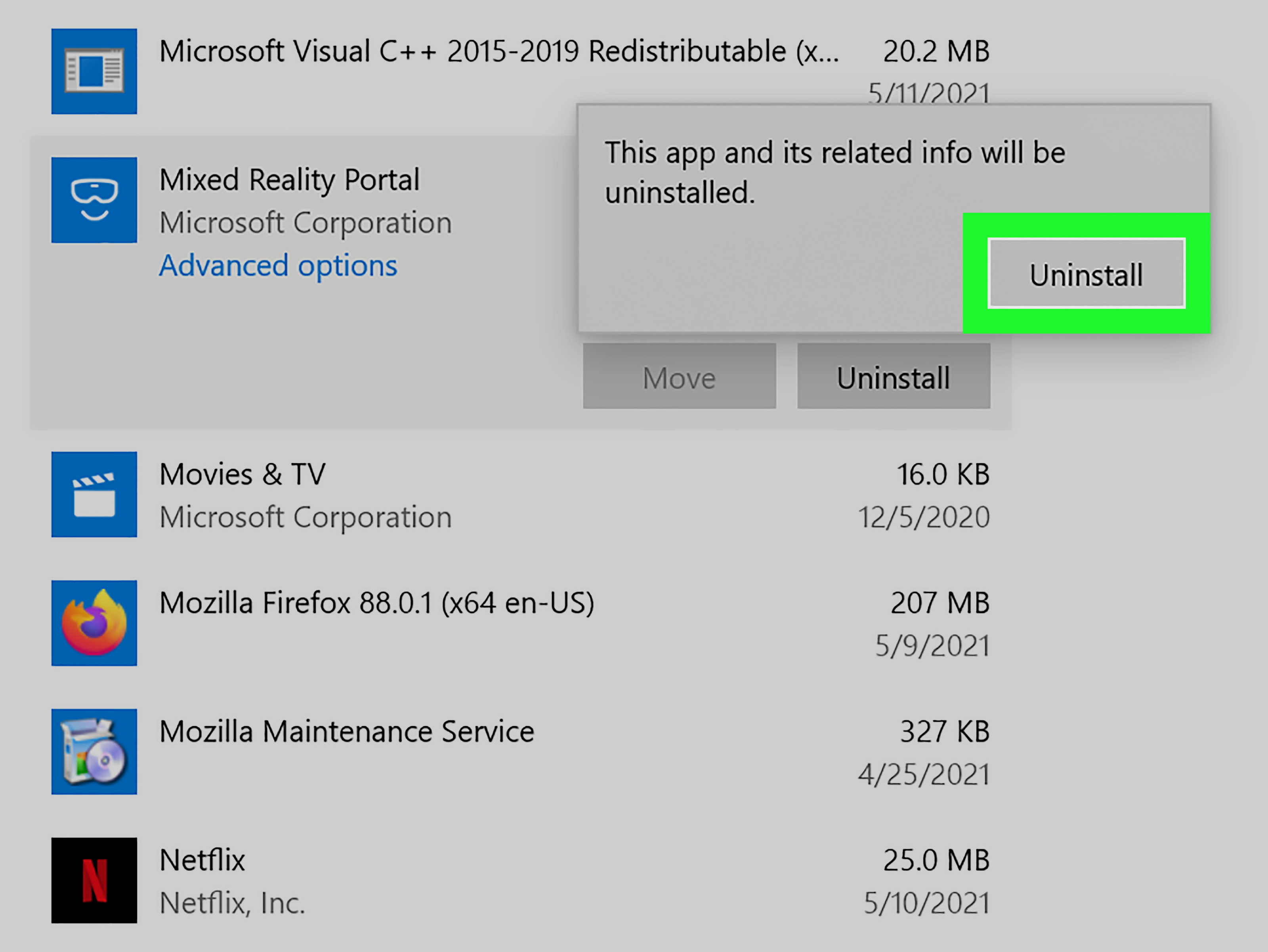
If the Start menu method does not work, the next stop is Settings > Apps > Apps & features. This is one of the most reliable ways to uninstall apps in Windows 10 because it shows both Store apps and many desktop programs in one place.
Steps to uninstall from Settings
- Open Start.
- Click Settings.
- Select Apps.
- Click Apps & features.
- Scroll through the list or use search to find the app.
- Click the app.
- Select Uninstall.
- Confirm the action.
This method is especially useful when you have a long list of installed software and want to sort by size, drive, or install date. If you are wondering why your SSD is gasping for air, this screen can be surprisingly revealing.
When Settings is the better option
- You want to compare multiple apps before removing them.
- You are not sure whether the app came from the Microsoft Store or somewhere else.
- You want a simple visual list instead of hunting through Start.
Still, some built-in apps will not uninstall here. Windows 10 is helpful, but not always cooperative.
Use Control Panel for Traditional Desktop Programs
This article is focused on Windows 10 Store app removal, but many users are really dealing with a mix of Store apps and classic desktop software. If the app is a traditional program, the old-fashioned route may work better.
How to uninstall from Control Panel
- Type Control Panel into Windows search.
- Open it.
- Click Programs.
- Select Programs and Features.
- Find the program.
- Right-click it and choose Uninstall.
If the item you want to remove is a Store app, it may not behave like a classic desktop program here. That is normal. Think of Control Panel as the old neighborhood. Some newer apps visit, but many do not actually live there.
How to Remove Built-In Windows 10 Apps with PowerShell
Now we are entering the “I mean business” section. PowerShell is the go-to option when you want to remove stubborn Microsoft Store apps, especially built-in ones that do not offer a normal uninstall button.
This is where people often get nervous, but the commands are not as scary as they look. They are just less forgiving than a friendly Settings menu.
Step 1: Open PowerShell as Administrator
- Click Start.
- Type PowerShell.
- Right-click Windows PowerShell.
- Select Run as administrator.
Step 2: Find the app package
To see installed Store app packages, run:
This gives you a list of app package names. It is useful because Windows app names are often not as obvious as the names you see in the Start menu. A simple app can have a package name that looks like a Wi-Fi password generated by a robot with trust issues.
Step 3: Remove a specific app
Use this format:
Examples:
This removes the app from the current user account. In plain English, it disappears for you, but not necessarily for every other user on the PC.
Remove an app for all users
If you want to target installed packages more broadly, use:
This is more aggressive and should be used carefully, especially on shared machines.
What If the App Comes Back for New User Accounts?
This is one of the most frustrating parts of removing built-in Windows 10 apps. You uninstall something, feel victorious, then a new user profile appears and the app is back like it never got the memo.
That happens because some apps are provisioned in the Windows image. In other words, Windows keeps them ready for future user accounts.
To stop that, you need a different PowerShell command:
Then remove the provisioned package:
This does not remove the app from existing user accounts. It prevents that app from being automatically installed for new accounts created later. So if you are cleaning a family PC, office device, or shared laptop, this distinction matters a lot.
Use WinGet to Uninstall Apps from the Command Line
If you like clean commands and quick results, winget is another excellent option. Windows Package Manager is especially handy for users who already work in Terminal or PowerShell and want a more modern uninstall workflow.
How to use winget
- Open Command Prompt, PowerShell, or Windows Terminal.
- Run this command to list apps:
Then uninstall the app by exact name:
You can also uninstall by ID if needed. The main benefit here is speed. The main annoyance is that winget uninstall wants the exact app name if there is any ambiguity. So if you type something vague, winget may politely ask you to be less mysterious.
Why Some Windows 10 Apps Cannot Be Uninstalled
If you have ever tried to remove an app and noticed there is no uninstall button, you are not imagining things. Some Windows 10 apps are built into the operating system and cannot be removed through normal methods.
Examples may include deeply integrated system components or apps that support other Windows experiences. In these cases, Windows blocks removal to protect core functionality.
That is why you may see three different situations:
- Easy uninstall: The app removes from Start or Settings.
- PowerShell uninstall: The app can be removed only with commands.
- Protected app: Windows does not really want you touching it.
If you are unsure, do not force-remove system components unless you are prepared to troubleshoot afterward.
What to Do If an App Will Not Uninstall
Sometimes the issue is not permission. Sometimes the app is just broken, busy, or being dramatically unhelpful.
Try these fixes first
- Close the app completely and try again.
- Restart the PC and retry uninstalling.
- Use Settings > Apps & features and check whether Advanced options offers Repair or Reset.
- Use the app’s own uninstaller if it is a third-party desktop program.
- Try PowerShell or winget instead of the graphical method.
If a Microsoft Store app is acting broken rather than unwanted, repair or reset can be smarter than uninstalling. It is the digital version of checking whether the lamp is plugged in before buying a new house.
Should You Remove Microsoft Store Apps at All?
Usually, yes, if the app is truly unused and removable. Cleaning up extra apps can reduce clutter, make search results less noisy, and help you feel like you are in charge of your computer again. That last one is not technical, but it is spiritually important.
That said, removing apps will not magically turn an old laptop into a Formula 1 car. The biggest benefits are organization, fewer distractions, and occasionally freeing up storage space. Performance gains are usually modest unless the app was actually running background services or startup tasks.
Best Practices for Safe Windows 10 App Cleanup
- Remove one or two apps at a time if you are using PowerShell.
- Restart after major cleanup sessions.
- Keep notes on what you removed in case you want it back later.
- Do not remove Microsoft Store itself unless you truly mean to.
- When in doubt, test on a noncritical machine first.
Experiences From Real-World Windows 10 App Cleanup
In real life, most people do not wake up excited to uninstall Windows 10 Store apps. They do it when something gets annoying. Maybe a laptop starts feeling crowded. Maybe the Start menu looks like it was designed by ten departments that never met. Maybe you click one app by accident three times in a week and decide the relationship is over.
A very common experience is the “new PC cleanup session.” You buy a laptop, turn it on, and spend the first hour removing things you did not ask for. This is where the Start menu and Settings methods shine. You can move quickly, knock out casual apps, and make the system feel more personal. Users often say this is the moment the computer starts to feel like theirs instead of a demo unit that escaped from a store shelf.
Another familiar scenario happens on family computers. One user installs games, another installs streaming apps, and someone else downloads a random tool with a name like “PhotoMasterPlusUltraPro.” After a while, nobody knows what is necessary. In these cases, Apps & features becomes the command center. Sorting by install date or searching by app name makes cleanup less chaotic. It is not glamorous, but it is satisfying in the same way cleaning out a closet is satisfying once you stop asking why you kept five identical black chargers.
More advanced users often run into the built-in app problem. They remove a package with PowerShell, feel accomplished, then notice the app is still showing up for another user account or returns on a newly created profile. That is usually the moment they discover the difference between removing an installed app and removing a provisioned package. It is one of those Windows lessons you only need once, but you remember forever because it arrives wrapped in mild irritation.
Office and school environments add another layer. Shared computers tend to collect apps faster than kitchen counters collect mail. In those setups, admins or power users often prefer PowerShell because it is faster and more repeatable. The trade-off is that command-line cleanup requires attention. A mistyped package search can remove something you did not intend to remove. So the experience becomes less “click and done” and more “slow down, read carefully, then press Enter like an adult.”
There is also the emotional side of app cleanup, which sounds ridiculous until you do it. Removing unused Windows 10 apps makes a PC feel lighter, even when the actual storage savings are not huge. Search becomes cleaner. The Start menu looks less busy. You stop seeing apps you ignored for years. It is a small quality-of-life upgrade, but small upgrades add up.
Of course, not every experience is smooth. Some users hit apps that refuse to uninstall normally. Others remove something and later realize they actually used it once every four months. That is why the smartest cleanup sessions are not the most aggressive ones. They are the ones done with a little patience. Remove what you know you do not want. Test the system. Then decide whether you need to go deeper.
In the end, learning how to uninstall or remove Windows 10 Store apps is less about deleting random software and more about taking control of your setup. Whether you use Start, Settings, PowerShell, or winget, the goal is the same: fewer distractions, less clutter, and a Windows 10 machine that feels intentionally yours.
Conclusion
If you want the quick version, start with the easy methods first: right-click from Start or use Settings > Apps & features. If that fails, move to PowerShell for built-in apps and use winget when you want a clean command-line workflow. Just remember that not all Windows 10 Store apps are equal. Some are easy to remove, some require package commands, and some are protected for a reason.
The secret is not brute force. It is using the right method for the right app. Once you know that, Windows 10 app cleanup stops feeling like a chore and starts feeling like a victory lap.