Note: Telegram’s interface can look slightly different on Android, iPhone, desktop, and web. The button may say “Leave Channel,” “Delete and Leave,” or simply “Leave,” depending on your device and app version.
Introduction: When Your Telegram Feed Needs a Little Spring Cleaning
Telegram channels are great when they are useful. They can deliver news, deals, creator updates, school announcements, crypto alerts, hobby tips, and niche community content faster than your coffee machine can judge you for needing a second cup. But when a channel turns into a nonstop notification cannon, it may be time to leave.
If you are wondering how to leave a channel on Telegram, the good news is that the process is simple. You do not need to delete your Telegram account, uninstall the app, block the internet, or dramatically throw your phone onto a couch. In most cases, leaving a Telegram channel takes less than a minute.
This guide explains how to leave a Telegram channel in 8 easy steps, including instructions for Android, iPhone, Telegram Desktop, and Telegram Web. You will also learn what happens after you leave, how leaving differs from muting or archiving, and what to do if you want to rejoin later.
What Is a Telegram Channel?
A Telegram channel is a broadcast-style space where admins publish posts and subscribers receive them. Unlike a Telegram group, where members usually chat with each other, a channel is more like a news feed, newsletter, or announcement board. In many channels, subscribers can read, react, and sometimes comment if the admin has connected a discussion group, but they usually cannot post directly in the main channel.
Channels can be public or private. A public channel can usually be found through Telegram search or opened through a public link. A private channel requires an invite link or an invitation from someone with access. This matters because leaving a private channel without saving the invite link can make it harder to get back in later.
Before You Leave: What Happens When You Exit a Telegram Channel?
When you leave a Telegram channel, you unsubscribe from it. The channel disappears from your main chat list, and you stop receiving new posts and notifications from that channel. You are not deleting the channel for everyone else. You are simply removing yourself from the subscriber list.
If the channel is public, you can usually search for it again and rejoin. If the channel is private, you may need the original invite link or a new invitation. That is why it is smart to pause for five seconds before leaving a private channel, especially if it contains class updates, work notices, community information, or content you may need later.
How to Leave a Channel on Telegram: 8 Steps
Step 1: Open the Telegram App
Start by opening Telegram on your phone, tablet, computer, or browser. Make sure you are signed in to the account that joined the channel. This sounds obvious, but many people use Telegram on multiple devices, and sometimes the channel appears on one device before another has synced properly.
If your app has not been updated in a long time, consider updating it first. Telegram changes small interface details from time to time, and using the latest version helps prevent missing buttons, laggy menus, or strange “where did that option go?” moments.
Step 2: Find the Channel You Want to Leave
Scroll through your chat list and look for the channel. If your Telegram is packed with chats, groups, bots, folders, and mystery channels you joined at 1:00 a.m., use the search bar at the top. Type the channel name or a keyword you remember from it.
Telegram folders can also hide channels from your main view. Check folders such as “All Chats,” “Unread,” “Work,” “News,” or any custom folder you created. If the channel is archived, open your Archived Chats folder and look there too.
Step 3: Open the Channel
Tap or click the channel name to open it. You should now see the channel’s posts. At this point, check that you are leaving the right place. Some Telegram channels have similar names, especially in topics like tech news, entertainment, trading, shopping, and fan communities.
A quick sanity check can save you from accidentally leaving the useful channel while keeping the chaotic one. That would be like throwing away the remote and keeping the batteries.
Step 4: Open the Channel Info Page
On mobile, tap the channel name or profile picture at the top of the screen. This opens the channel info page, where you can see details such as the channel description, subscriber count, notification settings, shared media, and menu options.
On Telegram Desktop or Telegram Web, click the channel name at the top of the chat window. In many versions, this opens a side panel with channel information. You may also see a three-dot menu in the corner of the chat or info panel.
Step 5: Tap or Click the Menu Button
Look for the menu icon. On Android and desktop, this is often a three-dot icon. On iPhone, the leave option may appear directly on the channel info screen or inside a menu, depending on the current app layout.
If you do not see the option right away, scroll down the channel info page. Telegram often places important actions near the lower part of the screen. The button may be red because leaving is considered a major action.
Step 6: Select “Leave Channel” or “Delete and Leave”
Choose the option that says Leave Channel, Delete and Leave, or something similar. Do not panic if the wording includes “delete.” For regular subscribers, this usually means Telegram will delete the channel from your chat list while also removing you from the channel. It does not delete the entire channel for everyone.
If you are the owner or an admin of a channel, slow down. Owners and admins may have extra responsibilities. Make sure you understand whether you are leaving as a normal subscriber, stepping down from an admin role, transferring ownership, or deleting something you manage.
Step 7: Confirm Your Choice
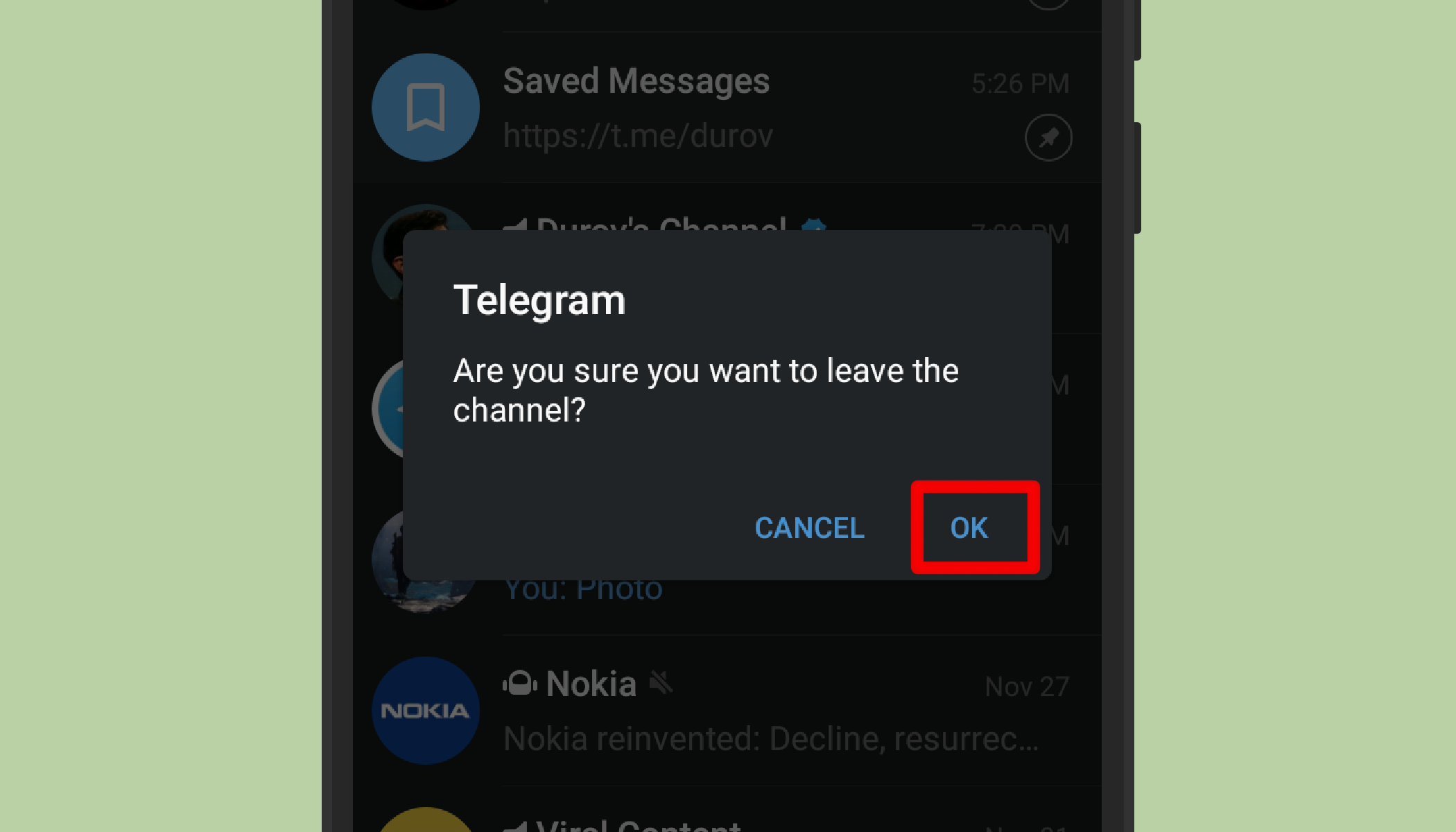
Telegram will usually ask you to confirm. Tap or click Leave, Delete, or Confirm. Once confirmed, the channel should disappear from your chat list.
If you change your mind before confirming, cancel the action. Telegram gives you this final moment for a reason. It is the digital version of “Are you sure you want to eat the last slice of pizza?” Sometimes the answer is yes. Sometimes you think about future you.
Step 8: Check Your Chat List
Return to your chat list and confirm that the channel is gone. If it still appears, refresh the app, close and reopen Telegram, or check whether you were viewing the channel from another folder or archived section.
If the channel keeps returning, make sure you are not still subscribed on another synced session. Telegram usually syncs changes across devices, but temporary delays can happen. Updating the app or restarting it often clears the issue.
How to Leave a Telegram Channel on Android
On Android, open Telegram and tap the channel you want to leave. Tap the channel name at the top to open its profile page. Tap the three-dot menu, then choose Leave Channel or Delete and Leave. Confirm your choice.
Some Android versions also allow you to long-press the channel from the chat list and choose a delete or leave option from the top menu. If you use this method, read the confirmation carefully before tapping. Long-press menus are convenient, but they are also where accidental taps like to wear tiny villain capes.
How to Leave a Telegram Channel on iPhone
On iPhone, open Telegram and go to the channel. Tap the channel name at the top of the screen. On the channel info page, look for Leave or Leave Channel. It may appear under the subscriber count, inside a menu, or lower on the page depending on your app version.
Tap the leave option, then confirm. After that, the channel should disappear from your chat list, and you will stop receiving new updates from it.
How to Leave a Telegram Channel on Desktop
On Telegram Desktop, open the channel from your chat list. Click the channel name at the top or click the three-dot menu in the upper-right area. Look for Leave Channel or Delete and Leave. Click it, then confirm.
Desktop is often the easiest option if you manage many channels because the larger screen makes it easier to scan names, open menus, and avoid tapping the wrong thing. It is also helpful when your phone screen feels like a crowded elevator full of notifications.
How to Leave a Telegram Channel on Telegram Web
Open Telegram Web in your browser and sign in. Select the channel, click the channel name or menu icon, and choose the leave or delete-and-leave option. Confirm your decision.
If Telegram Web does not show the same option you see on mobile, try the desktop app or your phone. Telegram’s web interface can differ slightly from the mobile and desktop apps, especially after updates.
Leaving vs. Muting vs. Archiving: Which One Should You Choose?
Leaving is best when you no longer want to be subscribed to the channel. It removes the channel from your list and stops new posts from reaching your account.
Muting is better when the channel is still useful but too noisy. For example, you may want to keep a discount channel for weekend shopping but silence its weekday notification parade. Muting keeps you subscribed while turning down the volume.
Archiving is useful when you want to hide the channel from your main chat list without leaving it. Archived chats stay in a separate folder. This is a good middle ground for channels you rarely check but do not want to lose.
Can You Rejoin a Telegram Channel After Leaving?
Yes, usually. If the channel is public, search for its name in Telegram or use its public link. Tap Join to subscribe again.
If the channel is private, you need an invite link or a new invitation. Before leaving a private channel, consider saving the invite link if you have permission to use it. If the link has expired or been revoked, you may need to ask an admin or member for help.
Common Problems When Leaving a Telegram Channel
The Leave Button Is Missing
Open the channel info page and scroll. If you still do not see the option, try another device or update Telegram. On some screens, the leave option is hidden inside the three-dot menu.
The Channel Comes Back
Close and reopen Telegram. If the channel was archived or inside a folder, check whether you are viewing a cached version of your chat list. You can also try leaving from Telegram Desktop if mobile does not work properly.
You Left the Wrong Channel
If it was public, search for it and rejoin. If it was private, look for the invite link or ask someone with access. This is why checking the channel name before leaving is worth the tiny effort.
You Are an Admin
If you are an admin, leaving may affect your role. If you own the channel, review ownership and admin settings before exiting. Do not leave a channel you manage without making sure someone responsible can continue running it.
Tips for Cleaning Up Telegram Without Regret
Leaving channels is satisfying, but a smart cleanup works even better. Start with channels you have not opened in months. Then look at channels that post too often, repeat the same content, or no longer match your interests.
For useful but noisy channels, mute them. For low-priority channels, archive them. For channels that feel spammy, suspicious, misleading, or stressful, leave them. If a channel shares unsafe links, impersonates brands, or pushes scams, consider reporting it through Telegram’s built-in tools.
A clean Telegram list makes the app feel faster, calmer, and easier to use. You should not need hiking equipment just to find a message from your friend.
Real-World Experience: What Users Learn After Leaving Telegram Channels
One of the most common experiences with Telegram channels is joining too many too quickly. It starts innocently. You join one news channel, then a tech channel, then a deals channel, then a local updates channel, then a meme channel because “just one laugh won’t hurt.” Two weeks later, your chat list looks like a digital garage sale.
The first lesson is that leaving a channel feels more dramatic than it really is. Many users hesitate because the button says “Delete and Leave,” which sounds like they are about to erase a small civilization. In reality, regular subscribers are usually just removing the channel from their own account. The channel continues without them, bravely posting into the void for everyone else.
The second lesson is that muting is not always enough. Muting stops the noise, but the channel can still clutter your chat list. If you never open it, never search it, and never miss it, leaving is probably the cleaner choice. A muted channel you do not care about is like a treadmill being used as a laundry rack: technically present, spiritually unnecessary.
The third lesson is to be careful with private channels. Public channels are easy to find again, but private channels can be different. If you leave a private study group channel, work announcement channel, or invite-only creator channel, you may not be able to return unless you have a valid invitation link. Before leaving, ask yourself: “Would I need this later?” If the answer is maybe, archive or mute it first.
The fourth lesson is that desktop cleanup can be easier than mobile cleanup. On a computer, you can see more of your chat list, open channel info quickly, and avoid finger-tap mistakes. For people subscribed to dozens of channels, Telegram Desktop can feel like moving from tweezers to a proper toolbox.
The fifth lesson is emotional: a cleaner chat list actually changes how Telegram feels. Instead of opening the app and seeing a wall of unread broadcasts, you see conversations and channels you chose on purpose. That makes Telegram more useful and less exhausting.
A practical approach is to review channels once a month. Leave anything irrelevant, mute anything useful but noisy, and archive anything you may want later. This simple habit prevents channel clutter from turning into notification soup. And yes, notification soup is exactly as appetizing as it sounds.
In the end, learning how to leave a channel on Telegram is not just a technical trick. It is a small act of digital housekeeping. You are choosing what deserves your attention, what can wait, and what can politely exit stage left. Your future self, scrolling through a cleaner Telegram inbox, will appreciate it.
Conclusion
Leaving a Telegram channel is quick once you know where to look. Open the channel, go to its info page, choose the leave option, confirm, and check your chat list. Whether you use Android, iPhone, desktop, or web, the idea is the same: unsubscribe from what no longer serves you.
Before leaving, remember the difference between public and private channels. Public channels are usually easy to rejoin. Private channels may require an invite link. If you are unsure, mute or archive first. If you are sure, leave with confidence and enjoy the sweet, peaceful sound of one less notification trying to become your full-time job.