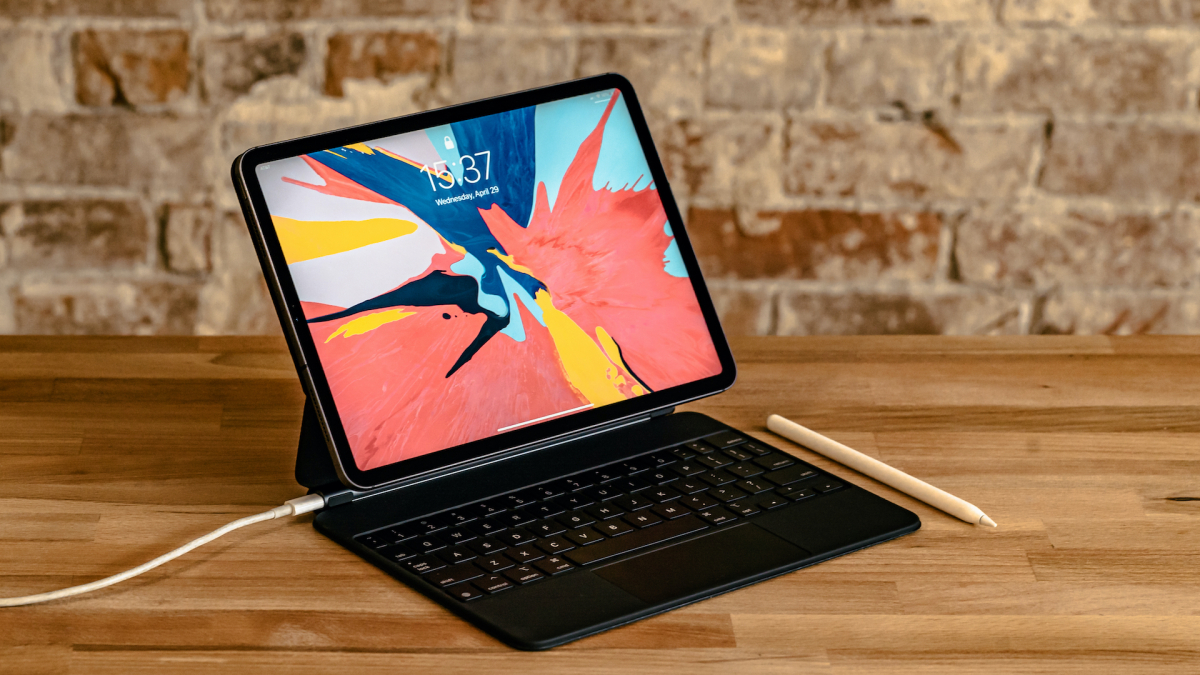
For years, the iPad was powerful enough to edit 4K video, sketch architectural ideas, manage spreadsheets, host Zoom meetings, and pretend to be a laptop at a coffee shop. Yet somehow, when you needed to calculate a tip, split rent, convert inches to centimeters, or figure out whether buying the jumbo pack of paper towels was actually a deal, the iPad would stare back at you like, “Have you tried using your iPhone?”
That strange era is finally over. Your iPad actually has a built-in Calculator app now, and it is not just a giant version of the iPhone calculator stretched across a bigger screen. With iPadOS 18, Apple added Calculator to iPad with basic math, scientific functions, unit conversions, calculation history, and the headline feature that made students, teachers, designers, budgeters, and spreadsheet survivors raise an eyebrow: Math Notes.
In plain English, the iPad Calculator is no longer just a place to punch in numbers. It can help you write equations, solve handwritten math, assign variables, convert measurements, and even graph equations. It is the kind of feature that makes you wonder why it took so long, then immediately forgive Apple because the final result is surprisingly useful.
Yes, the iPad Has a Real Calculator App Now
The built-in Calculator app arrived for iPad with iPadOS 18. That means you no longer need to download a random third-party calculator app with suspicious ads, use Spotlight Search for quick arithmetic, open Safari, or quietly borrow your phone like it is 2013.
Once your iPad is updated to iPadOS 18 or later, you can find Calculator like any other app. Search for it with Spotlight, open it from the Home Screen, or ask Siri to do the math if you enjoy giving commands to a rectangle. The app includes several modes designed for different kinds of tasks, from quick everyday calculations to more advanced math.
What Can the iPad Calculator Do?
The iPad Calculator app includes a basic calculator for everyday arithmetic, a scientific calculator for more advanced functions, unit and currency conversions, and Math Notes for handwritten or typed calculations. It is built to take advantage of the iPad’s larger display, especially when paired with Apple Pencil.
That bigger screen matters. On an iPhone, Calculator is useful but compact. On iPad, the extra room makes it easier to view longer expressions, switch modes, work with notes, and see calculations in context. Instead of feeling like a pocket tool, it feels more like a small math workspace.
Why It Took So Long Became Part of the Joke
The absence of a native iPad Calculator app became one of Apple’s funniest long-running quirks. The iPad launched in 2010, and for more than a decade, users asked a very reasonable question: why does this expensive tablet not include a basic calculator?
There were plenty of workarounds. Spotlight could solve simple math. Siri could answer quick questions. Notes could hold calculations if you typed them manually. The App Store had many calculator apps. Still, none of that felt as clean as having Apple’s own Calculator app built in.
Now that the app exists, the wait makes slightly more sense. Apple did not simply add a plain calculator; it added a calculator designed around the iPad’s strengths: a large screen, handwriting input, Apple Pencil support, and note-style problem solving. In other words, Apple took the scenic route, stopped for coffee, got lost twice, and eventually arrived with something better than expected.
How to Find the Built-in Calculator on iPad
Finding the Calculator app is simple once your iPad is running iPadOS 18 or later. Swipe down from the Home Screen to open Spotlight Search, type “Calculator,” and tap the app when it appears. You can also look for it in the App Library or add it to your Dock for faster access.
If you do not see Calculator, check your iPadOS version. Go to Settings, tap General, then Software Update. If your iPad supports iPadOS 18, install the update. After updating, Calculator should be available as a built-in Apple app.
Basic Mode: The Everyday Math Hero
Basic mode is for normal calculations: addition, subtraction, multiplication, division, percentages, and quick totals. This is where you figure out the cost of groceries, split a dinner bill, calculate a discount, or confirm that your “small” online shopping cart has become a financial event.
The interface is clean and familiar. If you have used the iPhone Calculator, you will understand the basic iPad version instantly. The difference is that the iPad display gives your fingers more space, which reduces accidental taps and makes the experience feel less cramped.
Scientific Mode: For When Math Puts on a Lab Coat
Scientific mode is where Calculator becomes more serious. It supports functions such as exponents, roots, logarithms, trigonometric functions, hyperbolic functions, memory keys, radians and degrees, and random number generation. For students, engineers, coders, and anyone dealing with advanced formulas, this is a major upgrade.
You can switch modes from inside the Calculator app. Scientific mode is especially useful on the iPad because the larger display gives the advanced buttons room to breathe. You do not have to rotate the device just to feel like the calculator remembered college algebra exists.
Math Notes Is the Feature That Makes iPad Calculator Special
Math Notes is the real reason the iPad Calculator feels different. It lets you type or handwrite math expressions and see results appear naturally. With Apple Pencil, you can write a problem by hand, add an equals sign, and watch the answer appear in a style that blends into your notes.
This is not just a flashy trick for demos. Math Notes can be useful for homework, budgeting, planning projects, comparing costs, calculating room measurements, sketching ideas, and working through formulas. It turns math into something closer to writing in a notebook, except the notebook can solve the problem before you start questioning your life choices.
Examples of Math Notes in Real Life
Imagine you are planning a small party. You write “pizza = 18,” “drinks = 12,” and “snacks = 25,” then calculate the total. If the number of guests changes, you can adjust a value and update the math. This makes Math Notes useful for rough planning because you can keep the logic visible instead of hiding everything behind a final answer.
For schoolwork, you might write a formula, define variables, and test different values. For home projects, you can calculate paint coverage, flooring area, or material costs. For travel planning, you can estimate fuel, hotel nights, currency conversions, and shared expenses. It is not trying to replace a full spreadsheet, but for quick thinking, it is faster and more natural.
You Can Use Variables, Graphs, and Handwritten Equations
One of the best parts of Math Notes is support for variables. You can assign a value to a variable, then reuse it in later calculations. For example, you could write “hours = 6,” “rate = 25,” and then “hours × rate =” to calculate pay. If the hours change, update the value and the result can change with it.
Math Notes can also work with graphs. You can insert graphs for equations and compare multiple equations visually. This is especially helpful for students learning functions or anyone who understands math better when they can see a shape instead of staring at symbols like they are ancient runes.
Handwriting support is where the iPad shines. With Apple Pencil, writing equations feels more natural than tapping everything into a traditional calculator. It is particularly helpful for multi-step work because you can keep your process on the page. Instead of calculating one result and losing the context, you can see the entire thought process.
Unit Conversion Is Built In
The iPad Calculator can also convert units and currencies. This is a practical feature for daily life, especially if you cook, travel, shop online, work on DIY projects, or regularly wonder why every country cannot agree on one measurement system like civilized spreadsheets.
You can convert length, weight, speed, time, temperature, area, volume, currency, and more. For example, you can convert meters to feet, kilograms to pounds, Celsius to Fahrenheit, or dollars to another currency. The app lets you enter a value and see conversions as you type.
Why Unit Conversion Matters More on iPad
On a phone, conversions are usually quick one-off tasks. On an iPad, they can become part of a larger workflow. You might be reading a recipe, taking notes, comparing product specs, planning a room layout, or checking travel costs. Having unit conversion inside Calculator means you do not have to jump between apps as much.
This is especially handy for students and creators. A student can convert units while solving a physics problem. A designer can convert dimensions while sketching. A home cook can adjust measurements while reading a recipe. A traveler can estimate costs without opening five browser tabs and accidentally ending up on a forum from 2009.
Calculator Works With Notes, Too
Math Notes connects closely with the Notes app. Your Math Notes can sync into Notes, making them easier to find later. This matters because calculations are often part of a bigger idea. You are not just solving “25 × 4.” You may be planning a budget, creating a study sheet, outlining a project, or comparing options.
By connecting math with notes, Apple makes Calculator feel less like a standalone utility and more like part of the iPad productivity system. It fits the way people actually work: messy, visual, half-planned, occasionally interrupted by snacks, and full of small calculations that support bigger decisions.
Who Benefits Most From the iPad Calculator?
The built-in iPad Calculator is useful for almost everyone, but some users will benefit more than others. Students get a flexible tool for math practice, science work, and quick graphing. Teachers can use it to demonstrate equations in a more visual way. Parents can help with homework without searching for a separate app. Professionals can use it for estimates, quick budgets, measurements, and conversions.
Creative users can benefit too. Designers, artists, crafters, and DIY fans often need quick math: canvas sizes, ratios, material quantities, shipping weights, frame dimensions, color mix proportions, or pricing estimates. The iPad already works well as a sketchbook and planning board; Calculator fills a small but important gap.
Students
For students, Math Notes may be the star. The ability to write equations by hand and see results makes the iPad feel more like a smart notebook. It can help with algebra, geometry, statistics, budgeting assignments, science formulas, and visual graphing. It is not a substitute for understanding the material, but it can make practice faster and more interactive.
Everyday Users
For everyday users, the biggest win is convenience. Need to calculate a discount? Convert cups to milliliters? Split a bill? Estimate monthly savings? Check if a subscription is quietly robbing you one “small” charge at a time? Calculator is now right there.
Professionals and Creators
For professionals, Calculator can be a quick thinking tool. It is not trying to replace Excel, Numbers, CAD software, or accounting platforms. But when you need fast math while reviewing documents, sketching ideas, or taking notes during a meeting, it is exactly the kind of built-in utility the iPad should have had all along.
Is the iPad Calculator Better Than Third-Party Apps?
That depends on what you need. Many third-party calculator apps still offer specialized tools, such as advanced graphing, financial formulas, programming calculators, symbolic algebra, or industry-specific functions. If you need those features, a dedicated app may still be worth using.
But for most iPad users, Apple’s built-in Calculator is enough. It is free, clean, integrated with iPadOS, and does not require you to dodge pop-ups, subscriptions, or calculator apps that somehow want access to your location. For basic math, scientific calculations, conversions, and handwritten Math Notes, the built-in app is the best first stop.
Tips for Getting More Out of iPad Calculator
First, add Calculator to your Dock. This makes it easy to open while using other apps. Second, try Math Notes with Apple Pencil if you have one. The handwriting experience is what makes the iPad version feel special. Third, use variables when planning anything with changing numbers, such as budgets, project estimates, or homework problems.
Fourth, experiment with unit conversions. Many people overlook this feature, but it can save time in cooking, travel, shopping, and schoolwork. Fifth, use scientific mode when basic mode is not enough. Even if you do not need it every day, it is nice to know your iPad can handle more advanced math without needing another app.
Common Problems and Quick Fixes
If you cannot find Calculator on your iPad, confirm that your device is updated to iPadOS 18 or later. If the app is hidden, use Spotlight Search. If Math Notes is not recognizing handwriting correctly, write a little more clearly, leave enough spacing, and use common math symbols. Your iPad is smart, but it is not a mind readerespecially if your handwriting looks like it was produced during turbulence.
If variables are not working, make sure you define them before using them. For example, write “x = 10” before writing “x + 5 =.” Math Notes reads information in order, so the setup matters. If graphing does not work as expected, check that your equation is written in a supported format and that variables are clear.
Personal Experience: Living With the iPad Calculator After the Long Wait
The funniest thing about the iPad finally getting Calculator is how quickly it starts to feel normal. At first, you open it with a little dramatic flair, like you are witnessing a historic event. “Look,” you whisper to nobody, “the tablet can divide.” After a few days, though, it becomes one of those quiet tools you reach for without thinking.
The biggest change is convenience. Before the built-in app arrived, using an iPad for quick math felt oddly incomplete. You could be writing in Notes, reading a PDF, checking an invoice, or comparing prices online, and then suddenly you needed to calculate something. That tiny moment created friction. You either grabbed your iPhone, opened a browser, used Spotlight, or relied on a third-party app. None of those options were terrible, but they interrupted the flow.
With Calculator on iPad, the flow feels smoother. When planning a small budget, for example, you can open Calculator, run quick totals, switch to conversions, and keep moving. If you are taking notes, Math Notes feels even better because the calculation stays connected to the idea. You are not just getting an answer; you are keeping the reason behind the answer visible.
Math Notes is especially satisfying for rough planning. Suppose you are estimating the cost of setting up a small workspace. You can write down a desk price, chair price, lamp price, storage cost, and delivery fee. Then you add them up in the same note. If one price changes, you adjust it. The calculation becomes part of the plan rather than a number floating alone in space.
The handwriting feature also makes the iPad feel more personal. Tapping calculator buttons is efficient, but writing equations with Apple Pencil feels closer to thinking on paper. For students, that can make a real difference. Math is often easier to follow when the steps are visible. Even for adults who are not solving school problems, handwritten calculations are helpful for brainstorming, estimating, and comparing options.
Unit conversion is another feature that becomes more useful the more you use it. Cooking is a perfect example. Recipes online love to mix measurement systems like they are hosting an international peace conference in your kitchen. One ingredient is in grams, another is in cups, the oven temperature is in Fahrenheit, and your measuring tools are silently judging you. Having conversions built into Calculator makes the iPad a better kitchen companion, especially if you already use it for recipes.
There are still reasons to use specialized apps. Serious graphing, finance, coding, engineering, and symbolic math may require more advanced tools. But that does not reduce the value of Apple’s Calculator. Most people do not need a spaceship dashboard every time they calculate a discount. They need something fast, clean, reliable, and already installed.
The best compliment for the iPad Calculator is that it disappears into daily use. It fills a gap so obvious that people joked about it for years, then adds enough iPad-specific intelligence to feel worth the wait. It is basic when you need basic, advanced when you need scientific mode, practical when you need conversions, and surprisingly clever when you open Math Notes.
So yes, your iPad actually has a built-in Calculator now. Not only that, it has one that understands the assignment. Finally.
Conclusion
The iPad’s built-in Calculator app is more than a late apology for a missing utility. It is a thoughtful upgrade that fits the iPad’s identity as a flexible, touch-first, pencil-friendly productivity device. Basic mode handles everyday arithmetic. Scientific mode supports more advanced calculations. Unit conversion saves time. Math Notes turns handwritten or typed equations into a more natural workspace for learning, planning, budgeting, and problem solving.
For casual users, it removes a small daily annoyance. For students and teachers, it adds a helpful learning tool. For professionals and creators, it becomes a convenient part of the iPad workflow. After years of asking why the iPad did not have a calculator, the better question may now be: why are you not using it yet?