Sending a large file through Outlook sounds simple until Outlook stares back at you like a bouncer guarding a velvet rope. You click Attach, pick your file, hit send, and then boom: the file is too large, the message fails, or the recipient gets a lovely little error instead of your beautiful presentation. It is one of those modern office problems that feels weirdly personal, even though it happens to practically everyone.
The good news is that sending large files through Outlook is not hard once you know what Outlook is actually picky about. In most cases, the smartest move is not forcing a giant attachment through email at all. Instead, you use a cloud link, shrink the file, send a copy when version control matters, or use a secure transfer method when the file is truly enormous. This guide walks through all of that in plain English, with real examples, practical steps, and zero robotic fluff.
Why Large Files Fail in Outlook in the First Place
Here is the first thing to understand: Outlook is only one part of the journey. Your message has to make it through your Outlook app, your email service, your organization’s mail rules, and the recipient’s mail server too. That means a file that seems “close enough” on your screen can still bounce back once the full message is packaged and sent.
For personal Outlook.com accounts, attachments have a fairly tight ceiling, and business environments can have their own custom rules. Some Microsoft 365 setups allow much larger message sizes, but even then, your recipient may use a different provider with smaller limits. In other words, email is not a pickup truck. It is more like a compact sedan with a surprisingly strict trunk policy.
That is why big Outlook attachments usually fail for one of these reasons:
- The file itself is too large.
- The full email message becomes larger after encoding.
- Your company has stricter admin settings than the default.
- The recipient’s provider allows a smaller maximum size.
- You attached the wrong thing, like a folder or a blocked file type.
If you remember only one rule from this article, make it this: when the file matters more than the attachment, send a link instead of forcing a traditional attachment.
The Best Ways to Send Large Files Through Outlook
1. Use a OneDrive link for large files
This is the cleanest and most Outlook-friendly solution. If your file lives in OneDrive, Outlook can send a link rather than a heavy attachment. Your email stays small, the file is easier to deliver, and everyone works from the same version instead of passing around five slightly different copies named Final_v2_RealFinal_UseThisOne.
This method is ideal for big PowerPoint decks, Excel reports, image sets, PDFs, project folders, and anything collaborative. It is especially useful when the file may change after you send it. Instead of re-emailing updated copies, you update the file once and the link still points to the latest version.
Another major benefit is permissions. You can choose whether recipients can view, edit, or in some cases whether only specific people can access the file. That makes cloud links much more practical than old-school giant attachments.
2. Attach a copy when the recipient needs a frozen version
Sometimes collaboration is not the goal. Sometimes you want to send a fixed version: an approved contract, a final invoice, a signed PDF, or a handoff file that should never change. In that case, attaching a copy can make more sense than sharing a link.
The trick is knowing that a copy behaves differently from a link. A link points to the current file. A copy is a snapshot. If the original changes later, the recipient’s attached copy does not. That is helpful for version control, legal records, or anything where “what I sent” must stay exactly the same.
Just remember that attaching a copy also means the full file rides along inside the email, so this method works best when the file is under the size limit.
3. Compress the file before attaching it
If your file is only a little too big, compression can save the day. Zipping a file or folder can reduce the total size enough to sneak under the limit. This works especially well for folders full of documents, spreadsheets, and other files that are not already highly compressed.
It is less magical with formats like MP4, JPG, PNG, and many PDFs, because those file types are often already compressed. In those cases, zipping them may not shrink them much at all. Still, it is worth trying if you are only slightly over the line.
On Windows, this is easy: right-click the file or folder, create a compressed zipped folder, and attach the new ZIP file. Quick, simple, and slightly more satisfying than it should be.
4. Split your send into smarter pieces
If you are trying to email ten large files at once, Outlook may not be the villain. The bundle may simply be too bulky. A practical fix is to divide the files into smaller batches across two or three emails, or send one cloud folder link instead of stuffing everything into a single message.
This works well for internal teams, recurring reports, or photo sets where organization matters. The key is to label the emails clearly, such as Part 1 of 3, Part 2 of 3, and Part 3 of 3. Otherwise, your recipient may assume the first message is the whole story and start panicking before lunch.
5. Use a secure file transfer service for huge files
When the file is truly massive, such as a high-resolution video, raw design package, or giant project archive, email is simply the wrong tool. In that situation, use a secure transfer platform or a cloud-sharing service and paste the link into Outlook.
Services like Dropbox Transfer and Google Drive exist for exactly this reason. They are built to handle large files, often include password protection or controlled access, and keep your email from turning into a traffic accident.
Step-by-Step: How to Send Large Files in Outlook
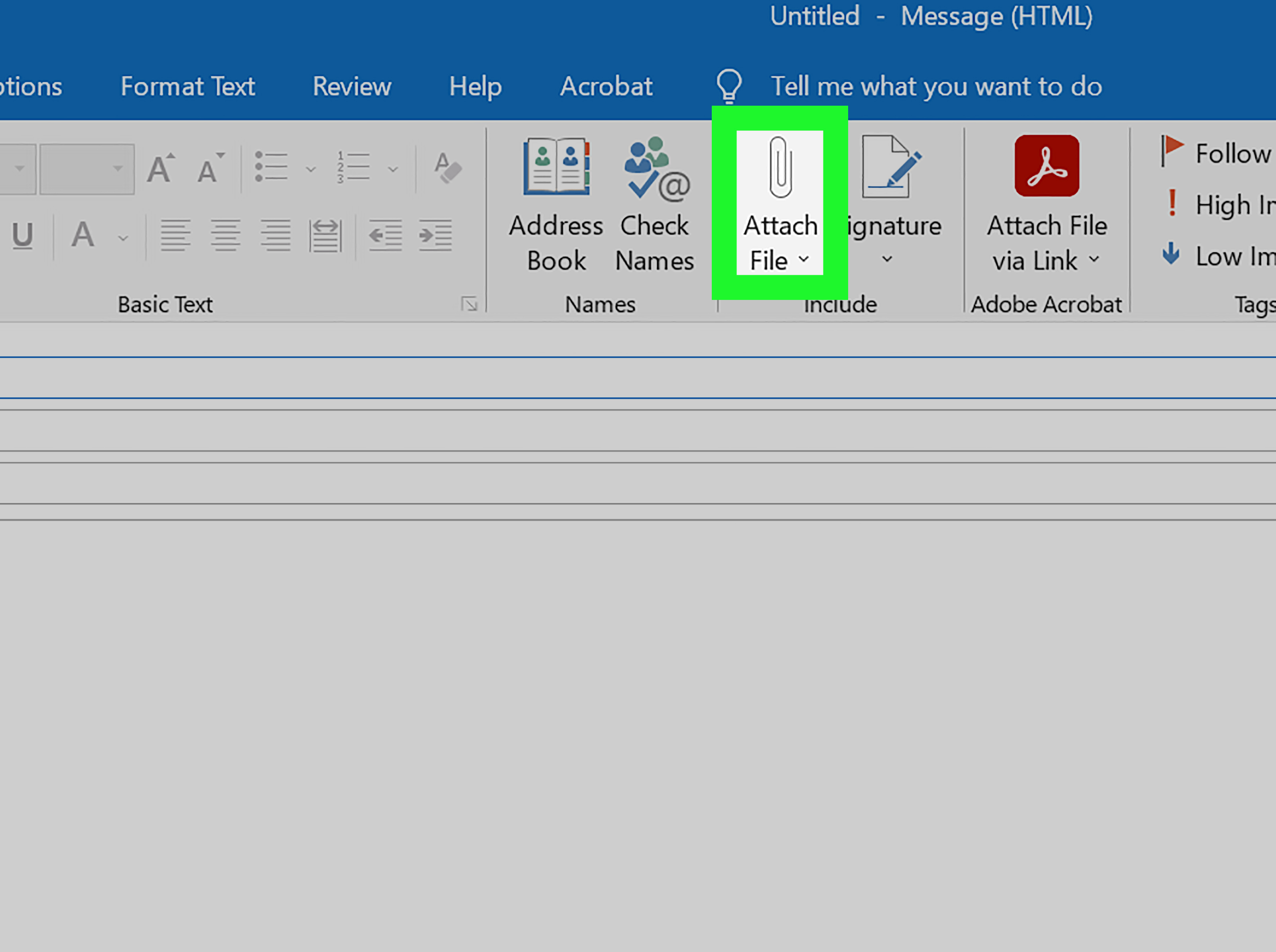
How to do it in new Outlook or classic Outlook on desktop
- Open a new message.
- Click Attach File.
- If the file is on your computer, choose it from your device.
- If it is large, use the attachment menu to upload it to OneDrive.
- Choose whether to send a link or attach a copy.
- Set permissions if you are sending a link.
- Add a short note in the email explaining what the recipient should expect.
- Send the message.
A good example would be sending a 38 MB quarterly presentation. Instead of attaching the deck directly and hoping for mercy, upload it to OneDrive from the compose window, choose Recipients can View, and send the link. Cleaner inbox, better deliverability, fewer regrets.
How to do it in Outlook on the web or Outlook.com
- Create a new email or reply to an existing one.
- Select Attach.
- Choose Browse this computer for a normal file, or OneDrive for a cloud link.
- Select the file.
- If you use OneDrive, choose the link option and confirm access settings.
- Double-check that the recipient can open the file.
- Send the email.
If the file is a folder, web-based Outlook usually handles that best through OneDrive sharing rather than as a traditional attachment. Email loves files. It remains deeply suspicious of folders.
How to Shrink a File Before Sending It
When you really do need to attach a file directly, shrinking it can make the difference between “message sent” and “message refused.” Here are the most practical ways to reduce file size:
Compress the folder or file
This is the fastest fix for multiple documents or lightly compressed content. It works especially well when you are sending reports, forms, text files, or project folders.
Reduce PDF size
Large PDFs often balloon because of embedded images, fonts, or scanned pages. Re-saving or compressing the PDF can cut it down significantly while keeping it readable. This is especially helpful for manuals, portfolios, and approval packets.
Resize images before attaching
If you are emailing photos, do not send twelve camera-original images unless someone specifically asked for them. Resize them, export web-friendly versions, or place them in a zipped folder. Your recipient will thank you, even if they never say it out loud.
Trim video and media files
Video is often the reason attachment dreams go to die. Trim unused footage, export a lower-resolution copy, or upload the video to cloud storage and send a link instead. Outlook is good at email. It is not a streaming platform wearing a fake mustache.
Remove unnecessary embedded content
Presentations and documents can become bloated by embedded media, duplicate graphics, unused slides, or pasted screenshots. A little cleanup goes a long way.
Link vs. Attachment: Which One Should You Choose?
| Situation | Best Choice | Why |
|---|---|---|
| You want collaboration | OneDrive link | Everyone works on the current version |
| You need a fixed final file | Attach a copy | The version stays frozen |
| The file is a little too big | ZIP + attach | Compression may bring it under the limit |
| The file is enormous | Cloud or transfer service | Email is not built for huge transfers |
| You are sending to external recipients | Copy or carefully permissioned link | Avoid access problems |
Common Outlook Large-File Problems and How to Fix Them
Problem: “Attachment size exceeds the allowable limit”
Fix: Compress the file, upload it to OneDrive, or split the send into smaller parts.
Problem: The recipient cannot open the OneDrive file
Fix: Check sharing permissions. If the file was shared only with people inside your organization, an outside recipient may be locked out. Switch to recipient-specific access or attach a copy instead.
Problem: You sent the wrong version
Fix: Use a OneDrive link next time when the file may change. If version locking matters, rename the final file clearly before attaching it.
Problem: You are trying to send a folder
Fix: Zip the folder or upload it to OneDrive and share the link.
Problem: Outlook blocks the file type
Fix: Some file types are considered unsafe. If the file is legitimate, store it in OneDrive or another approved platform and send a secure link instead of a direct attachment.
Security and Professional Etiquette Matter Too
Large-file sending is not just about getting around size limits. It is also about sending files in a way that is secure, easy to open, and not mildly annoying. Before you click send, ask yourself four questions:
- Does the recipient have permission to access the file?
- Am I sending a link when a frozen copy would be better?
- Does the file contain sensitive information that needs controlled access?
- Would a short explanation in the email save the recipient confusion?
A smart email might say: “I shared the file via OneDrive because the attachment is too large for standard email. You have view access only. Let me know if you want an editable copy.” That one sentence can prevent five back-and-forth messages and one unnecessary meeting.
Advanced Tip: Can You Increase Outlook’s Attachment Limit?
In some cases, yes, but this is where people get a little too adventurous. Certain Outlook desktop setups allow advanced users or administrators to raise the local attachment threshold. Business admins can also change message size settings in Microsoft 365 or Exchange. But raising a limit on your side does not magically upgrade the recipient’s mail server, and it does not make giant attachments a good long-term habit.
That is why increasing limits should be treated as a technical exception, not your main strategy. The modern best practice is still to use OneDrive or another secure sharing method for large files, especially when you work across different organizations.
Real-World Experience: What Actually Works Day to Day
In everyday work, the best large-file Outlook experience is usually the least dramatic one. The people who struggle most are often the ones trying to force traditional attachments to do jobs they were never designed to do. They keep retrying the same 47 MB file as if Outlook might suddenly wake up in a generous mood. It will not. Outlook is many things, but impulsively generous is not one of them.
What actually works in real life is simple. If the file is small, attach it normally. If it is medium and just over the edge, zip it and try again. If it is large, upload it and send a OneDrive link. If it is giant, use a transfer tool and put the link in the email. That four-step mindset saves time because it matches the reality of how email systems behave.
One common experience in offices is the “slide deck surprise.” Someone builds a presentation with beautiful images, embedded video, custom fonts, and a few charts copied from another source. On the surface, it looks like a normal PowerPoint. Under the hood, it is the digital equivalent of a fully loaded moving truck. They try to send it as an attachment, it fails, and everyone acts shocked. The practical fix is either compressing the media or sending a cloud link instead of pretending email should carry the whole production.
Another real-world lesson is that permission settings matter almost as much as file size. People often succeed in sending a OneDrive link but fail in sharing the file. The email arrives. The link looks professional. The recipient clicks it and gets blocked. That is why experienced Outlook users pause for five extra seconds to confirm whether the link is set for recipients, specific people, or organization-only access. Those five seconds are worth more than fifteen minutes of “Can you try opening it again now?”
There is also a difference between internal and external sending. Inside one company, cloud links often feel seamless because everyone already lives in the same Microsoft environment. Outside the company, things get trickier. Clients, vendors, and partners may not have the same permissions, the same habits, or the same patience. In those cases, sending an attachment copy or a clearly permissioned link is usually the safest move. Fancy collaboration is wonderful. Being easy to open is even better.
And then there is the emotional side of large attachments, which deserves at least a small honorable mention. Nothing raises stress faster than a file that must go out now, attached to an email drafted two minutes before a deadline, while Outlook throws a size warning like it is delivering life advice. The better habit is to prepare the file first, not the email first. Compress it, upload it, test the link, then write the message. That order feels slower, but it is usually faster because you avoid retries, bounced mail, and apology emails.
In practice, professionals who handle large files well tend to do three things consistently: they keep files organized in OneDrive, they know when to send a link versus a copy, and they explain access clearly in the email. That is the real secret. Not a hidden button. Not a magic setting. Just a smarter workflow.
Final Thoughts
If you need to send and attach large files through Outlook emails, the winning move is usually not brute force. It is choosing the right method for the file. Traditional attachments are fine for small, final documents. Zipped files are helpful when you are only a little over the limit. But for large reports, image libraries, videos, folders, and shared work, cloud links are the modern answer.
Once you stop treating email like a cargo ship, Outlook becomes much easier to work with. Send the right version, use the right permissions, and let the file travel the smart way. Your inbox, your recipients, and your blood pressure will all appreciate it.