Maybe someone in your house is named Alexa. Maybe your Echo wakes up whenever a television character says something vaguely similar. Or perhaps you simply want to shout “Computer!” and briefly pretend your kitchen is the bridge of a starship.
Whatever the reason, changing Alexa’s name is surprisingly easy. Technically, you are not renaming Amazon’s voice assistant; you are changing the wake word that tells an Echo device to start listening for a request. Amazon currently offers five standard choices: Alexa, Amazon, Computer, Echo, and Ziggy.
This guide explains how to change Alexa’s wake word using two quick methods, how to choose the right replacement, and what to do when the new name stubbornly refuses to cooperate.
Can You Really Change Alexa’s Name?
Yes, with one important limitation. You can change the word used to activate Alexa, but you cannot type in any custom name you like. Your Echo cannot become “Jarvis,” “Hal,” “Mom-Tron 3000,” or “The Orb of Household Knowledge” unless Amazon adds that option in the future.
For most Amazon Echo devices, the available wake words are:
- Alexa the familiar default.
- Amazon clear and brand-specific, although Amazon commercials may become unusually exciting.
- Computer ideal for science-fiction fans but less ideal for people who frequently discuss computers.
- Echo short, simple, and closely associated with Amazon’s speaker lineup.
- Ziggy distinctive, playful, and less likely to appear in ordinary conversation.
The inability to create a completely custom wake word is a built-in restriction, not a missing menu or account problem. Independent Alexa guides also confirm that users must select from Amazon’s approved list.
Wake Word vs. Device Name vs. Alexa’s Voice
These settings are easy to mix up because they all involve names or sounds:
- The wake word is what you say before giving a command.
- The device name identifies the speaker inside the Alexa app, such as “Kitchen Echo” or “Bedroom Dot.”
- Alexa’s voice controls how the assistant sounds when responding.
Changing the wake word does not rename the device in your app, erase routines, alter connected smart-home products, or automatically change Alexa’s speaking voice. Amazon provides separate controls for voice selection.
Trick 1: Change Alexa’s Name With a Voice Command
The fastest method requires no menu hunting, no tiny gear icon, and no desperate tapping while your coffee gets cold.
Steps to Change the Wake Word by Voice
- Stand near the Echo device you want to update.
- Say, “Alexa, change the wake word.”
- Listen as Alexa presents the available choices.
- Say the wake word you want to use.
- Wait for Alexa to confirm the change.
- Test it by saying the new wake word followed by a simple command, such as, “Ziggy, what time is it?”
Amazon officially supports the spoken command for changing the wake word, making this the quickest option when the Echo is connected and responding normally.
Remember to Use the New Word Immediately
Once the change is confirmed, the device may stop responding to “Alexa.” This is where many people assume the Echo has broken. It has not become moody; it is simply waiting for its new name.
For example, after choosing “Echo,” say:
“Echo, set a timer for five minutes.”
Do not keep repeating “Alexa” at increasing volume. Volume is not a substitute for the correct wake word, although it may entertain nearby family members.
When the Voice Method Works Best
This method is ideal when:
- You have only one Echo within hearing range.
- The device is online and responding correctly.
- You know which speaker you are standing near.
- You want the fastest possible solution.
Be careful in homes with several nearby Echo devices. More than one speaker may hear the original wake word, even though Amazon’s device-selection technology normally attempts to choose the most appropriate speaker to answer.
Trick 2: Change Alexa’s Name in the Alexa App
The Alexa app method takes slightly longer, but it gives you more control. It is especially useful when you own several Echo speakers and want to change one specific device without accidentally updating the wrong room.
Steps for Android and iPhone
- Open the Amazon Alexa app on your phone or tablet.
- Tap Devices.
- Select the Echo device you want to customize. Depending on the current app layout, you may first need to filter the list by Echo & Alexa.
- Tap the Device Settings gear icon.
- Scroll down and select Wake Word.
- Choose Alexa, Amazon, Computer, Echo, or Ziggy.
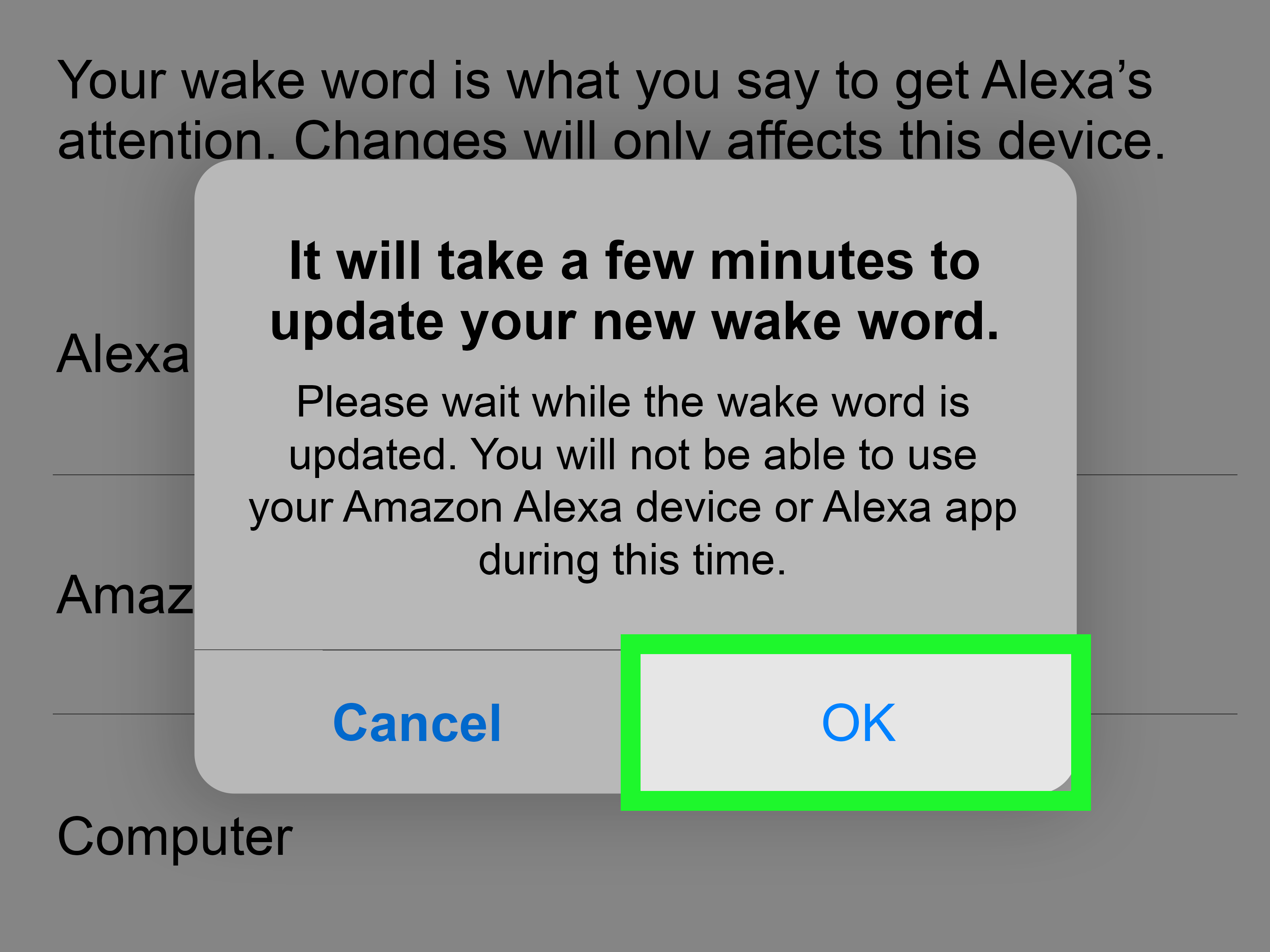
- Confirm the selection if prompted.
- Wait briefly, then test the new wake word.
Amazon’s current help instructions direct users through Devices, the selected Echo, Device Settings, and Wake Word. The Alexa mobile app is also Amazon’s primary tool for managing compatible devices and their settings.
Change Each Echo Separately
The wake word is generally assigned per device rather than globally. If your home contains four Echo speakers, changing the kitchen speaker to “Ziggy” does not necessarily change the bedroom, office, and living-room speakers.
This gives you a useful way to separate devices that can hear one another. For example:
- Kitchen Echo: Alexa
- Living-room Echo: Computer
- Upstairs Echo: Ziggy
Historical and current consumer guides consistently describe wake-word selection as a device-by-device setting.
Allow Time for the Update
The change may apply almost immediately, but it can occasionally take a few minutes. Keep the Echo connected to Wi-Fi and power while the setting updates. Test both the new and old wake words before assuming something has failed.
If the app says the new word is active but the device still answers only to “Alexa,” wait briefly and restart the Echo by unplugging it for about 30 seconds before reconnecting it.
Which Alexa Wake Word Should You Choose?
There is no universally perfect choice. The best Alexa wake word is the one that is easy for everyone in your household to pronounce and uncommon enough to avoid accidental activations.
Choose “Alexa” for Familiarity
Stick with Alexa when everyone already remembers it and false activations are rare. It is the default for a reason: it is distinctive, easy to say, and widely recognized as a voice-assistant command.
Choose “Ziggy” to Reduce Accidental Wake-Ups
Ziggy is unusual in everyday conversation, making it a strong option when television dialogue or household chatter frequently activates your Echo. It also sounds different from common names such as Alex, Alexis, Alyssa, or Alexa.
Choose “Computer” for Fun
Computer creates a delightfully futuristic atmosphere. However, it can be a poor choice in offices, gaming rooms, classrooms, or homes where people regularly say things such as, “The computer is frozen again.” Your Echo may interpret that as an invitation to join the troubleshooting session.
Choose “Echo” for Simplicity
Echo is short and easy to remember. The downside is that it may appear in music, movies, conversations, or discussions about Echo devices themselves.
Choose “Amazon” With Caution
Amazon is clear and recognizable, but it is also common in shopping conversations, news reports, videos, and advertisements. If your household frequently discusses online orders, Alexa may become an uninvited participant.
Changing the wake word can reduce accidental activations, although no choice can eliminate them completely. Television audio and similar-sounding speech may still occasionally trigger a smart speaker.
Why Change Alexa’s Wake Word?
Someone in Your Home Has a Similar Name
If a family member is named Alexa, Alex, Alexis, or Alyssa, keeping the default wake word can create daily confusion. Asking Alexa to pass the salt may not work, but asking human Alexa to play jazz could produce an equally disappointing result.
Amazon specifically identifies similarity to a household member’s name as a reason to select another wake word.
Your Echo Activates During Television Shows
Smart speakers listen locally for acoustic patterns that resemble their selected wake word. When the device believes it has heard that pattern, it begins processing the following request. A television presenter, podcast host, or nearby conversation can occasionally sound close enough to trigger it.
Several Echo Devices Are Too Close Together
Amazon designs Echo devices to determine which unit is closest to the speaker, but room acoustics, open doorways, and speaker placement can complicate that decision. Assigning different wake words can make device targeting more predictable.
You Want a More Personalized Smart Home
A small change can make voice control feel less generic. “Ziggy, turn on the patio lights” has a different personality from the default command, while “Computer, begin movie night” delivers maximum theatrical value for minimum effort.
What to Do When Alexa’s New Name Does Not Work
1. Confirm That You Changed the Correct Device
Open the Alexa app, return to Devices, select the Echo in question, and check the Wake Word setting. Similar device names such as “Echo Dot” and “Second Echo Dot” make mistakes surprisingly easy. Rename your devices by room to prevent future confusion.
2. Wait a Few Minutes
The device may need time to download or apply the updated setting. Leave it connected to the internet and try again shortly.
3. Restart the Echo
Unplug the power adapter, wait approximately 30 seconds, and reconnect it. Once the device finishes starting, test the new wake word with a basic request.
4. Check the Microphone Button
If the Echo displays a red light or red indicator, its microphone may be muted. Press the microphone button to restore listening. A muted Echo will ignore every wake word, including the correct one.
5. Speak Clearly From Nearby
Background music, running water, loud appliances, and television audio can interfere with recognition. Stand near the speaker, lower surrounding noise, and say the new wake word naturally.
6. Update the Alexa App
An outdated app can display old menus or fail to synchronize settings properly. Install the latest available version from the Apple App Store or Google Play Store, reopen the app, and check the device setting again.
7. Consider Device Limitations
Not every third-party product with Alexa built in supports alternative wake words. Some non-Amazon speakers, soundbars, thermostats, phones, or accessories may remain limited to “Alexa,” even when Echo-branded devices offer additional choices.
Frequently Asked Questions
Can I Change Alexa’s Name to Jarvis?
No. Standard Echo users cannot create an unrestricted custom wake word. You must choose from the wake words Amazon makes available for that device and region.
Can Different Echo Devices Use Different Names?
Yes. You can usually assign a separate wake word to each supported Echo. This is helpful when multiple speakers are located within hearing distance of one another.
Will Changing the Wake Word Break My Routines?
No. Existing alarms, timers, smart-home connections, skills, groups, and routines should remain intact. Only the activation word changes.
Can I Change Alexa’s Wake Word From a Computer?
Amazon’s mobile Alexa app is the most consistently supported way to manage Echo settings. Web-based Alexa experiences may offer conversational or account features, but device controls can differ, so the Android or iOS app remains the safer choice for changing a wake word.
Does Changing Alexa’s Name Improve Privacy?
A less common wake word may reduce accidental activations, but it does not fundamentally change how the device handles intentional voice requests. Privacy controls, recording history, microphone muting, and data settings are managed separately in the Alexa app.
Can I Change Alexa’s Voice Too?
Yes. Say, “Alexa, change your voice,” or open the selected Echo’s settings in the Alexa app and look for Alexa’s Voice. Voice options and availability can vary by language, device, account, and region.
Practical Experience Notes: What the Change Feels Like in Everyday Use
The following observations summarize common real-home situations rather than pretending every room, speaker, and household behaves identically. Changing the wake word takes only a minute; retraining the humans may take considerably longer.
The First Day Usually Includes a Lot of Wrong Names
The most noticeable problem after switching from Alexa to Ziggy, Echo, or Computer is not technical. It is muscle memory. People who have used an Echo for years will continue saying “Alexa” automatically, pause when nothing happens, and then stare at the speaker as though it has betrayed the family.
A simple reminder helps. Place a small note beside the speaker for a day or two: “My name is Ziggy now.” Children usually adapt first because they treat the change like a game. Adults may continue calling the device Alexa for a week while insisting they are “still getting used to it.”
Different Wake Words Can Improve Multi-Room Control
Consider an open-plan home where the kitchen and living-room Echo speakers can hear the same command. Using “Alexa” for both may cause the wrong unit to respond occasionally, especially when the person speaking is standing between rooms.
Assigning “Alexa” to the kitchen and “Ziggy” to the living room creates an easy verbal address system. “Alexa, set a cooking timer” clearly targets the kitchen. “Ziggy, play the television playlist” targets the living room. This arrangement can feel more reliable than hoping the speakers correctly determine which one is closest every time.
Changing the Word Can Reduce Television Interruptions
A household that regularly watches programs containing a character named Alexa may experience repeated accidental activations. The Echo lights up, lowers the music, and waits for a command that never arrives. Switching to Ziggy often reduces that particular problem because the word appears less frequently in ordinary dialogue.
Results depend on viewing habits. “Computer” may be a terrible choice for science-fiction fans or technology channels. “Amazon” may react during shopping news. The smartest strategy is to choose the word least likely to appear in the content your household consumes.
Pronunciation Matters More Than Personality
Ziggy may sound entertaining, but the best wake word is the one every household member can say comfortably. Children, older adults, and people with speech differences may find one option easier than another. Testing all five words is more useful than choosing one solely because it sounds cool.
Try each candidate several times from normal speaking positions. Test it near the sink, from the sofa, and while low-volume music is playing. A wake word that works perfectly from two feet away may be less reliable from across a noisy kitchen.
The App Method Feels Safer in a Large Alexa Setup
The voice command is wonderfully fast for one speaker. In a home with six similarly named devices, the app provides better certainty. You can see exactly which Echo is being edited, verify its room, and check the selected wake word afterward.
Renaming devices inside the app also improves the experience. Labels such as “Kitchen Echo,” “Office Dot,” and “Upstairs Show” are far easier to manage than a mysterious list containing “Echo Dot,” “Echo Dot 2,” and “John’s 3rd Echo Dot.” Good organization prevents the tiny smart-home mystery of wondering which speaker you just converted into Ziggy.
The Best Setup Is Often a Mix
Using the same wake word throughout a home is simple, but mixing two or three options can solve overlapping-room problems. The key is consistency by location. Changing every speaker to a different word may create more mental work than it saves.
A practical arrangement might use Alexa in bedrooms, Ziggy in the main living area, and Computer in a dedicated office. After a short adjustment period, the wake words become verbal room labels. The technology has not become dramatically smarter; the household has simply given it clearer instructions.
Conclusion
Learning how to change Alexa’s name is really a matter of changing the Echo’s wake word. The quickest approach is to say, “Alexa, change the wake word,” and follow the spoken prompts. For more control, open the Alexa app, select the correct device, enter Device Settings, and choose Wake Word.
You cannot create any custom name you want, but Alexa, Amazon, Computer, Echo, and Ziggy provide enough variety to reduce accidental activations, separate nearby speakers, or add a little personality to your smart home. Choose a word that is easy to pronounce, uncommon in your household, and unlikely to be shouted by someone on television every 12 minutes.