Changing the language on a cell phone sounds simple until your screen suddenly looks like it enrolled in a foreign exchange program without asking you first. One wrong tap, and your familiar Settings menu starts looking like a pop quiz. The good news is that changing your phone’s language is usually quick, safe, and reversible. You do not need to factory reset anything, sacrifice your weekend, or beg your tech-savvy cousin for help.
Whether you use an iPhone, a Samsung Galaxy, a Pixel, a Motorola phone, or another Android device, there are usually three practical ways to handle language settings. You can change the entire phone language, switch the language for just one app, or change the keyboard language without touching the rest of the system. That means you can make your phone fully Spanish, keep your device in English while one banking app uses French, or type in Vietnamese without turning your whole phone into a mystery novel.
In this guide, we’ll break down all three methods in plain English, show you when each one makes the most sense, explain what to do if the phone is already in a language you cannot read, and share real-world experiences that make this topic way more useful than a bland instruction list. Let’s fix your phone’s language situation before it starts acting like it has moved abroad permanently.
Why You Might Want to Change Your Phone Language
People change phone language settings for all kinds of reasons. Maybe you bought a used phone and it arrived set to another language. Maybe you are bilingual and want your device to match the language you use every day. Maybe you are learning a new language and want extra practice every time you unlock your screen. Or maybe you changed the wrong setting by accident and now even the calculator feels intimidating.
There is also a big difference between language, region, and keyboard input. Language changes the words you see in menus and supported apps. Region can affect things like date style, measurement system, temperature unit, and the first day of the week. Keyboard language only changes how you type. If you understand those three buckets, the whole process becomes much less confusing.
Method 1: Change the Entire Phone Language
This is the cleanest option when you want everything to match one language: menus, settings, system prompts, and apps that follow your phone’s default language. It is also the method to use if your device is currently set to the wrong language.
How to Change the Language on an iPhone
- Open Settings.
- Tap General.
- Select Language & Region.
- Tap Add Language if your language is not already listed.
- Choose your language.
- Select your primary language when prompted.
After that, the iPhone updates the system language. On Apple devices, the same area also lets you adjust region-related details such as calendar format, temperature unit, measurement system, and the first day of the week. So if your phone suddenly shows dates in a format that makes you squint, region settings may be part of the story.
How to Change the Language on Android
- Open Settings.
- Go to System or, on some phones, General management or Additional settings.
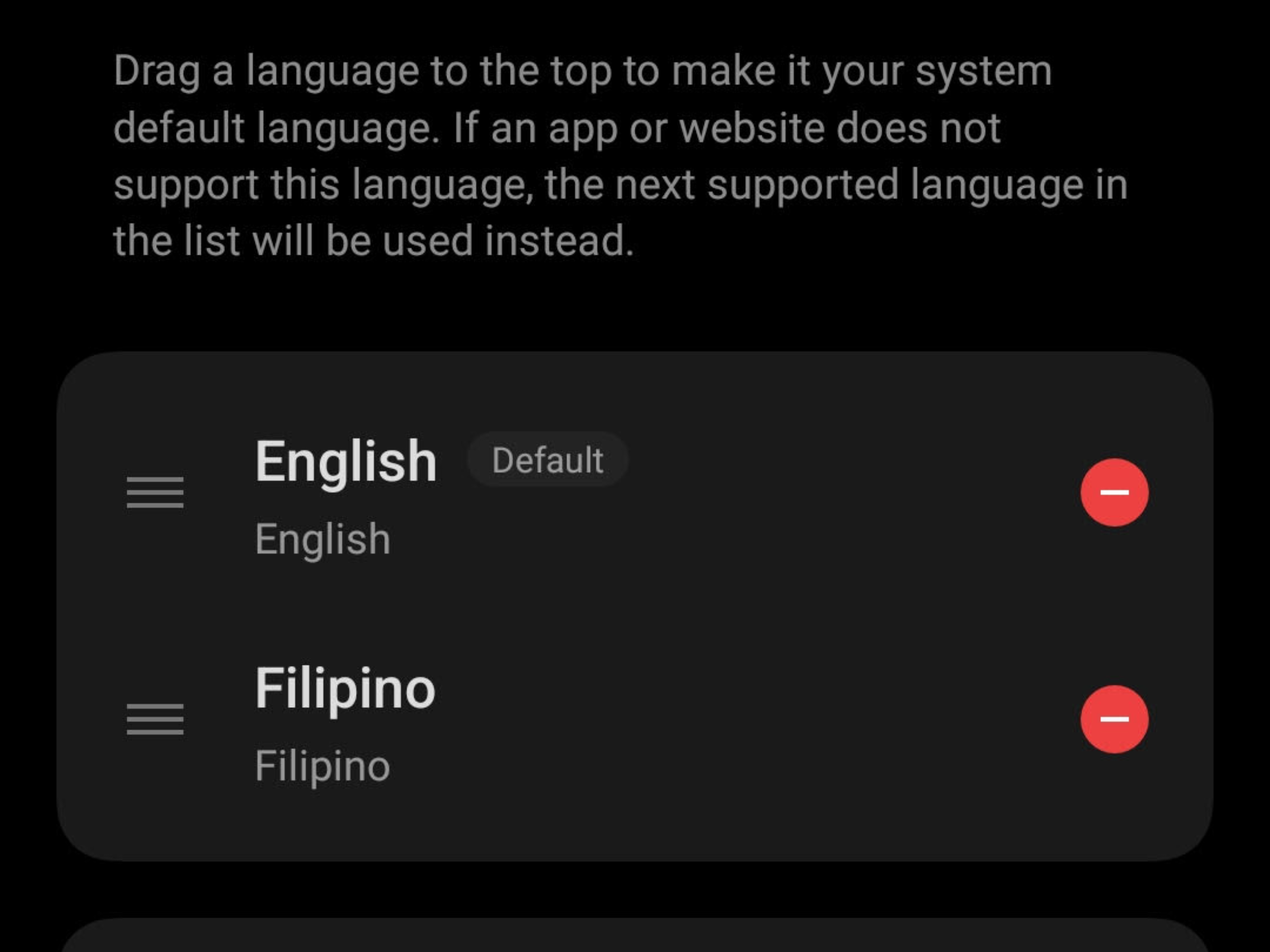
- Tap Languages & input, Language & region, or a similar option.
- Open Languages.
- Tap Add a language.
- Choose your preferred language.
- Move it to the top of the list or tap Apply, depending on the device.
Android is a little more adventurous than iPhone, which is a polite way of saying the menu names can vary by brand. On a Pixel, you will usually find language settings under System > Language & region. On Samsung, it is often General management > Language. On some other Android phones, it may sit under Additional settings or Languages & input. Same mission, slightly different hallway.
Best time to use this method: when you want the whole phone in one language, when the device was set up incorrectly, or when a lot of apps should follow the same default language.
Method 2: Change the Language for Just One App
This method is perfect when you do not want to change the entire phone. Maybe your phone is in English, but you want one messaging app in Spanish. Or maybe you are learning Japanese and want only a reading app to switch languages while the rest of the phone stays normal and sane.
How App-Specific Language Works
On newer Android phones, you can often change the language for an individual app without touching the rest of the device. This is especially useful for bilingual users, students, travelers, and anyone who wants flexibility without full-system chaos.
- Open Settings.
- Tap System.
- Go to Languages or Language & region.
- Tap App Languages.
- Select the app you want to change.
- Choose the desired language.
On Pixel devices, the menu is usually easy to find. On Samsung phones running newer Android versions, app language controls may also be available. If the app does not appear in the list, that usually means the developer has not enabled app-specific language support. In other words, your phone is not being difficult for sport. The app just may not support the feature.
What If the App Language Does Not Change?
If an app refuses to cooperate, try these practical fixes:
- Make sure the app supports language selection.
- Update the app to the latest version.
- Add the language as a secondary phone language first.
- Restart the app after changing the setting.
- Make sure the phone has a network connection if the app needs to refresh language resources.
Best time to use this method: when you want one app in a different language, when you are learning a language, or when you need a work app and personal apps to behave differently.
Method 3: Change Only the Keyboard Language
This is the underrated hero of the bunch. If you only need to type in another language, you do not need to change your full phone language. You just need to add another keyboard. This is the best option for multilingual texting, email, messaging, social media, and those moments when autocorrect is clearly determined to embarrass you in two languages at once.
How to Change Keyboard Language on iPhone
- Open Settings.
- Tap General.
- Select Keyboard.
- Tap Add New Keyboard.
- Choose the language you want.
Once added, you can switch keyboards while typing by tapping the globe icon. On supported language combinations, iPhone can also make multilingual typing feel smoother by handling more than one language on the keyboard.
How to Change Keyboard Language on Android
If you use Gboard:
- Open any app where you can type.
- Bring up the keyboard.
- Tap the keyboard Settings icon if available.
- Select Languages.
- Tap Add keyboard.
- Choose the language and layout you want.
If you use Samsung Keyboard:
- Open Settings.
- Tap General management.
- Open Samsung Keyboard settings.
- Tap Languages and types.
- Select Manage input languages.
- Turn on the language you want to use.
The best part? Changing your keyboard language does not automatically change your phone’s menus. So you can keep the device in English while typing in Arabic, Spanish, Korean, French, or whatever language your conversations require.
Best time to use this method: when you only need multilingual typing, when family or work chats involve more than one language, or when you want better autocorrect and prediction in another language.
What to Do If Your Phone Is Already in a Language You Cannot Read
This situation feels dramatic, but it is usually fixable. Start by looking for the Settings gear icon. On iPhone, tap the gear icon, then look for the menu that matches the position of General, then Language & Region. Apple’s support flow is designed to help even if the current language is unfamiliar. On Android, open Settings, then look for System, General management, or Additional settings, depending on the brand.
If your phone has a search bar inside Settings, use it. Type a language name such as “English” or the name of your target language in your current script if possible. You can also ask a second device to show step-by-step screenshots for your phone model. This is one of those times when another phone becomes the hero of the story.
If you accidentally changed only the keyboard, do not panic. Your system language may still be fine. Open any typing field, switch the keyboard back using the globe icon or language key, and continue pretending you meant to do that.
Common Mistakes People Make
Confusing Language with Region
Changing language changes the text on the phone. Changing region can affect date style, temperature units, measurement system, and related formatting. If your phone suddenly shows Monday as the first day of the week or changes from Fahrenheit to Celsius, region settings may have changed too.
Changing the Keyboard Instead of the Whole Phone
A lot of people add a new keyboard and then wonder why the menus are still in English. That is because keyboard settings affect typing, not system menus.
Expecting Every App to Support Its Own Language
Some apps support app-specific language settings. Some do not. If the app is missing from the language list, the limitation is often with the app, not your phone.
Assuming Every Android Phone Uses the Same Menu Names
Android brands love personality. Unfortunately, that personality sometimes shows up as different settings names. If you cannot find the exact path, search within Settings for “language,” “region,” or “keyboard.”
Which Method Should You Choose?
Use Method 1 if you want the entire phone experience in one language. Use Method 2 if you only want one app to switch languages while the rest of the device stays the same. Use Method 3 if you only need to type in another language and want better autocorrect, suggestions, and input options.
If you are still unsure, here is the simplest rule: change the smallest thing that solves the problem. If you only need to type, change the keyboard. If only one app is bothering you, change that app. If the whole phone is wrong, change the system language. Your future self will appreciate the lack of unnecessary drama.
Real-Life Experiences With Changing Phone Language
In real life, changing the language on a cell phone is rarely just a settings exercise. It usually connects to a bigger story. A college student might switch her phone to Spanish for extra practice between classes, then keep her banking and school apps in English because deadlines are stressful enough without translating financial vocabulary. A traveler landing in another country may leave the phone in English but add a local keyboard so typing addresses, names, and restaurant searches becomes much easier. That small change can save time, reduce mistakes, and make the phone feel instantly more useful.
For older adults, this setting can be a huge comfort feature. Imagine a parent or grandparent receiving a new phone that defaults to English even though they are much more comfortable in Korean or Vietnamese. Once the full system language is changed, the phone becomes less intimidating. Menus make sense, alerts are readable, and the device starts feeling personal instead of confusing. Sometimes one language adjustment does more for confidence than an hour-long tutorial.
Bilingual families also run into this all the time. One family member may prefer the phone in English for work, while another needs a different keyboard for texting relatives overseas. In that case, adding a keyboard instead of changing the full system is the sweet spot. The phone stays familiar, but communication becomes smoother. No one has to wrestle with autocorrect turning names into nonsense or changing every message into a grammar experiment.
There is also the accidental-language-switch experience, which deserves its own comedy award. A person taps the wrong setting, hands the phone to a child for five minutes, or explores menus with too much confidence and suddenly the phone is speaking a language they do not recognize. It feels catastrophic for about three minutes. Then they discover that the fix is usually a short walk back through Settings. The lesson is comforting: phones are surprisingly forgiving, and language mistakes are almost always reversible.
Students and language learners often get the most long-term value from these settings. Changing one app or adding a second keyboard creates tiny, repeated language exposure throughout the day. That is more effective than people expect. You start recognizing common words, navigation labels, and phrases without sitting down for a formal lesson. It turns the phone into a low-effort practice tool instead of just a glowing rectangle that steals your attention.
For work, the experience is often about precision. Delivery drivers, customer service teams, freelancers, and people who juggle contacts across countries may need one language for system navigation and another for typing or app content. The ability to separate system language from keyboard language or app language is what makes modern phones flexible. You do not have to choose one all-or-nothing setup anymore.
That is really the bigger point: changing phone language is not just about words on a screen. It is about comfort, clarity, speed, and control. When the phone speaks your language, literally or practically, everything from texting to scheduling to reading notifications becomes easier. And honestly, that is a beautiful thing for a setting hidden three menus deep.
Conclusion
If you need to change the language on a cell phone, the fastest solution depends on what you actually want to change. For a full-device switch, update the system language. For just one app, use app language settings when the device and app support them. For typing only, add a new keyboard and leave the rest of the phone alone. Once you understand those three methods, the process becomes simple instead of stressful.
So the next time your phone starts talking in a language you were not emotionally prepared for, remember this: you are probably only a few taps away from peace.