Your Mac screen is not just a glowing rectangle where emails go to multiply. It is also a highly customizable display that can be warmer, cooler, darker, brighter, grayscale, color-filtered, professionally calibrated, or simply less harsh on your tired eyeballs after a long day of pretending one browser tab will be enough.
Whether you want to reduce eye strain, make colors easier to distinguish, fix a weird display tint, switch your Mac to black and white, or adjust the color profile for photo editing, macOS gives you several built-in tools. The trick is knowing which setting does what. Night Shift is not the same as Dark Mode. True Tone is not the same as a color profile. Grayscale is not a sign your Mac has joined an old movie club. Each setting changes the screen color display in a different way.
In this guide, you will learn how to change the screen color display on a Mac using Display settings, Accessibility options, color filters, Night Shift, True Tone, appearance settings, and color profiles. We will also cover troubleshooting tips and real-world experience so you can choose the best setup for work, reading, design, streaming, or late-night scrolling.
What Does “Change Screen Color Display on a Mac” Mean?
Changing the screen color display on a Mac can mean several things. Some users want the screen to look warmer at night. Others want to turn the entire display black and white. Designers may want accurate color profiles. People with color vision differences may need filters that make certain colors easier to separate. And some users simply want Dark Mode because bright white windows at midnight feel like being interrogated by a refrigerator.
Here are the main ways you can adjust Mac display colors:
- Night Shift: Warms the display color temperature after dark.
- True Tone: Automatically adapts screen color to nearby lighting.
- Color Filters: Adds grayscale, tint, or color vision filters.
- Invert Colors: Reverses display colors for easier viewing.
- Dark Mode: Changes the interface from light to dark.
- Color Profile: Changes how your display interprets and shows color.
- Display Calibration: Creates a custom profile for more accurate color.
- Reduce White Point and Increase Contrast: Makes the screen easier on the eyes.
The best option depends on your goal. For sleep-friendly evenings, try Night Shift. For visual accessibility, use Color Filters. For creative work, check color profiles and calibration. For comfort, combine Dark Mode with Reduce White Point. Your Mac is flexible. You just have to stop yelling at the screen and open System Settings.
How to Change the Screen Color Display on a Mac Using Display Settings
The main place to begin is the Displays section in System Settings. This is where macOS keeps the standard screen controls for brightness, True Tone, Night Shift, refresh rate, resolution, external monitors, and color profiles.
Step-by-Step: Open Display Settings
- Click the Apple menu in the top-left corner of your screen.
- Select System Settings.
- Click Displays in the sidebar.
- Select your built-in display or external monitor if more than one screen is connected.
- Adjust the available display color options.
If you use an external monitor, always select the correct display before changing settings. Otherwise, you may spend ten minutes adjusting your MacBook display while wondering why your external monitor still looks like it was dipped in blue soup.
How to Use Night Shift on a Mac
Night Shift changes your Mac display to a warmer color temperature. Instead of bright blue-white light, your screen becomes more amber or yellowish. This can feel more comfortable in the evening or in low-light rooms.
Night Shift is especially useful if you work at night, read on your Mac before bed, or want your screen to feel less sharp after sunset. It does not change the layout of apps, icons, or menus. It only shifts the color tone of the display.
How to Turn On Night Shift
- Open System Settings.
- Click Displays.
- Click Night Shift.
- Choose a schedule: Off, Custom, or Sunset to Sunrise.
- Use the Color Temperature slider to make the screen less warm or more warm.
For most people, a medium warmth level is the sweet spot. Push it too far and your Mac starts to look like it is displaying everything through a glass of orange juice. That may be cozy, but it is not ideal for photo editing, shopping for clothes online, or judging whether a steak is cooked properly in a recipe video.
When Should You Use Night Shift?
Use Night Shift when you want a warmer screen in the evening, especially during reading, writing, browsing, or casual work. Turn it off when color accuracy matters. If you are editing photos, designing graphics, choosing brand colors, or grading video, Night Shift can make colors look warmer than they really are.
How to Turn True Tone On or Off
True Tone automatically adjusts your Mac display based on the ambient light around you. If your room lighting is warm, the display may look warmer. If the lighting is cooler, the screen may shift cooler. The goal is to make the screen look more natural in different environments.
True Tone is available only on supported Mac models and supported Apple displays. If you do not see the option, your Mac or monitor may not support it.
How to Enable or Disable True Tone
- Open System Settings.
- Click Displays.
- Select your display if you use multiple screens.
- Turn True Tone on or off.
True Tone is great for everyday comfort. However, like Night Shift, it can affect color perception. If you are doing color-sensitive work, turn True Tone off before editing. Otherwise, your carefully chosen “soft cream” design may become “mystery beige” on someone else’s screen.
How to Change Your Mac to Grayscale
Grayscale changes your Mac display to black, white, and shades of gray. It is useful for reducing visual distractions, improving focus, testing design contrast, or making the screen easier to view for some users.
Many people use grayscale as a digital wellness trick. Colorful icons, red badges, and bright thumbnails are designed to attract attention. Turn them gray, and suddenly your Mac feels less like a carnival and more like a library with Wi-Fi.
How to Turn On Grayscale on a Mac
- Open System Settings.
- Click Accessibility.
- Select Display.
- Go to Color Filters.
- Turn on Color Filters.
- Open the Filter Type menu.
- Choose Grayscale.
Your entire screen should immediately switch to grayscale. Apps, icons, photos, videos, websites, and menus will appear without color. Do not panic. Your Mac is not broken. It is just being dramatic in monochrome.
How to Turn Grayscale Off
- Go back to System Settings.
- Click Accessibility.
- Select Display.
- Open Color Filters.
- Turn Color Filters off.
If your Mac screen suddenly looks black and white and you did not mean to enable grayscale, this is the first setting to check.
How to Use Color Filters for Color Vision Differences
macOS includes color filters designed to help users with color vision deficiencies. These filters can make it easier to distinguish colors that may otherwise look too similar.
Common filter types include:
- Grayscale: Removes color from the screen.
- Red/Green Filter: Helps with protanopia-related color differences.
- Green/Red Filter: Helps with deuteranopia-related color differences.
- Blue/Yellow Filter: Helps with tritanopia-related color differences.
- Color Tint: Applies a custom tint across the display.
How to Apply a Color Filter
- Open System Settings.
- Click Accessibility.
- Click Display.
- Turn on Color Filters.
- Choose the filter type that works best for you.
- Adjust the Intensity slider if available.
- If using Color Tint, choose the tint color and strength.
The best filter is personal. Try each option on a screen with colorful charts, app icons, photos, and text. A filter that helps one person may look strange to another. There is no “correct” setting, only the one that helps you see more clearly.
How to Invert Colors on a Mac
Invert Colors reverses the colors on your display. Light areas become dark, dark areas become light, and colors flip to their opposites. This can make text easier to read for some users, especially in high-glare or low-light environments.
How to Turn On Invert Colors
- Open System Settings.
- Click Accessibility.
- Select Display.
- Turn on Invert Colors.
Invert Colors is more intense than Dark Mode. Dark Mode changes supported apps and menus to a dark interface. Invert Colors changes the actual display colors. It can be useful, but it can also make photos, videos, and websites look unusual. Use it when it helps, and turn it off when your vacation photos start looking like they were taken on another planet.
How to Use Dark Mode on a Mac
Dark Mode changes the macOS interface from light backgrounds to darker ones. It affects menus, windows, built-in apps, and many third-party apps that support system appearance settings. Unlike Night Shift or Color Filters, Dark Mode does not change the actual color temperature of your display. It changes the interface style.
How to Turn On Dark Mode
- Open System Settings.
- Click Appearance.
- Choose Light, Dark, or Auto.
Light keeps your Mac in a bright appearance. Dark keeps it dark all the time. Auto switches between Light and Dark based on your schedule and system behavior.
Customize Accent and Highlight Colors
In the same Appearance settings, you can change the accent color and highlight color. The accent color affects buttons, pop-up menus, and other interface controls. The highlight color appears when you select text.
This is a small change, but it can make your Mac feel more personal. Blue is classic. Purple is stylish. Graphite is serious. Pink says, “Yes, I organize spreadsheets, but I also have personality.”
How to Change the Color Profile on a Mac
A color profile tells your Mac how to display colors on a specific screen. macOS usually chooses the recommended profile automatically, and most users should leave it alone. However, changing the profile can help if your display looks too warm, too cool, washed out, oversaturated, or inaccurate.
How to Change a Mac Display Color Profile
- Open System Settings.
- Click Displays.
- Select the display you want to adjust.
- Find the Color Profile menu.
- Choose a different profile from the list.
If you are unsure which profile to use, start with the recommended default. Apple displays are generally tuned well out of the box. External monitors may offer different profiles depending on the brand, panel type, and connection.
When Should You Change the Color Profile?
Change the color profile if your screen looks wrong compared with another trusted display, your external monitor has a strong tint, or your work requires more predictable color. For casual browsing and office tasks, the default profile is usually best.
For photographers, designers, illustrators, and video editors, color profiles matter more. A poor profile can make you edit an image too warm, too cool, too saturated, or too dark. Then you export it, view it elsewhere, and discover your masterpiece looks like it was color-graded by a confused raccoon.
How to Calibrate Your Mac Display
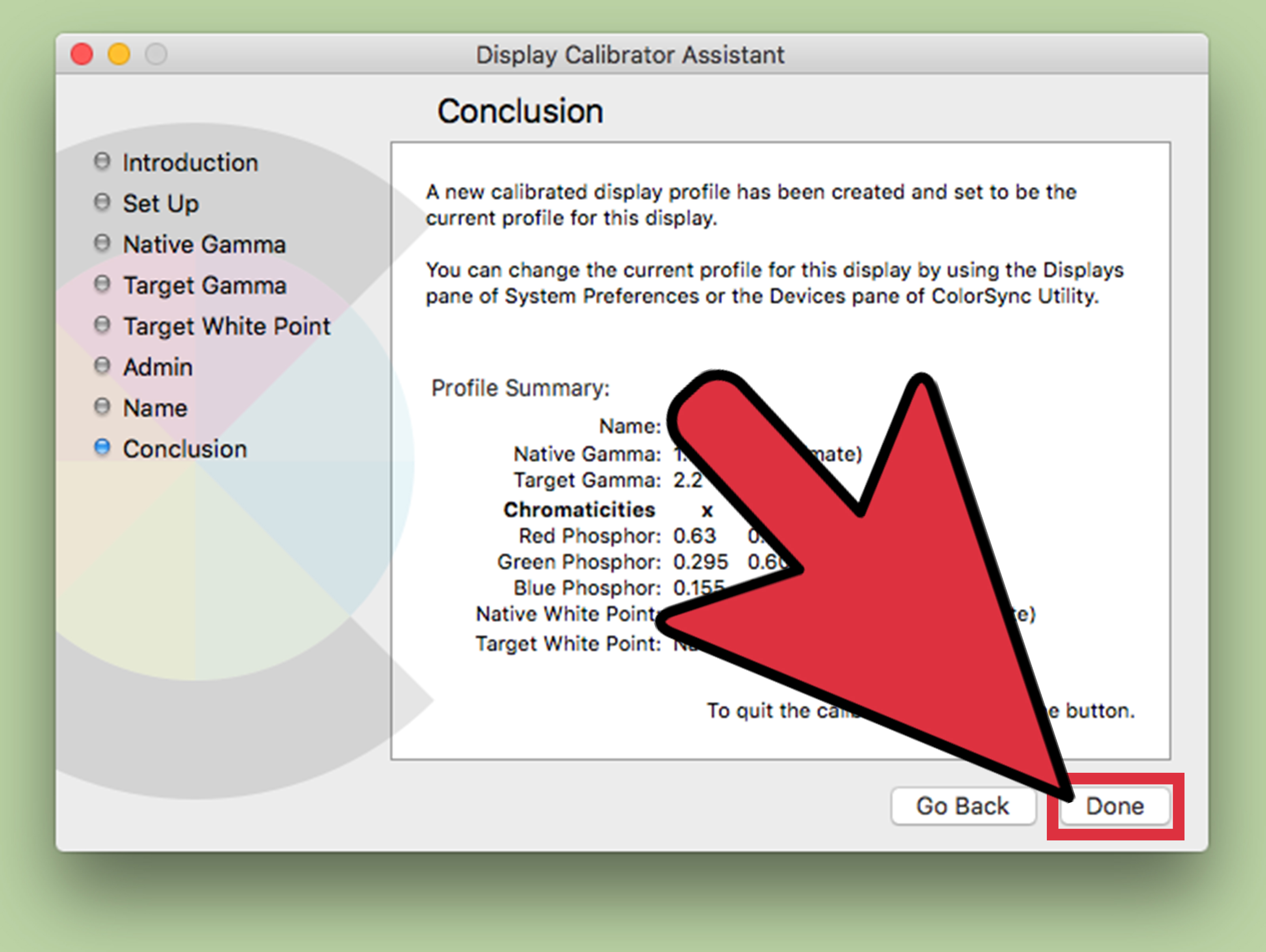
Display calibration helps create a custom color profile for your screen. This can improve color consistency, especially with external displays. macOS includes a Display Calibrator Assistant for compatible displays and workflows.
Basic Display Calibration Steps
- Open System Settings.
- Click Displays.
- Open the Color Profile menu.
- Choose Customize.
- Click the add button to open Display Calibrator Assistant.
- Follow the on-screen instructions.
- Save the new custom profile.
For casual users, built-in calibration is enough for small adjustments. For professional color work, a hardware colorimeter is better. It measures your display instead of relying only on your eyes, which are wonderful but also easily fooled by room lighting, screen brightness, and whether you have had enough coffee.
How to Reduce White Point for a Softer Display
Reduce White Point lowers the intensity of bright colors. This can make the screen feel gentler without simply reducing brightness. It is useful when your Mac still feels too bright even at a low brightness setting.
How to Reduce White Point
- Open System Settings.
- Click Accessibility.
- Select Display.
- Turn on Reduce White Point.
- Adjust the slider until the display feels comfortable.
This is one of the most underrated Mac display settings. If you read long documents, work late, or get eye fatigue from bright screens, try it. It can make white backgrounds less aggressive without making the entire screen unusably dim.
How to Increase Contrast and Reduce Transparency
macOS also includes settings that can make the display easier to read. Increase Contrast makes interface boundaries more visible. Reduce Transparency makes translucent areas, such as menus and sidebars, more solid.
How to Adjust Contrast and Transparency
- Open System Settings.
- Click Accessibility.
- Select Display.
- Turn on Increase Contrast if you want clearer edges.
- Turn on Reduce Transparency if see-through panels are distracting.
These options do not completely recolor your screen, but they change how the interface appears. They are especially helpful if you find macOS too soft, blurry, or low contrast.
How to Quickly Toggle Display Color Settings
If you switch display settings often, use Accessibility Shortcuts. This lets you quickly turn certain visual features on or off without digging through System Settings every time.
Set Up Accessibility Shortcuts
- Open System Settings.
- Click Accessibility.
- Scroll to Shortcut.
- Select the features you want quick access to, such as Color Filters, Invert Colors, Increase Contrast, or Reduce Transparency.
Depending on your Mac model and settings, you may be able to trigger accessibility shortcuts with a keyboard shortcut or through Control Center. This is useful if you use grayscale for focus during work but want full color back for movies, shopping, or checking whether your avocado is ripe in a photo.
How to Fix Mac Screen Colors That Look Wrong
If your Mac screen suddenly looks strange, do not immediately assume the display is dying. Many color problems come from settings that were changed accidentally.
Check These Settings First
- Color Filters: Turn them off if the screen is grayscale or tinted.
- Night Shift: Disable it if the screen looks too yellow or orange.
- True Tone: Turn it off if colors keep shifting with room lighting.
- Color Profile: Return to the recommended default profile.
- Dark Mode: Switch to Light Mode if apps look too dark.
- Invert Colors: Turn it off if everything looks reversed.
- External Monitor Settings: Check the monitor’s own menu for color temperature, HDR, contrast, and picture mode.
Also restart your Mac. It sounds basic because it is basic, but it works often enough to remain the official first move of tech troubleshooting everywhere.
Best Mac Screen Color Settings for Different Uses
For Reading and Writing
Use Dark Mode or Light Mode based on comfort, turn on Night Shift in the evening, and consider Reduce White Point. Writers, students, bloggers, and researchers often benefit from a softer display that does not feel like a flashlight pointed at the soul.
For Photo Editing and Design
Turn off Night Shift and True Tone. Use the recommended display profile or a calibrated profile. Keep brightness consistent and avoid editing in strongly colored room lighting. If your room is lit like a neon noodle shop, your color judgment will suffer.
For Better Focus
Try grayscale. It makes badges, icons, and thumbnails less attention-grabbing. This is helpful if you want your Mac to feel more like a productivity machine and less like a casino for notifications.
For Eye Comfort at Night
Use Night Shift, Dark Mode, and Reduce White Point together. Lower your brightness as well. This combination can make late-night work more comfortable without making the display impossible to read.
For Accessibility
Explore Color Filters, Invert Colors, Increase Contrast, Reduce Transparency, and pointer color options. Accessibility settings are not only for people with diagnosed visual conditions. They are practical tools for anyone who sees better with a customized display.
Common Questions About Changing Mac Screen Color Display
Why is my Mac screen black and white?
Your Mac may have Grayscale enabled under Color Filters. Go to System Settings, click Accessibility, select Display, open Color Filters, and turn Color Filters off or change the filter type.
Why does my Mac screen look yellow?
Night Shift may be enabled, or True Tone may be adjusting the display based on warm room lighting. Check System Settings, then Displays, and turn off Night Shift or True Tone to compare.
Does Dark Mode change screen color?
Dark Mode changes the interface appearance, not the entire display color temperature. For warmer colors, use Night Shift. For black and white, use Grayscale. For accurate color, use color profiles.
Should I turn off True Tone for editing photos?
Yes, it is usually better to turn off True Tone when editing photos, graphics, or videos. True Tone changes the display based on ambient lighting, which can make color decisions less consistent.
Can I make my Mac screen easier on my eyes?
Yes. Try lowering brightness, enabling Night Shift at night, using Dark Mode, reducing white point, increasing contrast, and adjusting text size. Small changes can make a big difference during long sessions.
Extra Experience: What It Is Like to Customize Mac Screen Colors in Real Life
Changing the screen color display on a Mac sounds like a tiny technical adjustment, but in daily use it can completely change how the computer feels. The first time many users discover Night Shift, the reaction is usually, “Why did nobody tell me my screen was this cold?” A bright blue-white display may look crisp during the day, but at 11:30 p.m., it can feel like your Mac is trying to personally supervise your insomnia.
One practical experience is using different settings for different parts of the day. During morning work, a normal color profile with True Tone enabled can feel natural and balanced. Around sunset, Night Shift can automatically warm the display, making emails, documents, and web pages feel less harsh. Later at night, adding Reduce White Point can make the screen softer still. This combination is excellent for writing, studying, and reading long articles.
Grayscale is a different kind of experience. It does not just change how the Mac looks; it changes how tempting things feel. Social media icons become less exciting. Notification badges lose some of their visual shouting power. Video thumbnails look less clickable. If you struggle with distraction, grayscale can be surprisingly effective. It will not write your report for you, unfortunately, but it can make procrastination slightly less sparkly.
For creative work, the experience is almost the opposite. You want fewer automatic changes, not more. Photo editors and designers often learn quickly that Night Shift and True Tone are comfortable but not ideal for judging color. A warm screen can trick you into making images too cool. A changing display can make a logo look different from one hour to the next. In that case, the best setup is usually a stable brightness level, True Tone off, Night Shift off, and a reliable color profile.
External monitors add another layer. Sometimes a MacBook display looks excellent, while the connected monitor looks too blue, too green, or too washed out. The fix may be in macOS color profiles, but it may also be in the monitor’s own settings. Many monitors have picture modes such as Standard, Movie, Game, Reading, sRGB, or Vivid. “Vivid” may look exciting at first, but it can oversaturate everything until people in photos look like they have been lightly marinated. For everyday work, Standard or sRGB modes are often more realistic.
Another useful lesson is that comfort and accuracy are not always the same thing. A warm display may be comfortable. A dim display may be relaxing. A high-contrast display may be easier to read. But accurate color requires consistency. So the best Mac screen color setting depends on what you are doing. Reading at midnight and editing a product photo for an online store are not the same job, even if both happen in the same chair with the same cup of coffee nearby.
It is also worth experimenting slowly. Do not turn on every display setting at once and then wonder why your screen looks like a moody art film. Change one setting, use it for a day, and decide whether it helps. Start with Night Shift for evenings. Try Reduce White Point if brightness bothers you. Use grayscale when you need focus. Adjust color profiles only if you have a real reason. This approach keeps your Mac usable while helping you find the right display setup.
The best part is that none of these changes are permanent. You can turn them on, turn them off, or reset them whenever you want. Your Mac gives you a surprising amount of control over how the screen looks. Once you understand where the settings live, you can make the display match your eyes, your work, your room, and your schedule.
Conclusion
Learning how to change the screen color display on a Mac is less about one magic switch and more about choosing the right tool for the job. Night Shift warms your screen at night. True Tone adapts color to your environment. Color Filters can turn your Mac grayscale or support color vision needs. Dark Mode changes the look of the interface. Color profiles and calibration help with accuracy. Reduce White Point, Increase Contrast, and Reduce Transparency can make the screen easier to read.
For everyday users, the best starting point is simple: use Night Shift after dark, try Dark Mode for comfort, and check Accessibility display settings if you want grayscale, color tint, or stronger contrast. For designers and photographers, keep automatic color-changing features off during editing and rely on proper color profiles. For focus, grayscale is a quiet little productivity ninja.
Your Mac screen should work for you, not against you. Adjust it until it feels comfortable, clear, and appropriate for what you are doing. And if everything suddenly turns black and white, remember: your Mac probably has not traveled back to 1942. It is just a color filter.