Note: Instagram menus can vary slightly by phone, app version, region, and account type. If you do not see a theme or background option right away, update the Instagram app and check again inside an individual chat.
Instagram messages are not just a place to send memes, birthday plans, voice notes, and the occasional “Did you see this Reel?” They are also a little digital room you share with someone else. And like any room, sometimes the default look feels a bit too plain. That is where Instagram chat themes and background colors come in.
Changing your Instagram chat theme lets you customize the appearance of a specific conversation. You can switch from the standard background to colorful gradients, seasonal designs, simple color themes, or themed backgrounds that match your mood. Whether you want a soft pastel chat with your best friend, a bold theme for your group chat, or a clean dark look for late-night scrolling, Instagram gives you several ways to personalize your Direct Messages.
The good news: changing an Instagram chat theme is easy. The tiny catch: the feature lives inside each conversation, not in your main profile settings. So if you have been poking around the Settings menu like a raccoon searching for snacks, you are not alone. This guide walks you through exactly how to change your Instagram chat theme, how background colors work, what to do when the option is missing, and how to make your DMs feel more personal without turning them into a neon carnival.
What Is an Instagram Chat Theme?
An Instagram chat theme is a visual style applied to a Direct Message conversation. Depending on what is available in your app, a theme may change the chat background, message bubble colors, accent colors, or the overall mood of the conversation screen. Some themes are simple, such as color gradients. Others are more decorative, including seasonal, pop culture, event-based, or AI-generated designs.
The important thing to understand is that chat themes are conversation-specific. Changing the theme in one chat does not automatically change every DM in your inbox. Your chat with your cousin can be purple, your group chat can look like a confetti explosion, and your work-related conversation can stay calm and boring like a spreadsheet wearing socks.
How to Change Your Instagram Chat Theme on iPhone or Android
The steps are nearly the same on iPhone and Android. Instagram updates its interface often, but the basic path is consistent: open a conversation, tap the chat name, choose Theme, and select the design you want.
Step 1: Open the Instagram App
Start by opening Instagram on your phone. Make sure you are logged into the account where you want to change the chat theme. If you manage multiple accounts, double-check that you are not customizing the wrong inbox. Nothing ruins the vibe like giving your professional account a sparkly pink group chat by accident.
Step 2: Go to Direct Messages
Tap the message icon in the top-right corner of the Instagram home screen. This opens your DM inbox, where you can see your recent conversations, message requests, group chats, and any chats you have pinned or interacted with recently.
Step 3: Open the Chat You Want to Customize
Select the conversation you want to change. This can be a one-on-one chat or a group chat. Remember, the theme applies to that specific conversation, so choose the chat carefully. If you want several conversations to have the same look, you will need to change each one separately.
Step 4: Tap the Chat Name at the Top
Inside the conversation, tap the person’s name or the group chat name at the top of the screen. This opens the chat details page. It may include options such as notifications, nicknames, media, privacy controls, and theme settings.
Step 5: Tap “Theme”
Look for the option labeled Theme. Tap it to open the available chat themes and color options. Instagram may show a mix of full background themes and simpler color choices. Some themes change the entire background, while others mainly affect message bubble colors and accents.
Step 6: Choose a Theme or Color
Scroll through the options and tap the one you like. Instagram usually applies the change automatically, so you can return to the chat and see the new look immediately. If the design feels too dramatic, you can go back and choose another one. No paperwork, no apology letter, no interior designer required.
How to Change Instagram Background Colors
When people search for “Instagram background colors,” they usually mean one of three things: changing the color of message bubbles, changing the full chat background, or switching Instagram between light mode and dark mode. These are related, but they are not exactly the same.
Chat Theme Backgrounds
The most direct way to change the chat background is through the Theme option inside a conversation. Some themes include a wallpaper-style background. Others use gradients or visual patterns. If you want your chat to look dramatically different, start here.
Message Bubble Colors
Some Instagram themes mainly adjust message bubble colors. For example, a theme might make your sent messages blue, purple, orange, or gradient-colored. This is useful if you want a cleaner change without a busy background. It also helps make the chat feel customized while keeping text easy to read.
Light Mode and Dark Mode
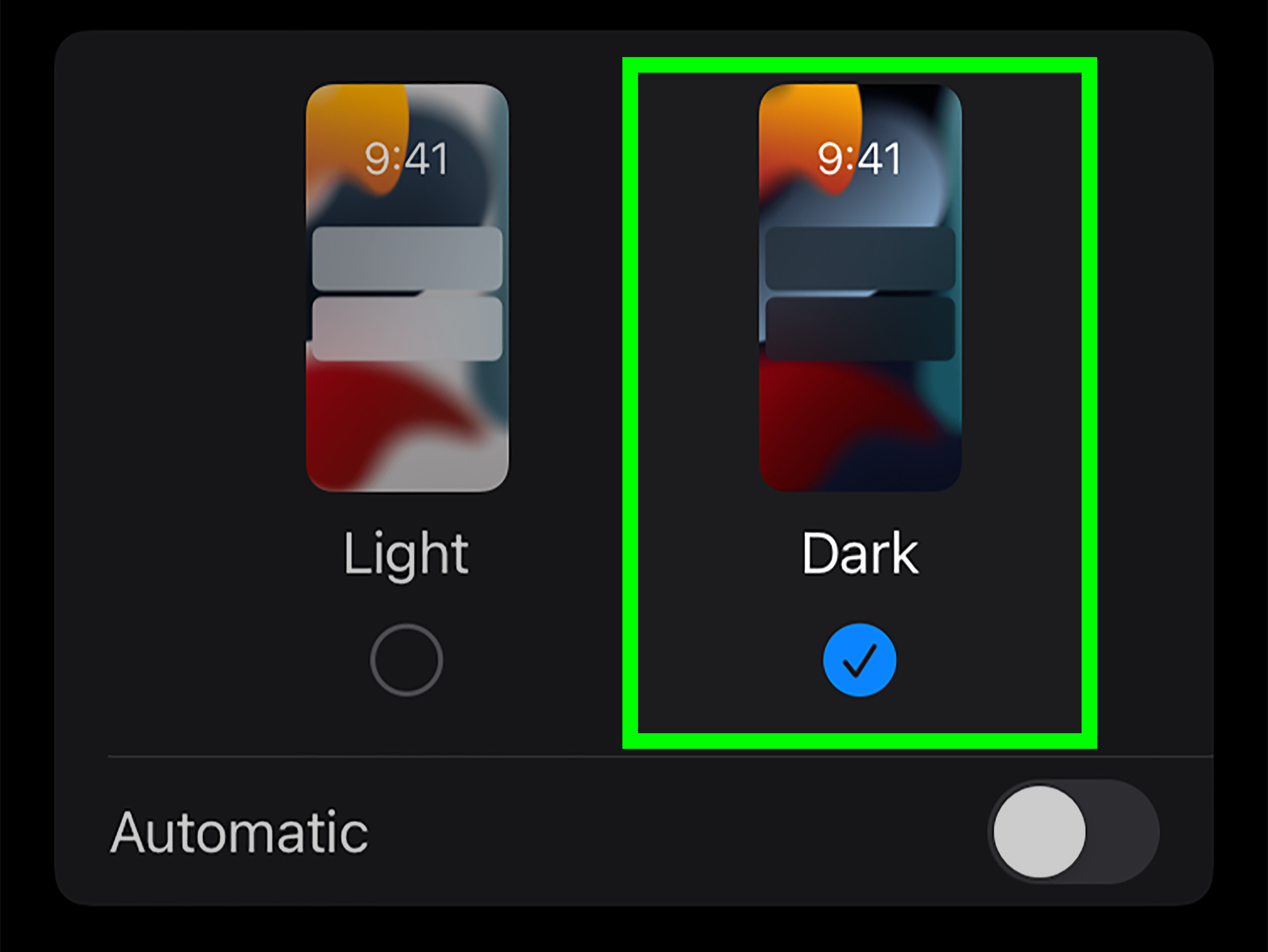
Dark mode is different from chat themes. It changes the broader Instagram interface from a light background to a dark one. On Instagram, dark mode can usually be managed through the app’s accessibility or appearance settings, or by following your phone’s system display setting. Dark mode is especially helpful at night because it gives your eyes a break from the bright white screen that appears to be powered by the sun itself.
Can You Use a Custom Photo as an Instagram Chat Background?
Instagram’s theme options change over time, and not every account receives every feature at the same moment. In some versions of Instagram, users may see options to create or personalize a theme, including features connected to Meta AI. If you see a “Create” or “Meta AI” option in the theme menu, you may be able to generate a custom-style background for a chat.
However, you should not assume that every Instagram account can upload any personal photo as a DM wallpaper. Feature availability may depend on your app version, region, device, and Instagram’s current rollout. If you do not see a custom background option, update the app first. If it still does not appear, the feature may not be available for your account yet.
How to Create an Instagram Chat Theme With Meta AI
Some users may see an option to create a theme using Meta AI from the chat theme screen. This feature is designed to help users create more personalized backgrounds for one-on-one and group conversations. Instead of choosing only from preset colors, you can describe a style and let the tool generate a theme.
Example Prompts for AI Chat Themes
If your app supports AI-generated themes, try simple prompts such as:
- “A cozy coffee shop at night with warm lights.”
- “A pastel beach sunset with soft waves.”
- “A futuristic purple city skyline.”
- “Cute cats floating in outer space.”
- “Minimal blue gradient, clean and calm.”
For best results, be specific but not overly complicated. “A dreamy lavender sky with stars” will probably work better than “a hyper-emotional cyberpunk mushroom galaxy with dramatic Victorian lighting and one suspicious goose.” Though, honestly, the goose does sound memorable.
How to Change a Group Chat Theme on Instagram
Changing a group chat theme works much like changing a one-on-one chat. Open the group conversation, tap the group name at the top, choose Theme, and select your preferred design. The new theme will apply to that group chat.
Group chat themes are fun because they can match the personality of the group. A family chat might use something warm and simple. A travel planning group could use a beach or city theme. A chaotic friend group may choose the loudest design available, because apparently peace was never the goal.
Does the Other Person See the Chat Theme?
In most cases, an Instagram chat theme affects the shared conversation, not just your private view. That means the other person or group members may see the new theme too. Instagram may also show a small system message in the chat saying that the theme was changed.
If you are changing a theme in a casual conversation, this is usually no big deal. But if you are changing a theme in a sensitive or professional chat, choose something appropriate. A glittery romantic theme in a customer service conversation might send the wrong message, unless your brand voice is “customer support, but make it Valentine’s Day.”
How to Change Instagram Back to the Default Chat Theme
If you tried a theme and now your chat looks like a unicorn exploded near a Wi-Fi router, you can switch back. Open the chat, tap the chat name, select Theme, and choose a default or simple option. The exact label may vary, but Instagram usually provides a basic theme or neutral color option.
You can also choose a cleaner color instead of a full background. This is a good compromise if you want personalization without visual clutter. For readability, simple themes often work better than highly detailed backgrounds, especially in long conversations.
Why Is the Instagram Chat Theme Option Not Showing?
If you do not see the Theme option, do not panic. It does not necessarily mean your account is cursed by the algorithm goblin. There are several common reasons the option may be missing.
Your Instagram App Is Outdated
The first fix is simple: update Instagram. Go to the Apple App Store or Google Play Store, search for Instagram, and tap Update if the option appears. Many messaging features depend on the latest version of the app.
The Feature Has Not Rolled Out to Your Account
Instagram often rolls out features gradually. Two people sitting next to each other can have different menus, even if both apps are updated. If your friend has new themes and you do not, your account may simply be waiting for the rollout.
You Are Using Instagram on Desktop
Instagram’s mobile app usually gets messaging customization features before the desktop or web version. If you are using Instagram in a browser and cannot find chat themes, try the Instagram app on iPhone or Android instead.
There Is a Temporary App Glitch
DM features can disappear or behave strangely during bugs, outages, or server-side updates. Restart the app, switch networks, clear the app cache on Android, or reinstall Instagram if the problem continues. Sometimes the most advanced technical solution is still “turn it off and on again,” which is annoying but undefeated.
Your Account Type or Region May Affect Availability
Some features vary by region, age settings, account status, or account type. Business, creator, teen, or restricted accounts may not always see the same feature set at the same time. If the option is unavailable, check another account or device to compare.
Best Instagram Chat Theme Ideas
Choosing a chat theme sounds easy until you stare at the options like you are selecting paint for a mansion you do not own. Here are a few practical ideas.
For Best Friends
Use a bright gradient, playful seasonal theme, or inside-joke-inspired AI background. Best friend chats are allowed to be a little chaotic. That is basically in the contract.
For Couples
Choose something warm, soft, or romantic without making the chat impossible to read. Sunset tones, gentle pinks, deep blues, or cozy night themes usually work well.
For Group Chats
Pick something that matches the group’s purpose. A trip-planning chat can use a travel-inspired theme. A study group should probably use something calm, unless everyone studies better inside a visual fireworks display.
For Professional Conversations
Keep it simple. A clean color theme is better than a dramatic background. If you use Instagram DMs for business, readability and tone matter more than decoration.
Tips for Choosing a Good Instagram DM Theme
The best Instagram chat theme is not always the flashiest one. A good theme should look nice, feel personal, and keep messages easy to read. If the background makes your text harder to see, it is not a theme; it is a tiny obstacle course.
Choose high-contrast designs when possible. Dark text on light backgrounds or light text on dark backgrounds is easier to read. Avoid extremely busy backgrounds for chats where you send long messages. Use colorful themes for casual chats and neutral themes for serious conversations.
You should also consider the other person’s taste. A shared conversation theme is a small social signal. Changing a chat to something funny can be cute. Changing it to something wildly personal may feel awkward if the other person is not expecting it. When in doubt, use a theme that is fun but not too intense.
Instagram Chat Themes vs. Instagram Profile Themes
Instagram chat themes only affect Direct Message conversations. They do not change your profile grid, bio, Highlights, Reels, Stories, or feed appearance. If you want your whole Instagram presence to look consistent, you will need to coordinate profile photos, Highlight covers, post colors, captions, and Story templates separately.
Think of chat themes as interior design for your private conversations. Your profile is the storefront. Your DMs are the living room. Sometimes the living room gets a purple galaxy wall because your friend sent one funny meme in 2021 and now tradition must be honored.
Privacy and Etiquette: What to Know Before Changing Themes
Changing a theme is harmless in most cases, but it is still part of a shared conversation. If you are in a group chat, other members may notice the change. If you are chatting with a client, customer, teacher, or colleague, a wild theme may look unprofessional.
Also remember that visual customization does not change message privacy. A pretty background does not make a conversation more secure. It only changes how the chat looks. Continue using good judgment when sending personal information, financial details, private photos, or anything you would not want screenshotted and passed around faster than office gossip.
Troubleshooting Checklist
If Instagram chat themes are not working, use this quick checklist:
- Update Instagram from the App Store or Google Play Store.
- Close and reopen the app.
- Restart your phone.
- Check your internet connection.
- Try switching from Wi-Fi to mobile data, or the other way around.
- Clear the Instagram cache if you are using Android.
- Log out and log back in.
- Reinstall Instagram if the issue continues.
- Check whether the feature appears on another device.
- Wait if Instagram appears to be testing or temporarily removing the feature.
Personal Experience: What It Is Actually Like to Customize Instagram Chat Themes
Changing Instagram chat themes sounds like a tiny feature, but in daily use, it can make conversations feel surprisingly different. The first time many users try it, they usually do it for fun: a best friend chat gets a bright theme, a group chat gets something dramatic, and suddenly the inbox feels less like a list of messages and more like a set of little rooms with their own personalities.
The most useful experience is that themes help you recognize chats faster. When several conversations are active at once, a unique background can act like a visual shortcut. You open a chat and instantly know where you are. This is especially helpful for people who manage personal chats, creator messages, customer questions, and group conversations in the same inbox. A calm theme for business messages and a colorful one for close friends can create a mental boundary without needing a separate app.
Another practical lesson is that readability matters more than novelty. Some themes look amazing for the first five minutes but become distracting during long conversations. A background with heavy patterns can make text feel crowded, especially if you are reading quickly. After testing different styles, many users end up preferring soft gradients, simple colors, or dark themes because they are easier on the eyes. The theme should support the chat, not wrestle the message bubbles for attention.
Group chats are where themes become the most entertaining. Someone changes the background, another person complains, a third person changes it again, and suddenly the theme itself becomes part of the conversation. This can be fun, but it also proves why etiquette matters. In a group with close friends, switching themes can become a running joke. In a school, work, or community group, it is better to choose something neutral so the chat does not look like a party invitation from outer space.
For creators and small businesses, Instagram chat themes can also support branding in a subtle way. A coach, stylist, artist, or boutique owner might choose a clean color that matches their brand personality when chatting with customers. It will not replace professional communication, but it can make the conversation feel warmer and more intentional. Still, the safest choice for business DMs is a simple, readable theme. Customers usually care more about fast replies than whether the chat background is giving “moody lavender sunset.”
The most common frustration is when the Theme option disappears or does not show up at all. This happens because Instagram features can roll out unevenly. One phone may have the newest theme options while another phone, using the same account, may not. Updating the app usually helps, but not always. Sometimes the only solution is patience, which is everyone’s least favorite troubleshooting step. If a theme vanishes after an update, it may return later as Instagram adjusts the feature.
Overall, the best experience comes from treating chat themes as a small personalization tool, not a mission-critical setting. Use them to make conversations more fun, easier to identify, and more comfortable to read. Try different colors, keep the other person in mind, and do not be afraid to switch back to default when a design feels too busy. Instagram DMs already carry enough emotional chaos; your background does not need to join the meeting.
Conclusion
Changing your Instagram chat theme and background colors is one of the easiest ways to personalize your DM experience. Open a chat, tap the name at the top, select Theme, and choose the design or color you like. You can customize one-on-one chats, group chats, and, if available, create personalized designs with Meta AI.
The key is knowing where the option lives. It is not in your main profile settings; it is inside each individual conversation. If you do not see the Theme option, update Instagram, restart the app, try a mobile device, or wait for the feature to become available on your account. Once it works, choose themes that are fun, readable, and appropriate for the conversation.
Instagram chat themes may seem like a small detail, but small details shape how digital spaces feel. A clean color can make a professional chat easier to read. A playful background can make a friend group feel more alive. And a cozy theme can make late-night conversations feel a little less like staring into a glowing rectangle of doom. Customize wisely, keep it readable, and remember: if the theme hurts your eyes, the default button is your friend.