Your iPhone wallpaper does a surprising amount of heavy lifting. It sets the mood, shows off your style, helps your app icons stand out, and quietly announces whether you are a “clean minimalist” or a “my dog has 7,000 close-ups and all of them deserve wallpaper status” kind of person.
The good news? Changing your iPhone wallpaper is easy once you know where Apple hid the buttons this time. Modern iPhones let you set a wallpaper pair, choose different images for the Lock Screen and Home Screen, add widgets, use Photo Shuffle, apply blur, and even link specific wallpapers to Focus modes. In other words, your iPhone is no longer stuck wearing the same outfit every day.
In this guide, you’ll learn exactly how to change your iPhone wallpaper, how to customize both the Lock Screen and Home Screen, what to do if you want separate backgrounds, and how to avoid the small-but-annoying mistakes that make your screen look cluttered, blurry, or just plain chaotic.
Why changing your iPhone wallpaper matters more than you think
Sure, wallpaper customization sounds cosmetic. And yes, technically it is. But a good wallpaper does more than make your phone look pretty. It can improve readability, make widgets easier to see, reduce visual clutter, and help you quickly tell one Focus mode from another. A dark, simple Home Screen can make your apps easier to spot, while a more detailed Lock Screen can show off photos, art, or travel shots without turning your app grid into a scavenger hunt.
In short, wallpaper is not just decoration. It is interface design with a personal twist. Very tiny interior decorating. For a screen you touch 400 times a day.
How to change your iPhone wallpaper in Settings
If you want the most straightforward method, start in the Settings app. This works especially well if you want to create a brand-new wallpaper setup instead of editing an old one.
Step-by-step: Add a new wallpaper
- Open Settings.
- Tap Wallpaper.
- Tap Add New Wallpaper.
- Choose a wallpaper category such as Photos, Photo Shuffle, Emoji, Weather, Astronomy, or Color.
- Select the image or style you want.
- Customize it if needed.
- Tap Add.
- Choose Set as Wallpaper Pair to use the same look on both screens, or tap Customize Home Screen to make the Home Screen different.
This is the core process for changing your iPhone wallpaper on current iPhones. Once you get to the final step, Apple gives you the choice to keep things matched or split the Lock Screen and Home Screen into separate looks.
How to change your iPhone wallpaper from the Lock Screen
Apple also lets you edit wallpaper directly from the Lock Screen, which is handy if inspiration strikes while you are half-awake and staring at your phone before coffee.
Here’s how to do it
- Wake and unlock your iPhone.
- Touch and hold the Lock Screen.
- Swipe through your saved wallpaper options.
- Tap a wallpaper to switch to it instantly, or tap Customize to edit one.
- To create a new wallpaper, tap the plus sign.
This method is great if you already have a few wallpaper setups saved. You can move between them quickly without digging through Settings, which makes it ideal for switching from a work look to a weekend look, or from “serious adult” to “yes, this is a cat wearing sunglasses.”
How to set different wallpapers for Lock Screen and Home Screen
This is one of the most useful customization options on iPhone. Your Lock Screen can be dramatic, detailed, and full of personality. Your Home Screen, meanwhile, can be calmer and more practical so your app icons stay visible.
To use separate wallpapers
- Go to Settings > Wallpaper.
- Tap Add New Wallpaper or edit an existing wallpaper.
- After choosing your Lock Screen image, tap Customize Home Screen.
- From there, choose one of the available Home Screen options:
- Photo to use a different picture
- Color for a clean color background
- Blur to soften the wallpaper so apps stand out more
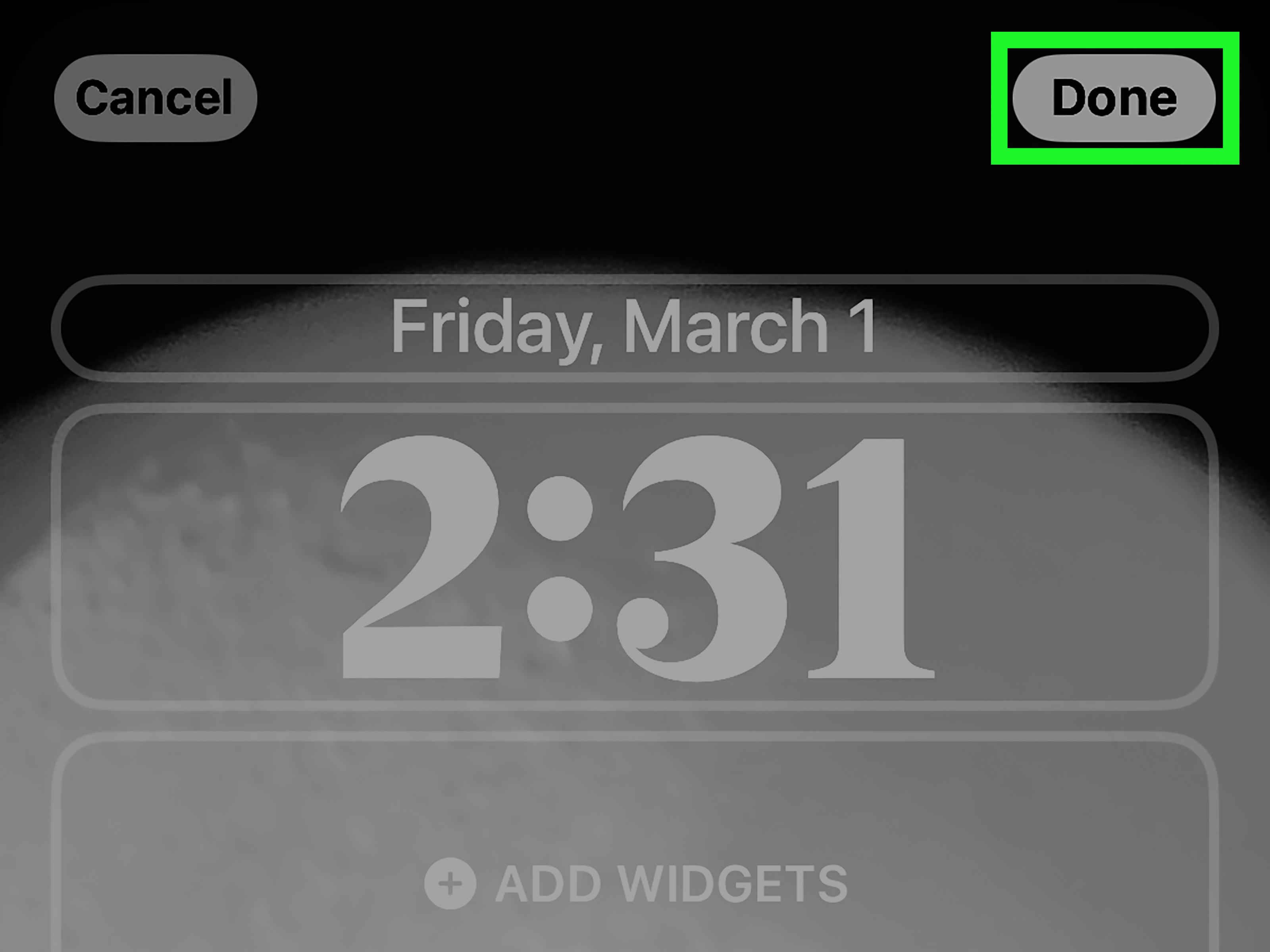
- Tap Done when you’re finished.
If you want the easiest win, use a detailed photo on the Lock Screen and a darker or blurred version on the Home Screen. That combo usually looks polished without sacrificing usability.
Best wallpaper choices for different goals
For a clean, readable Home Screen
Go with darker tones, soft gradients, or lightly blurred photos. These make app icons and widgets easier to see. Busy wallpaper behind a screen full of apps can look cool for approximately seven seconds, then become mildly exhausting.
For a stylish Lock Screen
Portrait photos, scenic images, simple artwork, and bold colors work well. Because the Lock Screen has more open space, it can handle more visual drama.
For productivity
Use wallpaper sets tied to Focus modes. A work wallpaper can look minimal and sharp, while a personal wallpaper can be warmer or more playful. This creates a visual cue that helps you immediately know what mode your phone is in.
For family photos
Choose images with a clear subject, strong contrast, and enough negative space around faces. That way, the clock, widgets, and notifications do not bulldoze over your favorite people.
How to customize your Lock Screen wallpaper
Changing the image is only part of the story. Apple gives you several Lock Screen customization tools, which is where things get fun.
You can usually customize the following
- The clock font and color
- Widgets below the time
- A smaller widget area above the clock
- Photo styles and visual effects
- On newer iOS versions, the controls at the bottom of the Lock Screen
To edit these, open the wallpaper editor, tap Customize, then select the Lock Screen. Tap the time to adjust font and color. Tap the widget area to add or remove widgets. On supported versions, you can also swap the bottom Lock Screen controls for tools you actually use more often than flashlight and camera.
This is a smart place to keep quick-glance information like weather, battery, activity rings, or calendar events. Just do not overdo it. A widget-packed Lock Screen can stop being elegant and start feeling like a tiny airport departures board.
How to customize your Home Screen wallpaper
Your Home Screen is where practicality should win. If your wallpaper makes your apps disappear into a camouflage field, it is not helping.
When customizing your Home Screen, try these options
- Blur if your app labels are hard to read
- Color fill for a minimalist setup
- A separate photo if you want the Lock Screen and Home Screen to feel different
- Dark or muted tones if you use a lot of widgets and folders
Some newer versions of iOS also expand Home Screen customization beyond wallpaper, including icon tinting and layout flexibility. That means the wallpaper you choose can affect the entire look of your phone, not just the background.
How to use Photo Shuffle on iPhone
If you get bored easily, Photo Shuffle is your best friend. This feature rotates through selected photos automatically, giving your Lock Screen a fresh look without any extra effort.
To set up Photo Shuffle
- Go to Settings > Wallpaper.
- Tap Add New Wallpaper.
- Choose Photo Shuffle.
- Select the photos manually or let iPhone suggest them.
- Choose how often the wallpaper changes.
- Tap Add, then finish setting up your Lock Screen and Home Screen.
This is perfect for travel photos, pets, family pictures, or a curated album of your favorite images. It makes your phone feel new more often, which is much cheaper than actually buying a new phone.
Can you use a Live Photo as wallpaper?
Yes, on supported iPhones and compatible iOS versions, you can use a Live Photo for the Lock Screen. If you want a little motion, this is the easiest way to add it without turning your phone into a disco ball.
To set a Live Photo wallpaper
- Open Settings > Wallpaper.
- Tap Add New Wallpaper.
- Tap Photos, then choose Live Photo if available.
- Select your Live Photo.
- Adjust and preview it.
- Tap Add and apply it to the Lock Screen.
Keep in mind that Live Photo behavior can vary depending on your iPhone model and iOS version. Also, live effects are generally more useful on the Lock Screen than the Home Screen, where motion can quickly go from delightful to distracting.
How to switch between saved wallpapers
If you have created multiple wallpaper setups, iPhone makes it pretty easy to bounce between them.
- Wake and unlock your iPhone.
- Touch and hold the Lock Screen.
- Swipe left or right through your saved wallpapers.
- Tap the one you want to use.
This is especially useful if you like seasonal wallpapers, mood-based designs, or separate setups for work, weekends, travel, and sleep. Yes, having a “Sunday wallpaper” is a thing. No, you do not need to justify it.
How to link a wallpaper to a Focus mode
One of the smartest iPhone wallpaper tricks is linking a specific Lock Screen to a Focus mode. For example, your Work Focus can use a clean wallpaper with calendar widgets, while your Personal Focus can use a family photo or something more relaxed.
This helps your phone feel context-aware. It also reduces the mental friction of seeing the same setup 24/7. The visual shift can nudge your brain into “work mode,” “do not disturb mode,” or “weekend mode” faster than you might expect.
Common wallpaper problems and how to fix them
My Home Screen wallpaper looks blurry
You may have Blur turned on in the Home Screen wallpaper editor. Go back to Customize Home Screen and disable blur if you want a sharper image.
My wallpaper photo looks too zoomed in
Try a different crop, a photo with more breathing room around the subject, or an image that better matches the iPhone screen ratio. Some photos just refuse to cooperate, like that one friend who blinks in every group shot.
My Lock Screen is too busy
Use fewer widgets, simplify the color palette, or choose a less detailed photo. The goal is balance, not chaos.
I can’t find my saved wallpapers
Touch and hold the Lock Screen to open the wallpaper gallery. Swipe through the saved options there.
I want the Lock Screen and Home Screen to match better
Use Set as Wallpaper Pair if you want a coordinated look, or use the same photo with a blur effect on the Home Screen for a more polished version of the same theme.
Tips for choosing the best iPhone wallpaper
- Choose high-quality images so your screen looks crisp.
- Use darker wallpapers if you want app icons to pop.
- Use simple backgrounds if you rely on widgets.
- Reserve bold, detailed images for the Lock Screen.
- Test your wallpaper with notifications turned on, not just in the preview.
- Do not be afraid to create multiple wallpapers for different moods or purposes.
Real-world experiences with changing iPhone wallpaper
Here is the part Apple’s menus do not tell you: wallpaper choices feel different in daily life than they do in the preview screen. A photo that looks amazing for ten seconds while you are setting it up can become a visual headache by lunchtime if app labels disappear into it. That is why many people end up treating the Lock Screen and Home Screen like two different rooms in the same house. One room gets the fancy wallpaper. The other gets the practical paint color.
A very common experience is starting with the same image on both screens because it feels simple and elegant. Then, two days later, you realize your Home Screen looks like your apps were dropped into a jungle. At that point, most people discover the magic of blur or a separate Home Screen photo. Suddenly the phone feels cleaner, calmer, and easier to use. It is the digital equivalent of finally tidying your desk and wondering why you waited so long.
Another real-life pattern is wallpaper fatigue. People often choose a favorite photo, love it intensely for a week, and then stop even noticing it. That is where Photo Shuffle shines. It keeps your phone feeling fresh without requiring a full redesign every few days. If you already take too many photos of pets, food, sunsets, or your children doing objectively adorable nonsense, Photo Shuffle turns that habit into a feature.
There is also the “I want my phone to look cool, but I need to find my apps in under one second” problem. This is especially true for people who use widgets, folders, or color-tinted icons. In practice, the best setup is often a dramatic Lock Screen paired with a much simpler Home Screen. The Lock Screen is where your personality gets the spotlight. The Home Screen is where your phone gets a job.
Some users also create wallpaper setups around routines. A work wallpaper with calendar and weather widgets can feel focused and clean. A weekend wallpaper can be brighter or more playful. A sleep-mode wallpaper can be darker and less stimulating. These little visual cues sound minor, but they can make the phone feel less random and more intentional.
And then there is the sentimental side. A lot of people use wallpapers as tiny emotional anchors: a partner, a child, a favorite place, a pet that always looks oddly majestic in portrait mode. That can make picking the “best iPhone wallpaper” feel weirdly high-stakes. The trick is to remember that wallpaper is not a tattoo. Change it. Test it. Live with it for a day. If it does not work, swap it out. Your phone will not hold a grudge.
So yes, changing your iPhone wallpaper is simple. But living with it is the real test. The best wallpaper is not just the one that looks great in setup mode. It is the one that still feels good on a busy Tuesday, helps you use your phone easily, and makes you smile just a little when the screen lights up.
Final thoughts
If you have been wondering how to change your iPhone wallpaper, the process is easier and more flexible than ever. You can add a new wallpaper from Settings, switch saved options from the Lock Screen, use separate images for Lock Screen and Home Screen, apply blur, add widgets, try Photo Shuffle, and even build wallpaper setups around your Focus modes.
The best approach is simple: let your Lock Screen show personality, let your Home Screen stay functional, and do not be afraid to experiment. It takes less than a minute to change your wallpaper, but the right setup can make your iPhone feel newer, cleaner, and way more “you.”