Changing your phone number on Amazon sounds like one of those five-minute chores you promise to do “later,” right up there with organizing your junk drawer and unsubscribing from mysterious newsletters. But when Amazon sends a verification code to an old number you no longer own, “later” suddenly becomes “why is my toaster hostage behind a login screen?”
Your Amazon phone number is more than a contact detail. It can help you sign in, recover your account, receive one-time passwords, confirm account changes, and keep your orders and payment information safer. Whether you switched carriers, got a new mobile number, lost access to an old phone, or simply want to clean up your account information, this guide explains exactly how to change your phone number on Amazon using two simple ways: through the Amazon website and through the Amazon Shopping app.
Below, you will find clear step-by-step instructions, troubleshooting tips, security advice, and real-world experience notes to help you avoid common mistakes. No tech degree required. No dramatic music. Just practical steps that work.
Why You Should Keep Your Amazon Phone Number Updated
Your phone number helps Amazon verify that you are really you. That matters because your Amazon account may contain saved payment methods, delivery addresses, order history, Prime benefits, gift card balances, digital purchases, subscriptions, and sometimes connected services such as Kindle, Audible, Prime Video, or Amazon Business.
If your phone number is outdated, you may run into problems when Amazon asks for a one-time password, also called an OTP. You may also miss important account alerts, delivery updates, or security messages. Even worse, if your old number gets reassigned to someone else by a phone carrier, you do not want that number hanging around your account like a spare key under a suspiciously obvious flowerpot.
Common Reasons to Update Your Amazon Phone Number
You may need to change your phone number on Amazon if you recently changed mobile carriers, moved to a new phone plan, lost access to your old number, closed a business phone line, switched from a shared family number to your own number, or want to improve account security. It is also smart to update your number before traveling, changing devices, or enabling stronger security features such as two-step verification or passkeys.
Before You Start: What You Need
Before changing your Amazon phone number, make sure you can sign in to your Amazon account. You should also have access to your current email address, your Amazon password, and your new phone number. Amazon may ask you to verify your identity before saving changes, especially if the update involves Login & Security settings.
In most cases, Amazon sends a verification code to confirm the new number. That means your new phone should be able to receive SMS text messages or calls. If you use a virtual number, VoIP number, or temporary phone number, it may not always work reliably for verification. A regular mobile number is usually the safest option.
Simple Way 1: Change Your Phone Number on the Amazon Website
The first and most reliable way to change your phone number on Amazon is through the desktop website. This method is ideal if you are using a laptop or desktop computer, or if you want a larger screen while updating security settings.
Step 1: Go to Amazon.com and Sign In
Open your browser and go directly to Amazon.com. Avoid clicking login links from emails, texts, or pop-ups. Type the address yourself or use a trusted bookmark. This helps protect you from fake Amazon pages designed to steal your password.
Click Account & Lists near the top-right corner of the page and sign in with your email address, mobile number, or username and password. If Amazon asks for a verification code, complete the prompt before continuing.
Step 2: Open Your Account Settings
After signing in, hover over or click Account & Lists, then choose Account or Your Account. On the account page, look for Login & Security. This is the section where Amazon lets you manage your name, email, mobile phone number, password, and security-related information.
Step 3: Choose Edit Beside Your Mobile Phone Number
Inside Login & Security, find the phone number or mobile number field. Select Edit beside it. Amazon may ask you to enter your password again. This extra step can feel slightly annoying, but it is there for a good reason: nobody wants a roommate, ex, or overconfident raccoon changing account details without permission.
Step 4: Enter Your New Phone Number
Type your new phone number carefully. If Amazon asks for a country or region code, choose the correct one. For a U.S. number, that usually means selecting +1. Double-check the digits before submitting. A single typo can send your verification code into the void, where it will live forever with missing socks and forgotten streaming passwords.
Step 5: Verify and Save the Change
Amazon may send a verification code to the new number. Enter the code when prompted, then select Save changes, Save, or the equivalent button shown on your screen. Once the update is confirmed, your new phone number should appear in your Login & Security settings.
Simple Way 2: Change Your Phone Number in the Amazon Shopping App
If you prefer using your phone, you can update your Amazon phone number directly in the Amazon Shopping app. The exact button names may vary slightly depending on whether you use iPhone or Android, but the general path is similar.
Step 1: Open the Amazon Shopping App
Open the official Amazon Shopping app on your mobile device. Make sure you are using the real app from the Apple App Store or Google Play Store. If you have not updated the app in a while, consider updating it first so your menus match the latest account layout.
Step 2: Go to Your Account
Tap the profile icon, menu icon, or Account section. On many versions of the app, you can find this by tapping the person icon at the bottom of the screen or the three-line menu. Then choose Your Account.
Step 3: Open Login & Security
Scroll until you see Login & Security. Tap it. Amazon may ask you to re-enter your password or approve a security prompt. This is normal when you are changing sensitive account information.
Step 4: Edit Your Mobile Phone Number
Find your mobile phone number and tap Edit. Remove the old number and enter the new one. Again, check the country code and every digit before moving forward.
Step 5: Confirm the Verification Code
Amazon may text a verification code to your new number. Enter the code in the app, then save the update. Once complete, your Amazon account should use your new phone number for future verification and account-related communication.
How to Change the Phone Number Used for Two-Step Verification
Changing your general account phone number is not always the same as changing the phone number used for two-step verification. If you have two-step verification turned on, you should also check your 2SV settings after updating your number.
To do this, go to Your Account, open Login & Security, and look for Two-Step Verification or 2SV Settings. Select Edit, then review the enrolled authenticators. If your old phone number is listed, update it, remove it, or add a safer backup method.
For extra peace of mind, consider adding more than one sign-in method, such as an authenticator app or passkey, if available for your account. A backup method can save you from a future login headache if your phone is lost, damaged, or replaced.
What If You Cannot Access Your Old Phone Number?
If you can still sign in with your email address and password, try logging in from a trusted device or browser you have used before. Amazon may recognize the device and make verification easier. Once you are inside your account, update your phone number immediately through Login & Security.
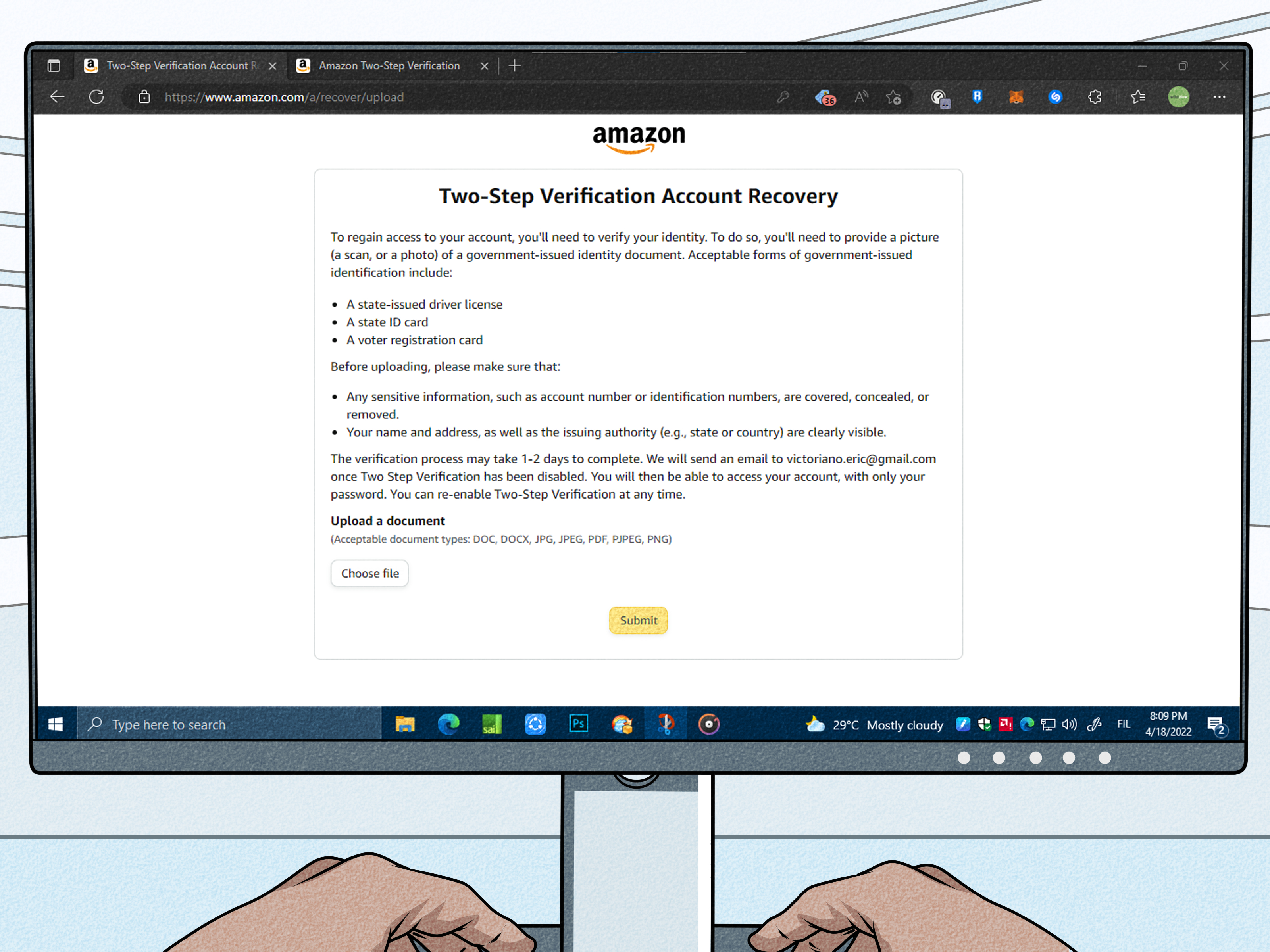
If Amazon keeps sending a code to your old number and you cannot get in, look for account recovery options on the sign-in page. Amazon may ask you to verify your identity before restoring access. The process can vary depending on your account, security settings, and region. Follow the on-screen instructions carefully and avoid using third-party “account recovery” services that promise instant access. Your Amazon account is not a concert ticket; do not hand it to a stranger in a digital alley.
Troubleshooting: Why Amazon May Not Accept Your New Phone Number
Sometimes the update does not work on the first try. If Amazon does not accept your new phone number, check whether the number is typed correctly, whether the country code is right, and whether your phone can receive SMS messages. Also make sure your message inbox is not full and your device has a stable network connection.
If you are using a prepaid, VoIP, or internet-based phone number, Amazon verification may be less reliable. Try using a standard mobile number from a major carrier when possible. You can also restart your phone, turn airplane mode on and off, or request a new verification code after waiting a short period.
Common Verification Code Problems
If the Amazon verification code does not arrive, do not request too many codes too quickly. That can trigger temporary delays. Wait a few minutes, check blocked numbers or spam filters, and confirm that your phone has signal. If you recently transferred your number to a new carrier, SMS verification may take a little time to work normally.
Security Tips After Changing Your Amazon Phone Number
After updating your phone number, take a few extra minutes to review your Amazon account security. Start by checking your email address, password, payment methods, delivery addresses, archived orders, and active subscriptions. If something looks unfamiliar, change your password and contact Amazon Customer Service through the official website or app.
You should also be careful with messages claiming to be from Amazon. Scammers often send fake texts, emails, and phone calls about suspicious orders, refunds, Prime membership problems, or account locks. Instead of clicking a link, open the Amazon app or type Amazon.com directly into your browser. Check your orders, Message Center, and account alerts from inside your account.
Use a Strong Password
Use a unique password for Amazon, not the same password you use for email, banking, social media, or that one old forum account you created in 2011 and forgot about. A password manager can help you create and store strong passwords without turning your brain into a filing cabinet.
Consider Passkeys or Two-Step Verification
Amazon supports modern sign-in options such as passkeys on supported devices and browsers. Passkeys can let you sign in using your device unlock method, such as a face scan, fingerprint, or PIN. Two-step verification can also add a second layer of protection by requiring a code or approval during sign-in.
Can You Have More Than One Phone Number on Amazon?
For a standard Amazon customer account, the main mobile number in Login & Security is usually the primary number associated with the account. However, depending on your security settings, you may be able to manage additional verification methods for two-step verification. The important thing is to remove old numbers you no longer control and keep at least one reliable recovery method active.
If you manage a business account, seller account, household account, or shared device, be especially careful. Do not use a phone number that belongs to an employee, former partner, roommate, or temporary assistant unless that is truly part of your account management plan. Shared numbers create shared headaches.
How Often Should You Review Your Amazon Account Details?
A good rule is to review your Amazon Login & Security settings whenever you change your phone number, email address, phone carrier, primary device, or password manager. You should also check your account before major shopping seasons such as Prime Day, Black Friday, Cyber Monday, and the holidays. Those are the times when account access problems feel extra spicy because your cart is full and your patience is not.
Even if nothing changes, reviewing your account once or twice a year is a smart habit. Confirm that your phone number, email address, addresses, payment methods, and security options are still current. It takes only a few minutes and can prevent a very annoying future afternoon.
Quick Comparison: Website vs. App
The Amazon website is often best if you want a full-screen view, easier typing, and clear access to account settings. It is especially useful if you are already working on a computer or need to review multiple security options.
The Amazon Shopping app is best if your new phone number is already active on your mobile device. You can receive the verification code and enter it immediately without switching devices. The app is also convenient for quick updates while traveling or away from your computer.
Both methods lead to the same important destination: Your Account > Login & Security. If one method does not work, try the other.
Practical Example: Updating a Number After Switching Carriers
Imagine you switched from one wireless carrier to another and received a new phone number. You can still sign in to Amazon using your email address and password, but your old number is listed in Login & Security. In this situation, the best move is to update the number before Amazon needs it for a future verification prompt.
Sign in on Amazon.com, open Your Account, choose Login & Security, select Edit beside your mobile number, enter the new number, verify the code, and save. Then check two-step verification settings to make sure the old number is not still enrolled as a security method. That final check is the difference between “I updated my number” and “why is Amazon still texting my old life?”
Extra Experience Notes: What Real Users Should Know Before Changing an Amazon Phone Number
Changing your phone number on Amazon is usually simple, but the experience can feel different depending on your account history. If you have used the same Amazon account for years, you may have old addresses, expired cards, previous devices, and outdated recovery details attached to it. Updating your phone number is a good excuse to clean up the whole account. Think of it as spring cleaning, except instead of finding dusty cables, you find a shipping address from three apartments ago.
One useful experience-based tip is to change your number while you still have access to the old one. Many people wait until after canceling a phone plan, losing a SIM card, or moving to a new carrier. That is when trouble starts. If Amazon asks for a code sent to the old number and you cannot receive it, the update becomes harder. Whenever possible, update Amazon before disconnecting your old number.
Another common experience is confusion between the phone number used for account contact and the phone number used for two-step verification. A user may update the mobile number in the main Login & Security section and assume everything is done. Later, during sign-in, Amazon may still send a code to an older number because that number remains connected to two-step verification. After changing your phone number, always review 2SV settings separately.
It is also smart to update your number from a trusted device. If you usually shop on your laptop at home, use that laptop. If you usually use the Amazon app on your phone, use the app. Trusted devices may reduce friction during sign-in because Amazon has seen them before. New browser, new location, new device, new phone number, and new password all at once can look suspicious to any security system. From Amazon’s perspective, that is not “fresh start energy”; that is “please prove you are not a villain in a hoodie.”
Some users also report delays with verification codes after switching carriers or activating a new phone. If your code does not arrive immediately, do not panic. Check your signal, restart your phone, make sure SMS is working, and wait before requesting another code. If you request five codes in sixty seconds, you may not know which code is current, and Amazon may temporarily slow down attempts for security reasons.
For families, the best practice is to avoid using one shared phone number for multiple personal accounts. It may seem convenient until someone changes devices, travels, or loses access. If each adult has a separate Amazon account, each account should have its own current phone number and email address. For Amazon Household, use the official household-sharing features rather than passing around one login like a community TV remote.
Business users should be even more careful. If an Amazon account is tied to a company phone number, make sure the number will remain under company control. Avoid using an employee’s personal number unless there is a documented recovery plan. When that employee leaves, the account should not leave with them. Update account details during offboarding, just as you would update passwords, payment permissions, and admin access.
Finally, treat phone number changes as a security moment. After saving your new number, check recent orders, payment methods, gift card balance, archived orders, subscriptions, and account messages. If anything looks strange, change your password and contact Amazon through the official app or website. Most of the time, changing your phone number is a quick chore. But when done carefully, it also makes your account stronger, cleaner, and much less likely to ruin your day when you are just trying to buy paper towels.
Conclusion
Changing your phone number on Amazon is straightforward when you know where to look. The two simplest methods are through the Amazon website and the Amazon Shopping app. In both cases, your destination is Login & Security, where you can edit your mobile number, verify the new number, and save the change.
The most important advice is to update your number before you lose access to the old one, check your two-step verification settings afterward, and avoid clicking suspicious links that claim to be from Amazon. A current phone number helps keep your account accessible, your orders trackable, and your personal information better protected. In other words, it is a tiny update with big “future you owes me a coffee” energy.
Note: This article is based on current Amazon account-security guidance, including Login & Security settings, mobile number updates, two-step verification management, OTP troubleshooting, passkey sign-in options, fake communication warnings, and consumer scam-safety recommendations.