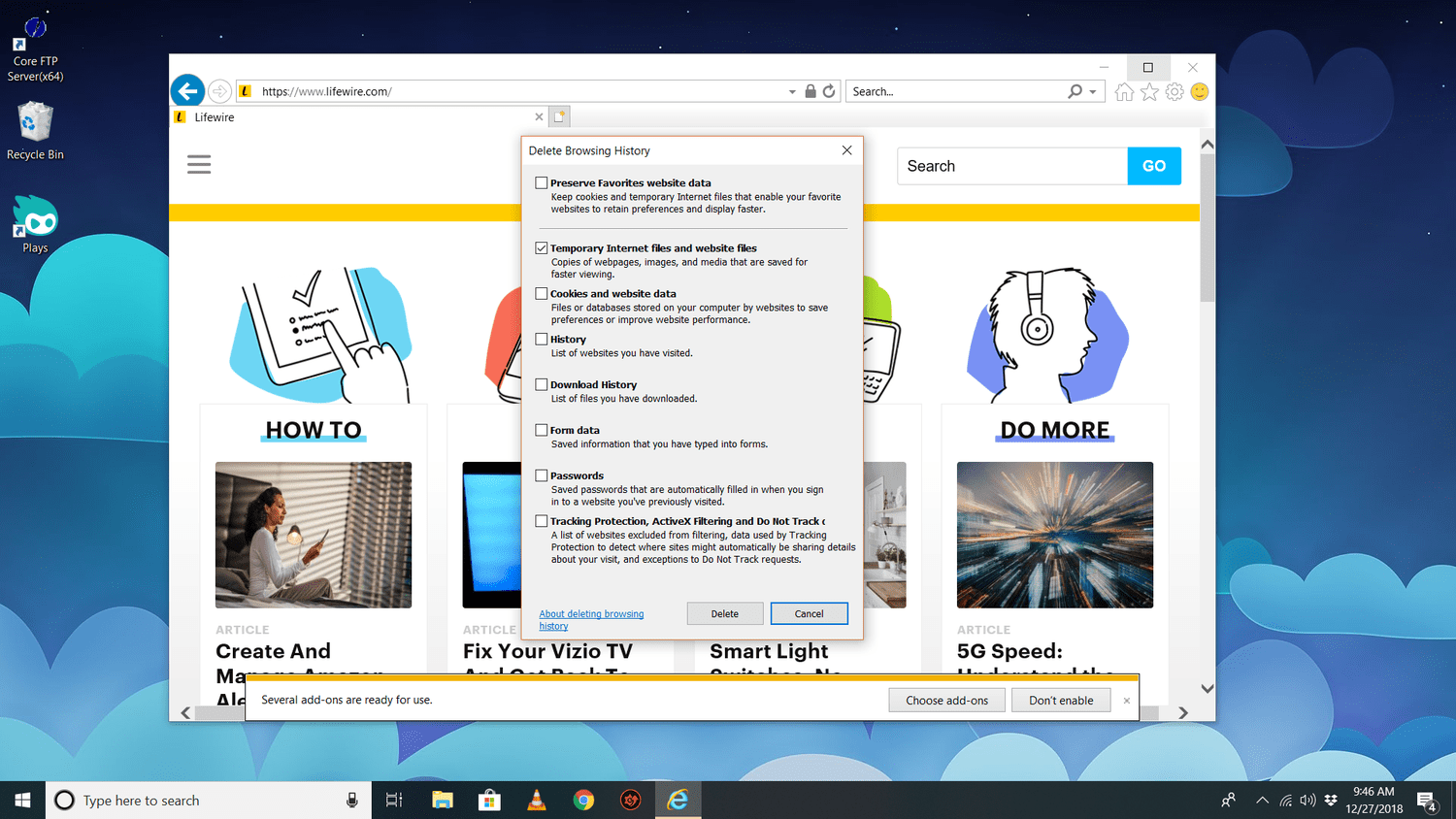
Internet Explorer 11 may no longer be the shiny sports car of the browser world, but plenty of people still meet it in older business systems, legacy portals, intranet tools, government forms, school platforms, and that one application everyone is afraid to update. When IE11 starts showing old pages, broken buttons, outdated login screens, or strange formatting, one of the simplest fixes is to clear the cache.
In plain English, the cache is a storage area where Internet Explorer saves pieces of websites, such as images, scripts, pages, and other temporary files. This helps pages load faster the next time you visit them. Helpful? Absolutely. Perfect? Not even close. Sometimes IE11 holds onto old files like a raccoon guarding a slice of pizza. When that happens, you may need to delete temporary internet files and refresh the browser’s memory.
What Does Clearing the Cache in IE11 Actually Do?
Clearing the cache in IE11 removes saved website files from your computer. These files are often called Temporary Internet Files or Temporary Internet files and website files. After you delete them, Internet Explorer has to download fresh copies of website resources the next time you visit a page.
This can fix problems such as pages not loading correctly, old website designs appearing after an update, login pages freezing, forms failing to submit, images not changing, or web apps behaving as if they are stuck in 2013. To be fair, IE11 was very comfortable in 2013.
Clearing cache is different from deleting cookies, passwords, form data, or browsing history. You can choose exactly what to remove in the Delete Browsing History window. For most troubleshooting, the key item is Temporary Internet files and website files. If a login or account issue is involved, clearing Cookies and website data may also help.
Before You Start: A Quick IE11 Reality Check
Internet Explorer 11 has been retired on many modern Windows systems, and Microsoft recommends using Microsoft Edge, including Internet Explorer mode for websites that still require IE compatibility. That said, some organizations still depend on old systems that behave best in IE11 or Edge’s IE mode.
If you are clearing cache because a work portal, school site, payroll system, or old dashboard refuses to cooperate, check whether your organization has instructions for Internet Explorer mode in Microsoft Edge. But if you are using the actual IE11 browser on a supported legacy machine, the steps below will help you clear the IE11 cache safely and quickly.
Fastest Method: Clear IE11 Cache With a Keyboard Shortcut
The quickest way to clear the cache in IE11 is to use the keyboard shortcut. This is the browser equivalent of taking the express lane instead of wandering through menus with a flashlight.
Step-by-Step Instructions
- Open Internet Explorer 11.
- Press Ctrl + Shift + Delete on your keyboard.
- The Delete Browsing History window will appear.
- Uncheck Preserve Favorites website data if you want to clear cached files for all websites, including sites saved as Favorites.
- Check Temporary Internet files and website files.
- Optional: Check Cookies and website data if the site has login, session, cart, or account problems.
- Optional: Check History if you also want to remove your list of visited websites.
- Click Delete.
- Close all Internet Explorer windows.
- Reopen IE11 and visit the website again.
For many people, this solves the problem immediately. If the website still looks broken, press Ctrl + F5 after reopening the page. That forces a hard refresh, which tells the browser to reload the current page instead of politely asking the old cache whether it feels like retiring.
Method Two: Clear Cache Through the Tools Menu
If you prefer clicking through menus, IE11 gives you another route. This is useful if the keyboard shortcut does not work, your keyboard has decided to pursue a career in modern art, or you simply like seeing where everything lives.
Use the Gear Icon
- Open Internet Explorer 11.
- Click the gear icon in the upper-right corner of the browser window.
- Point to Safety.
- Click Delete browsing history.
- In the Delete Browsing History window, check Temporary Internet files and website files.
- Uncheck Preserve Favorites website data if you want a complete cache cleanup.
- Choose any other data types you want to delete, such as cookies or history.
- Click Delete.
- Restart the browser.
This method reaches the same destination as the keyboard shortcut. The main difference is that it gives you a clearer view of the menu path: Tools > Safety > Delete browsing history.
Method Three: Clear Cache From Internet Options
Internet Options is the control room for many IE11 settings. It looks old-fashioned, because it is old-fashioned, but it still gets the job done.
Steps Using Internet Options
- Open Internet Explorer 11.
- Click the gear icon in the upper-right corner.
- Select Internet options.
- On the General tab, find the Browsing history section.
- Click Delete.
- Select Temporary Internet files and website files.
- Choose whether to clear cookies, history, download history, form data, passwords, or tracking protection data.
- Click Delete.
- Click OK to close Internet Options.
- Close and reopen IE11.
This method is especially useful when you also want to adjust related settings, such as deleting browsing history on exit or changing how long IE11 keeps browsing history.
Should You Clear Cookies Too?
Sometimes clearing only the cache is enough. Other times, cookies are part of the problem. Cookies store small pieces of site information, such as login sessions, preferences, region settings, and shopping cart data. If a website keeps signing you into the wrong account, loops back to a login screen, displays stale user information, or refuses to remember a fresh setting, clearing cookies may help.
The trade-off is convenience. Deleting cookies can sign you out of websites and remove saved preferences. If you are troubleshooting one stubborn website, try clearing cache first. If that does not work, clear cookies and website data next. Think of it as starting with a broom before renting a pressure washer.
What Is “Preserve Favorites Website Data”?
The checkbox labeled Preserve Favorites website data is one of the most misunderstood settings in IE11. When it is checked, Internet Explorer keeps cache and cookies for websites saved in your Favorites. That sounds friendly, but it can be a problem when the broken website is one of your Favorites.
If your goal is a complete cache cleanup, uncheck Preserve Favorites website data. Otherwise, IE11 may keep the exact files you are trying to remove. It is like cleaning the entire fridge but leaving the mystery container in the back because it has sentimental value.
How to Automatically Clear IE11 Cache When Closing the Browser
If you use IE11 on a shared computer or regularly work with sensitive sites, you may want Internet Explorer to delete browsing history every time you exit. This can reduce leftover local data, although it is not a replacement for good security habits.
Turn On Delete Browsing History on Exit
- Open Internet Explorer 11.
- Click the gear icon.
- Select Internet options.
- Go to the General tab.
- Under Browsing history, check Delete browsing history on exit.
- Click Apply, then OK.
Be aware that this setting may slow down first-time loading for websites you visit often because IE11 will need to rebuild cache files after each session. For privacy, that can be worth it. For speed, maybe less so.
Troubleshooting: What If Clearing the Cache Does Not Fix IE11?
Clearing the cache solves many IE11 issues, but not all of them. If the problem continues, try these practical fixes.
1. Close Every IE11 Window
Do not just close the tab. Close all Internet Explorer windows, wait a few seconds, and reopen the browser. Some cached files and session data may not fully reset until the browser is completely closed.
2. Use Ctrl + F5
Open the troublesome page and press Ctrl + F5. This forces the page to reload from the server instead of relying on cached files.
3. Clear Cookies for Login Problems
If the problem involves signing in, account switching, old user names, or a page that keeps redirecting, clear Cookies and website data along with temporary internet files.
4. Check Compatibility or IE Mode
Some older websites were built around Internet Explorer-specific features. If you are using Microsoft Edge, ask whether the site should be opened in Internet Explorer mode. If you are in an organization, this may be controlled by IT policy.
5. Restart the Computer
Yes, it is the classic advice. Yes, it is boring. Yes, it still works more often than anyone wants to admit. Restarting can clear stuck browser processes and temporary Windows-level issues.
When Should You Clear the Cache in IE11?
You do not need to clear the cache every day. In fact, cache exists to make browsing faster. But it is smart to clear IE11 cache when a website has recently changed, a form will not submit, a page looks outdated, a button does nothing, images are wrong, or a web app works for other people but not for you.
It is also useful after website maintenance, system upgrades, password resets, or changes to a company portal. If an administrator says, “Please clear your browser cache and try again,” they are not casting a spell. They are asking your browser to stop using old local files.
Common Mistakes to Avoid
The most common mistake is leaving Preserve Favorites website data checked when the problematic site is bookmarked. Another common mistake is clearing only history, which removes the list of visited pages but does not necessarily clear the cached website files causing the issue.
A third mistake is forgetting to restart the browser. IE11 may show a confirmation after deleting cache, but closing and reopening the browser gives you a cleaner test. Finally, do not delete saved passwords unless you are sure you know them or have them stored safely elsewhere. The browser will not send a handwritten apology if you lock yourself out.
Security and Privacy Notes
Clearing cache can remove temporary files stored by websites, but it is not the same as wiping a computer, removing malware, or protecting you from every privacy risk. If you use a shared computer, consider clearing cookies, history, form data, and saved passwords as well. For sensitive browsing, avoid saving passwords in IE11 and sign out of websites before closing the browser.
Because IE11 is retired on many Windows systems, it should not be your everyday browser for modern web use. For safer browsing and better compatibility, use a supported browser such as Microsoft Edge, Chrome, or Firefox. Use IE11 or IE mode only when a trusted legacy website truly requires it.
Experience Notes: Real-World Lessons From Clearing IE11 Cache
In real-world support situations, clearing the cache in IE11 often feels almost too simple to matter. A user may spend twenty minutes trying to reload an old invoice portal, retyping a password, calling a coworker, and wondering whether the entire internet has personally betrayed them. Then someone clears Temporary Internet Files, restarts IE11, and the page behaves normally. It is not glamorous, but neither is finding your car keys in the pocket you already checked twice.
One common experience involves business dashboards that show yesterday’s data even after the server has been updated. The user refreshes the page, logs out, logs back in, and still sees the same outdated chart. In many cases, IE11 is loading cached scripts or page elements. Clearing the cache forces the browser to request fresh files, which can make the dashboard suddenly display the correct numbers. This is why cache clearing is often the first troubleshooting step before deeper technical investigation.
Another familiar case is the stubborn login loop. A site accepts your username and password, starts loading, then throws you back to the sign-in page like a tiny digital bouncer. When that happens, clearing only Temporary Internet Files may not be enough. Cookies and website data can store session information, and if that session data becomes corrupted or outdated, the website may not know who you are. Clearing both cache and cookies gives the site a clean start.
IE11 also tends to surprise people with the Preserve Favorites website data checkbox. Many users bookmark work systems, school portals, or billing tools. Then they clear cache while leaving that box checked, which means IE11 keeps cached data for the exact site causing trouble. The user thinks, “I cleared the cache,” but the browser quietly replies, “Not for your favorite website, champ.” Unchecking that box is often the difference between a fake cleanup and a real one.
In office environments, clearing IE11 cache can also reveal whether the issue is local or server-side. If one employee has trouble and everyone else can access the site normally, cached browser files are a strong suspect. If everyone has the same problem after clearing cache, the issue probably lives on the website, network, authentication system, or application server. This makes cache clearing a useful diagnostic step, not just a cleanup trick.
The best habit is to clear cache thoughtfully. Do it when a page is outdated, broken, or acting strangely. Restart IE11 afterward. Clear cookies only when account-related issues continue. Save important passwords before deleting stored credentials. And if IE11 is being used only because an old system demands it, consider whether Microsoft Edge with IE mode is the better long-term path. IE11 may still have a role in legacy workflows, but it should not be treated like a modern daily browser.
Conclusion
Learning how to clear the cache in IE11 is a small skill that can fix surprisingly annoying browser problems. Whether a website is showing old content, refusing to load properly, trapping you in a login loop, or displaying broken page elements, deleting Temporary Internet Files is a fast and practical first step.
The easiest method is Ctrl + Shift + Delete, followed by selecting Temporary Internet files and website files and clicking Delete. For a complete cleanup, uncheck Preserve Favorites website data, especially when the troublesome site is saved in your Favorites. If login or account issues remain, clear cookies and website data too.
IE11 belongs to the legacy-browser era, but many people still encounter it through old systems and compatibility requirements. When you know where the cache settings live, you can solve many common issues without panic, guesswork, or dramatic keyboard sighing.