Sometimes you do not need the whole video. You just want the podcast audio from a webinar, the lecture from a screen recording, the soundtrack from your own travel vlog, or the voice notes buried inside a giant MP4 that behaves like it pays rent. That is where converting video to MP3 becomes incredibly useful.
If you have ever searched for the best way to convert videos to MP3, you already know the internet has two modes: suspiciously easy and suspiciously sketchy. One promises instant results, while the other looks like it was designed by a raccoon with a popup budget. This guide cuts through the chaos.
Below, you will learn how to convert video to MP3 using desktop software, free tools, command-line options, and online converters. You will also learn how to choose the right bitrate, protect audio quality, avoid common mistakes, and stay on the right side of copyright rules. In other words, this is not just a “click here, click there” tutorial. It is the full strategy guide.
Why Convert a Video to MP3 in the First Place?
Converting a video file to MP3 makes sense when the audio is the real star of the show. Maybe you recorded an interview on your phone and want a lighter file to share. Maybe you filmed a piano practice session and only care about the sound. Maybe you are saving a speech, sermon, meeting, or class recording for offline listening. MP3 is still one of the easiest audio formats to store, transfer, and play across devices.
The biggest advantage is convenience. A video file includes visual data you may not need, and that extra baggage makes the file much larger. Strip out the video, save the audio as MP3, and suddenly that bulky file becomes far easier to email, upload, archive, or listen to on the go.
There is also a compatibility benefit. MP3 works on almost everything: phones, laptops, car stereos, editing apps, cloud storage platforms, and media players. It may not be the newest audio format on the block, but it is still the dependable old pickup truck of digital audio.
Before You Convert: Three Things That Matter More Than People Think
1. Make Sure You Are Allowed to Use the Audio
Let us get the legal stuff out of the way without turning this into a courtroom drama. Converting audio from your own videos is usually straightforward. Converting audio from content you licensed or were clearly given permission to use can also be fine. The problem starts when people grab audio from copyrighted videos they do not own and treat the internet like an all-you-can-take buffet.
If a video is under a Creative Commons license, read the exact terms. Some licenses allow reuse with attribution, some limit commercial use, and some forbid sharing modified versions. If you are thinking about “fair use,” remember that fair use depends on context and is decided case by case. Translation: it is not a magical invisibility cloak.
2. Understand That MP3 Is a Lossy Format
MP3 is popular because it makes files smaller, but smaller comes with tradeoffs. MP3 removes some audio data during compression. That is why choosing the right export settings matters. If you go too low on bitrate, your audio may come out thin, swishy, or weirdly underwater, which is not the vibe unless you recorded a dolphin podcast.
For spoken-word audio, lower bitrates can still sound perfectly fine. For music, richer sound usually needs more bitrate. The sweet spot depends on the source and the final use.
3. Your Output Can Only Be as Good as Your Source
If the original video has poor audio, converting it to MP3 will not suddenly transform it into studio-grade sound. A cleaner format does not invent missing detail. It only preserves what is already there. So if the original recording is noisy, distorted, or full of keyboard clacks that sound like tap-dancing beetles, start by improving the source or cleaning the audio before export.
Best MP3 Settings for Different Types of Audio
One of the most common questions in any video-to-MP3 guide is this: what bitrate should I choose? Here is the practical answer.
For voice recordings, lectures, interviews, and podcasts
Use 64 kbps to 128 kbps, depending on how clean the source is and how small you want the file. If clarity matters more than tiny file size, 96 kbps or 128 kbps is a safe range.
For music, live performances, and soundtrack-heavy clips
Use 192 kbps to 320 kbps. If you care about fuller sound, this is where MP3 feels less like a compromise. Higher bitrate means larger files, but the listening experience is much better.
For general-purpose exports
If you do not want to overthink it, 128 kbps is a solid baseline and 192 kbps is a nicer default when music is involved. Variable bitrate, often called VBR, can also be a smart choice because it adjusts compression based on the audio instead of applying the same level to every second.
Method 1: Convert Video to MP3 with Desktop Editing Software
If you already have video editing software on your computer, this is often the cleanest method. Programs like Adobe Premiere Pro, Adobe Media Encoder, and Final Cut Pro let you export audio-only files from video projects. That gives you more control over settings such as format, range, channels, and quality.
How it usually works
- Import your video file.
- Open the export or share menu.
- Choose an audio-only output or select MP3 as the export format.
- Adjust bitrate and export settings.
- Save the file and test playback.
This method is ideal if you want better quality control, need to trim part of the clip first, or want to export only a selected range. It is also great when you are already working inside a project and do not want to bounce through extra apps like a caffeinated squirrel.
Desktop editors are especially useful for creators, students, teachers, marketers, and anyone who regularly handles media files. If you work with webinars, courses, product demos, interviews, or internal company recordings, an editor or encoder gives you a more professional workflow than a mystery website with seventeen download buttons.
Method 2: Use Audacity for a Free and Flexible Workflow
If you want a free tool that gives you more control than a one-click converter, Audacity is a great option. It can import audio from supported media and export the result as MP3. It also lets you trim silence, normalize volume, remove noise, and clean up rough recordings before export.
Why Audacity works so well
Audacity is not just an exporter. It is a repair shop. If your video audio is too quiet, uneven, or full of background noise, you can fix a lot before creating the MP3. That is a major advantage over simple converters that only rip the audio and wave goodbye.
A simple Audacity workflow
- Open the media or import the audio from your video source.
- Listen once before editing. Yes, once. Trust me.
- Trim unwanted intros, dead air, or awkward throat-clearing symphonies.
- Adjust levels if the audio is too soft or too loud.
- Export as MP3 and choose your preferred bitrate.
This route is perfect for interviews, recorded meetings, class content, homemade tutorials, and voice-based media. It is also one of the best ways to convert video to MP3 if you care about making the end result sound polished instead of merely existent.
Method 3: Use FFmpeg for Fast Batch Conversion
If you are comfortable with terminal or command prompt tools, FFmpeg is ridiculously powerful. It can extract audio, batch-process files, and automate conversions without the overhead of a full editing program. This is the grown-up method for people who want speed, repeatability, and a little hacker-movie energy.
Basic FFmpeg example
Here is what that command does:
- -i input.mp4 selects the source video
- -vn tells FFmpeg to ignore the video stream
- -q:a 2 uses high-quality variable bitrate audio encoding
- output.mp3 creates the MP3 file
You can also use a constant bitrate command like this:
This method shines when you need to convert lots of files at once, automate podcast workflows, or process recordings on a schedule. If that sounds like you, FFmpeg is less a converter and more a media Swiss Army knife with a slight superiority complex.
Method 4: Use an Online Video to MP3 Converter
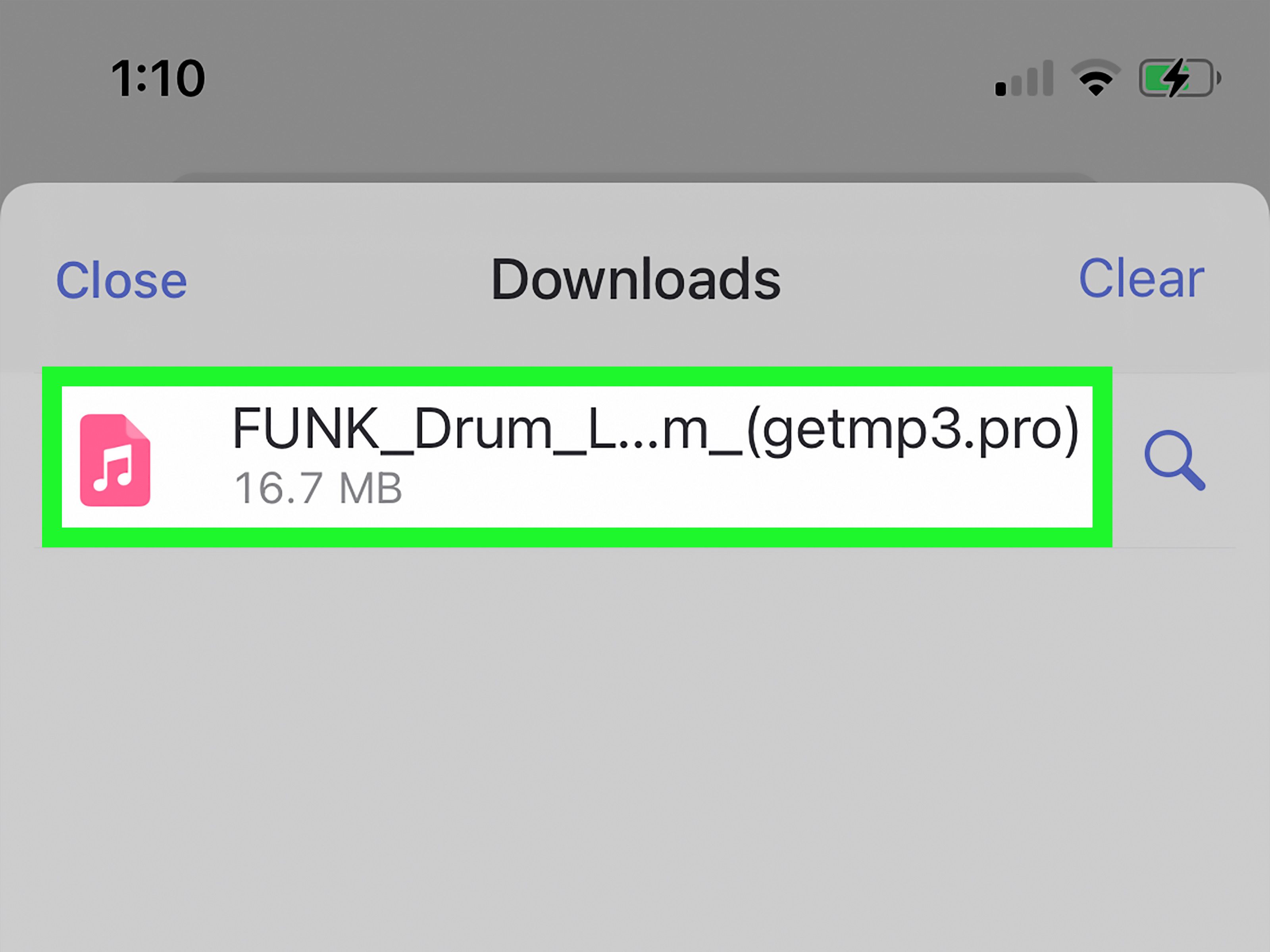
Sometimes convenience wins. If you have one file, no editing needs, and no interest in installing software, an online converter can get the job done. You upload the video, choose MP3, wait a moment, and download the audio.
When online tools are useful
- You are working on a borrowed computer
- You only need a quick one-time conversion
- Your file is small enough to upload easily
- You do not need detailed editing controls
When online tools are not ideal
- Your file is large
- The content is private or sensitive
- You want precise audio settings
- You need to batch-convert many videos
Always check privacy policies, file limits, and supported formats before uploading. Convenience is nice. Accidentally uploading confidential footage to a random converter with a neon-green “START NOW” button is less nice.
How to Choose the Right Method
The best way to convert video to MP3 depends on what you value most.
- Choose desktop software if you want control, trimming, and reliable quality.
- Choose Audacity if you want a free tool with cleanup features.
- Choose FFmpeg if you want batch conversion and efficiency.
- Choose an online converter if you need convenience and the file is not sensitive.
If you are a beginner, start with a desktop app or a reputable online tool. If you do this regularly, graduate to Audacity or FFmpeg. Your future self will thank you, probably while organizing files more efficiently and feeling mildly invincible.
Common Problems and How to Fix Them
The MP3 sounds worse than expected
Raise the bitrate. If you exported a music-heavy file at a very low setting, try again at 192 kbps or higher. Also make sure the original audio was not already compressed badly.
The file is too large
Lower the bitrate for speech recordings. A lecture or interview can often sound fine at a lower setting than a music track.
The audio is out of sync
If you are only extracting audio and not editing it, sync issues usually come from the source file or the software pipeline. Re-export from the original file, avoid multiple conversion passes, and test with a different tool if needed.
The converter will not open the video
The format may not be fully supported, or the file may use a codec your app does not like. In those cases, a more flexible tool such as FFmpeg or a professional media encoder often solves the problem.
Mistakes to Avoid
First, do not convert a file over and over again. Every unnecessary lossy export is another chance to shave off audio quality. Second, do not choose the lowest bitrate just because smaller looks better on paper. Tiny files are great until the speaker sounds like they are broadcasting from inside a potato chip bag.
Third, do not ignore metadata. If the MP3 is meant for long-term storage, podcasts, lessons, or music libraries, label it clearly with the title, creator, date, and project name. “finalfinalREAL3.mp3” is not a filing strategy. It is a cry for help.
Finally, do not treat all source videos the same. A music performance, Zoom recording, tutorial video, and lecture capture each deserve different export choices. Good conversion is less about blindly pressing a button and more about matching the settings to the content.
Real-World Experiences: What People Learn After Doing This for a While
Once you have converted enough videos to MP3, you start to notice patterns. The first is that most people begin with the wrong goal. They think the job is “turn this file into audio.” In reality, the job is “get a clean, usable listening experience with the smallest amount of hassle.” Those are not always the same thing.
For example, a student recording class presentations may discover that a low-bitrate MP3 is perfectly fine for reviewing lecture notes while walking across campus. But the same settings would be disappointing for a pianist trying to archive rehearsals or a creator extracting soundtrack audio from an original project. Experience teaches you that context matters far more than generic advice.
Another common lesson is that source quality beats export quality almost every time. People often obsess over whether 192 kbps is better than 256 kbps, while ignoring the fact that the original video was recorded on a phone in a windy parking lot next to what appears to be an enthusiastic leaf blower convention. Better recording habits usually improve the final MP3 more than endlessly tweaking export numbers.
People also learn that convenience has a cost. Online converters feel fast at first, and sometimes they are exactly the right solution. But once you start converting regularly, uploading every file gets old. It is slower for large videos, less private for sensitive material, and harder to organize at scale. Many users eventually move toward a local tool like Audacity or FFmpeg simply because it gives them more control and fewer headaches.
There is also the surprisingly emotional moment when someone realizes audio can be more valuable than video. A family member may pull the sound from an old home movie just to preserve a grandparent’s voice. A teacher may save spoken lessons as MP3 files so students can listen during commutes. A small business owner may turn recorded webinars into audio content for internal training. Suddenly, video-to-MP3 conversion is not just a technical trick. It becomes a way to make content more useful, accessible, and portable.
Another real-world takeaway is that file naming and organization matter more than people expect. At first, one MP3 is easy to manage. Then there are twenty-seven. Then there are versions, revisions, cleaned copies, shortened edits, and exports for different audiences. Experienced users quickly stop naming files like “audio_new_fixed_final_final.mp3” and start using clear conventions such as date, topic, speaker, and version. Boring? Maybe. Helpful? Extremely.
Over time, people also become more selective about MP3 itself. They learn that MP3 is great for compatibility and convenience, but not always the best archival choice. Sometimes they keep a higher-quality master file and create MP3 copies only for sharing or portable listening. That simple habit saves regret later, especially when a client, teacher, or collaborator asks for a cleaner version after the compressed one has already made the rounds.
Perhaps the biggest lesson is that the “best” method is usually the one you will actually use consistently. The perfect software with eighty advanced settings is not helpful if it feels intimidating every time you open it. On the other hand, a straightforward workflow you trust can save hours and reduce errors. In real life, reliability beats theoretical perfection all day long.
So yes, converting videos to MP3 is easy. But doing it well means understanding your source, your audience, your legal rights, your quality needs, and your workflow. Once you get those pieces in place, the process stops feeling like guesswork and starts feeling like a skill.
Final Thoughts
If you want the short version, here it is: converting video to MP3 is simple, but doing it well requires a few smart choices. Start with legal source material. Choose the right tool for your situation. Match the bitrate to the kind of audio you have. Keep your expectations realistic. And whenever possible, keep a higher-quality original before making compressed copies.
That is the real ultimate guide. Not just how to click “convert,” but how to do it without wrecking audio quality, wasting time, or trusting a sketchy tool that looks like it was assembled during a power outage.