Creating a YouTube playlist sounds simple until you are staring at a video you love, tapping every button except the right one, and wondering whether “Save” is hiding from you personally. Good news: YouTube playlists are easy to make once you know where the controls live. Even better, they are useful for almost everyone: casual viewers, students, teachers, marketers, creators, music fans, and anyone whose Watch Later list has become a digital attic full of forgotten treasures.
This guide explains how to create a new playlist on YouTube using both mobile and desktop. You will learn how to name it, choose the right privacy setting, add videos and Shorts, organize the order, share it, edit it in YouTube Studio, and use playlists for better content discovery. No tech wizard hat required, though you may wear one for dramatic effect.
What Is a YouTube Playlist?
A YouTube playlist is a custom collection of videos grouped under one title. It can include your own uploads, videos from other channels, Shorts, tutorials, music, interviews, product reviews, lectures, workouts, recipes, or anything else available on YouTube. Instead of searching for the same videos again and again, you can save them in one organized place.
Think of a playlist like a folder, but more entertaining. A folder holds documents; a playlist holds “how to fix a leaking faucet,” “beginner guitar lessons,” “best productivity podcasts,” and that one raccoon video you absolutely needed for morale.
For viewers, playlists make YouTube easier to use. For creators, they help guide audiences through related videos, encourage longer viewing sessions, and make a channel feel more professional. A good playlist says, “Relax, I already organized the chaos.”
Why Create a Playlist on YouTube?
Before we get into the clicks and taps, let’s answer the obvious question: why bother? You can technically search for videos every time, just as you can technically store all your socks in a kitchen drawer. But organization makes life better.
1. Playlists Save Time
If you regularly watch videos about a topic, a playlist keeps them together. Students can build study playlists. Home cooks can save dinner ideas. Fitness beginners can collect stretching routines. Business owners can organize marketing tutorials. Instead of hunting through history, you open the playlist and press play.
2. Playlists Improve Learning
Order matters. If you are learning Photoshop, Spanish, coding, guitar, or sourdough baking, random video order can be confusing. A playlist lets you arrange videos from beginner to advanced. It turns YouTube from a snack drawer into a course.
3. Playlists Help Creators Grow
For YouTube creators, playlists are more than storage. They create topic clusters, help viewers find related videos, and encourage people to watch more than one upload. A channel with clear playlists feels easier to explore, especially for new visitors who are deciding whether to subscribe.
4. Playlists Are Shareable
Need to send five tutorial videos to a coworker? Want to share your favorite travel guides with a friend? Instead of sending a parade of separate links, create one playlist and share that link. It is cleaner, faster, and less likely to make your group chat look like a receipt from the internet.
How to Create a New Playlist on YouTube Mobile
The YouTube mobile app is the most common place people create playlists because inspiration usually strikes while sitting on a couch, standing in line, or pretending to do something more productive. The steps may look slightly different depending on your app version, device, and region, but the basic process is consistent.
Create a Playlist from a Video on Mobile
- Open the YouTube app on your iPhone, iPad, or Android device.
- Find and open the video you want to add to a new playlist.
- Tap Save. If the video automatically saves to Watch Later or your most recently used playlist, tap Change on the confirmation message.
- Select New playlist or Create new playlist.
- Enter a clear playlist name.
- Choose the privacy setting: Public, Unlisted, or Private.
- Tap Create.
That is it. Your playlist exists, your video has a new home, and your digital organization level has increased by at least 12 percent.
Create a Playlist from a YouTube Short on Mobile
- Open the Short you want to save.
- Tap the three-dot menu or More option.
- Choose Save to playlist.
- Tap New playlist.
- Add a title, select privacy, and confirm.
This is useful if you collect Shorts around a theme, such as quick recipes, travel ideas, comedy clips, workout moves, or editing tips. Just remember that Shorts-heavy playlists may have some management limitations compared with standard video playlists.
Create a Playlist from the You Tab
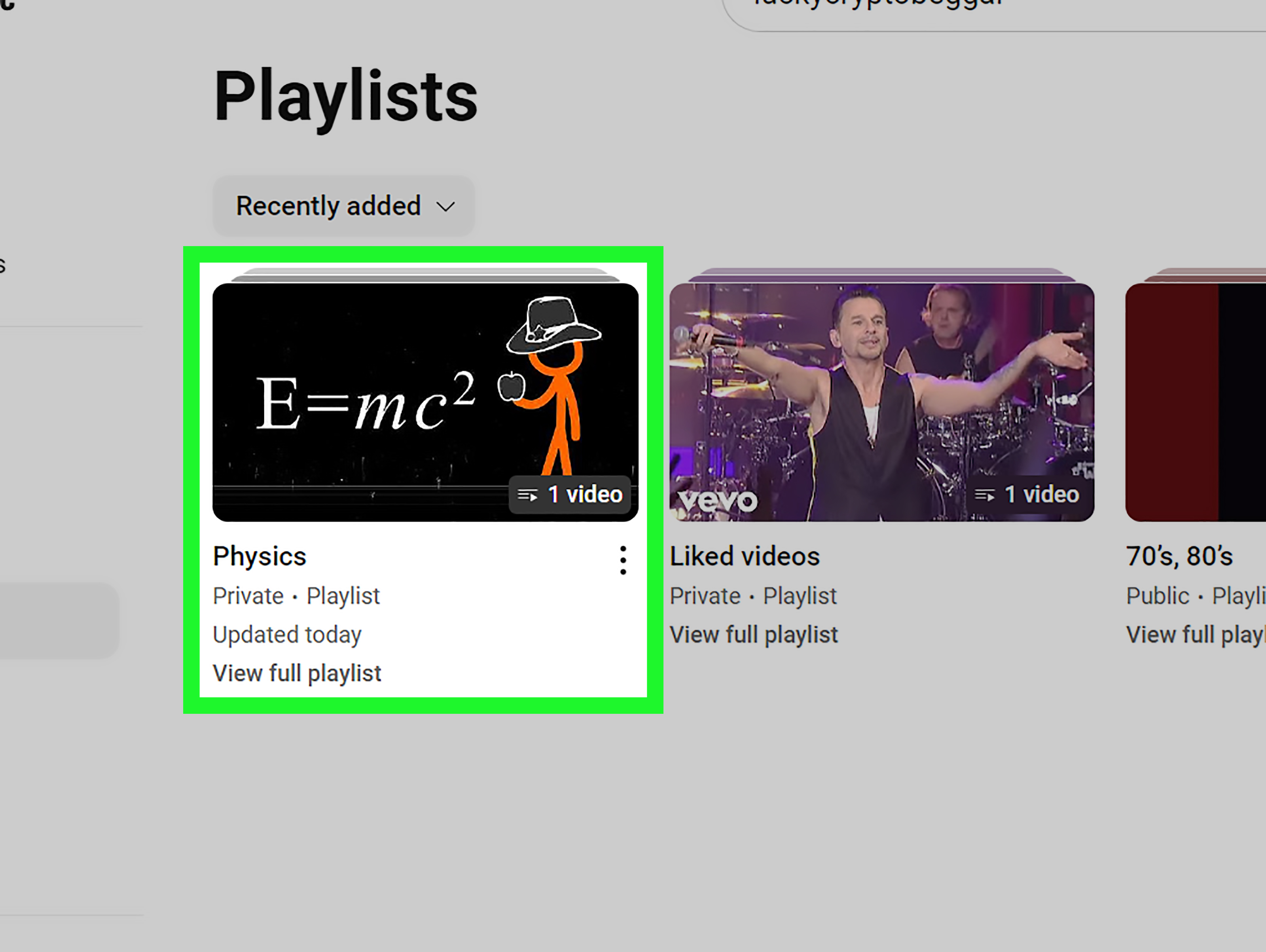
You can also create a playlist from your account area. Open the YouTube app, go to the You tab or profile area, find the Playlists section, and look for New playlist. YouTube may ask you to choose videos from your watch history, then you can name the playlist and set privacy.
This method is handy when you recently watched several videos and want to group them after the fact. It is the YouTube equivalent of cleaning your desk after the papers have already formed a small mountain.
How to Create a New Playlist on YouTube Desktop
Creating a YouTube playlist on desktop is just as simple, and for many people it is easier because the larger screen gives you more room to manage titles, descriptions, order, and settings.
Create a Playlist from a Video on Desktop
- Go to YouTube.com and sign in to your account.
- Open the video you want to add to a new playlist.
- Click the three-dot More menu or the visible Save button, depending on your layout.
- Select Create new playlist.
- Type a playlist name.
- Choose a privacy setting.
- Click Create.
Desktop is especially useful if you are building a content library for a channel, creating a research collection, or setting up a playlist that needs a polished title and description.
Create a Playlist from a Short on Desktop
Open the Short, click More, choose Save, then select Create new playlist. Add your playlist name, choose privacy, and click Create. The process is nearly identical to saving a regular video.
Create a Playlist in YouTube Studio
If you are a creator, YouTube Studio gives you more control. Sign in to YouTube Studio, go to Content, open the Playlists tab, and manage playlists from there. You can update playlist details, change descriptions, add videos, reorder content, adjust language settings, review analytics, and prepare playlists for channel presentation.
This is the better route for branded channels, educational channels, businesses, and anyone who wants playlists to work as part of a bigger YouTube SEO strategy.
Choosing the Right Playlist Privacy Setting
When you create a playlist, YouTube asks you to choose a privacy setting. This small dropdown matters. Pick the wrong one and your masterpiece playlist may either be invisible to everyone or visible to people you did not intend to impress with your “Motivational Speeches for Mondays” collection.
Public
A public playlist can be viewed and shared by anyone. Use this for playlists you want people to discover, such as tutorials, product demos, podcast episodes, course modules, recipes, music collections, or channel series.
Unlisted
An unlisted playlist is not generally discoverable through normal browsing, but anyone with the link can view it. This is useful for client resources, classroom materials, internal training, event videos, or curated recommendations you only want to share with specific people.
Private
A private playlist is for your eyes only unless YouTube gives you an option to invite specific viewers for certain content. Choose private for personal watch lists, research, drafts, or anything you are not ready to share.
For creators, public playlists are usually best for discoverability. For personal organization, private or unlisted may be smarter. For secret karaoke warmups, private is probably your friend.
How to Add More Videos to an Existing Playlist
Once your playlist exists, adding more videos is easy.
- Open a video or Short you want to save.
- Tap or click Save.
- Select the playlist name.
- Confirm the save if prompted.
You can add the same video to more than one playlist if it fits multiple topics. For example, a video about “beginner camera settings for food photography” could belong in a photography playlist, a content creator playlist, and a restaurant marketing playlist.
How to Edit a YouTube Playlist
A playlist is not carved into stone. You can rename it, rewrite the description, reorder videos, remove outdated clips, and keep improving it over time.
Edit on Mobile
Open the YouTube app, go to your You tab or playlist area, select the playlist, and tap the pencil or edit icon if available. From there, you can update the title, description, privacy, and sometimes the order of videos. To remove a video, open the menu next to the video and choose the remove option.
Edit on Desktop
On desktop, open the playlist page. Use the edit options to change the title or description. To reorder videos, drag them into the sequence you want. To remove a video, click the three-dot menu beside it and choose the removal option.
Edit in YouTube Studio
Creators should use YouTube Studio for deeper management. In Studio, go to Content, then Playlists. You can open playlist details, update descriptions, manage videos, change language settings, and view analytics. Playlist titles can be up to 150 characters, while descriptions can be much longer, giving you room to explain the value of the collection.
Best Practices for Naming a YouTube Playlist
A playlist name should be clear before it is clever. “Stuff I Like” may be emotionally honest, but it tells viewers and search engines almost nothing. A title like “Beginner Yoga Routines for Flexibility” is stronger because it describes the topic, audience, and benefit.
Use Search-Friendly Words
Include natural keywords people might type into YouTube or Google. Examples include “beginner,” “complete guide,” “tutorials,” “for students,” “for small business,” “workout,” “recipes,” “review,” “course,” and “step by step.”
Keep It Specific
Specific titles attract the right audience. Compare these two playlist names:
- Weak: Marketing Videos
- Stronger: YouTube Marketing Tutorials for Small Businesses
The second title is easier to understand, easier to search, and more likely to satisfy viewers who know what they want.
Avoid Keyword Stuffing
Do not name a playlist “YouTube Playlist YouTube Tips YouTube SEO Playlist Create Playlist YouTube.” That is not optimization; that is a cry for help. Use one clear primary keyword and a few natural supporting words.
How to Write a Strong Playlist Description
A playlist description gives context. It tells viewers what they will learn, who the playlist is for, and why the videos are grouped together. For creators, it is also a helpful place to include related keywords naturally.
Here is a simple playlist description formula:
This playlist helps [audience] learn [topic] so they can [benefit]. Watch the videos in order for [result], or jump to the lesson you need most.
Example:
This playlist helps beginner YouTube creators learn how to plan, film, edit, upload, and optimize videos. Watch the tutorials in order to build your first channel workflow, or jump to the topic you need today.
Good descriptions are useful, not robotic. Write like a person. A helpful sentence beats a pile of keywords every time.
How to Organize Videos Inside a Playlist
The order of videos can make or break a playlist. Random order is fine for comedy clips or music favorites, but learning playlists, product guides, and channel series should follow a logical path.
Use Beginner-to-Advanced Order
If the playlist teaches a skill, start with the basics. A coding playlist should not begin with “Deploying a Full-Stack App” unless you enjoy watching beginners quietly close the tab.
Use Story Order
For documentaries, vlogs, travel series, or behind-the-scenes content, arrange videos chronologically. Help the viewer follow the journey.
Put Your Best Video First
The first video should earn trust quickly. Choose a strong introduction, a popular video, or a high-value tutorial. Viewers decide fast, so do not start with your weakest clip and hope they discover the good stuff later.
Remove Outdated Videos
If a tutorial is no longer accurate, remove it or move it lower. Playlists should feel maintained. Nobody wants a “current tips” playlist where the first video explains features from the dinosaur era of the internet.
How to Share a YouTube Playlist
To share a playlist, open the playlist page and copy the playlist URL. On desktop, make sure the URL contains the word playlist and a playlist ID. This helps confirm you are sharing the full playlist, not just one video playing inside it.
On mobile, open the playlist and tap the share icon if available. You can copy the link or send it through apps such as Messages, email, Facebook, X, or other social platforms.
If your playlist includes private videos, remember that people may not be able to watch those videos unless they have permission. For smooth sharing, use public videos or make sure access settings match your goal.
How to Collaborate on a YouTube Playlist
YouTube also supports playlist collaboration. This is helpful for friends, classmates, teams, teachers, music fans, or communities building a shared collection.
- Open the playlist.
- Select Share.
- Choose Invite collaborators.
- Select who you want to invite.
If the playlist is private, YouTube may ask you to make it public or unlisted before inviting others. Collaborative playlists can also support voting features, allowing participants to influence the order of videos. This is excellent for group planning and mildly dangerous for family road-trip music, depending on your relatives.
How Playlists Help YouTube SEO
YouTube playlists can appear in search results, and they help organize videos around topics. For SEO, that means every playlist is another opportunity to communicate relevance. A strong playlist title, helpful description, logical order, and focused topic can make your channel easier for viewers and algorithms to understand.
For example, a cooking channel might create playlists like:
- Easy Weeknight Dinners
- Beginner Baking Tutorials
- Healthy Meal Prep Recipes
- Air Fryer Recipes for Busy Families
Each playlist targets a different search intent. Viewers get a clear path, and the channel looks more organized. That is good user experience, and good user experience is the quiet engine behind strong SEO.
Playlist SEO Checklist
- Use a clear, keyword-friendly playlist title.
- Add a useful description written in natural language.
- Group videos by one focused topic.
- Place the most helpful or introductory video first.
- Remove outdated or irrelevant videos.
- Feature important playlists on your channel homepage.
- Review playlist analytics to see what keeps viewers watching.
How to Feature Playlists on Your YouTube Channel
If you have a YouTube channel, do not let your playlists hide in a corner. Feature them on your channel homepage so visitors can quickly understand what you offer.
In YouTube Studio, go to Customization, open the Home or layout area, and add a section. YouTube allows creators to highlight different content types, including single playlists, created playlists, and multiple playlists. A channel homepage can include several custom sections, so use them strategically.
For example, a tech channel might show:
- Latest Uploads
- Beginner Laptop Buying Guides
- Smartphone Reviews
- Windows Tutorials
- Creator Gear Recommendations
This turns the channel homepage into a map instead of a messy video pile. Viewers appreciate maps. Messy piles are for laundry.
Common YouTube Playlist Problems and Fixes
I Cannot Find the Save Button
YouTube layouts change. Sometimes the Save option appears directly under a video. Other times, it is inside the three-dot menu. On mobile, tap around the area under the video or open the menu. On desktop, check the row of action buttons near Like, Share, and More.
My Video Saved to the Wrong Playlist
After tapping Save, YouTube may automatically add the video to the most recent playlist. Watch for the confirmation message and tap Change if you need to pick a different playlist.
My Playlist Is Not Visible to Others
Check the privacy setting. If it is private, other people cannot see it. Change it to public for discoverability or unlisted for link-only sharing.
I Shared a Video Instead of the Playlist
Open the playlist page itself and copy that URL. On desktop, look for “playlist” in the link. If you copy the URL from a video page, you may accidentally share only one video.
I Cannot Reorder Shorts
Some playlist management features may not work the same way for playlists made only of Shorts. If ordering is important, test the playlist on desktop and consider mixing standard videos when appropriate.
Specific Examples of Useful YouTube Playlists
Not sure what kind of playlist to create? Here are practical examples:
For Students
Create playlists for “Algebra Test Review,” “AP Biology Animations,” “Essay Writing Tips,” or “U.S. History Crash Course.” Put foundational videos first, then practice and review videos later.
For Creators
Create playlists by topic, format, or audience level. A photography creator might use “Camera Basics,” “Portrait Lighting,” “Editing in Lightroom,” and “Photography Business Tips.”
For Businesses
Use playlists for testimonials, product tutorials, webinars, customer onboarding, case studies, and industry explainers. A clean playlist can support sales, support, and brand trust.
For Personal Use
Make playlists for workouts, recipes, travel planning, bedtime music, home repairs, hobby tutorials, or motivational talks. A personal playlist does not need to be perfect. It just needs to help future you.
Personal Experience: What Actually Makes YouTube Playlists Useful
After creating and managing many YouTube playlists for research, learning, entertainment, and content planning, one lesson stands out: the playlist is only useful if the future version of you understands it. That sounds obvious, but many people create playlists with vague names like “Watch,” “Good,” “Stuff,” or the legendary “Videos 3.” Two weeks later, they open the list and have no idea why anything is there. A playlist should not require detective work.
The best experience starts with naming. A playlist called “YouTube Editing Tips” is fine, but “YouTube Editing Tips for Short-Form Videos” is better. It tells you exactly why the videos belong together. When I create topic-based playlists, I try to imagine I am sending the list to someone else. Would they understand the purpose in five seconds? If yes, the title works. If no, I rewrite it.
Another helpful habit is putting the most important video first. Many people add videos in the order they find them, but discovery order is not always learning order. I have made this mistake with software tutorials. The first video I saved was an advanced trick, then the beginner setup video came fifth, then a troubleshooting video came second. Watching that playlist felt like assembling furniture while the instructions shouted random page numbers. Now I reorder playlists so the first video gives orientation, the middle videos build skill, and the later videos handle advanced details.
For mobile users, the biggest tip is to pay attention after tapping Save. YouTube may save the video to your last-used playlist or Watch Later. That is convenient until you realize your “Healthy Dinner Ideas” playlist contains a video about replacing a laptop battery. The confirmation pop-up is your friend. Tap Change when needed. It takes one second and prevents future confusion.
For desktop users, YouTube Studio is worth learning if you manage a channel. Regular YouTube is fine for quick saving, but Studio gives a cleaner management experience. Titles, descriptions, visibility, playlist analytics, and channel layout all matter when playlists are part of a publishing strategy. A creator who features playlists on the homepage gives new visitors a guided tour instead of making them dig through uploads like archaeologists with Wi-Fi.
I also recommend reviewing playlists once a month if they support a real goal. Remove broken, outdated, weak, or duplicate videos. Add newer resources. Improve the description. Move the strongest video to the top. Playlists are not just containers; they are living collections. Treat them like a garden. A little pruning keeps them useful. Ignore them forever and eventually you have weeds, mystery vines, and a tutorial from 2016 telling you to click a button that no longer exists.
The most underrated use of playlists is sharing knowledge. Instead of explaining the same topic repeatedly, send a curated playlist. A teacher can share class resources. A manager can share onboarding videos. A friend can share travel research. A creator can share a complete beginner path. When done well, a playlist saves time for both the sender and the viewer. It is organization disguised as generosity.
In short, creating a YouTube playlist is easy. Creating a useful YouTube playlist takes a little intention: clear title, smart order, right privacy, helpful description, and occasional maintenance. Do that, and YouTube becomes less like an endless rabbit hole and more like a well-labeled library. Still fun, still full of distractions, but at least now the distractions have folders.
Conclusion
Creating a new playlist on YouTube is one of the simplest ways to organize videos, improve learning, share resources, and build a better viewing experience. On mobile, you can create a playlist directly from a video, a Short, or your You tab. On desktop, you can create one from the video page or manage it more deeply through YouTube Studio. Once your playlist exists, choose the right privacy setting, add relevant videos, write a clear title and description, and arrange the videos in a useful order.
For casual viewers, playlists save time and reduce digital clutter. For creators, playlists support YouTube SEO, increase session depth, organize channel topics, and help visitors find the content they need. Whether you are building a study list, a workout plan, a music queue, a business training library, or a binge-worthy video series, playlists turn YouTube from a wild jungle into a guided trail. Bring snacks. The algorithm certainly will.