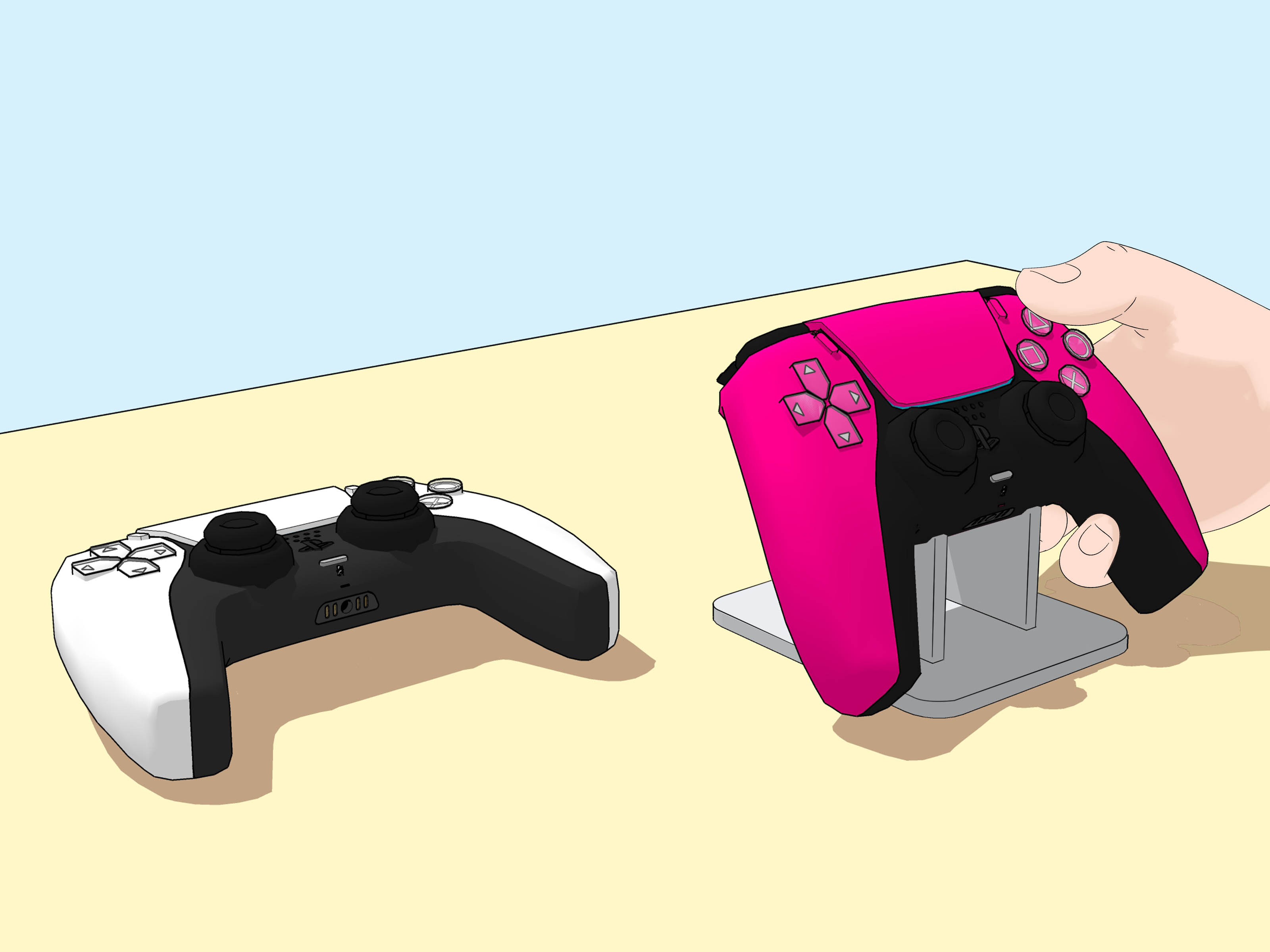
Your character is walking left. You are not pressing left. The camera is slowly admiring a nearby wall while an enemy turns you into digital confetti. Congratulations: your PS5 controller may have stick drift.
Stick drift happens when a DualSense analog stick sends directional input even though the stick is resting in its neutral position. Dust, worn internal contacts, outdated controller software, accidental damage, and overly sensitive game settings can all produce similar symptoms.
The good news is that you do not need to immediately launch your controller into the electronics-recycling bin. Start with the five fixes below, moving from the safest and fastest option to professional or hardware-level repair.
Quick Answer: The Best Order for Fixing PS5 Stick Drift
- Reset and reconnect the DualSense controller.
- Update the controller and PS5 system software.
- Clean around the drifting analog stick.
- Increase the in-game deadzone or adjust a DualSense Edge profile.
- Repair or replace the worn joystick module.
Test the controller after every step. There is no prize for dismantling a controller that only needed a reset.
What Does PS5 Controller Stick Drift Look Like?
PS5 stick drift is unwanted movement generated by one of the controller’s analog sticks. It can affect either the left stick, which commonly controls character movement, or the right stick, which usually controls the camera and aiming.
Common signs of DualSense drift
- A character walks or runs without your input.
- The camera slowly rotates while the controller is untouched.
- A menu selection moves on its own.
- Aiming feels unstable or pulls toward one direction.
- Racing vehicles steer slightly on straight roads.
- The problem appears in several games rather than only one title.
Do not confuse drift with aim acceleration, motion controls, camera shake, or a game-specific sensitivity setting. Some games deliberately continue moving the camera after a quick stick movement. True controller drift generally produces a repeated directional input while the stick is centered.
Test before attempting a repair
Open two or three games and leave the controller untouched for a minute in each one. Use menus, character movement, and camera controls. If the same stick pulls in the same direction across multiple games, the controller is probably responsible.
You can also connect the DualSense to a Windows computer and examine its raw analog input using the Windows controller panel or a reputable gamepad-testing utility. A healthy stick should return close to the center when released. Small fluctuations may be normal, but continuous movement in one direction suggests drift.
Fix 1: Reset and Reconnect the DualSense Controller
A controller reset clears temporary communication problems and forces the DualSense to establish a fresh connection with the console. It will not repair a physically worn joystick, but it is fast, safe, and worth trying first.
How to reset a PS5 controller
- Turn off the PS5 completely rather than leaving it in Rest Mode.
- Disconnect the DualSense USB cable.
- Turn the controller over and locate the small reset hole near the Sony logo.
- Insert a straightened paper clip, SIM-eject tool, or similar narrow object.
- Press and hold the internal button for at least five seconds.
- Connect the controller to the PS5 with a data-capable USB cable.
- Turn on the console and press the PS button to reconnect.
Test the controller before changing anything else. A reset is most likely to help when the unwanted movement began suddenly, appeared after pairing the controller with another device, or occurs inconsistently.
Make sure your USB cable carries data as well as power. Some inexpensive charging cables can refill the battery but cannot pair the controller correctly. They are essentially extension cords wearing USB costumes.
Fix 2: Update the Controller and PS5 Software
Controller updates can correct input bugs, improve communication, and resolve compatibility problems. They cannot rebuild worn mechanical contacts, but installing current software removes an important variable from the diagnosis.
Update DualSense device software on PS5
- Open Settings from the PS5 home screen.
- Select Accessories.
- Select Controller (General).
- Choose DualSense Wireless Controller Device Software.
- Install an update if one is available.
Keep the controller connected and avoid turning off the console during installation. The DualSense can also be updated from a compatible Windows computer using Sony’s PlayStation Accessories application.
Update the PS5 system software
- Go to Settings.
- Select System.
- Open System Software.
- Select System Software Update and Settings.
- Choose Update System Software.
After updating, restart the console and test both wireless and USB connections. If the controller works correctly over USB but behaves strangely only over Bluetooth, the problem may involve wireless interference or connection instability rather than worn stick hardware.
Move wireless routers, external drives, USB hubs, and other radio-equipped devices away from the console for a quick comparison. Interference is not the usual cause of true stick drift, but testing a wired connection helps separate signal problems from analog-stick problems.
Fix 3: Clean Around the Analog Stick
Dust, skin oil, pet hair, crumbs, and other debris can collect around the base of a thumbstick. If particles interfere with the stick’s movement or internal sensors, careful cleaning may stop mild or intermittent drift.
What you need
- A clean microfiber cloth
- Compressed air designed for electronics
- Cotton swabs
- High-concentration isopropyl alcohol, preferably 90% or higher
How to clean a drifting PS5 analog stick
- Turn off the controller and disconnect every cable.
- Use a dry microfiber cloth to remove surface dirt.
- Push the affected stick gently to one side.
- Hold the compressed-air can upright and spray short bursts around the exposed edge.
- Rotate the stick through several full circles while continuing with brief bursts.
- Lightly dampen a cotton swab with isopropyl alcohol. It should not be dripping.
- Wipe around the base of the stick while moving it in every direction.
- Allow the controller to dry completely before reconnecting it.
Repeat the process once if the drift improves but does not disappear. Cleaning is most effective when the problem changes as you rotate, click, or gently move the stick.
Cleaning mistakes to avoid
- Do not pour alcohol directly into the controller.
- Do not use water, window cleaner, hand sanitizer, or household sprays.
- Do not use ordinary WD-40 or oily lubricants.
- Do not shake or invert a compressed-air can while spraying.
- Do not blow into the controller with your mouth; moisture is an unhelpful bonus ingredient.
If cleaning fixes the drift for only a few hours or days, the internal potentiometer may be worn rather than dirty. In that case, additional external cleaning is unlikely to provide a lasting result.
Fix 4: Increase the Game’s Controller Deadzone
A deadzone is the small area near the center of an analog stick where movement is ignored. Increasing it can prevent a game from detecting mild drift.
How to change a deadzone
- Open the game’s settings menu.
- Look under Controller, Gameplay, Aiming, or Advanced Controls.
- Find the left-stick or right-stick deadzone option.
- Increase the minimum deadzone in small increments.
- Stop when the unwanted movement disappears without making controls feel sluggish.
For example, suppose a camera slowly rotates when the right stick is untouched. Increasing the right-stick minimum deadzone from 5% to 8% may hide the unwanted input. Jumping directly to 25% might also stop the drift, but aiming could feel like you are steering a refrigerator.
The standard DualSense controller does not offer a universal system-wide deadzone adjustment that automatically applies to every PS5 game. Availability depends on the game. Competitive shooters, racing games, and flight simulators are more likely to include detailed deadzone controls than simple platformers.
DualSense Edge deadzone settings
DualSense Edge owners can create custom profiles and adjust stick sensitivity and deadzones through the PS5 accessory settings. This provides a broader workaround than changing each game separately.
Remember that a larger deadzone masks minor drift; it does not restore worn parts. If the required deadzone keeps increasing, the joystick is deteriorating and will probably need repair.
Fix 5: Repair or Replace the Joystick Module
Persistent drift across multiple games, connections, and software versions usually points to mechanical wear or internal damage. Conventional analog-stick modules use moving contacts to measure direction. Those contact surfaces can become dirty, distorted, or worn after extended use.
Check warranty and official repair options first
Before opening the controller, find its receipt, serial number, and warranty information. Use the official PlayStation repair diagnostic to determine whether Sony or the retailer can service or replace it.
A controller that is relatively new, has not suffered liquid damage, and has not been modified may qualify for warranty service. Policies, shipping responsibilities, and coverage periods can vary by country, seller, and purchase date.
Professional controller repair
A qualified repair technician can inspect the joystick, clean internal contacts, replace worn components, or install a complete stick module. Professional service is a sensible option when the controller is outside warranty but otherwise works well.
Ask whether the quoted price includes diagnostics, parts, labor, calibration, and a repair warranty. If the repair approaches the cost of a replacement controller, compare both options before approving the work.
DIY joystick replacement
Replacing the joystick module in a standard DualSense is not a beginner-level five-minute repair. The controller must be disassembled, delicate ribbon cables must be handled correctly, and the joystick module is attached to the circuit board with multiple solder joints.
Successful replacement may require a temperature-controlled soldering station, flux, desoldering equipment, replacement parts, hand protection, ventilation, and experience working on densely populated circuit boards. Too much heat can damage pads or nearby components.
DualSense Edge owners have an easier option
The DualSense Edge uses removable stick modules. If cleaning, resetting, firmware updates, and profile adjustments fail, the affected module can be removed and replaced without soldering. Left and right modules are interchangeable, although replacements are sold separately.
How to Tell Whether a Fix Is Temporary or Permanent
Not every successful test means the problem is gone forever. Use the controller for several gaming sessions and watch for these patterns:
- The reset permanently stops it: The cause was probably a temporary software or connection problem.
- Cleaning stops it and it stays fixed: Surface contamination was probably interfering with movement.
- Cleaning helps briefly: Internal contamination or worn contacts are more likely.
- A larger deadzone hides it: The controller still drifts, but the game is ignoring the unwanted input.
- Nothing changes it: The stick module, circuit board, or another internal component may be damaged.
Retest in the same game and situation each time. Changing games, sensitivity, aim curves, and controller settings simultaneously makes the results harder to interpret.
How to Reduce the Chance of Future Stick Drift
No mechanical controller lasts forever, but a few habits can reduce contamination and accidental damage.
- Store the controller in a clean drawer, cabinet, or case.
- Wash and dry your hands before long gaming sessions.
- Keep food and sugary drinks away from the controller.
- Clean around the thumbsticks periodically with a dry cloth.
- Avoid pressing L3 and R3 harder than necessary.
- Do not drop, throw, twist, or sit on the controller.
- Keep the controller away from excessive heat, humidity, and direct sunlight.
- Use a second controller occasionally if you play for many hours every day.
Rotating controllers does not magically eliminate wear, but it spreads usage across two devices. It also ensures you have a backup when one controller decides that every game should include an unrequested walking mechanic.
Frequently Asked Questions About PS5 Stick Drift
Can resetting a PS5 controller fix stick drift?
Yes, when the unwanted movement is caused by a temporary connection, firmware, or input-processing problem. A reset cannot permanently repair worn joystick contacts.
Does isopropyl alcohol fix controller drift?
It can help when dust, oil, or residue around the stick causes the problem. Apply only a tiny amount to a cotton swab and keep liquid away from internal electronics. If drift quickly returns, the module may be physically worn.
Can I calibrate a standard DualSense on the PS5?
The standard DualSense does not have the same system-wide stick sensitivity and deadzone profiles offered by the DualSense Edge. Some individual games provide their own calibration or deadzone controls.
Is increasing the deadzone bad?
A small increase is usually acceptable. A very large deadzone reduces fine control because the stick must travel farther before the game recognizes movement.
Should I open my PS5 controller?
Only consider internal repair after checking warranty options and understanding the difficulty. Standard DualSense joystick replacement generally requires disassembly and soldering.
When should I replace the entire controller?
Replacement may make sense when the controller has severe drift plus battery, trigger, button, charging-port, or physical-damage problems. Repair is more attractive when the joystick is the only failing component.
Real-World Troubleshooting Experiences: What Different Drift Patterns Teach You
The following practical scenarios illustrate why the order of repairs matters. They are representative troubleshooting experiences based on common controller symptoms rather than promises that every controller will respond identically.
Experience 1: The sudden menu creep
A controller that previously worked normally begins moving through the PS5 menu after being paired with a computer. The owner assumes the left stick has failed, but the movement is inconsistent and disappears whenever the controller is connected by USB.
The sensible first move is not disassembly. The controller is reset using the hidden button, reconnected with a USB data cable, and updated through the Accessories menu. After restarting the console, the unwanted menu input disappears.
The lesson is simple: sudden, inconsistent drift can be a communication or software problem. When symptoms begin after pairing, updating, or switching devices, reset and firmware steps deserve the first ten minutes of attention.
Experience 2: The snack-powered analog stick
Another controller develops a slight right-stick pull after months of living on a coffee table. The drift becomes worse when the stick is pushed left and released. A close inspection reveals dust around the base and one suspicious crumb that appears to have survived several gaming generations.
The controller is powered off, cleaned with short bursts of compressed air, and wiped around the stick with a lightly dampened isopropyl-alcohol swab. After drying, the camera remains centered during testing.
This pattern suggests contamination because moving the stick changes the severity of the problem. External cleaning can work remarkably well in these cases, although pouring cleaner into the controller would create a much more expensive story.
Experience 3: The deadzone that keeps growing
A heavily used controller pulls left in every game. Cleaning improves it slightly, but the drift returns within a week. Increasing the deadzone from 5% to 8% hides the movement for a while. Several months later, the game requires 15%, and fine aiming feels increasingly unresponsive.
This is the classic sign of a workaround outliving its usefulness. The controller has not healed; the game is simply ignoring a larger amount of unwanted input. The practical choices are warranty service, professional module replacement, a skilled DIY repair, or a new controller.
Experience 4: The unsuccessful shortcut
One owner watches a short repair video, opens a standard DualSense, and attempts to clean an internal potentiometer without documenting cable positions. During reassembly, an adaptive-trigger ribbon cable is left partially seated. The stick drift improves, but the trigger no longer works correctly.
The lesson is not that internal repair is impossible. It is that a standard DualSense contains delicate parts, and joystick work is more complicated than removing four screws and confidently saying, “How hard could it be?” Warranty coverage and professional diagnostics should be considered before surgery begins.
Experience 5: The DualSense Edge advantage
A DualSense Edge user confirms severe drift, resets the controller, updates its software, and tests several deadzone profiles. The problem persists. Instead of desoldering a module, the owner removes the front cover, releases the affected stick module, and installs a replacement.
This modular design turns a complex board-level repair into a manageable component swap. It costs more upfront, but it demonstrates why replaceable stick assemblies are valuable for players who put hundreds of hours into competitive games.
Across all five experiences, the best strategy remains the same: diagnose before repairing, use the least invasive solution first, and recognize when a temporary workaround is merely postponing necessary hardware service.
Conclusion
To fix stick drift on a PS5 controller, begin with a reset, install current controller and console software, and carefully clean around the affected analog stick. Mild drift can sometimes be managed by increasing a game’s deadzone, while DualSense Edge owners can use custom profiles and replaceable stick modules.
If the controller continues sending unwanted input across multiple games, the internal joystick mechanism is probably worn or damaged. Check warranty coverage before opening the controller, and choose professional repair when you lack soldering or electronics experience.
Most importantly, resist the urge to skip straight to the screwdriver. The fastest fix is often the boring oneand boring is excellent when it saves a perfectly good controller.