Few Windows errors sound as dramatic as "WiFi doesn't have a valid IP configuration". It feels like your laptop walked into a networking job interview and forgot its own address. The good news? This error is usually fixable without replacing your router, reinstalling Windows, or threatening your computer with a screwdriver.
In plain English, this message means your Windows PC connected to Wi-Fi but did not receive a usable local IP address. Without that address, your computer cannot properly talk to your router, reach the internet, or load the website you were just about to open. The Wi-Fi bars may look confident, but behind the scenes, Windows is standing at the door with no name tag.
This guide explains how to fix the valid IP configuration error on Windows 10 and Windows 11 using practical steps: restarting your equipment, renewing your IP address, resetting TCP/IP, checking DHCP, updating your Wi-Fi driver, and knowing when the router or internet provider may be the real troublemaker.
What Does "WiFi Doesn't Have a Valid IP Configuration" Mean?
Your home router usually acts as a DHCP server. DHCP stands for Dynamic Host Configuration Protocol, which is the system that automatically hands out IP addresses to phones, laptops, tablets, smart TVs, printers, and that one mystery device named "Bedroom-LED-Thing."
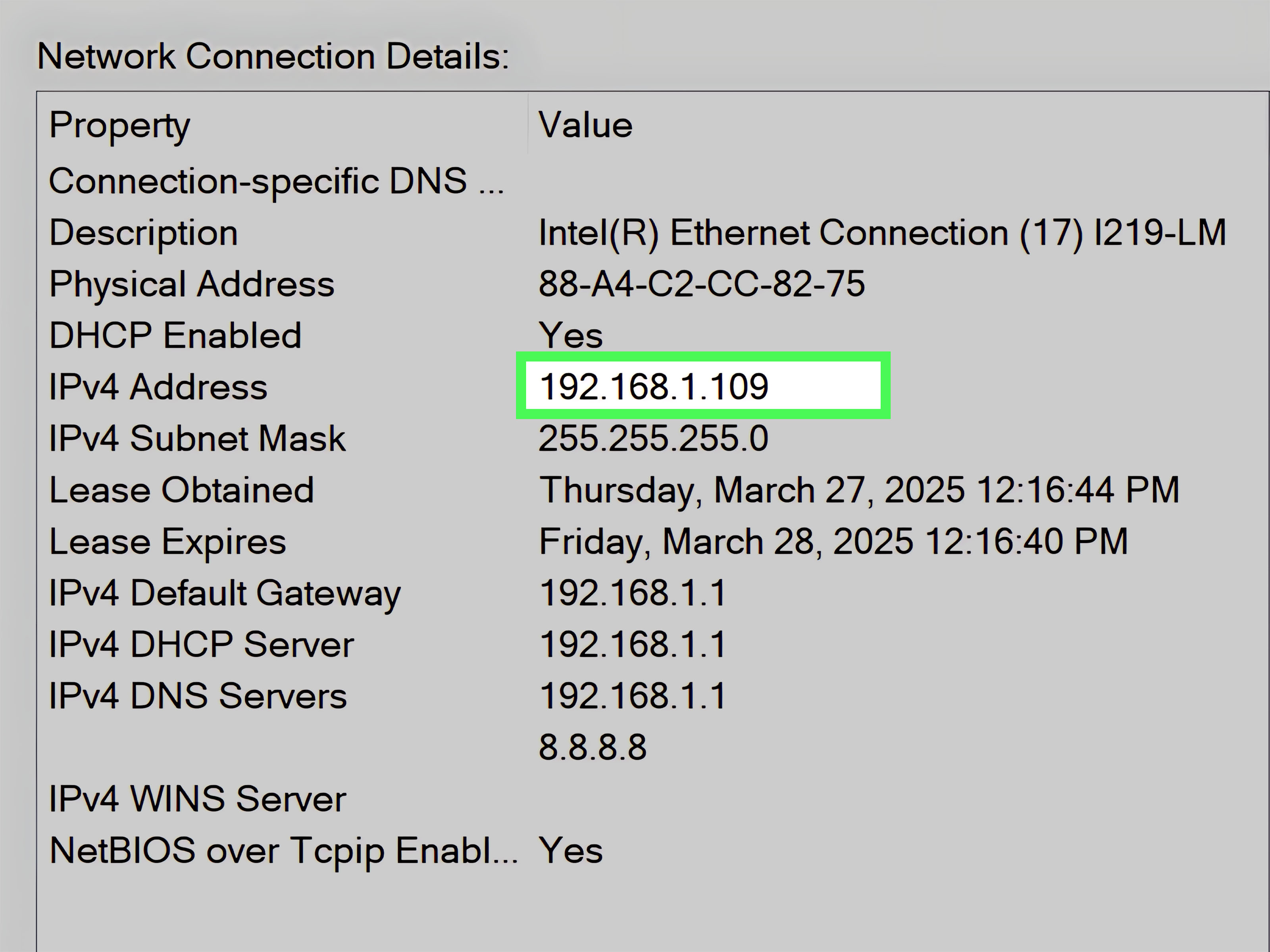
When everything works, your router gives your computer a local IP address such as 192.168.1.25, a subnet mask, a default gateway, and DNS server information. The default gateway is usually your router's address, often something like 192.168.1.1 or 192.168.0.1.
When Windows cannot get that information, it may assign itself an address that begins with 169.254. That type of address is a fallback address used when DHCP fails. It allows limited local communication, but it will not get you to YouTube, Gmail, Netflix, or the page you opened while pretending to be productive.
Common Causes of the Valid IP Configuration Error
The error can come from several places, so the best fix is not always the loudest one. Start simple before diving into command-line wizardry.
- Router or modem glitch: The DHCP service may stop assigning addresses correctly.
- Expired or stuck IP lease: Windows may be holding onto a bad network configuration.
- Corrupted TCP/IP or Winsock settings: The Windows networking stack may need a reset.
- Incorrect manual IP settings: A static IP address may conflict with your router's network.
- Outdated or damaged Wi-Fi driver: The wireless adapter may connect poorly or fail to request an IP address.
- VPN, proxy, firewall, or security software conflict: Network filters can interfere with normal connectivity.
- Router DHCP disabled or misconfigured: If DHCP is off, devices may connect to Wi-Fi but receive no useful IP address.
- Power management settings: Windows may turn off the wireless adapter to save power, especially after sleep mode.
Step 1: Restart Your Computer and Router
Yes, "turn it off and on again" is the broccoli of tech support: boring, healthy, and annoyingly effective. Restarting clears temporary memory, refreshes DHCP requests, and gives your router a chance to stop behaving like a tiny overheated traffic cop.
Use this order for best results:
- Shut down your Windows PC.
- Unplug your modem and router from power.
- Wait at least 60 seconds.
- Plug in the modem first and wait until its lights stabilize.
- Plug in the router and wait for Wi-Fi to return.
- Turn your PC back on and reconnect to Wi-Fi.
If every device in your home is offline, the issue is probably your router, modem, or internet service provider. If only one Windows laptop has the error, keep troubleshooting that device.
Step 2: Forget the Wi-Fi Network and Reconnect
A saved Wi-Fi profile can become corrupted or carry old security settings. Forgetting the network forces Windows to rebuild the connection from scratch.
On Windows 11
- Open Settings.
- Go to Network & internet.
- Select Wi-Fi.
- Click Manage known networks.
- Choose your network and click Forget.
- Reconnect and enter your Wi-Fi password.
On Windows 10
- Open Settings.
- Go to Network & Internet.
- Select Wi-Fi.
- Click Manage known networks.
- Select your network, click Forget, then reconnect.
This simple fix works especially well after changing a router password, replacing a modem, switching security modes, or moving between a 2.4 GHz and 5 GHz network.
Step 3: Run the Windows Network Troubleshooter
The Windows troubleshooter is not magic, but it is useful for quick repairs. It can detect disabled adapters, DHCP problems, DNS issues, and common configuration mistakes. Think of it as a junior mechanic: not always brilliant, but worth asking before you remove the engine.
On Windows 11
- Open Settings.
- Go to System.
- Select Troubleshoot.
- Open Other troubleshooters.
- Run the Network and Internet troubleshooter.
On Windows 10
- Open Settings.
- Go to Update & Security.
- Select Troubleshoot.
- Choose Additional troubleshooters.
- Run the internet or network adapter troubleshooter.
Apply any recommended fix, then restart your PC and test the connection again.
Step 4: Release and Renew Your IP Address
If your computer has a bad IP lease, you can manually release it and ask the router for a fresh one. This is one of the most reliable fixes for the "WiFi doesn't have a valid IP configuration" error.
- Click Start.
- Type cmd.
- Right-click Command Prompt and choose Run as administrator.
- Run these commands one at a time:
The ipconfig /release command drops the current IP configuration. The ipconfig /renew command asks the router for a new IP address. The ipconfig /flushdns command clears cached DNS records, which can help if websites still refuse to load after the IP problem is repaired.
After the commands finish, close Command Prompt and reconnect to Wi-Fi. If you get an error during renewal, your router may not be assigning addresses correctly, or your adapter may not be communicating with DHCP.
Step 5: Reset Winsock and TCP/IP
Winsock and TCP/IP are part of the Windows networking foundation. When they become corrupted, your PC may connect to Wi-Fi but fail to obtain a valid IP address. Resetting them is safe for most home users, although you may need to reconnect VPN or virtual networking tools afterward.
Open Command Prompt as administrator and run:
Restart your computer after running these commands. Do not skip the restart. Windows needs to reload the networking stack, and apparently it likes to do that while pretending it is "just updating a few things."
Step 6: Make Sure DHCP Is Enabled in Windows
If your computer is set to use a manual IP address that does not match your router, Windows may show the valid IP configuration error. Unless you intentionally use static IP addresses, your adapter should obtain its IP address and DNS server automatically.
- Press Windows + R.
- Type ncpa.cpl and press Enter.
- Right-click your Wi-Fi adapter.
- Select Properties.
- Double-click Internet Protocol Version 4 (TCP/IPv4).
- Select Obtain an IP address automatically.
- Select Obtain DNS server address automatically.
- Click OK.
If you previously entered a static IP address for gaming, port forwarding, a printer, or a work network, write it down before changing settings. Static IP addresses are useful in the right situation, but on the wrong network they are like mailing yourself to an old apartment.
Step 7: Check Your Current IP Details
Before changing more settings, inspect what Windows is actually receiving. Open Command Prompt and run:
Look for your wireless adapter. Important lines include IPv4 Address, Subnet Mask, Default Gateway, DHCP Enabled, and DNS Servers.
If the IPv4 address starts with 169.254, your PC did not receive an address from the router. If there is no default gateway, Windows does not know where to send internet traffic. If DHCP is disabled and you did not intend to use a static address, switch the adapter back to automatic settings.
Step 8: Disable and Re-enable the Wi-Fi Adapter
Disabling and re-enabling the adapter can clear a stuck wireless state without restarting the whole computer.
- Press Windows + R.
- Type ncpa.cpl and press Enter.
- Right-click your Wi-Fi adapter.
- Choose Disable.
- Wait 10 seconds.
- Right-click it again and choose Enable.
Reconnect to your wireless network and test your browser. This is a fast fix when the adapter wakes from sleep badly or gets stuck after switching networks.
Step 9: Update or Reinstall the Wi-Fi Driver
A damaged, outdated, or incompatible driver can cause IP configuration failures. This is common after a Windows update, a major system upgrade, or a laptop manufacturer driver package that went on a little vacation from reality.
Update the driver
- Right-click Start.
- Select Device Manager.
- Expand Network adapters.
- Right-click your wireless adapter.
- Select Update driver.
- Choose Search automatically for drivers.
Reinstall the driver
- Open Device Manager.
- Expand Network adapters.
- Right-click the wireless adapter.
- Choose Uninstall device.
- Restart your PC.
Windows will often reinstall the adapter automatically. For best results, download the newest driver from your laptop manufacturer or wireless adapter maker, especially if you use Intel Wi-Fi hardware or a branded laptop from Dell, HP, Lenovo, ASUS, Acer, or Microsoft Surface.
Step 10: Turn Off Wi-Fi Adapter Power Saving
Power saving is helpful for battery life, but sometimes Windows gets a little too enthusiastic and lets the Wi-Fi adapter nap through its responsibilities. If the error appears after sleep, hibernation, or closing the laptop lid, change the adapter's power setting.
- Right-click Start and open Device Manager.
- Expand Network adapters.
- Right-click your Wi-Fi adapter and select Properties.
- Open the Power Management tab.
- Uncheck Allow the computer to turn off this device to save power.
- Click OK and restart your PC.
If you do not see the Power Management tab, your driver or Windows build may hide it. In that case, focus on updating the driver and checking your power plan settings.
Step 11: Check Router DHCP Settings
If multiple devices have IP problems, the router deserves a polite but firm investigation. Log in to your router's admin panel and look for LAN, DHCP Server, or Network settings. Make sure DHCP is enabled and that the IP address pool has enough available addresses.
For example, a typical home router might use:
- Router IP: 192.168.1.1
- DHCP range: 192.168.1.100 to 192.168.1.200
- Subnet mask: 255.255.255.0
If the DHCP range is too small, full, disabled, or on the wrong subnet, devices may connect to Wi-Fi but fail to receive a valid IP address. Also check whether MAC filtering, parental controls, access control lists, or device blocking features are preventing your PC from joining correctly.
Step 12: Temporarily Disable VPN, Proxy, or Security Filters
VPN clients, proxies, firewall suites, antivirus web shields, virtual adapters, and packet-filtering tools can interfere with normal networking. You do not need to permanently remove them at first. Temporarily disconnect your VPN, turn off manual proxy settings, and test the connection.
To check proxy settings in Windows:
- Open Settings.
- Go to Network & internet.
- Select Proxy.
- Turn off any manual proxy you do not use.
If the internet works after disabling a VPN or security tool, update that app or reinstall it. Do not browse unprotected on sketchy networks just to test a theory. Troubleshooting is good; inviting malware to brunch is not.
Step 13: Use Network Reset as a Last Resort
Windows Network Reset removes and reinstalls network adapters, resets networking components, and clears many custom settings. It can fix stubborn valid IP configuration errors, but it may also remove VPN adapters, virtual switches, and saved network details.
On Windows 11
- Open Settings.
- Go to Network & internet.
- Select Advanced network settings.
- Choose Network reset.
- Click Reset now.
On Windows 10
- Open Settings.
- Go to Network & Internet.
- Select Status.
- Click Network reset.
- Choose Reset now.
After the restart, reconnect to Wi-Fi and enter your password again. If you use VPN software, Hyper-V, VirtualBox, VMware, or work security tools, you may need to reinstall or reconfigure them.
When Should You Call Your ISP or IT Department?
Call your internet service provider if every device in your home loses internet access, your modem lights show a service issue, your router cannot obtain a WAN IP address, or outages appear in your provider's app. Call your workplace IT department if this happens on a company laptop, school network, hotel Wi-Fi, or office VPN. Managed networks often use custom DHCP, DNS, certificates, device enrollment, or access rules that home troubleshooting cannot fix.
Quick Fix Checklist
If you want the fastest path, use this order:
- Restart your PC, router, and modem.
- Forget the Wi-Fi network and reconnect.
- Run the Windows network troubleshooter.
- Run ipconfig /release, ipconfig /renew, and ipconfig /flushdns.
- Run netsh winsock reset and netsh int ip reset.
- Confirm IPv4 is set to obtain IP and DNS automatically.
- Update or reinstall your Wi-Fi driver.
- Check router DHCP settings.
- Disable VPN, proxy, or firewall filters temporarily.
- Use Windows Network Reset if nothing else works.
Experience Notes: Real-World Lessons From Fixing This Error
In real life, the "WiFi doesn't have a valid IP configuration" error rarely arrives with a neat explanation. It usually appears at the worst possible time: five minutes before a meeting, halfway through a school assignment, or exactly when you are trying to prove to someone that your laptop is "totally fine." The trick is to avoid panic-clicking every setting in Windows. A calm sequence solves more problems than random button mashing.
One common scenario is the laptop that connects perfectly yesterday and fails today. In that case, the culprit is often a stuck IP lease, a sleepy adapter, or a router that needs a restart. The quickest successful pattern is usually: reboot the router, forget the Wi-Fi network, reconnect, then renew the IP address with Command Prompt. Many users jump straight to reinstalling drivers, but that is like replacing your tires because the parking brake is on.
Another familiar case happens after a Windows update. The Wi-Fi icon appears, the password is correct, and the router works for every other device, but the PC refuses to get a valid address. This is when Device Manager becomes useful. Updating the wireless driver from the PC manufacturer's website often works better than relying only on Windows automatic search. If the issue started immediately after an update, rolling back or reinstalling the adapter driver can also help.
Router-side issues are sneakier. A phone may keep working because it already has a valid lease, while a laptop fails because it needs a new one. That makes the PC look guilty even when DHCP on the router is the real problem. If new devices cannot connect or several devices show odd IP addresses, log in to the router and confirm DHCP is enabled. Also check whether the router has a limited address pool. A crowded smart home can use more addresses than expected, especially when guests, cameras, speakers, TVs, and IoT devices all want a seat at the tiny networking dinner table.
Public Wi-Fi adds another layer of comedy. Hotels, airports, cafes, and dorm networks may require a captive portal sign-in page before assigning full access. If Windows says the IP configuration is invalid on public Wi-Fi, try opening a plain website, disconnecting VPN, or asking the front desk whether device registration is required. Sometimes the fix is not technical at all; it is simply accepting terms and conditions written by a lawyer who clearly charges by the paragraph.
The most important lesson is to test one change at a time. After each step, reconnect and check ipconfig /all. If your address changes from 169.254.x.x to something like 192.168.1.x, you are moving in the right direction. If the default gateway appears, your PC can see the router. If DNS still fails, the IP issue may be fixed while name resolution still needs attention. Troubleshooting becomes much easier when you treat each result as a clue instead of a personal insult from Windows.
Finally, keep a small emergency plan. Save your Wi-Fi driver installer, know your router login, and keep an Ethernet cable or USB-to-Ethernet adapter nearby if your laptop supports it. When Wi-Fi misbehaves, a wired connection can help download drivers, confirm whether the router works, and make you feel like a networking professional from 2008. Not glamorous, but extremely useful.
Conclusion
The "WiFi doesn't have a valid IP configuration" error sounds technical, but the root problem is simple: Windows is not getting the network address it needs. Start with restarts and reconnection, then renew the IP address, reset TCP/IP, verify DHCP, and update the wireless driver. If multiple devices fail, investigate the router or contact your ISP. If only one Windows PC fails, focus on adapter settings, drivers, VPNs, proxies, and Network Reset.
Most of the time, you do not need a new computer, a new router, or a dramatic speech about modern technology. You need a fresh IP lease, a cooperative DHCP server, and perhaps a Wi-Fi adapter driver that has had its coffee.