Note: This article is based on current iPhone ringtone methods, including Apple’s official Settings, iTunes Store, GarageBand, Files, and ringtone-management guidance, then rewritten in original, web-ready language.
Introduction: Your iPhone Does Not Have to Sound Like Everyone Else’s
If every iPhone in the room rings and five people check their pockets at once, congratulations: you have discovered the great modern mystery of default ringtones. The good news is that your iPhone can sound more personal, more useful, and far less “Is that mine?” than the factory setting.
Learning how to get and download ringtones on iPhone is easier than it used to be, but Apple still likes to make personalization feel slightly like entering a secret garden with a velvet rope. You can buy ringtones directly from the iTunes Store, use Apple’s built-in tones, create custom ringtones for free with GarageBand, transfer M4R files from a computer, or use short audio files from the Files app on newer iOS versions.
This guide walks through free and paid ringtone options, explains what works best, helps you avoid sketchy downloads, and shows how to assign custom sounds to calls, texts, alarms, and specific contacts. No tech wizard hat requiredthough if you already own one, this is absolutely the occasion.
What Counts as an iPhone Ringtone?
An iPhone ringtone is the sound your device plays when you receive a phone call. Apple also lets you change text tones, voicemail alerts, email sounds, calendar alerts, reminder alerts, and other notification sounds from the Sounds & Haptics menu.
Traditionally, custom iPhone ringtones use the M4R file format. In simple terms, an M4R file is an audio file packaged in a way iOS recognizes as a ringtone. For years, users had to trim audio clips, convert them, rename extensions, sync with iTunes or Finder, and perform a tiny ritual under the full moon. Thankfully, newer methods are much friendlier.
Basic ringtone rules to remember
Most custom iPhone ringtones should be short, usually up to 30 seconds. That is long enough for a catchy chorus, a funny sound effect, or your dog barking like he pays rent, but short enough to behave properly as a ringtone. Also, not every song from a streaming service can be turned into a ringtone because many tracks are protected by digital rights management or licensing restrictions.
Method 1: Use Built-In iPhone Ringtones for Free
The easiest free option is already sitting inside your iPhone. Apple includes a library of built-in ringtones and alert tones, and you can switch among them in seconds.
How to change your default ringtone
- Open the Settings app.
- Tap Sounds & Haptics.
- Tap Ringtone.
- Preview different tones by tapping them.
- Leave the checkmark beside the tone you want.
You can follow a similar path to change Text Tone, New Voicemail, New Mail, Calendar Alerts, and other notification sounds. This is the fastest route if you simply want your iPhone to stop sounding exactly like your coworker’s phone, your parent’s phone, and the phone of that one person in the grocery line who never answers.
Best for
Built-in tones are best for users who want a quick, safe, free, and no-download solution. They are also perfect if you prefer clean notification sounds that do not blast a dramatic guitar solo during math class, a meeting, or a quiet restaurant.
Method 2: Buy Ringtones from the iTunes Store
If you want a polished ringtone from a popular song, movie theme, or recognizable sound, the iTunes Store is the most straightforward paid option. It is built into Apple’s ecosystem, so you do not need to gamble on suspicious “free ringtone” sites that look like they were designed during the flip-phone era.
How to buy ringtones on iPhone
- Open the iTunes Store app.
- Tap More.
- Tap Tones.
- Browse categories or use Search to find an artist, song, or sound.
- Tap a tone to preview it.
- Tap the price to buy it.
- Choose whether to set it as your default ringtone, text tone, or assign it to a contact.
Paid ringtones are convenient because they are ready-made and usually require very little setup. The downside is obvious: you pay for each tone. Also, not every song is available as a ringtone, even if the full song exists in Apple Music or the iTunes Store.
How to redownload purchased ringtones
If you bought tones before and they are missing after switching iPhones, open Settings, go to Sounds & Haptics, tap a sound category such as Ringtone, then look for Download All Purchased Tones. This option may not appear if everything is already downloaded or if there are no eligible purchases.
Best for
The iTunes Store is best for people who want official, legal, simple ringtone downloads and do not mind paying a small fee. It is the “I would rather spend a dollar than fight with file formats” methodand honestly, that is a very respectable lifestyle choice.
Method 3: Make Free Custom Ringtones with GarageBand
GarageBand is Apple’s free music-making app, and it remains one of the most reliable ways to create a custom ringtone directly on your iPhone. You can use an audio file, a song you created, a recording, or Apple Loops. You can also record your own voice or instrument if you want your ringtone to say, “This phone belongs to someone with range.”
How to create a ringtone in GarageBand
- Download GarageBand from the App Store if it is not already installed.
- Open GarageBand and create a new audio project.
- Import or record the audio you want to use.
- Trim the clip so it is no longer than about 30 seconds.
- Go to My Songs.
- Press and hold your project.
- Tap Share.
- Choose Ringtone.
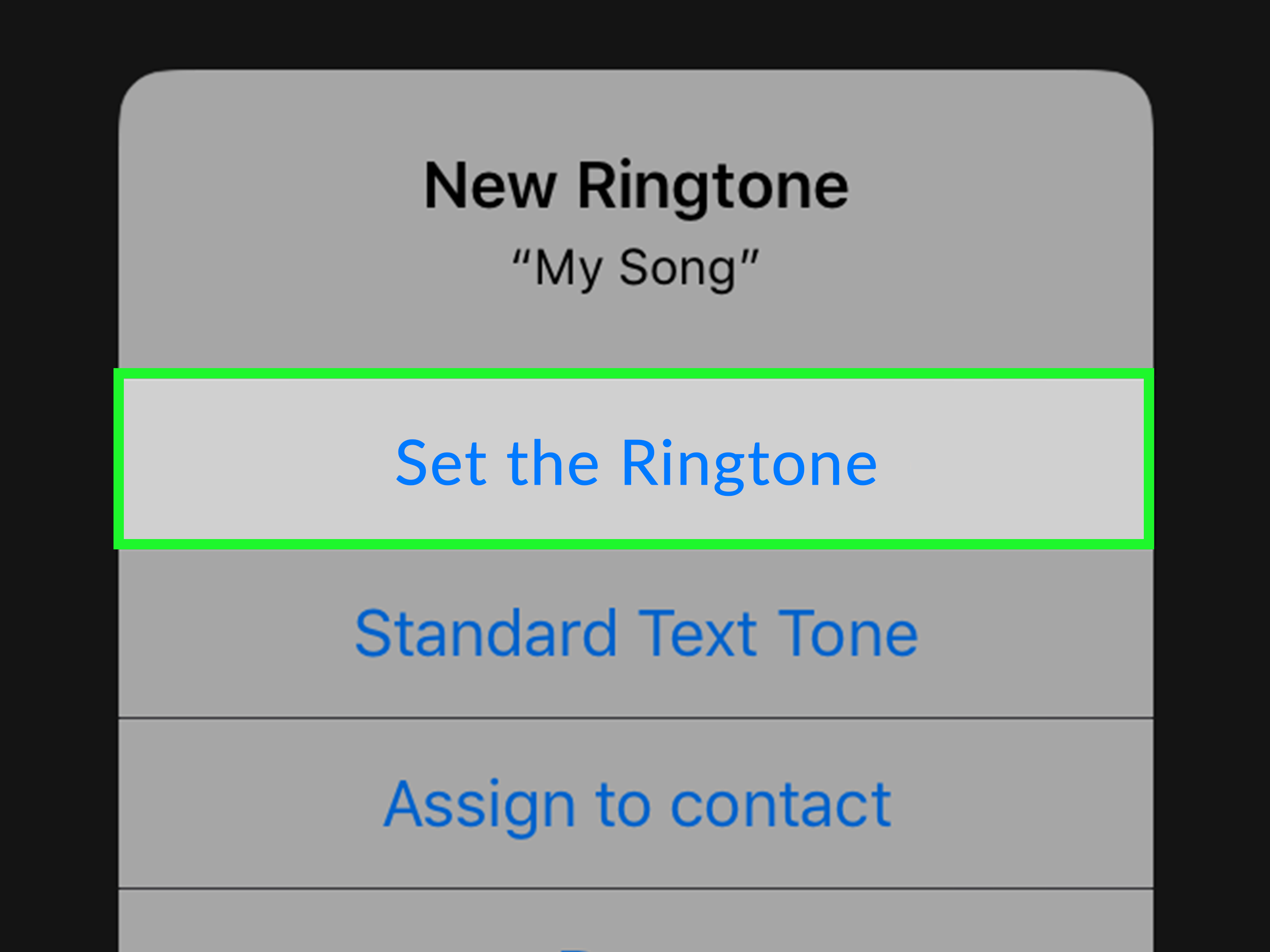
- Name your ringtone and tap Export.
- After export, choose Use sound as if you want to set it immediately.
GarageBand may feel a little busy the first time you open it because it is a real music production app, not just a ringtone trimmer. But once you understand the flowimport, trim, share, exportit becomes much less intimidating. Think of it as a kitchen with too many drawers: confusing at first, useful once you find the scissors.
Can you use Apple Music songs?
Some audio from your music library may appear unavailable or grayed out because of protection or licensing. In general, songs from streaming subscriptions are not the same as audio files you own and can freely edit. For the smoothest experience, use audio you created, royalty-free sound, a personal recording, or a non-protected file you have the right to use.
Best for
GarageBand is best for free custom ringtones, personal recordings, voice clips, original music, sound effects, and users who want control over the exact part of the audio. It is also the best method if you want a unique ringtone without buying one.
Method 4: Use Short Audio Files from the Files App
On newer iOS versions, Apple has made custom ringtone setup easier for compatible short audio files. If you have an MP3, M4A, or similar audio clip saved in the Files app and it is under the allowed length, you may be able to use the share menu to set it as a ringtone.
How to set a ringtone from Files
- Save your short audio clip to the Files app.
- Open Files and find the audio file.
- Tap or press and hold the file.
- Tap the Share button.
- Look for Use as Ringtone.
- Follow the prompts to add or assign the ringtone.
If you do not see the option, check your iOS version, file type, and clip length. The file may need to be shorter, converted, or handled through GarageBand instead. Apple’s ringtone tools are much better than they used to be, but they still occasionally behave like a cat deciding whether to sit in the box.
Best for
This method is best for users with newer iPhones or updated iOS versions who already have a short sound file ready. It is especially useful for voice memos, downloaded sound effects, and quick custom tones.
Method 5: Add M4R Ringtones from a Mac or Windows Computer
If you already have ringtone files on a computer, you can transfer them to your iPhone. This is a classic method for people who like having a folder of carefully prepared tones and possibly strong opinions about file extensions.
How it generally works
- Create or download a ringtone file in M4R format.
- Keep the clip short, ideally 30 seconds or less.
- Connect your iPhone to your computer with a cable.
- On Mac, use Finder for device management on modern macOS versions.
- On Windows, use the current Apple device-management tools available for your system.
- Drag or sync the ringtone file to your iPhone if supported.
- Open Settings > Sounds & Haptics > Ringtone on iPhone to select it.
This method can still be useful, but it is less beginner-friendly than buying tones or using GarageBand. If your ringtone does not appear on your iPhone, the usual suspects are file length, wrong format, protected audio, syncing issues, or a file extension that looks correct but is secretly not correct. Yes, files can be sneaky.
Best for
Computer transfer is best for users who already edit audio on a desktop, maintain a ringtone collection, or want to convert clips with more precise software before sending them to iPhone.
Where to Find Free Ringtones Safely
Free ringtones are everywhere online, but not all download sites deserve your trust. Some pages bury the real download button under seven fake buttons, five ads, and one emotional support pop-up. Be picky.
Safe free ringtone sources and ideas
- Your own recordings: Voice Memos, instruments, pet sounds, or original audio.
- Royalty-free sound libraries: Short sound effects, chimes, and loops with clear usage terms.
- Creative Commons audio: Music or effects where the creator allows reuse under stated conditions.
- GarageBand loops: Apple’s built-in loops can help you make original ringtone clips.
- Personal audio projects: Clips you created in music or video editing apps.
Before downloading anything, look for clear licensing terms, avoid files that require strange installers, and never enter personal information just to download a ringtone. A ringtone should not need your address, your credit card, and your hopes for the future.
Free vs. Paid iPhone Ringtones: Which Should You Choose?
Choose free ringtones if…
You want maximum creativity, you do not mind a few setup steps, or you prefer original sounds. Free methods are excellent for personal voice clips, homemade music, funny alerts, and royalty-free audio. GarageBand and Files-based methods can give you a custom ringtone without spending money.
Choose paid ringtones if…
You want speed, simplicity, and official purchases. Paid tones from the iTunes Store are convenient because they are already formatted and easy to assign. If you want a recognizable song clip and it is available, buying it may be the cleanest solution.
The honest recommendation
For most people, the best approach is mixed: use built-in tones for everyday alerts, buy one or two polished tones if you really love them, and use GarageBand or Files for personal custom ringtones. That way your phone sounds good, your wallet survives, and your notifications stop blending into the crowd.
How to Assign a Custom Ringtone to One Contact
One of the most useful ringtone tricks is assigning different sounds to specific people. You can know who is calling without looking at the screen. For example, you might give your best friend a cheerful tone, your boss a professional tone, and unknown callers the sound of silencealso known as “let voicemail handle it.”
Steps to assign a ringtone to a contact
- Open the Contacts app.
- Select the person you want to customize.
- Tap Edit.
- Tap Ringtone.
- Choose a ringtone.
- Tap Done.
You can also customize text tones for contacts using a similar process. This is great for family members, close friends, work contacts, or anyone whose message deserves a unique sound instead of the same tiny ding as a coupon notification.
Common iPhone Ringtone Problems and Quick Fixes
The ringtone does not appear in Settings
Check whether the file is too long, unsupported, protected, or not actually imported as a ringtone. If you used GarageBand, make sure you exported it as a ringtone, not just as a song file.
The song is grayed out in GarageBand
The audio may be protected or unavailable for editing. Try using a personal recording, an original file, or royalty-free audio instead.
The ringtone is too quiet
Adjust the clip before exporting it, or raise the Ringtone and Alerts volume in Settings > Sounds & Haptics. Also check Silent Mode, Focus settings, and haptic options.
The ringtone stops too soon
Ringtones are designed to be short, and the actual ringing time can also depend on carrier voicemail timing. Keep the most recognizable part of your sound near the beginning.
The downloaded file seems suspicious
Delete it. A ringtone is not worth risking your privacy or device security. Use trusted sources, official stores, or create your own audio instead.
Practical Tips for Choosing a Great iPhone Ringtone
A good ringtone should be recognizable, pleasant, and not socially disastrous. The chorus of your favorite song may sound amazing once, but after 40 calls it might become your villain origin story.
Keep it short and clear
Choose a sound that starts quickly. Long intros are great for concerts, not for phone calls. A ringtone should identify itself in the first second or two.
Avoid embarrassing volume jumps
Test your ringtone in a normal room before trusting it in public. Some clips sound quiet in headphones but explode through the iPhone speaker like a tiny marching band with unpaid overtime.
Match tones to situations
Use softer tones for texts and louder tones for calls. If you use Focus modes, you can also reduce interruptions during school, work, sleep, or personal time.
Use contact-specific tones wisely
Custom contact ringtones are useful, but do not overdo it. If every person has a different sound, your phone may start to feel like a one-person orchestra falling down the stairs.
Personal Experience: What Actually Works Best When Downloading iPhone Ringtones
After helping many users figure out iPhone ringtone setup, the biggest lesson is simple: the “best” method depends on patience level. Some people want a ringtone in 30 seconds. Others enjoy editing waveforms like they are producing a Grammy-winning single for a 12-second duck quack. Both groups are valid.
For beginners, built-in iPhone ringtones are underrated. They are clean, reliable, and already optimized for the speaker. You do not have to worry about file types, licensing, syncing, clipping, distortion, or why your downloaded audio file has a name like “final_final_REAL_ringtone_7.m4a.” If your goal is simply to make your iPhone sound different, start in Settings. You may find a tone that works perfectly without downloading anything.
For paid ringtones, the iTunes Store is the least dramatic path. It is not always the cheapest option if you love changing tones constantly, but it saves time. The purchase flow is simple, and the tones usually appear where they should. The main limitation is availability. Sometimes the song you want is available as music but not as a ringtone. That can be annoying, but it is usually a licensing issue rather than your iPhone personally rejecting your taste.
For free custom ringtones, GarageBand is powerful but takes practice. The first attempt may feel clumsy, especially when importing audio and finding the share menu. Once you do it successfully, though, it becomes much easier. The trick is to prepare your audio before you start. Pick a short section, avoid protected tracks, and keep the best part near the beginning. A ringtone should not take 18 seconds to become interesting. By then, the caller has already questioned your commitment to communication.
The Files app method is the most exciting for users on newer iOS versions because it removes several old headaches. If you have a short compatible audio clip, using the share menu can be refreshingly quick. However, it still depends on file length, format, and iOS support. When it works, it feels like Apple finally moved the ringtone process from “escape room puzzle” to “normal phone feature.” When it does not work, GarageBand remains the backup plan.
The most common mistake is downloading random ringtone files from websites without checking safety or usage rights. Many free ringtone sites are cluttered with ads, misleading buttons, and low-quality files. A safer strategy is to use original recordings, royalty-free clips, or sounds from reputable libraries. Your ringtone does not need to be famous to be good. A crisp bell, a short synth sound, or a funny voice memo can be more effective than a muffled song clip.
Another practical lesson: test the ringtone before keeping it. Play it through the iPhone speaker, not just headphones. What sounds cool in earbuds may sound harsh, tinny, or weirdly quiet from the phone. Also test it in a real environment. A gentle piano tone may be lovely at home but useless outdoors. A loud siren sound may be effective but could also make everyone nearby briefly consider evacuation.
Finally, do not forget contact-specific ringtones. They are genuinely useful. Setting one tone for family, another for close friends, and a neutral tone for everyone else can reduce the need to check your phone constantly. The best ringtone setup is not just about personality; it is about information. Your phone can tell you who is calling before you even look, which is the closest most of us get to having a personal assistant who lives in our pocket and occasionally needs charging.
Conclusion: The Best Way to Get iPhone Ringtones
Getting and downloading ringtones on iPhone is no longer as painful as its reputation suggests. You can use built-in tones for free, buy official tones from the iTunes Store, create custom ringtones with GarageBand, use compatible short audio files from Files, or transfer M4R files from a computer. The right method depends on whether you value speed, creativity, price, or control.
If you want the easiest paid option, use the iTunes Store. If you want the best free custom option, use GarageBand or the Files app when available. If you want the safest overall approach, avoid suspicious downloads and stick with official tools, personal recordings, or clearly licensed audio. Your ringtone should make your iPhone more usefulnot turn your afternoon into a file-format detective show.