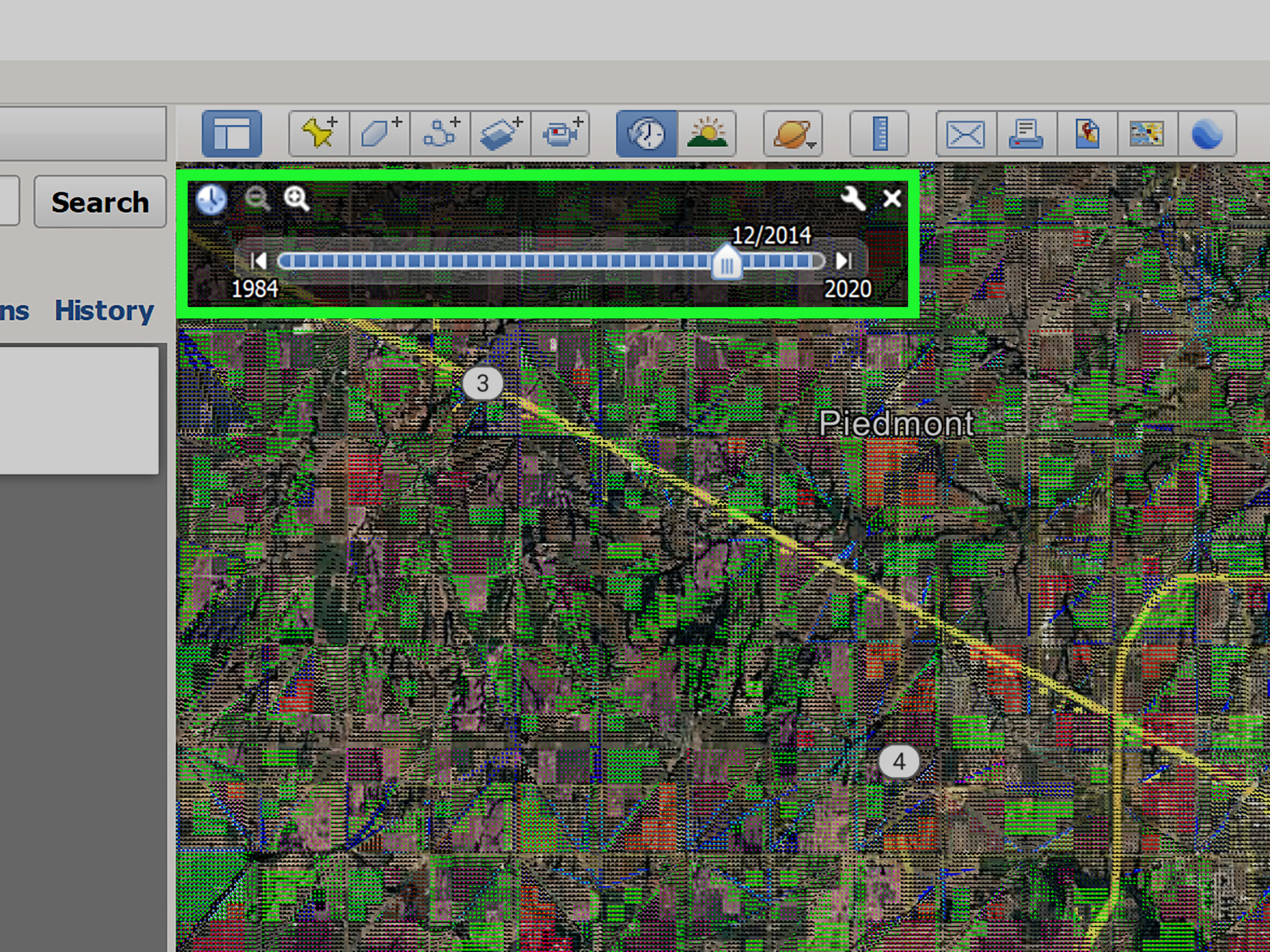
Google Maps is already great at answering modern life’s most urgent questions: “How long until I get there?” “Is this restaurant still open?” and “Why does this road look like it was designed by a confused spaghetti noodle?” But hidden inside Street View is something even better: a quiet little time machine. With a few taps or clicks, you can go back in time on Google Maps and see historical images of streets, storefronts, neighborhoods, houses, landmarks, and places that have changed right in front of the camera.
This feature is called historical Street View imagery, and it lets you browse older Street View captures when Google has them available. It is not the same as looking at your personal Google Maps Timeline, and it is not exactly the same as Google Earth’s historical satellite imagery. Think of it this way: Google Maps historical Street View shows what a place looked like from the street; Google Earth historical imagery shows how the landscape looked from above. Both are useful, but Street View feels more personal. It is the difference between seeing a city block on a map and standing on the sidewalk, staring at the old coffee shop that somehow became a Pilates studio.
In this guide, you will learn how to go back in time on Google Maps using desktop and mobile, why the “See more dates” option sometimes disappears, how Google Earth fits into the picture, and how to use historical images for research, nostalgia, travel planning, real estate, local history, and plain old curiosity.
What Does “Go Back in Time” Mean on Google Maps?
When people say they want to go back in time on Google Maps, they usually mean one of three things. First, they may want to view older Street View images of a location. This is the main feature covered in this article. Second, they may want to see historical satellite imagery, which is better handled in Google Earth. Third, they may be looking for their own past trips, routes, or visited places through Google Maps Timeline, which depends on personal Location History settings.
The most popular version is historical Street View. If Google has captured the same road or area more than once, you may be able to select earlier photos from a date carousel or timeline. In some places, especially major cities, you might see images from several different years. In other places, you may only see one capture, or no Street View at all. Google’s camera cars, backpacks, bikes, boats, snowmobiles, and other collection tools have covered a huge amount of the world, but the archive is not evenly distributed. A famous downtown street may have many updates. A remote road may have one lonely image from a decade ago, sitting there like a digital fossil.
How to Go Back in Time on Google Maps on Desktop
The desktop version of Google Maps is usually the easiest place to use historical Street View. You have a larger screen, better navigation controls, and a clearer view of available dates. Here is the basic process.
Step 1: Open Google Maps
Go to Google Maps in your web browser. Use the search bar to enter an address, business name, landmark, neighborhood, or city street. You can also simply zoom into the map manually if you enjoy doing things the explorer way.
Step 2: Enter Street View
Look for the small yellow Pegman icon in the lower-right corner of the map. Click and drag Pegman onto a blue line, blue dot, or highlighted area. Blue lines usually represent roads with Street View coverage. When you drop Pegman, Google Maps opens the street-level panorama.
Step 3: Look for “See More Dates”
Once you are in Street View, check the information box near the top-left area of the screen. If older imagery is available, you should see a “See more dates” option. Click it, and Google Maps will display a row of image thumbnails from different months or years.
Step 4: Choose an Older Image
Scroll through the available thumbnails and click the date you want to view. The Street View scene will update to that older capture. You can then pan around, zoom, and sometimes move along the street just as you would in the current view. To return to the newest version, select the most recent date or exit and re-enter Street View.
For example, if you search a busy New York City street, you may see how a construction site became a finished building, how storefront signs changed, or how a once-quiet block became crowded with new restaurants. If you check a residential neighborhood, you may notice trees getting taller, houses being remodeled, old cars disappearing, or that one neighbor’s questionable lawn decoration finally retiring from public service.
How to See Historical Street View Images on iPhone and Android
Historical Street View is also available in the Google Maps mobile app in many locations. The exact interface can shift slightly depending on app updates, device type, and region, but the general steps are simple.
Step 1: Open the Google Maps App
Open Google Maps on your iPhone, iPad, Android phone, or Android tablet. Search for a location or press and hold on the map to drop a pin.
Step 2: Open Street View
If Street View is available, tap the small photo preview with the Street View icon. Another method is to tap the Layers button, choose Street View, and then tap one of the blue lines on the map.
Step 3: Tap “See More Dates”
After Street View loads, tap the screen or look near the bottom panel for “See more dates.” If the option appears, tap it. Google Maps will show a carousel of older Street View images for that spot.
Step 4: Swipe Through the Past
Swipe through the available dates and select the image you want. The older panorama will load, allowing you to compare the past and present from street level. It is a strangely satisfying experience, like opening a photo album that somebody parked on the sidewalk.
Why “See More Dates” May Not Appear
If you cannot find “See more dates,” do not panic. Your phone is probably not haunted, and Google Maps is probably not personally hiding the past from you. There are several common reasons the option may be missing.
Historical Imagery Is Not Available Everywhere
The most common reason is simple: Google may not have multiple Street View captures for that exact spot. Historical imagery depends on whether Street View has been collected more than once in that location. Some streets have years of updates. Others have only one image. Some have none.
You May Be Looking at the Wrong Spot
Historical images can vary block by block. One side of a street may have older captures while another nearby road does not. Try moving a few steps along the blue Street View line, dropping Pegman at a slightly different point, or checking a nearby intersection.
The App or Browser Interface May Have Changed
Google updates Maps regularly. Sometimes menu labels, buttons, and panels move around. If you are using mobile and do not see the option, try the desktop version. If you are using desktop and nothing appears, try a different browser or update your Maps app.
The Image May Come From a Contributor
Google Maps includes Street View archives and other contributor images. Some contributed 360-degree photos may not have the same historical date options as official Street View captures. For the best results, use blue Street View lines rather than isolated photo spheres when possible.
Google Maps vs. Google Earth: Which One Should You Use?
Google Maps and Google Earth overlap, but they are not identical. Google Maps is best when you want practical, street-level historical images. It is ideal for checking how a storefront changed, what a house looked like years ago, or whether a road layout has been updated.
Google Earth is better when you want a broader historical view. It can show satellite or aerial imagery over time, making it useful for studying urban growth, deforestation, coastal change, construction, farms, rivers, and large-scale development. Google Earth also supports historical imagery tools, and newer versions increasingly connect historical Street View-style exploration with a more immersive 3D environment.
Here is the simplest rule: use Google Maps when you want to stand on the street; use Google Earth when you want to float above the planet like a very polite satellite.
Best Uses for Historical Images on Google Maps
1. Researching a Home or Neighborhood
If you are buying, renting, renovating, or simply investigating a property, historical Street View can reveal how the neighborhood has changed. You might notice road improvements, new sidewalks, different businesses, removed trees, added fences, or construction patterns. It will not replace a professional inspection, but it can give useful context.
2. Checking a Business Location
Business owners and marketers can use old Street View images to study foot traffic areas, signage, nearby competitors, parking access, and storefront evolution. If a restaurant used to be a bank, or a boutique used to be a mechanic shop, the visual history can help explain how the area has repositioned itself.
3. Planning Travel
Travelers can use historical images to understand how a place has developed. A hotel district may look different from five years ago. A beach road may have new buildings. A tourist attraction may have updated entrances or pedestrian zones. Before you arrive, Street View can help you avoid that classic travel surprise: “The online photo showed a peaceful lane, but now it is six lanes of honking ambition.”
4. Exploring Local History
Historical Street View is a powerful tool for local history fans. It can show how neighborhoods evolve over time: old signs, small businesses, murals, streetscapes, schools, churches, parks, and public spaces. Even small details matter. A faded billboard or missing corner store can tell a story about economic change, migration, development, and community memory.
5. Remembering Personal Places
For many people, the emotional side is the biggest surprise. Users often look up childhood homes, old schools, former workplaces, favorite restaurants, or streets where family members once lived. Sometimes the image is ordinary. Sometimes it catches a person, a pet, an old car, or a familiar scene in the background. Google Maps was not designed to be a family scrapbook, but occasionally it behaves like one.
Tips for Finding Better Historical Google Maps Images
Start with major streets. Busy roads and urban centers are updated more often than quiet rural lanes, so they usually have more historical captures. If you cannot find dates at one address, move slightly along the street or try the nearest intersection. Use desktop when possible because the date thumbnails are easier to review. Compare different sides of the road because Street View coverage can vary by camera path.
Pay attention to the month as well as the year. A street in January can look completely different from the same street in July. Trees, snow, construction barriers, lighting, traffic, and seasonal signs can change the mood of an image. For research, do not assume one old image tells the whole story. It is a snapshot, not a documentary.
Also remember that Street View images are not live. They may be months or years old. Google Maps is useful, but it is not a magic window into this morning. If you are checking a business, road closure, property condition, or travel route, combine Street View with current reviews, official websites, local news, or direct confirmation.
Privacy and Accuracy: What to Know Before You Use It
Google typically blurs faces and license plates in Street View, and users can request additional blurring for homes, people, vehicles, or other sensitive details. Still, historical images can feel surprisingly personal. Use them respectfully. Looking up an old home for nostalgia is one thing; using imagery to pry into someone’s private life is another. The past may be visible, but manners are still in style.
Accuracy also matters. Street View dates refer to when the imagery was captured or published, but visual context can be tricky. A building might look unfinished in one capture and complete in the next, but the actual construction timeline may be more detailed. A business sign may remain visible even after a business has moved. A road may look closed in an old image but be open today. Treat historical Google Maps images as visual evidence, not the entire case file.
Common Problems and Quick Fixes
Problem: I Can See Street View, But No Older Dates
Try a nearby point on the same road. Historical imagery may be attached to a slightly different camera position. If that fails, use Google Earth for broader historical imagery or check another mapping archive.
Problem: The Date Carousel Loads Slowly
Use a stable internet connection and refresh the page. Historical imagery can be image-heavy, especially on desktop. Closing extra browser tabs may help if your computer is already gasping like it just ran a marathon.
Problem: Mobile Does Not Show the Option
Update the Google Maps app, try entering Street View from the Layers menu, or use desktop. Some users find the desktop interface more reliable for detailed historical browsing.
Problem: I Need Satellite Images, Not Street Images
Use Google Earth historical imagery instead. Google Maps Street View is street-level. Google Earth is stronger for overhead changes such as new buildings, land development, environmental shifts, or long-term city expansion.
Historical Images vs. Google Maps Timeline
Do not confuse historical Street View with Google Maps Timeline. Historical Street View is public location imagery captured by Google or contributors. Timeline is your private personal location history, if you have enabled it. Timeline can help you remember where you went, while historical Street View helps you see what a place looked like in the past.
For example, if you want to see the restaurant you visited in 2018, Timeline may help you remember the name and date. If you want to see what the restaurant’s street looked like in 2018, historical Street View may help. One answers “Where was I?” The other answers “What did this place look like?” Together, they can be surprisingly powerful, especially for travel memories, moving records, family history, and personal projects.
Real-World Example: Watching a Neighborhood Change
Imagine you are researching a neighborhood where a new apartment building now stands. In current Google Maps, the block looks polished: new sidewalks, clean storefronts, fresh landscaping, modern lighting. But when you open historical Street View, you may find earlier images showing an empty lot, an old warehouse, a smaller house, or a row of local shops. Scroll through the years and you can watch the story unfold: demolition fencing, construction cranes, half-finished walls, grand opening banners, and finally the finished building.
This kind of comparison is useful for journalists, students, historians, real estate researchers, urban planners, and curious residents. It turns a vague statement like “this area has changed a lot” into something visible. You are not just reading about development; you are watching it happen frame by frame.
Extra Experiences: What It Feels Like to Time Travel on Google Maps
The first time you use Google Maps to go back in time, it feels like a trick. You click “See more dates,” choose a year, and suddenly the same street has different cars, different signs, different trees, and a completely different personality. It is not dramatic like a movie time machine. There is no lightning, no spinning clock, and unfortunately no dramatic soundtrack. Instead, the change is quiet. That is what makes it powerful.
One of the best experiences is looking at places you already know well. Search for your old school, your first office, the apartment building where you used to live, or a street you walked every day. The past appears through ordinary details. A shop sign you forgot about. A tree that used to be tiny. A wall before it had a mural. A parking lot before it became a café. These details may seem small, but memory loves small things. It is often not the famous landmark that hits hardest; it is the corner store, the bus stop, or the faded awning that reminds you of a specific season of your life.
Another memorable use is comparing travel destinations. Before visiting a city, you can look at how popular streets have changed over the years. In some places, you will see better sidewalks, new bike lanes, cleaned-up public squares, or restored buildings. In others, you may see heavier traffic, more construction, or businesses that have come and gone. This can make your travel planning more realistic. Current photos show what to expect now, while older images help you understand the character of the place.
Historical Street View is also strangely helpful for creative work. Writers can use it to describe a neighborhood in a specific era. Designers can study how storefronts and streetscapes age. Local bloggers can create before-and-after stories. Teachers can show students how cities change. Small business owners can look at old signage and learn what made previous storefronts stand out. Even if you are not doing formal research, the feature trains your eye to notice change: road markings, building materials, public art, lighting, trees, traffic patterns, and the slow march of “coming soon” banners.
Of course, the experience can be bittersweet. Sometimes you search a family home and find an older image with a familiar car in the driveway. Sometimes you see a business that no longer exists. Sometimes the neighborhood looks exactly as you remember it, and sometimes it looks like someone quietly swapped the background while you were not paying attention. That emotional surprise is part of why this feature became popular. It makes digital maps feel human.
The best way to use it is slowly. Do not just jump from the newest image to the oldest. Move year by year. Look at the edges of the frame. Notice the signs, the trees, the road, the sky, the shadows. Street View is not perfect, but it captures the everyday world in a way few tools do. It reminds us that change rarely arrives with a trumpet. More often, it shows up as a new coat of paint, a taller building, a missing tree, or a restaurant where your old laundromat used to be.
Conclusion
Learning how to go back in time on Google Maps is simple: open Street View, look for “See more dates,” and choose an older image. But the experience is much bigger than the steps. Historical Street View lets you compare past and present, research neighborhoods, revisit meaningful places, study urban change, and satisfy the kind of curiosity that starts with “I wonder what this used to look like?” and ends 40 minutes later with you emotionally attached to a 2012 photo of a parking meter.
Use Google Maps for street-level historical images and Google Earth for broader satellite-based time travel. Remember that not every location has older imagery, and the available dates depend on where and when Google or contributors captured photos. Still, when it works, it is one of the most fascinating tools hidden in plain sight. The past is not gone; sometimes it is just tucked behind a small button called “See more dates.”