Going live on TikTok from an iPhone sounds simple enough: tap a button, smile at the camera, and become the internet’s newest favorite person for the next 30 minutes. In reality, there are a few requirements, settings, and “wait, why don’t I see the LIVE option?” moments that can make the process feel less like social media and more like trying to unlock a secret menu at a coffee shop.
The good news: once your account is eligible, learning how to go live on TikTok on iPhone is quick. The even better news: you do not need a studio, a ring light the size of a UFO, or a production crew named Chad. You need an eligible TikTok account, the TikTok app on your iPhone, a stable connection, a clear topic, and a little confidence.
This guide explains TikTok LIVE requirements, how to start a live stream on iPhone, what to do if the LIVE button is missing, and how to make your first stream feel less awkward than talking to yourself in a grocery store parking lot.
What Is TikTok LIVE?
TikTok LIVE is TikTok’s real-time video streaming feature. Instead of posting a short edited video, you broadcast live to viewers who can watch, comment, react, ask questions, and in some cases send virtual Gifts. For creators, businesses, coaches, musicians, gamers, sellers, educators, and hobbyists, LIVE can be a powerful way to build trust because viewers see you in the moment, not through 17 cuts, a trending sound, and a suspiciously perfect filter.
On iPhone, TikTok LIVE works directly inside the TikTok app. You do not need a separate mobile streaming app for a basic live session. Once LIVE is available on your account, you can open the TikTok camera, switch to the LIVE option, add details, and begin streaming.
TikTok LIVE Requirements on iPhone
Before you start planning your grand entrance, make sure your account can actually use TikTok LIVE. TikTok does not give every account access automatically. Eligibility can depend on age, region, follower count, account history, and whether the account follows TikTok’s Community Guidelines.
1. You Must Meet TikTok’s Age Requirement
Current TikTok guidance says creators must be at least 18 years old to go LIVE. TikTok may ask users to confirm their age before allowing access to LIVE. This is important because LIVE is interactive, immediate, and harder to moderate than pre-recorded content.
There are also separate age rules for monetization features. For example, creators generally need to be at least 18 years old, or 19 in South Korea, to access LIVE Gifts or collect Diamonds. In simple terms: being able to broadcast and being able to receive certain monetization benefits are related, but not always the same thing.
2. You Usually Need a Minimum Follower Count
TikTok says creators must meet a local follower requirement to go LIVE. In many markets, the commonly reported threshold is 1,000 followers. However, TikTok may vary access by country, account type, testing groups, safety status, or creator program rules.
If your friend has 700 followers and can go live, while you have 950 and cannot, do not immediately accuse your iPhone of betrayal. TikTok eligibility can roll out differently. The most reliable way to check your account is to open the TikTok app, tap the plus button, and look for the LIVE tab.
3. Your Account Must Be in Good Standing
An account with recent violations, restrictions, suspicious activity, or repeated Community Guidelines problems may lose access to LIVE or fail to qualify. If TikTok has limited your posting, commenting, messaging, or visibility, LIVE access may also be affected.
Before trying to stream, check your account status in TikTok’s settings. If you have unresolved warnings or appeals, handle those first. TikTok wants LIVE streams to be safe for viewers, creators, and brands, so account trust matters.
4. You Need the TikTok App Installed and Updated
To go live from an iPhone, use the official TikTok app. Make sure the app is updated through the App Store when updates are available. Running an old app version can cause missing features, camera glitches, audio problems, or buttons that seem to have joined the witness protection program.
Your iPhone should also meet the app’s iOS compatibility requirements. If your device is very old or cannot update to a supported iOS version, TikTok may not run properly or may not display all features.
5. You Need a Stable Internet Connection
LIVE streaming uses more data and stability than scrolling the For You feed. A weak connection can cause blurry video, delayed comments, frozen frames, or sudden disconnections. For best results, use strong Wi-Fi or reliable cellular data. If possible, test your connection before going live.
How to Go Live on TikTok on iPhone: Step-by-Step
Once your account is eligible, starting a TikTok LIVE on iPhone is straightforward. Here is the complete process.
Step 1: Open the TikTok App
Unlock your iPhone and open TikTok. Make sure you are signed into the account you want to stream from. This sounds obvious, but many creators manage multiple accounts and accidentally prepare a live stream from the wrong profile. Nothing says “professional brand moment” like going live from your personal account named after your dog.
Step 2: Tap the Plus Button
At the bottom center of the screen, tap the + button. This opens TikTok’s content creation camera. It is the same area where you usually record or upload videos.
Step 3: Swipe or Scroll to LIVE
At the bottom of the camera screen, look for the content options. You may see options such as Camera, Story, Photo, or LIVE. Swipe or scroll across until you find LIVE.
If LIVE does not appear, your account may not meet TikTok LIVE requirements, your app may need an update, or LIVE may not be available in your region or account category.
Step 4: Add a LIVE Title
Add a short, clear title that tells viewers what your stream is about. A good title helps people decide whether to tap in. Avoid vague titles like “Hey” or “I’m bored.” Try something specific, such as:
- “iPhone Photography Tips for Beginners”
- “Pack Orders With Me: Small Business LIVE”
- “Ask Me Anything About Fitness Routines”
- “Trying Viral TikTok Recipes Live”
- “Behind the Scenes: New Product Launch”
Your title should match the content. If the title promises “easy makeup tips” but the stream is mostly you arguing with your cat, viewers may not stay long. Unless, of course, your cat is the real influencer. In that case, negotiate a fair revenue split.
Step 5: Adjust Your Settings
Before tapping Go LIVE, check your settings. Depending on your account and available features, you may be able to adjust filters, effects, camera view, comment settings, moderators, LIVE goal tools, or other options.
At minimum, check your camera angle, lighting, sound, and background. Make sure private information is not visible behind you. That includes mail, addresses, personal documents, computer screens, and anything you would rather not have screenshotted by a stranger named “PizzaDragon482.”
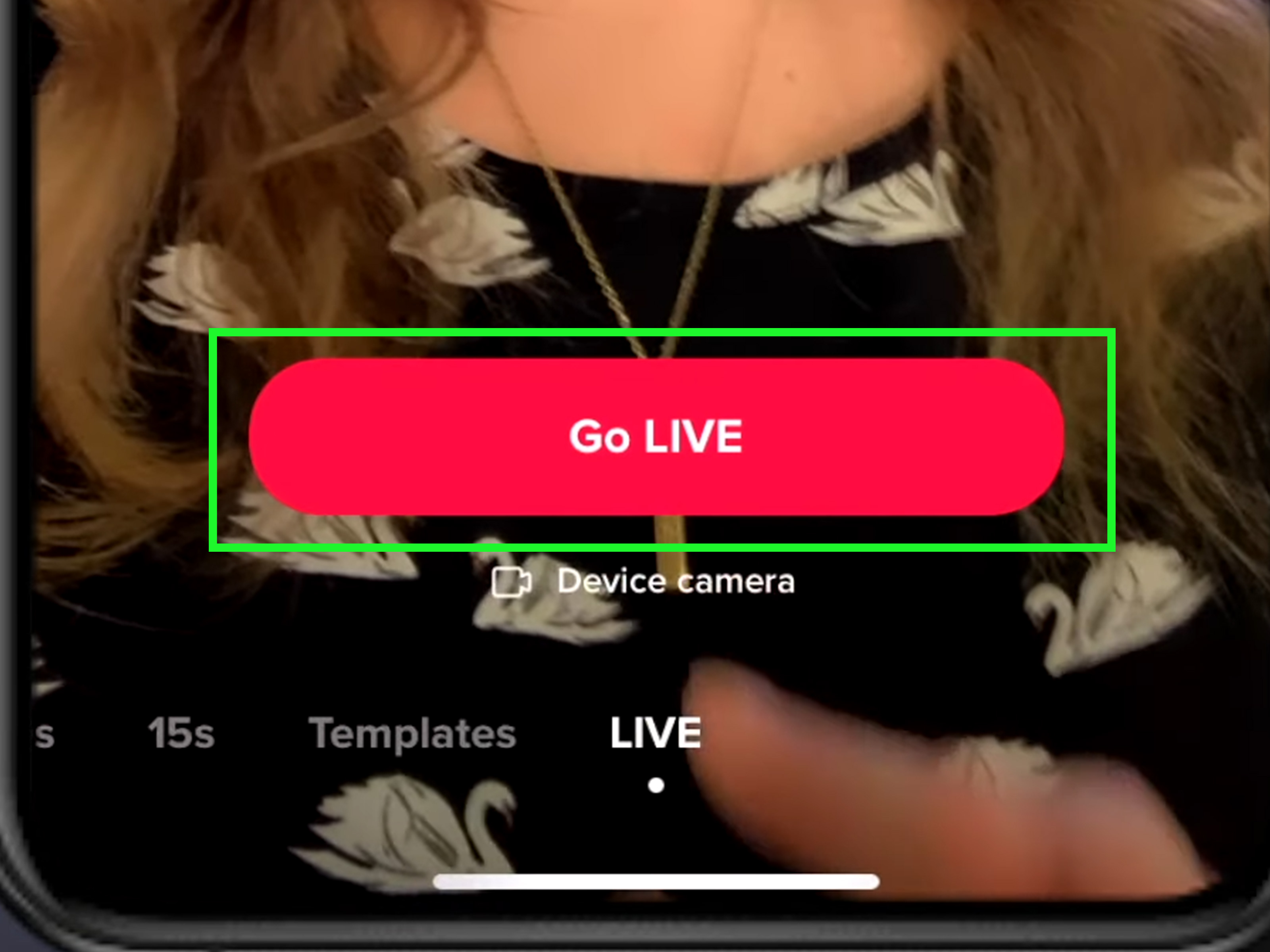
Step 6: Tap Go LIVE
When everything looks good, tap Go LIVE. TikTok may show a countdown before your stream begins. Once you are live, viewers can join, comment, react, and interact with you in real time.
Start with a warm greeting, even if only one person joins at first. Many LIVE sessions build slowly. Say what the stream is about, invite viewers to comment, and repeat the topic occasionally for new arrivals.
What to Do If You Do Not See the LIVE Button
If the LIVE option is missing on your iPhone, do not panic. It is one of the most common TikTok LIVE questions. Here are the likely reasons and fixes.
Your Account Is Not Eligible Yet
The most common reason is eligibility. You may not meet the age requirement, follower requirement, or account standing requirement. If you are under the required age, you will need to wait until you qualify. If you need more followers, focus on consistent content, audience engagement, and niche clarity.
Your App Needs an Update
Open the App Store, search for TikTok, and check whether an update is available. After updating, close and reopen the app. You can also restart your iPhone to clear temporary glitches.
Your Account Has a Restriction
Review your TikTok notifications and account status. If TikTok has flagged content or limited features, LIVE access may be restricted. Read the notice carefully and appeal if you believe a mistake was made.
LIVE Is Not Available in Your Region or Account Type
TikTok features can vary by location and account. Some regions receive features earlier than others, and some tools may be limited based on local rules. If your account is a business, creator, or personal account, available features may also differ.
How to Prepare Before Going Live on TikTok
Technically, you can go live in ten seconds. Strategically, you should prepare a little. TikTok LIVE rewards energy, clarity, and interaction. A simple checklist can turn a shaky first stream into something viewers actually enjoy.
Choose One Clear Topic
A focused LIVE usually performs better than a random one. Choose a topic viewers can understand quickly. For example, “answering beginner skincare questions” is stronger than “hanging out.” “Showing how I package Etsy orders” is stronger than “live now.” Specificity gives people a reason to stay.
Plan a Simple Structure
You do not need a word-for-word script. In fact, reading a script live can feel stiff. Instead, create a loose outline:
- Welcome viewers.
- Explain the topic.
- Share three to five key points.
- Answer questions.
- Recap and invite viewers to follow.
This structure keeps you from freezing when the comments slow down. Silence on LIVE feels longer than silence in real life, so having talking points is your safety net.
Check Lighting and Sound
Face a window or use a soft light in front of you. Avoid strong backlighting that turns you into a mysterious witness from a crime documentary. For audio, stay close to your iPhone or use a reliable microphone. Viewers may forgive average video, but bad audio makes them leave fast.
Charge Your iPhone
LIVE streaming drains battery. Start with a full charge or plug your iPhone into a power source. If you plan to stream for more than 30 minutes, this is not optional. A dead phone is the most dramatic and least useful way to end a broadcast.
Use Do Not Disturb
Turn on Focus mode or Do Not Disturb before going live. This prevents calls, messages, and notifications from interrupting your stream. It also protects your privacy from accidental pop-ups.
Best Practices During a TikTok LIVE
Going live is not just about turning on the camera. The real magic is interaction. TikTok LIVE viewers want to feel noticed, included, and entertained.
Greet People by Name
When viewers comment, say hello and use their usernames when appropriate. This small gesture makes the stream feel personal. People are more likely to stay when they feel seen.
Repeat the Topic for New Viewers
People join at different times. Every few minutes, briefly explain what is happening: “For anyone just joining, I’m showing how to set up TikTok LIVE on iPhone and answering questions.” This keeps new viewers from feeling lost.
Ask Easy Questions
Do not wait for viewers to carry the conversation. Ask simple questions such as “Where are you watching from?” or “Have you tried going live yet?” Easy questions lower the barrier to commenting.
Use Moderation Tools
TikTok LIVE includes moderation options that can help manage comments, block keywords, filter unwanted language, and keep the chat healthier. If your audience grows, consider assigning a trusted moderator. A good moderator is like a digital bouncer, but with fewer sunglasses and more tapping.
Stay Within TikTok Rules
Do not play copyrighted music carelessly, show unsafe behavior, harass viewers, spread harmful misinformation, or encourage rule-breaking. LIVE content is monitored, and violations can lead to warnings, restrictions, or loss of LIVE access.
Can You Make Money With TikTok LIVE?
Some creators can earn through TikTok LIVE features such as Gifts, Diamonds, subscriptions, shopping tools, or brand-related live events. Availability depends on location, eligibility, account standing, age, and TikTok’s current monetization rules.
If monetization is your goal, treat LIVE like a relationship-building tool first. Viewers are more likely to support creators who provide value, entertainment, honesty, or community. Do not open your first stream by shouting “Send gifts!” That is the livestream equivalent of proposing marriage on the first date in a fast-food drive-thru.
How Long Should Your First TikTok LIVE Be?
For a first TikTok LIVE on iPhone, aim for 20 to 30 minutes. That is long enough for viewers to join and interact, but not so long that you run out of things to say and start reviewing your ceiling fan.
As you gain confidence, you can test longer sessions. Some creators stream for an hour or more, especially when doing tutorials, live selling, gaming, Q&A sessions, or behind-the-scenes content. Track what works by watching viewer retention, comments, follows, and replay insights if available.
Content Ideas for Your First TikTok LIVE on iPhone
If you are not sure what to stream, start with something simple and audience-friendly. Here are practical ideas:
- Q&A: Answer common questions from your niche.
- Behind the scenes: Show your workspace, process, or preparation routine.
- Tutorial: Teach one small skill step by step.
- Product demo: Show how something works in real time.
- Storytime: Share a useful or entertaining personal experience.
- Live review: React to trends, tools, books, products, or common mistakes.
- Challenge or experiment: Try something live and let viewers comment along.
The best first LIVE topic is one you can talk about naturally for at least 20 minutes. Passion helps, but structure keeps the stream from turning into a digital tumbleweed convention.
Common Mistakes to Avoid
Going Live Without a Purpose
Random streams can work for creators with loyal audiences, but beginners need a reason for viewers to stay. Give the LIVE a clear promise.
Ignoring Comments
LIVE is interactive. If you ignore the chat, viewers may feel like they are watching a regular video with extra buffering. Respond to comments, ask follow-up questions, and thank people for joining.
Starting With Low Energy
The first few seconds matter. Smile, greet viewers, and explain the topic. You do not need game-show-host energy, but you should look like you know the camera is on.
Forgetting Privacy
Check your background. Hide addresses, documents, school names, license plates, family photos you do not want public, and open computer tabs. LIVE is instant, and screenshots are forever.
Overusing Effects
Filters and effects can be fun, but too many can distract from your message. If viewers came for a business tip and you spend 15 minutes as a glittery potato, the brand positioning may get confusing.
After Your TikTok LIVE Ends
When the stream ends, take a few minutes to review what happened. Look at viewer count, comments, new followers, questions asked, and any replay or performance data available to you. TikTok LIVE replays may be available for a limited time, allowing creators to review, download, or repurpose content depending on available settings.
Write down what worked. Did people ask the same question repeatedly? That could become your next short video. Did viewers stay longer during a demo? Do more demos. Did everyone leave when you started reading your grocery list? Consider that valuable market research.
Real-World Experience: What Going Live on TikTok on iPhone Actually Feels Like
The first time you go live on TikTok from an iPhone, the hardest part is not the technology. The hardest part is tapping the button while your brain whispers, “What if nobody comes?” Here is the honest truth: at first, maybe only a few people will. That is normal. A first LIVE is less like opening night on Broadway and more like inviting neighbors to a garage sale. Some people wander in, some leave immediately, and one person asks a surprisingly specific question that makes the whole thing worth it.
From experience, the best approach is to treat your first stream as practice, not a performance review from the entire internet. Set up your iPhone at eye level, wipe the camera lens, check your lighting, and pick one useful topic. If you sell handmade candles, show how you package orders. If you teach fitness, explain three beginner mistakes. If you create cooking content, prepare ingredients before the stream so viewers are not watching you search for garlic powder for six minutes.
Another lesson: comments may come in waves. For the first few minutes, you might feel like you are talking into the void. Keep going. Repeat your topic every few minutes because new viewers do not know what they missed. Say something like, “For anyone joining now, I’m showing how to start TikTok LIVE on iPhone and sharing beginner tips.” That one sentence resets the room and gives people a reason to stay.
It also helps to prepare “filler value.” These are short points you can share when the chat slows down. For example, talk about your setup, your favorite iPhone tripod, how you choose LIVE titles, or what mistake you made during your first attempt. This keeps the energy moving without forcing you to invent conversation from thin air.
One practical trick is to keep a sticky note near your iPhone with three reminders: smile, slow down, and ask questions. When people get nervous, they talk too fast and forget to interact. Asking simple questions like “Have you gone live before?” or “What kind of content do you make?” can turn silent viewers into active participants.
Finally, do not judge success only by viewer count. A small LIVE can still be valuable if you learn what your audience cares about, gain a few followers, answer real questions, or turn one viewer into a loyal fan. TikTok LIVE is a skill. The more you do it, the less it feels like public speaking and the more it feels like hosting a tiny, chaotic, oddly fun internet hangout from your iPhone.
Conclusion
Learning how to go live on TikTok on iPhone is simple once your account meets the requirements. Open TikTok, tap the plus button, select LIVE, add a clear title, check your settings, and tap Go LIVE. The bigger challenge is creating a stream people want to join and stay in.
Start with a focused topic, good lighting, clear audio, a charged iPhone, and a plan for interacting with viewers. Use moderation tools, follow TikTok’s rules, and review your performance after each stream. Your first LIVE may not be perfect, but it does not need to be. It only needs to be useful, real, and worth improving.
Note: TikTok LIVE requirements can vary by country, account status, and platform updates. Always check the LIVE option inside your own TikTok app before scheduling or promoting a live stream.