Looking for one missing document is annoying. Trying to understand everything stored on your computer can feel like opening a closet that has been used as a time capsule since 2011. Somewhere in there are tax PDFs, vacation photos, five versions of “final_final_REALLYfinal.docx,” and perhaps a mysterious folder named “New Folder (27).”
Learning how to list all files on your hard drive gives you a clear inventory of what is actually stored on your computer. It can help you find large files, prepare for a backup, locate old projects, troubleshoot storage problems, or simply bring a little order to your digital wilderness.
This guide explains how to create a file list on Windows, macOS, and Linux using built-in tools. No sketchy downloads, no magician’s cape, and no need to click through 40,000 folders by hand.
What Does “List All Files on Your Hard Drive” Actually Mean?
Before launching a giant file scan, it helps to define the goal. A file listing is not the same thing as a backup, a virus scan, or a storage cleanup. It is simply an inventory: a text-based record of file names and locations.
For example, a file inventory might include entries like this:
That list can be useful for several reasons. You may want to confirm that a backup drive contains everything you expected. You may be moving to a new computer and need a checklist. Or maybe your hard drive is nearly full and you want evidence before confronting the 47 GB folder of old screen recordings.
There is one small catch: a modern computer may contain multiple drives, partitions, recovery volumes, cloud-synced folders, and protected system locations. Therefore, the most practical goal is to create a list of all accessible files on the drive or folder you choose.
Step 1: Choose the Right Scan Scope
The easiest way to make a useful file list is to avoid scanning more than you need. Scanning an entire drive can produce a massive text file, especially if you have years of photos, software, videos, and forgotten downloads. Start with the smallest area that answers your question.
Option 1: List Files in Your Personal Folder
Your personal folder is usually the best starting point because it contains the files you created or downloaded. This includes documents, photos, videos, music, desktop files, and most application data.
- Windows: Usually
C:\Users\YourName - macOS: Usually
/Users/YourNameor~ - Linux: Usually
/home/yournameor~
This scope is ideal for a backup checklist, a document search, or a quick cleanup project. It also reduces the chance of access-denied messages from protected operating system folders.
Option 2: List Files on One Drive
Choose this option when you need a complete inventory of a specific drive, such as your main Windows drive, an external hard drive, or a secondary storage partition.
On Windows, that may mean scanning C:\, D:\, or an external drive such as E:\. On Mac and Linux systems, it may mean scanning the startup disk or a mounted external drive.
Option 3: List Files in One Project Folder
For most people, this is the smartest option. If you are trying to find design files, old invoices, exported videos, or website backups, scan that folder instead of your entire computer. A targeted inventory is faster, easier to read, and much less likely to include things you do not care about, such as 6,000 browser cache files that have never emotionally supported anyone.
Step 2: Generate a Complete File List
Once you know what you want to scan, use your operating system’s built-in command tools to create a plain-text list. These methods do not modify your files. They only read file paths and write the results to a text file.
Windows: Use PowerShell for a Clean File Inventory
PowerShell is the most flexible built-in option for listing all files on Windows. It can scan folders recursively, include hidden files, and save the results directly to a text file.
To list every accessible file on your main Windows drive, open PowerShell and enter:
This command creates a file named all-files.txt on your desktop. Open it with Notepad, and you will see a long list of file locations.
Here is what each part does:
-LiteralPath C:\tells PowerShell where to begin.-Filelimits the output to files instead of folders.-Forceincludes hidden items that are normally not shown.-Recursesearches through subfolders.-ErrorAction SilentlyContinueskips many access-related error messages.Set-Contentsaves the final results in a text file.
To scan only your user folder instead of the entire drive, replace C:\ with:
That approach is usually faster and produces a more useful list for personal organization.
Windows: Use Command Prompt for a Simple List
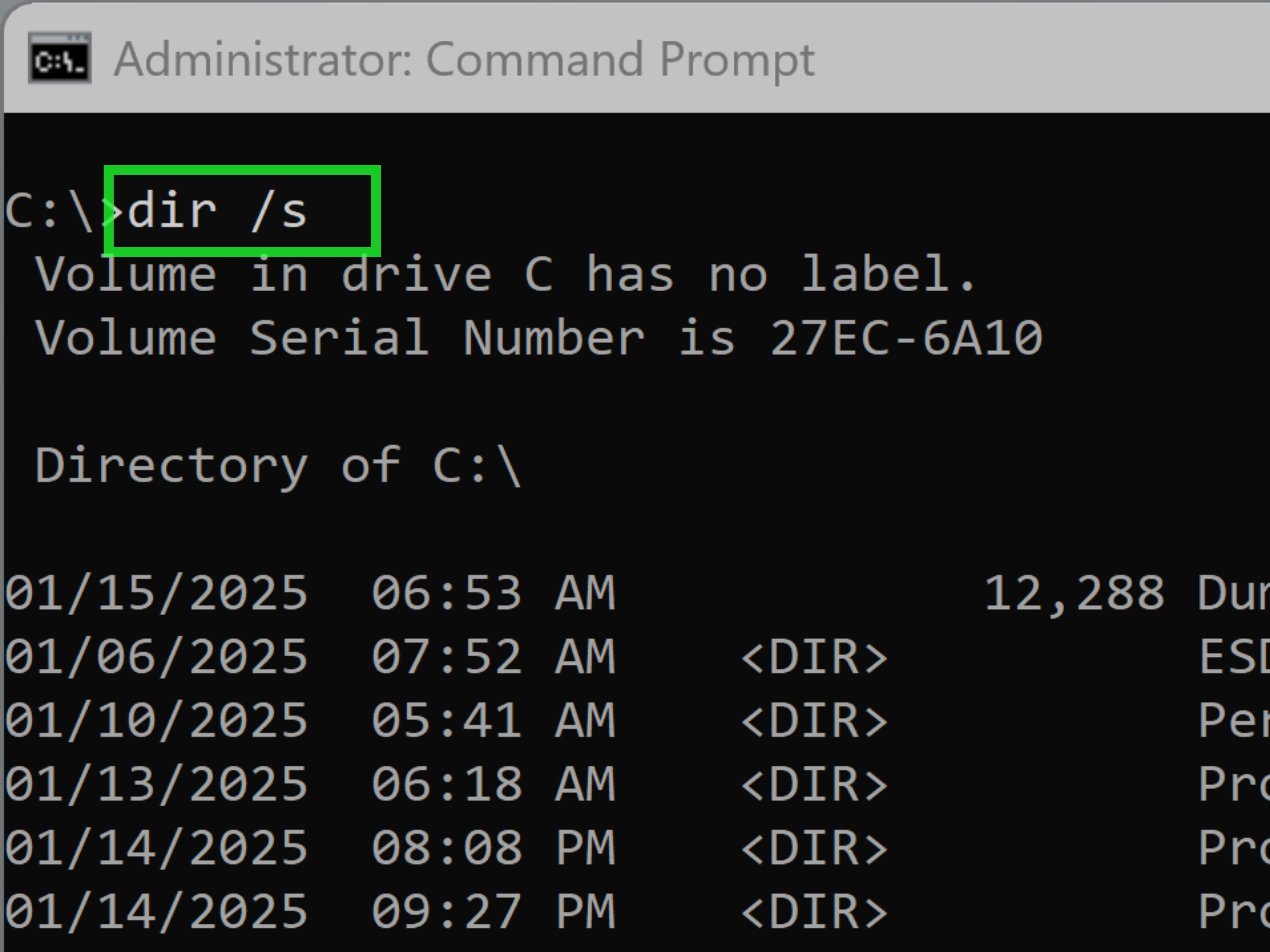
If you prefer Command Prompt, the classic dir command still gets the job done. Open Command Prompt and use this command:
This creates a basic list of files on the C drive and saves it to your desktop. The options are simple:
/a-dexcludes directories so the output focuses on files./ssearches all subfolders./bcreates a bare list of paths without extra formatting.>sends the results into a text file.2>nulhides many access-denied messages from the screen.
To scan another drive, change C:\ to the correct drive letter. For example, use D:\ for a second internal drive or E:\ for many external drives.
macOS: Use Terminal to List Files on Your Mac
Mac users can create a complete file list with Terminal. Open Terminal from Applications > Utilities, then decide whether you want to scan only your user folder or the entire startup disk.
To list files in your personal folder, use:
This command places two files on your desktop:
my-files.txt, containing the accessible file paths.file-scan-errors.txt, containing folders that Terminal could not access.
To scan the full startup disk, use:
A full-disk scan may take a while, and macOS privacy protections can block access to some folders. That is normal. If an important personal folder is missing, check your Privacy & Security settings before giving Terminal broader access. Do not enable broad permissions casually; treat them like a spare house key, not a party favor.
Linux: Use the Find Command
Linux users can use the find command to create a filesystem inventory. To scan your home folder, enter:
To scan the main filesystem while avoiding many separate mounted locations, use:
The -xdev option keeps the scan on the current filesystem instead of wandering into mounted network folders, virtual system paths, or external drives. That is useful when you want a cleaner report of your primary drive.
For a more complete scan, you may need administrator access, but use elevated permissions carefully. A basic inventory of your own files is often enough, and it is much safer than running every command with maximum privileges just because the terminal looks dramatic.
Step 3: Review, Search, and Organize the Results
Creating the list is only half the job. A 100,000-line text file is technically informative, but it is also the digital equivalent of dumping every sock you own onto the floor and calling it a wardrobe system.
Search the File List for What Matters
Open your text file in Notepad, TextEdit, Visual Studio Code, or another text editor. Then use the search function to look for terms such as:
.zipfor compressed archives.mp4or.movfor large video files.psd,.ai, or.blendfor creative project files.sqlor.bakfor database backupsinvoice,tax, orresumefor important documents
Searching by file extension is especially useful when you are looking for files that may be scattered across several folders.
Use the Inventory Before a Backup or Computer Move
A file list is a great companion to a backup plan. Before copying files to an external drive or cloud storage service, create an inventory. After the backup finishes, create another list from the backup destination and compare the two.
The lists may not match perfectly because some programs create temporary files or system folders, but they should show the important personal folders and major project files you expected to preserve.
Identify Digital Clutter Without Deleting Blindly
A list of files can reveal old installers, duplicate exports, forgotten downloads, and projects that have been hiding in plain sight. However, do not delete files simply because they look unfamiliar. System files and application support files can have strange names even when they are important.
A safer cleanup routine is:
- Review files in Downloads, Desktop, Documents, Pictures, and Videos first.
- Sort by date and file type.
- Move uncertain files into a temporary review folder.
- Wait a few weeks before deleting anything questionable.
- Keep at least one current backup before major cleanup work.
Common Mistakes When Listing Files on a Hard Drive
Assuming a File List Includes Cloud-Only Files
Services such as OneDrive, iCloud Drive, Google Drive, and Dropbox can show placeholders for files that are not fully stored on your device. A local scan may list the placeholder, but it does not guarantee that every file is downloaded and available offline.
Forgetting External Drives
Your computer may have more than one storage location. External hard drives, USB drives, SD cards, network locations, and secondary partitions often need separate scans. Create one list per drive so you know exactly what each report represents.
Hiding Error Messages Too Aggressively
It is tempting to suppress every error message because permission warnings can make a terminal window look like it is having a minor existential crisis. However, keep an error log when possible. It tells you which folders were skipped and helps you decide whether the scan was complete enough for your goal.
Scanning the Entire Drive for a Simple Search
If you need one PDF, a full-drive inventory is often overkill. Start with your Documents folder, Downloads folder, and project folders. Use the big scan when you genuinely need an audit, migration checklist, storage investigation, or backup verification.
Frequently Asked Questions
Will listing files damage my hard drive?
No. The commands in this guide read file locations and write a separate text report. They do not move, edit, or delete your files.
Why does my scan show “Access Denied” or “Permission Denied”?
Operating systems protect certain files and folders from normal user accounts. This is common on Windows, macOS, and Linux. It does not necessarily mean anything is wrong. It usually means the operating system is doing its job and keeping sensitive areas protected.
How long does it take to list every file?
That depends on your drive speed, total number of files, folder depth, installed applications, and connected storage devices. A personal folder may finish quickly, while a full drive with hundreds of thousands of files can take much longer.
Can I create a list that includes file sizes?
Yes. PowerShell and other command-line tools can include file sizes, dates, and file types. For most people, start with a path-only list first. It is easier to read and easier to search.
Real-World Experience: What Happens When You Actually List Every File?
The first time you create a full file inventory, the result can be surprisingly revealing. Most people expect a neat list of documents, photos, and downloads. Instead, they discover that their computer has been quietly collecting evidence of every hobby, half-finished project, free trial, and late-night “I should probably learn video editing” decision from the past decade.
One common discovery is the number of duplicate-looking files scattered across different folders. A photo might exist in Pictures, Downloads, a messaging-app export, a cloud-sync folder, and an old backup folder. The file list does not automatically prove that the files are duplicates, but it helps you spot patterns. When you see the same file name appearing in six locations, your storage mystery begins to look less mysterious.
Another useful experience is finding old installers. Many people download software installers, use them once, and then forget they exist. A search for .exe, .dmg, .pkg, .msi, or .zip can reveal a surprising amount of clutter. Some installers are worth keeping, especially for niche software or old hardware. Others are just digital receipts from a past version of you who thought “free wallpaper pack” sounded like an important life decision.
File inventories are also excellent for backup anxiety. Before moving to a new computer, it is easy to copy the obvious folders and assume everything important is included. But important files are often not where you expect. A freelance project may live in an old folder on the desktop. A family spreadsheet may be tucked into Downloads. A website backup may be sitting inside a folder called “misc.” Creating a file list helps turn vague confidence into a verifiable checklist.
For creative professionals, the experience can be even more valuable. Designers, photographers, video editors, developers, and musicians often work with large project folders that include source files, exports, drafts, caches, and backups. A single finished video may have dozens of related files spread across several locations. Listing files makes it easier to identify what is essential, what can be archived, and what should never be deleted without checking first.
There is also a psychological benefit. Digital clutter feels invisible until you see it written down. A hard drive can seem full for no obvious reason, but a file report gives you a map. It tells you where to look next, whether that means cleaning Downloads, archiving old projects, upgrading storage, or finally admitting that you do not need 14 copies of the same vacation video.
The key lesson is simple: do not treat a file list as a command to delete things. Treat it as information. Review it, search it, compare it with backups, and use it to make deliberate choices. Your hard drive may still be a little chaotic afterward, but at least the chaos will have an address.