There are two kinds of iPhone lockouts. The first is the ordinary kind: you changed your passcode at 11:47 p.m., felt like a genius, and forgot it by breakfast. The second is the panic kind: the screen says iPhone Unavailable, your heart says this is the worst day of my life, and your coffee says I am not strong enough for this. The good news is that if the iPhone is yours, there are legitimate ways to get back in. The less-fun news is that Apple’s approved recovery methods usually involve resetting the device if you truly forgot the passcode.
This guide walks through the safest path, step by step. It is written for real people, not robots pretending to be cheerful in tech manuals. You will learn when you can use your previous passcode, when you need to erase the device, how recovery mode works, how Activation Lock affects setup, and how to avoid making the problem worse. If you have backups, this process is much less painful. If you do not, it is still fixable, but it may cost you some data and a little dignity.
Before You Start: What Actually Works
If you forgot your current passcode, there is no secret “just let me in” button. Apple’s normal recovery path is either:
- Use your old passcode within a limited window if you recently changed it.
- Use the Forgot Passcode? option to erase and reset the iPhone on-device.
- Use a Mac or Windows PC to restore the iPhone in recovery mode.
- Complete setup with your Apple Account and restore from backup.
That means the real goal is not “hack the phone.” The real goal is “recover access to your own device without making a stressful situation worse.” Let’s do that.
Step 1: Stop Guessing Random Passcodes
Yes, this is a step. And yes, it deserves to be first.
Too many wrong attempts can trigger longer delays and eventually land you on an Unavailable or Security Lockout screen. If you have already tried your birthday, your dog’s birthday, your old ATM PIN, and “123456” out of desperation, stop. Repeated bad guesses do not magically awaken forgotten memories. They mostly create more waiting.
Step 2: Ask Yourself Whether You Recently Changed the Passcode
This matters more than most people realize. On newer versions of iPhone software, Apple allows a temporary grace period after you change a passcode. If you forgot the new one but still remember the previous one, you may be able to use the old code for a limited time and set a fresh passcode again.
So pause and think: did you change the passcode in the last couple of days? If the answer is yes, your old code may be your golden ticket. This is the closest thing to a happy ending in the locked-iPhone world.
Step 3: Look for the “Forgot Passcode?” Option
On supported iPhones, after enough failed attempts, you may see a Forgot Passcode? option on the lock screen. This is Apple’s official self-service recovery route, not a sketchy internet trick from a website that also wants to sell you miracle battery hacks.
If that option appears, tap it. Depending on your device and software version, you may be able to:
- Enter your previous passcode if you changed it recently, or
- Start the process to erase and reset the iPhone using your Apple Account password.
Step 4: Use the Previous Passcode If You Can
If the iPhone offers the option to enter your previous passcode, take it immediately. This is the cleanest recovery path because it does not force you into a full wipe right away. Once you enter the older code, the phone should prompt you to create a new passcode.
Pick something memorable but not obvious. “000000” is memorable, sure, but so is stepping on a Lego. That does not make it a good idea.
Step 5: If the Previous Passcode Is Not an Option, Prepare for a Reset
If you cannot use the older passcode, the standard next step is to erase the iPhone and set it up again. This sounds dramatic because it is dramatic. The important thing is to do it the right way.
Before you continue, think through these questions:
- Do you have an iCloud backup?
- Did you ever back up the iPhone to a Mac or PC?
- Do you know your Apple Account email and password?
- Do you still have access to your trusted phone number?
Your answers determine how smooth the comeback will be.
Step 6: Try the On-Device Reset Method First
If your iPhone shows the right prompts, the easiest official method is to erase the device directly from the lock screen. You generally need an internet connection and your Apple Account password. The phone signs you out, wipes itself, and returns to the setup screen.
This method is convenient because it does not require a computer. It is especially handy when you are traveling, borrowing charger space at an airport gate, and trying not to look like someone whose entire digital life is melting in public.
Step 7: If On-Device Reset Is Unavailable, Grab a Computer
No on-screen reset option? No problem. Apple’s backup plan is recovery mode.
You can use:
- A Mac with Finder
- A Windows PC with the Apple Devices app
Use a reliable cable and make sure the computer has a stable internet connection. A flaky cable is not a brave little underdog. It is a chaos generator.
Step 8: Turn Off the iPhone Completely
Before entering recovery mode, power the iPhone off. The exact button combination varies by model, but the goal is the same: get the device fully shut down so you can start the restore process cleanly.
If the phone is low on battery, give it some charge first. An iPhone that dies mid-restore is about as helpful as a fire alarm with social anxiety.
Step 9: Put the iPhone Into Recovery Mode
Now connect the iPhone to the computer while using the correct button method for your model. Recovery mode is not the same as a normal restart. You will know you got it right when the screen shows the computer-and-cable recovery image.
General Recovery Mode Guide by iPhone Family
- iPhone 8 and later: Connect to the computer and use the Side button method for recovery mode.
- iPhone 7 and 7 Plus: Connect and hold the Volume Down button.
- iPhone 6s, iPhone SE 1st generation, and earlier: Connect and hold the Home button.
If the Apple logo appears and the phone boots normally, recovery mode did not stick. Try again. This is annoying, but it is common.
Step 10: Choose Restore on the Computer
Once the computer detects the iPhone in recovery mode, you should see options such as Update or Restore. If you are locked out because you forgot the passcode, the usual route is Restore.
This erases the device and installs the latest compatible software. It is basically the iPhone equivalent of saying, “We’re going to reset the whole situation and pretend we’re all calmer now.”
Step 11: Wait Patiently, Then Re-Enter Recovery Mode If Needed
Software downloads can take a while. If the process goes long enough that the iPhone exits recovery mode, do not panic. Just let the download finish, turn the iPhone off again, and repeat the recovery mode steps.
This is a surprisingly common snag. Many people think they broke something when the phone restarts on its own. Usually, they did not. The device just timed out of recovery mode while the computer was still getting ready.
Step 12: Set Up the iPhone and Restore Your Backup
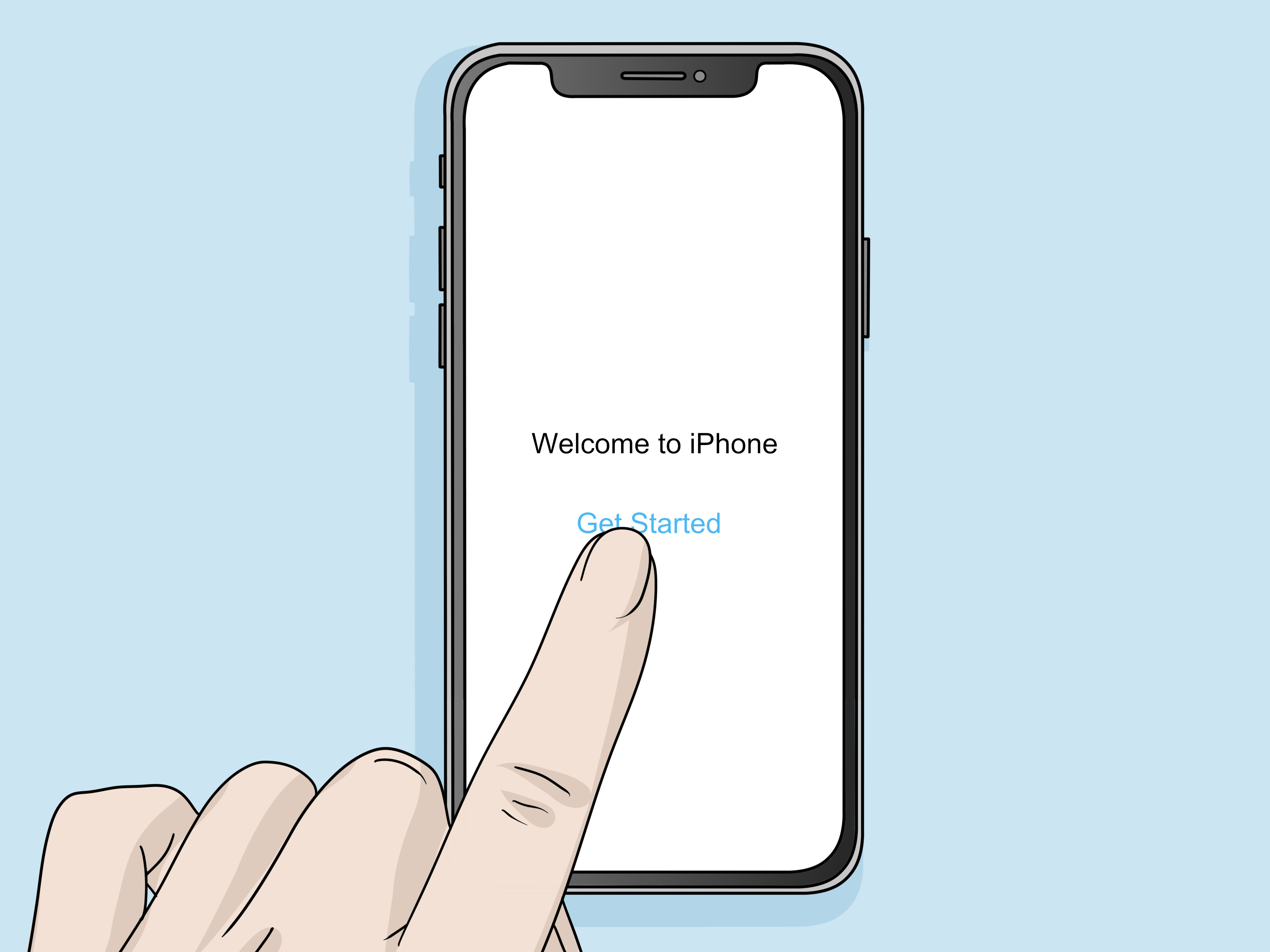
After the restore finishes, the iPhone returns to the Hello screen. Now you can set it up again.
At this stage, you may be able to restore from:
- iCloud Backup
- Mac backup
- Windows backup
If you have no backup, you can still set up the iPhone as new. It is not ideal, but it beats owning an expensive rectangle that only specializes in disappointment.
Step 13: Complete Activation Lock the Right Way
Even after the phone is erased, Apple may require the Apple Account credentials previously linked to the device. This is called Activation Lock, and it exists to stop thieves and random opportunists from turning a lost iPhone into their new toy.
If the iPhone is yours, enter the Apple Account and password used on the device. If you bought the phone used and it still asks for someone else’s account, contact the seller and have them remove the device properly from their account. Do not pay for “Activation Lock removal” services advertised by mysterious corners of the internet. Most are useless, risky, or both.
Step 14: If You Forgot Your Apple Account Password Too, Use Account Recovery or Apple Support
Sometimes the real villain of the story is not the iPhone passcode. It is the Apple Account password you have not typed in since the previous geological era.
If you cannot remember that password, start with Apple’s password reset flow. If that fails, use account recovery. And if Activation Lock becomes the roadblock, gather your proof of purchase and contact Apple Support. A legitimate receipt can matter a lot when ownership needs to be verified.
Common Mistakes to Avoid
Using Third-Party “Unlock” Tools
Many tools promise to unlock an iPhone with one click, no password, no Apple Account, no problem. The reality is usually less magical. At best, they mimic recovery procedures you can do yourself. At worst, they waste your money, expose your data, or push you toward questionable practices.
Removing the Device from Find My Too Early
If the phone was lost or stolen, removing it from Find My can weaken your protection. If the device is safely in your hands and you are setting it up again, follow Apple’s official prompts. But do not casually remove a missing device from your account just because some random forum told you to “try everything.”
Forgetting to Back Up After Recovery
Once you are back in, back the phone up. Immediately. Right then. Before you get distracted by messages, photos, or the irresistible urge to tell everyone what an ordeal you survived. The best time to care about backups is before your next problem, not during it.
How to Prevent This From Happening Again
- Use a passcode you can remember without making it weak.
- Keep Face ID or Touch ID enabled for convenience.
- Maintain regular iCloud or computer backups.
- Store your Apple Account details somewhere secure.
- Set up recovery options so password resets are less painful.
- If you recently changed your passcode, decide whether to expire the previous one right away or keep the temporary safety net in mind.
Final Thoughts
If you are locked out of your iPhone, the safest mindset is simple: recover, do not improvise. Apple has built official ways for legitimate owners to regain access, but they are designed around security, not convenience. That is why the process can feel strict. It is also why a stranger cannot casually stroll into your phone, which is ultimately the whole point.
The best-case scenario is using your previous passcode during the temporary grace window. The second-best scenario is restoring from a recent backup after a reset. The worst-case scenario is discovering you have no backup, no idea what your Apple Account password is, and only a vague memory that “future me will handle it.” If that is you, good news: present you is handling it now.
Real-World Experiences: What Locked-iPhone Recovery Actually Feels Like
Most articles about a locked iPhone sound calm, tidy, and mildly robotic, as if every person confronting an Unavailable screen is sitting at a spotless desk with a labeled cable and perfect emotional regulation. Real life is usually funnier and messier.
Take the classic passcode-change disaster. Someone updates their code because they read a security tip, picks a “better” number, uses it once, and then immediately forgets it. A day later they are standing outside a grocery store, trying to unlock the phone one-handed while balancing iced coffee, a tote bag, and rapidly fading confidence. In that moment, the iPhone does not feel like a sleek productivity device. It feels like a tiny silent judge.
Then there is the traveler experience. You land in a new city, Face ID fails because you are wearing sunglasses, sleepy-brained you enters the wrong passcode too many times, and suddenly the phone that holds your boarding pass, hotel info, maps, and ride-share apps has become a decorative brick. This is where preparation matters. People who know their Apple Account details and have backups usually recover. People who do not often begin bargaining with the universe.
Another common experience involves family tech support. A parent, grandparent, or sibling says, “My phone is locked and I didn’t do anything,” which loosely translates to, “I absolutely did something, but I would prefer not to discuss it.” You sit down to help, discover the Apple Account password was written in a notebook that vanished in 2023, and spend the afternoon working through account recovery. It is not glamorous, but it is very real.
Used iPhones create their own special drama. A buyer thinks they scored a great deal, restores the phone, and then meets Activation Lock like it is the final boss in a game they did not realize they were playing. Suddenly, the bargain depends entirely on whether the seller is honest, reachable, and willing to remove the device from their account properly. This is why experienced buyers never celebrate until the Hello screen appears and setup finishes cleanly.
And then there is the best kind of experience: the boring success story. The person who forgot a new passcode, used the previous one within the grace window, reset it, backed up the phone, and moved on with life. No meltdown. No mystery software. No frantic forum searches. Just a fast recovery and a slightly bruised ego. Honestly, that is the dream.
The takeaway from all these situations is simple. Locked-iPhone recovery is less about secret tricks and more about preparation, patience, and using the official tools Apple gives you. When people get through it smoothly, it is usually because they had a backup, knew their Apple Account info, and resisted the temptation to click on whatever shady “unlock now” ad appeared first. In other words, recovery is not glamorous. It is practical. And practical wins.