That old family photo may have survived three moves, one leaky attic, and a mysterious coffee stain, hoebox. Scanning turns a physical picture into a digital file you can preserve, edit, share, and print. The process is straightforward once you know which buttons matter and which settings are merely trying to look important.
This guide explains how to scan pictures on a Windows PC or Mac, prepare the files for printing, choose practical resolution and paper settings, and fix the most common problems. The steps work with stand-alone flatbed scanners and most all-in-one printers from brands such as HP, Epson, Canon, and Brother.
What You Need Before Scanning a Picture
Gather the original photo, a computer, and a scanner or multifunction printer with a flatbed glass. A flatbed is usually preferable for valuable, fragile, curled, or unusually thick photographs because the picture stays still rather than traveling through rollers. You will also need a USB cable or working Wi-Fi connection, the correct scanner software, and a soft lint-free cloth.
Install the current driver or scanning application recommended for your exact model. Windows can scan through its built-in scanning workflow, while macOS can use Image Capture or the scanner controls in system apps. Manufacturer utilities such as the HP app, Epson Scan, Canon PRINT, and Brother iPrint&Scan may expose extra controls for photo mode, resolution, color correction, and destination folders. re>
A photo is placed face down in the corner indicated by the alignment arrow, with the scanner lid closing above it.
Place photo face down
against the alignment corner
Picture 1: Clean the glass, align the photo, and close the lid gently.
Clean the Photo and Scanner Glass
Turn off the scanner before cleaning it. Remove loose dust from the photograph with a clean air blower or an extremely soft brush. Wipe the scanner glass with a lint-free cloth using the cleaner approved by the manufacturer; never spray liquid directly onto the glass. Tiny specks become surprisingly ambitious at 600 ppi and may appear in the final image as dark dots, fuzzy lines, or miniature unidentified flying objects.
Place the Picture Correctly
Put the photo face down on the glass and align it with the arrow or corner mark. Leave a small gap between several photos if you scan more than one at a time. Close the lid without pressing hard. For mounted, curled, or delicate originals, avoid forcing the lid flat; scan with light pressure or consult a preservation professional if the item is irreplaceable.
How to Scan Pictures on a Windows Computer
Method 1: Use the Windows Scan Workflow
- Turn on the scanner and connect it by USB or to the same network as the PC.
- Open the Windows scanning app or search for Scan from the Start menu.
- Select the correct scanner. If it does not appear, add the device in Windows settings and install its driver.
- Choose Flatbed as the source and Color as the color mode.
- Select JPEG, PNG, or TIFF as the file type, depending on your goal.
- Set the resolution. Start with 300 or 400 ppi for a same-size print, or 600 ppi when you expect to crop, restore, or enlarge the picture.
- Click Preview, adjust the crop box, and confirm that the photo is straight.
- Click Scan, name the file clearly, and save it in a folder you can find again.
Microsoft’s current Windows instructions recommend connecting and installing the scanner first, then selecting the scanner, source, file type, save location, and scan command in the scanning app. The Windows Camera app can also capture and export scanned documents, although a flatbed scanner is normally the better tool for printed photographs. re>
A simplified settings panel shows flatbed source, color mode, JPEG file type, 400 ppi resolution, preview, and scan buttons.
Photo Scan
Source: Flatbed
Color mode: Color
File type: JPEG
Resolution: 400 ppi
Preview
Scan
Picture 2: Preview before scanning so the crop and orientation are correct.
Method 2: Use the Printer Manufacturer’s App
Open the utility installed for your HP, Epson, Canon, Brother, or other device. Select a preset named Photo, Image, or Color Photo. Manufacturer software can be useful when the generic Windows controls do not show higher resolutions, automatic photo detection, dust reduction, or direct scan-to-image options. HP, Canon, and Brother all document computer-based photo scanning through their own applications. n>
How to Scan Pictures on a Mac
Scan with Image Capture
- Connect the scanner to the Mac and turn it on.
- Open Image Capture from the Applications folder.
- Select the scanner under Devices or Shared.
- Click Show Details if the advanced controls are hidden.
- Choose Flatbed, select color mode, and set the resolution.
- Choose a save folder and image format.
- Use the overview scan to position the selection rectangle around the picture.
- Click Scan.
Apple’s Image Capture guide supports scanning from a directly connected or network scanner, selecting individual areas on a flatbed, and saving the results to a chosen location. Preview may also provide scanner access on supported systems and devices. can Several Photos at Once
Place multiple photos on the flatbed with clear space between them. Image Capture and some manufacturer utilities can detect separate items and create an individual file for each one. Review every crop before saving; automatic detection is clever, but it occasionally develops strong artistic opinions about borders and shadows.
Choose the Best Resolution and File Format
Resolution is where many scanning projects wander into the weeds. In digital imaging, ppi describes pixels per inch in the captured image, while dpi refers more precisely to printer dots. Scanner interfaces often use “dpi” for scan resolution, so the terms are frequently mixed in everyday use. The practical goal is to capture enough real detail without creating enormous files full of invented pixels. e>
Adobe identifies 300 ppi as the usual target for high-quality photo printing. Current National Archives guidance calls for at least 400 ppi for photographic prints and paper records containing fine detail, while noting that higher settings may sometimes be justified. These are good reference points, not a command to scan every refrigerator snapshot at the maximum setting available. PEG, PNG, TIFF, or PDF?
JPEG creates compact files and is convenient for sharing and ordinary printing, but repeated saving can introduce compression loss. PNG is lossless and easy to use, although files may be larger. TIFF is a strong choice for an archival master or heavy editing because it can preserve image data without JPEG compression. PDF is useful for documents or collections of pages, but it is rarely the most convenient master format for a single photograph.
Edit the Scanned Picture Before Printing
Open the scan in Microsoft Photos, Apple Photos, Preview, Photoshop, or another trusted image editor. Crop away scanner-bed edges, rotate the image, straighten horizons, and remove obvious dust spots. Adjust brightness, contrast, white balance, and fading gently. Old photographs should still look like themselves after editing; Grandma probably did not need neon skin and cinematic teal shadows.
Windows Photos includes crop, rotation, lighting, and color adjustments. Preview on macOS can crop, resize, and rotate images, while Photos provides editing and print layouts. Save an untouched master before making major changes so you can return to the original scan. heck Pixel Dimensions for the Intended Print
Multiply the print dimensions in inches by the desired pixels per inch. A 4-by-6-inch print at 300 ppi needs about 1,200 by 1,800 pixels. An 8-by-10-inch print at 300 ppi needs about 2,400 by 3,000 pixels. A larger file can usually be reduced cleanly; a tiny file enlarged aggressively may look soft or blocky because software cannot recover detail that was never captured.
How to Print a Picture from a Windows Computer
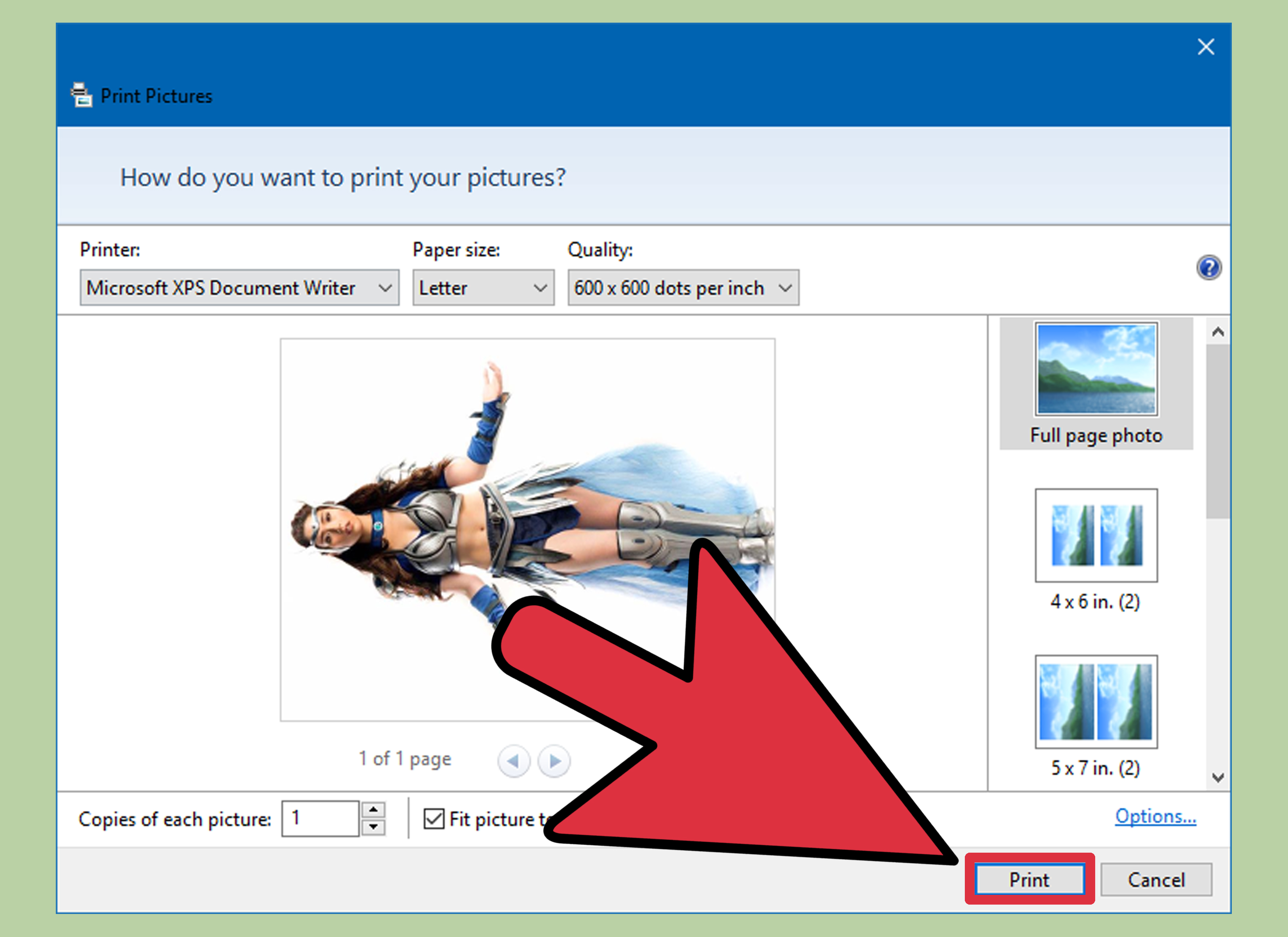
- Load the correct photo paper in the tray recommended by the printer manual.
- Open the picture in Microsoft Photos or your preferred image editor.
- Select the print command, commonly available from the menu or by pressing Ctrl+P.
- Select the correct printer.
- Choose the exact paper size, such as 4 x 6 inches, 5 x 7 inches, letter, or A4.
- Set the media type to match the paper: glossy, semigloss, matte, or plain.
- Choose the highest appropriate photo-quality setting.
- Pick borderless or bordered output and inspect the preview for unexpected cropping.
- Print one test copy before committing an entire stack of expensive paper to the cause.
Printer-brand applications may simplify photo layouts and expose model-specific options. Canon and Brother, for example, document computer workflows that require selecting the photo, correct media, printer preferences, and output settings before printing. n>
How to Print a Picture from a Mac
- Open the picture in Photos or Preview.
- Choose File > Print or press Command+P.
- Select the printer, paper size, orientation, and number of copies.
- Choose a photo layout or custom size in Photos, or use scaling controls in Preview.
- Open the printer-specific section of the dialog and select the matching paper type and quality.
- Confirm the preview, then click Print.
Apple’s Photos app supports standard sizes, custom sizing, contact sheets, and multiple photos per page. Preview can print images and selected pages, while the macOS print dialog provides printer, paper, layout, and scaling controls. re>
A simplified print preview appears beside a checklist for paper size, media type, quality, borderless setting, and scale.
✓ Correct paper size
✓ Matching media type
✓ Photo quality
✓ Crop and scale checked
✓ One test print first
Picture 3: The preview is your last defense against surprise haircuts.
Photo Paper, Ink, Color, and Layout Tips
Load the Printable Side Correctly
Photo paper is not always loaded the same way. Some printers print on the face-up side; others flip paper internally. Follow the diagram molded into the tray or the model’s manual. Fan the stack gently, avoid touching the printable surface, and do not overload the tray.
Match the Media Setting to the Paper
The media-type setting controls ink limits, drying behavior, and feed handling. Choosing “plain paper” while using glossy stock can produce dull output, excess ink, or poor drying. Borderless printing intentionally enlarges the image slightly beyond the paper edge, so it may trim a little from each side. Use a bordered layout when every pixel matters.
Manage Color Without Starting a Small Civil War
For ordinary home printing, let the printer driver manage color and avoid applying multiple correction systems at once. More advanced workflows can use color profiles, calibrated displays, and application-managed color. Apple’s Preview supports assigning ColorSync profiles, and Adobe’s printing controls distinguish document size, scaling, and print resolution. n>
Common Scanning and Printing Problems
The Scanner Is Not Found
Restart the scanner and computer, reconnect the USB cable, or confirm that both devices are on the same Wi-Fi network. Remove duplicate scanner entries, update the driver, and test the manufacturer’s app. On a Mac, try Image Capture or Preview instead of relying only on the scanner’s physical button. Apple specifically recommends trying an application when the scanner button does not start a scan. he Scan Is Blurry or Crooked
Clean the glass, place the photo flat, use the preview crop, and scan at a suitable optical resolution. Disable heavy automatic sharpening if it creates halos. If the original is out of focus, a higher number will create a larger file, not a time machine.
The Print Looks Too Dark
Computer displays emit light, while paper reflects it, so an overly bright monitor can make a normal print look darker by comparison. Reduce screen brightness, edit with moderate room lighting, select the correct paper profile or media type, and make a small test print.
The Picture Is Unexpectedly Cropped
Check the aspect ratio. A 4-by-6 image has a different shape from an 8-by-10 print, so fitting one into the other requires either cropping or leaving borders. Turn off “fill page” when you want the entire picture visible, or crop intentionally before opening the print dialog.
Lines or Bands Appear on the Print
Run the printer’s nozzle check or maintenance utility, verify that ink is available, and align the print head if the model supports it. Use fresh paper and the correct media setting. Do not keep rerunning deep-cleaning cycles without checking the manual; those routines can consume a heroic amount of ink.
Experience-Based Lessons from a Realistic Photo Project
Consider a typical weekend project: a family has a box of 150 photographs ranging from crisp 1990s drugstore prints to tiny, faded snapshots from the 1950s. The first temptation is to scan everything at the scanner’s maximum advertised resolution. That sounds thorough, but it quickly creates huge files, long waits, and a computer fan that begins preparing for takeoff. A better workflow is to sort the photos before touching the scanner.
The family separates the collection into ordinary 4-by-6 prints, damaged photographs, pictures likely to be enlarged, and duplicates. Everyday prints are scanned at 400 ppi in color, even when the images appear black and white, because color mode can preserve subtle paper tones and stains that may help during restoration. Damaged or especially small photographs are scanned at 600 ppi. One untouched master is saved, and a separate JPEG copy is created for sharing and printing.
Naming files during the project turns out to be more important than expected. A folder containing “Scan001,” “Scan002,” and “Scan003” is technically organized in the same way a junk drawer is technically storage. A useful pattern is year-event-person-sequence, such as 1988-beach-trip-maria-01.tif. When the year is uncertain, an estimated decade or “unknown-date” is better than inventing precision.
The first test print reveals another common lesson. The scan looks bright on the monitor but prints darker and warmer. Instead of editing all 150 files immediately, the family adjusts the monitor brightness, confirms the glossy-paper setting, and prints a small sheet containing several brightness variations. The second test is close enough that only a mild correction is needed. That single test sheet prevents an expensive pile of disappointing prints.
Cropping also requires restraint. Automatic software trims the white border from one vintage print, but the border contains a handwritten date. After that discovery, each preview is checked before scanning. The family keeps borders and handwriting in the archival masters, then crops separate copies for frames. When notes appear on the backs, those are scanned too and given matching filenames, such as 1988-beach-trip-maria-01-back.jpg.
The project works best in batches of 20 to 30 photographs. The glass is checked between batches, files are backed up to a second drive, and a few scans are opened at 100 percent magnification to catch dust or focus problems. This quality-control pause feels slower, but rescanning five images now is far less painful than discovering 50 flawed files after the originals have returned to relatives across the country.
Finally, the family prints only favorites at home. Large enlargements and irreplaceable portraits are sent to a professional lab after the files are reviewed. Home printing remains ideal for quick 4-by-6 copies, gifts, scrapbook pages, and comparison proofs. The experience shows that successful scanning is not about pressing one perfect button. It is a chain of sensible decisions: protect the original, capture enough detail, preserve a master, test the output, and organize the files so future humans can understand them.
Conclusion
To scan and print pictures from a computer successfully, begin with a clean original and scanner glass, use a flatbed when possible, preview the crop, and choose a resolution that matches the intended output. Save a high-quality master before editing, verify pixel dimensions for the print size, and match the printer’s paper-size and media-type settings to the paper actually loaded.
The most valuable habit is making one test scan and one test print before processing an entire collection. That small pause catches crooked placement, dust, excessive cropping, incorrect paper settings, and color problems before they multiply. Your scanner may have dozens of options, but the winning workflow is pleasantly ordinary: clean, preview, scan, save, edit gently, test, and print.