If you have ever landed a perfectly timed forward smash, clipped a disrespectful spike, or accidentally created a comedy masterpiece with Jigglypuff flying into the blast zone like a pink beach ball, you probably wanted to save the moment forever. In Super Smash Bros. Ultimate, that means learning how to transfer replays from your Nintendo Switch to your PC the right way.
Here is the important part most players miss: a Smash Ultimate replay is not automatically a normal video file. It is replay data first. That data tells the game how to recreate the match, almost like a recipe. Your PC cannot open it like an MP4 until you convert it inside the game. Once converted, the replay becomes a video file that can be copied, edited, uploaded, archived, or lovingly dropped into a folder named “My Greatest Moments,” even if half of them are lucky misfires.
This guide explains how to convert Smash Ultimate replay data into a video, move it from your Nintendo Switch or microSD card to your computer, organize the file, troubleshoot common problems, and prepare the clip for editing or sharing online.
Understanding Smash Ultimate Replays Before You Transfer Them
Before jumping into cables, folders, and file transfers, it helps to understand what Smash Ultimate actually saves when you hit the replay button. After a match, the game lets you save a replay from the results screen. That saved replay is not a finished recording. Instead, it is a set of instructions that allows the game to recreate the battle later.
This is why old replays can sometimes stop working after a game update. If Nintendo adjusts a fighter’s balance, changes move behavior, or updates game data, the replay may no longer recreate the match correctly. Imagine trying to replay a cooking video after someone secretly changed all the ingredients. Suddenly, Mario’s fireball is not where it used to be, and the match can desync.
To protect your best moments, convert your important replays to video as soon as possible. Once a replay is rendered as a video file, it becomes far easier to preserve, move to a PC, edit, and upload.
What You Need to Transfer Smash Ultimate Replays to PC
You do not need a capture card for this basic transfer method. A capture card is useful for live recording, streaming, or producing high-quality tournament footage, but for saved Smash replays, the built-in conversion tool is usually enough.
Basic requirements
- A Nintendo Switch, Nintendo Switch Lite, or Nintendo Switch OLED Model
- A copy of Super Smash Bros. Ultimate
- Saved replay data inside the game
- A microSD card inserted in your Switch
- A PC with a microSD card reader or a USB-C data cable
- Enough free storage space for video files
A microSD card is strongly recommended because converted Smash videos are saved to the SD card. If your Switch does not have one, install a compatible microSD card first. Nintendo Switch systems use microSD, microSDHC, and microSDXC cards. Regular full-size SD cards do not fit directly into the console, although they may be used through an adapter on your computer when reading the card.
Step 1: Save the Replay After a Match
The replay process starts immediately after a match. On the results screen, press the replay save button when prompted. If you skip this step and leave the results screen, the replay may be gone. Smash is generous with explosions, not always with second chances.
Give the replay a recognizable name if possible. You might think you will remember “that one match on Battlefield where DK did the thing,” but after 40 saved clips, every file starts to look like a mystery box. Use simple labels such as “Mario spike vs Link,” “Final stock comeback,” or “Tournament set game 3.”
Step 2: Convert the Replay to a Video in Smash Ultimate
This is the most important step. Your PC cannot use raw Smash replay data as a normal video. You must convert it inside Super Smash Bros. Ultimate.
How to convert replay data to video
- Open Super Smash Bros. Ultimate.
- From the main menu, go to Vault.
- Select Replays.
- Open Replay Data.
- Choose the replay you want to export.
- Select Convert to Video.
- Choose your preferred video settings.
- Play through the replay while the game records it as a video.
During conversion, the game essentially renders the replay into a video file. Depending on the replay length, you may need to let the entire match play. If you quit too early, you may end up with only part of the match saved. For a clean full-match video, let it run from start to finish.
Recommended conversion settings
Smash Ultimate may allow you to adjust settings such as display elements, sound effects, background music, and video quality. For most players, high quality is the best choice if the match is short enough. If the replay is longer, normal quality may be safer because it uses less space.
If you plan to make content for YouTube, TikTok, Instagram Reels, or tournament analysis, keep sound effects on unless you have a specific reason to mute them. Hit sounds, crowd noise, shield breaks, and final-stock tension all help the video feel alive. Background music is optional, especially if you plan to add your own music later during editing.
Step 3: Find the Converted Replay Video
After conversion, the video is saved on the Switch microSD card. Smash Ultimate converted videos are typically stored in the Nintendo folder structure, commonly under an Album or Extra folder path. The exact folder names may look technical because the Switch organizes media by software ID, date, and file type.
Do not panic if the file name looks like a secret code from a sci-fi movie. The important detail is that the converted replay should be an MP4 file. Once it is an MP4, your PC can open it with standard media players and video editing software.
Step 4: Transfer the Video to Your PC with a microSD Card
The microSD method is one of the most reliable ways to transfer Smash Ultimate replay videos to a PC. It gives you direct access to the card’s folders and allows you to copy files manually.
How to transfer using microSD
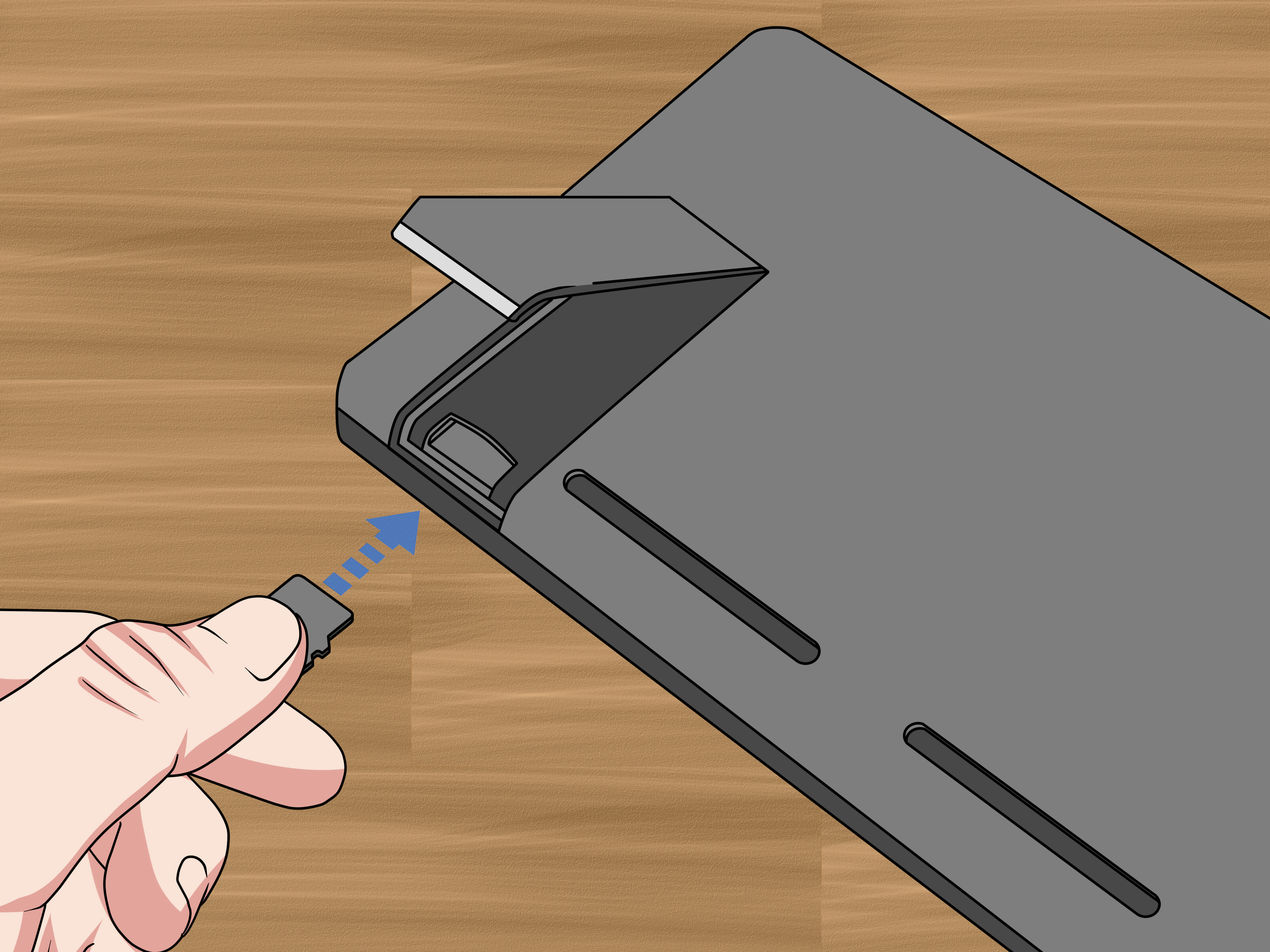
- Completely power off your Nintendo Switch. Do not just put it in sleep mode.
- Open the microSD card slot on your Switch model.
- Gently press the microSD card until it clicks, then remove it.
- Insert the microSD card into your PC using a card reader or adapter.
- Open the card in File Explorer.
- Look for the Nintendo folder, then check the Album or Extra folders.
- Find the converted MP4 replay video.
- Copy the video to a folder on your PC.
- Eject the microSD card safely before removing it from the PC.
- Put the microSD card back into the Switch while the console is powered off.
Powering off the console before removing the card is not just a polite suggestion. It helps reduce the risk of file corruption. Your Switch may be small, but it still prefers not having its storage pulled out while it is thinking.
Step 5: Transfer with a USB-C Cable Instead
If you do not want to remove the microSD card, you can also transfer screenshots and video captures from the Switch to a computer using a USB-C cable that supports data transfer. This is not the same as using any random charging cable. Some USB-C cables only charge devices and do not carry data, which can make your PC ignore the Switch completely.
How to transfer Switch videos to PC by USB
- From the Nintendo Switch HOME Menu, open System Settings.
- Go to Data Management.
- Select Manage Screenshots and Videos.
- Choose Copy to a Computer via USB Connection.
- Connect the Switch directly to your PC using a USB-C data cable.
- Open the Switch media folders on your PC.
- Copy the replay video files to your computer.
Connect the cable directly to the USB-C port on the bottom of the Switch, not to the dock. The dock’s USB ports are not used for this media transfer feature. On Windows, the Switch should appear as a media device. On macOS, extra MTP-compatible software may be required, and results can vary.
Where to Put Smash Replay Files on Your PC
Once the replay video is on your computer, create a simple folder system. This saves time later, especially if you record a lot of matches.
Example folder structure
- Videos > Smash Ultimate Replays > Raw Exports
- Videos > Smash Ultimate Replays > Edited Clips
- Videos > Smash Ultimate Replays > Tournament Matches
- Videos > Smash Ultimate Replays > YouTube Uploads
Rename files immediately after copying them. A file called 20260505-213045.mp4 is technically accurate, but it will not help you remember the match. A better name would be Mario-vs-Sephiroth-final-stock-comeback.mp4. Future you will be grateful. Future you is busy and does not want to play detective.
Best Video Editors for Smash Ultimate Replays
After transferring your Smash Ultimate replay to PC, you can edit it with almost any modern video editor. Since the converted file is usually an MP4, it should work with common editing tools.
Good editing options
- Clipchamp: Built into many Windows systems and easy for quick cuts.
- DaVinci Resolve: Powerful free editor for serious projects.
- Adobe Premiere Pro: Professional choice for creators and editors.
- CapCut Desktop: Useful for short-form content and social clips.
- Shotcut: Free, open-source, and beginner-friendly.
For basic Smash content, you usually only need trimming, cropping, volume adjustment, text captions, and maybe slow motion. Do not over-edit every clip. A clean spike with good timing is already dramatic. It does not always need lightning effects, bass drops, and three separate zooms on Donkey Kong’s face.
How to Prepare Replays for YouTube, TikTok, or Discord
Different platforms favor different formats. A full match or analysis video works well on YouTube in landscape format. A funny KO, combo, or comeback may perform better as a vertical short on TikTok, YouTube Shorts, or Instagram Reels.
For YouTube
Keep the original horizontal format if you are uploading a full match, guide, reaction, or tournament breakdown. Add a clear title such as “Ridley Comeback vs Cloud – Super Smash Bros. Ultimate Replay.” Include fighter names, stage names, and the type of moment if relevant.
For TikTok and Shorts
Crop the action carefully so the fighters remain visible. Add a short caption near the top or bottom, such as “Wait for the spike” or “Last stock panic mode.” Keep it fast. Viewers on short-form platforms decide quickly whether your clip is worth watching.
For Discord
Compress the video if the file is too large. You can also trim the clip to the key moment instead of sending a full three-stock match. Your friends may love Smash, but they may not love downloading a giant file just to watch you miss a tech.
Common Problems and Easy Fixes
The replay does not appear on my PC
Make sure you converted the replay to video first. Raw replay data is not the same as a video file. Go back into Smash Ultimate, open Vault, select Replays, choose Replay Data, and convert the replay.
The replay disappeared after an update
Unfortunately, older replay data may become unusable after certain game updates. This is one reason players should convert important replays to video as soon as possible. Once converted, the MP4 file is much safer to archive.
My PC does not detect the Switch through USB
Try a different USB-C cable that supports data transfer. Also connect directly to the Switch itself, not the dock. If it still does not work, use the microSD card method instead.
I cannot find the video in the Album
Some Smash converted replay videos may not appear in the regular Switch Album the way normal captures do. Check the microSD card folders directly on your PC, especially under Nintendo, Album, and Extra-related folders.
The file is too large
Use a video editor or compression tool to trim unnecessary footage. Cut loading screens, menu navigation, and dead time before the match begins. A focused 20-second clip is often better than a full replay if the highlight is one specific moment.
Tips for Better Smash Replay Transfers
Convert replays soon after saving them. Keep your microSD card organized. Rename files after copying them to your PC. Back up your best clips to cloud storage or an external drive. If you make content regularly, create a repeatable workflow: save, convert, transfer, rename, edit, export, upload.
Also, consider recording multiple camera angles during conversion if you are making cinematic clips. Smash Ultimate’s replay viewer allows camera movement, zooming, pausing, and frame-by-frame review. That means you can create more dramatic edits than a simple match recording. For analysis videos, however, keep the standard view so viewers can clearly see spacing, percentages, stocks, and stage position.
Do You Need a Capture Card?
You do not need a capture card simply to transfer converted Smash Ultimate replays to PC. The built-in replay conversion method is enough for many players. However, a capture card is useful if you want to record live gameplay, stream matches, capture training sessions, or avoid the limitations of the replay system.
A capture card records exactly what appears on screen in real time. That means it can capture menus, live online matches, training mode, commentary, and reactions. If you are building a serious Smash channel, it may be worth buying one. If you only want to preserve your favorite KOs, the replay conversion method is much cheaper and easier.
Experience Notes: What It Is Actually Like to Transfer Smash Ultimate Replays to PC
The first time you transfer Smash Ultimate replays to PC, the process can feel more confusing than it should. You save the replay, look for it in the Switch Album, connect the console, open random folders, and wonder whether the file is hiding from you like Snake in a cardboard box. The confusion usually comes from one simple misunderstanding: the replay is not a video until you convert it.
Once that clicks, the workflow becomes much smoother. My preferred approach is to save several matches during a play session, then convert only the best ones afterward. Not every replay deserves the VIP treatment. Some matches feel amazing in the moment, then you watch them later and realize the highlight was mostly two players rolling behind each other for six minutes. Be selective. Convert the clips with strong moments: a comeback, a clean combo, a funny mistake, a clutch edgeguard, or a match that teaches something useful.
The microSD method feels old-school, but it is dependable. Power off the Switch, remove the card, plug it into the PC, copy the files, and organize them. It is not glamorous, but neither is fishing through unnamed MP4 files at midnight. The most useful habit is renaming every file immediately. Include the fighter names, the date, and the reason the clip matters. For example, “Pikachu_vs_Bowser_last_stock_spike_May2026.mp4” is much better than a string of numbers.
Using USB-C is more convenient when it works. The catch is the cable. Many people grab the nearest USB-C cable and assume it will transfer data. Then nothing happens. The cable may be charge-only. A proper data cable solves a lot of frustration. Windows tends to handle the transfer more smoothly than some other systems because the Switch uses media transfer behavior that Windows supports well.
Editing is where the replay becomes content. A full match is useful for analysis, but short clips need pacing. Trim the beginning tightly. Start close to the action. If the best moment happens at the end, add a caption that gives viewers a reason to stay, such as “This final stock got ridiculous.” For educational content, use pauses, arrows, or text labels to explain spacing, ledge traps, recovery routes, or punish windows.
The biggest lesson is to convert important replays before updating the game. Smash Ultimate replay data can be sensitive to version changes. If a patch affects gameplay, old replay data may stop working correctly. An MP4 video, however, remains a normal video. Treat conversion as insurance. If the match made you yell loud enough to worry the neighbors, convert it before the next update.
In short, transferring Smash Ultimate replays to PC is not hard once you understand the order: save the replay, convert it to video, move the MP4, rename it, and back it up. After that, your best moments are no longer trapped on the console. They are ready for editing, sharing, laughing, studying, or proving to your friend that yes, the spike absolutely connected and no, it was not “just lag.”
Conclusion
Learning how to transfer replays from Super Smash Bros. Ultimate to PC is mostly about knowing what the Switch saves and where the finished video goes. Replay data must be converted inside Smash Ultimate before your computer can treat it like a normal video. After conversion, you can copy the MP4 file using a microSD card or a USB-C data cable, then edit, rename, compress, upload, or archive it.
For the smoothest workflow, save your replay after the match, convert it soon, transfer it safely, and keep your files organized. Whether you are building a highlight reel, studying tournament habits, making short-form content, or saving one glorious Falcon Punch for future generations, the process is simple once you do it a few times.
Note: This article is based on real Nintendo Switch and Super Smash Bros. Ultimate replay behavior, including the need to convert replay data into video before transferring it to a PC.