“`
Note: This guide is written for everyday iPhone users who want practical fixes before handing the phone to a repair desk, a genius in a blue shirt, or that one cousin who “knows tech” because he owns three charging cables.
When videos are not playing on iPhone, the problem can feel strangely dramatic. One minute you are trying to watch a saved birthday clip, a YouTube tutorial, a Netflix episode, or a video sent through Messages. The next minute, your iPhone is giving you a black screen, endless buffering, frozen playback, no sound, or the deeply unhelpful “cannot play video” message. Your phone may still text, browse, and take photos perfectly, which makes the issue even more annoying.
The good news: most iPhone video playback problems are not signs that your device is doomed. They are usually caused by a weak connection, a stuck app, outdated software, low storage, iCloud download delays, unsupported file formats, browser cache problems, VPN interference, or a temporary issue with the video service itself. In other words, your iPhone may not be broken. It may simply be having a small digital tantrum.
This complete troubleshooting guide walks through the most effective ways to fix videos not playing on iPhone, whether the issue happens in Photos, Safari, YouTube, Netflix, Apple TV, Messages, Chrome, Instagram, TikTok, or another app. Start with the quick checks, then move into the deeper fixes if your iPhone still refuses to cooperate.
Common Reasons Videos Won’t Play on iPhone
Before fixing the issue, it helps to understand what may be causing it. iPhone videos can fail for several reasons, and the exact fix depends on where the video is located and how it is being played.
1. Your Internet Connection Is Too Weak
Streaming video requires a stable connection. If Wi-Fi is weak, cellular data is slow, or your network is overloaded, videos may buffer, freeze, load in poor quality, or refuse to start. This is especially common with HD, Full HD, and 4K content, which need more bandwidth than simple web browsing.
2. The App Is Frozen or Outdated
Apps like YouTube, Netflix, Hulu, Prime Video, TikTok, Instagram, and Chrome depend on frequent updates. If an app is outdated, corrupted, or stuck in the background, video playback may fail. Sometimes closing and reopening the app is all it takes. Yes, the old “turn it off and on again” advice survives because it keeps working.
3. iOS Needs an Update
Video playback depends on system-level features, codecs, security certificates, browser engines, and app compatibility. If your iPhone is running an older iOS version, certain videos, streaming apps, or websites may stop working properly.
4. The Video File Format Is Unsupported
Not every video file is friendly to iPhone. Common iPhone-supported formats include widely used formats such as H.264, HEVC, and other Apple-compatible video types, depending on your model and software version. Older, unusual, damaged, or specialized files may need a different app or conversion before they will play.
5. The Video Is Stored in iCloud, Not Fully on Your iPhone
If iCloud Photos and Optimize iPhone Storage are enabled, your full-resolution videos may live in iCloud while smaller versions remain on your device. When you tap a video, your iPhone may need to download the original. If the connection is poor, the video may spin, stall, or show an error.
6. Safari or Browser Data Is Causing Trouble
If videos do not play in Safari or Chrome, the issue may be cached data, cookies, website settings, content blockers, Private Relay, VPN settings, or a site-specific bug. Browsers collect little bits of data over time. Usually helpful. Occasionally, a digital junk drawer.
7. Low Storage Is Slowing Everything Down
When your iPhone is nearly full, apps may crash, videos may lag, and system performance may suffer. Video apps need temporary working space for caching, downloads, thumbnails, previews, and playback data. A phone with almost no free storage is like a kitchen counter covered in groceries: technically usable, but everything takes longer.
Quick Fixes to Try First
Start with these simple steps. They fix a surprising number of video problems and take only a few minutes.
Restart Your iPhone
A restart clears temporary glitches and refreshes system processes. On most newer iPhones, press and hold the side button and either volume button, then slide to power off. Wait about 30 seconds, turn the iPhone back on, and test the video again.
Close and Reopen the App
If the video fails in a specific app, swipe up from the bottom of the screen and pause to open the app switcher. Swipe the problem app up to close it. Reopen the app and try playing the video again. If your iPhone has a Home button, double-click the Home button to access the app switcher.
Try a Different Video
Test another video in the same app. If one video fails but others play, the file or streaming title may be corrupted, removed, restricted, or temporarily unavailable. If no videos play, the problem is more likely the app, browser, network, or iPhone settings.
Switch Between Wi-Fi and Cellular Data
If you are on Wi-Fi, turn Wi-Fi off and try cellular data. If you are on cellular, connect to a strong Wi-Fi network. This quick test reveals whether the problem is tied to one network. Just be careful with cellular streaming if your data plan is not unlimited, because HD video can eat data like popcorn at a movie theater.
Turn Airplane Mode On and Off
Open Control Center, turn on Airplane Mode, wait 10 seconds, then turn it off. This refreshes wireless connections and can fix small cellular or Wi-Fi hiccups.
Fix Videos Not Playing in the Photos App
If videos in your iPhone Photos app will not play, the cause is often iCloud, storage, software, or file compatibility.
Check Whether the Video Is Downloading from iCloud
Open the Photos app and tap the video. If you see a loading circle, cloud icon, or delay before playback, your iPhone may be downloading the original from iCloud. Connect to a strong Wi-Fi network, keep the Photos app open, and give it time to load. Large 4K videos may take a while, especially if your Wi-Fi is slower than a Monday morning.
Check iCloud Photos Settings
Go to Settings > [your name] > iCloud > Photos. If iCloud Photos is enabled and Optimize iPhone Storage is selected, your iPhone may keep smaller local versions while originals stay in iCloud. To keep full-resolution videos on your device, choose Download and Keep Originals, but only if you have enough storage.
Free Up Local Storage
Go to Settings > General > iPhone Storage. If your device is nearly full, delete unused apps, remove large downloads, clear old message attachments, or transfer photos and videos to cloud storage or a computer. Aim to keep at least a small cushion of free space so iOS and apps can work smoothly.
Check the Video Format
If the video came from another device, a camera, an editing app, or a website download, it may use a format your iPhone cannot play natively. Try opening it in the Files app, sharing it to a trusted media player app, or converting it to a more compatible format such as MP4 with H.264 video and AAC audio.
Fix Videos Not Playing in Safari
When videos will not play in Safari, the issue may come from the website, cache, privacy settings, network restrictions, or iOS itself.
Reload the Page
Tap the reload icon in Safari. If the page was loaded during a weak connection, a simple refresh may fix the video player.
Clear Safari History and Website Data
Go to Settings > Apps > Safari, then tap Clear History and Website Data. On some iOS versions, the path may be Settings > Safari. This can fix broken video players caused by outdated cookies, cached scripts, or corrupted website data. Remember that clearing website data may sign you out of websites.
Disable Content Blockers Temporarily
Ad blockers and content blockers can sometimes block video players, login scripts, or embedded media. Go to Safari settings and temporarily disable content blockers, then test the video again.
Check Private Relay or VPN Settings
If only certain websites refuse to play videos, try temporarily turning off iCloud Private Relay or your VPN. Some video platforms restrict playback when traffic appears to come from unusual locations, proxy servers, or privacy-routing services.
Try Another Browser
If a video fails in Safari, try Chrome or another reputable browser. If it plays there, the issue is likely Safari-specific. If it fails everywhere, look at your connection, iOS version, or the video service itself.
Fix Videos Not Playing in YouTube, Netflix, Hulu, Prime Video, and Other Apps
Streaming apps have their own moving parts: app versions, account status, downloads, regional rights, playback limits, and service outages. Use this checklist when videos fail inside a specific app.
Update the App
Open the App Store, tap your profile icon, and check for app updates. Install updates for YouTube, Netflix, Hulu, Prime Video, Apple TV, Disney+, Chrome, or whichever app is having trouble.
Update iOS
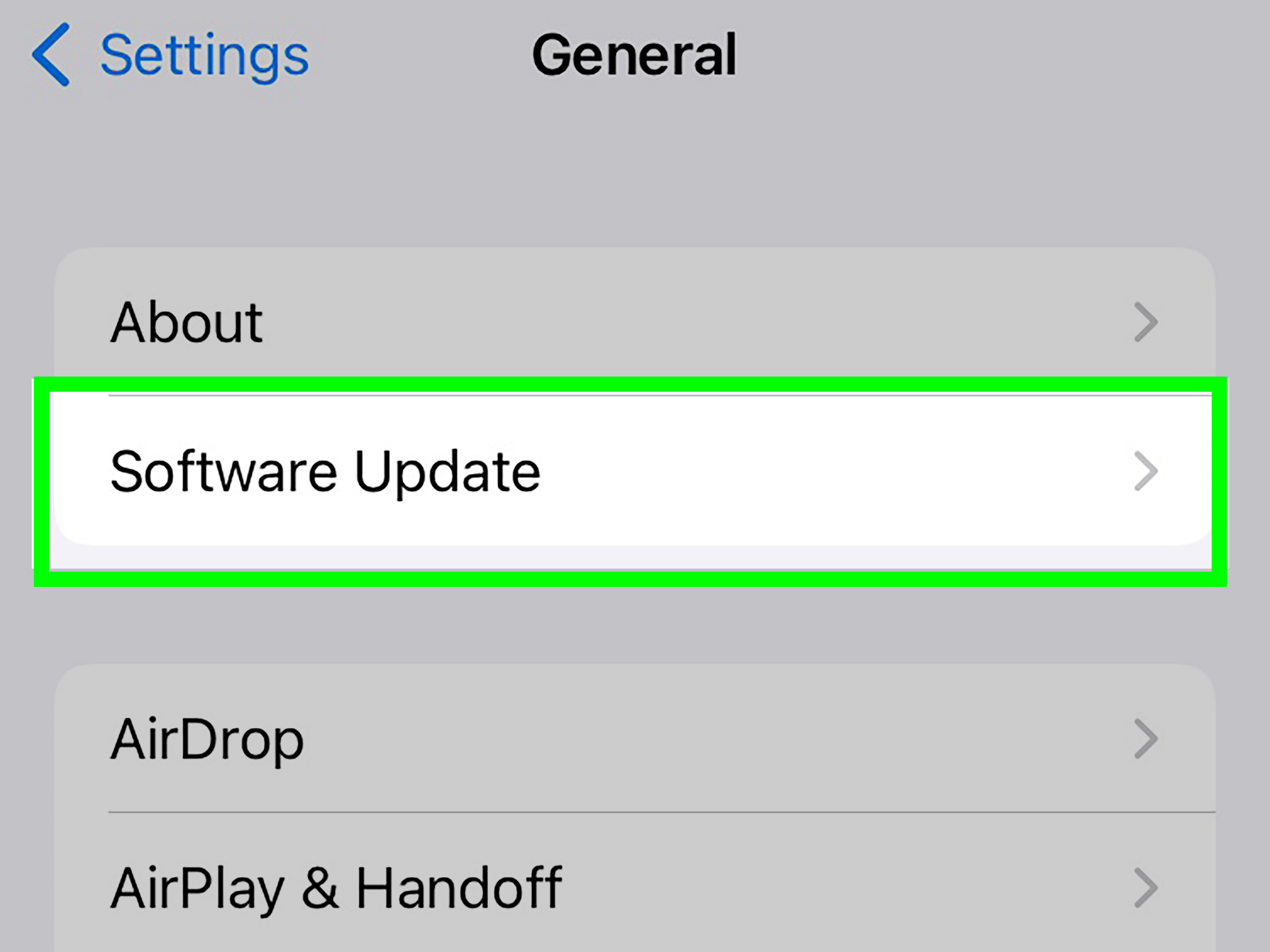
Go to Settings > General > Software Update. Install any available update for your iPhone model. App developers often rely on the latest iOS features and security updates, so an outdated system can create playback problems.
Sign Out and Sign Back In
If videos fail in a subscription app, sign out of your account, close the app, reopen it, and sign back in. This can refresh account permissions, region settings, and playback authorization.
Delete and Reinstall the App
If updating does not help, delete the app and reinstall it from the App Store. This removes corrupted app data and gives you a fresh copy. Be aware that deleting a streaming app may also remove downloaded videos stored inside that app.
Check Whether the Service Is Down
If YouTube, Netflix, Hulu, Prime Video, or Apple TV suddenly stops playing across multiple devices, the service may be experiencing an outage. Check the app’s official status page, help center, or social support channels. If the service is down, your best troubleshooting tool is patience, which is annoying but very lightweight.
Check Playback Limits
Some services limit how many devices can stream at the same time. If you see errors about too many streams, close the app on other devices or ask household members whether someone is watching on a TV, tablet, browser, or game console.
Fix Buffering, Freezing, and Poor Video Quality
If videos play but constantly buffer, freeze, or look blurry, focus on connection speed and network stability.
Move Closer to the Wi-Fi Router
Walls, floors, appliances, and distance can weaken Wi-Fi. Move closer to your router and test the video again. If the video suddenly improves, the problem is likely signal strength.
Restart Your Router
Unplug your modem and router, wait about one minute, plug them back in, and wait for the connection to return. Then reconnect your iPhone and test playback. This refreshes your home network and can fix slow or unstable connections.
Pause Large Downloads
If someone is downloading a huge game, backing up files, or streaming 4K video in another room, your iPhone may not get enough bandwidth. Pause heavy network activity and test the video again.
Turn Off Low Data Mode
Low Data Mode reduces background network use and can affect how apps load content. Go to your Wi-Fi or Cellular settings and turn Low Data Mode off temporarily, then test video playback.
Adjust Streaming Quality
If your connection is slow, lower the video quality inside the app. Streaming in 720p is easier than 1080p or 4K. A slightly softer picture is better than a perfect 4K frame that freezes every twelve seconds like a museum exhibit.
Fix Black Screen, Sound Without Picture, or Picture Without Sound
Sometimes the video technically plays, but something is missing. A black screen with audio, frozen picture, or no sound can point to display, app, audio, or DRM-related issues.
Check the Volume and Silent Mode
Raise the volume with the side buttons and check Control Center to make sure audio is not routed to AirPods, Bluetooth speakers, or another device. Also check whether the video itself is muted inside the app.
Disconnect External Displays or Adapters
If you are using HDMI, USB-C video output, screen mirroring, AirPlay, or an adapter, disconnect it and try playing directly on the iPhone. Some streaming apps restrict playback on unsupported displays or recording-like setups to protect licensed content.
Disable Screen Recording
Some apps block video when screen recording is active. Open Control Center and make sure screen recording is off.
Restart Bluetooth Audio Devices
If sound is missing, disconnect and reconnect Bluetooth headphones or speakers. You can also turn Bluetooth off temporarily to force sound through the iPhone speakers.
When to Reset Network Settings
If videos still will not stream after you try Wi-Fi, cellular, app updates, restarts, and router troubleshooting, resetting network settings may help. This removes saved Wi-Fi networks, Wi-Fi passwords, cellular settings, VPN settings, and APN settings, so use it after simpler fixes.
Go to Settings > General > Transfer or Reset iPhone > Reset > Reset Network Settings. After the iPhone restarts, reconnect to Wi-Fi and test video playback again.
Advanced Fixes for Stubborn iPhone Video Problems
If nothing has worked yet, try these deeper fixes.
Check Date and Time Settings
Go to Settings > General > Date & Time and turn on Set Automatically. Incorrect time settings can interfere with secure connections and streaming authentication.
Check App Permissions
Some apps need access to cellular data, local network permissions, or Photos to play or upload videos. Go to Settings, scroll to the app, and review permissions.
Try the Same Video on Another Device
If the video fails on your iPhone but works on another phone, tablet, or computer, the issue is likely iPhone-specific. If it fails everywhere, the video file, website, or streaming service is probably the problem.
Download Instead of Streaming
For long videos or weak connections, download the video inside the app if the service allows it. Downloaded content may play more smoothly because it does not depend on real-time network speed.
Back Up and Contact Support
If videos fail across every app, your iPhone overheats, the camera app also malfunctions, or the device crashes often, back up your iPhone and contact Apple Support or your carrier. Persistent playback failure may point to a deeper software or hardware issue.
Real-World Experience: What Usually Works First
After dealing with many “my iPhone won’t play videos” situations, one pattern becomes obvious: people often jump to the scariest explanation too soon. They assume the phone is broken, the video is gone forever, or the app has personally betrayed them. In reality, the fix is usually much less dramatic.
The first thing worth checking is where the video fails. If a saved clip in Photos will not play, but YouTube works perfectly, the issue is probably local storage, iCloud Photos, or file compatibility. If YouTube, Netflix, Safari, and Instagram all struggle, the network becomes suspect. If only one app refuses to play videos, that app deserves the side-eye.
One common experience is the iCloud Photos delay. A user taps an old vacation video and sees a spinning circle. They think the video is corrupted, but the original is simply stored in iCloud. Once the iPhone connects to strong Wi-Fi and has enough storage to download the file, the video plays normally. This is especially common with long 4K clips, wedding videos, travel footage, and anything recorded in high efficiency format.
Another frequent situation involves public Wi-Fi. Coffee shops, hotels, airports, schools, and offices may block streaming services or slow them down. The iPhone looks connected, messages may work, and websites may load, but videos refuse to start. Switching to cellular data or another Wi-Fi network often solves the mystery immediately. Public Wi-Fi can be useful, but sometimes it treats video like a suspicious character at the door.
Browser video issues often come down to old website data. Safari or Chrome may hold onto cached scripts that no longer match the website’s current video player. Clearing history and website data can feel like cleaning out a closet: you may not know exactly which item caused the problem, but the room suddenly works better afterward. The downside is that you may need to sign back into sites.
For streaming apps, reinstalling is the “fresh start” fix. It is especially helpful when the app opens but videos freeze, downloaded titles refuse to play, or playback errors keep appearing. Reinstalling removes damaged local data and forces the app to rebuild itself. Just remember to check whether downloaded episodes or movies will be deleted before you remove the app.
Storage is another sneaky culprit. An iPhone with almost no free space may still function, but video playback can become unreliable. Apps need space to cache, buffer, update, and process media. Clearing a few gigabytes can make the phone feel dramatically better. Start with old downloads, unused apps, duplicate videos, and large message attachments. Deleting one forgotten two-hour screen recording may feel like finding money in a jacket pocket.
VPNs and privacy tools can also complicate streaming. They are useful for security and privacy, but some video services dislike masked locations or unusual network routes. If a video works after turning off a VPN or Private Relay, you have found the conflict. That does not mean privacy tools are bad; it means streaming platforms can be picky little gatekeepers.
The best troubleshooting approach is simple: change one thing at a time. Restart the app, test another video, switch networks, update the app, clear browser data, check storage, then reset network settings only if needed. This makes it easier to identify what actually fixed the problem instead of performing twelve random steps and hoping the iPhone confesses.
Conclusion
Videos not playing on iPhone can be caused by many things, but the solution usually starts with a calm checklist. Restart the iPhone, close and reopen the app, test another video, switch networks, update iOS, update the app, clear Safari or Chrome data, check iCloud Photos, free up storage, and review VPN or Private Relay settings. If the issue happens only in one app, reinstall that app or check whether the service is down. If the issue affects every video everywhere, reset network settings or contact Apple Support.
The key is to avoid panic and troubleshoot in layers. Most video playback problems are fixable in minutes. Your iPhone probably is not broken; it may just need a cleaner connection, a fresher app, more storage, or a tiny nap in the form of a restart.