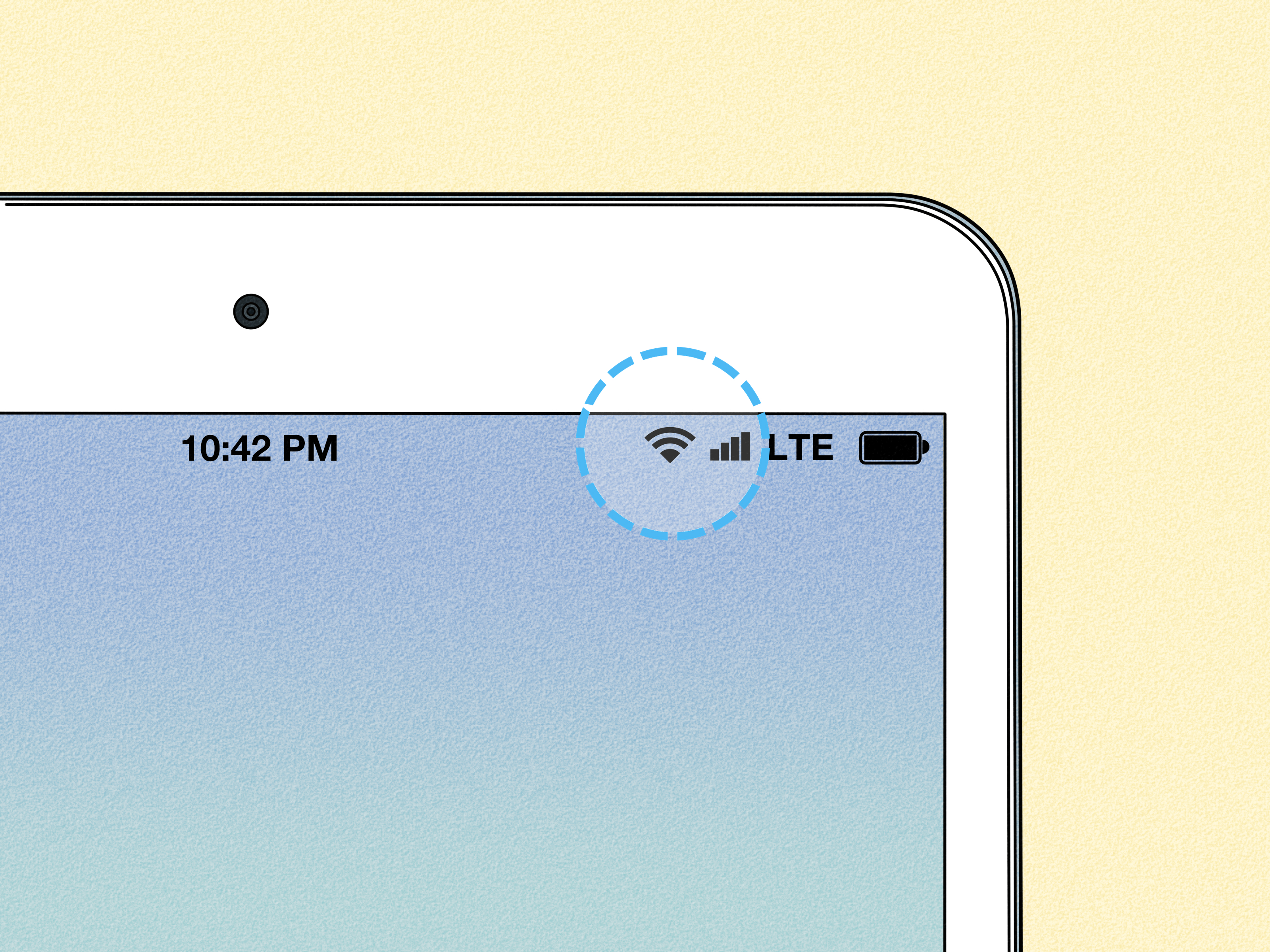
Want your tablet online without hunting for coffee-shop Wi-Fi like a digital raccoon? Good news: you can often use your cell phone plan on your tablet in two simple ways. The first is fast, free, and already sitting in your pocket: turn your phone into a mobile hotspot. The second is cleaner for daily use: add your tablet to your existing wireless plan with a SIM, eSIM, or data-only tablet line.
Both options can work beautifully, but they are not identical twins. A hotspot is ideal for occasional tablet internet, travel, school pickup lines, airport delays, and emergency “my Wi-Fi disappeared again” moments. A tablet cellular plan is better if you use your iPad, Galaxy Tab, Pixel Tablet, or other cellular tablet away from Wi-Fi every day. Let’s break down the two easiest methods, how to set them up, what they cost, and how to avoid the classic mistake of burning through hotspot data during one enthusiastic Netflix session.
Can You Really Use a Cell Phone Plan on a Tablet?
Yes, but the exact method depends on your tablet model, phone plan, and carrier rules. If your tablet is Wi-Fi only, it cannot connect directly to a cellular network by itself. In that case, your best option is using your phone’s hotspot feature. Your phone connects to the mobile network, then shares that connection with your tablet over Wi-Fi. The tablet thinks it is joining a normal Wi-Fi network, which is adorable because technically it is joining your phone’s tiny personal internet bubble.
If your tablet is a Wi-Fi + Cellular model, you may be able to add it to your current cell phone plan as a separate tablet line. Many modern tablets support eSIM, physical SIM cards, or both. With this setup, the tablet gets its own mobile data connection and can go online even when your phone is off, out of battery, or buried somewhere in the couch cushions.
The best choice comes down to usage. For light use, hotspotting is usually the easiest. For frequent use, a dedicated tablet data plan is more convenient and often more reliable.
Way 1: Use Your Phone as a Mobile Hotspot
The simplest way to use your cell phone plan on your tablet is to enable mobile hotspot or tethering on your phone. This feature shares your phone’s cellular data connection with nearby devices, including tablets, laptops, e-readers, and occasionally that one friend who always “just needs Wi-Fi for two minutes.”
How Mobile Hotspot Works
Your phone acts like a mini Wi-Fi router. It receives internet through your carrier’s 4G LTE or 5G network, then broadcasts a private Wi-Fi network. Your tablet connects to that network using a password. Once connected, the tablet can browse the web, stream videos, send email, use cloud apps, join video calls, and do almost anything it would normally do on home Wi-Fi.
Most iPhones and Android phones include hotspot settings. On iPhone, this is usually called Personal Hotspot. On Android, it is commonly listed as Hotspot & tethering, Mobile Hotspot, or something similar depending on the phone brand. Samsung Galaxy phones also include mobile hotspot options, and some Samsung devices can share the connection automatically with other Samsung devices signed into the same account.
How to Connect a Tablet to an iPhone Hotspot
- Open Settings on your iPhone.
- Tap Personal Hotspot.
- Turn on Allow Others to Join.
- Check the Wi-Fi password shown on the screen.
- On your tablet, open Wi-Fi settings.
- Select your iPhone from the Wi-Fi list.
- Enter the hotspot password.
Once the tablet connects, you can use your phone plan’s hotspot data. Keep the phone nearby, because distance, walls, and low battery can weaken the connection.
How to Connect a Tablet to an Android Hotspot
- Open Settings on your Android phone.
- Go to Network & Internet, Connections, or a similar menu.
- Tap Hotspot & tethering or Mobile Hotspot.
- Turn on the Wi-Fi hotspot.
- Set a strong password if one is not already active.
- On your tablet, open Wi-Fi settings and select your phone’s hotspot network.
- Enter the password and connect.
Some Android phones can also share data through Bluetooth or USB tethering. Wi-Fi hotspot is usually the easiest option for tablets, especially if you want to move around without attaching cables like it’s 2007.
Pros of Using a Phone Hotspot
The biggest advantage is convenience. You do not need a new tablet line, a SIM card, or a store visit. If hotspot use is included in your phone plan, you can often connect your tablet in less than a minute. This is perfect for occasional use, road trips, hotels with suspiciously slow Wi-Fi, and emergency work sessions.
Another benefit is flexibility. One phone hotspot can often connect multiple devices, though performance drops as more devices pile on. For a single tablet, it usually works well for browsing, email, maps, messaging, and light streaming.
Cons of Using a Phone Hotspot
Hotspotting uses your phone’s battery quickly. It also depends on your phone’s signal. If your phone has one sad little bar of service, your tablet will not magically become a fiber-optic superhero. Carrier limits matter too. Some plans include generous hotspot data; others include a small allowance, slower hotspot speeds after a threshold, or no hotspot at all.
Video streaming, cloud backups, app updates, online gaming, and video calls can chew through hotspot data quickly. Before you stream a full season of anything, check your plan details. Your future self may appreciate not receiving a “you have used all your high-speed hotspot data” message at the worst possible moment.
Way 2: Add Your Tablet to Your Cell Phone Plan
The second easy way is to add your tablet as a connected device on your existing wireless account. This usually means your carrier gives the tablet its own cellular data line through an eSIM or physical SIM. Instead of borrowing internet from your phone, the tablet connects directly to the mobile network.
What You Need for a Tablet Data Line
You need a tablet that supports cellular service. For iPad, that means a Wi-Fi + Cellular model. For Android tablets, look for models with LTE or 5G support. Wi-Fi-only tablets cannot be upgraded with a SIM slot later. Sadly, there is no secret “turn my Wi-Fi tablet into a 5G tablet” button, though that would be a best-selling button.
You also need carrier compatibility. A tablet may be unlocked, carrier-branded, eSIM-only, physical-SIM capable, or limited by supported network bands. Before adding service, check your carrier’s bring-your-own-device compatibility page or contact support. Verizon, AT&T, T-Mobile, Google Fi, and prepaid brands all have different rules for tablet lines, data-only SIMs, hotspot use, and pricing.
How to Add a Cellular iPad to a Plan
On many iPads, you can set up cellular service directly from the Settings app. Open Settings, tap Cellular Data, and follow the prompts to add a plan, scan a QR code, use a carrier app, or activate an eSIM. Some carriers also allow you to join an existing iPhone cellular plan, depending on account type and device support.
If your iPad uses a physical SIM, your carrier may provide a SIM card. Insert it into the SIM tray, then follow activation steps. If the iPad supports eSIM, activation may happen digitally without a physical card. That is convenient, unless you enjoy losing SIM ejector tools in mysterious desk-drawer dimensions.
How to Add an Android Tablet to a Plan
For a cellular Android tablet, start by checking whether it uses eSIM, physical SIM, or both. Then confirm it works with your carrier’s network. Once compatible, you can usually activate it through your carrier account, store, app, or support page. Some tablets require an access point name, also called an APN, especially with certain data-only SIM setups. Most major carriers handle this automatically, but it is worth knowing if the tablet connects to the network but refuses to load websites.
Pros of Adding a Tablet Line
A dedicated tablet line is smoother for daily use. You do not have to turn on hotspot, keep your phone nearby, or worry that a phone call, battery drain, or accidental airplane mode will knock your tablet offline. The tablet simply connects when cellular coverage is available.
This method is excellent for students, field workers, commuters, travelers, sales teams, delivery dashboards, remote work, and anyone who treats a tablet like a lightweight laptop. It is also better for kids’ tablets on family plans because parents can manage usage without handing over their phone hotspot password every time someone wants to watch a dinosaur video.
Cons of Adding a Tablet Line
The obvious downside is cost. Many carriers charge a monthly fee for tablet lines, and taxes, fees, activation charges, and device payment plans can raise the total. Some “unlimited” tablet plans also include data prioritization rules, hotspot limits, or reduced speeds after certain usage levels. This does not mean they are bad plans; it means you should read the plan details before clicking “add to cart” with the confidence of a person who definitely did not read the fine print.
Another limitation is device compatibility. A tablet that works on one network may not support the best bands on another. International travel can add more complexity. eSIM travel plans can help, but they are separate from using your main U.S. phone plan unless your carrier specifically supports international tablet data.
Mobile Hotspot vs. Tablet Line: Which Is Better?
Choose mobile hotspot if you only need tablet internet occasionally. It is simple, fast, and usually does not require a new monthly charge. It is ideal for checking email, browsing, working for short periods, using maps, or keeping a tablet connected during a trip.
Choose a tablet data line if you use your tablet away from Wi-Fi several times a week or every day. It is also better if your tablet is a work tool, school device, point-of-sale screen, navigation hub, or entertainment machine for travel. The convenience of always-on cellular can be worth the monthly cost.
A helpful rule: if you turn on your phone hotspot once in a while, keep using hotspot. If you turn it on so often that it feels like part of your morning routine, consider a tablet line.
Data Usage: What Will Your Tablet Actually Consume?
Tablet data usage depends on what you do. Reading articles, sending messages, checking email, and using maps are light activities. Social media with autoplay videos uses more. Video calls, HD streaming, cloud gaming, and large downloads use a lot. App updates can be surprisingly data-hungry, especially when your tablet decides that now, in the middle of nowhere, is the perfect time to update every app you forgot you installed.
To save data, turn off automatic app updates over cellular, disable cloud photo syncing while on hotspot, lower streaming quality, and download movies or playlists on home Wi-Fi before traveling. On both iPad and Android tablets, you can usually check cellular or Wi-Fi data usage in settings. Your carrier app may also show hotspot and tablet-line usage.
Security Tips When Sharing Your Phone Plan
Use a strong hotspot password. Avoid simple passwords like “12345678,” “password,” or “letmein,” unless your goal is to provide free Wi-Fi to everyone in the parking lot. Use WPA2 or WPA3 security if your phone offers it. Turn off the hotspot when you are finished, especially in public places.
When using a tablet line, keep the tablet updated and use a screen lock. If children use the tablet, turn on parental controls and content limits. If the tablet is used for work, ask your employer whether a VPN or device management profile is required. A cellular tablet can be just as connected as a laptop, which means it deserves the same basic security habits.
Troubleshooting: Why Won’t My Tablet Connect?
If Your Tablet Will Not Connect to a Hotspot
First, confirm that hotspot is included and enabled on your phone plan. Then restart both devices. Make sure the tablet is selecting the correct hotspot name and password. Move the devices closer together. Turn off battery saver mode on the phone because some phones reduce hotspot behavior to conserve power. If the tablet still refuses to connect, reset network settings or try changing the hotspot band from 5 GHz to 2.4 GHz, which can improve compatibility with older tablets.
If Your Cellular Tablet Has No Data
Check that cellular data is turned on. Confirm that the plan is active in your carrier account. If using a SIM card, remove and reinsert it. If using eSIM, verify that the eSIM profile is installed and selected. For Android tablets, check APN settings if your carrier provides them. Also confirm that the tablet is not carrier-locked or incompatible with the network.
Real-Life Examples: Which Method Fits You?
The weekend traveler: You take your tablet on road trips, use maps, read articles, and stream a little music. A phone hotspot is probably enough. Download videos before leaving home and save hotspot data for browsing or emergencies.
The remote worker: You use your tablet for email, documents, video meetings, and cloud files several days a week. A dedicated tablet line is likely worth it, especially if you dislike depending on coffee-shop Wi-Fi with the emotional stability of a soap bubble.
The student: You need internet on campus, on the bus, and at the library. If school Wi-Fi is reliable, hotspot may be fine. If you are constantly switching locations, a tablet cellular plan may reduce frustration.
The family tablet: If children use the tablet in the car, a tablet line can be convenient, but data controls are important. Streaming cartoons in HD can use data faster than a toddler can ask “Are we there yet?”
Extra Experience: What It’s Like to Use a Cell Phone Plan on a Tablet Every Day
Using a phone plan on a tablet sounds simple, and most of the time it is. But the real experience depends on your habits. The first time you use a phone hotspot, it feels almost magical. You tap a few settings, your tablet connects, and suddenly you are answering email from a park bench like a very productive squirrel. For quick sessions, hotspotting is hard to beat. It is especially useful when hotel Wi-Fi asks you to create an account, verify an email, accept three terms pages, solve a puzzle, and sacrifice your patience.
The charm fades a little when you use hotspot all day. Your phone warms up. The battery drops. You start guarding the charging cable like it is a family heirloom. If someone calls you or you walk away with the phone, the tablet connection may suffer. Hotspot is wonderful as a bridge, but it is not always the best foundation for heavy tablet use. It is like using a folding chair as office furniture: fine for a while, questionable by Thursday.
A dedicated tablet line feels different. The tablet becomes independent. You open it, and it is online. No phone juggling, no password sharing, no “why did my hotspot turn off?” mystery. This is especially nice for people who use tablets for work, school, travel, or navigation. A cellular tablet can sit in a backpack, car mount, or desk stand and stay connected like a small, silent professional.
The trade-off is that independence costs money. Even a modest monthly tablet line adds up over a year. That is why it helps to review your actual use before upgrading. If your tablet leaves home twice a month, hotspot is probably enough. If your tablet is part of your daily workflow, the tablet line may pay for itself in convenience. Time saved matters, especially when the alternative is repeatedly opening settings while muttering at your devices.
Another practical lesson: data management becomes a habit. Streaming video looks fantastic on a tablet, but cellular data is not unlimited in the way people imagine. Many plans allow large amounts of data, but speeds may slow after certain thresholds or during network congestion. Download entertainment at home. Turn off automatic updates over cellular. Use lower video quality when you are on hotspot. These small habits keep your plan from turning into a monthly surprise party where the surprise is disappointment.
Overall, both methods are useful. The hotspot method is the budget-friendly hero for occasional access. The tablet line is the polished, always-ready option for serious use. The smartest setup is not the fanciest one; it is the one that matches your routine without wasting money. Your tablet does not need constant 5G if it mostly lives on the couch. But if it travels with you, works with you, and occasionally saves you from terrible public Wi-Fi, giving it direct cellular access can feel like upgrading from a bicycle basket to a real trunk.
Conclusion
There are two easy ways to use your cell phone plan on your tablet: connect through your phone’s mobile hotspot or add the tablet to your wireless plan with cellular data. Hotspotting is best for occasional use because it is quick, flexible, and often already included in your phone plan. A tablet data line is better for frequent use because it gives the tablet its own connection and removes the need to rely on your phone.
Before choosing, check three things: your tablet type, your carrier’s hotspot or tablet-line rules, and your real data needs. If your tablet is Wi-Fi only, hotspot is your main option. If it is cellular-capable, compare the monthly cost of a tablet line with how often you actually need mobile data. The goal is simple: stay connected without overpaying, overcomplicating, or becoming emotionally dependent on airport Wi-Fi.