Mobile data is one of those invisible things that disappears faster than snacks at a party. One minute you are watching a few videos, checking maps, replying to messages, and updating apps. The next minute your Samsung Galaxy politely informs you that your data usage is climbing like it has a tiny gym membership.
The good news is that Samsung Galaxy phones make it fairly easy to check data usage, find out which apps are being greedy, set warnings, and compare your phone’s estimate with your carrier’s official numbers. Whether you use a Galaxy S series, Galaxy A series, Galaxy Z Fold, Galaxy Z Flip, or another Samsung phone running One UI, the basic tools are usually found in the same neighborhood: Settings > Connections > Data usage.
This guide walks through five practical ways to check data usage on Samsung Galaxy phones. You will learn how to view total mobile data, inspect app-by-app usage, set data warnings, use your carrier’s app, and make smarter decisions before your data plan starts sweating.
Why Checking Data Usage on Samsung Galaxy Matters
Checking data usage is not just for people with tiny data plans or a suspicious relationship with streaming apps. It helps anyone who wants to understand how their phone behaves away from Wi-Fi. Some apps use data only when you open them. Others nibble in the background for syncing, notifications, cloud backups, location updates, ads, and auto-play content. Individually, those data bites look harmless. Together, they can become a buffet.
Samsung’s built-in data usage screen is useful because it shows an estimate of how much mobile data your phone has used during a selected period. It can also show which apps used the most data, making it easier to spot the usual suspects: video apps, music streaming, social media, browser tabs, maps, cloud storage, and games with large content downloads.
However, there is one important detail: your phone’s numbers and your carrier’s billing numbers may not match perfectly. Carriers measure usage for billing on their network side, while your Samsung phone measures usage locally. For everyday monitoring, Samsung’s screen is extremely handy. For final billing, your carrier’s app or account page wins the official trophy.
1. Check Total Mobile Data Usage in Samsung Settings
The quickest built-in method is through the Samsung Settings app. This is the first place to go when you want a simple answer to the question, “How much mobile data have I used?” No extra app, no login, no secret handshake.
How to check mobile data usage
- Open the Settings app on your Samsung Galaxy.
- Tap Connections.
- Tap Data usage.
- Tap Mobile data usage.
- Review the graph, current cycle, and app list.
On many Samsung Galaxy models, you will see a graph showing data used during the selected period. Below that, apps are listed from highest usage to lowest usage. This makes it easy to identify whether your browser, TikTok, YouTube, Instagram, Google Maps, Spotify, or another app has been treating your data plan like an all-you-can-eat buffet.
This screen is especially helpful after a trip, a long commute, a school day, a workday, or any time you have been away from Wi-Fi. If your usage suddenly jumps, you can usually trace the jump back to one or two apps.
Pro tip: match the usage cycle to your bill
Your Samsung phone can track data by cycle. If the cycle does not match your carrier billing cycle, the numbers may feel confusing. For example, your carrier bill may reset on the 10th, but your phone may be counting from the 1st. That is like comparing two calendars and wondering why one of them is wearing different shoes.
To make your data usage easier to understand, set the billing cycle on your Galaxy phone to match your mobile plan. Go to Settings > Connections > Data usage > Billing cycle and data warning. Then adjust the start date so it matches the first day of your carrier’s billing period.
2. Check Data Usage by App
Total data usage is useful, but app-by-app data usage is where the detective work happens. If your phone says you used 12GB this month, that is interesting. If it says 8GB came from one video app, that is a plot twist.
How to see which apps use the most mobile data
- Open Settings.
- Tap Connections.
- Tap Data usage.
- Tap Mobile data usage.
- Scroll through the app list under the usage graph.
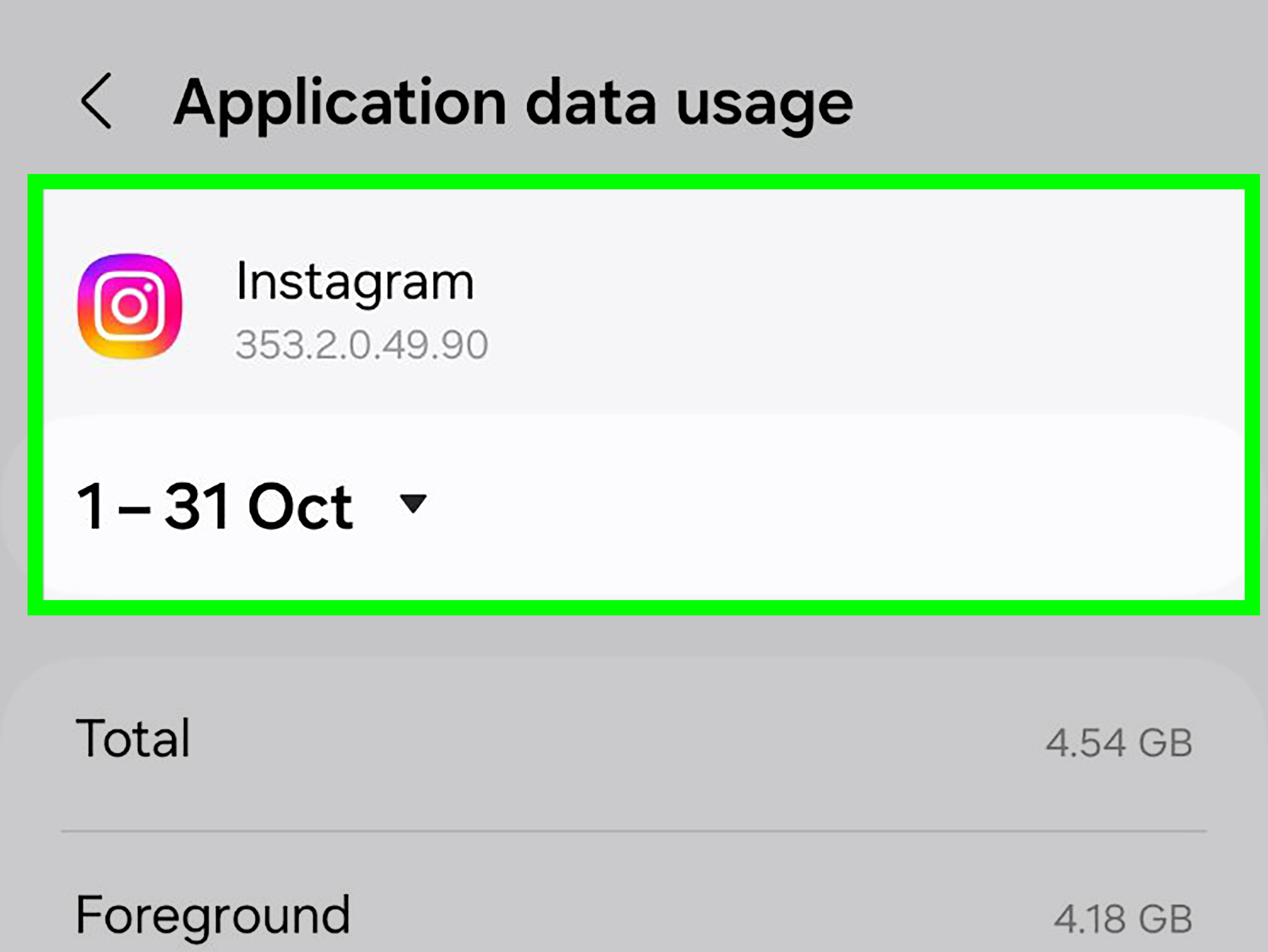
- Tap an app to see more details, if available.
Samsung will typically show apps ranked by how much mobile data they used. Apps near the top deserve attention, especially if you barely remember using them. A navigation app may use more data during a road trip. A cloud storage app may use more data if it uploads photos. A streaming app may use more data if video quality is set too high. A social media app may use data through auto-playing videos, background refresh, and endless scrolling. Yes, your thumb has a data footprint.
Look for foreground and background data
Some Samsung Galaxy models separate app usage into foreground and background data. Foreground data is used while you are actively using the app. Background data is used when the app is not directly open on your screen. Background data is not automatically bad. Messaging apps, email, cloud sync, weather apps, and security tools often need background access to work properly.
But if a non-essential app is using a surprising amount of background data, you can consider limiting it. Open the app’s data settings and look for options such as Allow background data usage or related controls. Turning off background data for an app may reduce usage, but it can also delay notifications or syncing. In other words, do not put your messaging app in data jail unless you are prepared for late messages.
3. Set Data Warnings and Data Limits
Checking data manually is helpful, but setting warnings is even better. A data warning is like a polite tap on the shoulder before your plan gets too close to its limit. A data limit can go further by turning off mobile data when the set amount is reached, depending on your device and settings.
How to set a data warning on Samsung Galaxy
- Open Settings.
- Tap Connections.
- Tap Data usage.
- Tap Billing cycle and data warning.
- Turn on Set data warning.
- Tap Data warning and enter your preferred amount.
For example, if your monthly plan includes 10GB of high-speed data, you might set a warning at 7GB or 8GB. That gives you time to switch to Wi-Fi more often, reduce video quality, pause cloud uploads, or avoid downloading a giant game update while standing in line for coffee.
How to set a data limit
On supported Samsung Galaxy models, you may also find an option to set a mobile data limit. This can help prevent accidental overuse, especially on limited plans. A common strategy is to set the limit slightly below your real carrier cap, because phone and carrier measurements can differ.
- Go to Settings > Connections > Data usage.
- Tap Billing cycle and data warning.
- Turn on Set data limit, if available.
- Enter the data amount you want to use as the cutoff.
Be careful with strict limits. If mobile data turns off, some apps and services may stop working until you reconnect to Wi-Fi or disable the limit. That can affect maps, rideshare apps, messaging, email, school portals, banking apps, or anything that needs the internet away from Wi-Fi.
4. Check Data Usage Through Your Carrier App or Account
Your Samsung Galaxy is great for daily tracking, but your carrier is the official referee. If you need the most accurate number for billing, plan limits, hotspot usage, or shared family plans, check your carrier account.
Major U.S. carriers usually provide data usage through their mobile apps and websites. Verizon users can check usage in the My Verizon app. T-Mobile users can review usage through T-Mobile.com or the T-Mobile app. AT&T users can check usage through the AT&T app, online account tools, or supported short codes. Other carriers, including prepaid and MVNO providers, usually offer similar tools.
When carrier data is better than phone data
Use your carrier’s data tracker when you need to know:
- How much data remains in your official billing cycle
- How much hotspot data you have used
- Whether a shared plan line is using more than expected
- Whether roaming data is counted separately
- Whether your plan slows down after a certain threshold
The carrier view is especially important for family plans. Your Samsung phone shows data used by your device, but your carrier can show plan-level usage across multiple lines. This matters when one person is carefully saving data and another person is streaming in high definition like they are operating a tiny movie theater.
Phone data vs. carrier data: why numbers may differ
Your Galaxy phone measures what apps use locally. Your carrier measures data that travels through its network. Small differences can happen because of timing, rounding, billing-cycle settings, delayed reporting, hotspot classification, or network-side measurement. If the numbers disagree slightly, do not panic. If they disagree wildly, check your billing cycle dates, carrier app, hotspot usage, and whether another line on the account is involved.
5. Use Data Saver, Allowed Networks, and Monitoring Apps
Data Saver is not just a way to reduce usage; it also helps you understand which apps deserve special treatment. On Samsung Galaxy phones, Data Saver can prevent some apps from using mobile data in the background. That makes it useful when you want to slow down invisible data use without turning off mobile data entirely.
How to turn on Data Saver
- Open Settings.
- Tap Connections.
- Tap Data usage.
- Tap Data saver.
- Turn on Data saver.
If an important app needs to keep working in the background, you can allow it while Data Saver is on. Look for an option such as Allowed to use data while Data saver is on. This is useful for apps like messaging, email, navigation, school apps, work apps, or security tools. The goal is not to turn your phone into a silent brick. The goal is to stop unnecessary data leaks while keeping important apps alive.
Use Allowed networks for apps
Some Samsung Galaxy phones include an Allowed networks for apps setting. This lets you choose whether certain apps can use mobile data, Wi-Fi, or both. It is a practical way to stop large-download apps from using mobile data. For example, you might allow a video streaming app on Wi-Fi only, while keeping messaging apps available on both Wi-Fi and mobile data.
This is one of the cleanest ways to manage data without constantly checking numbers. It also helps avoid those “Why did my phone download a massive update on mobile data?” moments. Nobody wants their data plan ambushed by a background download wearing a fake mustache.
Consider a trusted data monitoring app
Third-party data monitoring apps can add features such as widgets, plan forecasts, daily usage charts, roaming tracking, and alerts. They can be useful if you want more detail than Samsung’s built-in screen provides. However, choose carefully. Data monitoring apps may request access to network information or app activity. Read permissions, reviews, privacy labels, and developer information before installing anything.
For most users, Samsung’s built-in tools plus the carrier app are enough. A third-party app makes sense if you manage multiple SIMs, travel often, use prepaid data, or simply enjoy graphs. No judgment. Some of us love charts the way other people love houseplants.
Common Apps That Use Lots of Data
When you check app-by-app usage, certain categories often appear near the top. Video streaming apps can use large amounts of data, especially at high resolution. Social media apps can also be heavy because of auto-playing videos, image loading, stories, reels, and background refresh. Music apps use less data than video, but long streaming sessions can still add up. Maps can use noticeable data during navigation, especially with traffic updates and satellite-style views. Cloud apps may use data when backing up photos, videos, or documents.
Large app downloads, operating system updates, game updates, and hotspot sharing can also cause sudden spikes. If you see a strange jump, think about what changed recently. Did you travel? Use your phone as a hotspot? Install a game? Stream sports? Upload videos? Let your cousin borrow your hotspot? The answer is often hiding in plain sight, probably next to a video app.
How to Reduce Data Usage After You Check It
Once you know where your data is going, reducing it becomes much easier. Start with the biggest apps first. Lower video quality in streaming apps. Download music, podcasts, maps, or playlists over Wi-Fi before leaving home. Turn off auto-play videos in social media apps. Set cloud backups to Wi-Fi only. Disable background data for non-essential apps. Use Data Saver when you are close to your limit. Connect to trusted Wi-Fi when available, but avoid unknown public networks for sensitive tasks unless you use proper security precautions.
Also check app update settings in the Google Play Store and Galaxy Store. Set updates to happen over Wi-Fi only if you have a limited plan. App updates are useful, but they do not need to arrive through mobile data like they are breaking news from the moon.
Troubleshooting: Why Can’t I See Data Usage?
If you cannot find mobile data usage on your Samsung Galaxy, there are a few possibilities. Your phone may be connected only to Wi-Fi, your SIM may not be active, your carrier settings may not be fully loaded, or your model may use slightly different menu names. Use the Settings search bar and type Data usage, Mobile data usage, or Data warning. Samsung’s menu labels can vary slightly by One UI version, carrier, and region.
If you use a dual SIM Galaxy phone, make sure you are viewing the correct SIM. Data usage may be separated by SIM or carrier profile. This is especially important for travelers, eSIM users, and anyone who has a personal line plus a work line.
Experience Notes: What Actually Works in Real Life
After using Samsung Galaxy phones across different plans, the most useful habit is checking data usage early in the billing cycle, not when the plan is already gasping for air. A quick check once or twice a week is enough for most people. It takes less than a minute, and it gives you a sense of what “normal” looks like. Once you know your normal pattern, weird spikes are easier to catch.
One practical example: if you usually use 500MB per day but suddenly use 3GB on a random Tuesday, something happened. Maybe you watched video on mobile data. Maybe Google Photos backed up a pile of videos. Maybe a game downloaded extra files. Maybe you used hotspot for a laptop, and the laptop decided it was a perfect time to update everything it has ever known. Laptops on hotspot are famous for acting like they discovered a free buffet.
The second lesson is that app-by-app usage is more helpful than total usage. Total usage tells you the size of the problem. App usage tells you the name of the problem. If one app is responsible for most of the data, focus there first. Open that app’s settings and look for options like video quality, auto-play, download over Wi-Fi only, background refresh, sync frequency, or offline downloads. The fix is often inside the app itself, not only in Samsung Settings.
The third lesson is to use carrier apps for the final number. Samsung’s data usage screen is excellent for fast monitoring, but the carrier app is the official scoreboard. This matters if your plan includes separate buckets for mobile data, hotspot data, roaming data, or premium high-speed data. Your phone may show total mobile traffic, while your carrier may classify some usage differently. When money, throttling, or plan limits are involved, trust the carrier account first.
The fourth lesson is that Data Saver is helpful, but it is not magic. It can reduce background activity, but it does not make high-quality video streaming suddenly tiny. If you stream a long video over mobile data, Data Saver will not bend physics and turn it into a text message. The biggest savings usually come from changing behavior: use Wi-Fi for big downloads, lower streaming quality, download offline content ahead of time, and turn off auto-play.
The fifth lesson is to be careful with strict data limits. A hard limit can save you from overuse, but it can also shut off mobile data when you need it. That can be annoying during navigation, messaging, ticket scanning, rideshare pickups, or emergency communication. A warning is safer for most people. Set a warning at 75% or 80% of your plan, then adjust your habits before the end of the cycle.
Finally, the best data habit is boring but powerful: update and download on Wi-Fi. App updates, game files, offline maps, playlists, podcasts, videos, cloud backups, and system updates should happen on Wi-Fi whenever possible. Your Samsung Galaxy gives you the tools, but you are still the boss. A phone can warn you, graph things, and point at suspicious apps, but it cannot stop you from watching “just one more video” for two hours. Technology is smart. Human curiosity is undefeated.
Conclusion
Checking data usage on a Samsung Galaxy is simple once you know where to look. Start with Settings > Connections > Data usage to view total mobile data. Then open Mobile data usage to identify data-hungry apps. Set billing-cycle warnings so your phone alerts you before usage gets uncomfortable. Use your carrier app when you need official plan numbers. Finally, use Data Saver, allowed networks, and careful app settings to keep background data under control.
The best approach is not one single trick. It is a small routine: check, compare, adjust, and repeat. Do that, and your Samsung Galaxy will feel less like a mystery box and more like a well-trained pocket assistant. A pocket assistant that still occasionally wants to stream videos, of course.