Windows 8 arrived with a bold idea: the Start screen would become the new command center, Live Tiles would replace tiny desktop widgets, and everyone would happily swipe, tap, and scroll into the future. Nice plan. But for many desktop users, one question popped up almost immediately: “Where did my clock, CPU meter, weather box, calendar, and sticky-note gadgets go?”
If you upgraded from Windows 7 to Windows 8, the disappearance of desktop gadgets felt like losing a favorite kitchen drawer. Nothing was technically broken, but the tools you reached for every day were suddenly gone. Microsoft removed Desktop Gadgets from the final release of Windows 8, partly because the company wanted users to embrace the new Start screen and partly because gadgets had known security concerns. That created a small but passionate group of users who wanted the Windows 7-style desktop experience back.
This guide explains what happened to Windows Desktop Gadgets, how users brought them back in Windows 8, what safer alternatives exist, and how to make the experience useful without turning your desktop into a flashing dashboard from a sci-fi submarine.
What Were Windows Desktop Gadgets?
Windows Desktop Gadgets were small mini-apps that lived directly on the desktop. In Windows Vista, they appeared through Windows Sidebar. In Windows 7, Microsoft removed the fixed sidebar layout and allowed gadgets to float freely on the desktop. Users could add clocks, calendars, CPU meters, weather widgets, currency trackers, slideshow frames, RSS feed readers, network monitors, and other lightweight tools.
The appeal was simple: gadgets gave you information at a glance. Instead of opening Task Manager to check CPU usage, you could glance at a meter. Instead of launching a browser for the weather, a small tile on your desktop could show the temperature. Instead of hunting for a calendar, it was already sitting in the corner, quietly judging how many deadlines you had ignored.
Why Did Microsoft Remove Desktop Gadgets in Windows 8?
Microsoft removed Desktop Gadgets from Windows 8 as part of a larger design shift. Windows 8 introduced the Start screen, Windows Store apps, and Live Tiles. In Microsoft’s new vision, Live Tiles would provide quick information such as weather, mail, news, calendar appointments, and app notifications. Desktop Gadgets were no longer part of the main user experience.
Security was another major reason. Microsoft warned that vulnerabilities in gadgets could allow attackers to run harmful code through unsafe or compromised gadgets. Because gadgets were built on older web-based technologies, they could create risks if users installed untrusted gadget files from random websites. In other words, a cute little weather gadget could theoretically become the digital equivalent of inviting a raccoon into your kitchen because it looked friendly.
For that reason, Microsoft did not provide an official way to restore Desktop Gadgets in Windows 8. The files and related APIs remained in some form for compatibility, but the feature was not available as a built-in desktop option.
Can You Bring Back Desktop Gadgets in Windows 8?
Yes, but not through an official Microsoft setting. Windows 8 does not include the classic Desktop Gadgets interface by default. Users who wanted the feature back typically relied on third-party tools such as 8GadgetPack or similar gadget restoration utilities.
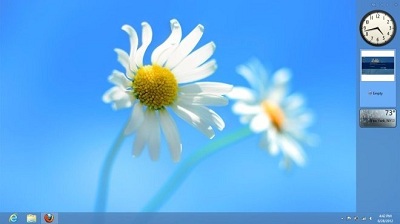
These tools attempted to recreate the Windows 7 gadget experience on Windows 8 and Windows 8.1. Once installed, they usually added a familiar gadget gallery, allowing users to place clocks, calendars, system monitors, notes, weather panels, and other widgets on the desktop.
The important phrase is “third-party.” Since Microsoft removed the feature and warned about security risks, anyone restoring gadgets should be careful. The safest approach is to use well-known tools, avoid unknown gadget downloads, scan installers with antivirus software, and only keep gadgets that are genuinely useful.
Popular Tools Used to Restore Gadgets in Windows 8
8GadgetPack
8GadgetPack became one of the best-known tools for bringing desktop gadgets back to Windows 8 and later versions. It includes a collection of familiar gadgets and a sidebar-style interface. Users often chose it because it felt close to the Windows 7 experience and did not require complicated setup.
Typical gadgets included clocks, calendars, CPU meters, network meters, drive monitors, weather tools, and quick-launch panels. For users who missed the Windows 7 desktop workflow, 8GadgetPack was a practical solution.
Gadgets Revived
Gadgets Revived was another commonly mentioned option. Its purpose was similar: restore the gadget gallery and allow users to add desktop gadgets again. It appealed to users who wanted the old interface rather than a full desktop customization platform.
Rainmeter
Rainmeter is not a direct Windows Gadget replacement, but it is one of the strongest alternatives for desktop customization. It allows users to add skins that show time, weather, system information, music controls, network usage, and much more. Rainmeter is more flexible than classic gadgets, but it also requires more patience. If Windows Gadgets were a microwave dinner, Rainmeter is a full kitchen. Powerful, customizable, and slightly intimidating until you learn where everything is.
How to Bring Back Desktop Gadgets in Windows 8 Safely
Before installing any gadget tool, remember that Desktop Gadgets were removed for real security reasons. The goal is not just to bring them back; it is to bring them back without creating unnecessary risk.
Step 1: Choose a Trusted Gadget Restoration Tool
Start with a tool that has a long history and a clear reputation among Windows users. Avoid random downloads from websites full of pop-ups, fake buttons, or “download manager” installers. If a page has five green buttons and only one is real, that is not a software source; that is a digital obstacle course.
Step 2: Download From the Official or Most Reliable Source
Use the official project website whenever possible. If you are using an archive or mirror, make sure the site is reputable. Do not download gadget packs from unknown forums or file-sharing pages.
Step 3: Scan the Installer
Before running the installer, scan it with Windows Defender or another trusted antivirus tool. This step takes very little time and can prevent a lot of trouble.
Step 4: Install Only What You Need
Once the gadget platform is installed, keep your desktop simple. A clock, CPU meter, calendar, and weather gadget may be useful. Twenty animated gadgets spinning, flashing, and updating every five seconds may make your desktop look busy while quietly wasting system resources.
Step 5: Avoid Unknown Gadget Files
Classic gadget files can be risky. Avoid installing random .gadget files unless you trust the source. Do not assume a gadget is safe just because it looks simple. Small tools can still contain unsafe code.
Best Desktop Gadgets to Use in Windows 8
CPU and RAM Monitor
A CPU and memory monitor is one of the most practical gadgets. It helps you spot when your system is under heavy load. If your computer suddenly sounds like a tiny aircraft preparing for takeoff, a CPU meter can help identify whether your browser, game, editing software, or mysterious background process is responsible.
Network Meter
A network meter shows upload and download activity. This is useful when your internet feels slow and you want to know whether your computer is quietly downloading updates, syncing files, or sending data in the background.
Weather Gadget
A weather gadget is one of the classic favorites. It gives quick access to local temperature and forecast information without opening a browser. The only danger is checking it every five minutes, as if the clouds will personally explain themselves.
Calendar Gadget
A calendar gadget keeps dates visible. For students, office workers, freelancers, and anyone who has ever said “Wait, that was today?” this can be surprisingly helpful.
Sticky Notes or Quick Notes
Notes gadgets are useful for reminders, quick tasks, phone numbers, ideas, and tiny motivational messages like “Send invoice” or “Stop opening new tabs.” Windows has its own note-taking tools, but a desktop note gadget can still feel immediate and convenient.
Desktop Gadgets vs. Live Tiles in Windows 8
Microsoft expected Live Tiles to replace much of the gadget experience. Live Tiles could show weather, news, mail, calendar updates, and app notifications from the Start screen. For tablet users, this made sense. For desktop users, the replacement felt less satisfying.
The problem was visibility. Desktop Gadgets lived on the desktop, where many keyboard-and-mouse users spent most of their time. Live Tiles lived on the Start screen. To see them, users had to leave the desktop environment. That difference mattered. A CPU meter is useful because it is always visible. A weather tile is less convenient if you have to switch screens to see it.
This is why many Windows 8 users also installed Start menu replacements, desktop customization tools, and gadget restoration utilities. They were not rejecting progress entirely. They simply wanted Windows 8 to behave more like a desktop operating system and less like a tablet interface wearing a business suit.
Security Tips Before Restoring Windows 8 Gadgets
Restoring gadgets can be convenient, but it should be done carefully. Here are practical safety rules:
- Use only trusted gadget restoration tools.
- Avoid downloading individual gadgets from unknown websites.
- Keep Windows 8 or Windows 8.1 updated as much as possible.
- Use antivirus protection and scan downloaded files.
- Remove gadgets you do not use.
- Be cautious with gadgets that connect to online services.
- Do not install gadgets that request suspicious permissions or extra software.
Also remember that Windows 8.1 itself has reached the end of Microsoft support. That means it no longer receives regular security updates. If you are using Windows 8 or 8.1 on a device connected to the internet, consider upgrading to a newer supported version of Windows when possible.
Modern Alternatives to Desktop Gadgets
Rainmeter Skins
Rainmeter is the most flexible alternative for people who love desktop widgets. It can display system stats, weather, clocks, calendars, music controls, shortcuts, and more. It is ideal for users who want a modern, customized desktop rather than an exact copy of Windows 7 gadgets.
Taskbar Tools
Some users prefer lightweight taskbar tools that show CPU usage, network activity, temperature, or disk performance. These tools can be less visually distracting than desktop gadgets while still providing useful information.
Windows Store Apps
In Windows 8, Store apps and Live Tiles were Microsoft’s intended replacement. They are not identical to gadgets, but they can handle weather, news, mail, calendar, and finance updates.
Browser-Based Dashboards
Some users create a browser homepage with weather, calendar, notes, RSS feeds, and quick links. This does not replace desktop gadgets directly, but it gives similar information in a safer and more modern format.
Should You Bring Back Desktop Gadgets in Windows 8?
If you use Windows 8 mainly on the desktop and miss the convenience of quick information panels, bringing back gadgets can make the system feel more comfortable. A few carefully chosen gadgets can improve productivity and make the desktop more useful.
However, if security is your top concern, or if the computer is used for banking, schoolwork, business, or sensitive files, you should be cautious. Microsoft removed gadgets for a reason. A safer approach may be to use modern alternatives such as Rainmeter, supported apps, or built-in Windows tools.
The best answer depends on your goal. If you want the exact Windows 7 nostalgia experience, a gadget restoration tool may be worth trying. If you want a cleaner and safer system dashboard, Rainmeter or dedicated monitoring apps may be better.
Common Problems When Restoring Gadgets
Gadgets Do Not Appear After Installation
If gadgets do not appear, restart the computer first. Some restoration tools need a reboot before the gadget gallery or sidebar becomes available. Also check whether security software blocked part of the installation.
Weather Gadgets Stop Working
Weather gadgets often depend on online data sources. If the source changes, shuts down, or blocks old gadget connections, the gadget may stop updating. In that case, try a different weather gadget or use a modern weather app.
High CPU Usage
Some gadgets update too often or are poorly coded. If your system slows down after installing gadgets, remove them one by one until you find the problem. System monitors should help diagnose performance issues, not become the performance issue.
Gadgets Look Blurry or Outdated
Classic gadgets were designed for older display standards. On high-resolution screens, they may look small, blurry, or visually dated. Rainmeter skins often look better on modern displays.
Best Practices for a Clean Gadget Desktop
A good gadget setup should feel helpful, not crowded. Place system monitors in one corner, keep the calendar visible but small, and avoid overlapping gadgets with icons. Use a consistent style if possible. A clean layout makes your desktop easier to use and more pleasant to look at.
Think of gadgets like spices. A little can improve the whole dish. Too much, and suddenly your desktop tastes like cinnamon, garlic, and regret.
Personal Experience: What It Feels Like to Bring Back Desktop Gadgets in Windows 8
Using Windows 8 without desktop gadgets can feel oddly unfinished if you came from Windows 7. The operating system is fast, colorful, and different, but the desktop may feel emptier than expected. When I first used Windows 8, the Start screen looked modern, but the desktop felt like someone had moved all the furniture into another room and said, “You’ll get used to it.”
Bringing back gadgets changes that feeling immediately. A clock in the corner makes the desktop feel alive again. A CPU meter gives instant feedback when the system slows down. A network monitor helps explain why a webpage is loading slowly. A weather gadget adds a tiny bit of daily convenience. None of these tools are essential by themselves, but together they recreate a familiar workflow.
The most useful gadget in daily use is usually the system monitor. When a laptop fan suddenly gets loud, it is helpful to glance at CPU and RAM usage without opening Task Manager. If CPU usage is high, you know something is working hard. If RAM is nearly full, you know why switching apps feels sluggish. For older Windows 8 machines with limited memory, this can be genuinely practical.
The second most useful gadget is a network meter. It is especially helpful when downloads, cloud syncing, or updates are running in the background. Many users have experienced the classic mystery: the internet feels slow, but no obvious app is open. A network gadget can reveal that something is quietly using bandwidth. It does not solve the problem by itself, but it points you in the right direction.
A calendar gadget is also surprisingly helpful. It reduces the small friction of checking dates. If you work with deadlines, appointments, school assignments, or content publishing schedules, keeping a calendar visible helps prevent small mistakes. It is not glamorous, but neither is missing a deadline because you thought Thursday was Wednesday.
That said, the nostalgia wears off quickly if you install too many gadgets. The first hour is fun. You add a clock, weather box, CPU meter, drive meter, calendar, notes, slideshow, Wi-Fi radar, and maybe a fancy battery meter. Then your desktop starts looking like a control panel for launching a weather balloon. After a few days, most users remove half of them and keep only the practical ones.
The best experience comes from choosing three to five useful gadgets. A simple setup might include a CPU/RAM monitor, network meter, calendar, weather gadget, and notes gadget. That combination gives real value without clutter. It also keeps resource usage lower.
Another lesson is that old gadgets may not age gracefully. Some weather gadgets stop updating because their data sources no longer work. Some visual styles look dated on modern screens. Some gadgets are no longer maintained. This does not make them useless, but it does mean users should be realistic. Restoring gadgets is partly about function and partly about nostalgia.
For users who want a more modern experience, Rainmeter often feels better over time. It can do almost everything gadgets did, but with more attractive designs and deeper customization. The tradeoff is setup time. Classic gadgets are easier. Rainmeter is more powerful. Choosing between them depends on whether you want quick convenience or a fully customized desktop.
Overall, bringing back Desktop Gadgets in Windows 8 can be satisfying, especially for users who never fully warmed up to the Start screen. It restores a small but meaningful part of the Windows 7 desktop personality. Just approach it carefully, use trusted tools, and remember that the best desktop is not the one with the most widgets. It is the one that helps you work faster, understand your system better, and maybe smile a little when your tiny CPU meter starts dancing during a software update.
Conclusion
Bringing back Desktop Gadgets in Windows 8 is possible, but it requires third-party tools because Microsoft removed the feature from the operating system. The reason was not random. Microsoft moved toward Live Tiles and also warned that gadgets could create security risks. Still, many users missed the convenience of desktop clocks, calendars, CPU meters, weather boxes, and quick notes.
If you decide to restore gadgets, keep your setup simple and safe. Use trusted software, avoid random gadget downloads, scan files before installing, and remove anything you do not need. For a safer or more modern approach, consider alternatives such as Rainmeter, taskbar monitors, or supported apps.
Desktop Gadgets may be old-school, but they remain a reminder of what many users love about Windows: control, customization, and the ability to make the desktop feel like your own workspace instead of someone else’s design experiment.
Note: This article is based on real Windows Desktop Gadgets history, Microsoft’s removal of gadgets in Windows 8, known security concerns, and widely used desktop customization approaches.