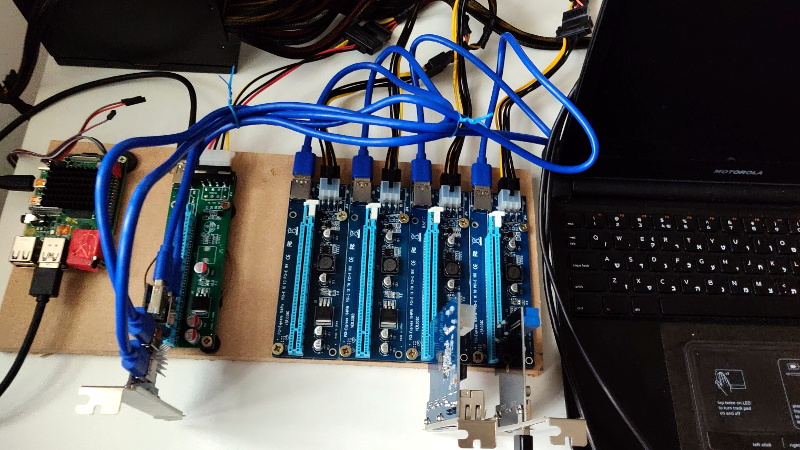
The Raspberry Pi 4 has always been a tiny computer with suspiciously big ambitions. It can run a desktop, host a web server, power a retro gaming setup, manage smart-home devices, and still sit on a desk looking like it costs less than a fancy lunch. But hidden inside that modest green board is something far more exciting for hardware hackers: a PCI Express interface.
The catch? On the standard Raspberry Pi 4 Model B, that PCIe lane is already busy. It is connected to the VIA Labs VL805 USB 3.0 controller, which gives the board its two USB 3.0 ports. For most users, that is perfectly sensible. For tinkerers, however, “perfectly sensible” is often where the fun ends. Once makers realized the Pi 4 had a real PCIe lane under the hood, the next question was obvious: could it be broken out, multiplied, and used for more ambitious hardware?
That is where the PCIe multiplier, more accurately a PCIe switch, enters the story. Instead of connecting one PCIe device to the Raspberry Pi 4, a switch can expose multiple downstream ports from a single upstream connection. It does not magically create more bandwidthsadly, physics remains stubbornbut it can let several PCIe devices share the Pi’s one lane. Suddenly, the little board starts looking less like a hobby computer and more like a miniature experimental motherboard.
What Is a PCIe Multiplier?
A PCIe multiplier is commonly called a PCIe switch. Think of it as a traffic controller for PCI Express devices. The Raspberry Pi 4 provides a single PCIe Gen 2 x1 connection through its Broadcom BCM2711 system-on-chip. Normally, one endpoint device sits on that lane. With a PCIe switch, that one upstream lane can branch into several downstream ports.
This setup is not the same as upgrading the Raspberry Pi 4 into a workstation-class PC. A single PCIe Gen 2 lane has limited bandwidth, so every connected device must share the same pipe. If you connect an NVMe SSD, a SATA controller, a USB 3.0 card, and a network adapter, they will all be fighting politelyor not so politelyfor the same available throughput. Still, for experimentation, prototyping, and low-power server ideas, the concept is thrilling.
It is a bit like adding extra doors to a tiny apartment. The apartment is still tiny, but now people can enter from more directions. Whether everyone fits comfortably inside is a separate comedy.
The Raspberry Pi 4’s Hidden PCIe Lane
The Raspberry Pi 4 was the first mainstream Raspberry Pi board to bring PCI Express into the design. Previous models leaned heavily on USB-based connectivity, which created bottlenecks for storage and networking. With the Pi 4, the architecture improved significantly: Gigabit Ethernet became more independent, USB 3.0 arrived, and performance jumped enough to make the board feel like a real desktop replacement for light use.
Under the hood, the Pi 4’s PCIe lane connects to the VL805 USB 3.0 host controller. That chip is the reason the board has high-speed USB ports. Remove or bypass that chip, and the PCIe lane can be exposed for other purposes. This is not a beginner mod. It involves delicate soldering, hot-air rework, careful wiring of differential pairs, and a healthy willingness to sacrifice a Raspberry Pi on the altar of science.
Early hackers demonstrated that the hidden PCIe lane could be connected to riser cards and external devices. Some setups worked. Some failed. Some probably produced facial expressions normally seen during tax audits. But the progress was real: PCIe enumeration appeared in Linux, devices showed up in lspci, and the maker community started asking what else could be done.
How a PCIe Switch Changes the Game
The big breakthrough was not simply exposing one PCIe device. It was getting a PCIe switch recognized and usable. A switch such as an ASMedia ASM1184e-style board can sit between the Raspberry Pi and multiple PCIe devices. The Pi sees the switch, then devices behind the switch appear as additional PCIe endpoints.
At first, the software side was not perfectly cooperative. Linux on the Raspberry Pi 4 expected a very limited PCI bus range. When a switch appeared, devices behind it could fail to enumerate because the system did not allocate enough bus numbers. By adjusting the Device Tree configuration, experimenters expanded the bus range and allowed downstream devices to appear properly.
That small software change mattered. It turned a “hey, the switch is visible” moment into a “wait, the devices behind it are visible too” moment. In hardware hacking, that is the difference between staring sadly at logs and celebrating with the kind of excitement usually reserved for finding an extra fry at the bottom of the bag.
What Can You Connect?
USB 3.0 Controllers
USB controllers are among the most practical devices to test because the Raspberry Pi 4 already uses a PCIe-connected USB 3.0 controller by default. A PCIe switch can theoretically allow multiple USB controllers to be attached, opening the door to additional high-speed USB ports. For a lab bench, testing station, or custom enclosure, that can be useful.
There is one important warning: a USB-shaped connector carrying PCIe signals is not a normal USB port. Plugging ordinary USB devices into a PCIe-wired connector can damage hardware. The connector may look familiar, but electrically it is speaking a different language. It is like putting coffee in a car’s fuel tank because both are liquids. Please do not invite that smoke show.
SATA and Storage Controllers
Storage is one of the most exciting use cases. A SATA controller or NVMe adapter can make the Raspberry Pi 4 more attractive for file servers, backup boxes, media libraries, and lightweight NAS experiments. USB storage already works on the Pi 4, but native PCIe storage experiments offer cleaner architecture and more control.
The limitation is bandwidth. A single PCIe Gen 2 x1 lane is not going to let several drives scream at full speed. However, many home-lab workloads are not about maximum benchmark glory. They are about reliability, power efficiency, low noise, and enough performance to stream media or sync files without sounding like a small jet engine.
Network Cards
Extra network adapters are another realistic possibility. A Raspberry Pi 4 with multiple Ethernet interfaces could become a compact firewall, router, packet monitor, or network testing box. Add a PCIe switch and a compatible network card, and the Pi starts stepping into jobs usually handled by small x86 appliances.
Again, driver support matters. The card must have Linux support on ARM, and power delivery must be planned carefully. The Raspberry Pi is efficient, but PCIe cards may expect more power than the board can safely provide. In many builds, external power is not optional; it is the difference between a stable system and a tiny reboot machine with dreams.
GPUs and the Fun-but-Complicated Zone
Can a graphics card be connected? In some experiments, yes, GPUs have appeared on the PCIe bus. Does that mean the Raspberry Pi 4 becomes a gaming PC? Not really. Modern GPUs want more PCIe bandwidth, plenty of power, firmware support, and mature ARM Linux drivers. A large graphics card attached to a Pi 4 is less “budget gaming rig” and more “science fair project with attitude.”
Still, GPU experiments are valuable because they expose driver assumptions, memory mapping limits, and the boundaries of what ARM single-board computers can do. Even when a project is impractical, it can teach the community something useful.
Why This Matters for Raspberry Pi 4 Projects
The PCIe multiplier idea matters because it changes how people think about the Raspberry Pi 4. Instead of viewing it as a fixed board with fixed ports, makers can imagine it as a core compute module with expandable I/O. That idea became more mainstream with the Raspberry Pi Compute Module 4, which exposes PCIe more cleanly through carrier boards. But the original Pi 4 experiments helped prove the appetite was already there.
For embedded developers, PCIe expansion opens doors to custom hardware: specialized capture cards, industrial interfaces, extra storage, networking, and lab instruments. For home-lab users, it suggests low-power routers, NAS builds, and compact monitoring systems. For educators, it provides a hands-on lesson in how modern computers discover hardware through buses, firmware, kernels, and drivers.
It also shows how close the Raspberry Pi 4 came to being a more expandable board from the factory. The standard Model B prioritizes usability, cost, and mass-market simplicity. That was the right decision for millions of users. But for advanced builders, the PCIe lane became a hidden treasure map with the VL805 chip sitting directly on top of the “X.”
The Limits: Bandwidth, Drivers, Power, and Patience
A PCIe multiplier does not remove the Pi 4’s basic constraints. The upstream link is still a single PCIe lane. Bandwidth is shared. Latency can increase. Some devices will not enumerate cleanly. Others will appear but fail because the right kernel driver is missing or not well tested on ARM. A device that works perfectly in a desktop PC may behave like a confused raccoon when connected to a Raspberry Pi.
Power is another serious issue. Desktop PCIe cards often assume access to 12V rails and far more current than a Raspberry Pi board can provide. Storage devices may spike during startup. Network cards may run warm. USB controllers may need stable power for attached peripherals. Any serious build should include external power planning, proper grounding, and cooling.
There is also the physical challenge. High-speed PCIe signals are not forgiving. Differential pairs need careful routing, short paths, and good signal integrity. Long, messy wires may work once, fail twice, and then mysteriously behave again after “professional wiggling.” That is funny in a blog post, but less funny when your file server disappears during a backup.
Raspberry Pi 4 vs Compute Module 4 vs Raspberry Pi 5
For most users interested in PCIe, the Raspberry Pi 4 Model B is no longer the easiest path. The Compute Module 4 exposes PCIe in a more hardware-friendly way through carrier boards. The Raspberry Pi 5 goes even further by offering an official PCIe FFC connector, making NVMe HATs and PCIe accessories much more approachable.
So why still care about Raspberry Pi 4 PCIe multiplier experiments? Because they are the foundation of the story. They proved that makers wanted more than USB accessories. They showed that low-cost ARM boards could participate in the wider PCIe ecosystem. They also pushed documentation, Linux support, and community compatibility testing forward.
The Raspberry Pi 4 may not be the cleanest PCIe playground today, but it remains one of the most influential. It is the board that made many hobbyists realize that “single-board computer” did not have to mean “single-purpose computer.”
Best Project Ideas for a PCIe-Multiplied Raspberry Pi 4
Low-Power NAS Experiment
A PCIe switch connected to SATA or NVMe storage can turn the Pi 4 into an experimental NAS platform. It will not replace a professional storage server, but it can be excellent for learning about filesystems, backups, RAID concepts, and network sharing.
Mini Router or Firewall
With extra network interfaces, the Pi 4 can become a compact firewall or router. This is especially interesting for users who want to learn about VLANs, packet filtering, DHCP, DNS caching, and network segmentation without buying expensive enterprise equipment.
USB Expansion Lab
Multiple PCIe USB controllers can create a test bench for USB devices, cameras, storage adapters, and embedded development boards. This is useful when device isolation matters or when a single USB controller becomes a bottleneck.
Driver Development Playground
Perhaps the most underrated use case is driver testing. Because ARM Linux can behave differently from x86 Linux, PCIe experiments on Raspberry Pi hardware can reveal assumptions in drivers, firmware, and device initialization. It is a small board, but it can teach big lessons.
Practical Experience Notes: What Real-World Tinkering Teaches
The biggest lesson from Raspberry Pi 4 PCIe multiplier experiments is that success rarely arrives in one dramatic, movie-style moment. It usually arrives after careful preparation, a half-working boot, three confusing logs, and one cable that behaves only when angled like it has personal preferences.
In practical builds, the first smart move is remote access. Once the VL805 USB controller is removed or bypassed, normal USB ports may stop working. That means no keyboard, no mouse, and no easy rescue if the network configuration is wrong. Builders who prepare SSH, Wi-Fi, serial console access, and a known-good backup image save themselves hours of staring at a silent board.
The second lesson is that lspci becomes your best friend. Seeing the Broadcom PCI bridge is step one. Seeing the PCIe switch is step two. Seeing devices behind the switch is the real victory. When nothing appears, kernel logs often reveal whether the problem is link training, bus allocation, reset signaling, power, or driver support. The Pi does not always explain itself politely, but it usually leaves clues.
The third experience is that simple devices win first. USB controllers and basic network cards are more likely to behave than exotic GPUs or unusual storage controllers. A careful builder starts with known Linux-friendly hardware, confirms enumeration, checks stability, then adds complexity. Connecting four mystery cards from a drawer and hoping for a miracle is fun, but it is also how troubleshooting turns into archaeology.
Power deserves more respect than it usually gets. Many PCIe devices are designed for desktop motherboards, not tiny SBCs. External power, common grounding, and proper startup sequencing can make the difference between a reliable project and random disconnects. If a device vanishes under load, the problem may not be the driver. It may be voltage drop wearing a fake mustache.
Heat is another quiet troublemaker. The Raspberry Pi 4 can run warm even before extra hardware joins the party. Add PCIe devices, storage, and enclosed cases, and cooling becomes part of the design rather than an optional accessory. A small fan or heatsink can turn an unstable afternoon into a boringly reliable week, and boring reliability is the secret luxury of every good home-lab project.
Finally, PCIe multiplier projects teach humility. They remind makers that computers are not magic boxes; they are layered agreements between silicon, board layout, firmware, operating systems, drivers, and power delivery. When all those layers cooperate, a Raspberry Pi 4 can do surprising things. When one layer refuses, the whole project becomes a detective story with solder flux.
Conclusion
The PCIe multiplier expands Raspberry Pi 4 possibilities not by turning the board into a full desktop motherboard, but by revealing how flexible the platform can be when hardware hackers push beyond the official port layout. With a PCIe switch, the Pi 4 can explore multiple USB controllers, storage adapters, network cards, and even ambitious GPU experiments. The results are limited by bandwidth, driver support, signal integrity, and power, but the concept is powerful.
For everyday users, the Raspberry Pi Compute Module 4 or Raspberry Pi 5 is a cleaner route to PCIe expansion. For makers, engineers, and curious hardware explorers, however, the Raspberry Pi 4 PCIe multiplier story remains a brilliant example of community-driven experimentation. It proves that even a tiny board can become a serious learning platform when someone asks, “What happens if we try this?” and then reaches for a hot-air station.
Note: This article is written for publication and is based on real Raspberry Pi hardware behavior, official documentation, and maker-community PCIe experiments. Advanced Raspberry Pi 4 PCIe modifications can permanently damage hardware, so they are best treated as expert-level experiments on spare boards.