Note: This article is written for web publication and focuses on practical, real-world ways to convert a Microsoft Word document to RTF while keeping formatting problems, file compatibility, and common user mistakes in mind.
Converting a Microsoft Word document to RTF sounds like one of those tiny computer tasks that should take three secondsuntil the “Save As” menu starts looking like a buffet of mysterious file formats. DOCX, PDF, ODT, TXT, HTML, RTF… suddenly you are not saving a document anymore; you are choosing a life path.
The good news is that saving a Word document as RTF is simple. The even better news is that once you understand what RTF actually does, you can avoid the classic headaches: missing layout details, giant file sizes, broken images, strange fonts, and the “Why does this look different on another computer?” moment that has humbled many confident office workers.
RTF stands for Rich Text Format. It is a document format designed to preserve basic formattingsuch as bold text, italics, underlines, font choices, paragraph spacing, lists, and some imageswhile staying more widely readable than many proprietary word-processing formats. In plain English: RTF is the friendly middle child between a plain text file and a full Microsoft Word document. It keeps more style than TXT but usually avoids the complexity of DOCX.
Whether you are submitting a school paper, sending a resume, preparing a document for an older system, or sharing text with someone who may not use Microsoft Word, this guide explains how to convert a Microsoft Word document to RTF in five clear steps.
What Is an RTF File?
An RTF file is a Rich Text Format document with the .rtf file extension. It was developed by Microsoft as a cross-platform document interchange format, meaning it was created to help documents move between different software programs and operating systems more smoothly.
Unlike plain text files, RTF files can include formatting. For example, if you have a heading in bold, a paragraph in italics, a numbered list, and a few simple font changes, RTF can usually preserve those details. Unlike DOCX files, however, RTF is not designed to carry every advanced Word feature. Complex layouts, smart graphics, embedded objects, modern Word effects, macros, and highly customized design elements may not transfer perfectly.
Think of RTF like a reliable suitcase. It can carry your clothes, shoes, and toothbrush without drama. But if you try to pack a piano, a chandelier, and a live houseplant, things may get weird.
Why Convert a Word Document to RTF?
People usually convert a Microsoft Word document to RTF for one of four reasons: compatibility, simplicity, editing access, or file requirements.
1. Better Compatibility Across Programs
RTF files can be opened by many word processors, including Microsoft Word, LibreOffice Writer, Apple TextEdit, Google Docs workflows, and various document viewers. This makes RTF useful when you do not know what software the recipient uses.
2. Cleaner Formatting Than Plain Text
A TXT file strips away formatting completely. That is fine for raw notes, code snippets, or simple copy, but not ideal for a resume, formal letter, or instruction sheet. RTF keeps basic formatting while staying relatively flexible.
3. Useful for Older Systems
Some older business systems, legal platforms, school portals, publishing tools, and database applications still accept or prefer RTF because it is easier to parse than newer document formats.
4. Fewer Advanced Word Dependencies
If a document does not need complex Word-only features, saving it as RTF can make it easier to share. It is especially useful for text-heavy files such as letters, drafts, forms, outlines, resumes, manuscripts, and basic reports.
Before You Convert: What RTF Keeps and What It May Lose
Before you click “Save,” it helps to know what will probably survive the conversion and what may not.
RTF Usually Preserves
- Bold, italic, and underlined text
- Basic fonts and font sizes
- Paragraph spacing and alignment
- Simple numbered and bulleted lists
- Basic tables
- Some images
- Margins and page setup in many cases
RTF May Not Preserve Perfectly
- Advanced Word styles
- SmartArt and complex shapes
- Macros
- Some embedded media
- Complex headers and footers
- Tracked changes and comments in some workflows
- Modern Word layout effects
- Precise spacing in heavily designed documents
If your document is simple, RTF is usually excellent. If your document looks like a magazine layout built by a designer who drinks espresso for breakfast, test the RTF version carefully before sending it.
How to Convert a Microsoft Word Document to RTF: 5 Steps
Here is the simplest and most reliable method using Microsoft Word on Windows or Mac.
Step 1: Open Your Microsoft Word Document
Start by opening the document you want to convert in Microsoft Word. This may be a .doc, .docx, or another file type that Word can open.
Before converting, quickly review the document. Check headings, spacing, tables, images, links, and any special formatting. If the file is important, save a backup copy in its original Word format first. This gives you a safe version to return to if the RTF conversion changes anything.
A smart file-saving habit is to keep the original DOCX and create a separate RTF copy. For example:
- Original: Client-Proposal.docx
- Converted copy: Client-Proposal.rtf
This prevents accidental overwriting, which is the digital equivalent of putting your car keys in the refrigerator: technically possible, but not ideal.
Step 2: Click File
In Microsoft Word, go to the top-left corner and click File. This opens the backstage menu, where Word keeps options for saving, exporting, printing, sharing, and managing document information.
On a Mac, the menu may look slightly different depending on your version of Word, but the idea is the same. You are looking for the save or export area, not the print menu and not the sharing menu.
Step 3: Choose Save As
Select Save As. In some versions of Word, you may also see Save a Copy. Either option can work as long as it lets you choose a new file format.
Choose where you want to save the RTF file. You might save it to your Desktop, Documents folder, OneDrive, Google Drive folder, or another location. For fewer sync issues, especially with large files, it is often best to save locally first and then upload the file wherever it needs to go.
Give the file a clear name. Avoid vague names like “document final final real one.rtf.” Future you deserves better.
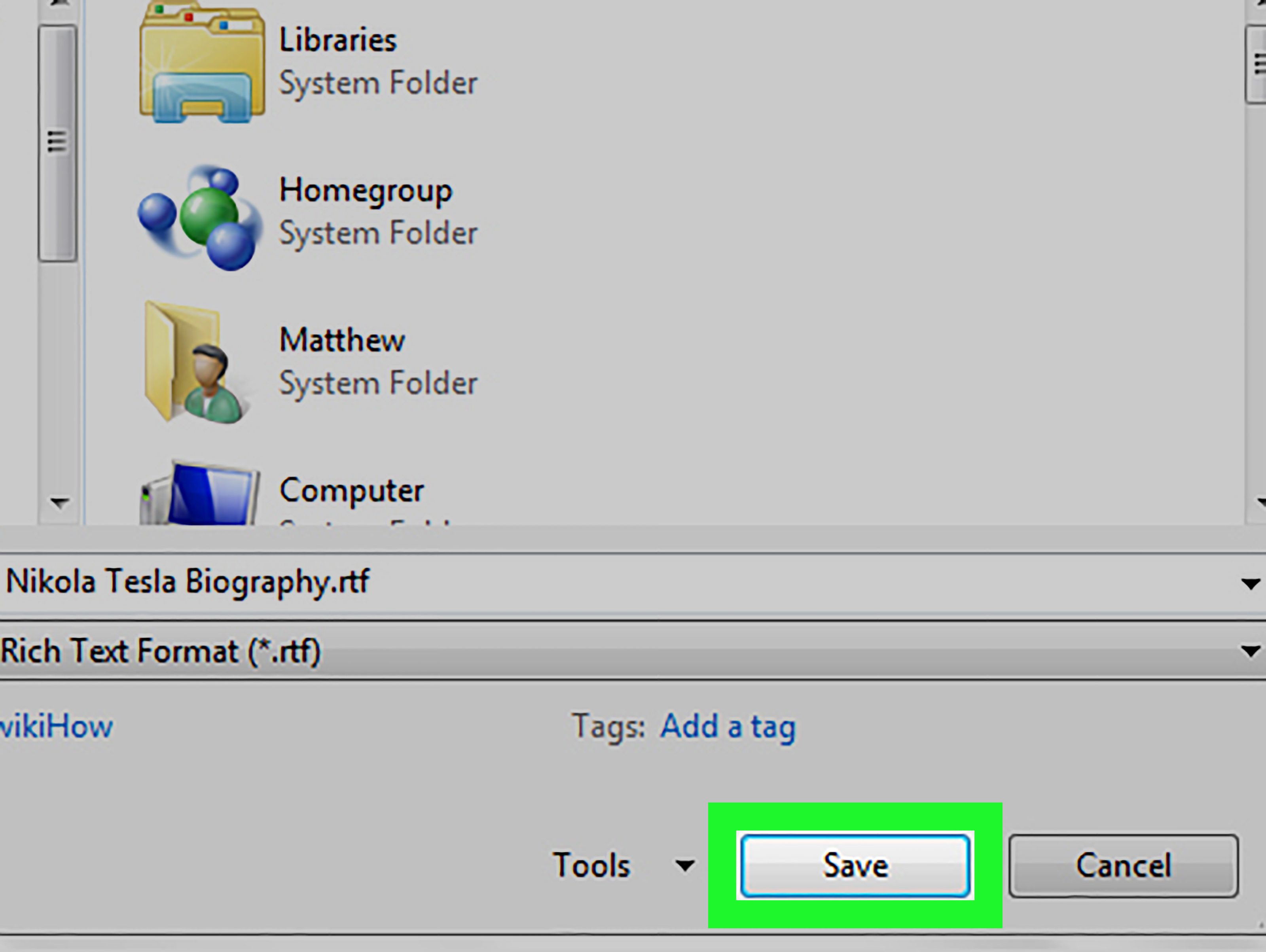
Step 4: Select Rich Text Format (.rtf)
In the Save As window, find the file format dropdown menu. On Windows, it is often labeled Save as type. On Mac, it may appear as File Format.
Open the dropdown and choose:
Rich Text Format (*.rtf)
This tells Word to create a new version of the document using the RTF format. The new file should end with the .rtf extension.
If you do not see Rich Text Format immediately, scroll through the format list carefully. Word supports many formats, and RTF may be hiding among other text-related options such as Plain Text, Word Template, OpenDocument Text, or PDF.
Step 5: Click Save and Review the RTF File
Click Save. Microsoft Word will create the RTF version of your document.
After saving, open the new RTF file and review it. Do not skip this step. The file may open in Word again, which is fine, but you should still check the formatting. Look for:
- Changed fonts
- Missing images
- Broken spacing
- Tables that shifted
- Headers or footers that look different
- Bullets or numbering that changed
- Links that no longer behave as expected
If the document looks good, your conversion is complete. If something looks off, return to the original Word file, simplify the formatting, and save again as RTF.
How to Convert Word to RTF Without Microsoft Word
Microsoft Word is the easiest option, but it is not the only option. If you do not currently have Word installed, you still have several choices.
Use LibreOffice Writer
LibreOffice Writer is a free office program that can open many Word documents and save files in different formats. You can open your DOCX file in LibreOffice Writer, choose File, then Save As, and select an RTF format from the file type list.
This is a good option for users who need a desktop tool and do not want to rely on online converters. As with Word, always review the converted file before sending it.
Use Google Docs as a Middle Step
Google Docs can be useful when working from a browser. You can upload a Word document to Google Drive, open it in Google Docs, and download it in another format when available. In many document workflows, Google Docs supports downloads into common formats, including Word, PDF, plain text, HTML, EPUB, OpenDocument, and RTF.
However, formatting can shift when a Word document passes through Google Docs, especially if it contains complex layouts. This method is convenient, but for highly formatted documents, Microsoft Word or a desktop word processor may give more predictable results.
Use Apple TextEdit for Simple Files
On macOS, TextEdit can work with RTF files and is useful for simple rich text documents. It is not a full replacement for Microsoft Word, but it can help with lightweight editing and saving in rich text workflows.
Be Careful With Online Converters
Online file converters can be convenient, but they are not always the best choice for private, legal, financial, medical, or business-sensitive documents. Uploading a file to an unknown website means you are trusting that service with your content. If the file contains personal information, client details, unpublished work, or confidential data, use trusted desktop software instead.
RTF vs DOCX vs TXT: Which Format Should You Use?
Choosing the right format depends on what you need the document to do.
Use DOCX When You Need Full Word Features
DOCX is best when you want to preserve advanced Word formatting, comments, tracked changes, headers, footers, styles, images, charts, and collaboration features. If the recipient uses Microsoft Word, DOCX is usually the better choice.
Use RTF When You Need Basic Formatting and Compatibility
RTF is best when you need a formatted document that opens in many programs. It is ideal for resumes, letters, simple reports, drafts, plain contracts, basic forms, and text-heavy documents.
Use TXT When Formatting Does Not Matter
TXT is best for raw text. It removes formatting completely. That makes it useful for notes, scripts, code, data cleanup, and situations where appearance is irrelevant.
Common Problems When Converting Word to RTF
Problem 1: The File Looks Different After Saving
This usually happens because RTF does not support every modern Word feature. Simplify the document. Use standard fonts, basic headings, simple lists, and normal image placement.
Problem 2: Images Increase the File Size
RTF files can become surprisingly large when images are embedded. If the RTF file is too big, compress images in the original Word document before converting. You can also remove unnecessary graphics or save images separately.
Problem 3: Fonts Change on Another Computer
If the recipient’s device does not have the same font installed, the program may substitute another font. To avoid this, use common fonts such as Arial, Calibri, Times New Roman, Georgia, or Verdana.
Problem 4: Tables Shift or Break
Simple tables usually convert well. Complex tables with merged cells, nested tables, unusual borders, or heavy styling may not. Before converting, simplify table structure and avoid relying on tiny spacing tricks.
Problem 5: The RTF File Opens in the Wrong Program
This is a file association issue, not necessarily a conversion issue. On Windows or macOS, you can right-click the file and choose the program you want to use, such as Microsoft Word, LibreOffice Writer, or TextEdit.
Best Practices for a Clean Word-to-RTF Conversion
For the smoothest conversion, start with a clean Word document. Use built-in heading styles instead of manually enlarging and bolding random text. Keep formatting consistent. Avoid unnecessary text boxes, decorative shapes, layered images, and complicated columns.
Before saving as RTF, run a quick cleanup pass:
- Remove unused blank pages.
- Delete unnecessary comments if they should not be shared.
- Accept or reject tracked changes if the final file should be clean.
- Compress or resize large images.
- Use standard fonts.
- Check that links are written clearly, not only hidden behind anchor text.
- Save a DOCX backup before creating the RTF copy.
After conversion, open the RTF file on another device or in another program if possible. This gives you a better sense of how the recipient may see it. If the file is for a job application, school submission, legal upload, or client delivery, this extra minute can save you from an awkward surprise.
When You Should Not Use RTF
RTF is useful, but it is not always the best format. Avoid RTF if your document depends on advanced layout precision. For example, brochures, newsletters, designed proposals, image-heavy reports, complex academic papers, and documents with many charts may be better saved as PDF for final viewing or DOCX for editing.
RTF is also not ideal for collaborative editing. If multiple people need to comment, track changes, resolve suggestions, or work in the same file, DOCX or a cloud document format is usually better.
Use RTF when the document is mostly text and needs to remain editable. Use PDF when the document must look the same everywhere. Use DOCX when the document must stay fully editable in Microsoft Word.
Practical Example: Converting a Resume to RTF
Imagine you created a resume in Microsoft Word. It uses your name at the top, section headings, bullet points, dates, and simple spacing. A job application portal asks for an RTF file.
You would open the resume in Word, click File, choose Save As, select Rich Text Format (*.rtf), and click Save. Then you would open the RTF file and check whether the headings, bullet points, spacing, and contact information still look professional.
If your resume uses tables for layout, check them carefully. If it uses text boxes or decorative icons, consider removing them before converting. Applicant tracking systems often prefer clean, text-based formatting anyway, so a simpler RTF resume may work better than a fancy one that looks beautiful but confuses software.
Practical Example: Converting a School Assignment to RTF
For a school assignment, RTF can be useful when a teacher or online portal requires a format that is editable but not tied only to Microsoft Word. Before converting, make sure your name, class, title, citations, and page structure are correct.
After saving as RTF, reopen the file and compare it with the original. Check whether indentation, line spacing, and headings survived. If the assignment requires strict formatting such as MLA or APA, be especially careful. RTF may preserve the basics, but final spacing and page breaks can shift slightly between programs.
Experience-Based Tips for Converting Word Documents to RTF
After working with many document conversions, one lesson becomes very clear: the simpler the original Word file, the better the RTF result. Most conversion problems are not caused by the Save As button. The button is innocent. The real trouble usually starts earlier, when a document has been edited by five people, copied from three websites, pasted through two email clients, and decorated with enough formatting to make a wedding invitation jealous.
The first practical experience tip is to clean before converting. If the Word document has inconsistent fonts, strange spacing, unnecessary section breaks, or images floating in unpredictable places, fix those issues in the DOCX file first. RTF is good at carrying basic formatting, but it is not magic. It will not politely reorganize a messy document into a masterpiece. It will usually preserve the mess, sometimes with bonus confusion.
The second tip is to use common fonts. Many users choose a stylish font in Word, save the document as RTF, send it to someone else, and then wonder why the file looks different. The answer is usually simple: the other computer does not have that font. When compatibility matters, boring fonts are your friends. Arial, Calibri, Times New Roman, Georgia, and Verdana may not win a fashion award, but they show up to work on time.
The third tip is to be careful with images. RTF can include images, but image-heavy RTF files can become large. A one-page document with several high-resolution photos may turn into a surprisingly bulky file. If you need to send a polished visual document, PDF may be better. If you need an editable text document with one small logo, RTF can be fine.
The fourth tip is to watch tables. Tables are useful, especially in resumes, invoices, schedules, and forms. But complex tables can behave differently after conversion. If a table has merged cells, nested rows, invisible borders, and tiny spacing adjustments, the RTF version may shift. Simple tables usually work better. For important files, open the RTF after saving and inspect every row.
The fifth tip is to keep both versions. Never treat the RTF file as your only master copy. Keep the original DOCX file for editing and use the RTF as the shareable or submission version. This is especially important when the document may need revisions later. Editing the DOCX and exporting a fresh RTF is usually cleaner than repeatedly editing and resaving the RTF file.
The sixth tip is to test the file in the environment where it will be used. If a website asks for RTF, upload the RTF file only after opening it yourself. If an employer requests RTF, check that your resume still looks professional. If a school portal requires RTF, confirm that your citations and spacing remain readable. The final viewer matters as much as the conversion itself.
The seventh tip is to avoid confidential online conversions. For casual documents, online converters may be convenient. For private contracts, business proposals, unpublished manuscripts, personal records, or anything sensitive, desktop software is safer. You should always know where your document is going, especially when it contains information you would not want floating around the internet like a lost balloon.
The final tip is to remember what RTF is best at: simple, editable, formatted text. It is not trying to be a design studio, a collaboration platform, or a perfect archive format. When used for the right job, RTF is dependable. It helps your Word document travel across programs with less fuss. And in a world where file formats sometimes behave like they were invented during a thunderstorm, dependable is pretty wonderful.
Conclusion
Converting a Microsoft Word document to RTF is easy: open the file, choose File, select Save As, pick Rich Text Format, and save a new copy. The process takes less than a minute, but the quality of the result depends on the complexity of the original document.
RTF is a smart choice when you need an editable file with basic formatting and broad compatibility. It works well for resumes, letters, drafts, forms, and text-heavy reports. It is less ideal for documents with advanced Word features, complex layouts, heavy graphics, or collaboration tools.
The best approach is simple: keep your original DOCX file, create a separate RTF copy, review the converted file, and simplify formatting when needed. Do that, and your document should arrive looking clean, readable, and ready to usewithout turning your afternoon into a file-format detective story.