Trying to find your Skype ID can feel like opening a drawer labeled “important cables” and discovering thirteen cords, two mystery adapters, and one thing that may have belonged to a camcorder from 2008. The good news is that your Skype ID is usually easy to locate once you know where to look. The slightly less glamorous news is that Skype naming can be confusing because people often mix up Skype ID, Skype Name, display name, Microsoft account email, and phone number.
This guide explains how to find your Skype ID on desktop and mobile, what it looks like, why it may start with live:, and what to do now that Skype has officially retired and Microsoft has moved users toward Microsoft Teams Free. Whether you need your Skype ID for an old contact, a job interview record, a support form, or a digital breadcrumb from your internet past, this article will help you find the right information without accidentally sending someone your grocery-store loyalty email.
What Is a Skype ID?
Your Skype ID is the unique account identifier connected to your Skype profile. In many Skype screens, it appears as your Skype Name. This is not always the same as the name other people see when they chat with you. That visible name is usually your display name, and it can be changed. Your Skype ID, however, is tied more deeply to the account.
Older Skype accounts may have a simple custom username, such as johnsmith82. Newer accounts, especially those created after Microsoft account integration, often have a Skype Name that begins with live: or live:.cid. followed by a string of letters and numbers. It may not look beautiful, but it is functional. Think of it as the license plate of your Skype account: not poetic, but useful when someone needs to identify the exact account.
Skype ID vs. Skype Display Name
The biggest mistake people make is sharing their display name instead of their Skype ID. Your display name might be “Sarah Johnson,” “Mike Sales,” or “Grandpa Video Call Champion.” Several people can have the same display name, and you can edit it. Your Skype ID or Skype Name is the more precise identifier.
For example, your profile might show:
- Display name: Emily Carter
- Skype Name: live:.cid.a12b34c56d78e90
- Microsoft account: an email address or phone number used to sign in
If someone asks, “What is your Skype ID?” they usually want the Skype Name, not the friendly display name. Sharing the wrong one can lead to search confusion, duplicate-looking profiles, or that awkward “I think I added your cousin by accident” moment.
Important Update: Skype Has Retired
As of May 5, 2025, Skype has been retired for free and paid Skype users. Microsoft directed users toward Microsoft Teams Free, where many Skype contacts and chats can be accessed by signing in with the correct Skype or Microsoft account. Skype for Business is a separate product and is not the same as the personal Skype app discussed in this guide.
Why does this matter for finding your Skype ID? Because some older instructions may still say “open Skype,” but the app experience may be limited, unavailable, or replaced by Teams prompts depending on your device, region, app version, and account status. If you still have access to the Skype app, an old installed version, or the Skype web profile page, you may still be able to view your Skype Name. If not, Microsoft Teams Free and Microsoft account recovery tools may be the more realistic path.
How to Find Your Skype ID on Desktop
If you are using a Windows PC, Mac, or Skype on the web, the desktop method is usually the fastest way to locate your Skype ID. The exact menu labels can vary slightly depending on app version, but the core path is simple: open your profile and look for Skype Name.
Method 1: Find Your Skype ID in the Desktop App
Use this method if the Skype desktop app is still installed and you can sign in.
- Open the Skype app on your desktop.
- Sign in with the Microsoft account, phone number, email address, or old Skype username connected to your Skype account.
- Click your profile picture or initials in the top-left corner.
- Select Skype profile.
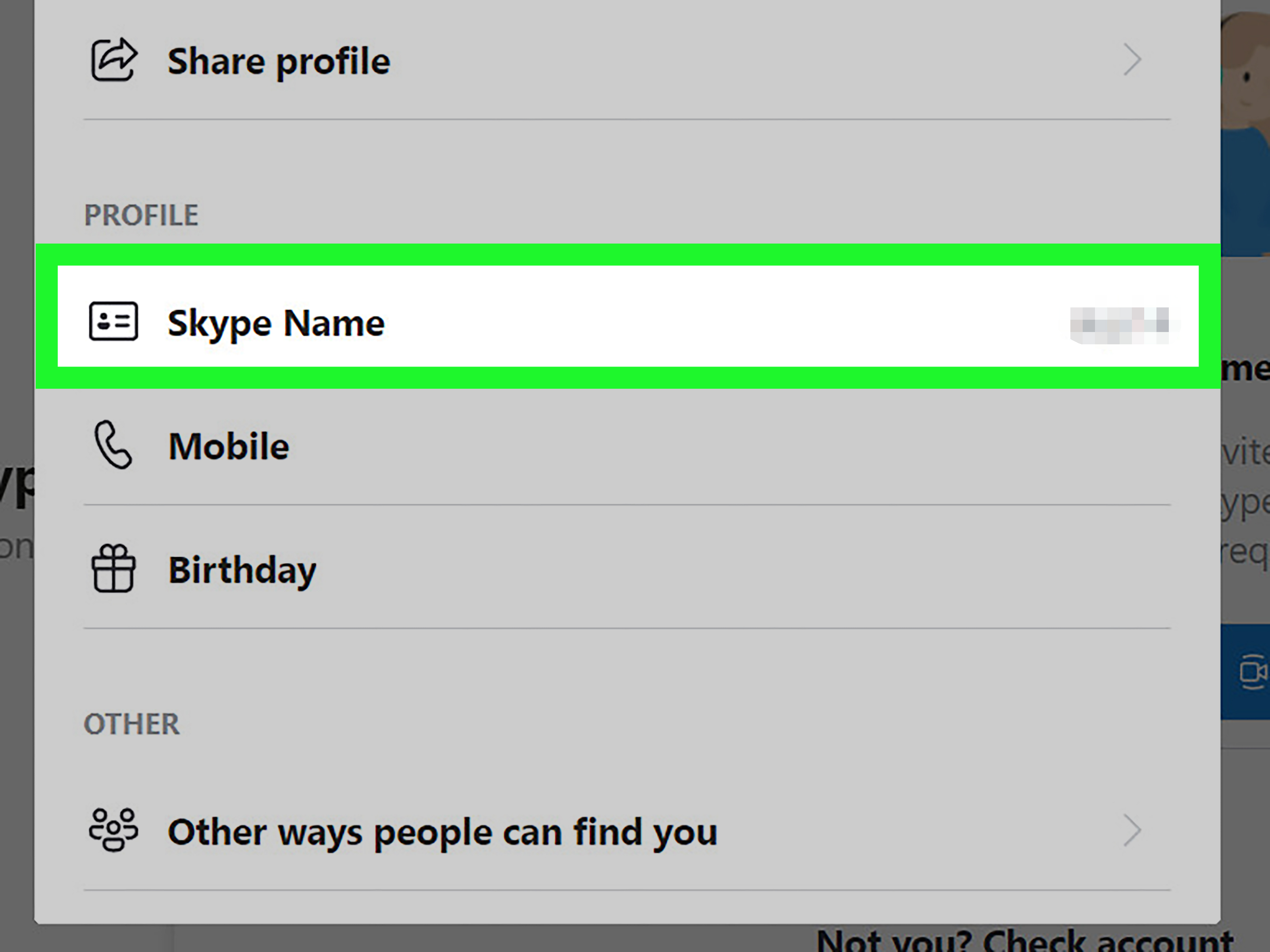
- Look for the field labeled Skype Name.
- Copy the value shown there. That is your Skype ID.
Your Skype Name may look like a normal username, or it may look like live:yourname or live:.cid.xxxxxxxxx. Do not panic if it looks like a tiny robot sneezed on your screen. That string is normal for many Microsoft-linked Skype accounts.
Method 2: Find Your Skype ID Through a Web Profile
If the desktop app does not work, try signing in through a Skype or Microsoft web profile page. After signing in, open your account or profile area and look for Skype Name. This can be useful if you no longer use the desktop app but still remember the account credentials.
Make sure you sign in with the correct account. Many people have more than one Microsoft account: a personal email, a work email, an old Outlook address, a phone-number login, or an ancient account created during the era when everyone thought usernames like “dragonrider2004” were a long-term branding strategy.
Method 3: Check Microsoft Teams Free
Because Skype has retired, Microsoft Teams Free is now part of the Skype transition path. If your Skype contacts and chats appear in Teams Free, you are probably signed in with the right account. In some account views, you may see a Skype-related identifier, especially if your Skype account is connected to a Microsoft login.
If your contacts or chat history are missing, you may have signed in with the wrong Microsoft account. Try another email address, phone number, or older Skype Name associated with your original Skype account. For older Skype accounts that do not start with live:, signing in with the original Skype Name may help locate the old data.
How to Find Your Skype ID on Mobile
The mobile process is similar whether you use an iPhone, iPad, or Android device. The main idea is the same: open your profile and look for Skype Name.
Find Your Skype ID on iPhone or Android
- Open the Skype app on your phone or tablet, if it is still available and signed in.
- Tap your profile picture or initials at the top of the screen.
- Tap Skype profile.
- Find the line labeled Skype Name.
- Copy or write down that Skype Name. This is your Skype ID.
If you do not see the Skype app working normally, open Microsoft Teams Free and sign in using the account you used for Skype. You may need to test more than one login if you had multiple Microsoft accounts over the years.
Mobile Tip: Do Not Copy the Wrong Name
On mobile, your display name is usually the most visible text on the profile screen. That does not necessarily make it your Skype ID. Look specifically for Skype Name. If you copy “Jennifer Wilson” when your actual Skype Name is live:.cid.9f8e7d6c5b4a, the person searching for you may find twenty Jennifer Wilsons and one profile picture of a golden retriever wearing sunglasses. Charming? Yes. Efficient? Not exactly.
What Does a Skype ID Look Like?
Your Skype ID may appear in several formats. Here are common examples:
- classicusername often used by older Skype accounts.
- live:username common for Microsoft-linked Skype accounts.
- live:.cid.xxxxxxxxxxxxx an automatically generated identifier linked to a Microsoft account.
The live: format is one reason people think they are looking at the wrong thing. It does not always look like a username in the traditional sense. Still, if it appears under Skype Name, it is the Skype ID you should use.
How to Find a Skype ID If You Forgot Your Username
If you cannot remember your Skype username, use Microsoft’s account recovery options. On the sign-in page, choose the option for forgotten username or sign-in help. You may be asked to enter a recovery phone number or alternate email address connected to your Microsoft account. After verification, Microsoft may show account options that match your recovery information.
This step is especially helpful if you used Skype years ago and no longer remember whether you signed in with an email, phone number, or old Skype Name. Search your password manager, email inbox, and old contact cards for terms like “Skype,” “Microsoft account,” “Skype Name,” or “live:”. Sometimes the clue is hiding in an old meeting invitation, freelance profile, or support ticket.
Can You Change Your Skype ID?
In most cases, you cannot directly change your Skype ID or Skype Name. You can usually change your display name, profile photo, and some account details, but the Skype Name itself is tied to the account. If you have a strange live:.cid ID, it may not be pretty, but it is normally permanent.
If you only want people to see a better name, update your display name. If you need a completely different Skype ID, the practical solution has historically been to create a new account. However, since Skype has retired, creating a new Skype-focused identity is no longer the same kind of option it once was. For current communication, Microsoft Teams Free or another modern calling platform may be more practical.
How to Share Your Skype ID Correctly
When someone asks for your Skype ID, share the value next to Skype Name. To avoid confusion, send it in a short message like this:
“My Skype ID/Skype Name is live:.cid.a12b34c56d78e90. My display name is Emily Carter.”
This gives the other person both the searchable account identifier and the friendly name they should expect to see. If your ID is long, copy and paste it rather than typing it manually. One missing character can send your contact request into the digital wilderness.
Common Problems When Looking for Your Skype ID
You See Only Your Email Address
Your Microsoft account email may appear in account settings, but that is not always your Skype ID. Look for the label Skype Name. If you are filling out a form that asks for a Skype ID, the Skype Name is usually the safer answer.
Your Skype ID Starts With live:.cid
This is common for accounts connected through Microsoft. It may look odd, but it is still a valid Skype Name. You do not need to remove the live: part unless a specific form tells you to use a different format.
You Cannot Find Your Contacts in Teams Free
If your old Skype contacts are missing in Teams Free, you may be signed in with a different Microsoft account. Try other email addresses, phone numbers, or older Skype Names you may have used. This is one of the most common issues during the Skype-to-Teams transition.
You Are Using Skype for Business
Skype for Business is different from the personal Skype app. If your account was created by an employer, school, or organization, your sign-in identity is usually controlled by the IT department. In that case, ask your organization’s administrator for the correct username or account identifier.
Best Practices for Keeping Track of Your Skype ID
Once you find your Skype ID, save it somewhere secure. A password manager is ideal because it can store your username, email, recovery phone, and notes in one place. You can also add it to a private contact card labeled “My Skype Account.” Avoid posting your Skype ID publicly unless you are comfortable receiving contact requests from strangers, bots, or people who believe “urgent crypto opportunity” is a valid greeting.
If you used Skype for professional communication, update old resumes, client documents, website contact pages, and onboarding templates. Since Skype has retired, it is smart to include a current communication option, such as Microsoft Teams, Zoom, Google Meet, phone, or email. If an old article, profile, or business listing still says “Contact me on Skype,” consider revising it before someone tries to schedule a call through a time machine.
Quick Desktop and Mobile Summary
Here is the short version for anyone who wants the answer without the scenic route:
- Desktop: Open Skype, click your profile picture, choose Skype profile, and copy the Skype Name.
- Mobile: Open Skype, tap your profile picture, tap Skype profile, and copy the Skype Name.
- After Skype retirement: Sign in to Microsoft Teams Free with the same Skype or Microsoft account to access migrated contacts and chats where available.
- Forgot your account: Use Microsoft sign-in recovery with your phone number or alternate email.
- Do not confuse: Your display name is not always your Skype ID.
Real-World Experience: What Finding a Skype ID Is Actually Like
In real life, finding your Skype ID is rarely difficult because the steps are complicated. It is difficult because most people are not sure which account they used in the first place. Skype has been around long enough to have lived through multiple internet eras: the “custom username” era, the Microsoft account era, the phone-number login era, and now the Teams transition era. That means your Skype identity may be tied to an email address you created for college, a Microsoft account you only used once, or a username you invented when your sense of humor was wearing cargo shorts.
One common experience is opening Skype or Teams and thinking, “Great, I’m signed in,” only to realize the contacts are missing. That usually means the account is not the old Skype account. Maybe you signed in with your current Outlook email, but your Skype history belongs to an older Hotmail address. Maybe you used a phone number. Maybe your original Skype Name never started with live: at all. The fix is not to keep clicking random buttons with increasing emotional intensity. The better approach is to list every email address and phone number you may have used, then test them one by one through Microsoft sign-in or Teams Free.
Another familiar situation is needing a Skype ID for a form. Some hiring platforms, tutoring websites, freelance marketplaces, and older business directories still ask for it. The field may say “Skype ID,” “Skype Name,” or “Skype username.” In most cases, they want the identifier shown under Skype Name. If your ID looks like live:.cid plus a long code, paste the whole thing. It may look strange, but trimming it can make it useless.
People also often worry that a weird Skype ID looks unprofessional. Honestly, nobody wins a branding award with live:.cid.8a7b6c5d. But for identification, it works. If you are sharing it for business, pair it with your display name and another contact method. For example: “Skype Name: live:.cid.xxxxxxxx; Display name: Rachel Morgan; Backup contact: [email protected].” That removes guesswork and keeps the other person from adding the wrong account.
The biggest lesson from years of Skype account confusion is simple: save account identifiers before you urgently need them. Put your Skype Name, Microsoft login email, and recovery email in a password manager. Add a note if the account contains old contacts or chat history. Technology changes, apps retire, and platforms migrate, but a well-labeled account record can save you from a surprisingly annoying afternoon.
And if you discover three old Skype accounts while searching? Congratulations. You have completed a small digital archaeology project. Keep the one with the contacts you need, update your current communication details, and move forward with a little more order than before.
Conclusion
Finding your Skype ID is mainly about knowing the right label to look for. On desktop or mobile, open your profile and find Skype Name. That value is your Skype ID, whether it looks like a classic username, a live: name, or a long live:.cid code. Since Skype has retired, you may also need to use Microsoft Teams Free, Microsoft account recovery, or an old Skype profile page to locate the account connected to your contacts and chat history.
The key is not to confuse your Skype display name with your Skype ID. Your display name is the friendly name people see. Your Skype ID is the unique identifier that helps people find the correct account. Once you find it, save it securely, share it carefully, and update old contact pages if Skype is no longer your main communication tool.
Note: This article reflects current Microsoft Skype retirement guidance and common Skype profile behavior as of 2026. Menu labels and account screens may vary depending on device, app version, region, and whether the account has already moved to Microsoft Teams Free.