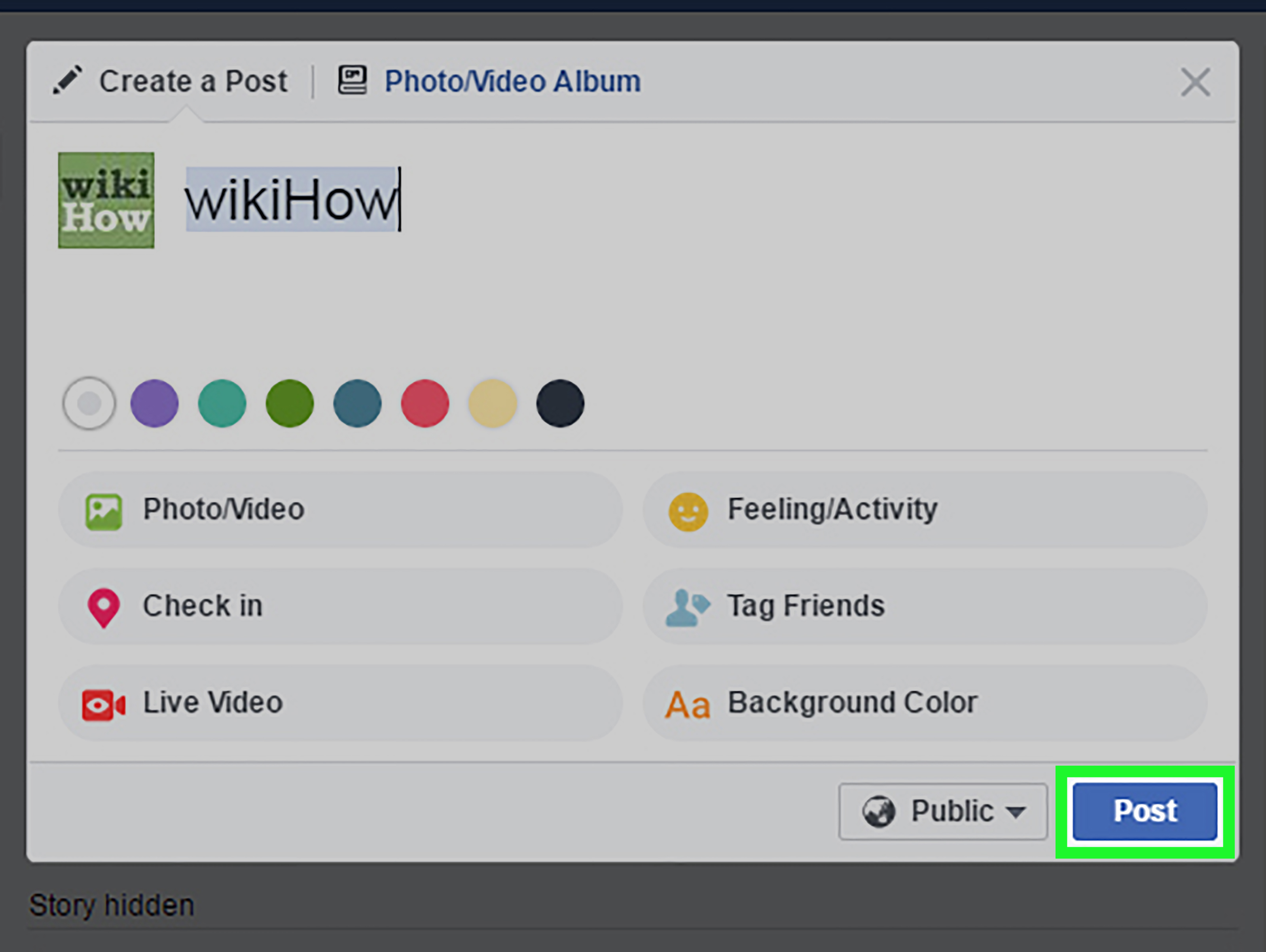
Note: This guide is written from current Facebook and Meta Help guidance, plus practical social media publishing best practices. Facebook changes buttons, menus, and tiny interface details often, because apparently no platform menu is allowed to sit still for too long. The core method, however, remains simple: use the @ symbol, choose the correct Page from the suggestion list, and confirm that the name turns into a clickable mention before posting.
Introduction: Tagging a Facebook Page Without Losing Your Mind
Tagging a Page on Facebook sounds like it should be as easy as pointing at a digital object and saying, “That one.” In reality, Facebook has a few different features that people casually call “tagging.” You can mention a Facebook Page in a post or comment, tag a Page in a photo, tag a business partner in branded content, or manage who can tag and mention your own Page. Same neighborhood, different houses.
If you are trying to shout out a local bakery, credit a partner brand, mention an event organizer, or connect your audience to another business Page, you are usually looking for a Facebook Page mention. That means typing @ followed by the Page name, selecting the right Page from Facebook’s dropdown list, and publishing the post. The result is a clickable link to that Page. It may also notify the Page, depending on settings and Facebook’s current behavior.
This guide explains how to tag a Page on Facebook on mobile and desktop, how to do it from a personal profile or business Page, what to do when the Page does not appear, and how to avoid looking like you are playing social media pinball with random @mentions. Let’s make tagging behave.
What Does It Mean to Tag a Page on Facebook?
In everyday language, “tagging a Page” usually means adding a clickable Page name to your post. On Facebook, this is technically closer to a mention. When you type @PageName and choose a Page from the list, Facebook converts the text into a link. Readers can click it to visit that Page.
For example, if you write, “We had the best coffee at @Bluebird Cafe,” and choose the official Facebook Page from the suggestions, that Page name becomes clickable. This is useful for collaborations, event recaps, customer appreciation posts, local business shoutouts, and brand partnerships.
Tagging vs. Mentioning: The Quick Difference
A mention happens in text, such as a post caption or comment. A photo tag connects a person or Page directly to a photo. A branded content tag is used for paid partnerships or content influenced by a business relationship. These are not the same thing, even though people often call all of them “tagging.”
For most users, the fastest answer is this: to tag a Facebook Page in a post, type @, start typing the Page name, select the correct Page, check that it becomes clickable, and then publish.
How to Tag a Page on Facebook Mobile
If you are using the Facebook mobile app, tagging a Page is usually straightforward. The mobile app is better for this than a mobile browser, where some Page tagging features may be limited or unavailable. If you are on your phone, open the actual Facebook app instead of trying to wrestle with Facebook through a browser tab. Your thumbs deserve better.
Step-by-Step: Tag a Page in a Mobile Post
- Open the Facebook app on your iPhone or Android device.
- Tap What’s on your mind? or create a post from your profile, group, or Page.
- Write your caption or post text.
- Type the @ symbol, then begin typing the Page’s name.
- Wait for Facebook to show matching Pages in the suggestion list.
- Tap the correct Page from the list.
- Make sure the Page name turns into a highlighted or clickable mention.
- Finish your post and tap Post.
Example: You might write, “Big thanks to @Green Valley Farmers Market for hosting today’s community event.” Once you select the correct Page, Facebook should turn the name into a clickable Page mention.
How to Tag a Page in a Facebook Comment on Mobile
Tagging a Page in a comment works much the same way. Tap the comment box, type @, start entering the Page name, and select the right result. This is handy when someone asks, “Where did you buy that?” and you want to point them to the business Page without making them hunt through Facebook like it is a digital treasure map.
How to Tag a Page in a Facebook Photo on Mobile
If you want to tag a Page in a photo, open the photo, tap the tagging option if available, tap the area of the photo you want to tag, type the Page name, and choose it from the list. This may depend on the Page’s settings, the photo’s privacy settings, and your access level if you are posting as a Page.
Photo tagging is especially useful for event albums, sponsor walls, vendor booths, restaurant visits, and community photos. However, do not overdo it. Tagging every business in a 30-mile radius because one logo appeared in the background is not “networking.” It is social media confetti.
How to Tag a Page on Facebook Desktop
Desktop Facebook is often easier for careful posting, especially if you are managing business content. You get a bigger screen, a real keyboard, and fewer opportunities for your thumb to autocorrect “bakery” into “battery.”
Step-by-Step: Tag a Page in a Desktop Post
- Go to Facebook on your desktop browser and log in.
- Click the box to create a new post.
- Write your post text.
- Type @ followed by the Page name.
- Choose the correct Page from the dropdown suggestions.
- Confirm that the Page name becomes clickable in the post composer.
- Finish editing your post.
- Click Post.
For example: “We’re excited to partner with @Downtown Animal Rescue for Saturday’s adoption drive.” After selecting the official Page, the Page name should appear as a clickable mention.
How to Tag a Page from Your Facebook Business Page
If you manage a Facebook Page, switch into the Page profile first. On desktop, click your profile picture, choose See all profiles, and select the Page you want to use. Then create your post as that Page. Type @, start entering the other Page’s name, and select it from the suggestions.
This matters because posting as yourself and posting as your business Page are different. A personal profile mention may feel casual, while a Page-to-Page mention looks more official. If your restaurant is thanking a supplier, your restaurant Page should probably make the post, not your personal account from 2009 with vacation photos and one mysterious blurry concert album.
How to Tag a Facebook Page in Meta Business Suite
Many business owners and marketers create Facebook posts through Meta Business Suite. The process is similar: create a post, select the Facebook Page you want to publish to, write your caption, type @, and choose the Page from the suggestion list.
However, mentions inside scheduling tools can sometimes be more temperamental than a cat near bathwater. If the dropdown does not appear, try typing the Page name slowly, using the Page’s exact name, or adding the mention before pasting the rest of your caption. If a mention looks correct in the composer, preview the post before scheduling whenever possible.
Important Tip for Scheduled Posts
Before you schedule a post, check that the Page mention is actually clickable. Do not assume that plain text starting with @ is automatically a tag. If it does not convert into a linked Page name, it may publish as ordinary text. That is not the end of the world, but it is the social media equivalent of waving at someone through a window they are not looking through.
Why Can’t I Tag a Page on Facebook?
If Facebook will not let you tag a Page, there are several possible reasons. The good news: most problems are fixable. The bad news: Facebook does not always explain which problem you are dealing with. Very mysterious. Very on-brand.
1. You Are Using the Wrong Page Name
Some Pages have similar names. A bakery called “Sweet Crumbs” may not appear if its official Page name is “Sweet Crumbs Bakery & Cafe.” Try searching with the exact Page name, fewer words, or a unique part of the name.
2. The Page Has Tagging or Mention Settings That Limit Visibility
Page admins can manage how others tag or mention their Page. If a Page has restricted tagging or review settings, your mention may not behave as expected. You may still be able to type the Page name, but the Page may control whether tagged posts appear on its Page.
3. You Are on a Mobile Browser
Some Facebook Page tagging features are not available in mobile browsers. Use the Facebook mobile app or desktop browser instead. If you have been trying through a tiny browser window while balancing coffee, keys, and your dignity, switch to the app.
4. Facebook Search Suggestions Are Glitching
Sometimes the dropdown simply does not load. Try refreshing the page, updating the app, clearing cache, switching browsers, or typing the mention again. On desktop, Chrome, Edge, Firefox, and Safari may behave slightly differently depending on cookies, extensions, and Facebook’s current interface tests.
5. You Do Not Have the Right Page Access
If you are posting as a business Page, you may need proper Facebook access to that Page. Admins and people with content permissions typically have more publishing options than users with limited access.
6. The Page Is Unpublished, Restricted, or Hard to Find
If the Page is unpublished, restricted by age or country, recently renamed, or not indexed clearly in Facebook search, it may not appear in suggestions. Try visiting the Page directly first, then return to your post and attempt the mention again.
Best Practices for Tagging Pages on Facebook
Tagging a Page can increase relevance, make your post more useful, and build goodwill with other brands or organizations. But like hot sauce, it works best when used with judgment.
Tag Only When the Page Is Relevant
Tag a Page because it is connected to the post. Good reasons include partnerships, event participation, vendor credits, customer appreciation, media mentions, community collaborations, and location-based shoutouts.
Bad reasons include “maybe they will notice me,” “I want free reach,” or “I found 19 Pages and my keyboard has an @ symbol.” Random tagging looks spammy and may reduce trust.
Use Natural Context
Put the Page mention inside a real sentence. Instead of writing, “@Brand @Restaurant @Venue @Sponsor,” say, “Thanks to @Venue Name for hosting our fundraiser and to @Sponsor Name for supporting the raffle.” The second version feels human. The first version feels like a robot sneezed usernames.
Check the Mention Before Publishing
Always confirm that the Page name became clickable. If it stays plain text, delete it and try again. This small check prevents one of the most common Facebook tagging mistakes.
Do Not Confuse Page Tags With Hashtags
A Page tag starts with @ and links to a Facebook Page. A hashtag starts with # and groups public conversations around a keyword. @CityArtMuseum and #CityArtMuseum do different jobs. You can use both, but they are not interchangeable.
How to Tag a Page in Different Facebook Situations
Tagging a Page in an Event Recap
Example: “We had an amazing time at Saturday’s cleanup with @Riverfront Volunteers. Thanks to everyone who brought gloves, snacks, and heroic levels of caffeine.”
This kind of tag is useful because it gives credit, helps followers discover the organization, and creates a clear connection between the content and the Page.
Tagging a Page in a Business Collaboration
Example: “Our limited-edition candle line with @Oak Street Florals is live this weekend.”
For business collaborations, make sure both sides agree on the wording. If money, gifts, sponsorship, or a business relationship is involved, you may also need to use Facebook’s branded content or paid partnership tools where applicable.
Tagging a Page in a Customer Appreciation Post
Example: “Huge thanks to @Maple Ridge Dental for choosing our catering team for your staff lunch.”
Customer appreciation tags can be great, but ask permission if the post reveals a business relationship that may not be public. A little courtesy keeps the internet from becoming awkward.
Facebook Page Tagging and Privacy: What to Know
When you tag or mention a Page, the visibility of the post still depends on your audience settings, Page settings, and Facebook’s distribution rules. If your post is public, more people may see the mention. If your post is limited to friends, the clickable mention may still work, but the audience is restricted.
If you tag a Page in a photo or post, that Page may receive a notification or may be able to review the tag depending on its settings. Page admins can also control whether posts they are tagged in appear on their Page. In other words, tagging a Page does not guarantee that your post will show up on that Page’s timeline.
How to Remove or Edit a Page Tag
If you made a mistake, go to the post, open the menu, and choose the option to edit the post if available. Remove the incorrect mention and add the correct Page. If the post is a photo tag, open the photo and use the tag options to remove or adjust the tag.
Editing a published post may affect how mentions display. After saving changes, click or tap the Page name to make sure it still links correctly. If it does not, edit again and reselect the Page from the suggestion list.
Common Mistakes When Tagging a Facebook Page
Typing the Page Name Without Selecting It
This is the classic mistake. Typing @Some Page is not enough if Facebook does not convert it into a clickable mention. Always select the Page from the dropdown.
Tagging Too Many Pages
One to three relevant Page tags is usually enough for a normal post. Tagging ten Pages can look desperate, cluttered, or automated. Your post should read like a message, not a roll call.
Using the Wrong Account
If you manage multiple Pages, check which identity you are posting from. Posting as your personal profile when you meant to post as your business Page can change the tone, reach, and professionalism of the post.
Forgetting About Branded Content Rules
If you received payment, free products, gifts, or another exchange of value, a normal Page mention may not be enough. You may need to use Facebook’s branded content tools or paid partnership label. When in doubt, disclose clearly and follow platform rules.
Troubleshooting Checklist: When Facebook Page Tags Do Not Work
- Use the Facebook app or desktop browser instead of a mobile browser.
- Check the exact Page name.
- Type the mention manually instead of pasting it.
- Wait for the dropdown and select the correct Page.
- Update the Facebook app.
- Clear your browser cache or try another browser.
- Switch into the correct Page profile before posting.
- Confirm you have proper access to the Page you manage.
- Check whether the tagged Page allows mentions or reviews tags.
- Preview scheduled posts before publishing.
Extra Experience-Based Tips for Tagging a Page on Facebook
After managing or reviewing plenty of Facebook posts, one practical lesson stands out: add your Page tags before the caption becomes too crowded. If you write a long post first, paste in several paragraphs, add emojis, hashtags, links, and then try to squeeze in a mention, Facebook’s suggestion dropdown may become slow or inconsistent. Start with the important Page mention, confirm it links, and then build the rest of the caption around it.
Another useful habit is to keep a small list of official Page names for partners, sponsors, venues, and vendors. Businesses often have Facebook names that differ slightly from their storefront names. A restaurant sign might say “Luna Pizza,” while the Facebook Page is “Luna Pizza Co. – Downtown.” If you manage recurring posts, this little list saves time and prevents accidental tags to fan Pages, duplicate Pages, or abandoned Pages with three posts from 2016.
When tagging Pages for events, write the post like a mini story instead of a list of mentions. For example, “We loved seeing families at @Main Street Library for Saturday’s reading day” feels warmer than “@Main Street Library @Book Club @Kids Event.” Facebook is a social platform, not a receipt printer. A natural sentence gives readers context and makes the tagged Page look like part of the story.
For desktop users, the best workflow is simple: draft, tag, preview, publish. Draft the post in Facebook or a plain text editor, add your @mentions directly in the Facebook composer, confirm each mention, and preview the post. Avoid copying fully formatted text from word processors because hidden formatting can sometimes make social composers act strangely. If a mention refuses to work, delete the entire Page name and @ symbol, then type it again slowly.
For mobile users, patience helps. The Facebook app may take a second to show Page suggestions, especially on slower connections. Type @ and a few letters, then pause. If nothing appears, backspace and try a more unique part of the Page name. If the Page still does not appear, search for the Page separately in Facebook, open it, confirm it is the right one, then return to your post and try again.
Businesses should also create a simple tagging policy. Decide when your brand tags partners, whether you ask permission before tagging clients, and how many Page mentions are appropriate in one post. This keeps your feed professional and prevents awkward moments like tagging a customer who did not want public attention. The golden rule is easy: tag Pages when it adds value for the reader, the tagged Page, and your own audience.
Finally, remember that a Page tag is not a magic reach button. It can help with context, discovery, and relationship-building, but it will not rescue a weak post. Strong images, clear writing, useful information, and authentic engagement still matter. Think of tagging as the friendly introduction at a party. It gets two people connected, but someone still has to make the conversation interesting.
Conclusion
Learning how to tag a Page on Facebook on mobile and desktop is mostly about understanding the @ mention. Open the post composer, type @, enter the Page name, select the correct Page from the suggestion list, and confirm that the name becomes clickable. On mobile, use the Facebook app for the smoothest experience. On desktop, take advantage of the larger screen to check your tags before posting.
For business Pages, make sure you are posting from the correct profile and that you have the right access. For collaborations, sponsorships, or paid relationships, remember that a simple mention may not replace branded content disclosure. And when Facebook refuses to cooperate, try the basics: update the app, use the exact Page name, switch devices, clear cache, or retype the mention manually.
Used well, Facebook Page tagging makes your posts more helpful, more connected, and more professional. Used badly, it makes your caption look like it fell into a bucket of @ symbols. Keep it relevant, natural, and reader-friendly, and your tags will do what they are supposed to do: connect people to the right Page at the right moment.