Facebook is great for catching up with friends, reading comments, checking Marketplace listings, watching videos, and accidentally spending 17 minutes looking at someone’s vacation album from 2018. But sometimes the text is tiny, the photo details are hard to see, or the page layout feels like it was designed for eagle vision. Good news: you can zoom in on Facebook whether you are using Android, iPhone, iPad, Windows, Mac, Chrome, Safari, Edge, or Firefox.
The only tricky part is that “zooming in on Facebook” can mean several different things. You might want to zoom in on a photo, make posts and comments larger, enlarge the whole Facebook app, or increase the size of Facebook in a desktop browser. This guide explains all of those options in plain English, with step-by-step instructions and practical fixes when zoom does not behave the way you expect.
Quick Answer: The Best Way to Zoom In on Facebook
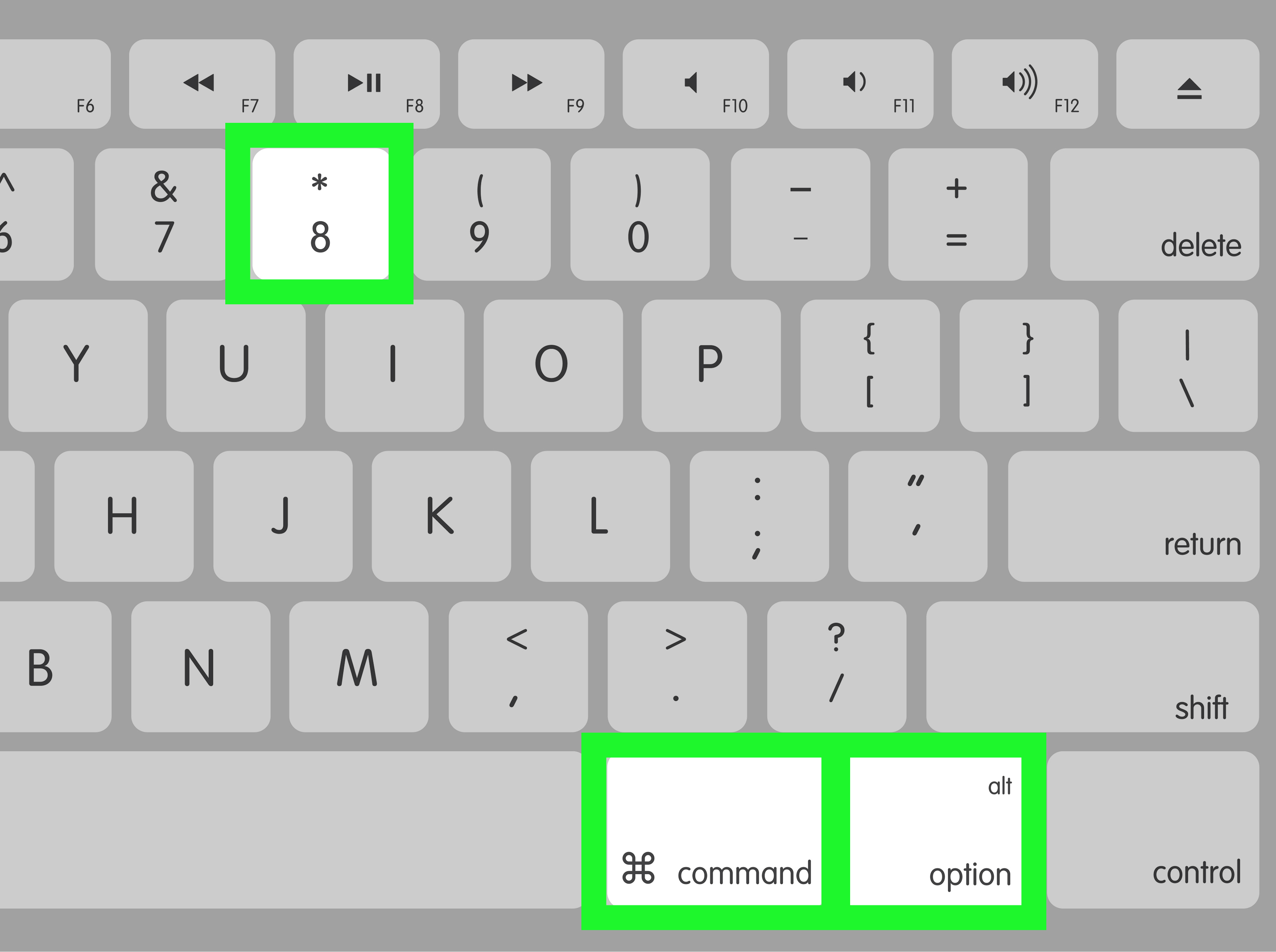
The fastest method depends on your device. On Android and iPhone, you can usually pinch with two fingers to zoom in on photos, but for the full Facebook screen, use your phone’s built-in accessibility zoom or magnification feature. On desktop, use browser zoom: press Ctrl + Plus on Windows or Command + Plus on Mac. To reset the page, press Ctrl + 0 or Command + 0.
If you only want larger text, changing your device font size may work better than zooming the whole screen. Think of it like choosing between reading glasses and a telescope. Both help you see, but one is much less dramatic at the dinner table.
How Facebook Zoom Works
Facebook does not have one universal “Zoom” button inside the app for every type of content. Instead, zoom usually comes from one of four places: Facebook’s photo viewer, your mobile device’s accessibility tools, your browser’s zoom controls, or your computer’s screen magnifier.
Pinch-to-Zoom vs. Screen Magnification
Pinch-to-zoom means placing two fingers on the screen and spreading them apart. This often works on photos and some media, but it may not enlarge every post, button, or menu in the Facebook app.
Screen magnification enlarges part or all of the display using Android, iOS, Windows, or macOS accessibility settings. This is the better choice if you want to zoom in on comments, menus, profile details, Marketplace listings, or small text inside the app.
How to Zoom In on Facebook on Android
Android gives you several ways to make Facebook easier to see. The exact menu names vary slightly depending on your phone brand, Android version, and whether you use Samsung, Google Pixel, Motorola, OnePlus, or another device. Still, the basic idea is the same: use pinch gestures for photos and Android Magnification for the full app.
Method 1: Pinch to Zoom on Facebook Photos
- Open the Facebook app on your Android phone.
- Tap the photo you want to view.
- Place two fingers on the image.
- Spread your fingers apart to zoom in.
- Pinch your fingers together to zoom back out.
This is useful when you want to read text inside an image, inspect a product photo on Marketplace, or see whether that blurry shape in the background is a dog, a handbag, or your cousin doing something questionable at a barbecue.
However, pinch-to-zoom may not work the same way on every photo, Reel, Story, or post preview. If it does not work, open the image fully first. If it still does not zoom enough, use Android Magnification.
Method 2: Turn On Android Magnification for Facebook
Android Magnification enlarges the screen, so it works across Facebook posts, comments, menus, buttons, photos, and settings.
- Open Settings on your Android phone.
- Tap Accessibility.
- Tap Magnification.
- Turn on the Magnification shortcut.
- Choose whether you want full-screen magnification or partial-screen magnification, if your device offers both.
- Open Facebook and activate the magnification shortcut.
Depending on your phone, the shortcut may appear as an accessibility button, a gesture, or a button combination. Once magnification is active, you can zoom in, zoom out, and move around the enlarged area.
Method 3: Use Samsung Vision Enhancements
On many Samsung Galaxy phones, the path may look slightly different:
- Open Settings.
- Tap Accessibility.
- Tap Vision enhancements.
- Select Magnification or adjust Font size and style.
- Open Facebook and test the new display size.
If Facebook text looks too small everywhere, increasing the system font size may be more comfortable than zooming in and dragging around the screen all day.
Method 4: Make Facebook Text Larger on Android
To increase text size instead of zooming the entire screen:
- Open Settings.
- Go to Display or Accessibility.
- Choose Font size, Display size, or Font size and style.
- Move the slider until text is easier to read.
- Restart Facebook if the change does not appear immediately.
This can make names, captions, comments, and menus easier to read without making the whole app feel like it is pressed against your nose.
How to Zoom In on Facebook on iPhone and iPad
On iOS and iPadOS, you can zoom in on Facebook photos with gestures, enlarge text using Display settings, or activate Apple’s built-in Zoom accessibility feature for a stronger magnifying effect.
Method 1: Pinch to Zoom on Facebook Photos
- Open the Facebook app on your iPhone or iPad.
- Tap a photo to open it.
- Use two fingers to spread outward on the screen.
- Drag with your fingers to move around the zoomed image.
- Pinch inward to zoom back out.
This works best for still images. It may not work the same way on videos, Stories, Reels, thumbnails, or images embedded in certain post formats.
Method 2: Turn On iPhone Zoom for the Facebook App
Apple’s Zoom feature magnifies the screen on iPhone and iPad. It can be used inside Facebook when you need a closer look at posts, comments, buttons, photos, or profile details.
- Open Settings.
- Tap Accessibility.
- Tap Zoom.
- Turn on Zoom.
- Open Facebook.
- Double-tap with three fingers to zoom in or out.
- Drag with three fingers to move around the screen.
You can also adjust the zoom level by double-tapping with three fingers and dragging up or down. It sounds like a secret handshake, but after a little practice, it becomes surprisingly natural.
Method 3: Use Larger Text on iPhone
If your main problem is small Facebook text, try this:
- Open Settings.
- Tap Accessibility.
- Tap Display & Text Size.
- Tap Larger Text.
- Turn on larger accessibility sizes if needed.
- Move the slider to increase text size.
This may increase text size in Facebook and other supported apps. It is a great option for people who want a more readable feed without constantly zooming in and out.
Method 4: Use Browser Zoom on Facebook in Safari for iPhone
If you use Facebook through Safari instead of the Facebook app, you can adjust the website view:
- Open Safari and go to Facebook.
- Tap the aA button in the address bar.
- Tap the larger A to increase page size.
- Tap the smaller A to decrease it.
This is especially helpful if you prefer the mobile web version of Facebook or want a temporary zoom change without changing your whole iPhone display.
How to Zoom In on Facebook on Desktop
Desktop Facebook is usually the easiest version to zoom. Whether you use Chrome, Edge, Firefox, or Safari, browser zoom controls work quickly and reliably.
Zoom In on Facebook in Chrome
- Open Facebook in Google Chrome.
- Press Ctrl + Plus on Windows or Command + Plus on Mac.
- Press the shortcut again to zoom in more.
- Press Ctrl + Minus or Command + Minus to zoom out.
- Press Ctrl + 0 or Command + 0 to reset zoom.
You can also click the three-dot menu in Chrome and use the zoom controls there. Chrome may remember your zoom level for Facebook, so the site can stay enlarged the next time you visit.
Zoom In on Facebook in Microsoft Edge
- Open Facebook in Edge.
- Press Ctrl + Plus to zoom in.
- Press Ctrl + Minus to zoom out.
- Press Ctrl + 0 to return to the default view.
You can also open the Edge menu and use the plus and minus buttons next to Zoom. This is useful if keyboard shortcuts are not your thing or if your keyboard has decided today is not the day.
Zoom In on Facebook in Firefox
- Open Facebook in Firefox.
- Press Ctrl + Plus on Windows or Command + Plus on Mac.
- Use Ctrl + Minus or Command + Minus to zoom out.
- Reset with Ctrl + 0 or Command + 0.
Firefox also lets you zoom only text in some settings, which can be helpful if you want bigger words without making images and buttons huge.
Zoom In on Facebook in Safari on Mac
- Open Facebook in Safari.
- Press Command + Plus to zoom in.
- Press Command + Minus to zoom out.
- Use Command + 0 to reset the page size.
Safari also lets you set page zoom preferences for websites, which is useful if you always want Facebook to open larger on your Mac.
How to Zoom In on Facebook Photos on Desktop
Desktop photo viewing is a little different from mobile. Facebook lets you open photos in a viewer, but the amount of built-in zoom depends on the image, layout, and current interface. For more control, combine Facebook’s photo viewer with browser zoom.
- Click the photo to open it.
- Use browser zoom with Ctrl + Plus or Command + Plus.
- Use your mouse wheel or trackpad to move around if needed.
- Open the image in full-screen mode if available.
If a photo is low resolution, zooming in will make it larger but not sharper. Unfortunately, no shortcut can turn a tiny compressed image into a crystal-clear poster. Technology is good, but it is not magic with a cape.
How to Use Windows Magnifier for Facebook
If browser zoom is not enough, Windows Magnifier can enlarge the entire screen. This works for Facebook in any browser and can also help with Messenger, desktop notifications, or other apps.
- Press Windows key + Plus to turn on Magnifier.
- Press Windows key + Plus again to zoom in more.
- Press Windows key + Minus to zoom out.
- Press Windows key + Esc to close Magnifier.
Windows Magnifier is a strong option for users with low vision or anyone who needs temporary enlargement beyond normal browser zoom.
How to Use Mac Zoom for Facebook
Mac users can use browser zoom for Facebook, but macOS also includes screen Zoom in Accessibility settings.
- Open System Settings.
- Click Accessibility.
- Click Zoom.
- Turn on keyboard shortcuts or trackpad gestures for zoom.
- Use the chosen shortcut or gesture while viewing Facebook.
Depending on your settings, Mac Zoom can magnify the full screen, a split screen, or a picture-in-picture area. This is helpful when you want to read a small Facebook comment thread without enlarging every browser tab.
Best Zoom Method for Each Facebook Situation
For Reading Small Comments
Use device font size settings on mobile or browser zoom on desktop. This keeps the experience smoother than constantly using a magnifier.
For Viewing Facebook Photos
Start with pinch-to-zoom on Android or iPhone. On desktop, open the photo and use browser zoom if needed.
For Marketplace Listings
Use browser zoom on desktop or screen magnification on mobile. Marketplace often includes small price labels, seller details, map areas, and product descriptions, so a little zoom can save you from buying a “slightly used chair” that looks suspiciously like a garden statue.
For Facebook Reels and Videos
Zoom options are more limited for videos. You can try full-screen mode, rotate your phone horizontally, increase display size, or use device magnification. If the video itself is low quality, zooming may make it bigger but blurrier.
Why Can’t I Zoom In on Facebook?
If zoom is not working, the reason usually comes down to the type of content, app version, device settings, or browser behavior.
The Photo Is Not Fully Open
Pinch-to-zoom often works better after you tap a photo and open it in the photo viewer. Trying to zoom a photo directly from the feed may only scroll the page.
The Facebook App Needs an Update
Older app versions may behave differently. Open the Google Play Store or Apple App Store and check whether Facebook has an available update.
Your Device Gestures Are Conflicting
Some accessibility gestures, navigation gestures, or screen protectors can interfere with pinch gestures. Try cleaning the screen, removing gloves, restarting the app, or testing pinch-to-zoom in another app.
The Content Does Not Support Pinch Zoom
Some posts, ads, videos, Stories, or previews may not support direct pinch zoom. Use your device’s magnification feature instead.
Your Browser Zoom Is Already Too High or Too Low
On desktop, reset Facebook zoom with Ctrl + 0 on Windows or Command + 0 on Mac. Then zoom in again one step at a time.
Tips for a Better Facebook Zoom Experience
Zooming is helpful, but too much zoom can make Facebook harder to navigate. Start small. On desktop, try 110% or 125% before jumping to 200%. On mobile, increase text size slightly before enabling full-screen magnification. The goal is comfort, not turning your News Feed into a billboard.
If you often struggle to read Facebook, consider combining several settings: increase text size, turn on dark mode if it improves contrast for you, use a larger device when possible, and keep your app updated. On desktop, a larger monitor or higher browser zoom level can make Facebook much easier to use for long sessions.
For users with low vision, built-in accessibility tools are usually the most reliable solution. Android Magnification, iPhone Zoom, Windows Magnifier, and macOS Zoom are designed to work across apps, not just Facebook. That means you can use the same skill in Messenger, email, web browsers, maps, and other everyday tools.
Common Mistakes to Avoid
Do Not Confuse Facebook Zoom with Camera Zoom
Camera zoom enlarges what your camera sees. Facebook zoom enlarges what is already on your screen. If you are trying to read a Facebook post, you need screen zoom, not your camera app.
Do Not Over-Zoom the Browser
Zooming Facebook too much on desktop can push menus off-screen, hide buttons, or make the layout awkward. If Facebook suddenly looks broken, reset zoom and try a lower level.
Do Not Assume Every Photo Will Become Clear
Zoom can enlarge details, but it cannot create detail that was never in the image. A low-resolution upload will still look soft when enlarged.
Do Not Ignore Text Size Settings
If your main issue is reading captions and comments, text size settings may be better than magnification. They improve readability without forcing you to pan around the screen.
Real-World Experiences: What It Is Actually Like to Zoom In on Facebook
In everyday use, zooming in on Facebook is less about one perfect setting and more about knowing which tool to use at the right moment. For example, imagine you are scrolling through Facebook on an Android phone and a friend posts a group photo from a birthday party. You tap the image, pinch outward, and the faces get bigger. Great. But then you try the same trick on a screenshot inside a post, and nothing happens except the feed wiggles like it is mildly offended. That is when Android Magnification becomes the better tool.
On iPhone, the experience is similar. Pinch-to-zoom is quick and natural for photos, but Apple’s three-finger Zoom gesture is more powerful when you need to read tiny comments, check a profile detail, or inspect a Marketplace listing. The first time you use three fingers to zoom, it can feel a bit like playing a piano chord on your screen. After a few tries, it becomes second nature. Many users find that turning on the Zoom Controller makes the feature easier because it gives them a visible button instead of relying only on gestures.
Desktop users usually have the smoothest experience. Browser zoom works beautifully for Facebook because it enlarges text, images, buttons, and menus together. If you are reading a long Facebook discussion, increasing Chrome, Edge, Firefox, or Safari to 125% can make the page much more comfortable. It is especially useful on high-resolution monitors, where everything can look sharp but strangely small. The reset shortcut is also a lifesaver. If the layout gets too big, Ctrl + 0 or Command + 0 brings everything back to normal.
One practical lesson is that zooming is not always about eyesight. Sometimes it is about context. If you are comparing product photos on Facebook Marketplace, zoom helps you spot scratches, labels, measurements, and details that sellers may not mention. If you are reading event information, zoom can make dates and locations easier to confirm. If you are viewing a recipe shared in an image, zoom may save you from confusing “1 tsp” with “1 tbsp,” which is the difference between dinner and a cinnamon emergency.
Another common experience is that Facebook’s layout changes from time to time. A gesture that works smoothly in one version of the app may feel different after an update. That is why it helps to know the backup methods. If pinch zoom fails, use system magnification. If the mobile app feels cramped, try Facebook in a browser. If browser zoom makes the page messy, reset it and adjust your operating system’s display settings instead.
The best setup is the one that feels comfortable for your eyes and your patience. For quick photo checks, pinch-to-zoom is perfect. For regular reading, increase font size. For detailed inspection, use full-screen magnification. For desktop browsing, use browser zoom. Once you know these options, Facebook becomes much easier to navigate, and you can spend less time squinting and more time doing what everyone came to Facebook to do: read updates, watch videos, check photos, and pretend you only opened it for “five minutes.”
Conclusion
Learning how to zoom in on Facebook is simple once you know which tool fits your device. On Android, use pinch-to-zoom for photos and Magnification for the full app. On iPhone and iPad, use photo gestures, Larger Text, or Apple’s Zoom feature. On desktop, browser zoom is the fastest option, while Windows Magnifier and macOS Zoom offer stronger accessibility support.
The best approach is to start with the simplest method first. Try pinch gestures for photos, browser shortcuts for desktop, and text size settings if you mainly want easier reading. If those are not enough, turn on your device’s accessibility magnifier. With the right setup, Facebook becomes clearer, more comfortable, and much less likely to make you lean toward the screen like a detective inspecting a clue.
Note: This article is based on current official guidance and common behavior across Facebook, Android, iOS, Windows, macOS, Chrome, Edge, Firefox, and Safari accessibility and zoom features.