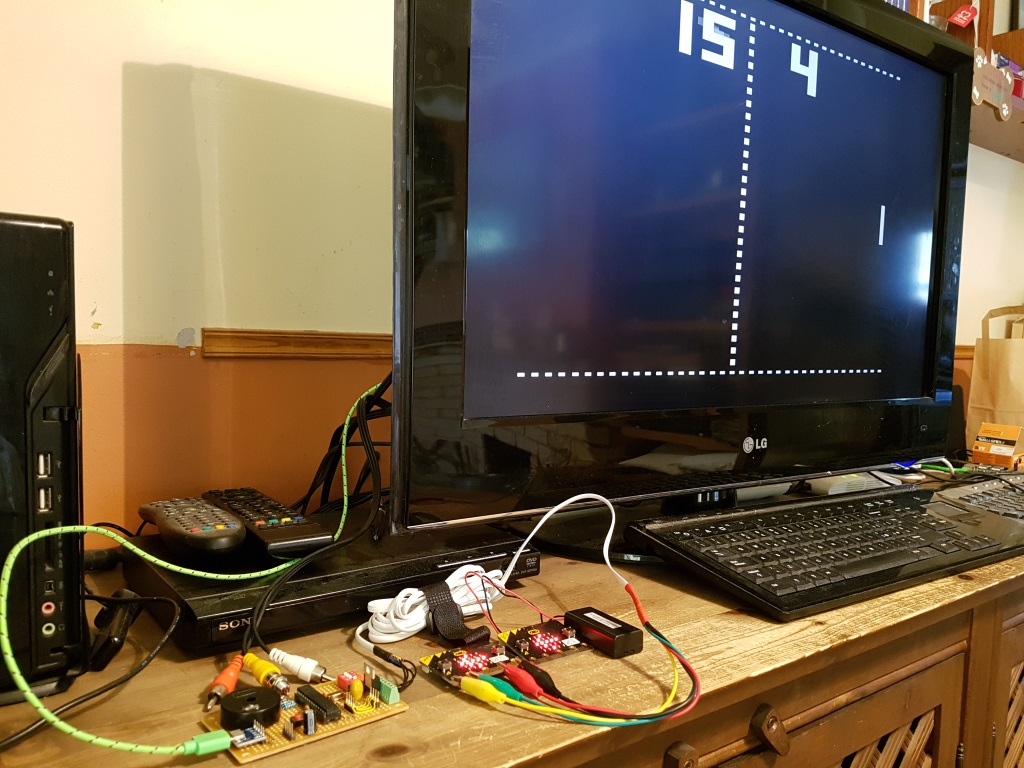
There are few things more satisfying than turning a tiny circuit board into a tiny arcade. That is exactly the magic behind Playing Pong With Micro:bits! With a 5×5 LED display, two built-in buttons, radio communication, and beginner-friendly coding tools like Microsoft MakeCode, the micro:bit is practically begging to become a pocket-sized game console. It may not replace your PlayStation, but it will absolutely make you feel like a wizard with a USB cable.
Pong is one of the simplest video games ever made: a ball moves, a paddle blocks it, points happen, and somebody celebrates like they just won an eSports championship. That simplicity makes it perfect for learning coding, logic, loops, variables, coordinates, inputs, and debugging. In other words, Pong is not just retro fun. It is a sneaky computer science lesson wearing sneakers.
This guide explores how a micro:bit Pong game works, what parts you need, how to think through the game logic, and how to make the project more exciting with two-player radio controls, sound, scoring, and classroom-friendly upgrades. Whether you are a student, teacher, hobbyist, or parent trying to look cooler than the family printer, this project is a terrific way to learn physical computing through play.
What Is a Micro:bit Pong Game?
A micro:bit Pong game is a simplified version of the classic paddle-and-ball game built on the BBC micro:bit. Instead of a large screen, the game uses the micro:bit’s 25 red LEDs arranged in a 5×5 grid. Instead of a joystick, it uses the A and B buttons to move a paddle left and right. Instead of a booming arcade cabinet, it fits in your palm and looks innocent enough to sneak into a backpack.
The challenge is also the charm. A 5×5 LED matrix is tiny. That means every pixel matters. The paddle might be two LEDs wide. The ball might be one blinking dot. The entire court is smaller than a postage stamp, yet the same core ideas from bigger games still apply: position, movement, collision, scoring, timing, and player input.
For a beginner, this project introduces important coding concepts in a way that feels natural. You do not learn variables because a textbook says “variables are important.” You learn variables because your ball needs an x-position and y-position, or else it will wander through digital space like a confused firefly.
Why Pong Is a Perfect Micro:bit Project
Pong works beautifully on micro:bit because it is simple enough to build but flexible enough to improve. The first version can be a one-player game where you bounce a ball with a paddle at the bottom of the LED display. Once that works, you can add a second player, radio communication, speed changes, scorekeeping, sound effects, or even a homemade cardboard arcade cabinet.
It Teaches Coordinates Without Feeling Like Math Class
The LED grid uses x and y coordinates. On a 5×5 micro:bit display, x usually runs from 0 to 4 left to right, and y runs from 0 to 4 top to bottom. A ball at x=2 and y=1 appears near the upper middle of the screen. A paddle at the bottom might occupy x=1 and x=2 when y=4.
That sounds technical until students see the dot move. Suddenly, coordinates are not abstract. They are the difference between saving the ball and watching it drop off the screen like a dramatic soap opera exit.
It Makes Debugging Feel Useful
Debugging is easier when the problem is visible. If the ball disappears, moves too fast, ignores the paddle, or bounces through the wall like a ghost with Wi-Fi, you can see that something is wrong. Students can test one rule at a time and adjust the code until the game behaves properly.
It Encourages Creative Upgrades
Once the basic version works, the project becomes a playground. Want a faster ball after every successful hit? Add a speed variable. Want a two-player version? Use micro:bit radio. Want a victory animation? Flash a smiley face. Want the losing sound to be mildly tragic? Add a tone. The micro:bit gives you just enough hardware to be useful and just enough limitation to force creativity.
What You Need to Play Pong With Micro:bits
You do not need a laboratory, a soldering iron, or a mysterious drawer full of wires labeled “probably important.” A basic Pong build can be done with just a few items.
Basic Supplies
- One BBC micro:bit for a simple single-player version
- Two BBC micro:bits for a wireless two-player version
- A USB cable for programming
- A computer, Chromebook, or tablet that can access Microsoft MakeCode
- Battery packs if you want to play without being attached to the computer
- Optional: headphones, buzzer, speaker, cardboard, tape, or craft materials for upgrades
The micro:bit already includes the important pieces for this project: a LED matrix, two programmable buttons, motion sensors, and radio communication. Version 2 also includes built-in sound features, which makes game feedback easier and more fun.
How the Game Logic Works
Before coding, it helps to think like the game. Pong is built from a few repeating questions: Where is the ball? Which way is it moving? Where is the paddle? Did the ball hit something? Did the player miss?
That is the whole secret. A game is not magic; it is a loop asking the same questions very quickly while pretending to be exciting.
1. Track the Ball
The ball needs two variables: one for its horizontal position and one for its vertical position. For example, the ball might start at x=2 and y=2, which places it in the center of the micro:bit screen.
The ball also needs direction variables. A direction of +1 means it moves right or down. A direction of -1 means it moves left or up. On each turn of the game loop, the code updates the ball’s position by adding the direction values.
2. Track the Paddle
The paddle sits at the bottom row of the LED matrix. The player presses button A to move left and button B to move right. The code must prevent the paddle from moving off the screen, because nobody wants a paddle that escapes the game and starts a new life in the margins.
A two-LED paddle works well on the 5×5 display. It gives the player a fair chance without making the game too easy.
3. Detect Wall Collisions
If the ball reaches the left or right edge, it should bounce back. That means the horizontal direction changes from +1 to -1, or from -1 to +1. If the ball reaches the top edge, the vertical direction changes so the ball moves downward again.
4. Detect Paddle Collisions
When the ball reaches the bottom row, the code checks whether the ball’s x-position overlaps the paddle. If it does, the ball bounces. If it does not, the player loses a point or the game resets.
5. Add Score and Feedback
Scorekeeping can be simple. Add one point when the player successfully returns the ball. Show the score briefly, then continue. If the score gets too large for the tiny display, use animations or scrolling numbers. The micro:bit can scroll text, although watching a number slowly parade across five LEDs may feel like a very tiny marching band.
Single-Player Pong on One Micro:bit
The easiest version of Playing Pong With Micro:bits uses one micro:bit. The player controls a paddle at the bottom of the screen. A ball falls from the top, bounces around, and must be returned by the paddle.
This version is ideal for beginners because all logic happens on one device. There is no radio setup, no synchronization problem, and no second player asking, “Is it broken?” every eight seconds.
Suggested Game Flow
- Start the ball in the center of the screen.
- Set the paddle near the bottom center.
- Use button A to move the paddle left.
- Use button B to move the paddle right.
- Move the ball one step at a time.
- Bounce the ball off the side walls and top wall.
- Check whether the ball hits the paddle.
- Add score for a successful hit.
- Show a game-over animation when the player misses.
The most important part is timing. If the ball moves too quickly, the game feels impossible. If it moves too slowly, it feels like watching a snail consider its career options. Start with a comfortable pause between ball movements, then reduce the pause as the score increases.
Two-Player Pong With Micro:bit Radio
Two-player Pong is where the project becomes especially fun. The micro:bit has built-in radio communication, allowing devices to send numbers, strings, or values to other micro:bits in the same radio group. This means one micro:bit can act as a controller, or two micro:bits can exchange player movement data.
In a classroom, radio groups matter. If every team uses the same radio group, one student may accidentally control another team’s game from across the room. This is hilarious for about twelve seconds, then it becomes debugging soup. Assign each pair a different radio group number to keep signals separate.
Two Common Wireless Designs
Controller design: One micro:bit displays the game while another micro:bit acts as a wireless controller. Button A sends “left,” and button B sends “right.” The display micro:bit receives those messages and moves the paddle.
Two-screen design: Each player has a micro:bit, and the devices send ball or paddle information back and forth. This is more advanced because both screens need to agree on the state of the game. It is a great challenge for students who already understand the single-player version.
For most beginners, the controller design is the better first step. It teaches radio communication clearly without turning the project into a tiny networking conference.
Using MakeCode for Micro:bit Pong
Microsoft MakeCode is a popular way to program the micro:bit because it supports block-based coding, JavaScript, and Python-style editing. Beginners can drag blocks into place, while more advanced students can switch to text and inspect the code behind the blocks.
For Pong, MakeCode is especially friendly because it includes input blocks, LED display blocks, game-related logic, loops, variables, and radio commands. Students can build a working prototype quickly, then refine it through testing.
Blocks to Look For
- On start: Set variables such as ball position, paddle position, score, and speed.
- Forever: Create the main game loop.
- On button A pressed: Move the paddle left.
- On button B pressed: Move the paddle right.
- Plot/unplot: Turn LEDs on and off to draw the ball and paddle.
- Radio set group: Keep wireless communication organized.
- Radio send number/string: Send controller actions to another micro:bit.
- On radio received: React when another micro:bit sends data.
The best approach is to build small. First display a paddle. Then move it. Then add a ball. Then make the ball bounce off walls. Then check paddle collision. Every working step is a tiny victory, and tiny victories are the snacks of programming.
Common Problems and Easy Fixes
The Ball Disappears
This usually happens when the x or y coordinate goes outside the 0 to 4 range. Add boundary checks before plotting the ball. If the ball goes beyond the edge, reverse its direction or reset its position.
The Paddle Moves Off Screen
Limit the paddle position. If the paddle is two LEDs wide, its left position should not go below 0 or above 3. Otherwise, part of the paddle will fall off the display like it missed the bus.
The Game Flickers Too Much
Flickering can happen when LEDs are cleared and redrawn too quickly. Try controlling when you clear the screen, or redraw only what needs to change. A short pause can also make the movement easier to see.
Radio Controls Do Not Work
Check that both micro:bits use the same radio group. Make sure the sender and receiver agree on the message format. If one device sends a number and the other listens for a string, they will ignore each other like two people texting in different languages.
Fun Upgrades for Your Micro:bit Pong Game
After the basic game works, upgrades turn it from a class assignment into a mini arcade experience.
Add Speed Levels
Make the ball move faster after every successful hit. This creates tension and keeps the game from becoming too predictable. Just avoid making it so fast that the ball becomes a teleporting pixel of doom.
Add Sound Effects
On micro:bit V2, you can use built-in sound. Add a beep when the ball hits the paddle, a lower tone when the player misses, and a cheerful sound when the player reaches a target score.
Add a Start Screen
Scroll “PONG” or show an icon before the game begins. This makes the project feel polished and gives players a moment to prepare their thumbs for glory.
Add Difficulty Modes
Use button A+B to switch between easy, normal, and hard mode. Easy mode can use a wider paddle or slower ball. Hard mode can use a smaller paddle and faster speed.
Build a Cardboard Arcade Case
A simple cardboard holder can make the game easier to play and more fun to present. Cut a window for the LED display, label the A and B buttons, and decorate it like an old-school arcade cabinet. Bonus points if you add dramatic flames, racing stripes, or a suspiciously confident robot mascot.
Classroom and STEM Learning Benefits
Playing Pong with micro:bits is more than a fun project. It is a strong STEM activity because it combines coding, electronics, design thinking, testing, and teamwork. Students learn by making decisions and seeing immediate results.
The project also supports computational thinking. Students break the game into smaller problems, create algorithms, test conditions, use variables, and improve their program through iteration. These are the same habits used in professional software development, only with fewer meetings and more blinking lights.
For teachers, Pong is also easy to differentiate. Beginners can build a single-player version with guided blocks. Intermediate students can add scoring and speed. Advanced students can create radio multiplayer, improve collision physics, or use external displays.
Best Practices for a Better Game
Start with a plan before coding. Sketch the 5×5 grid on paper and mark where the ball and paddle will go. Decide what should happen when the ball reaches each wall. Decide how the game starts, how it ends, and how the player earns points.
Keep variable names clear. Names like ballX, ballY, paddleX, xDirection, and score are much easier to understand than names like thing1 and mysteryNumber. Future-you will appreciate this. Future-you is already tired.
Test every feature separately. Do not write the entire game and then press run with the confidence of a movie hero walking away from an explosion. Test the paddle first. Test the ball next. Test bouncing. Test scoring. Then combine everything.
Real Experience: What It Feels Like to Build and Play Micro:bit Pong
The first time you build Pong on a micro:bit, the project feels almost too small to work. You stare at the 5×5 LED grid and think, “This is not a screen. This is a sneeze with pixels.” Then the first dot moves, and suddenly the whole thing becomes alive. That little glowing pixel is no longer just an LED. It is the ball, the drama, the problem, and occasionally the villain.
One of the most useful experiences is discovering how much game design depends on tiny adjustments. A pause that is too short makes the game impossible. A paddle that is too wide makes it boring. A ball that always bounces the same way becomes predictable. A small change in speed can transform the game from sleepy to exciting. This teaches an important lesson: good coding is not only about making something work; it is about making something feel right.
Another memorable part is debugging with other people. In a group setting, one student may handle the paddle controls, another may track the ball logic, and another may test the game like a professional bug hunter with a personal grudge. When the ball passes through the paddle, everyone has theories. The code becomes a mystery scene, except the detective is holding a micro:bit and saying, “Wait, what is the y-value right now?”
Wireless Pong adds a different kind of excitement. When two micro:bits communicate by radio, the project suddenly feels bigger than the hardware. Pressing a button on one device and seeing another device respond is a small moment of technological joy. It is the same thrill as using a remote control, except you built the remote control yourself and now feel qualified to run mission control.
The best classroom experience comes when students personalize the game. Some want sound effects. Some want a countdown. Some want a victory face. Some want the losing animation to be unnecessarily savage. These choices matter because they turn a coding assignment into a personal project. Ownership increases motivation, and motivation is the secret sauce that makes students keep working even when the code acts like it was raised by raccoons.
Playing the finished game is funny because it is both simple and surprisingly competitive. People lean forward. They tense up. They blame the paddle. They accuse the ball of cheating. Someone eventually says, “One more round,” which is the traditional phrase humans use before playing twelve more rounds.
Most importantly, building micro:bit Pong proves that games are understandable. They are not mysterious products that appear from giant studios fully formed. They are systems made from rules, variables, inputs, outputs, timing, and feedback. When students build a tiny Pong game, they get a glimpse behind the curtain. They learn that technology is not just something to consume. It is something to create, question, break, fix, and improve.
Conclusion
Playing Pong With Micro:bits! is a small project with a big learning payoff. It introduces coding logic, LED coordinates, button input, loops, variables, collision detection, scoring, and radio communication in a way that feels playful instead of intimidating. The micro:bit’s limits make the project more creative, not less. With only 25 LEDs, students must think carefully, test often, and design with purpose.
Whether you build a simple one-player version or a wireless two-player challenge, micro:bit Pong is a fantastic introduction to game development and physical computing. It is affordable, classroom-friendly, beginner-friendly, and just silly enough to keep everyone smiling. After all, if a blinking dot can teach programming, teamwork, and persistence, maybe the future of STEM education really does fit in the palm of your hand.