If you have ever tried to show a vacation photo, a workout app, a recipe video, or a last-minute presentation from your iPhone on a bigger screen, you already know the pain of “tiny screen syndrome.” The good news is that mirroring an iPhone to a Roku is usually easy. The slightly less fun news is that the phrase without Wi-Fi can mean several different things, and not all of them work the same way.
This guide breaks it all down in plain English. You will learn how to mirror your iPhone to Roku over Wi-Fi, what still works when you do not have internet, what to do when you have no router at all, and which shortcuts are actually useful instead of just sounding clever on the internet. In other words, fewer tech headaches, more giant-screen glory.
What You Need Before You Start
Before you try anything, make sure your Roku and iPhone are both ready for the job. Most newer Roku TVs and many recent Roku streaming players support AirPlay, but not every older model does. The fastest way to check is on the Roku itself: go to Settings and look for Apple AirPlay and HomeKit. If you see that menu, you are in business. If you do not, your Roku may be too old, may need a software update, or may not support iPhone mirroring the way you want.
You should also update both devices. A surprising number of screen mirroring issues come down to old software, stale network settings, or a Roku that has been quietly living in 2024 while your iPhone is charging into 2026 like a caffeinated squirrel.
Quick checklist
Here is the short version of what helps:
• An iPhone with current iOS
• A Roku device with AirPlay support
• AirPlay enabled on Roku
• Both devices on the same local network for normal wireless mirroring
• Bluetooth and Wi-Fi turned on for the smoothest discovery process
• A stable connection if you are streaming video
Screen Mirroring, AirPlay, Casting, and Play on Roku Are Not the Same Thing
Many guides treat all big-screen phone tricks like one giant feature. They are not. If you want a smoother setup, it helps to know which tool does what.
Screen mirroring
This duplicates your entire iPhone display on the TV. Open Control Center, tap Screen Mirroring, choose your Roku, and your TV becomes a larger version of your phone. Great for presentations, websites, fitness apps, and showing grandma exactly how adorable your dog looked in that birthday hat.
AirPlay streaming
This sends specific media from an app, such as a video, song, or photo, to the Roku. In many cases, this works better than full mirroring because it is cleaner, often more stable, and does not display your notifications, lock screen pop-ups, or your accidental return to three half-finished shopping carts.
Casting from supported apps
Some Roku-friendly apps have their own cast button. This is different from Apple screen mirroring. You launch the content from the app and the Roku takes over playback.
Play on Roku
This lives inside the Roku mobile app and is mostly for personal media such as your own photos, music, and videos. It is useful, but it is not full iPhone screen mirroring. Think of it as “show my stuff on the TV,” not “clone my phone live.”
How to Mirror Your iPhone to Roku Over Wi-Fi
This is the standard method, and for most people it is the best one.
Step 1: Enable AirPlay on Roku
On your Roku, go to Settings > Apple AirPlay and HomeKit. Turn AirPlay on. While you are there, you can also choose whether the Roku asks for a code every time, only the first time, or uses a password. If you are in a shared home, the code option is the smarter move.
Step 2: Connect Both Devices to the Same Network
Your iPhone and Roku should be on the same Wi-Fi network. This is the part that matters most. If one device is on the guest network and the other is on the main network, or one is on 2.4 GHz and the other is isolated by router settings, your Roku may simply not appear.
Step 3: Open Screen Mirroring on iPhone
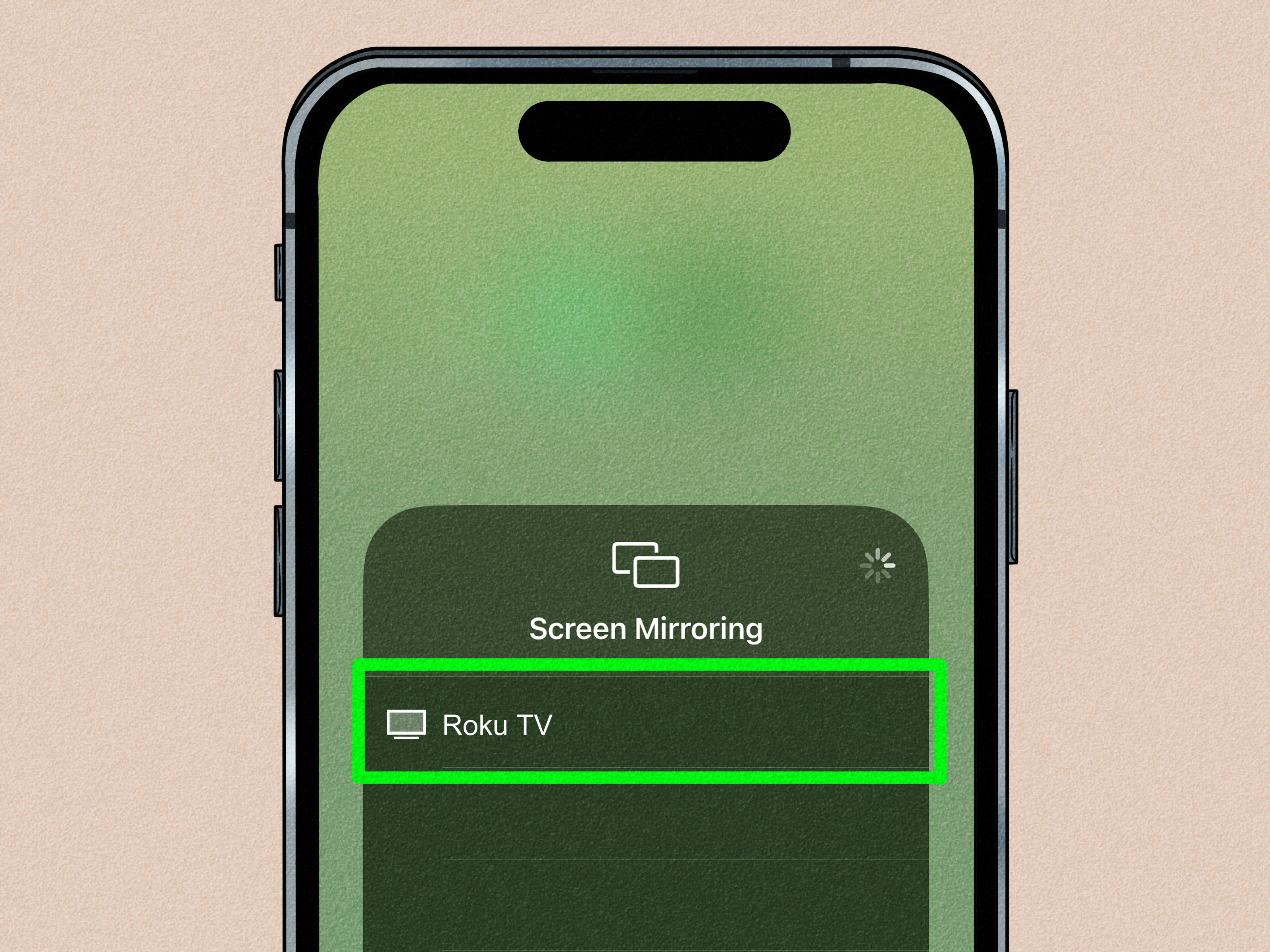
Swipe down from the upper-right corner of your iPhone screen to open Control Center. Tap Screen Mirroring. After a moment, your Roku should show up in the list. Tap it.
Step 4: Enter the AirPlay Code
If a code appears on your TV, enter it on your iPhone. Once connected, your iPhone display appears on your Roku-connected TV.
Step 5: Stop Mirroring When You Are Done
Open Control Center again, tap Screen Mirroring, then tap Stop Mirroring. Clean exit. No drama.
Bonus: Stream from Inside an App
In apps like Photos or some video apps, tap the AirPlay icon instead of using full screen mirroring. This often gives you smoother playback and a less cluttered TV view. It is especially handy when you want the video on the TV but still want to text, browse, or pretend you are “working” on your phone.
How to Mirror Your iPhone to Roku Without Wi-Fi
This is where things get interesting. “Without Wi-Fi” can mean several real-world situations, and each one has a different answer.
Scenario 1: You Have a Router, but No Internet
This is the easiest version of “no Wi-Fi” to solve. If your router is still creating a local wireless network, your iPhone and Roku can often still talk to each other on that local network even if your internet service is down. In plain terms, no internet does not always mean no wireless mirroring.
Connect both the iPhone and Roku to the same local network, then use AirPlay as usual. This works well for local photos, downloaded videos, presentations, and anything else that does not need the internet while it is playing.
Scenario 2: You Do Not Have Home Wi-Fi, but You Do Have a Hotspot
A second phone or dedicated hotspot can help. Connect the Roku to that hotspot, then connect your iPhone to the same hotspot network. After both devices land on the same network, try AirPlay again.
The key phrase there is the same hotspot network. If you are using your iPhone as the hotspot source, that same iPhone cannot also join its own hotspot as the AirPlay sender. That is why a second phone, a travel router, or a separate hotspot device usually works better than trying to make one iPhone do everything.
Scenario 3: You Have No Wireless Network at All
If there is truly no Wi-Fi network, no hotspot, and no router creating a local connection, direct wireless iPhone-to-Roku mirroring is not the reliable answer. Roku does not offer a magic cable-free mode that turns a totally disconnected setup into instant iPhone mirroring.
Your best practical workaround is a wired connection from the iPhone to the TV using a compatible adapter and HDMI cable. For older iPhones, that is usually a Lightning Digital AV Adapter. For newer USB-C iPhones, it is a USB-C to HDMI adapter. Plug the iPhone into the TV, switch the TV to the correct HDMI input, and your phone appears on the screen.
That setup technically bypasses Roku rather than mirroring through Roku, but it solves the real problem: getting your iPhone on the big screen when wireless options are unavailable.
Scenario 4: You Only Want to Show Personal Photos or Videos
If full live mirroring is overkill, the Roku mobile app can be a smart shortcut. It can display personal media from your iPhone to your Roku. This is great for photo slideshows, family clips, and casual sharing. It is not ideal for gaming, scrolling apps, or demonstrating something live, because it is not cloning the whole interface.
How to Use the Roku Mobile App for Personal Media
If your goal is simple sharing, this method is underrated.
How it works
Install the Roku mobile app on your iPhone. Make sure the app has permission to access your local network and media. Once it detects your Roku, look for the media-sharing option and choose the photos, music, or videos you want to display.
This method is usually lighter and easier than full screen mirroring when you just want to show off a few clips from a birthday party, a project mockup, or the 47 pictures you took of your lunch because the lighting was “kind of cinematic.”
Common Problems and How to Fix Them
Your Roku does not appear on the iPhone
First, confirm both devices are on the same network. Then restart both devices. Make sure AirPlay is enabled on Roku. If the Roku mobile app is involved, verify that iPhone permissions for Local Network are enabled.
The connection starts, then drops
This usually points to weak Wi-Fi, network congestion, or software glitches. Move the Roku closer to the router, reduce heavy network traffic, and update both devices.
You get video but no sound
Check volume on the TV and on the iPhone. Also test whether the app you are using behaves better with in-app AirPlay than full screen mirroring.
Some apps refuse to mirror cleanly
That is normal. Certain video apps handle protected content differently. Instead of mirroring the whole phone, use the AirPlay button inside the app when available. It is often the cleaner route.
You are trying the wrong Roku menu
This one catches a lot of people. On Roku, the classic Screen mirroring menu is mainly associated with Android and Windows-style mirroring. For iPhone, the important setting is typically Apple AirPlay and HomeKit. If you chase the wrong menu for fifteen minutes, congratulations, you have completed the beginner rite of passage.
Best Ways to Use iPhone Mirroring on Roku
Once it works, it becomes one of those features you keep using. Here are some genuinely helpful uses:
• Share travel photos and videos with family
• Run a quick slideshow or presentation without opening a laptop
• Stream workout or yoga sessions in a bigger view
• Browse websites or online stores from the couch
• Show app demos or design previews on a television
• Watch downloaded videos when the internet is unavailable
Real-World Experience: What Mirroring Your iPhone to Roku Actually Feels Like
In real life, iPhone-to-Roku mirroring feels a little different depending on the situation. When everything is updated, both devices are on the same network, and your Wi-Fi is behaving like a civilized member of society, the experience is pleasantly boring. That is a compliment. You tap a couple of buttons, your Roku appears, and suddenly your phone is on the TV. For everyday use, that is exactly what you want: no drama, no wizardry, no weird ritual involving unplugging things for ten seconds while whispering “please work.”
The first time most people try it, they use full screen mirroring. That makes sense. It is easy, visual, and instantly satisfying. If you are showing vacation photos, walking someone through an app, or pulling up a recipe while cooking, it feels natural. You scroll on your phone and the TV follows along. The delay is usually small enough that casual use feels smooth. For presentations and general browsing, it is more than good enough.
Where the experience gets even better is when you realize that full mirroring is not always the best choice. For video streaming, app-based AirPlay often feels cleaner. You tap the AirPlay icon in the app, the video lands on the TV, and your phone becomes a controller instead of a giant on-screen duplicate. That means fewer accidental pop-ups, fewer awkward notification cameos, and less risk of the entire room seeing that you still have twelve unread messages and three weather apps for some reason.
Using Roku without internet is also more practical than many people think. If your home internet is down but your router is still running a local network, mirroring can still be useful for downloaded content. This is especially handy during outages, travel, or temporary setups. You can still watch saved videos, review photos, or present files that are already on your phone. That kind of flexibility makes the feature feel less like a novelty and more like a dependable backup plan.
The weak spot is the phrase “without Wi-Fi.” People often imagine a magical direct link between the iPhone and Roku in the middle of nowhere. In practice, that is not usually the smooth path. If you truly have no wireless network, the experience shifts from “tap and mirror” to “build a workable setup.” A second hotspot, a travel router, or a wired HDMI adapter becomes the grown-up solution. It is not as elegant, but it is reliable, and reliability wins every time when you are trying to show content to other people.
Another interesting part of the experience is how much it depends on the kind of content you are sharing. Photos, slides, basic apps, and locally stored videos usually behave well. Fast-paced games, protected streaming apps, and flaky hotel networks are where you start seeing the limits. That is not a Roku-only problem; it is just the reality of wireless mirroring. The more timing-sensitive the task, the more you appreciate either direct app streaming or a wired backup.
Overall, mirroring an iPhone to Roku is one of those features that sounds minor until you start using it regularly. Then it becomes part of your routine. It is useful on movie nights, during family gatherings, while traveling, in classrooms, in conference rooms, and in those random moments when passing a phone around feels clumsy. Once you know the difference between mirroring, AirPlay streaming, and personal media sharing, the whole process gets easier. And once it is easy, you stop thinking about the technology and just enjoy the bigger screen, which is really the whole point.
Final Thoughts
If you want the simplest path, mirror your iPhone to Roku over the same Wi-Fi network using AirPlay. That is the cleanest, most official, and most reliable option. If you do not have internet but still have a local network, you may still be able to mirror just fine. If you have no network at all, the smartest workaround is usually a hotspot from another device or a wired HDMI adapter to the TV.
The big secret is this: the best method depends less on the word Roku and more on what you are trying to show. Full mirroring is great for live screen sharing. In-app AirPlay is better for many videos. The Roku app is perfect for personal media. And wired HDMI is the dependable hero when wireless options disappear.
Once you know which tool fits which moment, mirroring your iPhone to Roku becomes refreshingly simple. Which is nice, because life already contains enough mysteries. Your TV should not be one of them.